

- No Match Reply — what the bot sends when a customer’s message doesn’t match any trigger keyword.
- Frequency — how often the Get Started message is allowed to repeat for the same customer.
pizza, but no flow is set up for that word. Instead of silence,
No Match Reply fires: “Sorry, I didn’t quite get that — type ‘menu’ to see what I can
help with.”
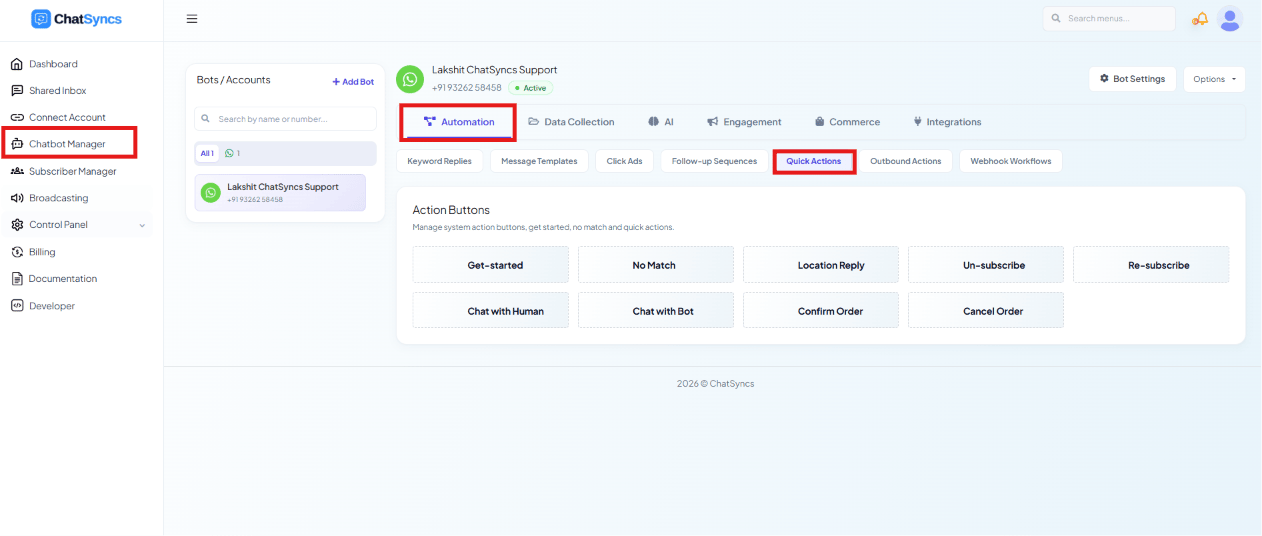
General Settings
To use the Get-started and No Match actions, first go to Bot Settings → Settings → General and turn their Enable toggle ON. Chat with Human doesn’t have a toggle — it works as soon as you fill in the Chat with Human Email field below.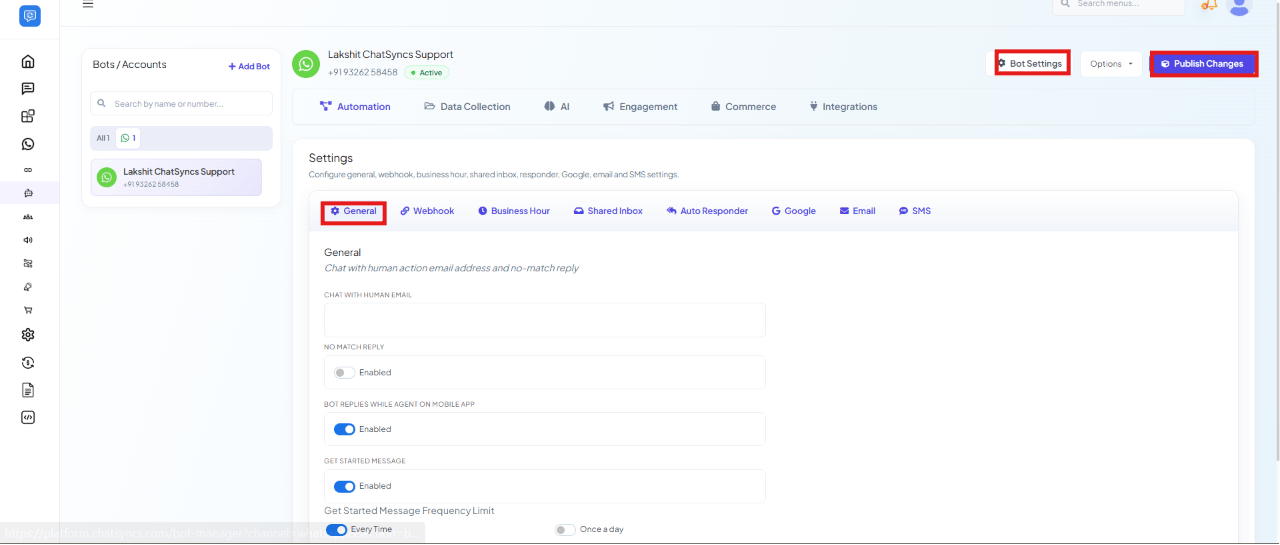
Open Bot Settings
Go to Settings
Open the General tab
Set the fields you need
Publish
Get-started
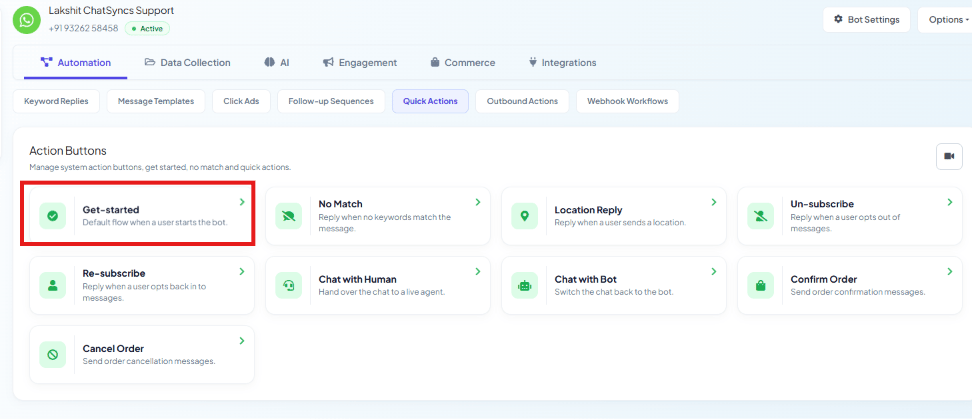
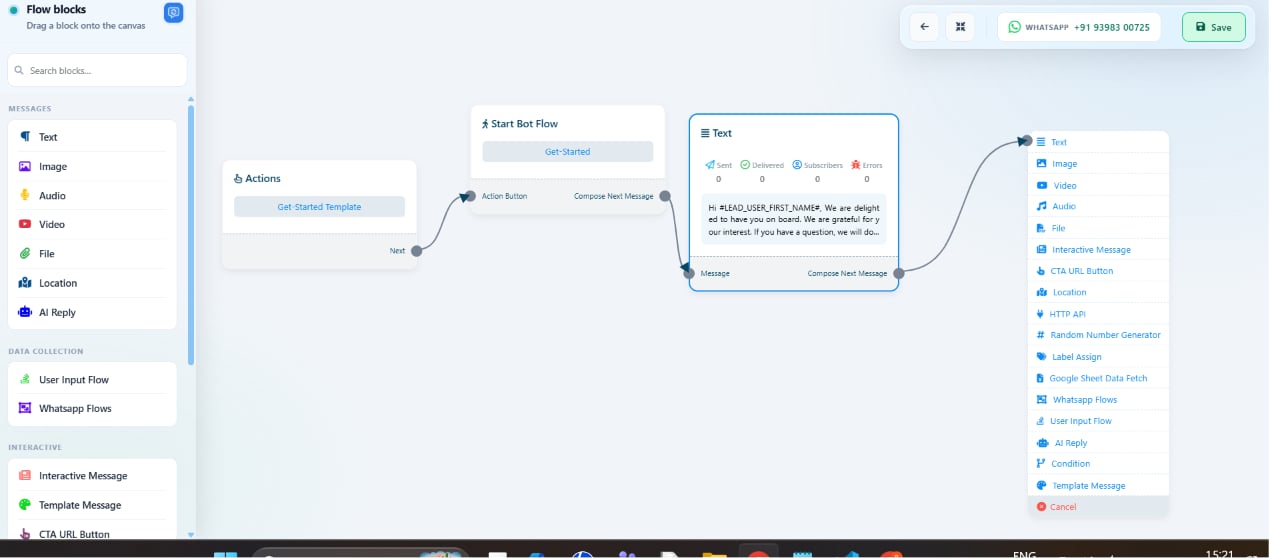
When someone opens a chat with your WhatsApp number for the very first time — say, they found your number on your website and tapped it to open WhatsApp — they haven’t sent you a message yet, so WhatsApp shows a green Get Started button on the chat screen instead of a normal text box. This button is built into WhatsApp itself, not something ChatSyncs adds. The Get-started action fires the moment that customer taps it.Open the Get-started tile
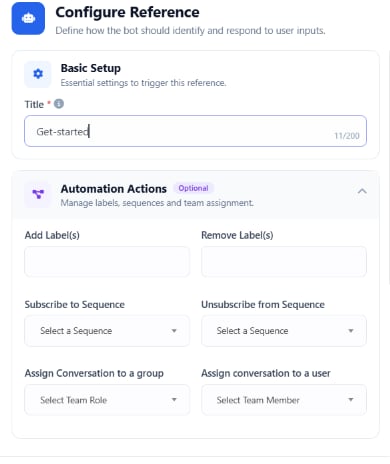
Give it a title
Get-started — just for your own reference in the flow list.Set Automation Actions (optional)
Save
Build the welcome message
Save the flow
No Match
The No Match button fires whenever a customer’s message doesn’t match any keyword, intent, or automation. Click its tile, then build the fallback reply the same way: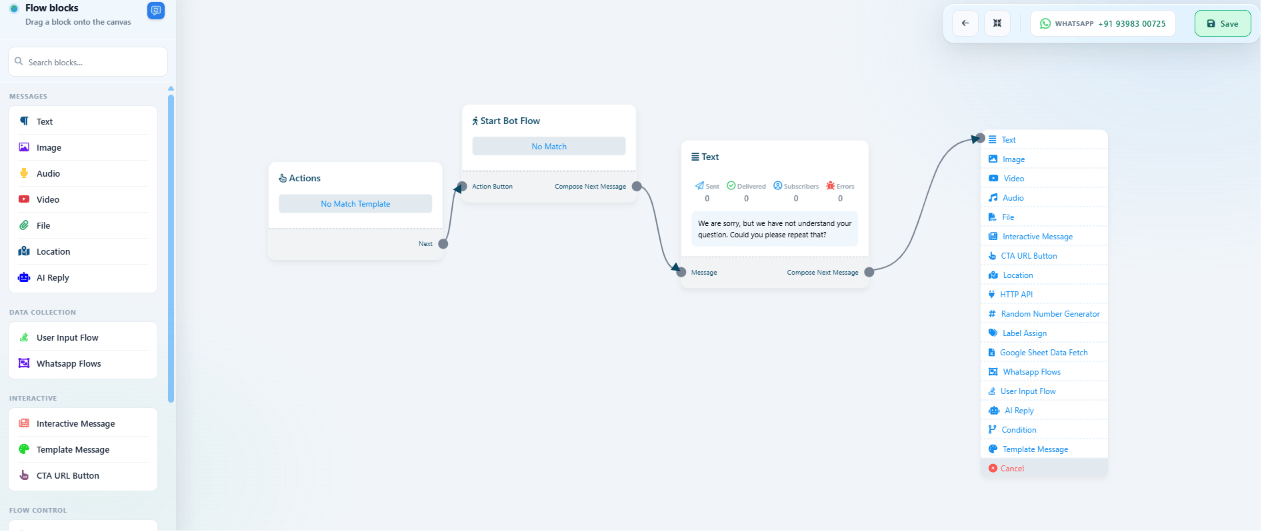
Open the Text block
Write a fallback message
Connect further blocks (optional)
Save
Location Reply
The Location Reply button fires automatically whenever a customer shares their live location or a location pin — no toggle to enable, just build the flow: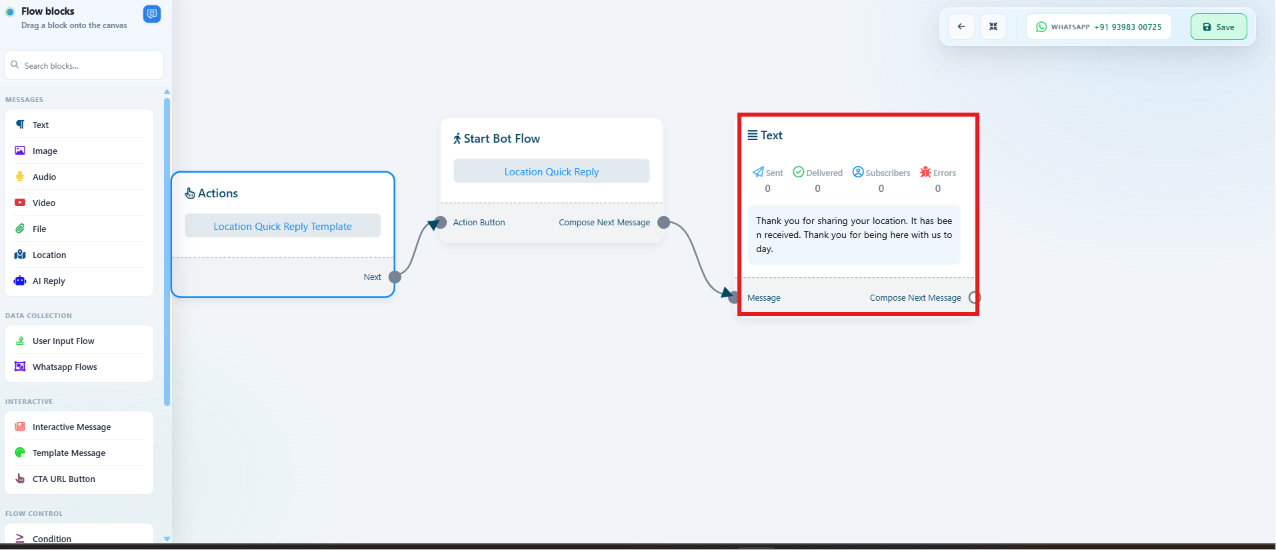
Un-subscribe & Re-subscribe
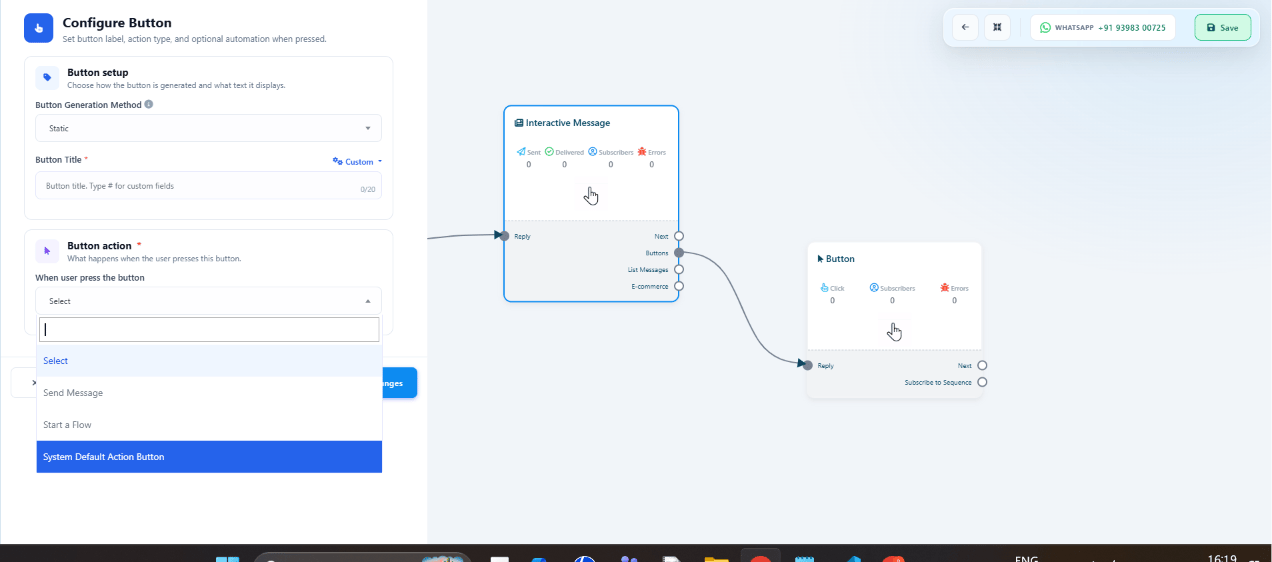
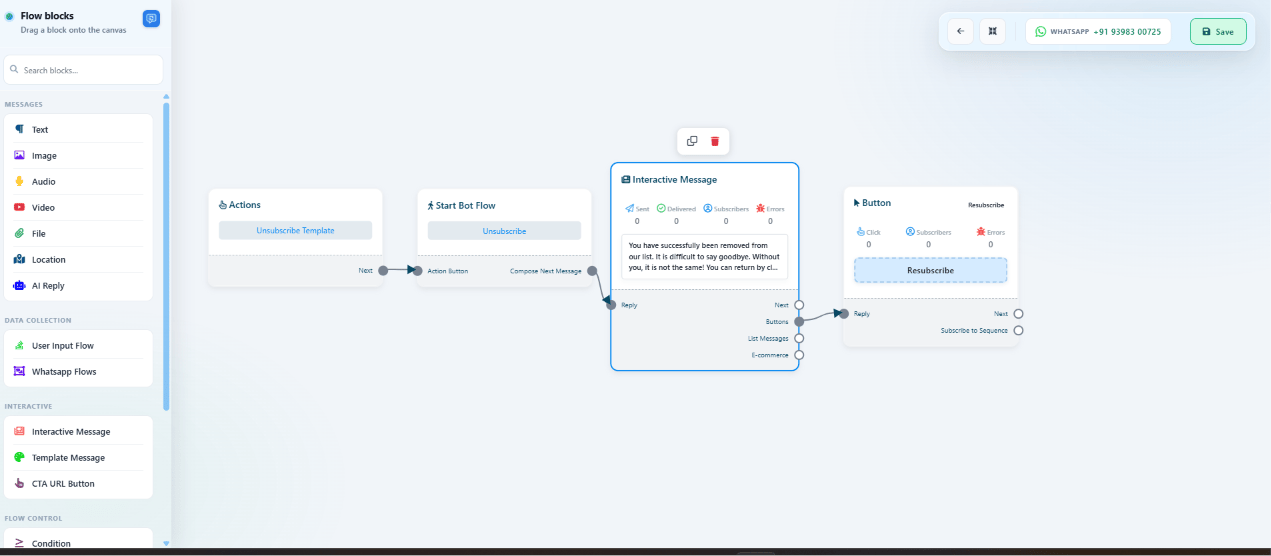
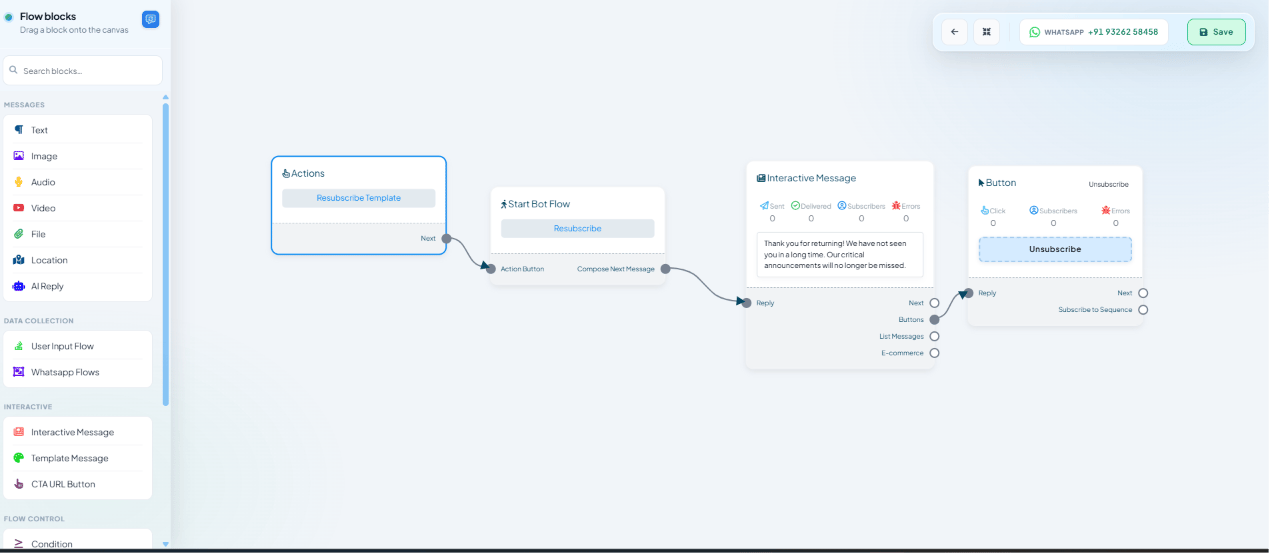
Unlike the three buttons above, Un-subscribe and Re-subscribe aren’t standalone triggers — they’re button actions you add inside an Interactive Message block.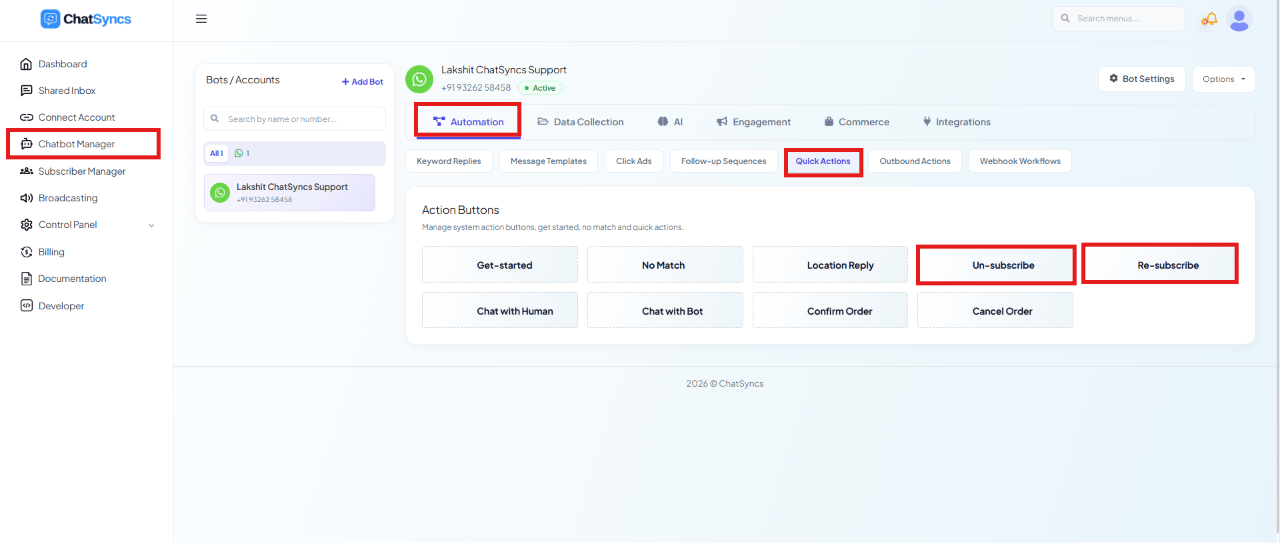
Go to Keyword Replies
Add an Interactive Message block
Add a button
Set the button's title and generation method
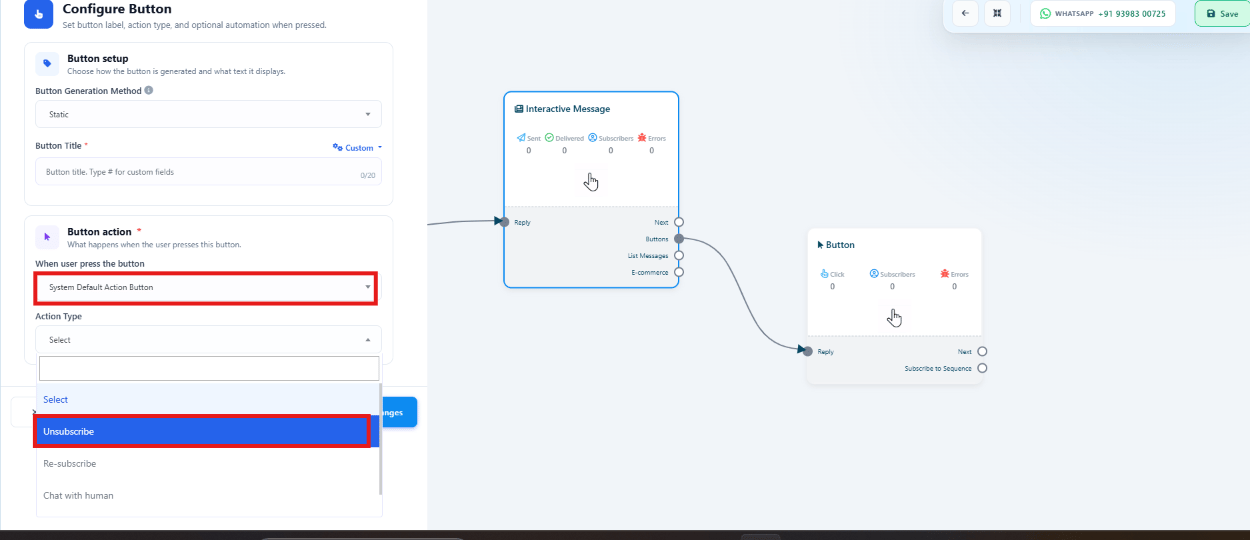
Unsubscribe.Choose System Default Action Button
Pick the action
Connect and save
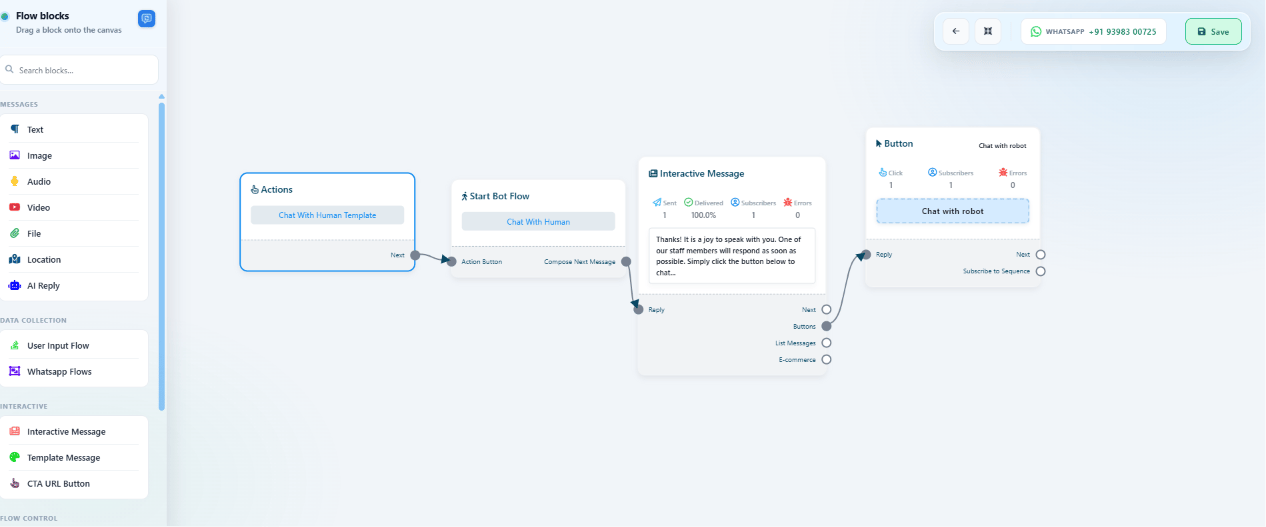
Chat with Human
The Chat with Human button lets a customer request a live agent. ChatSyncs emails the address set as Chat with Human Email in General Settings and starts the Chat with Human flow.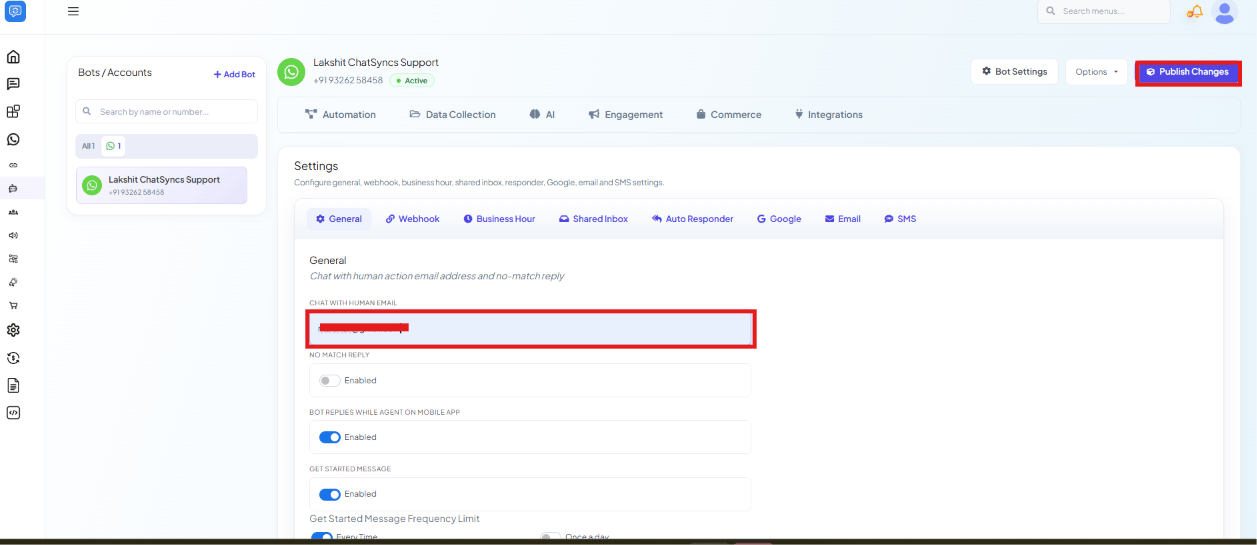
Chat with Bot
The Chat with Bot button is the reverse — it lets a customer who’s talking to a live agent switch back to automated replies. Build it the same way: Actions block selecting the Chat With Robot Template, connected to Start Bot Flow, then an Interactive Message welcoming the customer back with a button to switch to a human agent again (System Default Action Button → Chat with Human):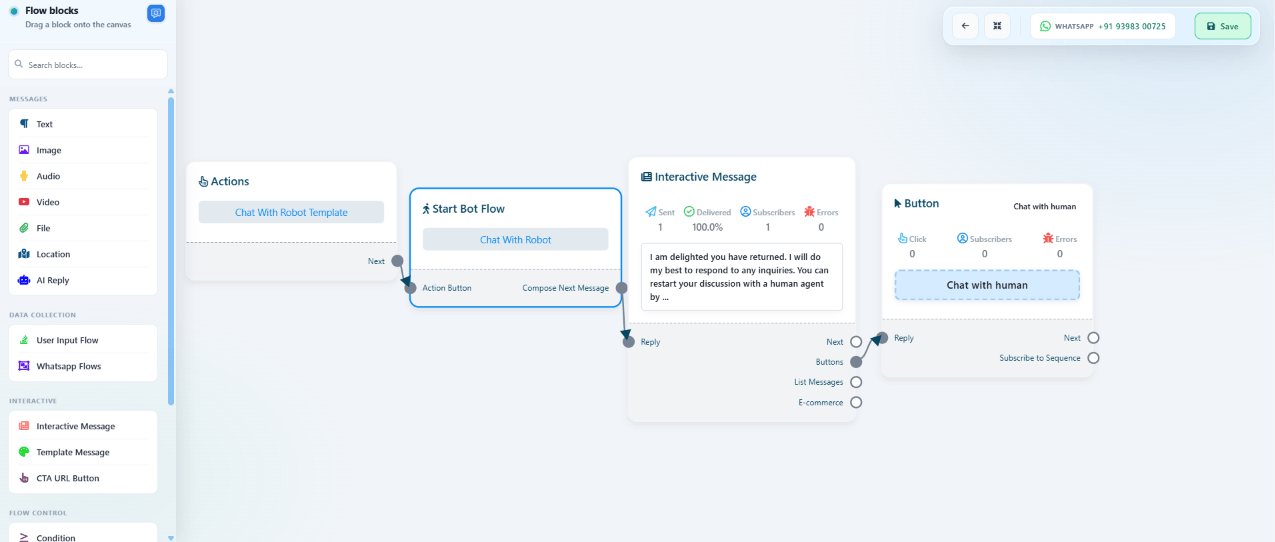
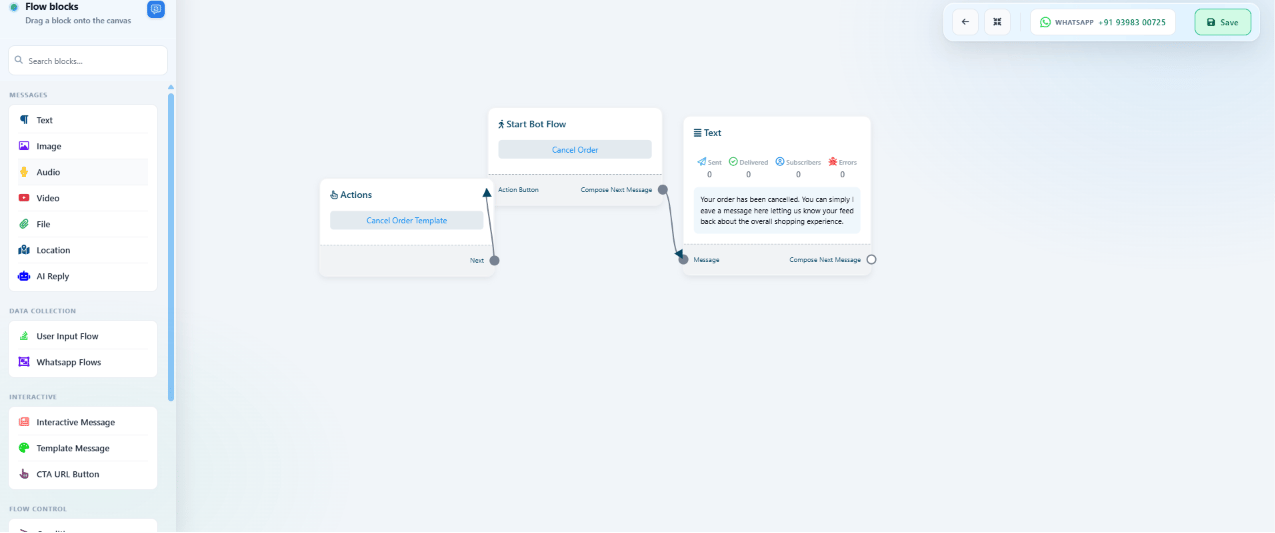
Confirm Order & Cancel Order
Confirm Order and Cancel Order are system default action buttons for eCommerce integrations only — they fire from order events on a connected Shopify or WooCommerce store, not from a normal chatbot conversation.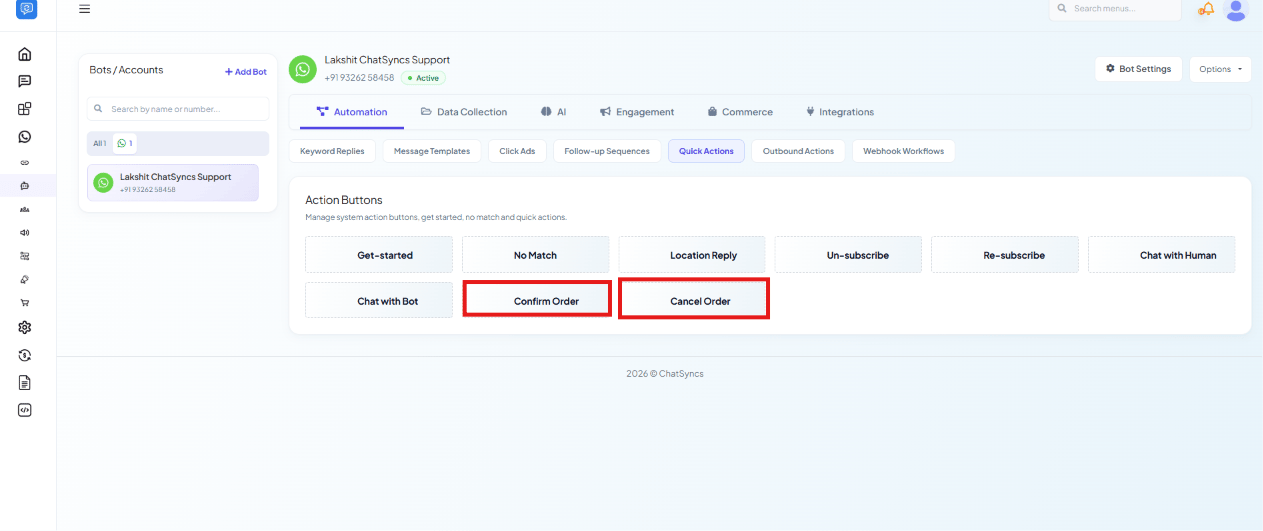
Frequently asked
My bot doesn't reply when it doesn't understand a message — how do I fix that?
My bot doesn't reply when it doesn't understand a message — how do I fix that?
Why does my Get Started message keep repeating for the same customer?
Why does my Get Started message keep repeating for the same customer?
Where do I change the email that gets notified when a customer asks for a human?
Where do I change the email that gets notified when a customer asks for a human?
Why isn't my Get-started flow running?
Why isn't my Get-started flow running?
Can I use Confirm Order or Cancel Order without Shopify or WooCommerce?
Can I use Confirm Order or Cancel Order without Shopify or WooCommerce?