> ## Documentation Index
> Fetch the complete documentation index at: https://docs.chatsyncs.com/llms.txt
> Use this file to discover all available pages before exploring further.
# Access Tokens (Temporary vs Permanent)
> The difference between a temporary access token and a permanent system-user token in the WhatsApp Cloud API, and how to generate each. Use when a customer asks why their token expired, how to get a token that doesn't expire, or how to create a system user in Meta Business Manager.
There are two types of access tokens used to authenticate WhatsApp Cloud API calls: a
**temporary token** for testing and a **permanent system-user token** for production. Using
the wrong one is the most common reason API calls suddenly stop working.
## Temporary access token
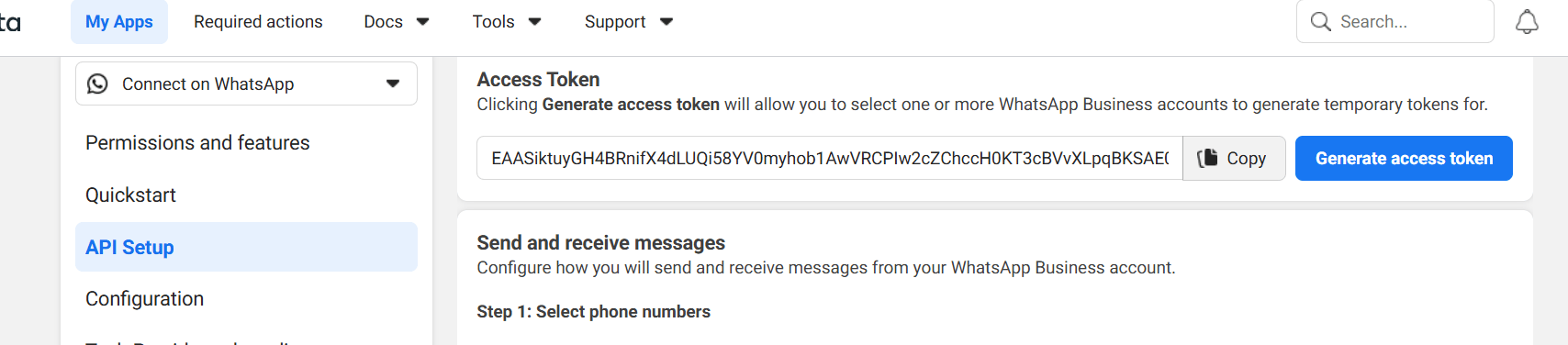
Generated directly in the Meta developer dashboard under **WhatsApp → API Setup →
"Generate access token"**. It works immediately but expires in about **1 hour**. Use only for
testing — never in production.
## Permanent system-user token
Generated via Meta Business Manager (`business.facebook.com`):
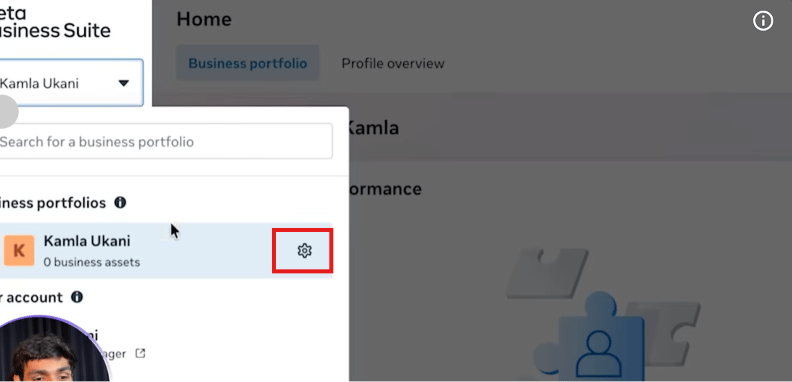
Go to `business.facebook.com`, open your business portfolio, and click into its **Settings**.
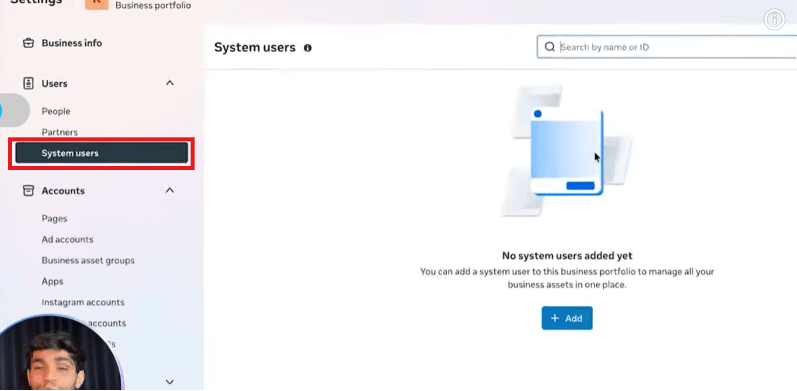
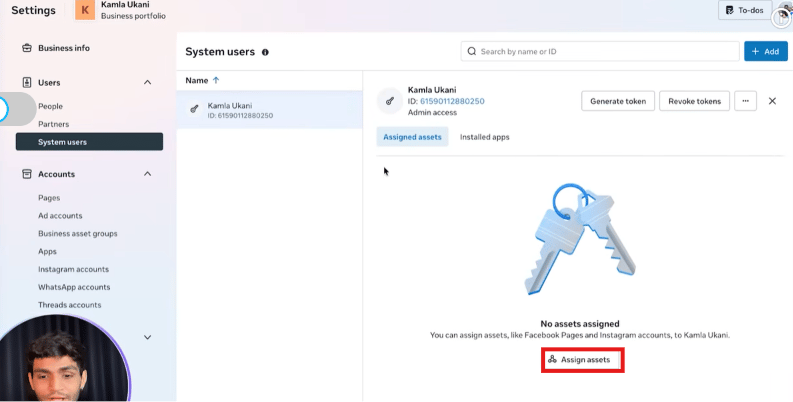
Go to **Users → System Users**. A new portfolio starts with no system users.
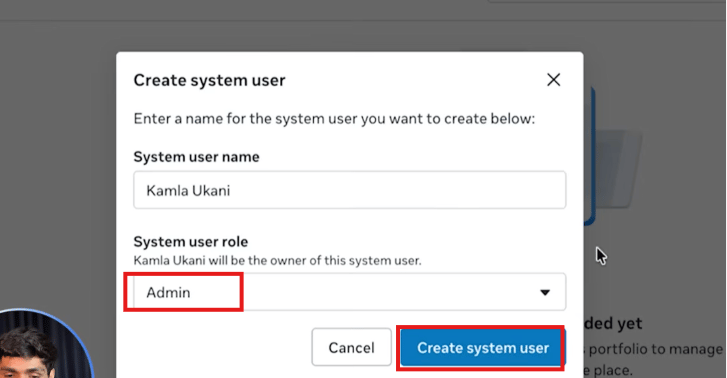
Click **Add**, give it a name, and set its role to **Admin**.
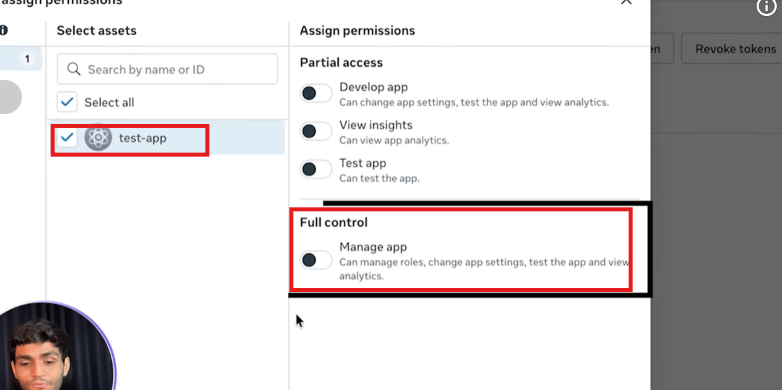
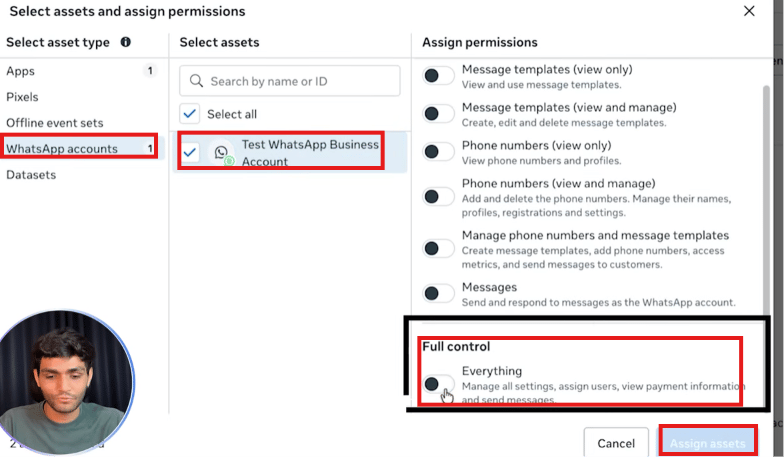
A new system user has no access to anything yet. Use **Assign assets** to give it **full
control** over both the app and the WhatsApp Business Account — skipping either one causes
the token to fail for that asset later.
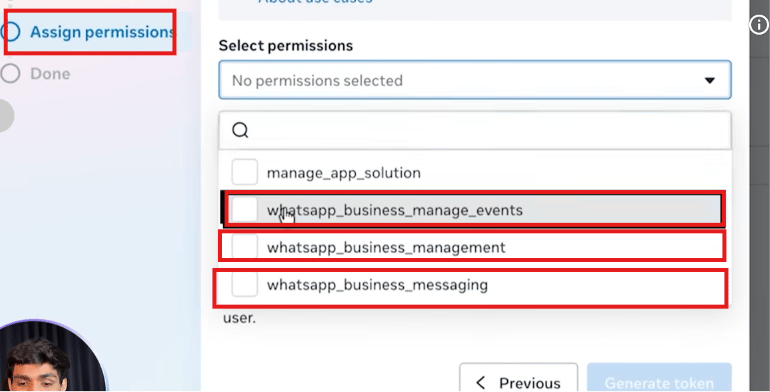
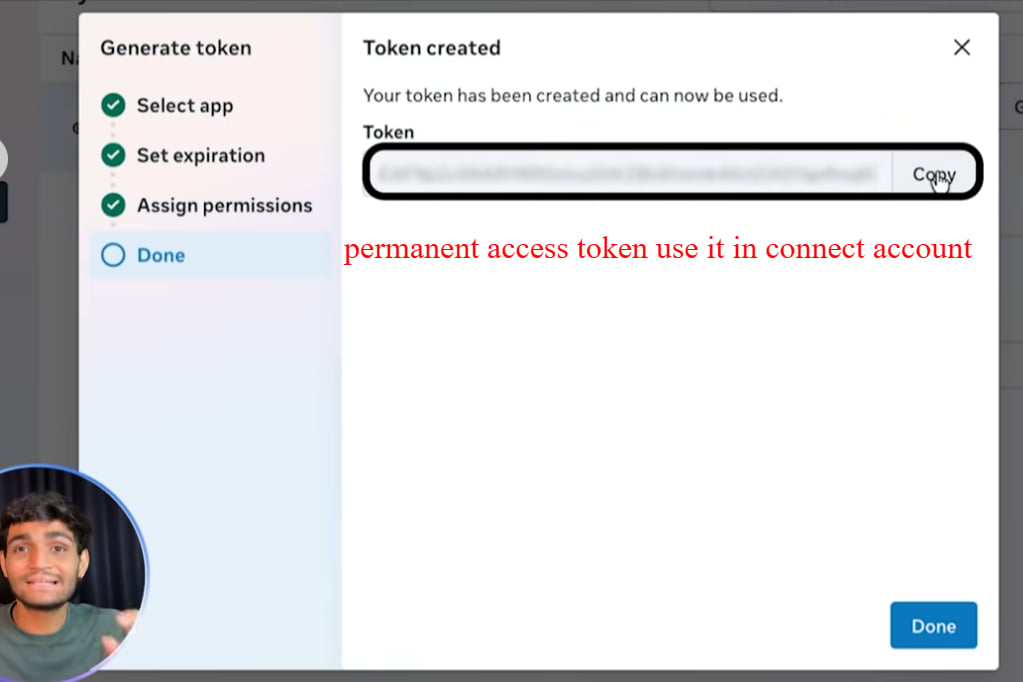
Click **Generate token** on that system user, select the app, and assign the required
permissions (`whatsapp_business_messaging`, `whatsapp_business_management`,
`whatsapp_business_manage_events`).
Copy the token and store it securely — Meta only shows it once.
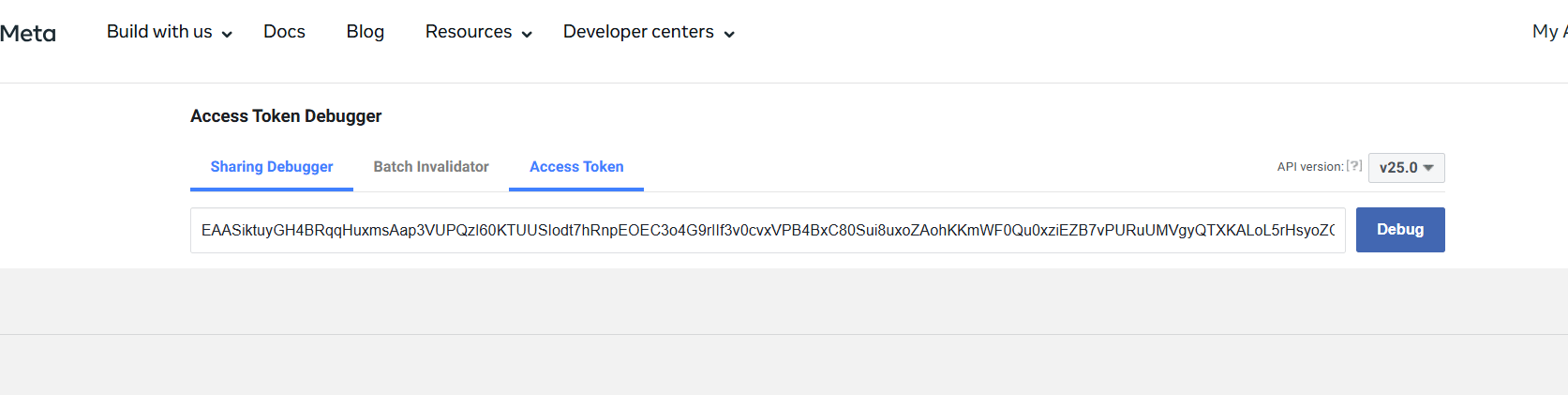
Paste the token into the Meta Access Token Debugger
(`developers.facebook.com/tools/debug/accesstoken/`) to verify it is valid and check its
expiry — a permanent token shows "Never" as expiry.
Use the permanent token in all production API calls.
## Walkthrough screenshots
 ## Frequently asked
Almost certainly your temporary access token expired (\~1 hour). Switch to a permanent
system-user token for any production use.
Create a system user in Meta Business Manager, assign it full control over the app and the
WhatsApp Business Account, generate a token for it with the WhatsApp permissions, and use
that token in your API calls. It does not expire.
A non-human admin account in Meta Business Manager used to generate permanent tokens for
automated systems (bots, integrations). It is not tied to a personal Facebook account, so
it won't expire when someone leaves the team.
Paste it into the Meta Access Token Debugger at
`developers.facebook.com/tools/debug/accesstoken/` and click Debug. It shows the token's
expiry, permissions, and whether it is still valid.
## Gotchas & common mistakes
* **Temporary token expires in \~1 hour** — the single most common reason integrations
break. Always use a system-user token in production.
* **Token is shown only once** — when you generate a system-user token, copy it immediately.
If you lose it, you must generate a new one.
* **Permissions matter** — the system user token needs at minimum
`whatsapp_business_messaging` to send messages. Missing permissions cause authentication
errors even with a valid token.
* **Token belongs to the system user, not a person** — if you use a personal user token
instead, it may stop working if that person's account changes.
* **Forgetting to assign assets** — a system user generates a token fine even with no assets
assigned, but that token will fail to call the app or the WhatsApp account it was never given
access to. Assign both the app and the WhatsApp Business Account with full control before
generating the token.
## Frequently asked
Almost certainly your temporary access token expired (\~1 hour). Switch to a permanent
system-user token for any production use.
Create a system user in Meta Business Manager, assign it full control over the app and the
WhatsApp Business Account, generate a token for it with the WhatsApp permissions, and use
that token in your API calls. It does not expire.
A non-human admin account in Meta Business Manager used to generate permanent tokens for
automated systems (bots, integrations). It is not tied to a personal Facebook account, so
it won't expire when someone leaves the team.
Paste it into the Meta Access Token Debugger at
`developers.facebook.com/tools/debug/accesstoken/` and click Debug. It shows the token's
expiry, permissions, and whether it is still valid.
## Gotchas & common mistakes
* **Temporary token expires in \~1 hour** — the single most common reason integrations
break. Always use a system-user token in production.
* **Token is shown only once** — when you generate a system-user token, copy it immediately.
If you lose it, you must generate a new one.
* **Permissions matter** — the system user token needs at minimum
`whatsapp_business_messaging` to send messages. Missing permissions cause authentication
errors even with a valid token.
* **Token belongs to the system user, not a person** — if you use a personal user token
instead, it may stop working if that person's account changes.
* **Forgetting to assign assets** — a system user generates a token fine even with no assets
assigned, but that token will fail to call the app or the WhatsApp account it was never given
access to. Assign both the app and the WhatsApp Business Account with full control before
generating the token.