> ## Documentation Index
> Fetch the complete documentation index at: https://docs.chatsyncs.com/llms.txt
> Use this file to discover all available pages before exploring further.
# Connect Claude to ChatSyncs
> Step-by-step: add ChatSyncs to Claude (claude.ai, Claude Desktop and the Claude mobile apps) as a custom connector under Customize → Connectors, choose the right sign-in options (Sign in now, Register automatically), paste your API key on the ChatSyncs page, turn the connector on in a chat, and remove it again. Covers Free, Pro, Max, Team and Enterprise plans. Use when a customer asks how to connect Claude to ChatSyncs, gets an Unknown application error, or can't see ChatSyncs in Claude.
Run your WhatsApp business by chatting with Claude on the web, in the desktop app, or on your phone.
## Before you start
* **A Claude account on any plan.** Free allows **one** custom connector; Pro and Max allow more.
On **Team or Enterprise**, an Owner adds ChatSyncs for the organisation first (see below).
* **Your ChatSyncs API key**, from the
[API Developer Console](https://platform.chatsyncs.com/api/developer/console).
[How to find it](/mcp/api-key).
* **A computer.** You add the connector on [claude.ai](https://claude.ai) or Claude Desktop. It
then works in the Claude mobile app too.
## Connect
In Claude, go to **Customize → Connectors**, or open
[claude.ai/customize/connectors](https://claude.ai/customize/connectors).
Click **+ Add** (if you see it), then **Add custom connector**.
* **Name:** `ChatSyncs`
* **URL:**
```
https://mcp.chatsyncs.com/mcp
```
Click **Continue**.
Claude shows the authentication settings it detected. Make sure they read:
* **Authentication:** **Sign in now**
* **OAuth client:** **Register automatically**. Do **not** pick *Use Claude's published
identity*: ChatSyncs doesn't support it, and you'd get an "Unknown application" page.
* **Request headers:** leave empty.
Click **Continue** if asked, then **Add**.
Some accounts see a shorter form with just a name, a URL and **Advanced settings**. In that
case, leave **Advanced settings** empty and click **Add**.
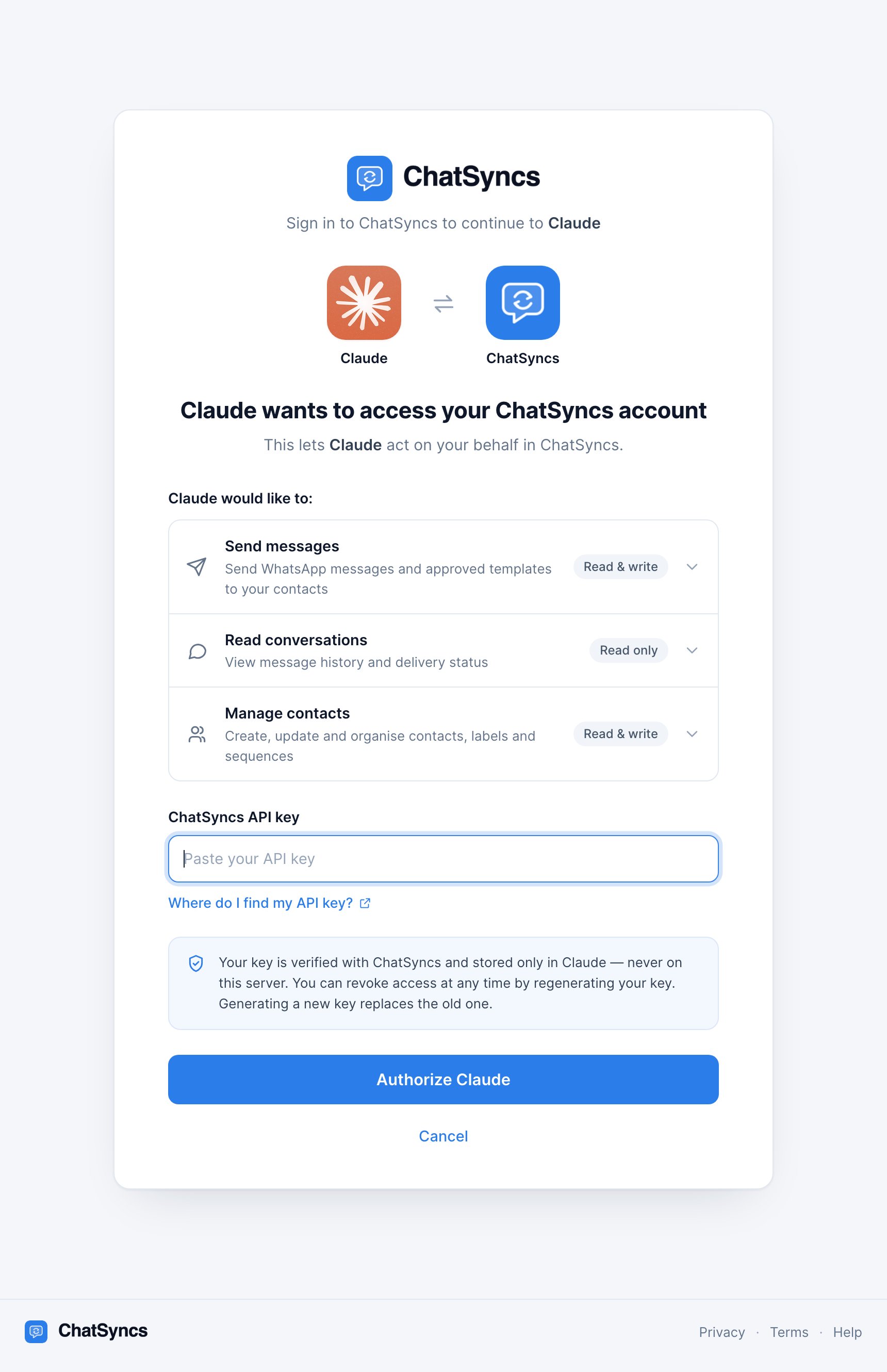
A ChatSyncs page opens in your browser saying *"Claude wants to access your ChatSyncs
account"*. If it doesn't open by itself, click **Connect** next to ChatSyncs. Paste your API
key and click **Authorize Claude**.
You'll see **Connected as *your business name*** for a moment, then you're back in Claude.
In a chat, click **+** (bottom left), open **Connectors**, and make sure **ChatSyncs** is
switched on.
 ### On Team or Enterprise
An **Owner** sets it up once:
1. Go to **Organization settings → Connectors** and click **Add**.
2. Choose **Custom**, then **Web**.
3. Enter the name `ChatSyncs` and the URL `https://mcp.chatsyncs.com/mcp`, then click
**Continue**.
4. Choose **Sign in now** and **Register automatically**, leave request headers empty, and click
**Add**.
Then **each member** goes to **Customize → Connectors**, finds **ChatSyncs** (it has a
**Custom** label), clicks **Connect**, and pastes a ChatSyncs API key.
## Check it worked
Start a new chat with ChatSyncs switched on and ask:
> **"List my WhatsApp templates."**
Claude asks permission to use the ChatSyncs tool, then shows your templates and says which can
be sent. You can also try *"Show me my ChatSyncs account details"* to see your plan and
connected numbers.
## Disconnect
1. Go to **Customize → Connectors** (Team and Enterprise Owners: **Organization settings →
Connectors**).
2. Find **ChatSyncs** and click **Remove** (or use the **⋯** menu).
This deletes Claude's copy of your key. To cut off **every** app that holds your key,
[regenerate it](/mcp/api-key#revoke-access-regenerate-the-key).
## Frequently asked
Yes. Add ChatSyncs on claude.ai or Claude Desktop first. Claude connects to ChatSyncs from
Anthropic's servers, not from your phone, so the connector then works in the iOS and Android
apps as well. Turn it on per chat from the **+** menu.
By default Claude asks before it uses a tool. You can review each ChatSyncs ability in
**Customize → Connectors** and set it to *Always allow*, *Needs approval* or *Blocked*.
For example, block `delete_subscriber` entirely. Keep anything that sends messages on
*Needs approval*.
Free allows one custom connector. Remove the other one first, or upgrade to Pro.
Usually not. If you sign in to Claude Code with your claude.ai account, connectors you added
on claude.ai appear there automatically. Check with `/mcp` in Claude Code.
Only if your account shows a **Request headers** section (it's a limited beta). You'd choose
**No sign in** and add an `authorization` header with the value `Bearer YOUR_KEY`. Browser
sign-in is simpler and works for everyone.
## Gotchas
* **"Unknown application" page.** You picked *Use Claude's published identity*. Remove the
connector and add it again with **Register automatically**. Sign-in settings can't be
changed after adding.
* **No ChatSyncs tools in the chat.** The connector is off for that conversation. Open **+ →
Connectors** and switch it on.
* **"ChatSyncs did not accept that key."** Copy the key again from the
[console](https://platform.chatsyncs.com/api/developer/console), without spaces. If you
regenerated it recently, the old one no longer works.
* **Wrong address.** The URL is `https://mcp.chatsyncs.com/mcp`. Don't add `/sse` to the end:
Claude would switch to an older connection type ChatSyncs doesn't support.
This documentation is built and hosted on [Mintlify](https://mintlify.com), a developer documentation platform.
### On Team or Enterprise
An **Owner** sets it up once:
1. Go to **Organization settings → Connectors** and click **Add**.
2. Choose **Custom**, then **Web**.
3. Enter the name `ChatSyncs` and the URL `https://mcp.chatsyncs.com/mcp`, then click
**Continue**.
4. Choose **Sign in now** and **Register automatically**, leave request headers empty, and click
**Add**.
Then **each member** goes to **Customize → Connectors**, finds **ChatSyncs** (it has a
**Custom** label), clicks **Connect**, and pastes a ChatSyncs API key.
## Check it worked
Start a new chat with ChatSyncs switched on and ask:
> **"List my WhatsApp templates."**
Claude asks permission to use the ChatSyncs tool, then shows your templates and says which can
be sent. You can also try *"Show me my ChatSyncs account details"* to see your plan and
connected numbers.
## Disconnect
1. Go to **Customize → Connectors** (Team and Enterprise Owners: **Organization settings →
Connectors**).
2. Find **ChatSyncs** and click **Remove** (or use the **⋯** menu).
This deletes Claude's copy of your key. To cut off **every** app that holds your key,
[regenerate it](/mcp/api-key#revoke-access-regenerate-the-key).
## Frequently asked
Yes. Add ChatSyncs on claude.ai or Claude Desktop first. Claude connects to ChatSyncs from
Anthropic's servers, not from your phone, so the connector then works in the iOS and Android
apps as well. Turn it on per chat from the **+** menu.
By default Claude asks before it uses a tool. You can review each ChatSyncs ability in
**Customize → Connectors** and set it to *Always allow*, *Needs approval* or *Blocked*.
For example, block `delete_subscriber` entirely. Keep anything that sends messages on
*Needs approval*.
Free allows one custom connector. Remove the other one first, or upgrade to Pro.
Usually not. If you sign in to Claude Code with your claude.ai account, connectors you added
on claude.ai appear there automatically. Check with `/mcp` in Claude Code.
Only if your account shows a **Request headers** section (it's a limited beta). You'd choose
**No sign in** and add an `authorization` header with the value `Bearer YOUR_KEY`. Browser
sign-in is simpler and works for everyone.
## Gotchas
* **"Unknown application" page.** You picked *Use Claude's published identity*. Remove the
connector and add it again with **Register automatically**. Sign-in settings can't be
changed after adding.
* **No ChatSyncs tools in the chat.** The connector is off for that conversation. Open **+ →
Connectors** and switch it on.
* **"ChatSyncs did not accept that key."** Copy the key again from the
[console](https://platform.chatsyncs.com/api/developer/console), without spaces. If you
regenerated it recently, the old one no longer works.
* **Wrong address.** The URL is `https://mcp.chatsyncs.com/mcp`. Don't add `/sse` to the end:
Claude would switch to an older connection type ChatSyncs doesn't support.
This documentation is built and hosted on [Mintlify](https://mintlify.com), a developer documentation platform.