> ## Documentation Index
> Fetch the complete documentation index at: https://docs.chatsyncs.com/llms.txt
> Use this file to discover all available pages before exploring further.
# Subscriber Manager
> Subscriber Manager is where every contact who has messaged your WhatsApp bot is stored and managed — the subscriber list with its counts, filters, and profile panel, the Options menu (import, create, download, label, sequence, delete), and bulk actions across many subscribers at once. See the other pages in this section for Custom Fields & Labels and the three ways to import subscribers.
## What is Subscriber Manager?
Every person who has ever messaged your WhatsApp bot becomes a **subscriber** — a stored contact
record with a phone number, name, and everything else ChatSyncs and your bot flows have learned
about them since. **Subscriber Manager** is the one screen where you see that whole list, search
and filter it, open a single subscriber's full profile, and act on one or many subscribers at
once — labeling them, enrolling them in a sequence, importing a batch from a spreadsheet, or
removing them entirely.
This page covers the subscriber list and the actions available from it. Two topics get their own,
deeper pages in this section:
Segment subscribers with labels, and store extra structured data per subscriber with custom fields.
Bring existing contacts in from a CSV file, one at a time by hand, or from a Google Sheet / Google Contacts.
## The subscriber list
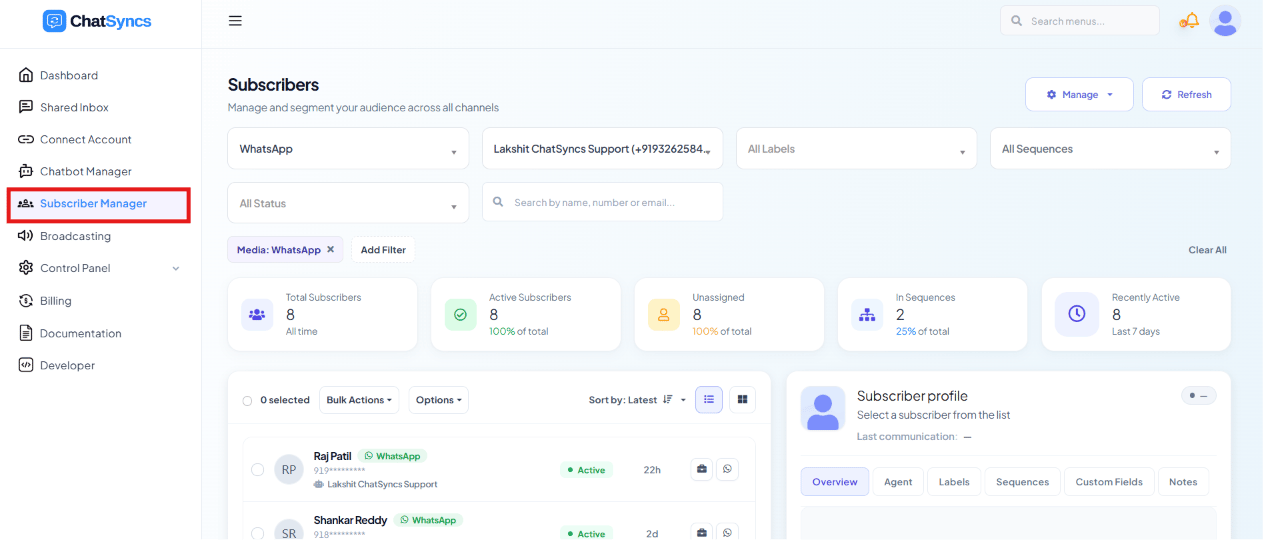 Go to **Subscriber Manager** to see every subscriber for the selected bot. The tiles across the
top give an at-a-glance count of **Total Subscribers**, **Active Subscribers**, **Unassigned**,
**In Sequences**, and **Recently Active**. The list itself shows each subscriber's name, channel,
status, and last-active time, and can be filtered by **Label**, **Status**, **Sequence**, or a
free-text search. Selecting a row opens their **Subscriber profile** on the right — Overview,
Agent, Labels, Sequences, Custom Fields, and Notes.
The **Manage** dropdown above the list is where labels and custom fields are created and edited —
see [Custom Fields and Labels](/learn/subscriber-manager-custom-fields-and-labels) for the full
walkthrough.
## The Options menu
Go to **Subscriber Manager** to see every subscriber for the selected bot. The tiles across the
top give an at-a-glance count of **Total Subscribers**, **Active Subscribers**, **Unassigned**,
**In Sequences**, and **Recently Active**. The list itself shows each subscriber's name, channel,
status, and last-active time, and can be filtered by **Label**, **Status**, **Sequence**, or a
free-text search. Selecting a row opens their **Subscriber profile** on the right — Overview,
Agent, Labels, Sequences, Custom Fields, and Notes.
The **Manage** dropdown above the list is where labels and custom fields are created and edited —
see [Custom Fields and Labels](/learn/subscriber-manager-custom-fields-and-labels) for the full
walkthrough.
## The Options menu
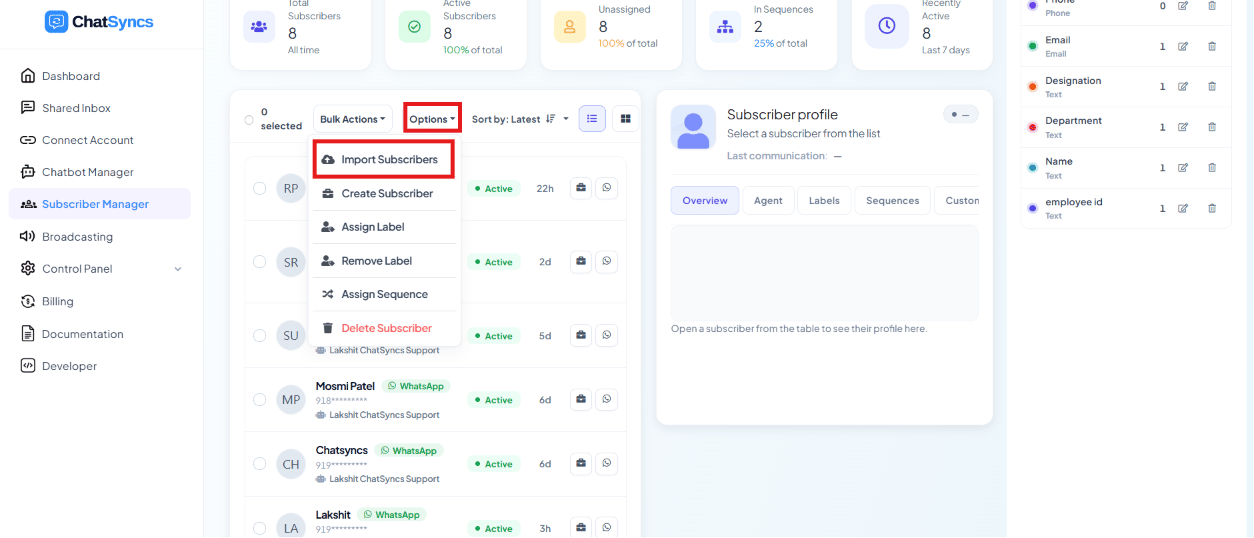 The **Options** dropdown is where every subscriber action lives, whether it applies to one
subscriber or many selected at once:
| Action | What it does |
| ----------------------------------- | ------------------------------------------------------------------------------------------------------------------------------------------------------------------------------------------------------------------------------------ |
| **Download(all) as CSV** | Exports the current subscriber list as a CSV file — the reverse of importing, useful for offline edits or backups before re-importing. |
| **Import Subscribers** | Brings in existing contacts in bulk from a CSV file or a Google Sheet/Google Contacts. See [Import Using CSV](/learn/subscriber-manager-import-csv) and [Import from Google Sheets](/learn/subscriber-manager-import-google-sheets). |
| **Create Subscriber** | Adds one subscriber by hand, without them having to message the bot first. See [Import Subscribers Manually](/learn/subscriber-manager-import-manually). |
| **Assign Label** / **Remove Label** | Adds or removes a label on the selected subscriber(s) — see [bulk actions](#bulk-actions-on-selected-subscribers) below. |
| **Assign Sequence** | Enrolls the selected subscriber(s) into a [Follow-up Sequence](/learn/whatsapp-sequence). |
| **Delete Subscriber** | Permanently removes the selected subscriber(s) — there's no undo. |
## Bulk actions on selected subscribers
Select subscribers with the checkboxes on the left of each row, then use the Options menu to act
on all of them at once instead of one at a time.
### Assign or remove a label
The **Options** dropdown is where every subscriber action lives, whether it applies to one
subscriber or many selected at once:
| Action | What it does |
| ----------------------------------- | ------------------------------------------------------------------------------------------------------------------------------------------------------------------------------------------------------------------------------------ |
| **Download(all) as CSV** | Exports the current subscriber list as a CSV file — the reverse of importing, useful for offline edits or backups before re-importing. |
| **Import Subscribers** | Brings in existing contacts in bulk from a CSV file or a Google Sheet/Google Contacts. See [Import Using CSV](/learn/subscriber-manager-import-csv) and [Import from Google Sheets](/learn/subscriber-manager-import-google-sheets). |
| **Create Subscriber** | Adds one subscriber by hand, without them having to message the bot first. See [Import Subscribers Manually](/learn/subscriber-manager-import-manually). |
| **Assign Label** / **Remove Label** | Adds or removes a label on the selected subscriber(s) — see [bulk actions](#bulk-actions-on-selected-subscribers) below. |
| **Assign Sequence** | Enrolls the selected subscriber(s) into a [Follow-up Sequence](/learn/whatsapp-sequence). |
| **Delete Subscriber** | Permanently removes the selected subscriber(s) — there's no undo. |
## Bulk actions on selected subscribers
Select subscribers with the checkboxes on the left of each row, then use the Options menu to act
on all of them at once instead of one at a time.
### Assign or remove a label
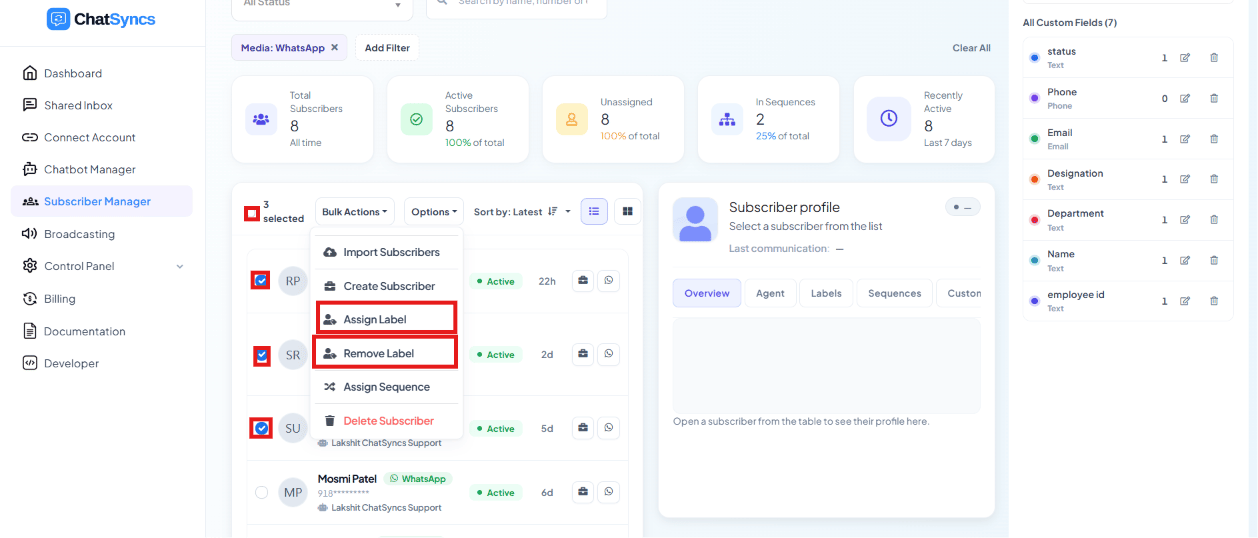 Useful for segmenting a list in one pass — e.g. labeling the first 200 imported rows `batch1`
and the next 200 `batch2`. See [Create a label](/learn/subscriber-manager-custom-fields-and-labels#create-a-label)
if the label doesn't exist yet.
### Assign a sequence
Useful for segmenting a list in one pass — e.g. labeling the first 200 imported rows `batch1`
and the next 200 `batch2`. See [Create a label](/learn/subscriber-manager-custom-fields-and-labels#create-a-label)
if the label doesn't exist yet.
### Assign a sequence
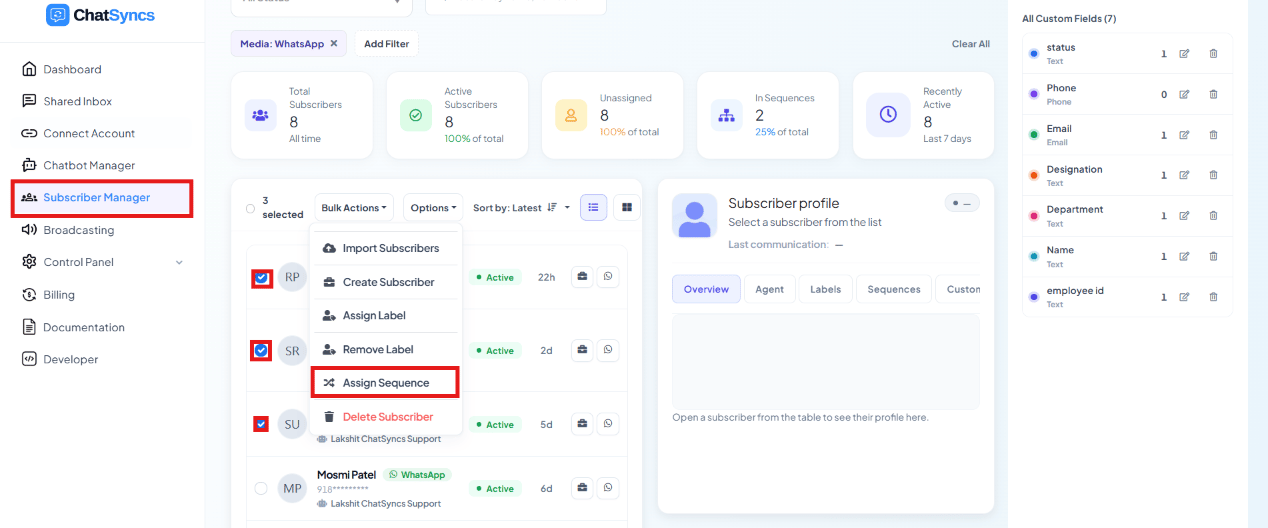 Use **Assign Sequence** to enroll selected subscribers into a [Follow-up Sequences](/learn/whatsapp-sequence)
without needing them to trigger it from a Keyword Replies flow.
### Page size
Use **Assign Sequence** to enroll selected subscribers into a [Follow-up Sequences](/learn/whatsapp-sequence)
without needing them to trigger it from a Keyword Replies flow.
### Page size
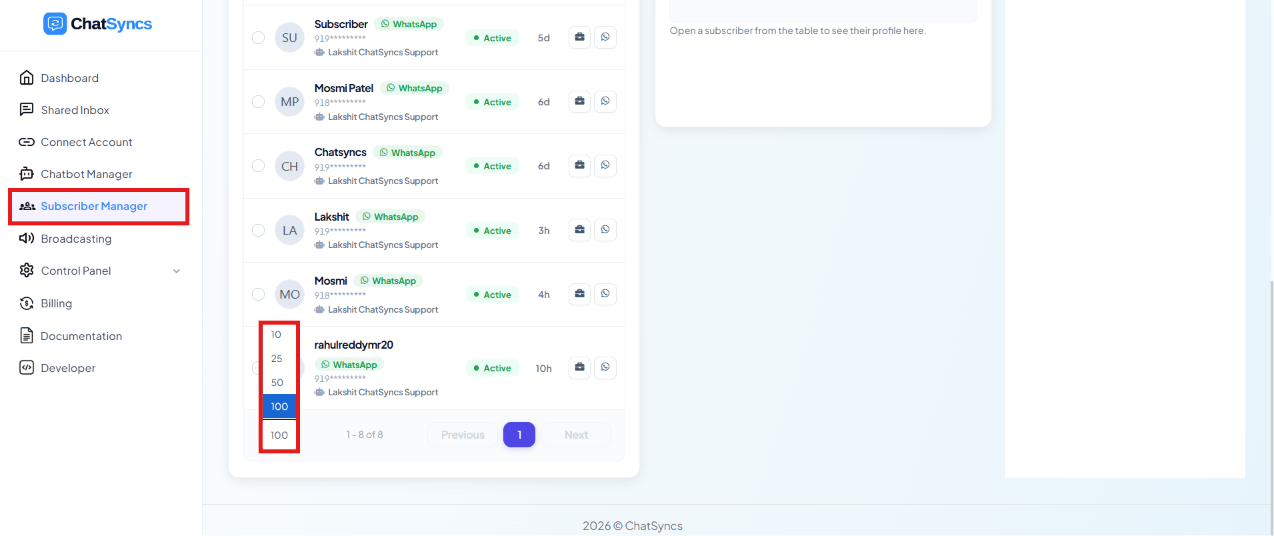 For large subscriber lists, change how many rows are shown per page (10, 25, 50, 100, 200) from
the dropdown at the bottom left.
## Frequently asked
**Subscriber Manager** lists every subscriber for the selected bot, with their phone
number, subscriber ID, name, and when they last updated or first subscribed.
Depends on where your contacts already live — see [Import Using CSV](/learn/subscriber-manager-import-csv),
[Import from Google Sheets](/learn/subscriber-manager-import-google-sheets), or
[Import Subscribers Manually](/learn/subscriber-manager-import-manually) for one contact at a time.
Yes — **Options → Download(all) as CSV** exports the current list as a CSV file.
Create a **Label** under **Manage → Manage Labels**, then select subscribers in the list
and use **Options → Assign Label** (or **Remove Label** to undo it). You can then filter
the subscriber list by that label, or target it in a broadcast. See
[Custom Fields and Labels](/learn/subscriber-manager-custom-fields-and-labels) for the full
walkthrough.
Yes — select one or more subscribers and use **Options → Assign Sequence** to enroll them
directly, instead of relying on a Keyword Replies action.
* **Deleting a subscriber is permanent** — there's no undo for **Delete Subscriber**.
* **Extra columns in an import become custom fields automatically** — double-check column
headers match what you intend before importing.
## Learn From a Use Case
* [Clinic Appointment Booking Automation](/learn/clinic-appointment-booking-business-problem) —
Custom Fields store each answer submitted through the appointment form.
For large subscriber lists, change how many rows are shown per page (10, 25, 50, 100, 200) from
the dropdown at the bottom left.
## Frequently asked
**Subscriber Manager** lists every subscriber for the selected bot, with their phone
number, subscriber ID, name, and when they last updated or first subscribed.
Depends on where your contacts already live — see [Import Using CSV](/learn/subscriber-manager-import-csv),
[Import from Google Sheets](/learn/subscriber-manager-import-google-sheets), or
[Import Subscribers Manually](/learn/subscriber-manager-import-manually) for one contact at a time.
Yes — **Options → Download(all) as CSV** exports the current list as a CSV file.
Create a **Label** under **Manage → Manage Labels**, then select subscribers in the list
and use **Options → Assign Label** (or **Remove Label** to undo it). You can then filter
the subscriber list by that label, or target it in a broadcast. See
[Custom Fields and Labels](/learn/subscriber-manager-custom-fields-and-labels) for the full
walkthrough.
Yes — select one or more subscribers and use **Options → Assign Sequence** to enroll them
directly, instead of relying on a Keyword Replies action.
* **Deleting a subscriber is permanent** — there's no undo for **Delete Subscriber**.
* **Extra columns in an import become custom fields automatically** — double-check column
headers match what you intend before importing.
## Learn From a Use Case
* [Clinic Appointment Booking Automation](/learn/clinic-appointment-booking-business-problem) —
Custom Fields store each answer submitted through the appointment form.