> ## Documentation Index
> Fetch the complete documentation index at: https://docs.chatsyncs.com/llms.txt
> Use this file to discover all available pages before exploring further.
# Shared Inbox
> The Shared Inbox is where your team views, filters, and responds to every WhatsApp conversation — with per-chat tools for assigning agents, labels, sequences, custom fields, notes, and follow-up reminders. Use this when a customer asks how to see their assigned chats, find an old conversation, hand a chat to a teammate, or install ChatSyncs as a mobile app (PWA) on Android or iPhone.
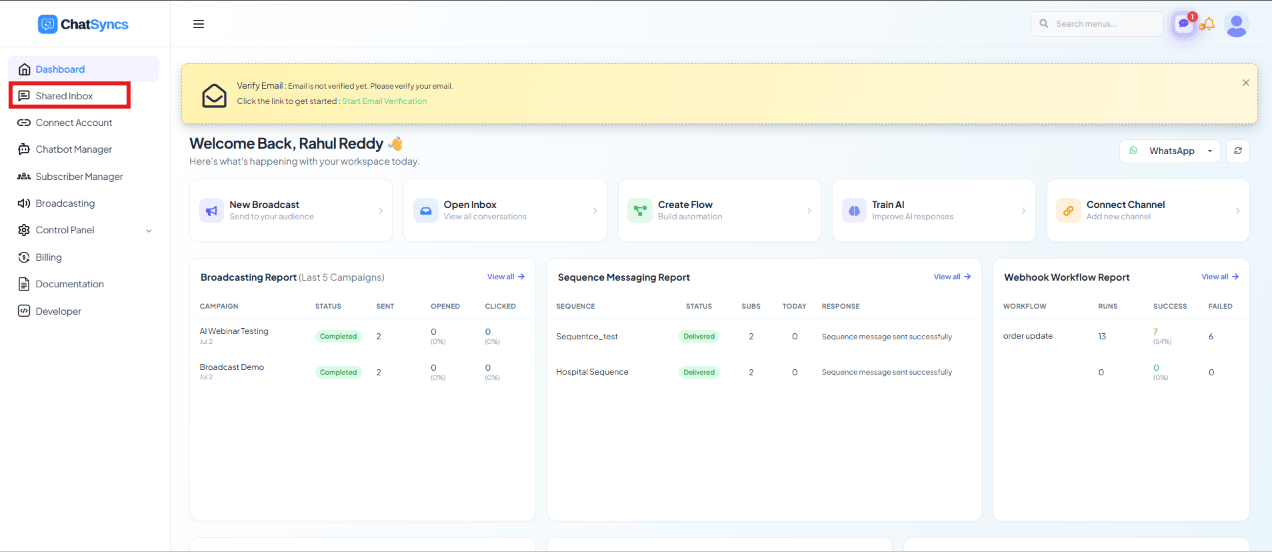 The **Shared Inbox** is the centralized workspace where your team views, manages, and responds
to every customer conversation coming in over WhatsApp. Multiple team members can work from it
at once — each conversation can be filtered, assigned, labeled, and tracked so nothing gets
answered twice or missed.
## Inbox filters
At the top of the Shared Inbox, switch between views to narrow down which conversations you see:
| Filter | Shows |
| ------------ | ------------------------------------------------------------------ |
| **Mine** | Only conversations assigned to you |
| **All** | Every conversation you have permission to access |
| **Unread** | Conversations with unread customer messages |
| **Archived** | Conversations removed from the active inbox but kept for reference |
| **Blocked** | Customers who can't message you until unblocked |
| **Resolved** | Conversations marked as resolved |
For example, Priya is a support agent with 20 assigned customers. When she selects **Mine**,
she only sees those 20 conversations — not the rest of the team's chats.
## The conversation list
The left panel lists every conversation matching the current filter. Each row shows the
customer's name, profile picture, last message, message status, any labels, the date/time, and
which bot or team member it's assigned to. Select a row to open the full chat history.
## Conversation options
The **Shared Inbox** is the centralized workspace where your team views, manages, and responds
to every customer conversation coming in over WhatsApp. Multiple team members can work from it
at once — each conversation can be filtered, assigned, labeled, and tracked so nothing gets
answered twice or missed.
## Inbox filters
At the top of the Shared Inbox, switch between views to narrow down which conversations you see:
| Filter | Shows |
| ------------ | ------------------------------------------------------------------ |
| **Mine** | Only conversations assigned to you |
| **All** | Every conversation you have permission to access |
| **Unread** | Conversations with unread customer messages |
| **Archived** | Conversations removed from the active inbox but kept for reference |
| **Blocked** | Customers who can't message you until unblocked |
| **Resolved** | Conversations marked as resolved |
For example, Priya is a support agent with 20 assigned customers. When she selects **Mine**,
she only sees those 20 conversations — not the rest of the team's chats.
## The conversation list
The left panel lists every conversation matching the current filter. Each row shows the
customer's name, profile picture, last message, message status, any labels, the date/time, and
which bot or team member it's assigned to. Select a row to open the full chat history.
## Conversation options
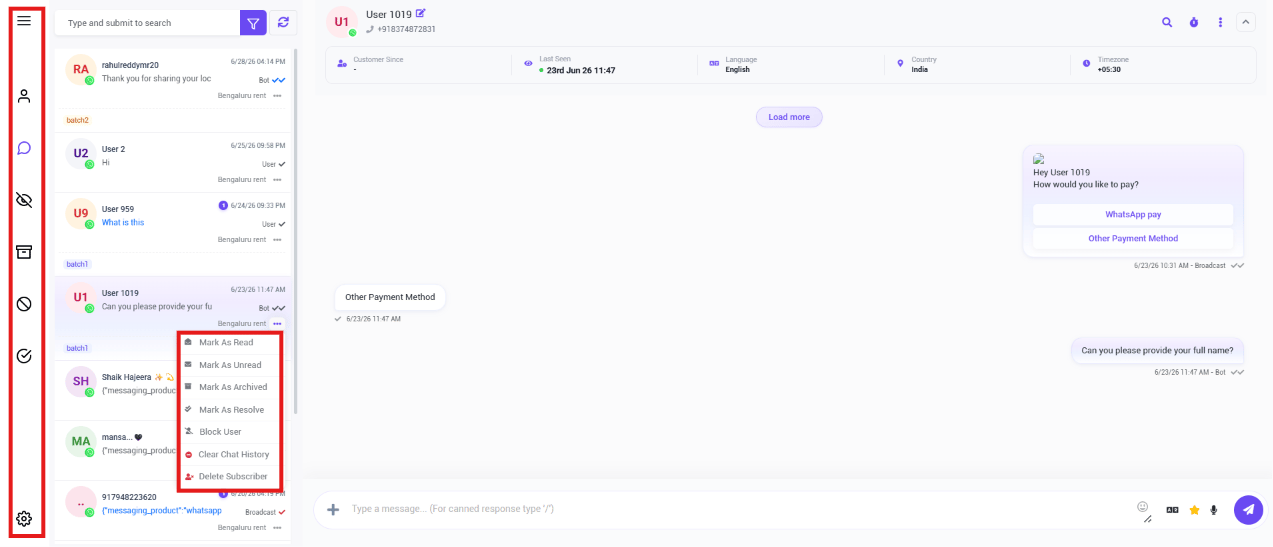 The **⋯** menu on each conversation gives you **Mark As Read**, **Mark As Unread**,
**Mark As Archived**, **Mark As Resolve**, **Block User**, **Clear Chat History**, and
**Delete Subscriber**. After resolving a customer's issue, mark it **Resolved** and then
**Archive** it so it's out of the active inbox but still available for reference later.
## Shared Inbox settings
The **⋯** menu on each conversation gives you **Mark As Read**, **Mark As Unread**,
**Mark As Archived**, **Mark As Resolve**, **Block User**, **Clear Chat History**, and
**Delete Subscriber**. After resolving a customer's issue, mark it **Resolved** and then
**Archive** it so it's out of the active inbox but still available for reference later.
## Shared Inbox settings
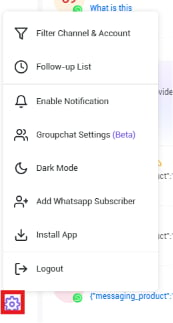 Click the **Settings (⚙️)** icon at the bottom-left of the Shared Inbox sidebar for:
* **Filter Channel & Account** — show only conversations from one WhatsApp number. If your
business runs Sales, Support, and Billing numbers, choose **Support** to see only those chats.
* **Follow-up List** — every scheduled follow-up reminder in one place; view, edit, complete, or
track them.
* **Enable Notification** — turn desktop notifications on or off for new incoming messages.
* **Groupchat Settings (Beta)** — settings for group chat conversations.
* **Dark Mode** — switch the Shared Inbox between Light and Dark mode.
* **Add WhatsApp Subscriber** — manually add a new contact without leaving the inbox, e.g. when
a customer calls in and shares their WhatsApp number first.
* **Install App** — install ChatSyncs as a desktop/mobile app (see [Install ChatSyncs as a mobile app](#install-chatsyncs-as-a-mobile-app) below).
* **Logout** — securely sign out, useful on a shared computer.
## The chat window
The center panel shows the full conversation: message history, delivery and read status, and
the ability to send text or receive images, documents, videos, and location messages.
A bar above the chat shows the customer's **Customer Since** date, **Last Seen** time,
**Language**, **Country**, and **Time Zone** — context for the agent before they respond.
### Message composer
Click the **Settings (⚙️)** icon at the bottom-left of the Shared Inbox sidebar for:
* **Filter Channel & Account** — show only conversations from one WhatsApp number. If your
business runs Sales, Support, and Billing numbers, choose **Support** to see only those chats.
* **Follow-up List** — every scheduled follow-up reminder in one place; view, edit, complete, or
track them.
* **Enable Notification** — turn desktop notifications on or off for new incoming messages.
* **Groupchat Settings (Beta)** — settings for group chat conversations.
* **Dark Mode** — switch the Shared Inbox between Light and Dark mode.
* **Add WhatsApp Subscriber** — manually add a new contact without leaving the inbox, e.g. when
a customer calls in and shares their WhatsApp number first.
* **Install App** — install ChatSyncs as a desktop/mobile app (see [Install ChatSyncs as a mobile app](#install-chatsyncs-as-a-mobile-app) below).
* **Logout** — securely sign out, useful on a shared computer.
## The chat window
The center panel shows the full conversation: message history, delivery and read status, and
the ability to send text or receive images, documents, videos, and location messages.
A bar above the chat shows the customer's **Customer Since** date, **Last Seen** time,
**Language**, **Country**, and **Time Zone** — context for the agent before they respond.
### Message composer
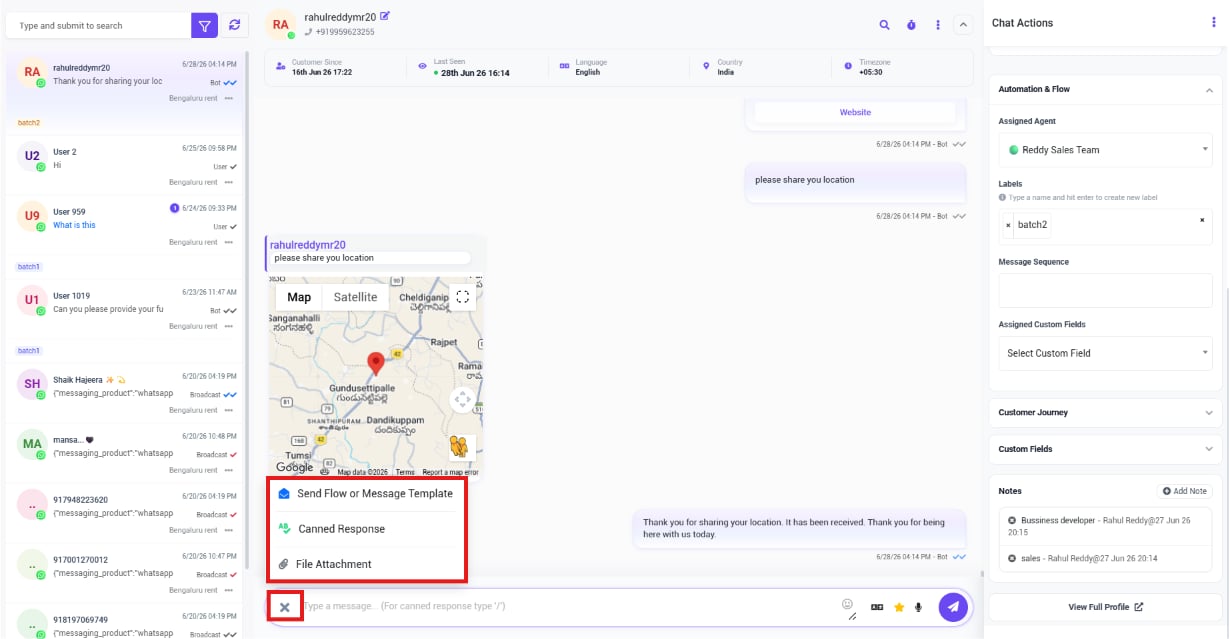 Beyond plain text, the composer can **Send Flow or Message Template**, insert a **Canned
Response**, attach a **File**, add **Emojis**, use **AI Assistance**, or send a **Voice
Message**. If a customer asks "Can you send your price list?", instead of typing it out every
time, the agent picks a saved **Canned Response** and sends it instantly.
### Task reminder cards
Beyond plain text, the composer can **Send Flow or Message Template**, insert a **Canned
Response**, attach a **File**, add **Emojis**, use **AI Assistance**, or send a **Voice
Message**. If a customer asks "Can you send your price list?", instead of typing it out every
time, the agent picks a saved **Canned Response** and sends it instantly.
### Task reminder cards
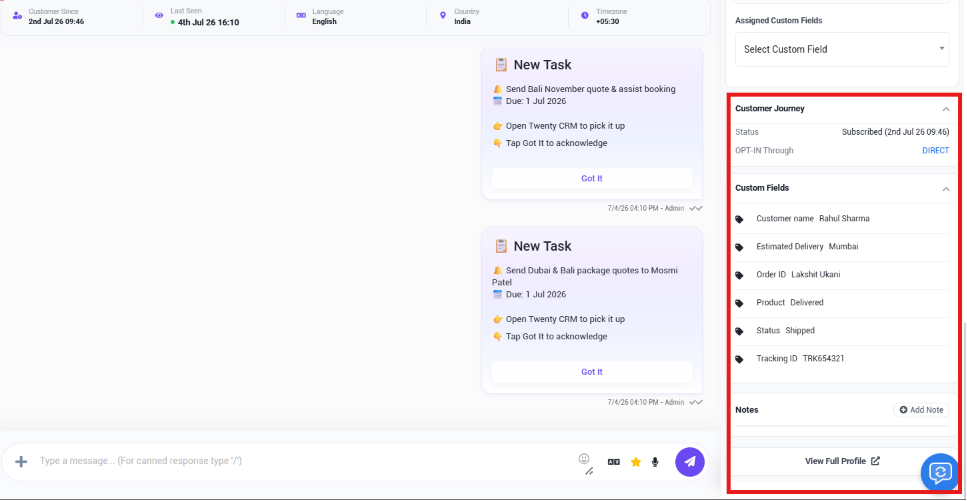 A conversation can also contain **New Task** cards — reminders from a connected CRM (e.g.
Twenty CRM) about a task tied to that customer. Each card shows the task title (e.g. *"Send Bali
November quote & assist booking"*), its **Due** date, an **Open Twenty CRM to pick it up** link,
and a **Got It** button to acknowledge it. Tapping **Got It** clears the reminder without
leaving the conversation.
## Chat Actions panel
The right panel is the **Chat Actions** panel — everything for managing the customer behind the
open conversation.
### Quick Actions
A conversation can also contain **New Task** cards — reminders from a connected CRM (e.g.
Twenty CRM) about a task tied to that customer. Each card shows the task title (e.g. *"Send Bali
November quote & assist booking"*), its **Due** date, an **Open Twenty CRM to pick it up** link,
and a **Got It** button to acknowledge it. Tapping **Got It** clears the reminder without
leaving the conversation.
## Chat Actions panel
The right panel is the **Chat Actions** panel — everything for managing the customer behind the
open conversation.
### Quick Actions
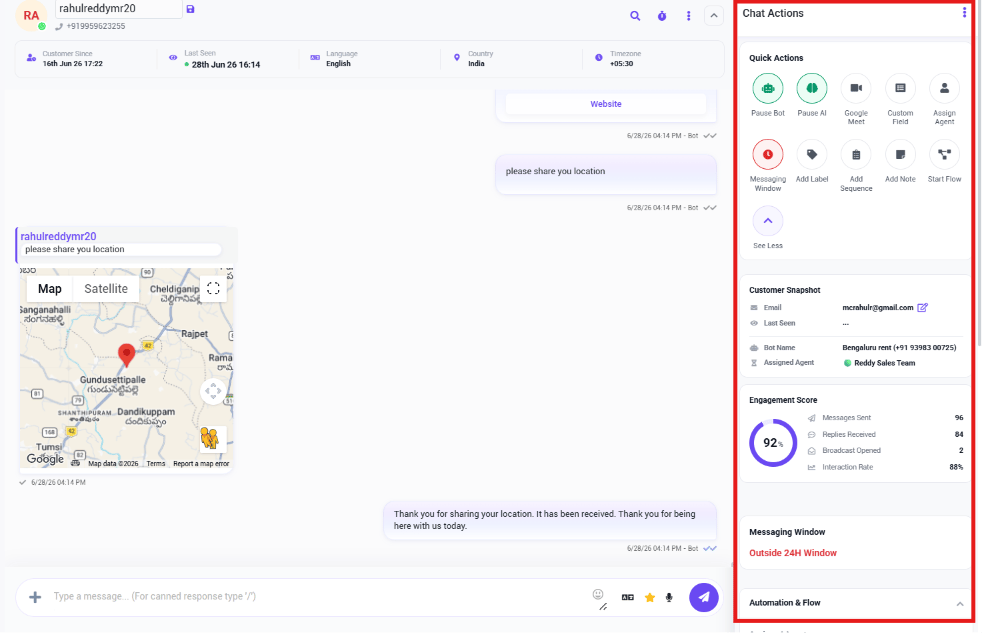 One-click shortcuts: **Pause Bot**, **Pause AI**, **Google Meet**, **Custom Field**,
**Assign Agent**, **Messaging Window**, **Add Label**, **Add Note**, and **Start Flow**.
### Customer Snapshot
One-click shortcuts: **Pause Bot**, **Pause AI**, **Google Meet**, **Custom Field**,
**Assign Agent**, **Messaging Window**, **Add Label**, **Add Note**, and **Start Flow**.
### Customer Snapshot
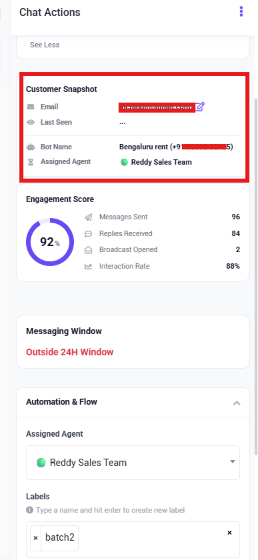 A quick summary: the customer's **Email**, **Last Seen** time, which **Bot Name**/number the
conversation came through, and the **Assigned Agent**.
### Engagement Score
A quick summary: the customer's **Email**, **Last Seen** time, which **Bot Name**/number the
conversation came through, and the **Assigned Agent**.
### Engagement Score
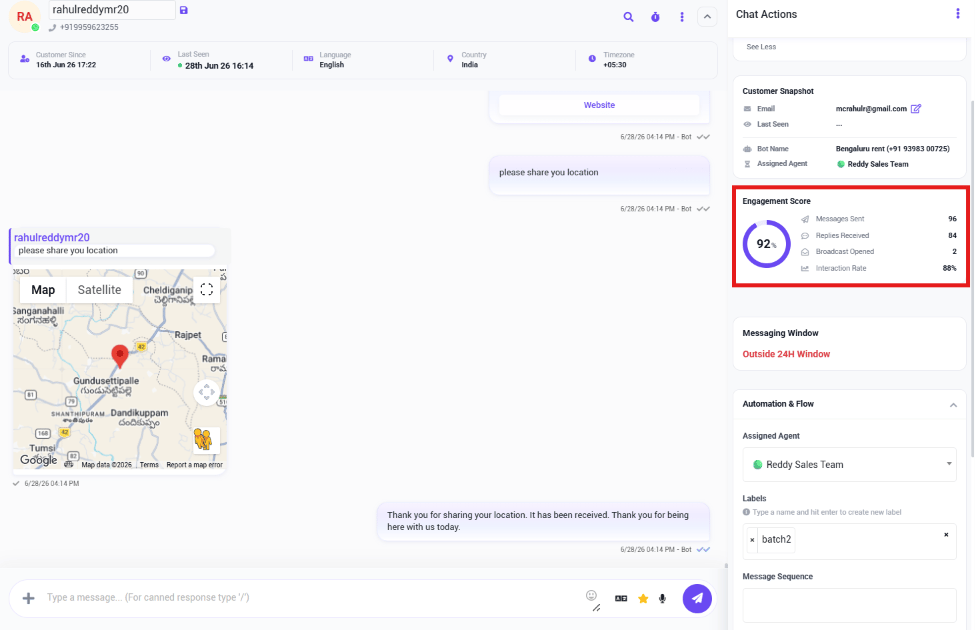 An overall score plus **Messages Sent**, **Replies Received**, **Broadcast Opened**, and
**Interaction Rate** — a quick read on how engaged this customer is.
### Messaging Window
An overall score plus **Messages Sent**, **Replies Received**, **Broadcast Opened**, and
**Interaction Rate** — a quick read on how engaged this customer is.
### Messaging Window
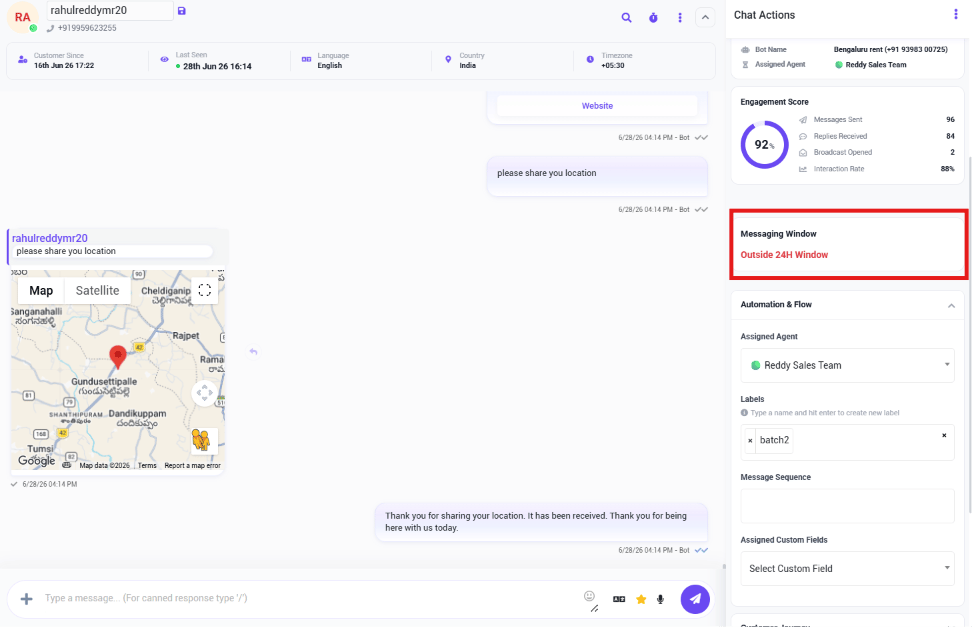 Shows whether the conversation is inside or outside WhatsApp's 24-hour customer service window.
Once it shows **Outside 24H Window**, you need an approved
[Message Template](/learn/whatsapp-message-templates) to message the customer again — a plain
text reply won't go through.
### Automation & Flow
Shows whether the conversation is inside or outside WhatsApp's 24-hour customer service window.
Once it shows **Outside 24H Window**, you need an approved
[Message Template](/learn/whatsapp-message-templates) to message the customer again — a plain
text reply won't go through.
### Automation & Flow
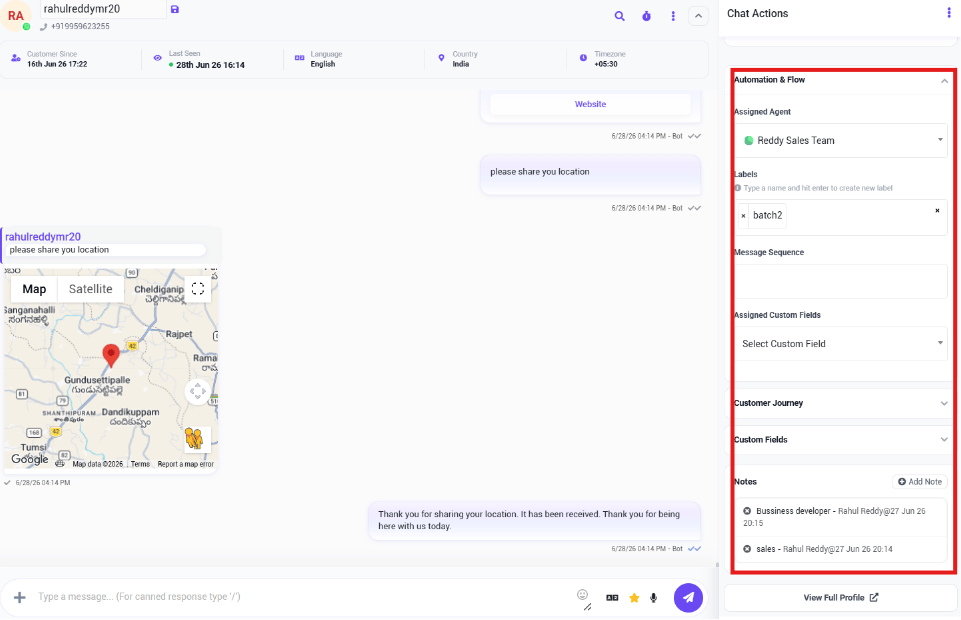 * **Assigned Agent** — assign or reassign the conversation to a team member. If Rahul is
unavailable, reassign the chat to Priya so she can continue the support.
* **Labels** — tag the conversation to organize it, e.g. `New Lead`, `VIP Customer`,
`Payment Pending`, `Follow Up`, `Sales`.
* **Assigned Agent** — assign or reassign the conversation to a team member. If Rahul is
unavailable, reassign the chat to Priya so she can continue the support.
* **Labels** — tag the conversation to organize it, e.g. `New Lead`, `VIP Customer`,
`Payment Pending`, `Follow Up`, `Sales`.
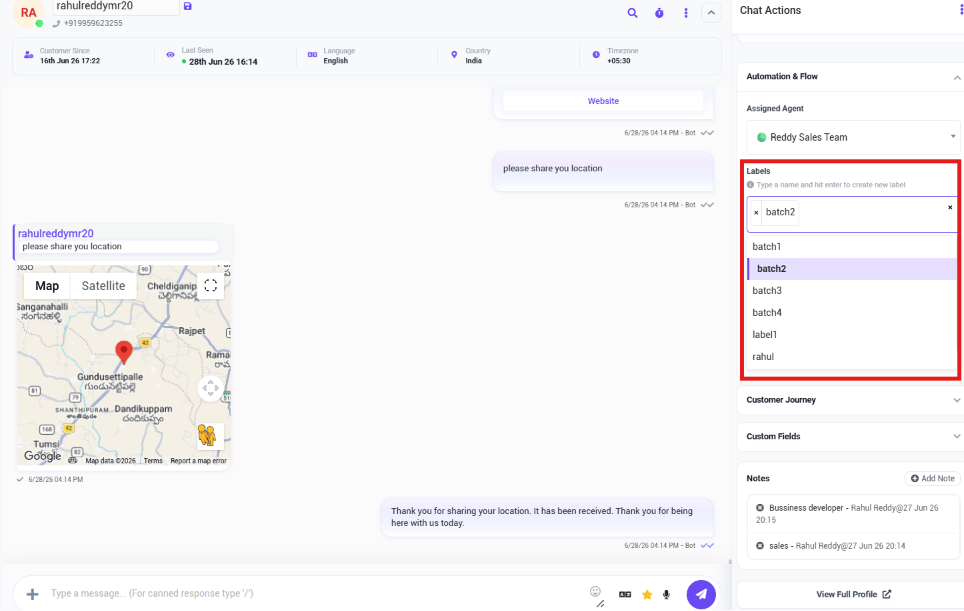 * **Message Sequence** — assign an automated follow-up [Follow-up Sequences](/learn/whatsapp-sequence) to
the customer. For example, a customer who downloads a brochure can be started on a 5-day
follow-up sequence.
* **Message Sequence** — assign an automated follow-up [Follow-up Sequences](/learn/whatsapp-sequence) to
the customer. For example, a customer who downloads a brochure can be started on a 5-day
follow-up sequence.
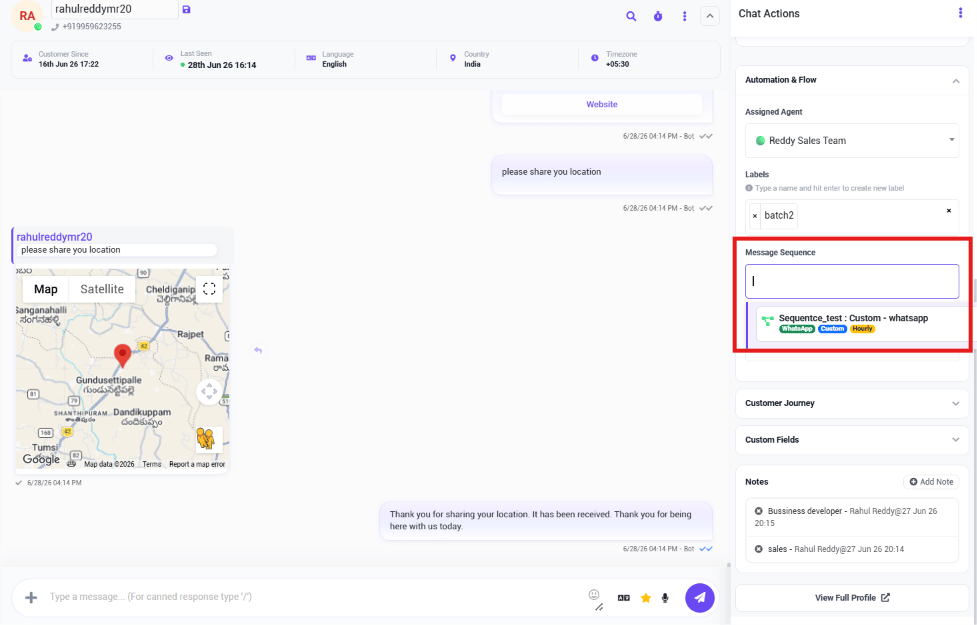 * **Assigned Custom Fields** / **Custom Fields** — attach predefined custom fields (e.g. Product
Interest, Budget, Preferred Language) or other customer-specific data (Company Name, Order
Number, Lead Source) to this conversation.
* **Customer Journey** — the customer's subscription status and opt-in source.
* **Notes** — internal notes visible only to your team, never to the customer, e.g.
*"Customer requested a callback tomorrow at 10 AM. Interested in Premium Plan."*
* **View Full Profile** — opens the complete customer profile with full interaction history.
**Real example** — an order-tracking conversation with all four pieces filled in at once:
* **Customer Journey** — `Status: Subscribed (2nd Jul 26 09:46)`, `OPT-IN Through: DIRECT`.
* **Custom Fields** — `Customer name: Rahul Sharma`, `Estimated Delivery: Mumbai`,
`Order ID: Lakshit Ukani`, `Product: Delivered`, `Status: Shipped`,
`Tracking ID: TRK654321`.
With this filled in, an agent opening the conversation can see the customer's order status and
tracking number at a glance, without asking the customer to repeat themselves or looking it up
in a separate system.
## Follow-up reminders
* **Assigned Custom Fields** / **Custom Fields** — attach predefined custom fields (e.g. Product
Interest, Budget, Preferred Language) or other customer-specific data (Company Name, Order
Number, Lead Source) to this conversation.
* **Customer Journey** — the customer's subscription status and opt-in source.
* **Notes** — internal notes visible only to your team, never to the customer, e.g.
*"Customer requested a callback tomorrow at 10 AM. Interested in Premium Plan."*
* **View Full Profile** — opens the complete customer profile with full interaction history.
**Real example** — an order-tracking conversation with all four pieces filled in at once:
* **Customer Journey** — `Status: Subscribed (2nd Jul 26 09:46)`, `OPT-IN Through: DIRECT`.
* **Custom Fields** — `Customer name: Rahul Sharma`, `Estimated Delivery: Mumbai`,
`Order ID: Lakshit Ukani`, `Product: Delivered`, `Status: Shipped`,
`Tracking ID: TRK654321`.
With this filled in, an agent opening the conversation can see the customer's order status and
tracking number at a glance, without asking the customer to repeat themselves or looking it up
in a separate system.
## Follow-up reminders
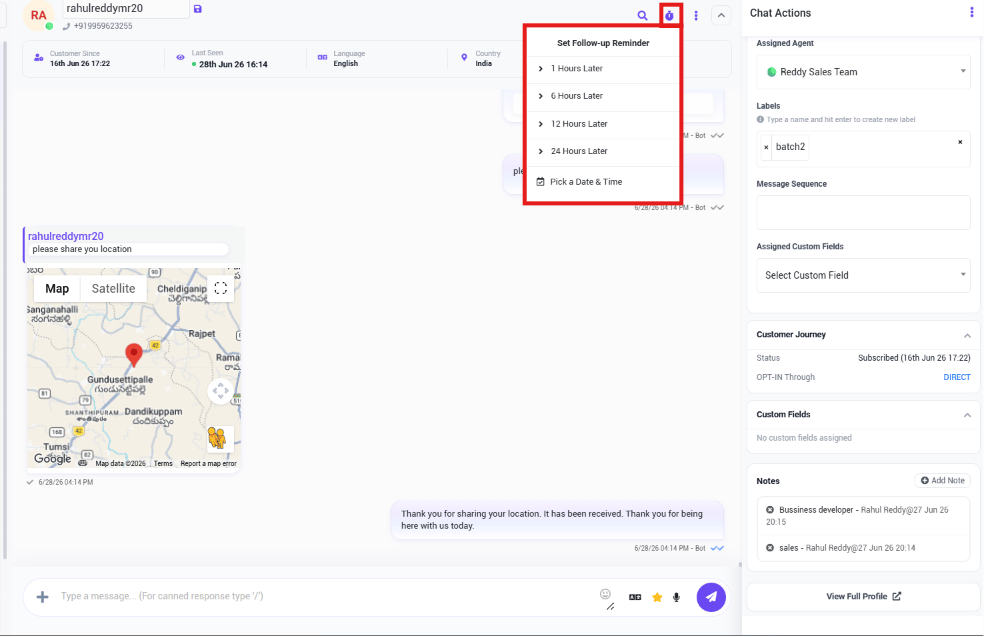 Set a reminder to come back to a conversation later: **1 Hour Later**, **6 Hours Later**,
**12 Hours Later**, **24 Hours Later**, or **Pick a Date & Time**. If a customer says
"I'll decide tomorrow," set a **24 Hours Later** reminder so the system prompts you to follow up.
All scheduled reminders are visible together from **Settings → Follow-up List**.
## Install ChatSyncs as a mobile app
ChatSyncs can be installed as a **Progressive Web App (PWA)** on both Android and iPhone for
faster, app-like access to the Shared Inbox — no separate app store download needed.
### Android (Chrome)
On your Android device, open **Google Chrome** and log in to your ChatSyncs account.
From the dashboard, open **Shared Inbox** from the sidebar.
Set a reminder to come back to a conversation later: **1 Hour Later**, **6 Hours Later**,
**12 Hours Later**, **24 Hours Later**, or **Pick a Date & Time**. If a customer says
"I'll decide tomorrow," set a **24 Hours Later** reminder so the system prompts you to follow up.
All scheduled reminders are visible together from **Settings → Follow-up List**.
## Install ChatSyncs as a mobile app
ChatSyncs can be installed as a **Progressive Web App (PWA)** on both Android and iPhone for
faster, app-like access to the Shared Inbox — no separate app store download needed.
### Android (Chrome)
On your Android device, open **Google Chrome** and log in to your ChatSyncs account.
From the dashboard, open **Shared Inbox** from the sidebar.
 Tap the **⋮** (three-dot) menu in the top-right corner of Chrome.
 Depending on your Chrome version, this may instead say **Install App** or **Install**.
 Tap **Install** to confirm. Chrome installs the ChatSyncs PWA on your device.
 The ChatSyncs icon appears on your **Home Screen** and in your **App Drawer**. Tap it to
launch ChatSyncs like a native app — faster than opening Chrome and navigating there each
time.
If **Install** appears grayed out the first time you open **Add to Home screen**, close the
menu, let the page finish loading fully, and try again.
### iPhone (Safari)
PWA installation on iOS works **only in Safari** — it won't work from Chrome or any other
browser on iPhone.
The ChatSyncs icon appears on your **Home Screen** and in your **App Drawer**. Tap it to
launch ChatSyncs like a native app — faster than opening Chrome and navigating there each
time.
If **Install** appears grayed out the first time you open **Add to Home screen**, close the
menu, let the page finish loading fully, and try again.
### iPhone (Safari)
PWA installation on iOS works **only in Safari** — it won't work from Chrome or any other
browser on iPhone.
 ChatSyncs may show this **Install ChatSyncs** prompt automatically the first time you open it in
Safari — you can follow it directly, or use the manual steps below.
On your iPhone, open **Safari** and log in to your ChatSyncs account.
After logging in, navigate to **Shared Inbox**.
ChatSyncs may show this **Install ChatSyncs** prompt automatically the first time you open it in
Safari — you can follow it directly, or use the manual steps below.
On your iPhone, open **Safari** and log in to your ChatSyncs account.
After logging in, navigate to **Shared Inbox**.
 Tap the **Share** icon (on some Safari layouts this is at the bottom of the screen; on
others it's the first item in the top menu, as shown here).
Tap the **Share** icon (on some Safari layouts this is at the bottom of the screen; on
others it's the first item in the top menu, as shown here).
 Scroll down in the Share menu and tap **Add to Home Screen**.
 Review the app name if needed, keep **Open as Web App** enabled, then tap **Add** in the
top-right corner.
Review the app name if needed, keep **Open as Web App** enabled, then tap **Add** in the
top-right corner.
 The ChatSyncs icon is added to your **Home Screen**. Tap it to open and use ChatSyncs like a
native app, without opening Safari first.
If **Add to Home Screen** isn't visible in the Share menu, confirm you're using **Safari** —
this option doesn't appear in Chrome or other iOS browsers.
## Frequently asked
Select the **Mine** filter at the top of the Shared Inbox — it shows only conversations
currently assigned to you, not the whole team's chats.
Check the **Messaging Window** in the Chat Actions panel. If it shows **Outside 24H
Window**, WhatsApp requires an approved
[Message Template](/learn/whatsapp-message-templates) before you can message the customer
again.
Open the conversation, go to **Automation & Flow** in the Chat Actions panel, and change
**Assigned Agent** to the teammate who should take over.
Use the **Archived** or **Resolved** filter at the top of the Shared Inbox.
Yes — use **Notes** in the Chat Actions panel. Notes are internal-only and never shown to
the customer.
Use the follow-up reminder option (the clock icon) on the conversation and pick **1/6/12/24
Hours Later** or a custom date and time. All your reminders are listed under
**Settings → Follow-up List**.
Yes — open the Shared Inbox in Chrome on Android, tap the **⋮** menu, choose **Add to Home
screen**, then **Install**. ChatSyncs is added to your home screen and app drawer like a
native app.
Yes, but only through **Safari** — open Shared Inbox in Safari, tap **Share**, then **Add to
Home Screen**, then **Add**. It won't work from Chrome or another browser on iOS.
* **Outside the 24-hour window, plain replies don't deliver** — send an approved
[Message Template](/learn/whatsapp-message-templates) to restart the conversation.
* **Deleting a subscriber from Conversation Options is permanent** — there's no undo.
* **Notes are internal only** — never use them to send information you mean for the customer to
see.
The ChatSyncs icon is added to your **Home Screen**. Tap it to open and use ChatSyncs like a
native app, without opening Safari first.
If **Add to Home Screen** isn't visible in the Share menu, confirm you're using **Safari** —
this option doesn't appear in Chrome or other iOS browsers.
## Frequently asked
Select the **Mine** filter at the top of the Shared Inbox — it shows only conversations
currently assigned to you, not the whole team's chats.
Check the **Messaging Window** in the Chat Actions panel. If it shows **Outside 24H
Window**, WhatsApp requires an approved
[Message Template](/learn/whatsapp-message-templates) before you can message the customer
again.
Open the conversation, go to **Automation & Flow** in the Chat Actions panel, and change
**Assigned Agent** to the teammate who should take over.
Use the **Archived** or **Resolved** filter at the top of the Shared Inbox.
Yes — use **Notes** in the Chat Actions panel. Notes are internal-only and never shown to
the customer.
Use the follow-up reminder option (the clock icon) on the conversation and pick **1/6/12/24
Hours Later** or a custom date and time. All your reminders are listed under
**Settings → Follow-up List**.
Yes — open the Shared Inbox in Chrome on Android, tap the **⋮** menu, choose **Add to Home
screen**, then **Install**. ChatSyncs is added to your home screen and app drawer like a
native app.
Yes, but only through **Safari** — open Shared Inbox in Safari, tap **Share**, then **Add to
Home Screen**, then **Add**. It won't work from Chrome or another browser on iOS.
* **Outside the 24-hour window, plain replies don't deliver** — send an approved
[Message Template](/learn/whatsapp-message-templates) to restart the conversation.
* **Deleting a subscriber from Conversation Options is permanent** — there's no undo.
* **Notes are internal only** — never use them to send information you mean for the customer to
see.