> ## Documentation Index
> Fetch the complete documentation index at: https://docs.chatsyncs.com/llms.txt
> Use this file to discover all available pages before exploring further.
# Follow-up Sequences
> Follow-up Sequences automatically send a series of timed messages to subscribers — useful for onboarding, promotions, product updates, lead nurturing, follow-ups, and other multi-step engagement campaigns.
## Create a sequence
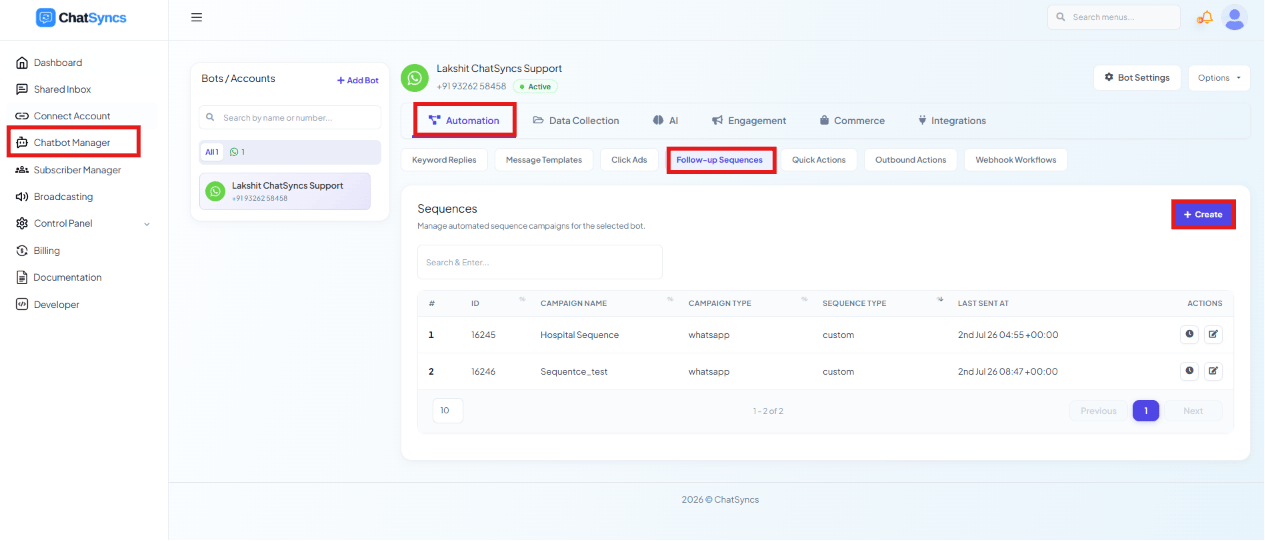 Go to **Chatbot Manager**.
Select **Automation**.
Select **Follow-up Sequences** from the sub-tabs.
Click **Create** to start a new sequence.
Enter a **Sequence Campaign Name** to identify it, e.g. `Product Launch Follow-up`.
## Delivery schedule & re-entry rules
The **Configure New Sequence** panel sets two things beyond the name:
Go to **Chatbot Manager**.
Select **Automation**.
Select **Follow-up Sequences** from the sub-tabs.
Click **Create** to start a new sequence.
Enter a **Sequence Campaign Name** to identify it, e.g. `Product Launch Follow-up`.
## Delivery schedule & re-entry rules
The **Configure New Sequence** panel sets two things beyond the name:
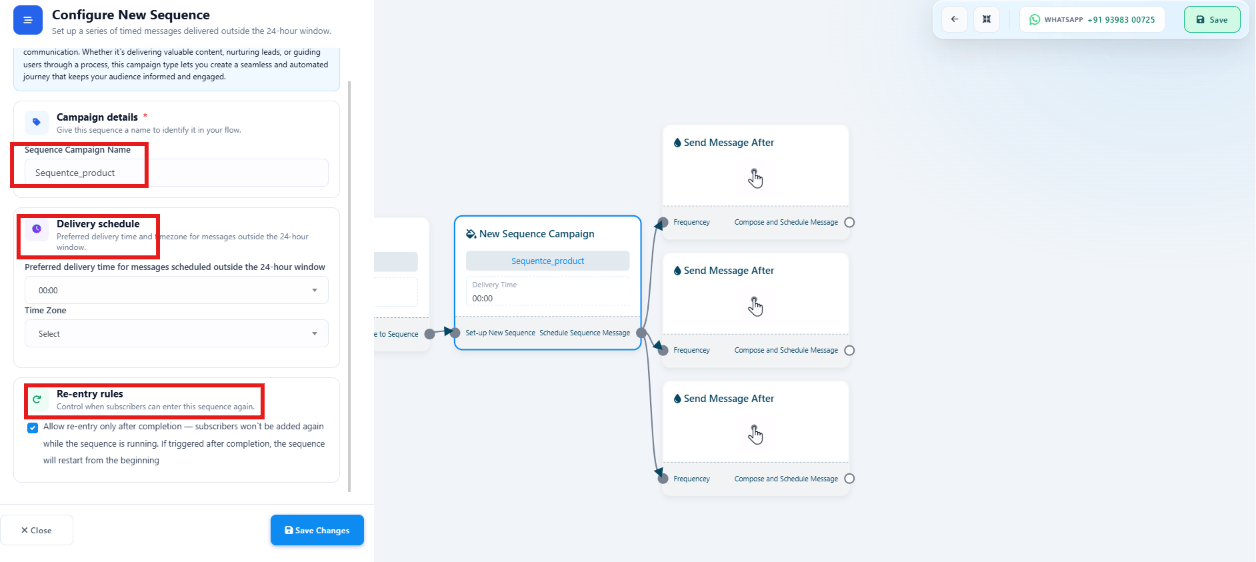 * **Delivery Schedule** — the **Preferred Delivery Time** (e.g. `10:00 AM`) and **Time Zone**
(e.g. `Asia/Kolkata`) used for messages sent to subscribers who are outside the WhatsApp
24-hour window, so they land at a consistent, appropriate local time.
* **Re-entry Rules** — **Allow Re-entry Only After Completion**, which blocks a subscriber from
being added to the sequence again while it's already running for them. Once they finish, they
can be re-enrolled if triggered again. For example, a subscriber in a 7-day onboarding
sequence can't be re-added during those 7 days, but can re-enter after it finishes.
### Example: why re-entry rules matter
Say a bot triggers a sequence on the keyword `Hi`, sending **Message 1** immediately and
**Message 2** one minute later.
**Without re-entry protection**, sending `Hi` again before Message 2 arrives restarts the whole
sequence from Message 1 — the subscriber ends up with duplicate messages:
```
User: Hi
Bot : Welcome to our store!
(User sends "Hi" again before Message 2)
Bot : Welcome to our store! ← Starts again
Bot : Here is a 10% discount coupon.
```
**With "Allow Re-entry Only After Completion" enabled**, that second `Hi` is ignored while the
sequence is already running — the subscriber just continues to Message 2 normally, and can
only restart the sequence after it's fully finished:
```
User: Hi
Bot : Welcome to our store!
(User sends "Hi" again before Message 2)
No restart
Bot : Here is a 10% discount coupon.
(Sequence completed)
User: Hi
Bot : Welcome to our store! ← Starts again
```
## Configure each message step
Each step in the sequence (a **Send Message After** block) is configured with:
* **Delivery Schedule** — the **Preferred Delivery Time** (e.g. `10:00 AM`) and **Time Zone**
(e.g. `Asia/Kolkata`) used for messages sent to subscribers who are outside the WhatsApp
24-hour window, so they land at a consistent, appropriate local time.
* **Re-entry Rules** — **Allow Re-entry Only After Completion**, which blocks a subscriber from
being added to the sequence again while it's already running for them. Once they finish, they
can be re-enrolled if triggered again. For example, a subscriber in a 7-day onboarding
sequence can't be re-added during those 7 days, but can re-enter after it finishes.
### Example: why re-entry rules matter
Say a bot triggers a sequence on the keyword `Hi`, sending **Message 1** immediately and
**Message 2** one minute later.
**Without re-entry protection**, sending `Hi` again before Message 2 arrives restarts the whole
sequence from Message 1 — the subscriber ends up with duplicate messages:
```
User: Hi
Bot : Welcome to our store!
(User sends "Hi" again before Message 2)
Bot : Welcome to our store! ← Starts again
Bot : Here is a 10% discount coupon.
```
**With "Allow Re-entry Only After Completion" enabled**, that second `Hi` is ignored while the
sequence is already running — the subscriber just continues to Message 2 normally, and can
only restart the sequence after it's fully finished:
```
User: Hi
Bot : Welcome to our store!
(User sends "Hi" again before Message 2)
No restart
Bot : Here is a 10% discount coupon.
(Sequence completed)
User: Hi
Bot : Welcome to our store! ← Starts again
```
## Configure each message step
Each step in the sequence (a **Send Message After** block) is configured with:
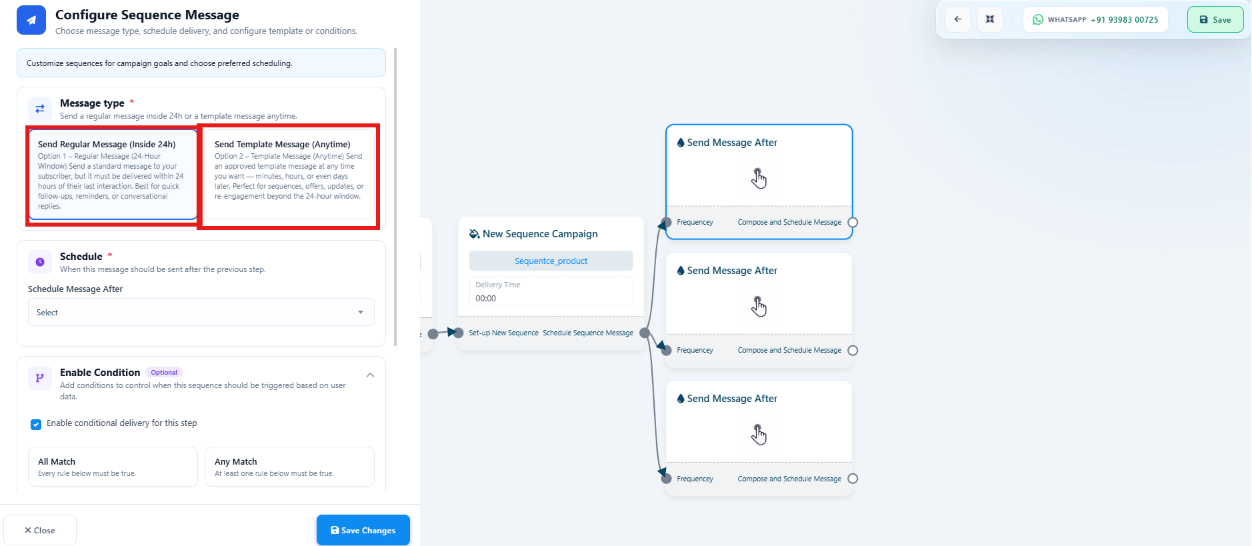 **Send Regular Message (Inside 24h)** — for subscribers inside the WhatsApp 24-hour window;
no template approval needed, and supports text, images, videos, documents, and buttons.
**Send Template Message (Anytime)** — for subscribers outside the window; requires an
[approved WhatsApp template](/meta-api/templates/template-categories) but can be sent at any
time. See [the 24-hour customer service window](/meta-api/messaging/24-hour-customer-service-window).
Set how long after the previous step this message sends, e.g. immediately, after 2 hours,
or after 1 day.
Restrict the step to subscribers matching specific criteria, with **All Match** or **Any
Match** logic — see [Condition logic for a step](#condition-logic-for-a-step) below.
**Example timeline:**
```
Day 0 → Welcome Message
2 Hours → Product Information
1 Day → Customer Testimonial
3 Days → Demo Reminder
7 Days → Special Offer
```
## Condition logic for a step
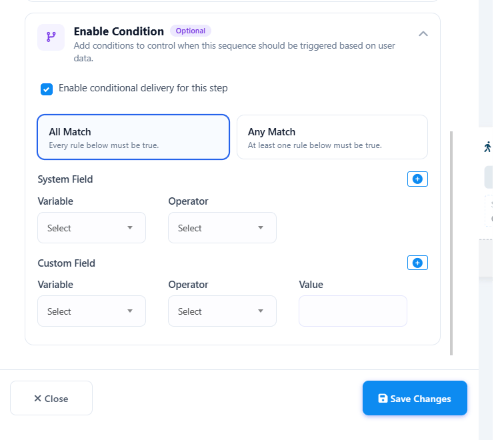
**Enable Condition** sends a step's message only when a subscriber meets criteria you set — if
the condition is true, the message sends; if false, it's skipped for that subscriber.
**Send Regular Message (Inside 24h)** — for subscribers inside the WhatsApp 24-hour window;
no template approval needed, and supports text, images, videos, documents, and buttons.
**Send Template Message (Anytime)** — for subscribers outside the window; requires an
[approved WhatsApp template](/meta-api/templates/template-categories) but can be sent at any
time. See [the 24-hour customer service window](/meta-api/messaging/24-hour-customer-service-window).
Set how long after the previous step this message sends, e.g. immediately, after 2 hours,
or after 1 day.
Restrict the step to subscribers matching specific criteria, with **All Match** or **Any
Match** logic — see [Condition logic for a step](#condition-logic-for-a-step) below.
**Example timeline:**
```
Day 0 → Welcome Message
2 Hours → Product Information
1 Day → Customer Testimonial
3 Days → Demo Reminder
7 Days → Special Offer
```
## Condition logic for a step
**Enable Condition** sends a step's message only when a subscriber meets criteria you set — if
the condition is true, the message sends; if false, it's skipped for that subscriber.
 ### Match types
* **All Match (AND)** — every condition must be true. E.g. `Country = India` **and**
`Membership = Gold` only sends to Indian Gold members; an Indian Silver member or a US Gold
member is skipped.
* **Any Match (OR)** — at least one condition must be true. E.g. `Membership = Gold` **or**
`Membership = Platinum` sends to either, skipping only Silver.
### Variable types
* **System Field** — built-in subscriber details ChatSyncs already tracks: First Name, Last
Name, Phone Number, Country, Gender.
* **Custom Field** — fields you created yourself, e.g. Membership, City, Product, Plan, Order
Value.
### Operators
### Match types
* **All Match (AND)** — every condition must be true. E.g. `Country = India` **and**
`Membership = Gold` only sends to Indian Gold members; an Indian Silver member or a US Gold
member is skipped.
* **Any Match (OR)** — at least one condition must be true. E.g. `Membership = Gold` **or**
`Membership = Platinum` sends to either, skipping only Silver.
### Variable types
* **System Field** — built-in subscriber details ChatSyncs already tracks: First Name, Last
Name, Phone Number, Country, Gender.
* **Custom Field** — fields you created yourself, e.g. Membership, City, Product, Plan, Order
Value.
### Operators
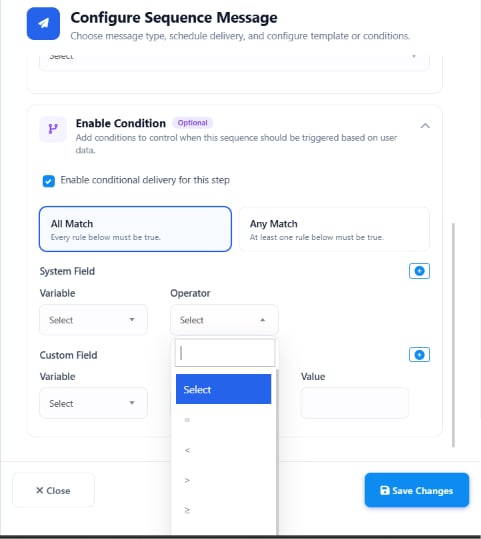 | Operator | Meaning | Example |
| -------- | ------------------------ | ---------------------- |
| `=` | Equal to | `Membership = Gold` |
| `!=` | Not equal to | `Country != India` |
| `<` | Less than | `Age < 18` |
| `>` | Greater than | `Order Value > 5000` |
| `<=` | Less than or equal to | `Age <= 18` |
| `>=` | Greater than or equal to | `Order Value >= 10000` |
### Practical examples
* **Gold members only:** Custom Field `Membership` `=` `Gold` → only Gold members receive the
step.
* **High-value customers:** Custom Field `Order Value` `>=` `10000` → only customers who've
ordered ₹10,000+ receive the step.
* **India only:** System Field `Country` `=` `India` → only Indian subscribers receive the
step.
```
Subscriber reaches the sequence step
↓
ChatSyncs checks the condition
↓
┌───────┴───────┐
Condition True Condition False
↓ ↓
Message Sent Message Skipped
```
## Add a step's content
| Operator | Meaning | Example |
| -------- | ------------------------ | ---------------------- |
| `=` | Equal to | `Membership = Gold` |
| `!=` | Not equal to | `Country != India` |
| `<` | Less than | `Age < 18` |
| `>` | Greater than | `Order Value > 5000` |
| `<=` | Less than or equal to | `Age <= 18` |
| `>=` | Greater than or equal to | `Order Value >= 10000` |
### Practical examples
* **Gold members only:** Custom Field `Membership` `=` `Gold` → only Gold members receive the
step.
* **High-value customers:** Custom Field `Order Value` `>=` `10000` → only customers who've
ordered ₹10,000+ receive the step.
* **India only:** System Field `Country` `=` `India` → only Indian subscribers receive the
step.
```
Subscriber reaches the sequence step
↓
ChatSyncs checks the condition
↓
┌───────┴───────┐
Condition True Condition False
↓ ↓
Message Sent Message Skipped
```
## Add a step's content
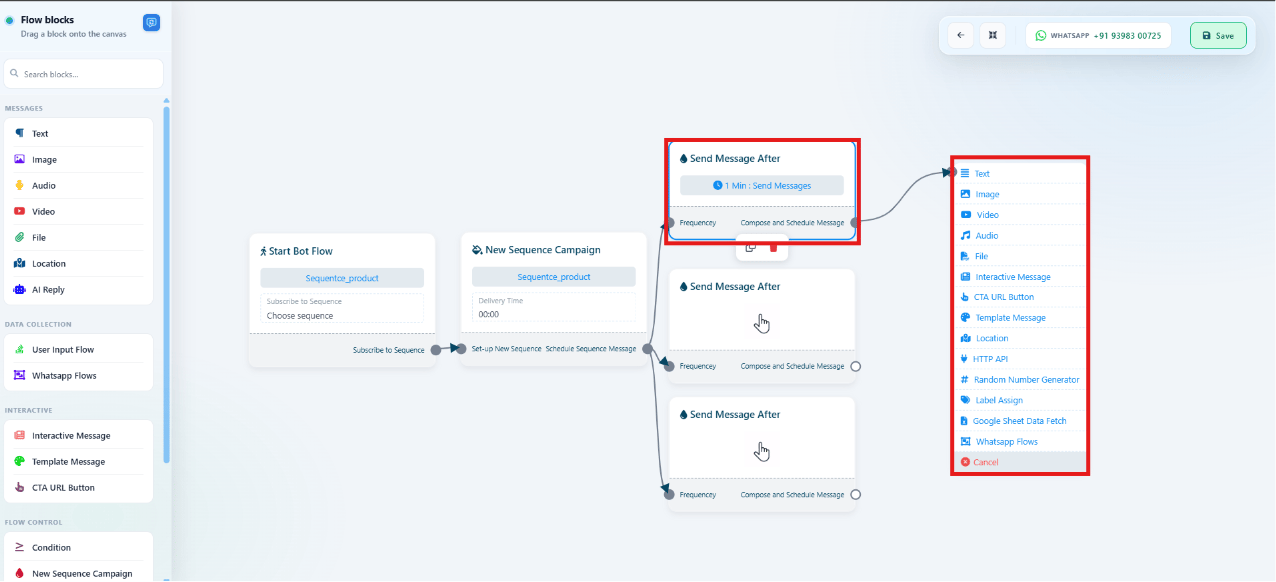 Each **Send Message After** block's content is picked from the same components used elsewhere
in ChatSyncs: Text, Image, Video, Audio, File, Location, Interactive Message, CTA URL Button,
Template Message, HTTP API, Random Number Generator, Label Assign, Google Sheet Fetch, and
WhatsApp Flows.
## Send a Template Message step
Each **Send Message After** block's content is picked from the same components used elsewhere
in ChatSyncs: Text, Image, Video, Audio, File, Location, Interactive Message, CTA URL Button,
Template Message, HTTP API, Random Number Generator, Label Assign, Google Sheet Fetch, and
WhatsApp Flows.
## Send a Template Message step
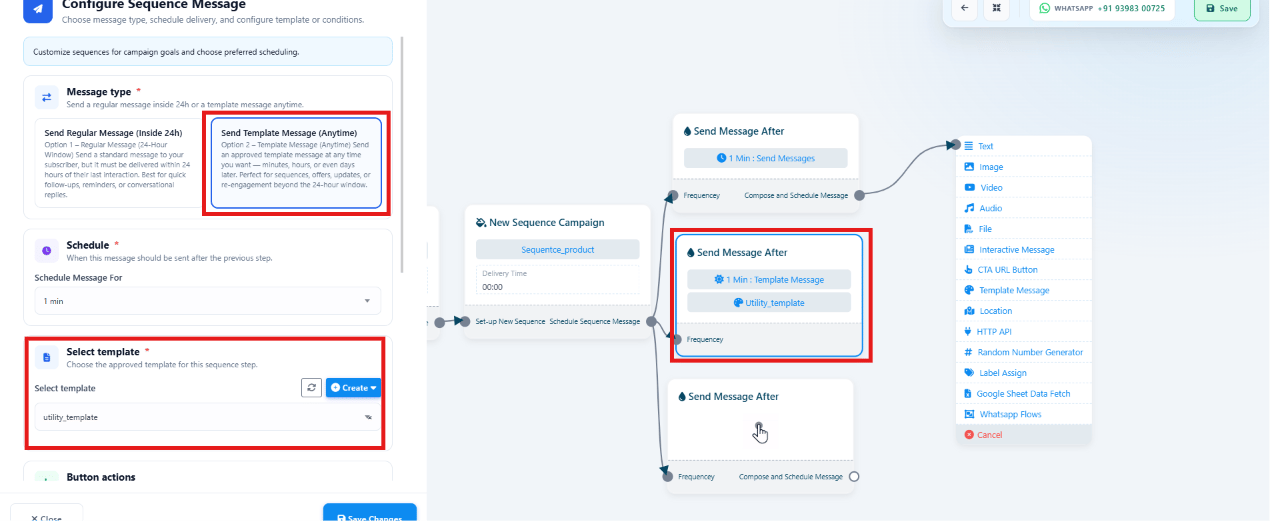 To send an approved template on a step, choose **Template Message**, pick the template from
**Select Template**, and set **Schedule Message After**. If the template has buttons, configure
each button's action — trigger a Bot Flow, Keyword Replies, another Sequence, or a redirect. Click
**Save Changes** to add it to the sequence.
## Use a sequence in Keyword Replies
Once saved, a sequence becomes available across the platform — most commonly, you subscribe
users to it from a **Keyword Replies** action block:
```
User clicks "Learn More"
↓
Keyword Replies Action
↓
Subscribe User to Product Follow-up Sequence
↓
Automated messages are sent over time
```
A subscriber must be added to a sequence (manually or through a bot action) before they'll
receive its messages.
## Follow-up Sequences actions
The Sequences list shows every sequence with two actions:
To send an approved template on a step, choose **Template Message**, pick the template from
**Select Template**, and set **Schedule Message After**. If the template has buttons, configure
each button's action — trigger a Bot Flow, Keyword Replies, another Sequence, or a redirect. Click
**Save Changes** to add it to the sequence.
## Use a sequence in Keyword Replies
Once saved, a sequence becomes available across the platform — most commonly, you subscribe
users to it from a **Keyword Replies** action block:
```
User clicks "Learn More"
↓
Keyword Replies Action
↓
Subscribe User to Product Follow-up Sequence
↓
Automated messages are sent over time
```
A subscriber must be added to a sequence (manually or through a bot action) before they'll
receive its messages.
## Follow-up Sequences actions
The Sequences list shows every sequence with two actions:
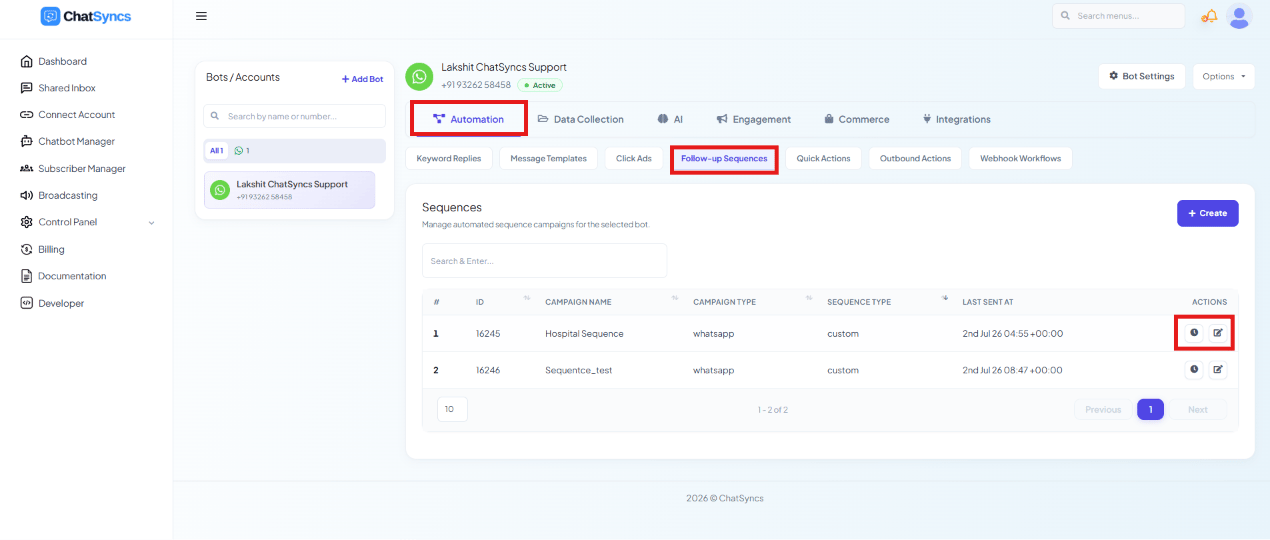 * **View Report** — subscribers enrolled, messages sent, delivery status, and progress.
* **Edit** — update message content, delivery schedule, conditions, or templates. Edits apply
only to subscribers who enter the sequence after the change; subscribers already running it
finish on the version they started with.
## Frequently asked
Create a sequence under **Chatbot Manager → Automation → Follow-up Sequences**, name it, set its delivery schedule and re-entry rules,
then add **Send Message After** steps with the content and timing you want. Subscribe users
to it — typically from a Keyword Replies action block — and the messages send automatically on
schedule.
**Send Regular Message (Inside 24h)** only reaches subscribers currently inside the
24-hour window and needs no template approval. **Send Template Message (Anytime)** reaches
subscribers regardless of window but requires an approved WhatsApp template.
Yes, once they complete it — if **Allow Re-entry Only After Completion** is enabled, they
can't be re-added while the sequence is still running for them, but can be re-enrolled after
it finishes.
No — edits only apply to future executions. Subscribers currently running the sequence
continue on the version they started with; only newly enrolled subscribers get the update.
From a **Keyword Replies** flow, use an action block to subscribe the user to the sequence — e.g.
triggered when they click a button or send a keyword. They then receive the sequence's
messages automatically over time.
Yes — turn on **Enable Condition** on that step and add one or more rules (System Field or
Custom Field, an operator, and a value). Use **All Match** if every rule must be true, or
**Any Match** if just one needs to be — e.g. only Gold members, or only orders over a
certain value.
* **Outside the 24-hour window, only approved templates can be sent** — a regular message step
will not reach subscribers who are outside it.
* **Re-entry rules prevent duplicate enrollment** — enable **Allow Re-entry Only After
Completion** to stop a subscriber from overlapping with themselves in the same sequence.
* **Edits only affect future subscribers** — review schedule, conditions, and templates
carefully before enrolling anyone, since changes won't apply retroactively.
* **View Report** — subscribers enrolled, messages sent, delivery status, and progress.
* **Edit** — update message content, delivery schedule, conditions, or templates. Edits apply
only to subscribers who enter the sequence after the change; subscribers already running it
finish on the version they started with.
## Frequently asked
Create a sequence under **Chatbot Manager → Automation → Follow-up Sequences**, name it, set its delivery schedule and re-entry rules,
then add **Send Message After** steps with the content and timing you want. Subscribe users
to it — typically from a Keyword Replies action block — and the messages send automatically on
schedule.
**Send Regular Message (Inside 24h)** only reaches subscribers currently inside the
24-hour window and needs no template approval. **Send Template Message (Anytime)** reaches
subscribers regardless of window but requires an approved WhatsApp template.
Yes, once they complete it — if **Allow Re-entry Only After Completion** is enabled, they
can't be re-added while the sequence is still running for them, but can be re-enrolled after
it finishes.
No — edits only apply to future executions. Subscribers currently running the sequence
continue on the version they started with; only newly enrolled subscribers get the update.
From a **Keyword Replies** flow, use an action block to subscribe the user to the sequence — e.g.
triggered when they click a button or send a keyword. They then receive the sequence's
messages automatically over time.
Yes — turn on **Enable Condition** on that step and add one or more rules (System Field or
Custom Field, an operator, and a value). Use **All Match** if every rule must be true, or
**Any Match** if just one needs to be — e.g. only Gold members, or only orders over a
certain value.
* **Outside the 24-hour window, only approved templates can be sent** — a regular message step
will not reach subscribers who are outside it.
* **Re-entry rules prevent duplicate enrollment** — enable **Allow Re-entry Only After
Completion** to stop a subscriber from overlapping with themselves in the same sequence.
* **Edits only affect future subscribers** — review schedule, conditions, and templates
carefully before enrolling anyone, since changes won't apply retroactively.