> ## Documentation Index
> Fetch the complete documentation index at: https://docs.chatsyncs.com/llms.txt
> Use this file to discover all available pages before exploring further.
# Message Templates
> Message Templates are pre-approved WhatsApp messages you send to customers, especially outside the 24-hour customer service window. A template must be approved by Meta before it can be used in Broadcasts, Sequences, Keyword Replies, WhatsApp Flows, or AI Agent automations.
See [why templates exist](/meta-api/templates/why-templates-exist) for the Meta-level reason
approval is required at all.
## Create a template
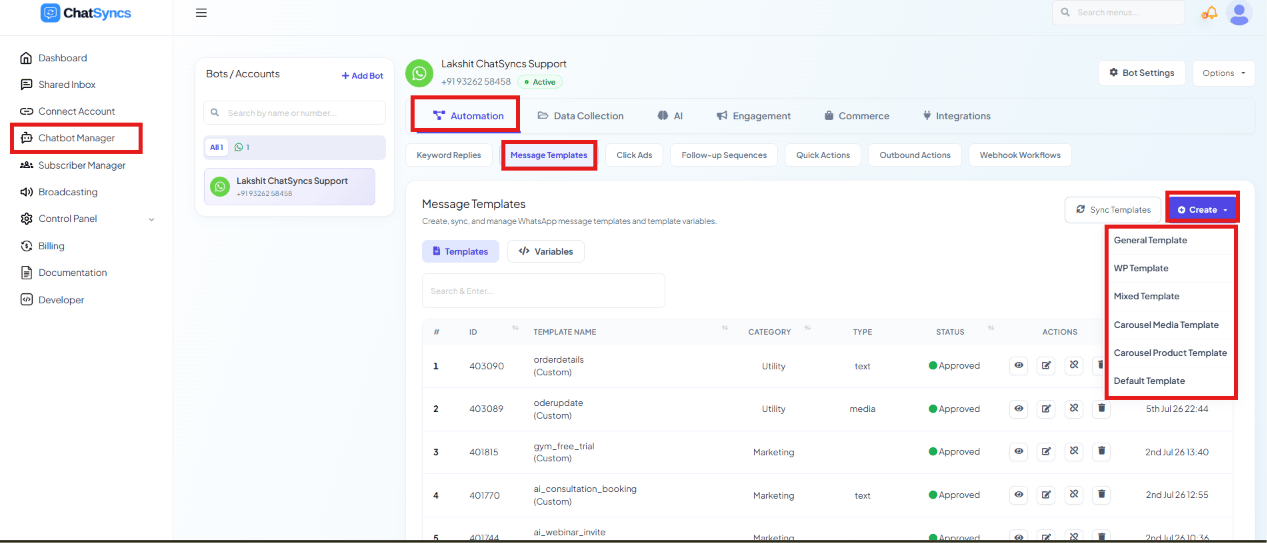 Go to **Chatbot Manager**.
Select **Automation**.
Select **Message Templates** from the sub-tabs.
Click **Create** and pick a template type.
Six template types are available:
* **General Template** — the standard single-message template builder.
* **WP Template** — another single-message builder, mainly used for Marketing templates.
* **Mixed Template** — supports all three [WhatsApp template categories](/meta-api/templates/template-categories)
(Marketing, Utility, Authentication/OTP) from one builder.
* **Carousel Media Template** — a message with swipeable cards, each with its own image or
video.
* **Carousel Product Template** — a carousel purpose-built for showcasing products.
* **Default Template** — system-created templates you don't build yourself.
## General Template
Go to **Chatbot Manager**.
Select **Automation**.
Select **Message Templates** from the sub-tabs.
Click **Create** and pick a template type.
Six template types are available:
* **General Template** — the standard single-message template builder.
* **WP Template** — another single-message builder, mainly used for Marketing templates.
* **Mixed Template** — supports all three [WhatsApp template categories](/meta-api/templates/template-categories)
(Marketing, Utility, Authentication/OTP) from one builder.
* **Carousel Media Template** — a message with swipeable cards, each with its own image or
video.
* **Carousel Product Template** — a carousel purpose-built for showcasing products.
* **Default Template** — system-created templates you don't build yourself.
## General Template
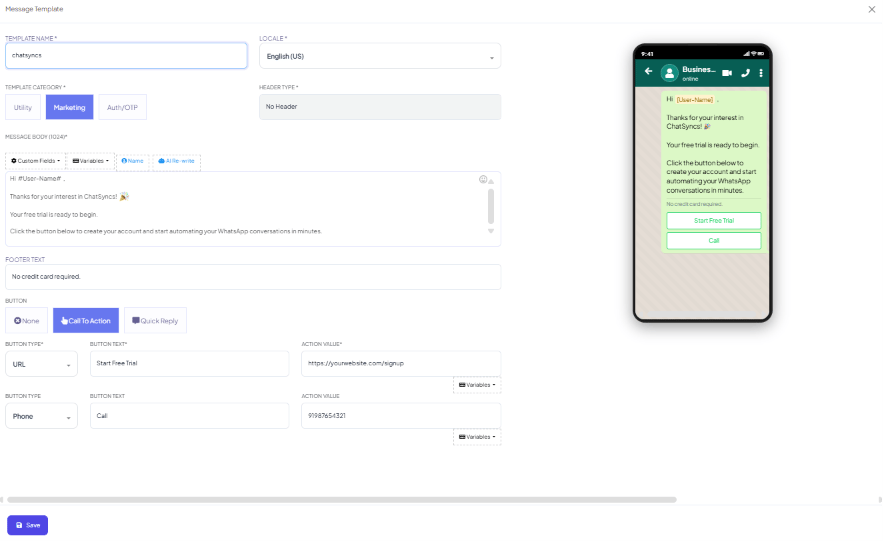 General Template is the standard builder — the same fields described under
[Mixed Template](#mixed-template) below (Template Name, Locale, Template Category, Header Type,
Message Body, Footer Text, Buttons, live preview) apply here too.
## Mixed Template
General Template is the standard builder — the same fields described under
[Mixed Template](#mixed-template) below (Template Name, Locale, Template Category, Header Type,
Message Body, Footer Text, Buttons, live preview) apply here too.
## Mixed Template
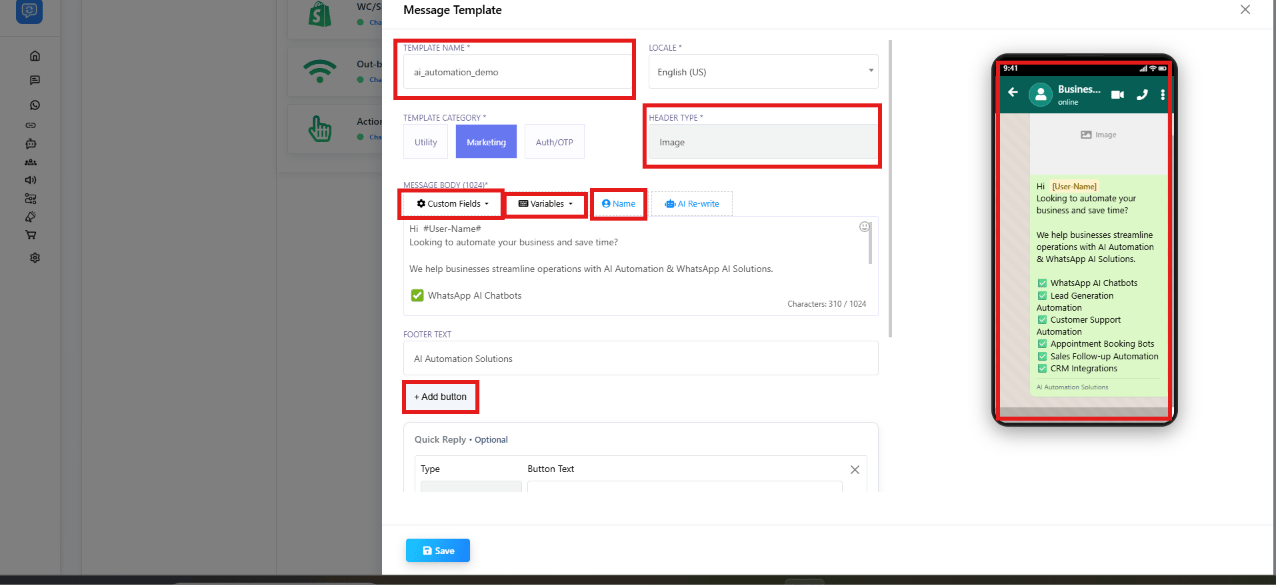 A Mixed Template can be submitted as Marketing, Utility, or Authentication (OTP) — useful when
you want one builder for any category instead of switching tools.
Fields you fill in:
| Field | Notes |
| -------------------- | ---------------------------------------------------------------------------------------------------------------------- |
| **Template Name** | A unique name, e.g. `customer_registration`, `appointment_reminder`. |
| **Locale** | The template's language, e.g. `English (US)`. |
| **Header Type** | `No Header`, `Text`, `Image`, `Video`, or `Document`. |
| **Message Body** | The main text — supports Custom Fields, Variables, and AI Rewrite (below). |
| **Footer Text** | Optional text shown below the message, e.g. `Powered by AI Automation`. |
| **Buttons** | **Call To Action** (Visit Website, Call Now, Book Demo) or **Quick Reply** (Interested, Need Details, Talk To Expert). |
| **Template Preview** | A live preview of how the template will look in WhatsApp, shown on the right as you build. |
### Custom Fields and Variables
Inside the Message Body you can insert:
* **Custom Fields** — subscriber fields like `#customer_city#`, `#customer_email#`,
`#project_name#`.
* **Variables** — dynamic placeholders like `#name#`, `#orderid#`, `#bookingid#`, `#amount#`,
which get replaced with the real value for each customer. These work like
[WhatsApp's `{{1}}`-style template variables](/meta-api/templates/template-variables-and-parameters),
just written with field names instead of numbers.
```text theme={null}
Hi #name#
```
Customer receives:
```text theme={null}
Hi Rahul
```
* **AI Rewrite** — generates or improves the template's wording automatically.
A Mixed Template can be submitted as Marketing, Utility, or Authentication (OTP) — useful when
you want one builder for any category instead of switching tools.
Fields you fill in:
| Field | Notes |
| -------------------- | ---------------------------------------------------------------------------------------------------------------------- |
| **Template Name** | A unique name, e.g. `customer_registration`, `appointment_reminder`. |
| **Locale** | The template's language, e.g. `English (US)`. |
| **Header Type** | `No Header`, `Text`, `Image`, `Video`, or `Document`. |
| **Message Body** | The main text — supports Custom Fields, Variables, and AI Rewrite (below). |
| **Footer Text** | Optional text shown below the message, e.g. `Powered by AI Automation`. |
| **Buttons** | **Call To Action** (Visit Website, Call Now, Book Demo) or **Quick Reply** (Interested, Need Details, Talk To Expert). |
| **Template Preview** | A live preview of how the template will look in WhatsApp, shown on the right as you build. |
### Custom Fields and Variables
Inside the Message Body you can insert:
* **Custom Fields** — subscriber fields like `#customer_city#`, `#customer_email#`,
`#project_name#`.
* **Variables** — dynamic placeholders like `#name#`, `#orderid#`, `#bookingid#`, `#amount#`,
which get replaced with the real value for each customer. These work like
[WhatsApp's `{{1}}`-style template variables](/meta-api/templates/template-variables-and-parameters),
just written with field names instead of numbers.
```text theme={null}
Hi #name#
```
Customer receives:
```text theme={null}
Hi Rahul
```
* **AI Rewrite** — generates or improves the template's wording automatically.
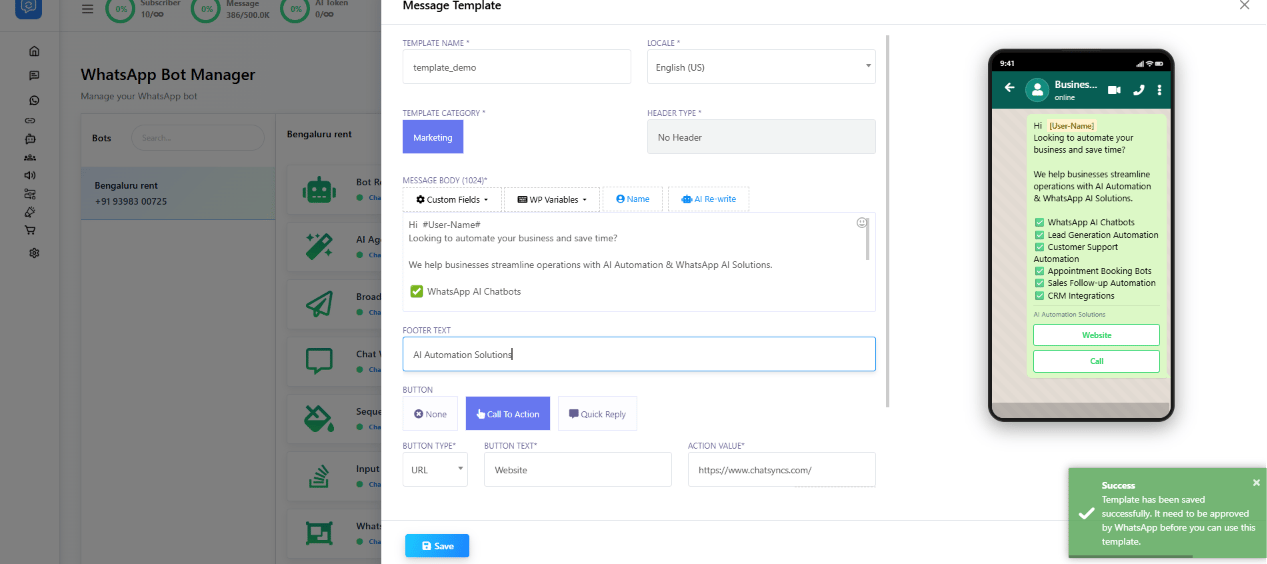 Saving the template shows a confirmation toast like the one above, confirming it's been
submitted for Meta's review.
## WP Template
Saving the template shows a confirmation toast like the one above, confirming it's been
submitted for Meta's review.
## WP Template
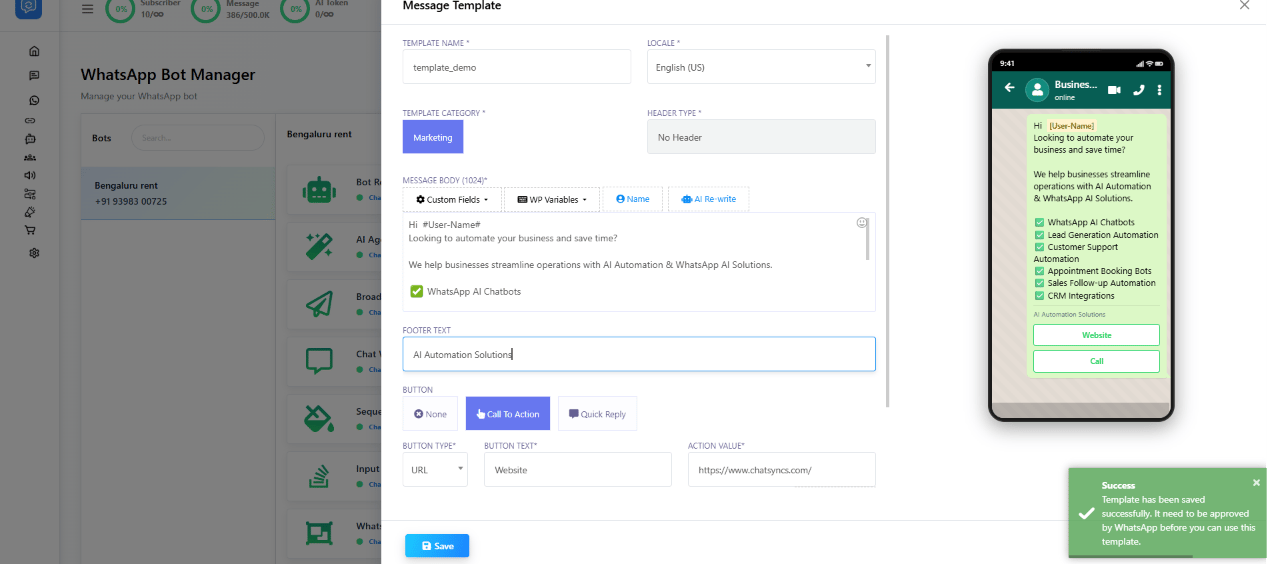 WP Template is another single-message builder, mainly used for Marketing templates. It includes
the same building blocks as the other builders:
* Unique Template Name
* Locale selection
* Header options
* Custom Fields
* **WP Variables** (WP Template's own variable picker, alongside Custom Fields)
* AI Rewrite
* Footer Text
* Call To Action buttons
* Quick Reply buttons
* Live preview
**Supported variables** include `#name#`, `#phone#`, `#email#`, `#orderid#`, `#bookingid#`.
**Common use cases:** promotional offers, product launches, property marketing, service
promotions, lead follow-ups.
## Carousel Media Template
WP Template is another single-message builder, mainly used for Marketing templates. It includes
the same building blocks as the other builders:
* Unique Template Name
* Locale selection
* Header options
* Custom Fields
* **WP Variables** (WP Template's own variable picker, alongside Custom Fields)
* AI Rewrite
* Footer Text
* Call To Action buttons
* Quick Reply buttons
* Live preview
**Supported variables** include `#name#`, `#phone#`, `#email#`, `#orderid#`, `#bookingid#`.
**Common use cases:** promotional offers, product launches, property marketing, service
promotions, lead follow-ups.
## Carousel Media Template
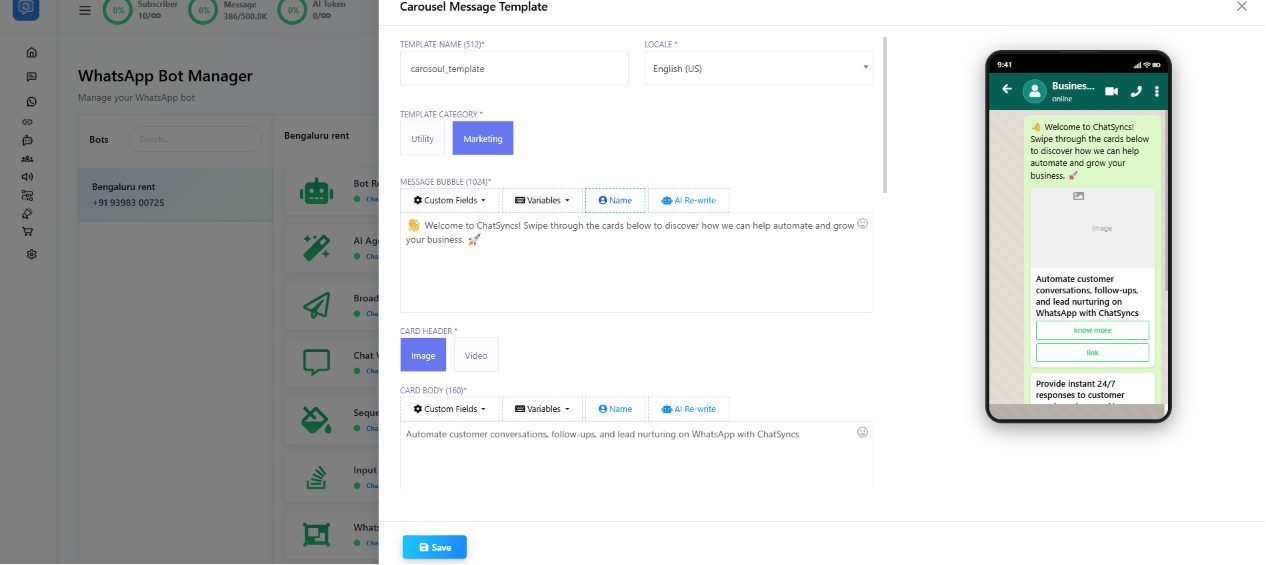 Lets subscribers swipe through multiple cards inside WhatsApp — useful for real estate
projects, travel packages, service catalogs, product showcases, and marketing campaigns.
* **Template Category** — Marketing or Utility.
* **Message Bubble** — the main message shown above the cards; supports Custom Fields,
Variables, and AI Rewrite.
* **Card Header** — each card's Image or Video.
* **Card Body** — each card's description text, with Custom Fields, Variables, and
personalized content.
Lets subscribers swipe through multiple cards inside WhatsApp — useful for real estate
projects, travel packages, service catalogs, product showcases, and marketing campaigns.
* **Template Category** — Marketing or Utility.
* **Message Bubble** — the main message shown above the cards; supports Custom Fields,
Variables, and AI Rewrite.
* **Card Header** — each card's Image or Video.
* **Card Body** — each card's description text, with Custom Fields, Variables, and
personalized content.
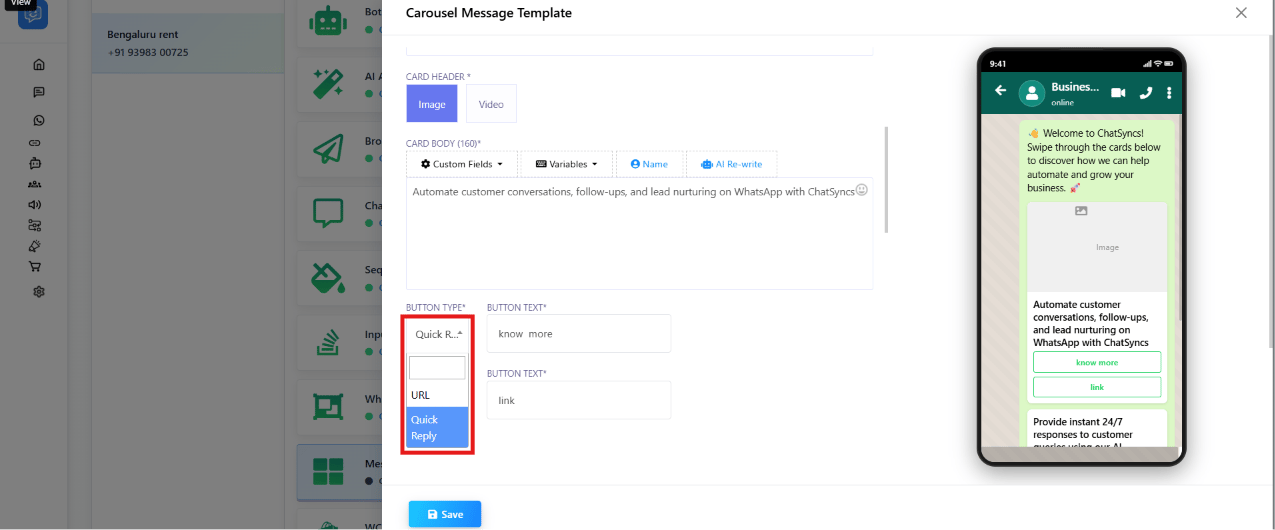 * **Buttons** — each card can have a **URL** or **Quick Reply** button.
**Example — a Real Estate Project Carousel:** Card 1 → Luxury Villa, Card 2 → Premium
Apartment, Card 3 → Commercial Space. The customer swipes through all three directly inside
WhatsApp.
## Carousel Product Template
* **Buttons** — each card can have a **URL** or **Quick Reply** button.
**Example — a Real Estate Project Carousel:** Card 1 → Luxury Villa, Card 2 → Premium
Apartment, Card 3 → Commercial Space. The customer swipes through all three directly inside
WhatsApp.
## Carousel Product Template
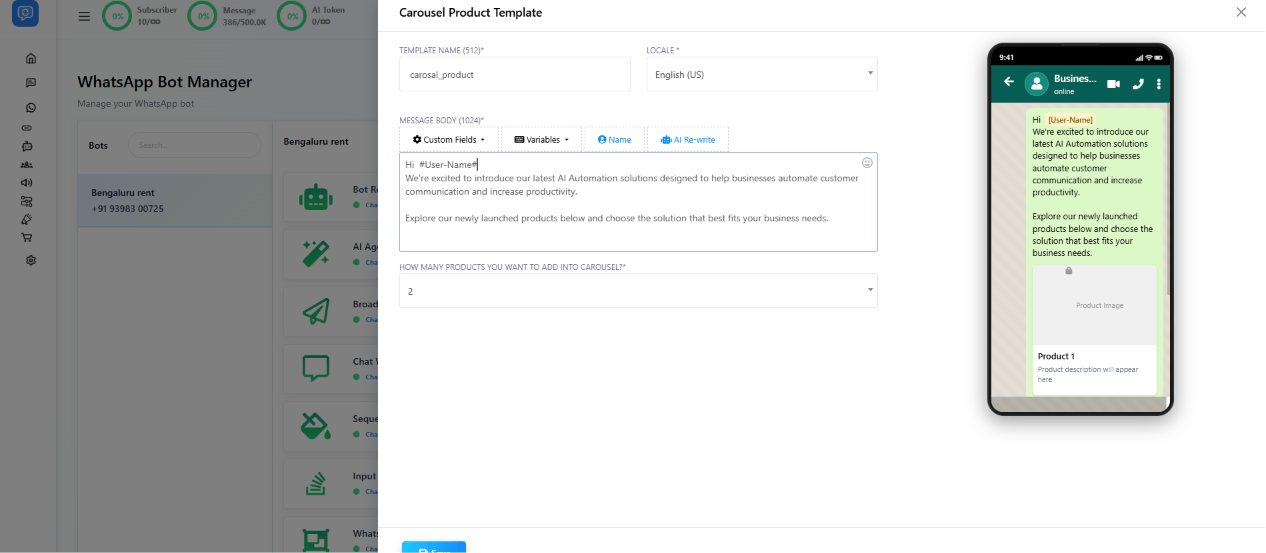 Purpose-built for showcasing products rather than general content.
* **Template Name** and **Locale** as usual.
* **Message Body** — the introduction message (Custom Fields, Variables, AI Rewrite).
* **Number Of Products** — how many product cards to show, e.g. `2`, `5`, `10`.
* **Product Cards** — each card has a Product Image, Product Name, Product Description, and
Product Button (e.g. `Buy Now`, `View Details`, `Order Now`).
**Use cases:** ecommerce stores, Shopify stores, product catalogs, product recommendations,
online sales campaigns.
## Approval status & Sync Template
Purpose-built for showcasing products rather than general content.
* **Template Name** and **Locale** as usual.
* **Message Body** — the introduction message (Custom Fields, Variables, AI Rewrite).
* **Number Of Products** — how many product cards to show, e.g. `2`, `5`, `10`.
* **Product Cards** — each card has a Product Image, Product Name, Product Description, and
Product Button (e.g. `Buy Now`, `View Details`, `Order Now`).
**Use cases:** ecommerce stores, Shopify stores, product catalogs, product recommendations,
online sales campaigns.
## Approval status & Sync Template
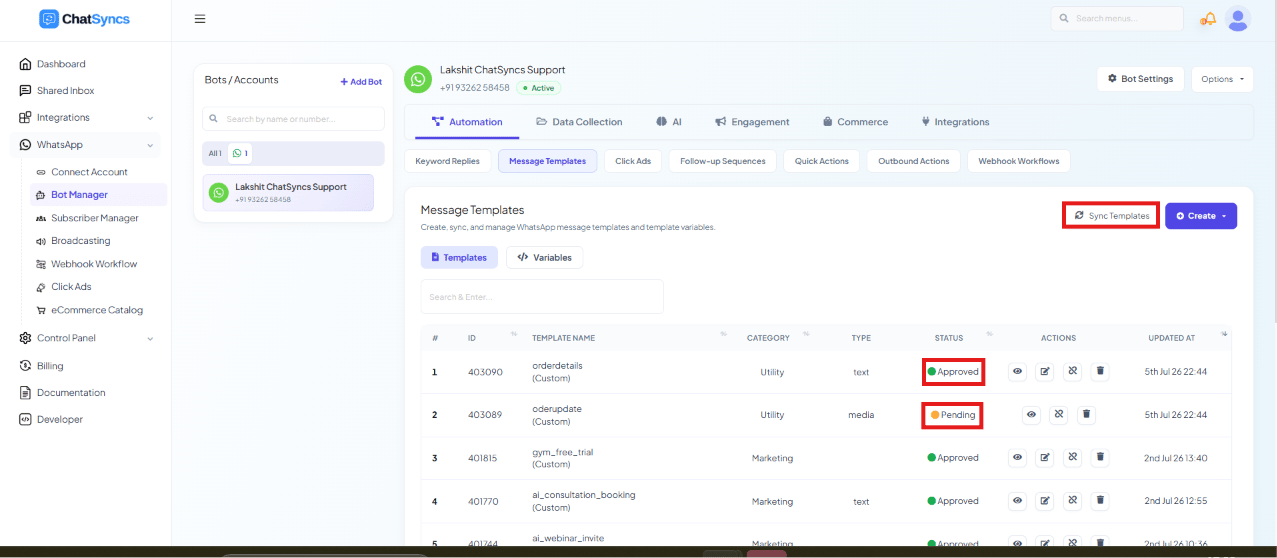 After saving, every template appears in the **Message Templates** list with a status — all
custom templates must be reviewed by Meta before use:
* **Pending** — the status right after saving, before it's been sent to Meta for review.
* **Submitted** — sent to Meta and awaiting review; a template moves from Pending to Submitted
once you click **Sync Templates**.
* **Approved** — ready to use in Keyword Replies, Broadcasting, Sequences, WhatsApp
Flows, and AI Agent automations.
* **Rejected** — see [why templates get rejected](/meta-api/templates/template-approval-and-rejections),
fix the content, and resubmit.
Click **Sync Templates** any time to pull the latest status from Meta.
Meta usually reviews templates quickly, but a new WhatsApp Business account may take up to 24
hours or longer. If the status doesn't update right away, click **Sync Templates**, wait a few
minutes, and check again.
## Template Variables
After saving, every template appears in the **Message Templates** list with a status — all
custom templates must be reviewed by Meta before use:
* **Pending** — the status right after saving, before it's been sent to Meta for review.
* **Submitted** — sent to Meta and awaiting review; a template moves from Pending to Submitted
once you click **Sync Templates**.
* **Approved** — ready to use in Keyword Replies, Broadcasting, Sequences, WhatsApp
Flows, and AI Agent automations.
* **Rejected** — see [why templates get rejected](/meta-api/templates/template-approval-and-rejections),
fix the content, and resubmit.
Click **Sync Templates** any time to pull the latest status from Meta.
Meta usually reviews templates quickly, but a new WhatsApp Business account may take up to 24
hours or longer. If the status doesn't update right away, click **Sync Templates**, wait a few
minutes, and check again.
## Template Variables
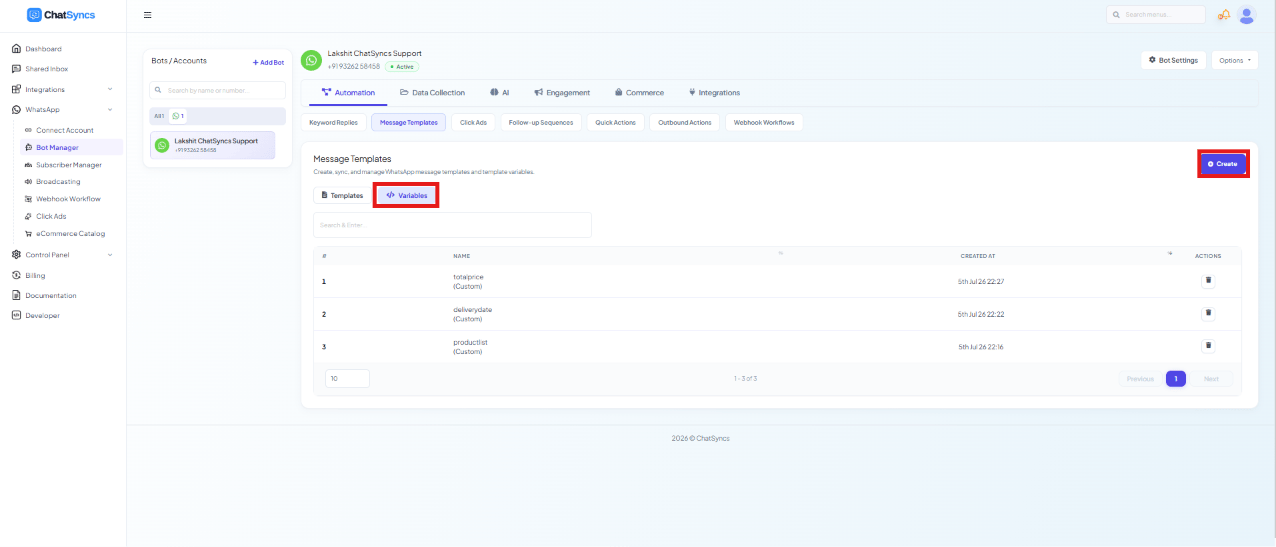 Beyond the field-level Custom Fields and Variables inside a single template, **Template
Variables** are reusable placeholders you define once and reuse across any Message Template —
switch to the **Variables** tab (next to **Templates**) to manage them.
Open the Template Variables list and click **Create**.
Enter a name with no spaces or special characters, e.g. `name`, `email`, `phone`, `orderid`, `bookingid`, `company_name`.
The variable now appears in the list and can be used inside any template.
Use a variable inside a template body the same way as a custom field:
```text theme={null}
Hi #name#
Your order #orderid# has been confirmed.
Email: #email#
Phone: #phone#
```
Before sending, assign each variable a real value:
| Variable | Value |
| ----------- | ----------------------------------------- |
| `#name#` | Rahul |
| `#email#` | [rahul@gmail.com](mailto:rahul@gmail.com) |
| `#phone#` | +919999999999 |
| `#orderid#` | ORD12345 |
The customer receives:
```text theme={null}
Hi Rahul
Your order ORD12345 has been confirmed.
Email: rahul@gmail.com
Phone: +919999999999
```
Template Variables let you personalize a single template per customer, reuse it across many
subscribers, and avoid creating a near-duplicate template for every small change.
## Broadcasting with Template Buttons
If a WhatsApp template contains buttons, it can be integrated with a Keyword Replies flow during
broadcasting — tapping a template button hands the customer straight into that flow.
**Prerequisites:**
* A WhatsApp template with buttons, submitted and **Approved** by WhatsApp.
* The Keyword Replies flow you want the button to trigger, already built.
Beyond the field-level Custom Fields and Variables inside a single template, **Template
Variables** are reusable placeholders you define once and reuse across any Message Template —
switch to the **Variables** tab (next to **Templates**) to manage them.
Open the Template Variables list and click **Create**.
Enter a name with no spaces or special characters, e.g. `name`, `email`, `phone`, `orderid`, `bookingid`, `company_name`.
The variable now appears in the list and can be used inside any template.
Use a variable inside a template body the same way as a custom field:
```text theme={null}
Hi #name#
Your order #orderid# has been confirmed.
Email: #email#
Phone: #phone#
```
Before sending, assign each variable a real value:
| Variable | Value |
| ----------- | ----------------------------------------- |
| `#name#` | Rahul |
| `#email#` | [rahul@gmail.com](mailto:rahul@gmail.com) |
| `#phone#` | +919999999999 |
| `#orderid#` | ORD12345 |
The customer receives:
```text theme={null}
Hi Rahul
Your order ORD12345 has been confirmed.
Email: rahul@gmail.com
Phone: +919999999999
```
Template Variables let you personalize a single template per customer, reuse it across many
subscribers, and avoid creating a near-duplicate template for every small change.
## Broadcasting with Template Buttons
If a WhatsApp template contains buttons, it can be integrated with a Keyword Replies flow during
broadcasting — tapping a template button hands the customer straight into that flow.
**Prerequisites:**
* A WhatsApp template with buttons, submitted and **Approved** by WhatsApp.
* The Keyword Replies flow you want the button to trigger, already built.
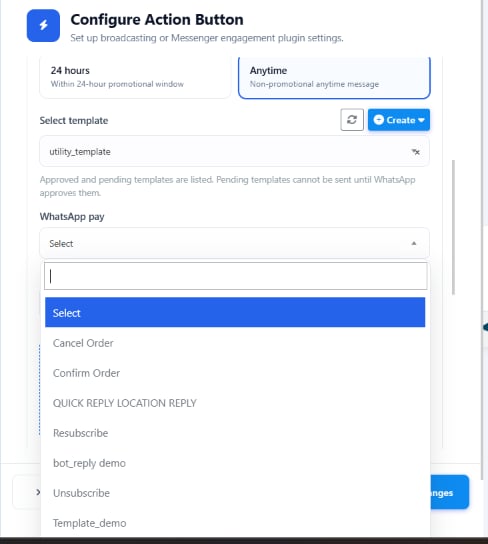 Go to **Broadcasting**.
Pick the WhatsApp template with buttons.
Navigate to **Configure Action Button**.
**24 Hours** (within the customer service window) or **Anytime** (non-promotional).
Pick which flow the template's button should trigger.
Save the configuration, then start the broadcast.
**Example:**
| Setting | Value |
| -------------------- | --------------------- |
| Template | `utility_template` |
| Messaging Window | `Anytime` |
| Keyword Replies flow | `Lead Generation Bot` |
**Flow:**
```text theme={null}
Broadcast
│
▼
Customer receives template
│
▼
Customer taps a template button
│
▼
Assigned Keyword Replies flow is triggered
│
▼
Bot continues the conversation
```
* Only **Approved** templates can be used for broadcasting.
* The Keyword Replies flow must be built and saved before sending the broadcast.
* A template button is only the entry point — verify the assigned flow with a test broadcast
before sending to production contacts.
## Frequently asked
Go to **Chatbot Manager → Automation → Message Templates → Create**, pick a template type
(General, WP, Mixed, Carousel Media, Carousel Product), fill in the name, category, body,
and any buttons, then save. It's submitted to Meta automatically and needs approval before
use.
Meta is still reviewing it. Click **Sync Templates** to pull the latest status — new
WhatsApp Business accounts can take up to 24 hours or longer for the first review.
Use **Variables** (or **Template Variables** for ones you reuse across templates) like
`#name#` or `#orderid#` inside the message body. Assign each variable a real value before
sending, and it's automatically replaced per customer.
Carousel Media is general-purpose — any cards with image/video and text, good for
showcases or campaigns. Carousel Product is built specifically for selling products, with a
Product Image, Name, Description, and Button on every card.
Yes — click **AI Rewrite** inside the Message Body (or a carousel's Message Bubble/Card
Body) to generate or improve the wording automatically.
All three are single-message builders with largely the same fields (Template Name, Locale,
Category, Header Type, Message Body, Footer Text, Buttons, live preview) — pick whichever
entry point you land on in the Create menu.
Yes — under **Broadcasting with Template Buttons**, use **Configure Action Button** to
assign an approved template's button to a specific Keyword Replies flow, so tapping it
hands the customer straight into that conversation.
* **A template can't be used anywhere until it's Approved** — Keyword Replies, Broadcasts,
Sequences, WhatsApp Flows, and AI Agent automations all require an approved template.
* **Status doesn't refresh on its own** — click **Sync Templates** to check Meta's latest
decision; it won't update in real time.
* **A Rejected template needs a fix, not a resend** — review the content against
[common rejection reasons](/meta-api/templates/template-approval-and-rejections) before
resubmitting.
Go to **Broadcasting**.
Pick the WhatsApp template with buttons.
Navigate to **Configure Action Button**.
**24 Hours** (within the customer service window) or **Anytime** (non-promotional).
Pick which flow the template's button should trigger.
Save the configuration, then start the broadcast.
**Example:**
| Setting | Value |
| -------------------- | --------------------- |
| Template | `utility_template` |
| Messaging Window | `Anytime` |
| Keyword Replies flow | `Lead Generation Bot` |
**Flow:**
```text theme={null}
Broadcast
│
▼
Customer receives template
│
▼
Customer taps a template button
│
▼
Assigned Keyword Replies flow is triggered
│
▼
Bot continues the conversation
```
* Only **Approved** templates can be used for broadcasting.
* The Keyword Replies flow must be built and saved before sending the broadcast.
* A template button is only the entry point — verify the assigned flow with a test broadcast
before sending to production contacts.
## Frequently asked
Go to **Chatbot Manager → Automation → Message Templates → Create**, pick a template type
(General, WP, Mixed, Carousel Media, Carousel Product), fill in the name, category, body,
and any buttons, then save. It's submitted to Meta automatically and needs approval before
use.
Meta is still reviewing it. Click **Sync Templates** to pull the latest status — new
WhatsApp Business accounts can take up to 24 hours or longer for the first review.
Use **Variables** (or **Template Variables** for ones you reuse across templates) like
`#name#` or `#orderid#` inside the message body. Assign each variable a real value before
sending, and it's automatically replaced per customer.
Carousel Media is general-purpose — any cards with image/video and text, good for
showcases or campaigns. Carousel Product is built specifically for selling products, with a
Product Image, Name, Description, and Button on every card.
Yes — click **AI Rewrite** inside the Message Body (or a carousel's Message Bubble/Card
Body) to generate or improve the wording automatically.
All three are single-message builders with largely the same fields (Template Name, Locale,
Category, Header Type, Message Body, Footer Text, Buttons, live preview) — pick whichever
entry point you land on in the Create menu.
Yes — under **Broadcasting with Template Buttons**, use **Configure Action Button** to
assign an approved template's button to a specific Keyword Replies flow, so tapping it
hands the customer straight into that conversation.
* **A template can't be used anywhere until it's Approved** — Keyword Replies, Broadcasts,
Sequences, WhatsApp Flows, and AI Agent automations all require an approved template.
* **Status doesn't refresh on its own** — click **Sync Templates** to check Meta's latest
decision; it won't update in real time.
* **A Rejected template needs a fix, not a resend** — review the content against
[common rejection reasons](/meta-api/templates/template-approval-and-rejections) before
resubmitting.