> ## Documentation Index
> Fetch the complete documentation index at: https://docs.chatsyncs.com/llms.txt
> Use this file to discover all available pages before exploring further.
# Keyword Replies
> Keyword Replies is ChatSyncs's flow builder for automating WhatsApp conversations, found under Chatbot Manager → Automation. Instead of one canned reply, you design a full customer journey on a visual canvas: a keyword trigger starts the flow, then connected blocks send messages, collect answers, save them, and route the conversation — all without writing code.
## Open the builder
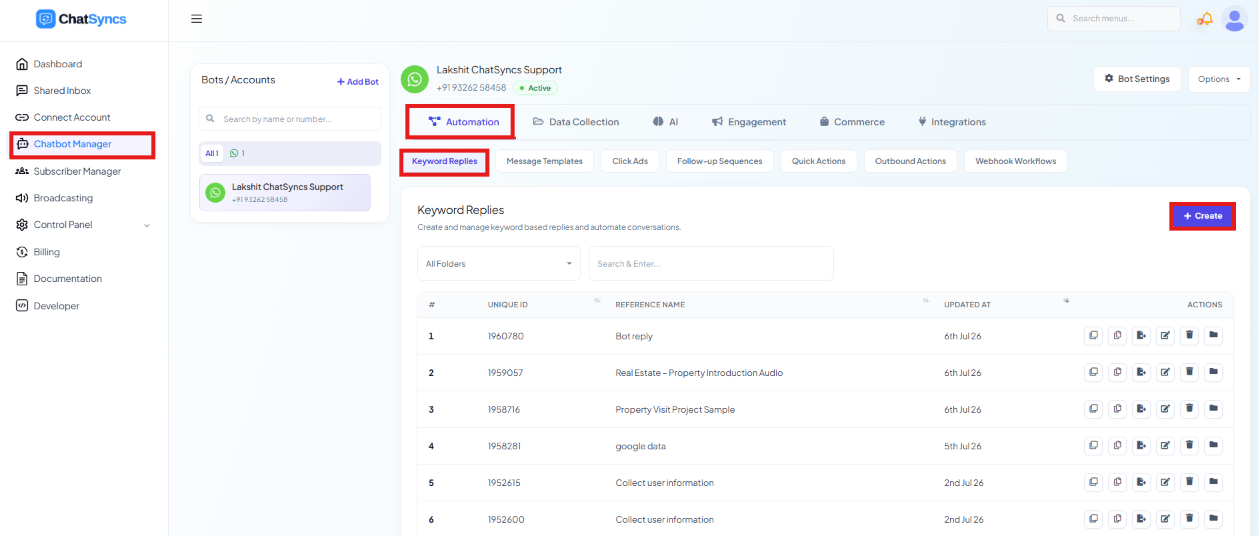 **Chatbot Manager → Automation → Keyword Replies** opens the list of existing flows. Click
**Create** on the Keyword Replies list to open a blank canvas.
**Chatbot Manager → Automation → Keyword Replies** opens the list of existing flows. Click
**Create** on the Keyword Replies list to open a blank canvas.
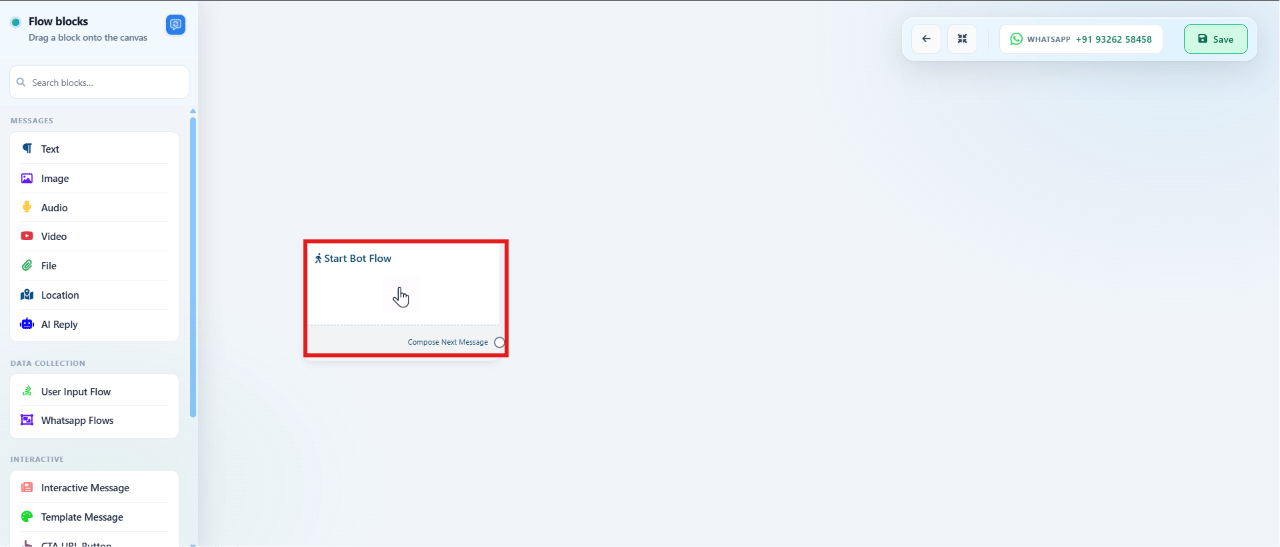 The canvas opens with a **Start Bot Flow** block already on it, and a **Flow blocks** panel on
the left for dragging on messages, data-collection blocks, and interactive components.
## Configure the trigger
Double-click **Start Bot Flow** to open its configuration panel, then:
The canvas opens with a **Start Bot Flow** block already on it, and a **Flow blocks** panel on
the left for dragging on messages, data-collection blocks, and interactive components.
## Configure the trigger
Double-click **Start Bot Flow** to open its configuration panel, then:
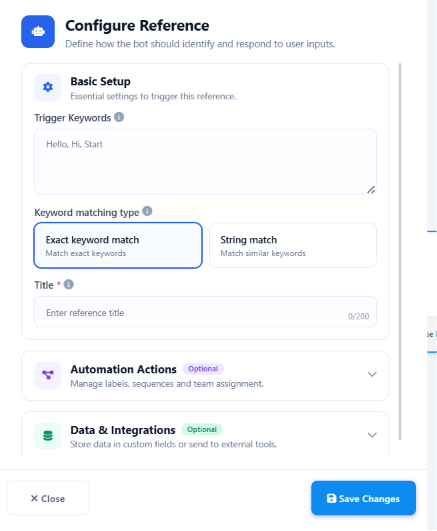 Enter the words or phrases that should start this flow, e.g. `hi, hello, hey, start, help`.
To pause the flow later without deleting it, just remove its trigger keywords here and save —
with nothing to match, it stops firing but stays in your Keyword Replies list.
**Exact keyword match** fires only on an exact word; **String match** also fires on
similar/partial keywords.
Use a clear, descriptive title such as `welcome_bot`, `support_bot`, or `lead_capture_bot` —
this is how you'll find it later in the Keyword Replies list.
Click **Save Changes** to apply the configuration.
Pick keywords your customers actually type. A flow titled `welcome_bot` triggered on
`hi, hello, hey, start, help` will catch most incoming first messages.
## Automation Actions
The same configuration panel has an **Automation Actions** section for managing the contact
without sending a visible message:
Enter the words or phrases that should start this flow, e.g. `hi, hello, hey, start, help`.
To pause the flow later without deleting it, just remove its trigger keywords here and save —
with nothing to match, it stops firing but stays in your Keyword Replies list.
**Exact keyword match** fires only on an exact word; **String match** also fires on
similar/partial keywords.
Use a clear, descriptive title such as `welcome_bot`, `support_bot`, or `lead_capture_bot` —
this is how you'll find it later in the Keyword Replies list.
Click **Save Changes** to apply the configuration.
Pick keywords your customers actually type. A flow titled `welcome_bot` triggered on
`hi, hello, hey, start, help` will catch most incoming first messages.
## Automation Actions
The same configuration panel has an **Automation Actions** section for managing the contact
without sending a visible message:
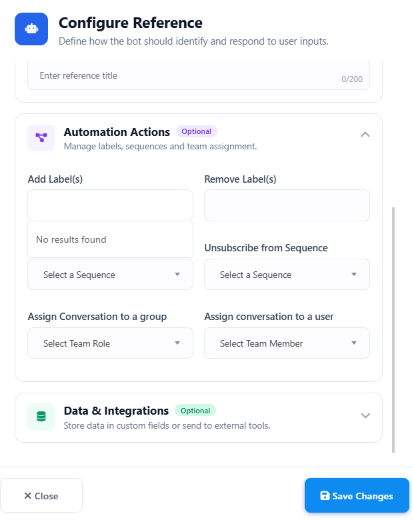 * **Add / Remove Label(s)** — tag contacts by demographic, interest, lead status, or purchase
history so you can target them later with segmented campaigns. Labels themselves are created
in [Subscriber Manager](/learn/whatsapp-subscriber-manager#create-a-label) — this just
applies an existing one automatically when the flow runs.
* **Unsubscribe from Sequence** — stop an automated message sequence (onboarding, lead
nurturing, promotions, re-engagement) for this contact.
* **Assign Conversation to a group** — hand the conversation to a team (e.g. Sales, Support,
Executive) so any member of that team can pick it up.
* **Assign conversation to a user** — hand the conversation to one specific team member.
## Data & Integrations
The **Data & Integrations** section collects what the bot learns from the conversation and
sends it where you need it:
* **Add / Remove Label(s)** — tag contacts by demographic, interest, lead status, or purchase
history so you can target them later with segmented campaigns. Labels themselves are created
in [Subscriber Manager](/learn/whatsapp-subscriber-manager#create-a-label) — this just
applies an existing one automatically when the flow runs.
* **Unsubscribe from Sequence** — stop an automated message sequence (onboarding, lead
nurturing, promotions, re-engagement) for this contact.
* **Assign Conversation to a group** — hand the conversation to a team (e.g. Sales, Support,
Executive) so any member of that team can pick it up.
* **Assign conversation to a user** — hand the conversation to one specific team member.
## Data & Integrations
The **Data & Integrations** section collects what the bot learns from the conversation and
sends it where you need it:
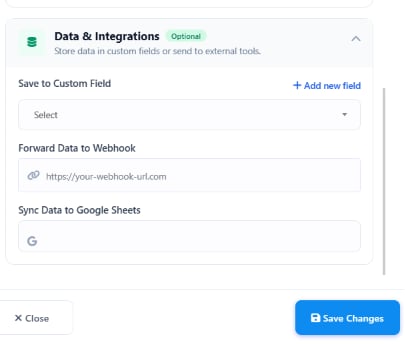 * **Save to Custom Field** — store a user's reply (name, email, phone, etc.) in a custom field
you've created under Custom Fields.
* **Forward Data to Webhook** — POST the collected fields to an external URL (a CRM, database,
or custom app) as JSON, e.g. `{"name": "{{user_name}}", "email": "{{user_email}}"}`.
* **Sync Data to Google Sheets** — connect a Google account, pick a spreadsheet and worksheet,
and map each custom field to a column; every new submission adds a row automatically.
**Example — a lead-capture flow:**
The trigger keyword starts the flow.
Each answer is captured as it arrives.
e.g. `user_name`, `user_email`, `user_phone`.
For CRM processing.
For reporting and tracking — no manual entry.
## Add flow components
* **Save to Custom Field** — store a user's reply (name, email, phone, etc.) in a custom field
you've created under Custom Fields.
* **Forward Data to Webhook** — POST the collected fields to an external URL (a CRM, database,
or custom app) as JSON, e.g. `{"name": "{{user_name}}", "email": "{{user_email}}"}`.
* **Sync Data to Google Sheets** — connect a Google account, pick a spreadsheet and worksheet,
and map each custom field to a column; every new submission adds a row automatically.
**Example — a lead-capture flow:**
The trigger keyword starts the flow.
Each answer is captured as it arrives.
e.g. `user_name`, `user_email`, `user_phone`.
For CRM processing.
For reporting and tracking — no manual entry.
## Add flow components
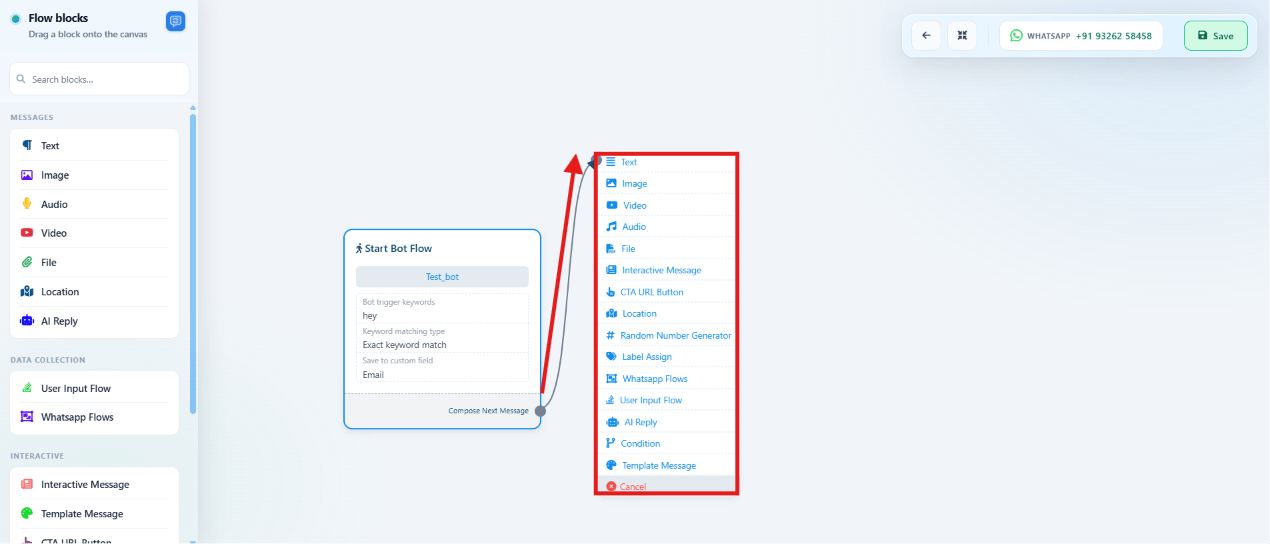 After saving Start Bot Flow, hover the block and drag its connector dot onto the canvas to open
the list of components you can chain after it.
| Component | What it does |
| --------------------------- | ------------------------------------------------------------------------------------------- |
| **Text Message** | Plain text — welcomes, instructions, FAQs, notifications. |
| **Image Message** | JPG/JPEG/PNG, up to 5 MB — product images, banners, promos. |
| **Video Message** | MP4/3GP, up to 16 MB — demos, tutorials, marketing. |
| **Audio Message** | AAC/MP3/AMR/OGG, up to 16 MB — voice greetings, announcements. |
| **File / Document Message** | PDF/DOC/DOCX/XLS/XLSX/PPT/PPTX/TXT, up to 100 MB — brochures, invoices, manuals. |
| **Reply Buttons** | Up to 3 tappable buttons for a quick predefined response. |
| **List Messages** | Up to 10 options in a structured list. |
| **CTA URL Button** | A button that opens a website — landing, payment, or booking pages. |
| **Location Message** | Share a map location — office, store, or event venue. |
| **Random Number Generator** | Generates a number in a range — token numbers, ticket IDs, lead references. |
| **Label Assign** | Auto-assigns a label to the contact for segmentation. |
| **WhatsApp Flow** | Launches a Meta WhatsApp Flow — lead forms, bookings, surveys, registration. |
| **User Input Flow** | Captures free-text input (name, email, phone, address) into custom fields. |
| **AI Reply** | AI-generated answers for FAQs, support, product questions, knowledge-base lookups. |
| **Condition** | Branches the flow based on a value, e.g. `If User Interest = Sales → Sales Flow`. |
| **Template Messages** | Sends an approved WhatsApp template — order updates, reminders, payment notices, campaigns. |
Template Messages must be **approved by Meta** before a flow can send them — see
[Template structure & sending](/meta-api/templates/template-structure-and-sending).
A typical flow chains several of these:
```
Start Bot Flow
→ Welcome Text
→ Interactive Buttons
→ User Input Collection
→ Save to Custom Fields
→ AI Reply or Condition Routing
→ Webhook / Google Sheet Sync
→ Template Message Follow-Up
```
## Personalize messages
After saving Start Bot Flow, hover the block and drag its connector dot onto the canvas to open
the list of components you can chain after it.
| Component | What it does |
| --------------------------- | ------------------------------------------------------------------------------------------- |
| **Text Message** | Plain text — welcomes, instructions, FAQs, notifications. |
| **Image Message** | JPG/JPEG/PNG, up to 5 MB — product images, banners, promos. |
| **Video Message** | MP4/3GP, up to 16 MB — demos, tutorials, marketing. |
| **Audio Message** | AAC/MP3/AMR/OGG, up to 16 MB — voice greetings, announcements. |
| **File / Document Message** | PDF/DOC/DOCX/XLS/XLSX/PPT/PPTX/TXT, up to 100 MB — brochures, invoices, manuals. |
| **Reply Buttons** | Up to 3 tappable buttons for a quick predefined response. |
| **List Messages** | Up to 10 options in a structured list. |
| **CTA URL Button** | A button that opens a website — landing, payment, or booking pages. |
| **Location Message** | Share a map location — office, store, or event venue. |
| **Random Number Generator** | Generates a number in a range — token numbers, ticket IDs, lead references. |
| **Label Assign** | Auto-assigns a label to the contact for segmentation. |
| **WhatsApp Flow** | Launches a Meta WhatsApp Flow — lead forms, bookings, surveys, registration. |
| **User Input Flow** | Captures free-text input (name, email, phone, address) into custom fields. |
| **AI Reply** | AI-generated answers for FAQs, support, product questions, knowledge-base lookups. |
| **Condition** | Branches the flow based on a value, e.g. `If User Interest = Sales → Sales Flow`. |
| **Template Messages** | Sends an approved WhatsApp template — order updates, reminders, payment notices, campaigns. |
Template Messages must be **approved by Meta** before a flow can send them — see
[Template structure & sending](/meta-api/templates/template-structure-and-sending).
A typical flow chains several of these:
```
Start Bot Flow
→ Welcome Text
→ Interactive Buttons
→ User Input Collection
→ Save to Custom Fields
→ AI Reply or Condition Routing
→ Webhook / Google Sheet Sync
→ Template Message Follow-Up
```
## Personalize messages
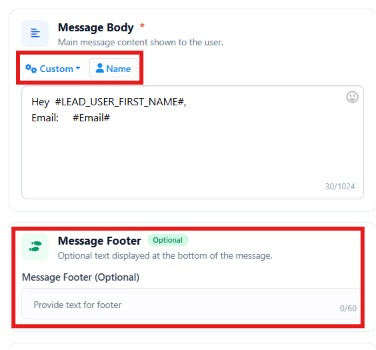 Inside a Text Message block, click **Name** to insert the user's name, or type `#` to insert any
custom field as a variable — e.g. `Hey #LEAD_USER_FIRST_NAME#, welcome back!`. You can also add
optional **Message Footer** text, commonly used for branding or disclaimers (e.g.
`Powered by ChatSyncs`).
## Delivery options
Each message block has **Delivery Options** for a more natural pacing:
Inside a Text Message block, click **Name** to insert the user's name, or type `#` to insert any
custom field as a variable — e.g. `Hey #LEAD_USER_FIRST_NAME#, welcome back!`. You can also add
optional **Message Footer** text, commonly used for branding or disclaimers (e.g.
`Powered by ChatSyncs`).
## Delivery options
Each message block has **Delivery Options** for a more natural pacing:
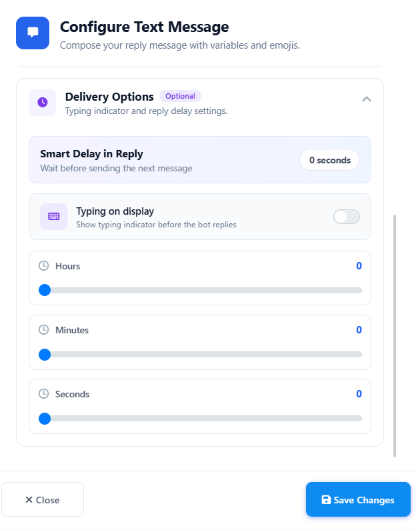 * **Smart Delay in Reply** — wait a set number of hours/minutes/seconds before sending.
* **Typing on display** — show WhatsApp's typing indicator before the reply lands.
A 1–3 second typing delay before a reply makes the bot feel more human without slowing the
conversation down.
## Clone or delete a component
* **Smart Delay in Reply** — wait a set number of hours/minutes/seconds before sending.
* **Typing on display** — show WhatsApp's typing indicator before the reply lands.
A 1–3 second typing delay before a reply makes the bot feel more human without slowing the
conversation down.
## Clone or delete a component
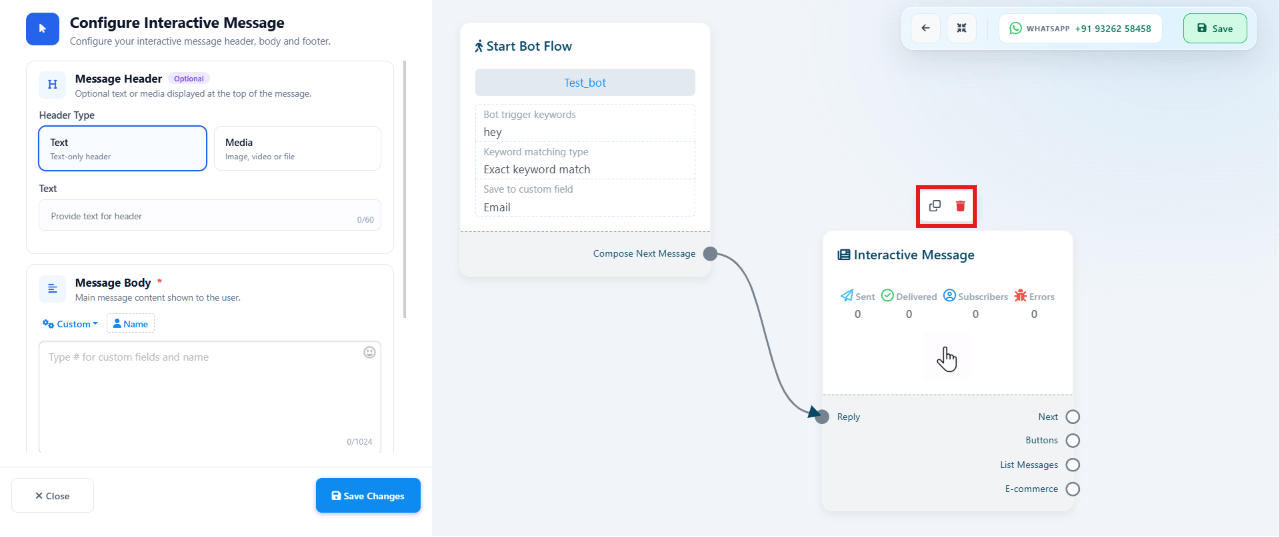 Hover any block on the canvas to reveal two small icons above it: the first **clones** the
block (handy for reusing a configured component without rebuilding it), the second **deletes**
it permanently.
Clone a block before making a major change to it — that keeps a backup copy on the canvas in
case you want to revert.
## Save & validation
Hover any block on the canvas to reveal two small icons above it: the first **clones** the
block (handy for reusing a configured component without rebuilding it), the second **deletes**
it permanently.
Clone a block before making a major change to it — that keeps a backup copy on the canvas in
case you want to revert.
## Save & validation
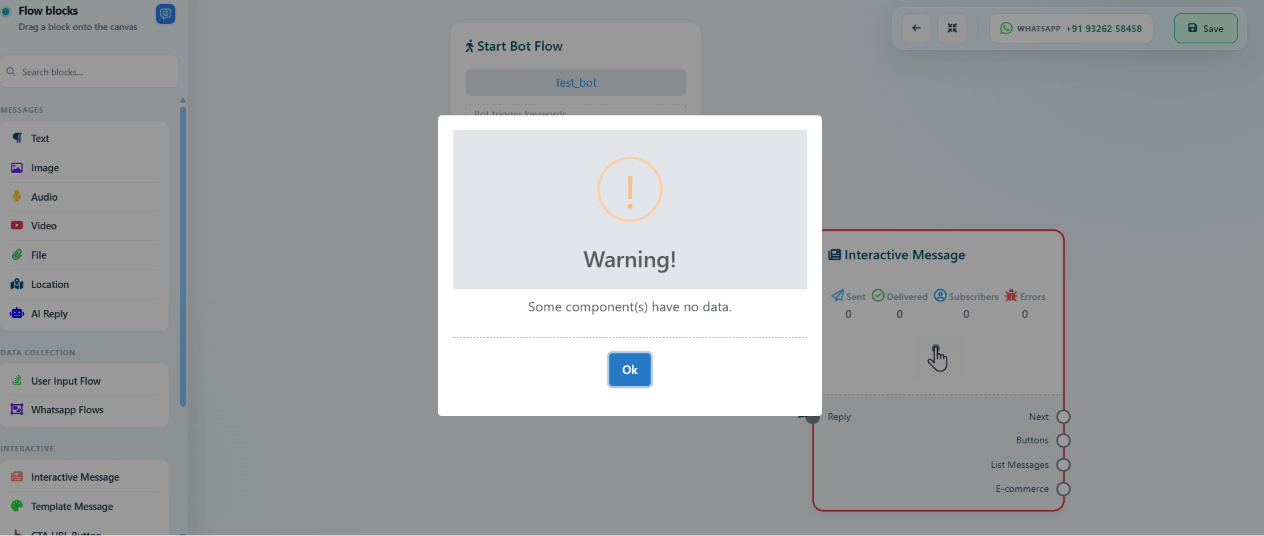 Before saving, every required field on every connected component must be filled in — a missing
**button text** on an Interactive Message, or empty content on a Text Message, blocks the save
and shows a validation warning.
Before saving, every required field on every connected component must be filled in — a missing
**button text** on an Interactive Message, or empty content on a Text Message, blocks the save
and shows a validation warning.
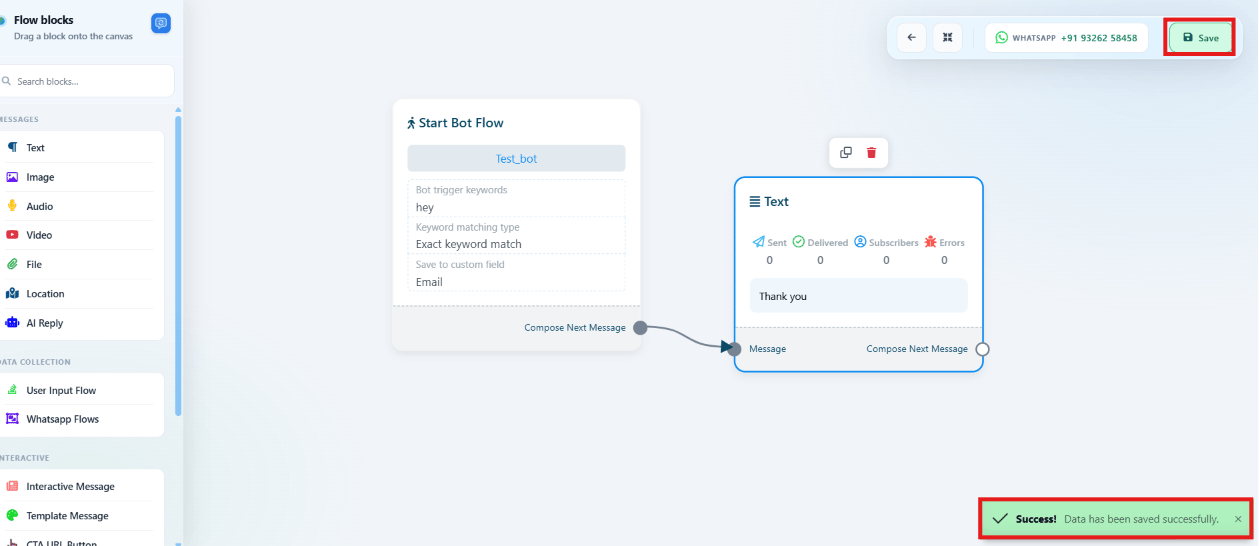 Once every component is complete, click **Save** — a success confirmation appears and the flow
is live.
## Manage your flows
Back on the Keyword Replies list, each flow has its own row of action icons:
Once every component is complete, click **Save** — a success confirmation appears and the flow
is live.
## Manage your flows
Back on the Keyword Replies list, each flow has its own row of action icons:
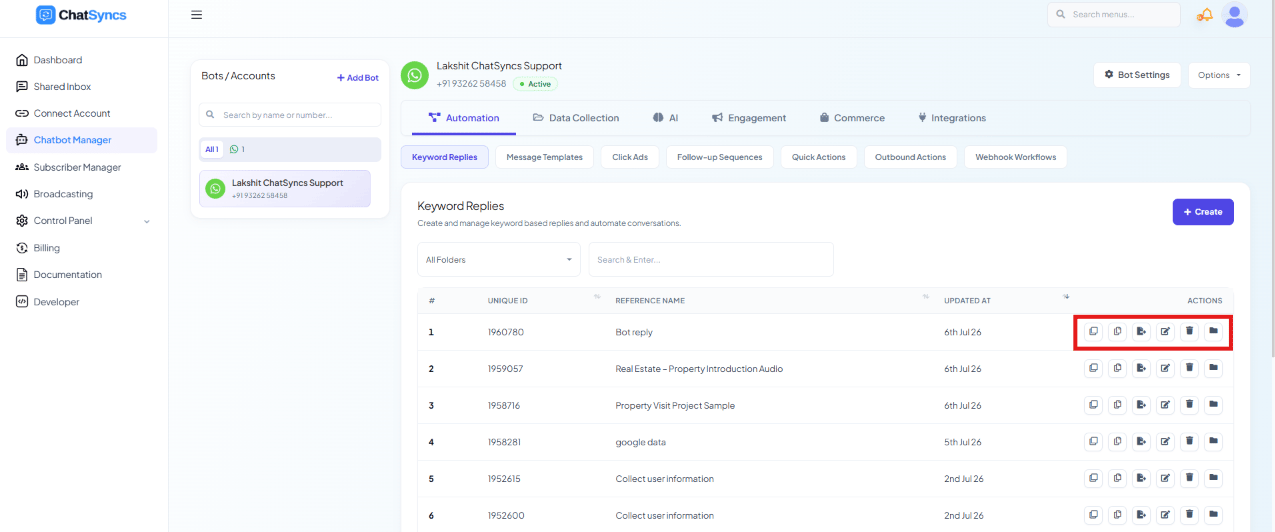 | Action | What it does |
| --------------------- | ---------------------------------------------------------------------------------- |
| **Duplicate** | Creates a copy of the flow — useful for reusing it with minor modifications. |
| **Copy to Other Bot** | Copies the flow to another bot in your account, instead of rebuilding it manually. |
| **Export Flow Data** | Exports the complete flow configuration for backup, migration, or sharing. |
| **Edit** | Opens the flow editor to modify the existing flow and its components. |
| **Delete** | Permanently removes the flow. |
| **Move to Folder** | Moves the flow into a folder to help organize multiple flows. |
## Frequently asked
Create a Keyword Reply, set Trigger Keywords on the Start Bot Flow block (e.g.
`hi, hello, hey, start`), and connect a Text Message or Interactive Message block after it.
Save the flow — it fires whenever a customer's message matches a trigger keyword.
Yes — use **User Input Flow** blocks to ask for each value, and map each answer to a
Custom Field under Data & Integrations. You can then forward the data to a webhook or sync
it to Google Sheets automatically.
A connected component is missing required data — e.g. an Interactive Message with no
button text, or an empty Text Message. ChatSyncs shows a validation warning naming the
incomplete component; fill it in and save again.
**Exact keyword match** fires only when the customer's message is exactly one of your
trigger keywords. **String match** also fires if a trigger keyword appears anywhere inside
a longer message. If your bot isn't firing on messages you expected, check which matching
type the Start Bot Flow block is set to — Exact match is stricter and will miss typos or
extra words.
Open **Start Bot Flow → Configure Reference**, remove its Trigger Keywords, and save. With
no keywords left to match, the flow stops firing for any customer message, but it stays in
your Keyword Replies list — add the keywords back any time to turn it on again.
| Action | What it does |
| --------------------- | ---------------------------------------------------------------------------------- |
| **Duplicate** | Creates a copy of the flow — useful for reusing it with minor modifications. |
| **Copy to Other Bot** | Copies the flow to another bot in your account, instead of rebuilding it manually. |
| **Export Flow Data** | Exports the complete flow configuration for backup, migration, or sharing. |
| **Edit** | Opens the flow editor to modify the existing flow and its components. |
| **Delete** | Permanently removes the flow. |
| **Move to Folder** | Moves the flow into a folder to help organize multiple flows. |
## Frequently asked
Create a Keyword Reply, set Trigger Keywords on the Start Bot Flow block (e.g.
`hi, hello, hey, start`), and connect a Text Message or Interactive Message block after it.
Save the flow — it fires whenever a customer's message matches a trigger keyword.
Yes — use **User Input Flow** blocks to ask for each value, and map each answer to a
Custom Field under Data & Integrations. You can then forward the data to a webhook or sync
it to Google Sheets automatically.
A connected component is missing required data — e.g. an Interactive Message with no
button text, or an empty Text Message. ChatSyncs shows a validation warning naming the
incomplete component; fill it in and save again.
**Exact keyword match** fires only when the customer's message is exactly one of your
trigger keywords. **String match** also fires if a trigger keyword appears anywhere inside
a longer message. If your bot isn't firing on messages you expected, check which matching
type the Start Bot Flow block is set to — Exact match is stricter and will miss typos or
extra words.
Open **Start Bot Flow → Configure Reference**, remove its Trigger Keywords, and save. With
no keywords left to match, the flow stops firing for any customer message, but it stays in
your Keyword Replies list — add the keywords back any time to turn it on again.