> ## Documentation Index
> Fetch the complete documentation index at: https://docs.chatsyncs.com/llms.txt
> Use this file to discover all available pages before exploring further.
# User Input Flow
> A User Input Flow collects information from subscribers through a series of questions and stores their responses automatically. Found under Chatbot Manager → Data Collection, it's used for lead generation, customer registration, surveys, appointment booking, feedback collection, and other interactive processes that need structured answers rather than free-form chat.
## Create a User Input Flow
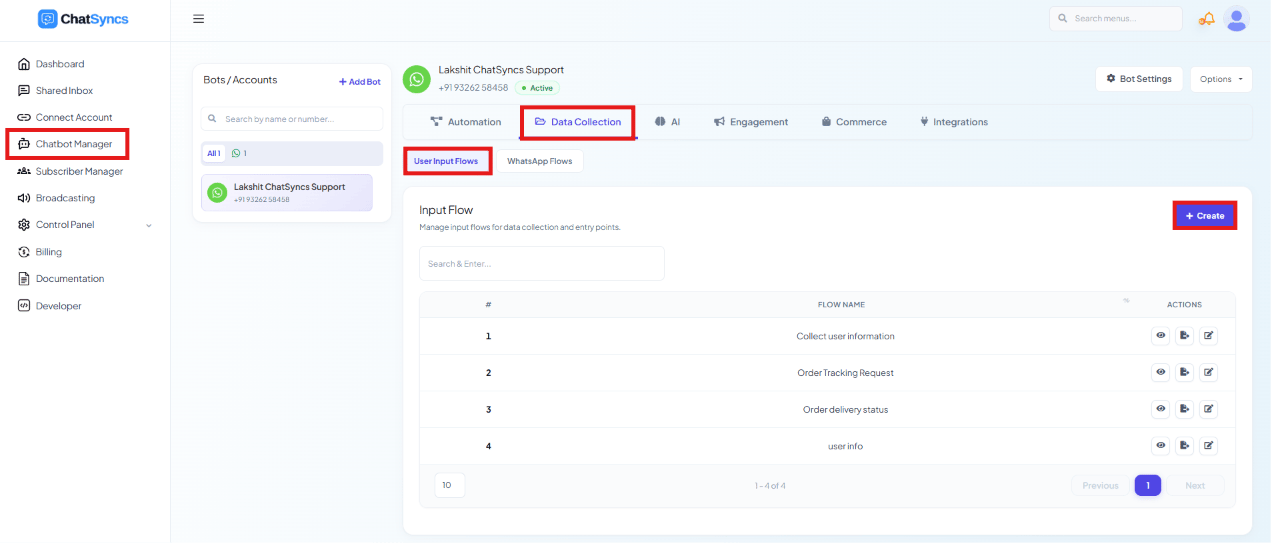 Go to **Chatbot Manager**.
Select **Data Collection**.
Select **User Input Flows** from the sub-tabs.
Click **Create** to start a new input flow.
Enter a **User Input Campaign Name** that identifies its purpose, e.g.
`Customer Registration Form`. A meaningful name makes the flow easier to find and manage
later.
Add or remove subscriber labels when the flow runs, and forward responses to a webhook or
Google Sheets if needed.
Add one or more questions to collect the information you need.
Save the flow.
Go to **Chatbot Manager**.
Select **Data Collection**.
Select **User Input Flows** from the sub-tabs.
Click **Create** to start a new input flow.
Enter a **User Input Campaign Name** that identifies its purpose, e.g.
`Customer Registration Form`. A meaningful name makes the flow easier to find and manage
later.
Add or remove subscriber labels when the flow runs, and forward responses to a webhook or
Google Sheets if needed.
Add one or more questions to collect the information you need.
Save the flow.
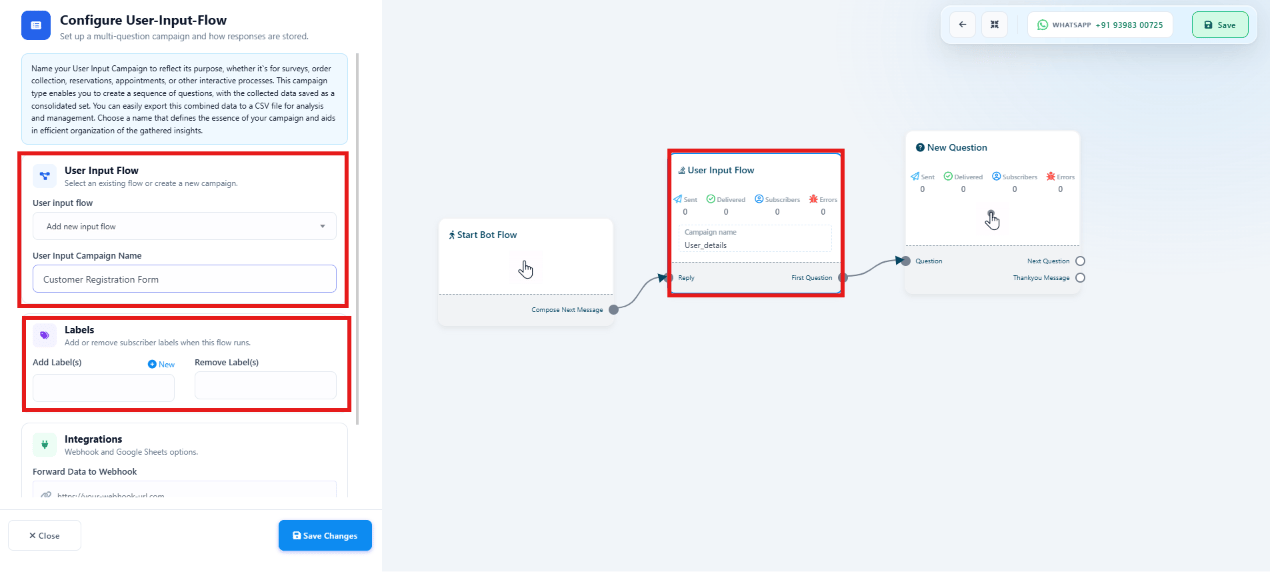 Once created, an Input Flow is wired into a bot flow on the canvas — a **User Input Flow**
block (campaign name, labels) feeds into a chain of **New Question** blocks — and can be
triggered from a Keyword Replies flow like any other flow component.
### Labels
* **Add Label(s)** — assign labels to a subscriber when the flow runs, e.g. `Lead`,
`Interested Customer`, `Demo Requested`.
* **Remove Label(s)** — strip existing labels, e.g. `New Visitor`, `Unqualified Lead`.
### Integrations
Collected responses can be forwarded automatically:
* **Webhook** — send responses to a CRM, lead management platform, internal application, or
other third-party service.
* **Google Sheets** — save every submission to a sheet for reporting and analysis.
## Configure a question
Inside the Input Flow, click **New Question** to add a question the subscriber must answer.
Each question has a **Question Type**, the question text itself, optional **Reply Validation**,
and where the answer is saved.
### Free Keyboard Input
Once created, an Input Flow is wired into a bot flow on the canvas — a **User Input Flow**
block (campaign name, labels) feeds into a chain of **New Question** blocks — and can be
triggered from a Keyword Replies flow like any other flow component.
### Labels
* **Add Label(s)** — assign labels to a subscriber when the flow runs, e.g. `Lead`,
`Interested Customer`, `Demo Requested`.
* **Remove Label(s)** — strip existing labels, e.g. `New Visitor`, `Unqualified Lead`.
### Integrations
Collected responses can be forwarded automatically:
* **Webhook** — send responses to a CRM, lead management platform, internal application, or
other third-party service.
* **Google Sheets** — save every submission to a sheet for reporting and analysis.
## Configure a question
Inside the Input Flow, click **New Question** to add a question the subscriber must answer.
Each question has a **Question Type**, the question text itself, optional **Reply Validation**,
and where the answer is saved.
### Free Keyboard Input
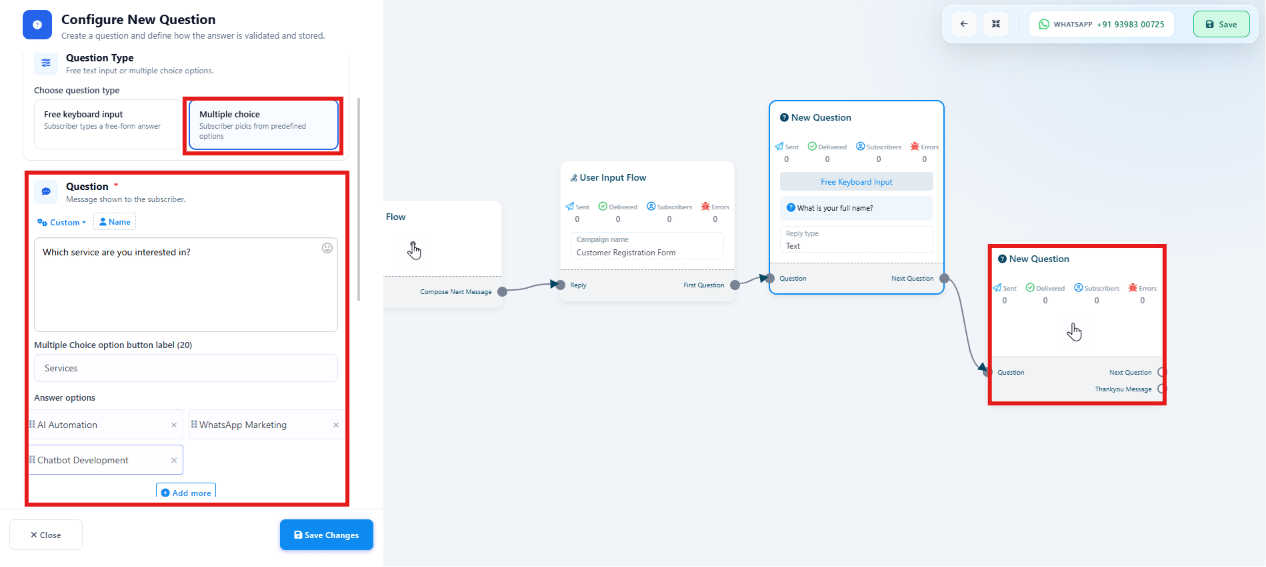 The subscriber types their own answer in free text. Best for name, email, phone number,
business name, comments, or feedback.
### Multiple Choice
The subscriber types their own answer in free text. Best for name, email, phone number,
business name, comments, or feedback.
### Multiple Choice
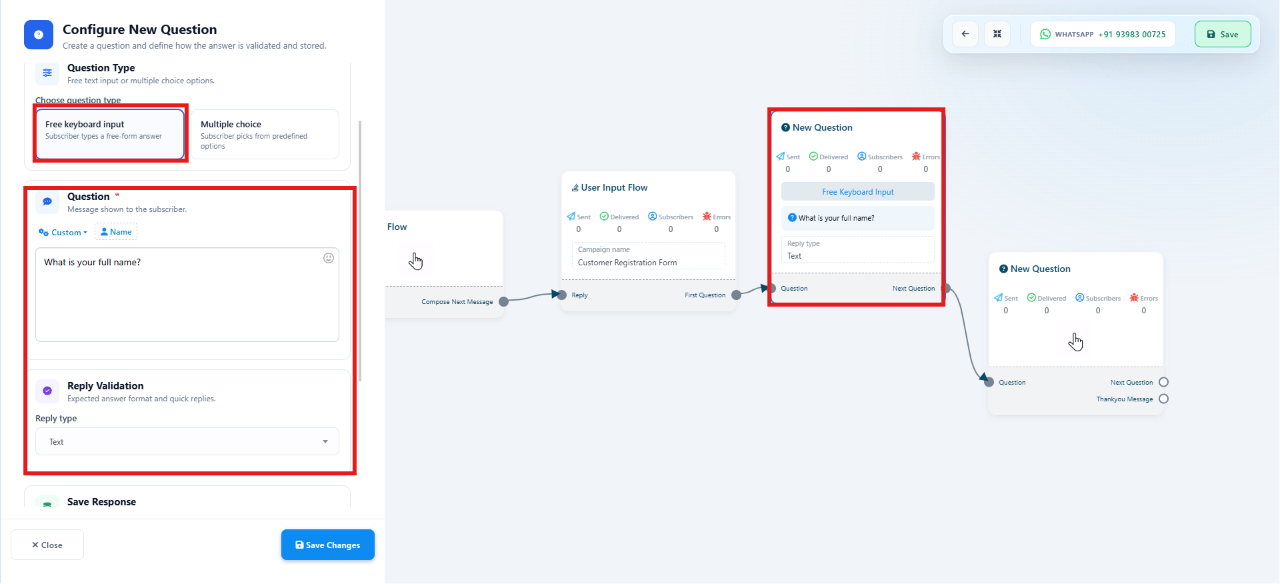 The subscriber picks from predefined answer options instead of typing — best for service
selection, surveys, appointment types, or product categories. Set the question text, a label
for the option buttons, and the list of answer options (e.g. `AI Automation`,
`WhatsApp Marketing`, `Chatbot Development`).
### Reply Validation
Reply Validation ensures an answer matches the expected format before the subscriber can move
to the next question. Supported types: **Text, Email, Phone Number, Number, Date, URL**. For
example, setting validation to **Email** blocks the subscriber from continuing until they enter
a valid email address.
### Save Response
Each answer is saved to a custom field (e.g. a question asking for a phone number can save to a
`Phone Number` field), so it can be reused later in broadcasts, sequences, reports, and other
automations.
### Thank You Message
After the last question, connect the **Thank You Message** output to send a closing message,
e.g. `Thank you for submitting your information. Our team will contact you shortly.`
**Example flow:**
The subscriber picks from predefined answer options instead of typing — best for service
selection, surveys, appointment types, or product categories. Set the question text, a label
for the option buttons, and the list of answer options (e.g. `AI Automation`,
`WhatsApp Marketing`, `Chatbot Development`).
### Reply Validation
Reply Validation ensures an answer matches the expected format before the subscriber can move
to the next question. Supported types: **Text, Email, Phone Number, Number, Date, URL**. For
example, setting validation to **Email** blocks the subscriber from continuing until they enter
a valid email address.
### Save Response
Each answer is saved to a custom field (e.g. a question asking for a phone number can save to a
`Phone Number` field), so it can be reused later in broadcasts, sequences, reports, and other
automations.
### Thank You Message
After the last question, connect the **Thank You Message** output to send a closing message,
e.g. `Thank you for submitting your information. Our team will contact you shortly.`
**Example flow:**
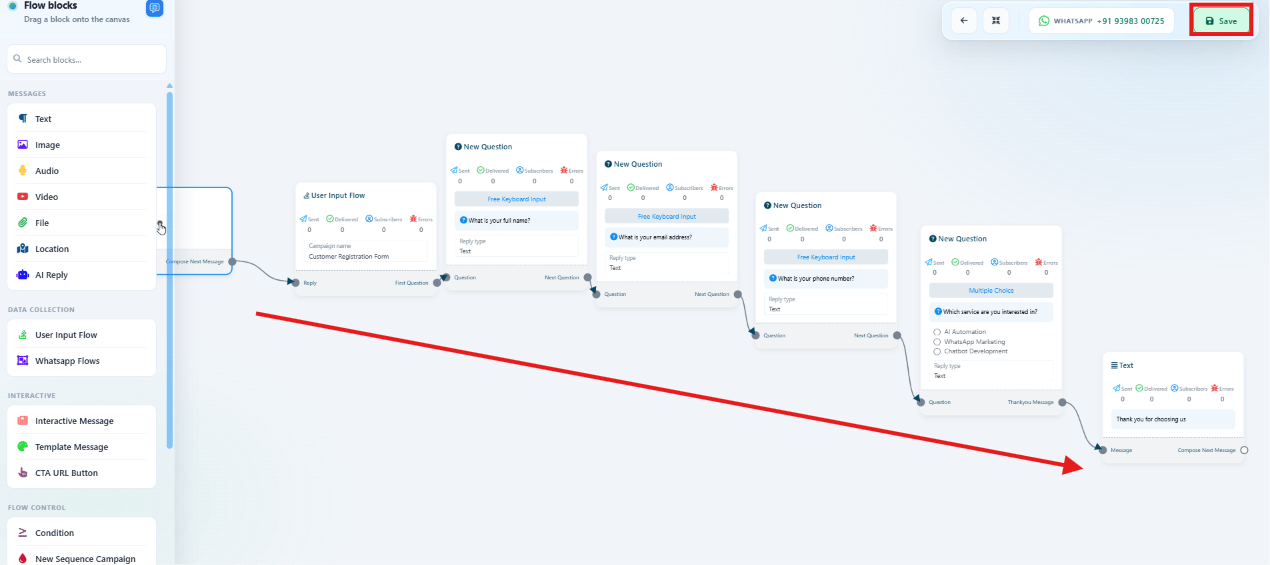 ```
Start Flow
↓
What is your name?
↓
What is your email address?
↓
What is your phone number?
↓
Which service are you interested in?
↓
Thank You Message
```
## Common use cases
| Use case | Typical questions collected |
| ------------------- | ------------------------------------ |
| Lead Generation | Name, Email, Phone Number |
| Appointment Booking | Name, Preferred Date, Preferred Time |
| Customer Feedback | Rating, Comments, Suggestions |
| Event Registration | Name, Email, Company Name |
```
Start Flow
↓
What is your name?
↓
What is your email address?
↓
What is your phone number?
↓
Which service are you interested in?
↓
Thank You Message
```
## Common use cases
| Use case | Typical questions collected |
| ------------------- | ------------------------------------ |
| Lead Generation | Name, Email, Phone Number |
| Appointment Booking | Name, Preferred Date, Preferred Time |
| Customer Feedback | Rating, Comments, Suggestions |
| Event Registration | Name, Email, Company Name |
 ## Manage User Input Flows
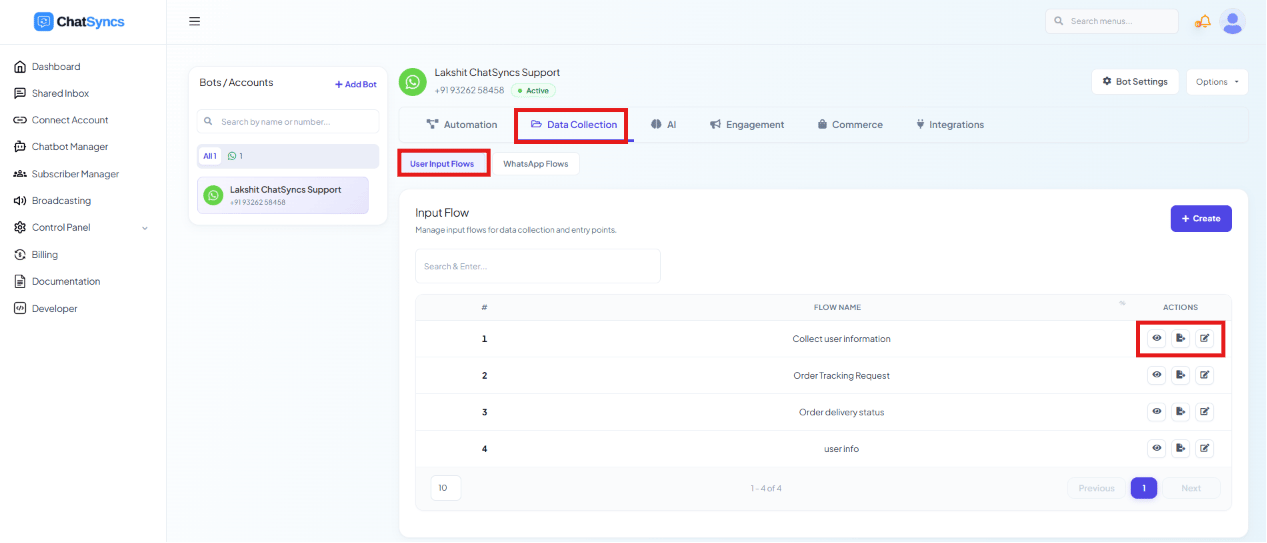
Every saved User Input Flow appears in **Chatbot Manager → Data Collection → User Input Flows**,
with three actions per campaign:
* **Report** — view all responses collected: submitted answers, subscriber information, form
completion data, and campaign performance.
* **Export** — download collected responses, typically as CSV, for reporting, CRM imports,
lead analysis, or backup.
* **Edit** — modify questions, multiple-choice options, reply validation, labels,
integrations, or the Thank You message without creating a new campaign.
## Frequently asked
Create an **Input Flow** in Chatbot Manager, name the campaign, and add questions (Free
Keyboard Input or Multiple Choice) for each piece of information you need — e.g. name,
email, phone number. End with a Thank You message. Responses are saved automatically and
can be reviewed from the flow's Report.
Free Keyboard Input lets the subscriber type any answer (good for names, emails, open
feedback). Multiple Choice presents predefined options to tap (good for surveys, service
selection, or anything with a fixed set of valid answers) and tends to have higher
completion accuracy.
Yes — set **Reply Validation** on the question to Email, Phone Number, Number, Date, or
URL. The subscriber can't proceed to the next question until their answer matches the
expected format.
Each answer is saved to a custom field automatically, viewable from the flow's **Report**
or downloadable via **Export**. You can also forward every submission to a webhook or
Google Sheets in real time.
Yes — use **Edit** on the Input Flow to update questions, options, validation, labels, or
integrations at any time without creating a new campaign.
* **Without Reply Validation, malformed answers are accepted as-is** — set validation on any
question that needs a specific format (email, phone, date, etc.).
* **A flow with no Thank You Message** leaves the subscriber without confirmation that their
submission was received — always connect one as the final step.
* **Export is typically CSV** — open it in Excel or Google Sheets, or import directly into a
CRM.
Use **Multiple Choice** questions wherever possible to improve response accuracy and completion
rates, and end every flow with a **Thank You Message** to confirm the subscriber's information
was received.
## Manage User Input Flows
Every saved User Input Flow appears in **Chatbot Manager → Data Collection → User Input Flows**,
with three actions per campaign:
* **Report** — view all responses collected: submitted answers, subscriber information, form
completion data, and campaign performance.
* **Export** — download collected responses, typically as CSV, for reporting, CRM imports,
lead analysis, or backup.
* **Edit** — modify questions, multiple-choice options, reply validation, labels,
integrations, or the Thank You message without creating a new campaign.
## Frequently asked
Create an **Input Flow** in Chatbot Manager, name the campaign, and add questions (Free
Keyboard Input or Multiple Choice) for each piece of information you need — e.g. name,
email, phone number. End with a Thank You message. Responses are saved automatically and
can be reviewed from the flow's Report.
Free Keyboard Input lets the subscriber type any answer (good for names, emails, open
feedback). Multiple Choice presents predefined options to tap (good for surveys, service
selection, or anything with a fixed set of valid answers) and tends to have higher
completion accuracy.
Yes — set **Reply Validation** on the question to Email, Phone Number, Number, Date, or
URL. The subscriber can't proceed to the next question until their answer matches the
expected format.
Each answer is saved to a custom field automatically, viewable from the flow's **Report**
or downloadable via **Export**. You can also forward every submission to a webhook or
Google Sheets in real time.
Yes — use **Edit** on the Input Flow to update questions, options, validation, labels, or
integrations at any time without creating a new campaign.
* **Without Reply Validation, malformed answers are accepted as-is** — set validation on any
question that needs a specific format (email, phone, date, etc.).
* **A flow with no Thank You Message** leaves the subscriber without confirmation that their
submission was received — always connect one as the final step.
* **Export is typically CSV** — open it in Excel or Google Sheets, or import directly into a
CRM.
Use **Multiple Choice** questions wherever possible to improve response accuracy and completion
rates, and end every flow with a **Thank You Message** to confirm the subscriber's information
was received.