> ## Documentation Index
> Fetch the complete documentation index at: https://docs.chatsyncs.com/llms.txt
> Use this file to discover all available pages before exploring further.
# WhatsApp Flows
> WhatsApp Flows let you build interactive forms and data-collection experiences directly inside WhatsApp, on top of Meta's WhatsApp Flows feature. Subscribers fill out the form without leaving the chat — useful for lead generation, appointment booking, customer registration, feedback collection, service requests, surveys, event registration, and product inquiries.
On top of [Meta's WhatsApp Flows feature](/meta-api/concepts/flows-awareness), ChatSyncs lets
you build and publish these in-chat forms yourself.
## Create a WhatsApp Flow
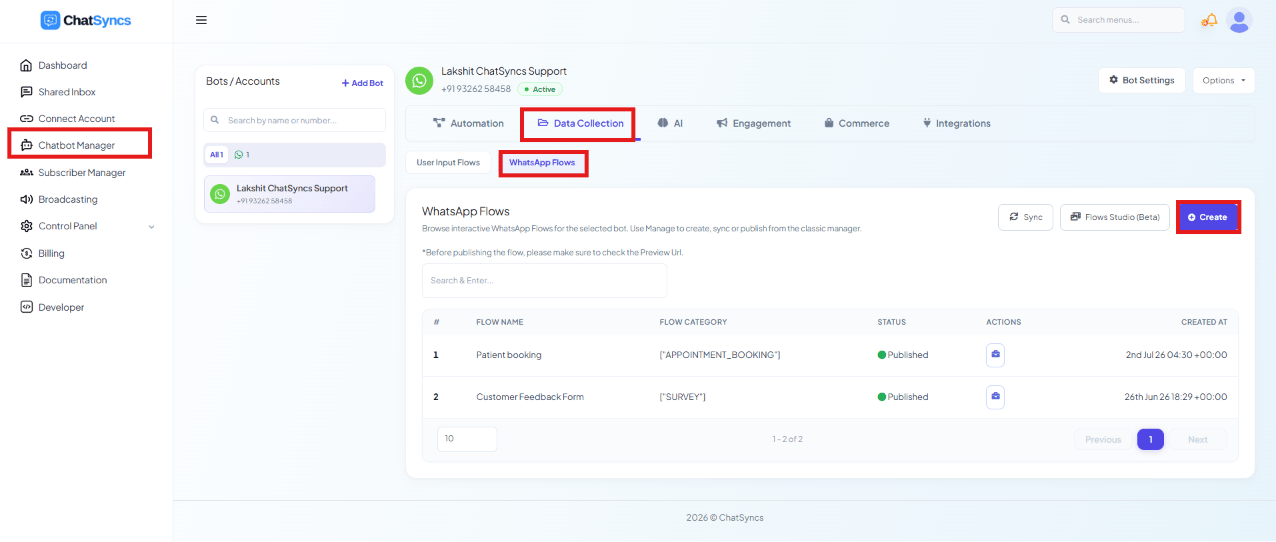 Go to **Chatbot Manager**.
Select **Data Collection**.
Select **WhatsApp Flows** from the sub-tabs.
Click **Create** to start a new flow.
Build the form by adding fields from the component palette.
Set each component's options to match what you need to collect.
Save the flow, then publish it once you're ready to use it live.
Once published, a flow can be attached to WhatsApp templates, buttons, and chatbot
automations.
## Flow configuration
Before designing screens and fields, configure the flow's settings:
Go to **Chatbot Manager**.
Select **Data Collection**.
Select **WhatsApp Flows** from the sub-tabs.
Click **Create** to start a new flow.
Build the form by adding fields from the component palette.
Set each component's options to match what you need to collect.
Save the flow, then publish it once you're ready to use it live.
Once published, a flow can be attached to WhatsApp templates, buttons, and chatbot
automations.
## Flow configuration
Before designing screens and fields, configure the flow's settings:
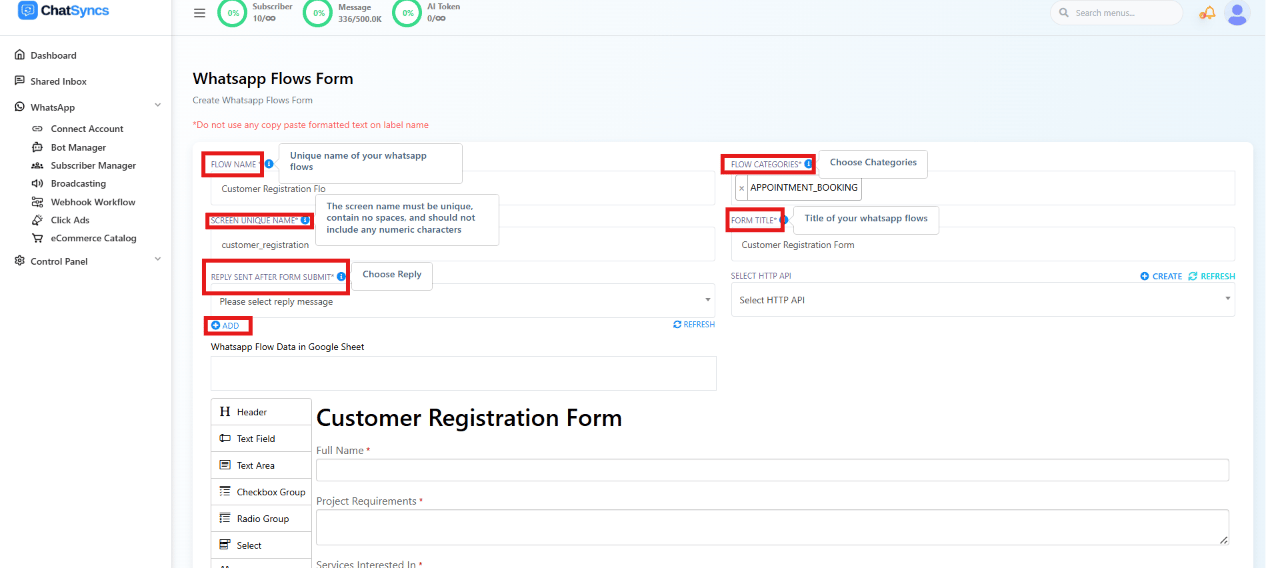 | Field | Purpose |
| -------------------------------------- | ------------------------------------------------------------------------------------------------------------------------------- |
| **Flow Name** | Internal name to identify the flow inside the platform, e.g. `Customer Registration Flow`. |
| **Flow Category** | The category that best matches the flow, e.g. `Lead Generation`, `Appointment Booking`, `Customer Registration`. |
| **Screen Unique Name** | A unique internal identifier for the screen — letters and underscores only, no spaces or numbers, e.g. `customer_registration`. |
| **Form Title** | The title shown to the subscriber at the top of the flow, e.g. `Customer Registration Form`. |
| **Reply Sent After Form Submit** | The bot reply sent to the subscriber once they submit the form, confirming it was received. |
| **Select HTTP API** | An HTTP API to send the submitted form data to an external application (CRM, lead management software, ERP, etc.). |
| **WhatsApp Flow Data in Google Sheet** | Enable to save every submission directly into Google Sheets for reporting, lead management, and backups. |
## Form components
| Field | Purpose |
| -------------------------------------- | ------------------------------------------------------------------------------------------------------------------------------- |
| **Flow Name** | Internal name to identify the flow inside the platform, e.g. `Customer Registration Flow`. |
| **Flow Category** | The category that best matches the flow, e.g. `Lead Generation`, `Appointment Booking`, `Customer Registration`. |
| **Screen Unique Name** | A unique internal identifier for the screen — letters and underscores only, no spaces or numbers, e.g. `customer_registration`. |
| **Form Title** | The title shown to the subscriber at the top of the flow, e.g. `Customer Registration Form`. |
| **Reply Sent After Form Submit** | The bot reply sent to the subscriber once they submit the form, confirming it was received. |
| **Select HTTP API** | An HTTP API to send the submitted form data to an external application (CRM, lead management software, ERP, etc.). |
| **WhatsApp Flow Data in Google Sheet** | Enable to save every submission directly into Google Sheets for reporting, lead management, and backups. |
## Form components
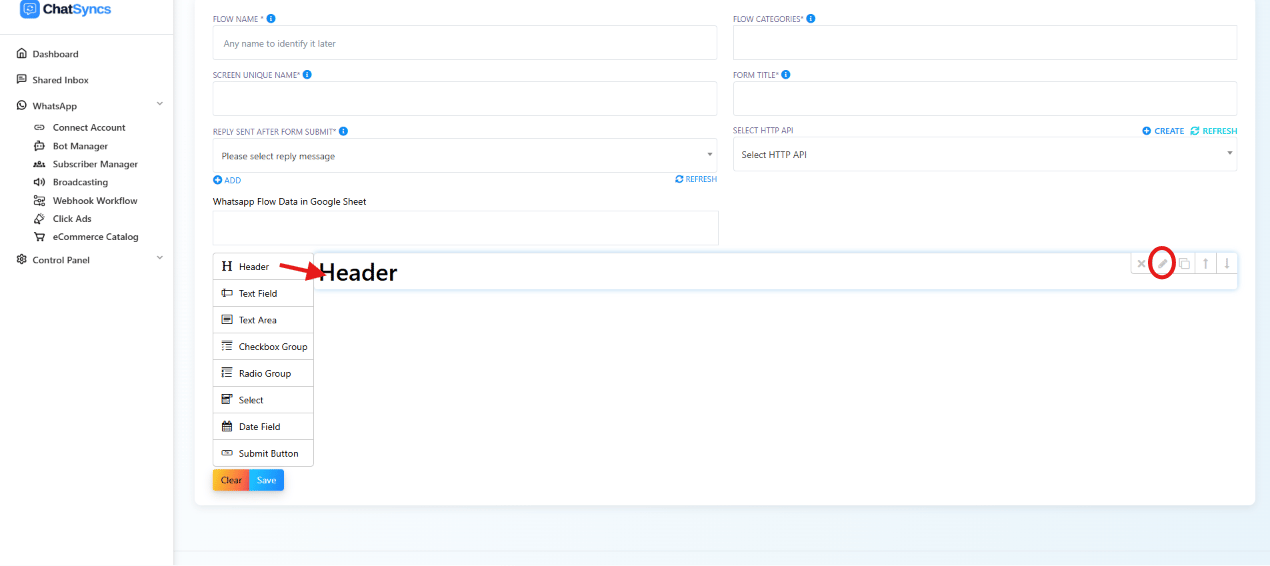 Each flow is built by dragging components from the palette onto the form. Available
components: **Header, Text Field, Text Area, Checkbox Group, Radio Group, Select, Date Field,
Submit Button**.
### Header
Displayed at the top of the flow — use a clear title so subscribers understand the form's
purpose, e.g. `Customer Registration Form`.
### Text Field
Each flow is built by dragging components from the palette onto the form. Available
components: **Header, Text Field, Text Area, Checkbox Group, Radio Group, Select, Date Field,
Submit Button**.
### Header
Displayed at the top of the flow — use a clear title so subscribers understand the form's
purpose, e.g. `Customer Registration Form`.
### Text Field
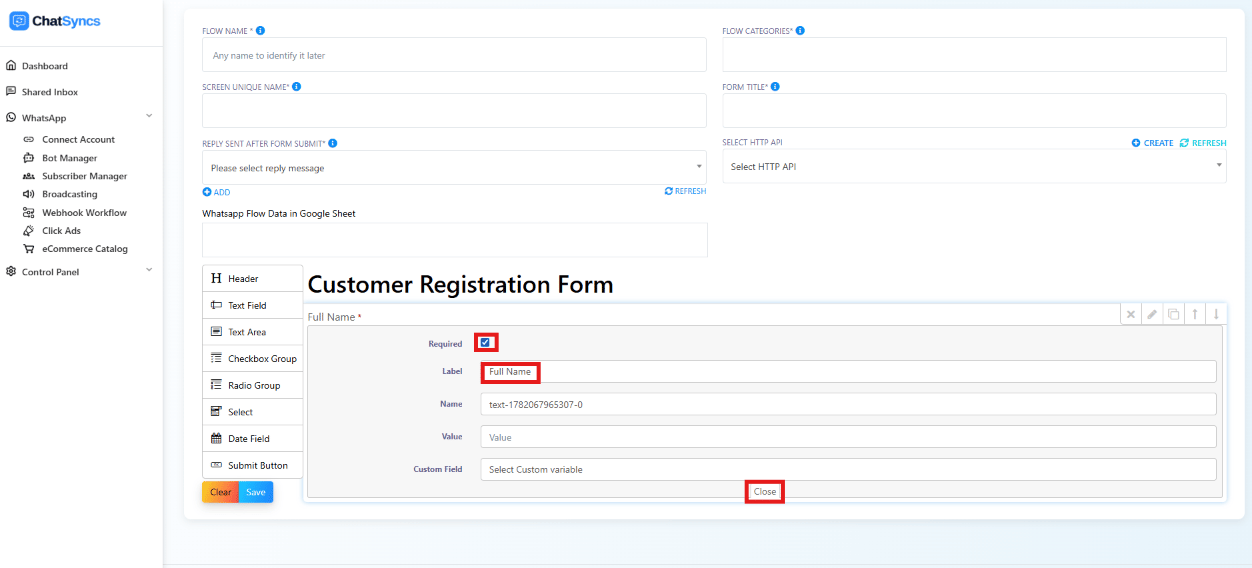
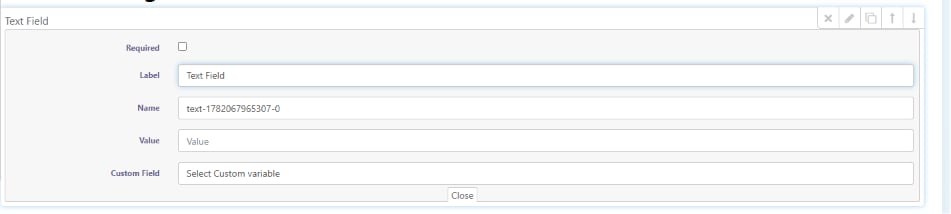 A single line of text — common for name, company name, city, or job title. Clicking a Text
Field opens the settings panel shown above:
* **Required** — the subscriber can't submit the form without filling this field in.
* **Label** — the text shown to the subscriber as the field's title, e.g. `Full Name`.
* **Name** — the internal identifier used when the form data is submitted (not shown to the
subscriber). ChatSyncs fills in a default like `text-1782067965307-0`, but renaming it to
something readable like `full_name` makes the submitted data far easier to work with — see
[Naming fields well](#naming-fields-well) below.
* **Value** — a default value prefilled when the form opens. For example, if the field's
**Label** is `City` and **Value** is set to `Bangalore`, the subscriber sees `Bangalore`
already typed in — they can keep it as-is or edit it to something else before submitting.
* **Custom Field** — connects the field to a custom variable or subscriber field, so a
previously saved value (e.g. a name already on file) can prefill automatically.
A single line of text — common for name, company name, city, or job title. Clicking a Text
Field opens the settings panel shown above:
* **Required** — the subscriber can't submit the form without filling this field in.
* **Label** — the text shown to the subscriber as the field's title, e.g. `Full Name`.
* **Name** — the internal identifier used when the form data is submitted (not shown to the
subscriber). ChatSyncs fills in a default like `text-1782067965307-0`, but renaming it to
something readable like `full_name` makes the submitted data far easier to work with — see
[Naming fields well](#naming-fields-well) below.
* **Value** — a default value prefilled when the form opens. For example, if the field's
**Label** is `City` and **Value** is set to `Bangalore`, the subscriber sees `Bangalore`
already typed in — they can keep it as-is or edit it to something else before submitting.
* **Custom Field** — connects the field to a custom variable or subscriber field, so a
previously saved value (e.g. a name already on file) can prefill automatically.
 This is what a configured Text Field looks like to the subscriber filling out the form.
Use the **Value** field to prefill information from a known customer and improve the
experience by reducing how much they need to type.
### Text Area
Allows longer free-text responses — common for feedback, comments, or project requirements.
### Checkbox Group
This is what a configured Text Field looks like to the subscriber filling out the form.
Use the **Value** field to prefill information from a known customer and improve the
experience by reducing how much they need to type.
### Text Area
Allows longer free-text responses — common for feedback, comments, or project requirements.
### Checkbox Group
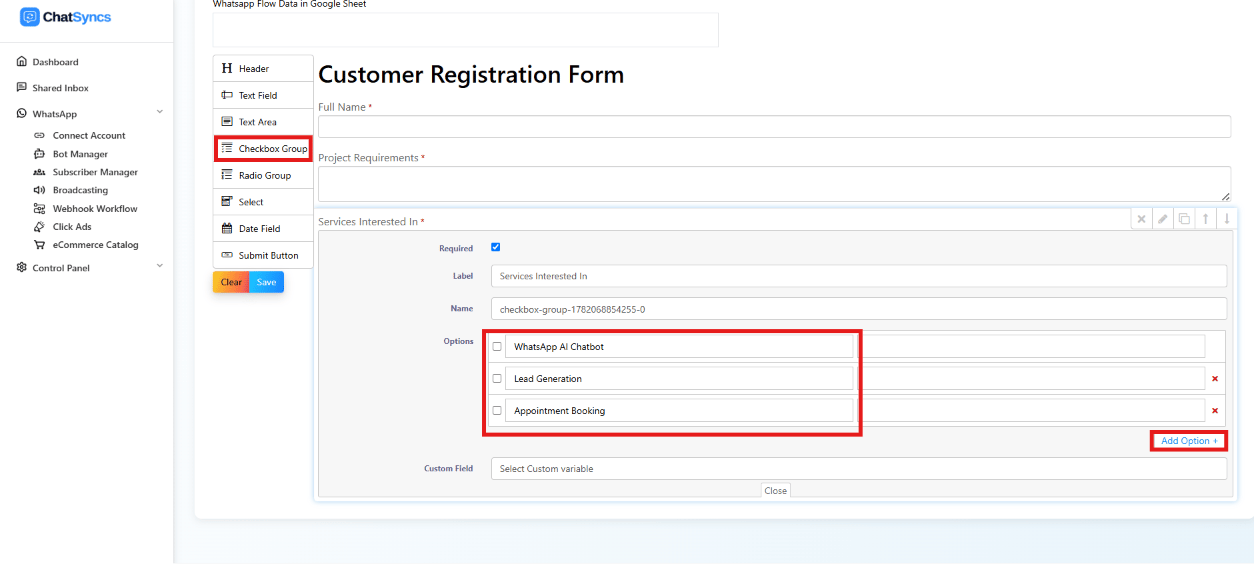 Lets the subscriber select multiple options, e.g. `Which services are you interested in?`
with options like `AI Automation`, `WhatsApp Marketing`, `Chatbot Development`. Add options
with **Add Option**.
### Radio Group
Lets the subscriber select multiple options, e.g. `Which services are you interested in?`
with options like `AI Automation`, `WhatsApp Marketing`, `Chatbot Development`. Add options
with **Add Option**.
### Radio Group
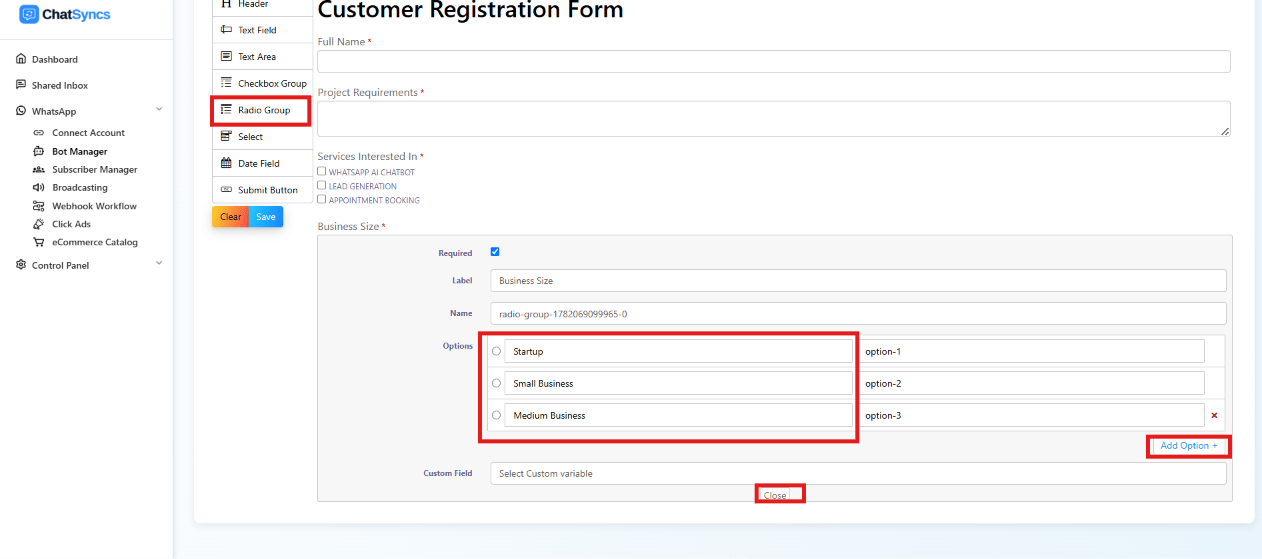 Lets the subscriber select only one option, e.g. `Business Size` with options `Startup`,
`Small Business`, `Medium Business`, `Enterprise`.
### Select
Lets the subscriber select only one option, e.g. `Business Size` with options `Startup`,
`Small Business`, `Medium Business`, `Enterprise`.
### Select
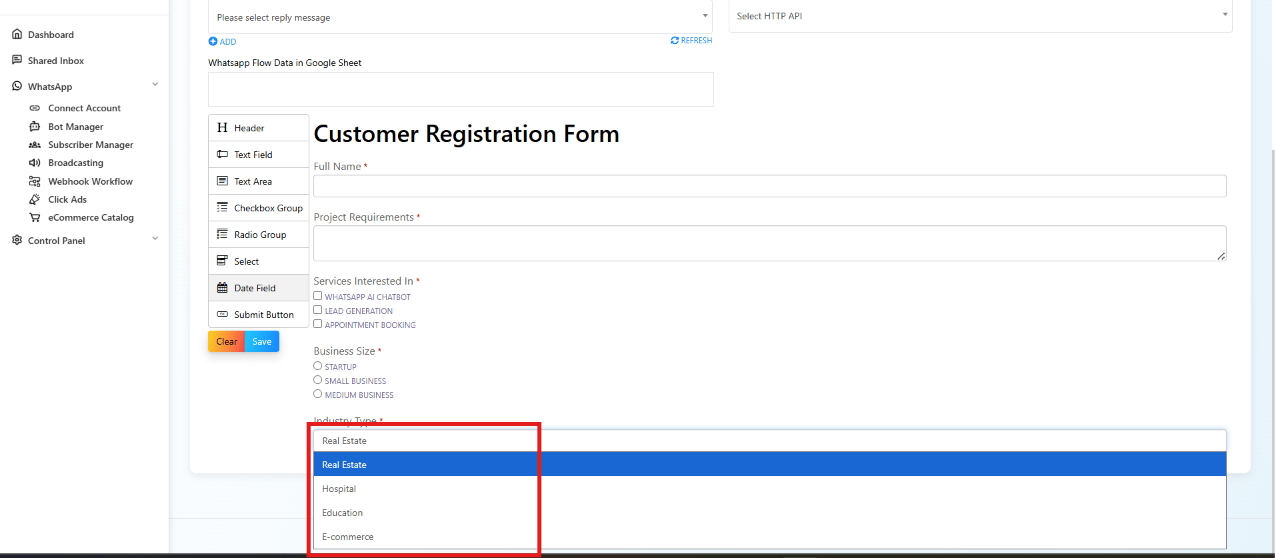
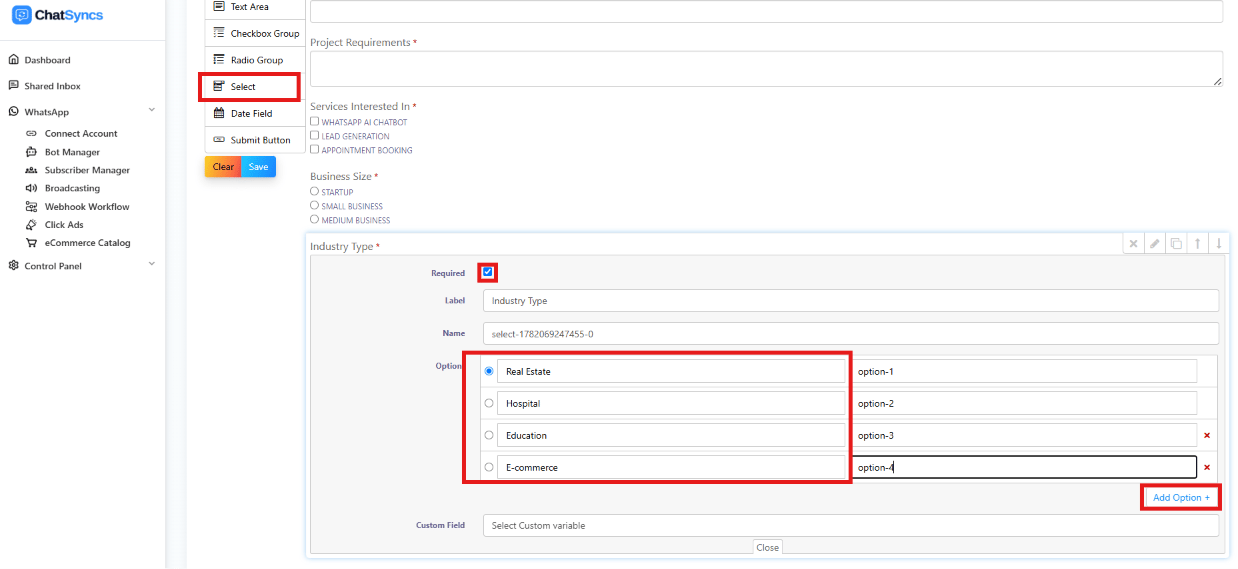 Displays options in a dropdown — useful when there are many choices, e.g. `Industry Type`
with `Real Estate`, `Hospital`, `Education`, `E-commerce`.
Displays options in a dropdown — useful when there are many choices, e.g. `Industry Type`
with `Real Estate`, `Hospital`, `Education`, `E-commerce`.
 ### Date Field
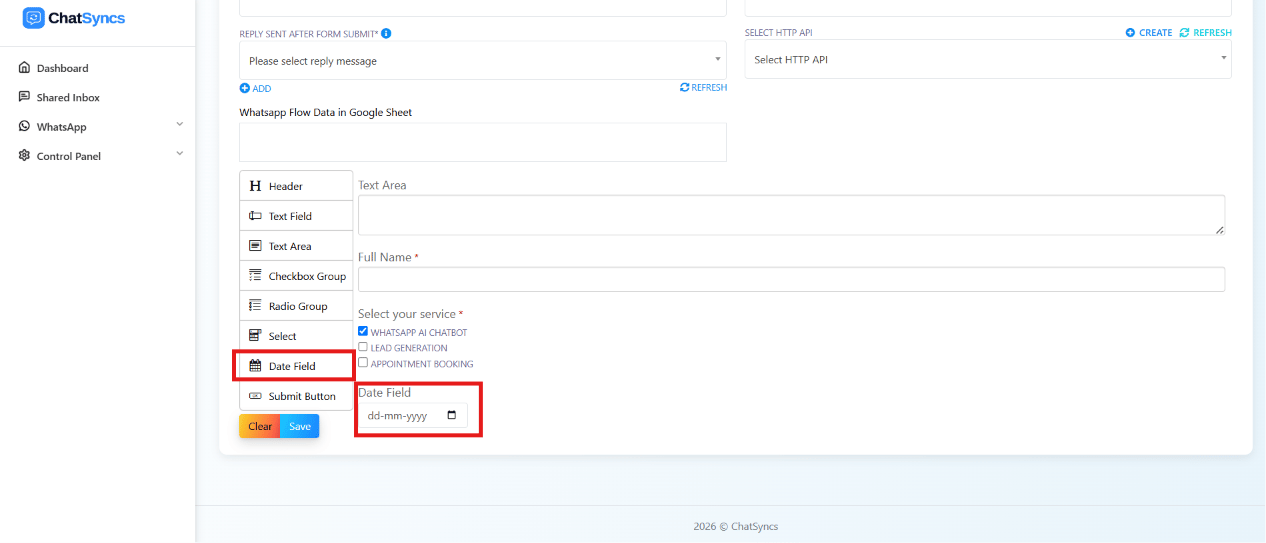 Lets the subscriber pick a date — common for appointment booking, event registration,
delivery scheduling, or follow-up meetings. Subscribers get their device's native date picker,
so the format is always valid without you having to validate it yourself.
### Submit Button
Lets the subscriber pick a date — common for appointment booking, event registration,
delivery scheduling, or follow-up meetings. Subscribers get their device's native date picker,
so the format is always valid without you having to validate it yourself.
### Submit Button
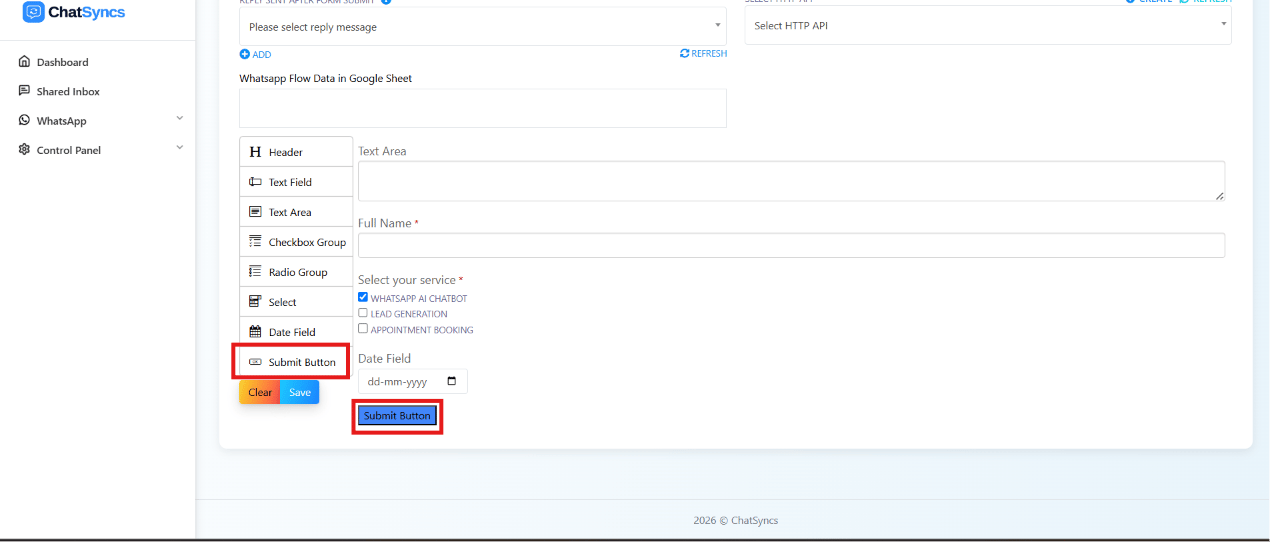 Completes the form and sends all collected data once clicked.
**Example — an appointment booking flow:**
Completes the form and sends all collected data once clicked.
**Example — an appointment booking flow:**
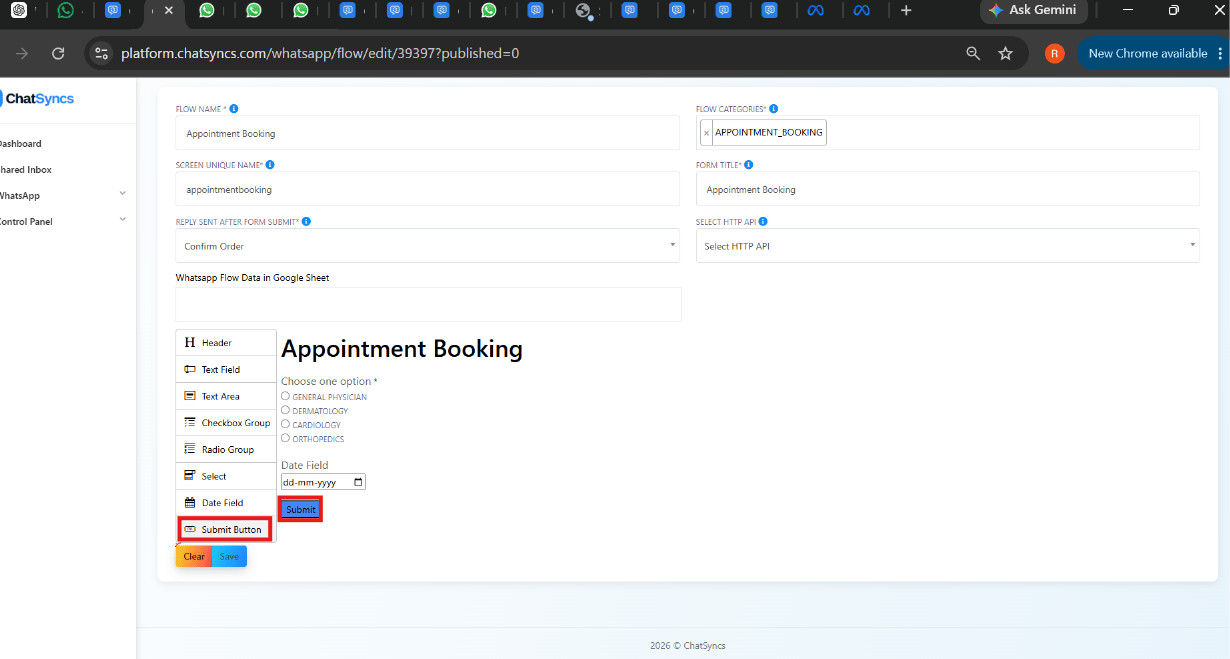 ```
Header:
Book a Free Consultation
↓
Full Name
↓
Email Address
↓
Phone Number
↓
Service Interested In
↓
Preferred Appointment Date
↓
Additional Notes
↓
Submit
```
## Naming fields well
Every field has a **Label** (what the subscriber sees) and a **Name** (the internal key used
when the data is submitted) — and fields with options (Checkbox Group, Radio Group, Select)
also give each option its own **Label** and **Value**. Getting these right makes the data you
collect much easier to work with later.
```
Header:
Book a Free Consultation
↓
Full Name
↓
Email Address
↓
Phone Number
↓
Service Interested In
↓
Preferred Appointment Date
↓
Additional Notes
↓
Submit
```
## Naming fields well
Every field has a **Label** (what the subscriber sees) and a **Name** (the internal key used
when the data is submitted) — and fields with options (Checkbox Group, Radio Group, Select)
also give each option its own **Label** and **Value**. Getting these right makes the data you
collect much easier to work with later.
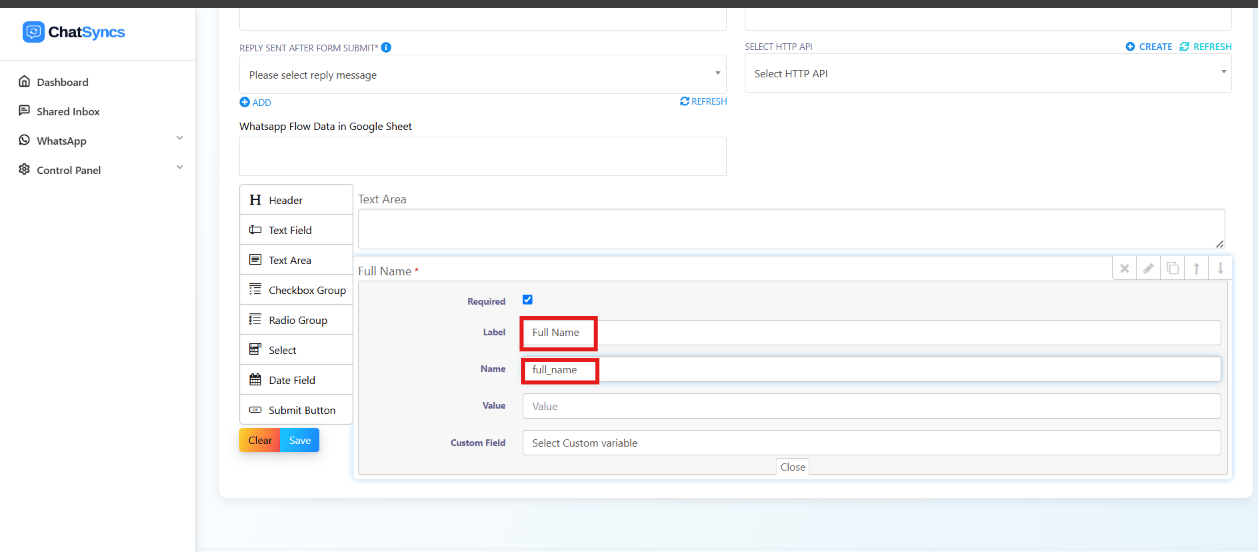 ### Name
ChatSyncs assigns a default **Name** like `text-1782067965307-0` or
`checkbox-group-1782068854255-0` — technically valid, but unreadable in your submitted data.
Rename it to something meaningful instead:
| Good | Avoid |
| --------------------- | -------------------------------- |
| `services_interested` | `Services Interested` |
| `first_name` | `Field 1` |
| `phone_number` | `Checkbox123` |
| `email_address` | `checkbox-group-1782068854255-0` |
**Best practices:** lowercase letters, underscores between words, no spaces or special
characters, and a name descriptive enough that you'd understand it without seeing the label.
### Options (Checkbox Group, Radio Group, Select)
Each option has its own **Label** (shown to the subscriber) and **Value** (stored when
selected) — give the Value a descriptive snake\_case name too, not a number:
### Name
ChatSyncs assigns a default **Name** like `text-1782067965307-0` or
`checkbox-group-1782068854255-0` — technically valid, but unreadable in your submitted data.
Rename it to something meaningful instead:
| Good | Avoid |
| --------------------- | -------------------------------- |
| `services_interested` | `Services Interested` |
| `first_name` | `Field 1` |
| `phone_number` | `Checkbox123` |
| `email_address` | `checkbox-group-1782068854255-0` |
**Best practices:** lowercase letters, underscores between words, no spaces or special
characters, and a name descriptive enough that you'd understand it without seeing the label.
### Options (Checkbox Group, Radio Group, Select)
Each option has its own **Label** (shown to the subscriber) and **Value** (stored when
selected) — give the Value a descriptive snake\_case name too, not a number:
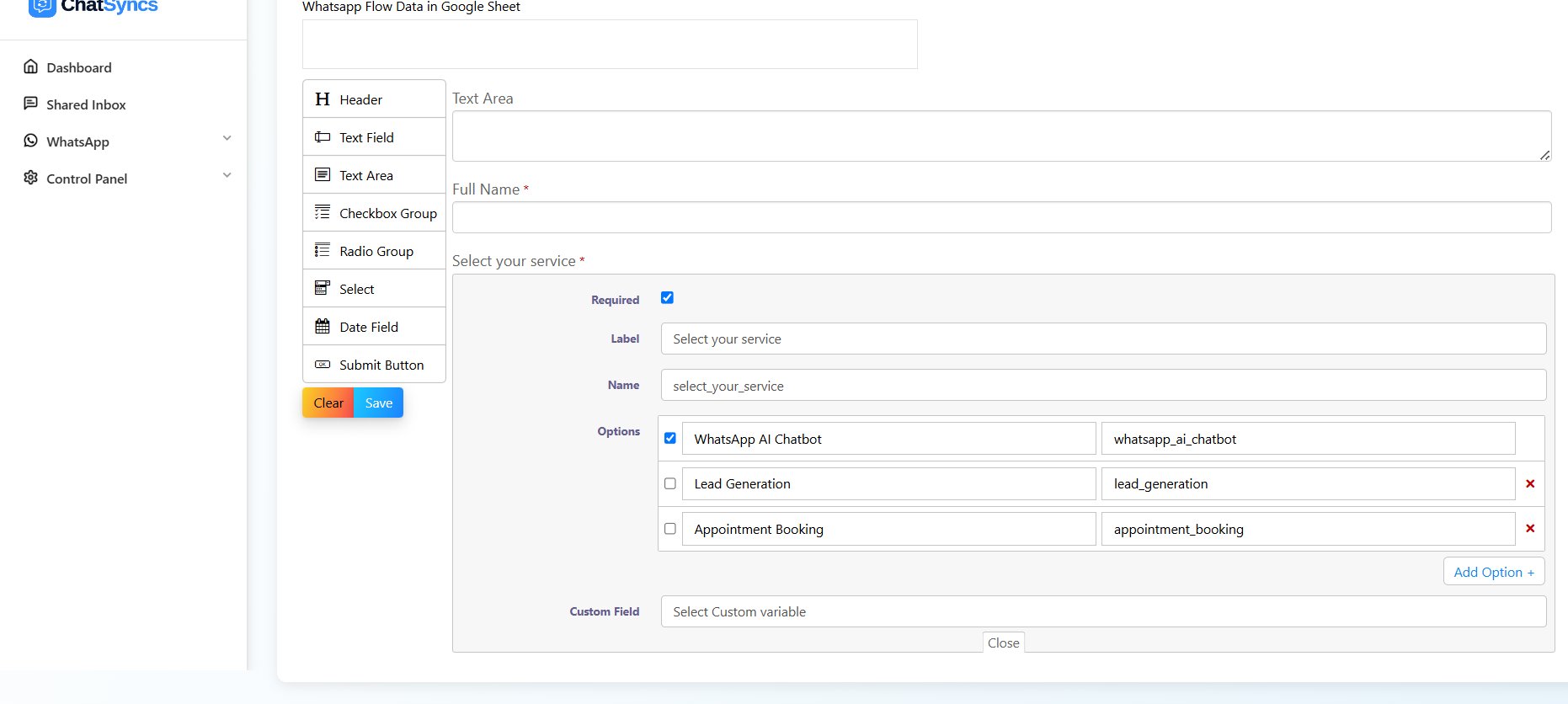 | Option Label | Recommended Value | Avoid |
| ------------------- | --------------------- | ----- |
| WhatsApp AI Chatbot | `whatsapp_ai_chatbot` | `1` |
| Lead Generation | `lead_generation` | `2` |
| Appointment Booking | `appointment_booking` | `3` |
Numbers work, but a descriptive value reads correctly even without the label next to it — e.g.
a submission showing `"services_interested": ["whatsapp_ai_chatbot", "lead_generation"]` is
immediately understandable; `"services_interested": [1, 2]` is not.
| Option Label | Recommended Value | Avoid |
| ------------------- | --------------------- | ----- |
| WhatsApp AI Chatbot | `whatsapp_ai_chatbot` | `1` |
| Lead Generation | `lead_generation` | `2` |
| Appointment Booking | `appointment_booking` | `3` |
Numbers work, but a descriptive value reads correctly even without the label next to it — e.g.
a submission showing `"services_interested": ["whatsapp_ai_chatbot", "lead_generation"]` is
immediately understandable; `"services_interested": [1, 2]` is not.
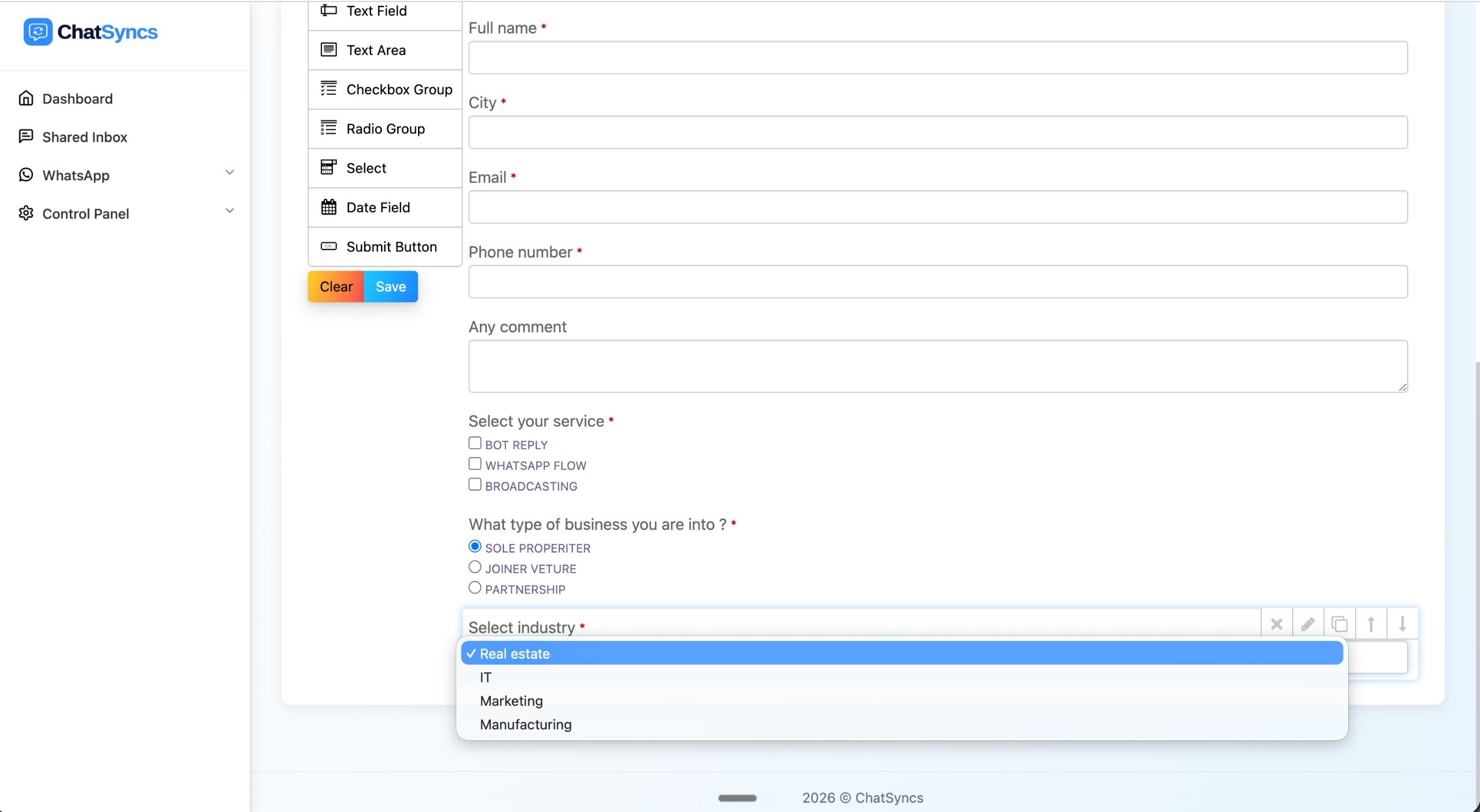 Well-named fields produce clean, predictable JSON — much easier to use in webhooks, Google
Sheets, or any automation downstream.
## Field label length limit
Well-named fields produce clean, predictable JSON — much easier to use in webhooks, Google
Sheets, or any automation downstream.
## Field label length limit
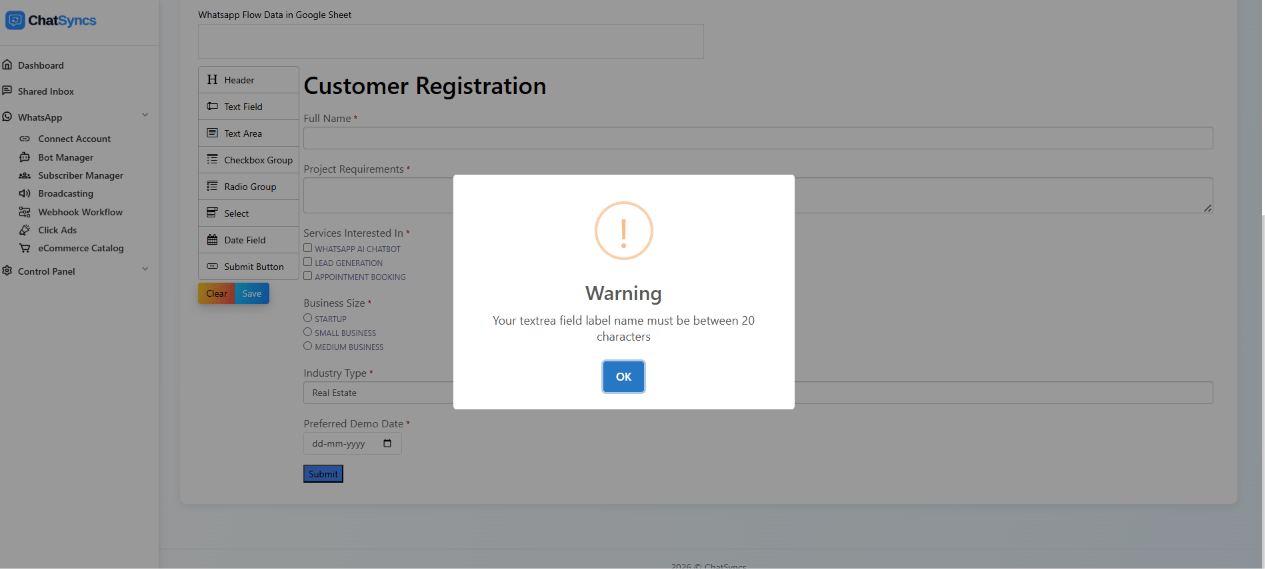 Each field's **Label** has a character limit of **20 characters**. Going over it blocks saving
the flow with a warning like the one above — but the warning itself doesn't say which label is
too long or by how much, so you have to check each one yourself.
For example, in the registration form below, two labels were over the 20-character limit and
had to be shortened before the flow would save:
| Label | Character count | Over the 20-character limit? |
| ---------------------- | --------------- | ---------------------------- |
| Full Name | 9 | No |
| Project Requirements | 20 | No (exactly at the limit) |
| Services Interested In | 22 | Yes — 2 characters over |
| Business Size | 13 | No |
| Industry Type | 13 | No |
| Preferred Demo Date | 19 | No |
| Customer Registration | 21 | Yes — 1 character over |
**Keep field labels to 20 characters or fewer.** `Services Interested In` (22) and
`Customer Registration` (21) both had to be shortened before this flow would save — count the
characters in each label yourself, since the warning popup doesn't tell you which field is the
problem.
## Example: a complete registration form
```
Header:
Customer Registration Form
↓
Text Field — Full Name
↓
Text Area — Project Requirements
↓
Checkbox Group — Services Interested In
↓
Radio Group — Business Size
↓
Select — Industry Type
↓
Date Field — Preferred Demo Date
↓
Submit Button
```
## Manage WhatsApp Flows
Each field's **Label** has a character limit of **20 characters**. Going over it blocks saving
the flow with a warning like the one above — but the warning itself doesn't say which label is
too long or by how much, so you have to check each one yourself.
For example, in the registration form below, two labels were over the 20-character limit and
had to be shortened before the flow would save:
| Label | Character count | Over the 20-character limit? |
| ---------------------- | --------------- | ---------------------------- |
| Full Name | 9 | No |
| Project Requirements | 20 | No (exactly at the limit) |
| Services Interested In | 22 | Yes — 2 characters over |
| Business Size | 13 | No |
| Industry Type | 13 | No |
| Preferred Demo Date | 19 | No |
| Customer Registration | 21 | Yes — 1 character over |
**Keep field labels to 20 characters or fewer.** `Services Interested In` (22) and
`Customer Registration` (21) both had to be shortened before this flow would save — count the
characters in each label yourself, since the warning popup doesn't tell you which field is the
problem.
## Example: a complete registration form
```
Header:
Customer Registration Form
↓
Text Field — Full Name
↓
Text Area — Project Requirements
↓
Checkbox Group — Services Interested In
↓
Radio Group — Business Size
↓
Select — Industry Type
↓
Date Field — Preferred Demo Date
↓
Submit Button
```
## Manage WhatsApp Flows
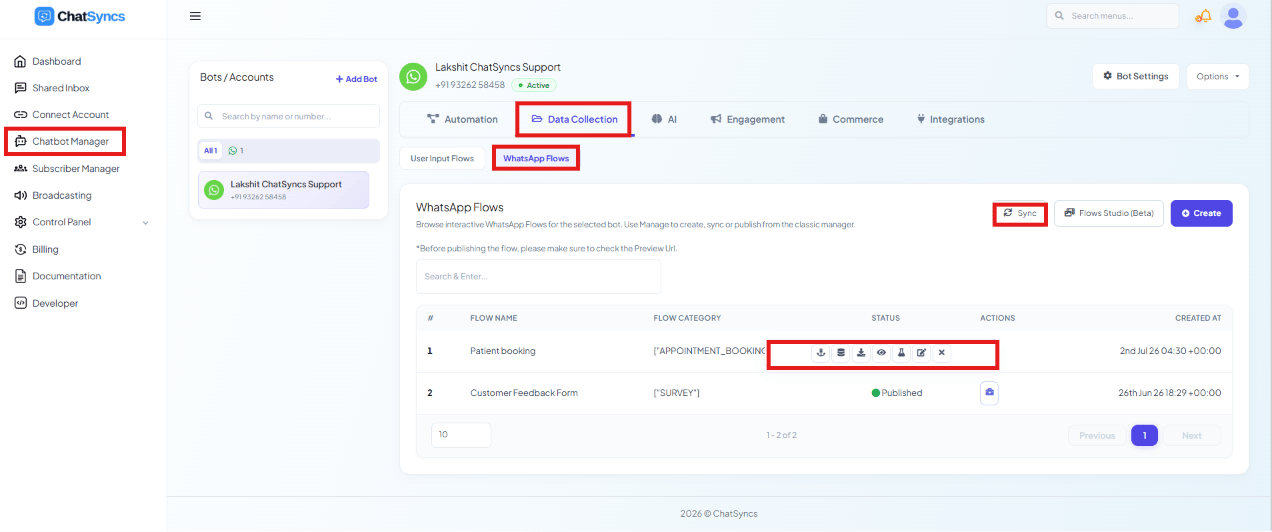 Saved flows appear under **Chatbot Manager → Data Collection → WhatsApp Flows**, with these actions:
* **Add Webhook** — connect a webhook to send submitted data to a CRM, lead management tool,
Google Sheets automation, or other third-party app.
* **Report Data** — view submitted responses: user submissions, form completion data, lead
information, customer details.
* **Preview Flow** — test the form layout, field validations, and user experience before
publishing.
* **Open in Studio** — open the flow builder to modify fields, labels, validation rules,
buttons, or settings.
* **Publish** — push the flow to Meta so it can be used in WhatsApp templates and automations.
Once approved, it's available for production use.
* **Edit** — modify form content, questions, options, labels, or integrations.
* **Delete** — permanently remove the flow. Deleted flows cannot be recovered.
Always **Preview** a flow before publishing to confirm everything works correctly.
## Publishing and Meta approval
Saved flows appear under **Chatbot Manager → Data Collection → WhatsApp Flows**, with these actions:
* **Add Webhook** — connect a webhook to send submitted data to a CRM, lead management tool,
Google Sheets automation, or other third-party app.
* **Report Data** — view submitted responses: user submissions, form completion data, lead
information, customer details.
* **Preview Flow** — test the form layout, field validations, and user experience before
publishing.
* **Open in Studio** — open the flow builder to modify fields, labels, validation rules,
buttons, or settings.
* **Publish** — push the flow to Meta so it can be used in WhatsApp templates and automations.
Once approved, it's available for production use.
* **Edit** — modify form content, questions, options, labels, or integrations.
* **Delete** — permanently remove the flow. Deleted flows cannot be recovered.
Always **Preview** a flow before publishing to confirm everything works correctly.
## Publishing and Meta approval
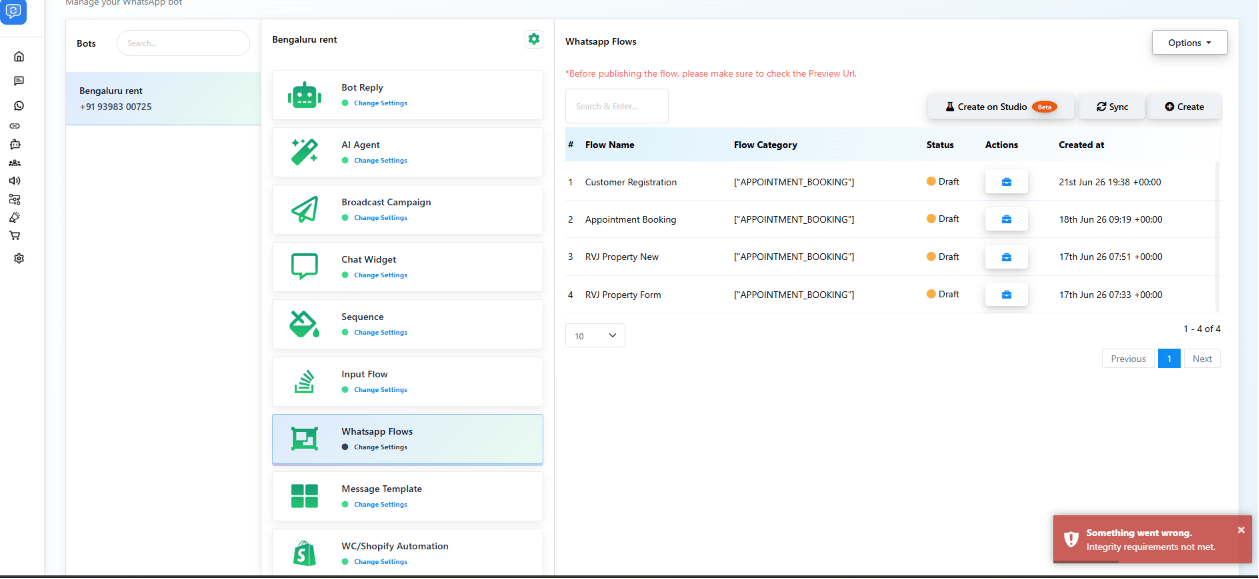 A WhatsApp Flow must be published and approved by Meta before it can be used in production.
Clicking **Publish** can fail if your Meta Business Account hasn't met Meta's requirements,
as shown above.
Common reasons publishing fails:
A WhatsApp Flow must be published and approved by Meta before it can be used in production.
Clicking **Publish** can fail if your Meta Business Account hasn't met Meta's requirements,
as shown above.
Common reasons publishing fails:
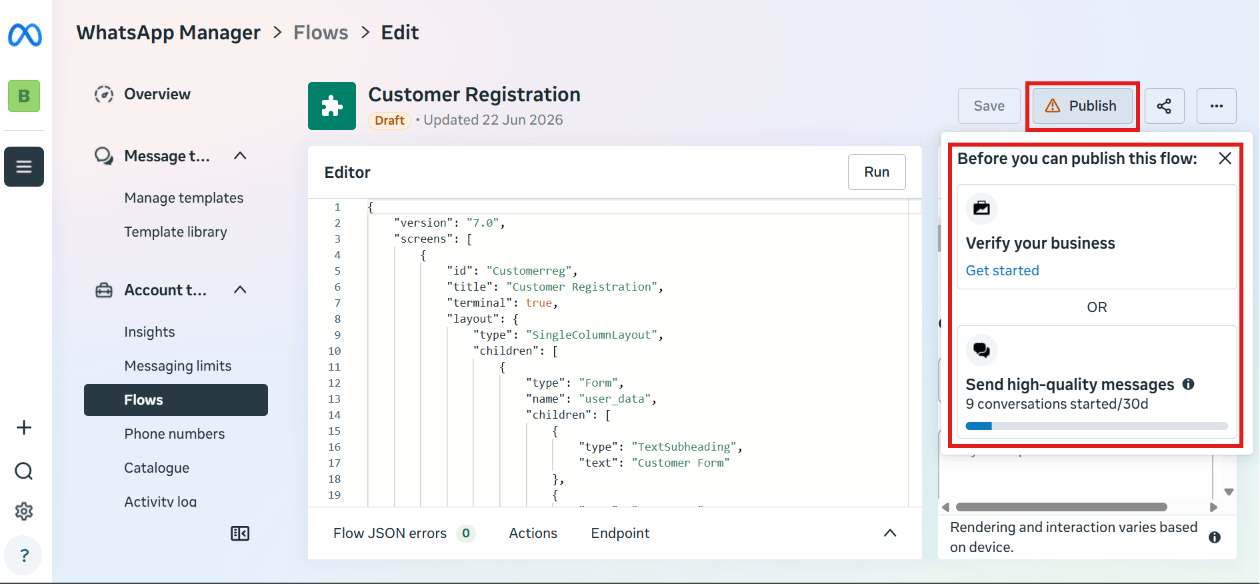 * **Business Verification not completed** — your Meta Business Portfolio must be verified
before Meta will approve a flow.
* **Messaging quality requirements not met** — some accounts need to establish messaging
quality and compliance first.
**Solution:** complete Meta Business Verification, keep your WhatsApp Business Account active
and compliant, maintain good messaging quality, then retry publishing.
## Frequently asked
Create a **WhatsApp Flow** in Chatbot Manager, configure the flow settings (name, category,
screen name, form title), then add components (Text Field, Checkbox Group, Radio Group,
Select, Date Field, Submit Button) and configure each one's label and options.
Each field's **Label** has a character limit. Shorten the label — the warning names the
field and the required range — and save again.
To wherever you've configured: the bot reply set in **Reply Sent After Form Submit**
confirms the submission to the subscriber, and the data itself can be sent to an
**HTTP API**, saved to **Google Sheets**, or forwarded via a **webhook** added from the
flow's actions.
Most often because your Meta Business Account hasn't completed **Business Verification**,
or hasn't met Meta's messaging quality requirements. Complete verification, keep your
account compliant, and retry.
Yes — set a default in **Value** to prefill known information, but subscribers can still
edit it before submitting. This reduces typing without locking in stale data.
* **Screen Unique Name has strict rules** — letters and underscores only, no spaces, no
numbers, and it must be unique.
* **Field labels have a character limit** — an over-length label blocks saving the flow.
* **A flow can't go live until Meta approves it** — Business Verification and messaging
quality requirements must be met first, or **Publish** will fail.
* **Deleted flows can't be recovered** — there's no undo for **Delete**.
## Learn From a Use Case
* [Clinic Appointment Booking Automation](/learn/clinic-appointment-booking-business-problem) —
the structured, multi-field appointment form patients fill out.
* **Business Verification not completed** — your Meta Business Portfolio must be verified
before Meta will approve a flow.
* **Messaging quality requirements not met** — some accounts need to establish messaging
quality and compliance first.
**Solution:** complete Meta Business Verification, keep your WhatsApp Business Account active
and compliant, maintain good messaging quality, then retry publishing.
## Frequently asked
Create a **WhatsApp Flow** in Chatbot Manager, configure the flow settings (name, category,
screen name, form title), then add components (Text Field, Checkbox Group, Radio Group,
Select, Date Field, Submit Button) and configure each one's label and options.
Each field's **Label** has a character limit. Shorten the label — the warning names the
field and the required range — and save again.
To wherever you've configured: the bot reply set in **Reply Sent After Form Submit**
confirms the submission to the subscriber, and the data itself can be sent to an
**HTTP API**, saved to **Google Sheets**, or forwarded via a **webhook** added from the
flow's actions.
Most often because your Meta Business Account hasn't completed **Business Verification**,
or hasn't met Meta's messaging quality requirements. Complete verification, keep your
account compliant, and retry.
Yes — set a default in **Value** to prefill known information, but subscribers can still
edit it before submitting. This reduces typing without locking in stale data.
* **Screen Unique Name has strict rules** — letters and underscores only, no spaces, no
numbers, and it must be unique.
* **Field labels have a character limit** — an over-length label blocks saving the flow.
* **A flow can't go live until Meta approves it** — Business Verification and messaging
quality requirements must be met first, or **Publish** will fail.
* **Deleted flows can't be recovered** — there's no undo for **Delete**.
## Learn From a Use Case
* [Clinic Appointment Booking Automation](/learn/clinic-appointment-booking-business-problem) —
the structured, multi-field appointment form patients fill out.