> ## Documentation Index
> Fetch the complete documentation index at: https://docs.chatsyncs.com/llms.txt
> Use this file to discover all available pages before exploring further.
# Chat Widget
> The Chat Widget adds your chatbot to your website, so visitors can start a WhatsApp conversation directly from your web pages instead of having to know your business number.
## Create a chat widget
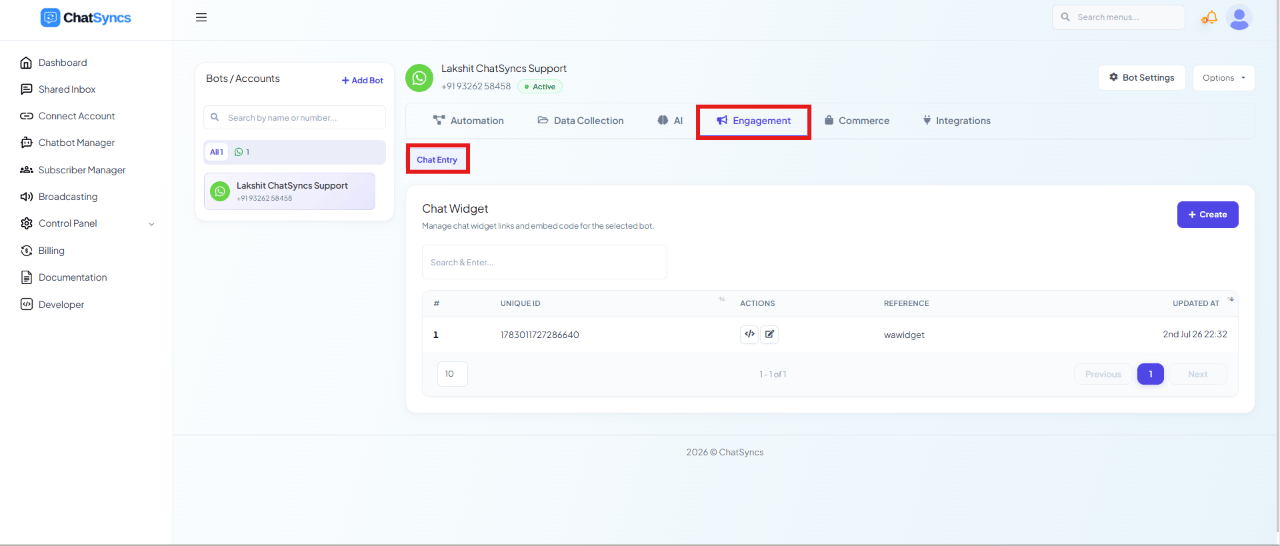 Go to **Chatbot Manager**.
Select **Engagement**.
Select **Chat Entry** from the sub-tabs.
Click **Create** to start a new widget.
## Configure the widget
Clicking **Create** opens the widget's configuration panel — **Action Type** is set to
**Whatsapp short link**, the only widget type currently available:
Go to **Chatbot Manager**.
Select **Engagement**.
Select **Chat Entry** from the sub-tabs.
Click **Create** to start a new widget.
## Configure the widget
Clicking **Create** opens the widget's configuration panel — **Action Type** is set to
**Whatsapp short link**, the only widget type currently available:
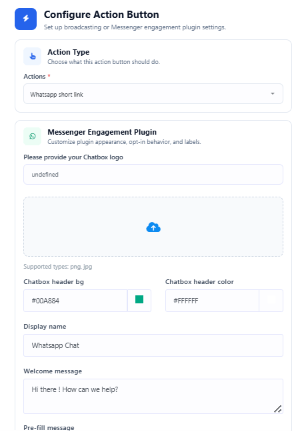 | Field | Notes |
| ------------------------------------- | ----------------------------------------------------------------------------------------------------------------------------------------------- |
| **Chatbox Logo** | PNG or JPG. Use a square, transparent logo, 200×200px or larger. |
| **Chatbox Header Background / Color** | e.g. `#00A884` background with `#FFFFFF` text — use your brand color or WhatsApp green, with a contrasting text color. |
| **Display Name** | Your business name shown at the top of the widget, e.g. `Rahul Electronics`. |
| **Welcome Message** | Shown the moment a visitor opens the widget — keep it short and friendly, e.g. `Hi 👋 Welcome to Rahul Electronics! How can we help you today?` |
| Field | Notes |
| ------------------------------------- | ----------------------------------------------------------------------------------------------------------------------------------------------- |
| **Chatbox Logo** | PNG or JPG. Use a square, transparent logo, 200×200px or larger. |
| **Chatbox Header Background / Color** | e.g. `#00A884` background with `#FFFFFF` text — use your brand color or WhatsApp green, with a contrasting text color. |
| **Display Name** | Your business name shown at the top of the widget, e.g. `Rahul Electronics`. |
| **Welcome Message** | Shown the moment a visitor opens the widget — keep it short and friendly, e.g. `Hi 👋 Welcome to Rahul Electronics! How can we help you today?` |
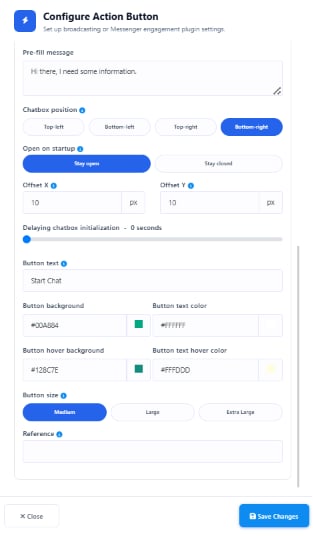 | Field | Notes |
| --------------------------------------------------------------------------- | --------------------------------------------------------------------------------------------------------------------------------------------------------------------------------------------- |
| **Pre-fill Message** | Auto-fills the WhatsApp message box so the visitor just taps Send instead of typing — saves time and increases conversation rate. |
| **Chatbox Position** | Top-left, Bottom-left, Top-right, or **Bottom-right** (recommended — where most visitors expect a chat button). |
| **Open on Startup** | **Stay Open** auto-opens the widget on page load (good for support/promo/landing pages). **Stay Closed** (recommended) shows just the floating button until clicked, for a cleaner site. |
| **Offset X / Y** | Distance in pixels from the screen edge — higher X moves it further inward, higher Y moves it further up. |
| **Delaying Chatbox Initialization** | How long to wait before the widget appears. `0 Seconds` for immediate support, `3–5 Seconds` to avoid distracting new visitors. |
| **Button Text** | Short and action-oriented — `Start Chat`, `Chat Now`, `WhatsApp Us`, `Need Help?` |
| **Button Background / Text Color**, **Hover Background / Hover Text Color** | Match your brand color for the base state; the hover colors give visual feedback that the button is clickable. |
| **Button Size** | Medium for standard sites, Large for high-interaction business sites, Extra Large for landing/promo pages. |
| **Reference** | An internal-only name (alphanumeric only) to tell widgets apart in the dashboard — useful if you run separate widgets per website or campaign, e.g. `homepage_widget`, `landing_page_widget`. |
**Reference** must be alphanumeric characters only — it identifies the widget internally, so
spaces or special characters will be rejected.
**Recommended starting configuration:** Bottom-right position, Stay Closed, 0 second delay,
Medium button size, and your brand color for both header and button backgrounds with white
text for contrast.
Click **Save Changes** once configured to create and activate the widget.
### The complete visitor journey
```
Visitor visits your website
↓
The floating WhatsApp button appears (bottom-right, by default)
↓
Visitor clicks the button — the widget opens with your logo, name, and welcome message
↓
Visitor clicks Start Chat
↓
WhatsApp opens with your Pre-fill Message already typed in
↓
Visitor clicks Send — your business receives the message and the conversation begins
```
## Build the widget's conversation flow
| Field | Notes |
| --------------------------------------------------------------------------- | --------------------------------------------------------------------------------------------------------------------------------------------------------------------------------------------- |
| **Pre-fill Message** | Auto-fills the WhatsApp message box so the visitor just taps Send instead of typing — saves time and increases conversation rate. |
| **Chatbox Position** | Top-left, Bottom-left, Top-right, or **Bottom-right** (recommended — where most visitors expect a chat button). |
| **Open on Startup** | **Stay Open** auto-opens the widget on page load (good for support/promo/landing pages). **Stay Closed** (recommended) shows just the floating button until clicked, for a cleaner site. |
| **Offset X / Y** | Distance in pixels from the screen edge — higher X moves it further inward, higher Y moves it further up. |
| **Delaying Chatbox Initialization** | How long to wait before the widget appears. `0 Seconds` for immediate support, `3–5 Seconds` to avoid distracting new visitors. |
| **Button Text** | Short and action-oriented — `Start Chat`, `Chat Now`, `WhatsApp Us`, `Need Help?` |
| **Button Background / Text Color**, **Hover Background / Hover Text Color** | Match your brand color for the base state; the hover colors give visual feedback that the button is clickable. |
| **Button Size** | Medium for standard sites, Large for high-interaction business sites, Extra Large for landing/promo pages. |
| **Reference** | An internal-only name (alphanumeric only) to tell widgets apart in the dashboard — useful if you run separate widgets per website or campaign, e.g. `homepage_widget`, `landing_page_widget`. |
**Reference** must be alphanumeric characters only — it identifies the widget internally, so
spaces or special characters will be rejected.
**Recommended starting configuration:** Bottom-right position, Stay Closed, 0 second delay,
Medium button size, and your brand color for both header and button backgrounds with white
text for contrast.
Click **Save Changes** once configured to create and activate the widget.
### The complete visitor journey
```
Visitor visits your website
↓
The floating WhatsApp button appears (bottom-right, by default)
↓
Visitor clicks the button — the widget opens with your logo, name, and welcome message
↓
Visitor clicks Start Chat
↓
WhatsApp opens with your Pre-fill Message already typed in
↓
Visitor clicks Send — your business receives the message and the conversation begins
```
## Build the widget's conversation flow
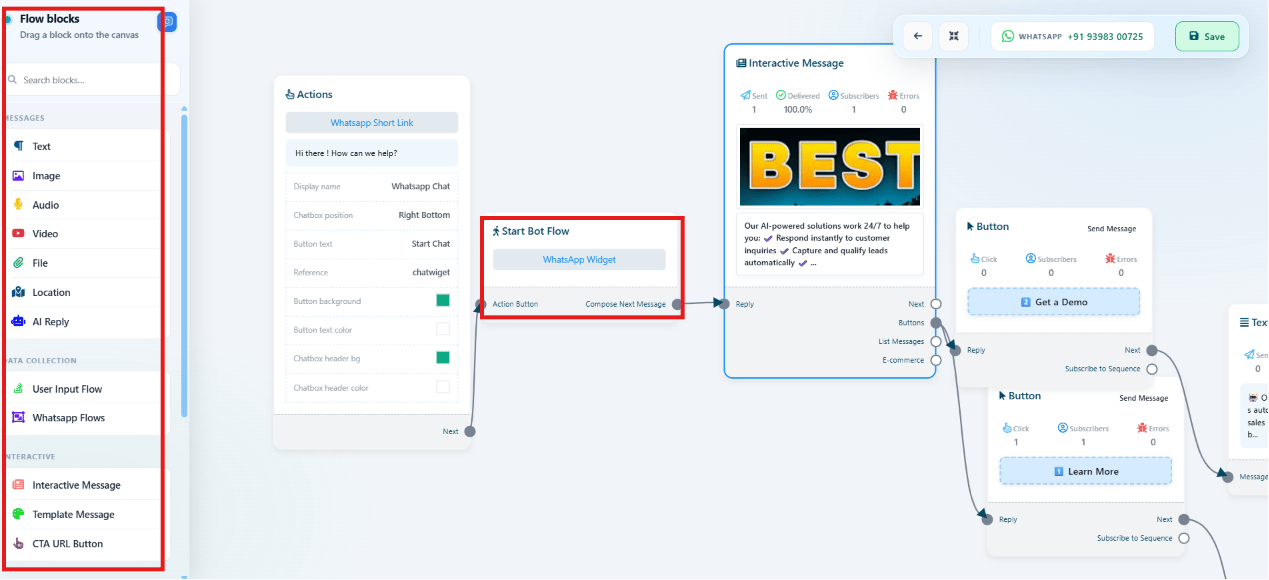 Once saved, build what happens when a visitor starts the chat — the canvas works the same way
as the **Keyword Replies** flow builder. Drag on components and connect them to design the
conversation: **Text**, **Image**, **Video**, **Audio**, **Files**, **Interactive Messages**,
**User Input**, and **AI Reply**.
Click **Save Flow** once the conversation is complete.
## Get the embed code
Once saved, build what happens when a visitor starts the chat — the canvas works the same way
as the **Keyword Replies** flow builder. Drag on components and connect them to design the
conversation: **Text**, **Image**, **Video**, **Audio**, **Files**, **Interactive Messages**,
**User Input**, and **AI Reply**.
Click **Save Flow** once the conversation is complete.
## Get the embed code
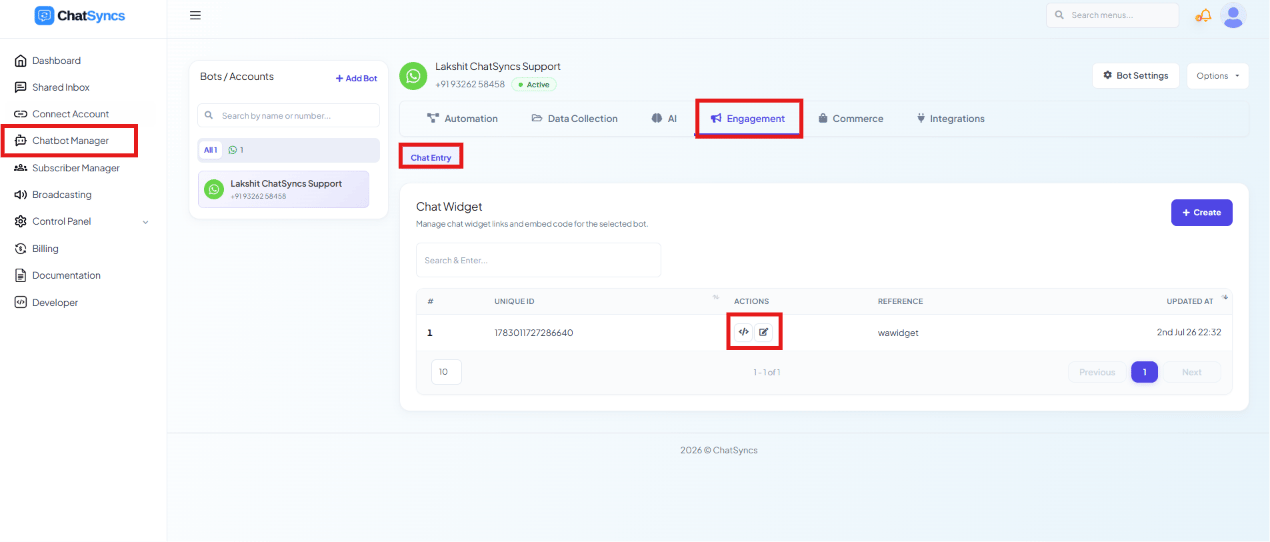 Back in the Chat Widget list, use the action icons on your widget's row to open its **Embed
Code**.
The Embed Code dialog gives you three ways to deploy the widget:
Back in the Chat Widget list, use the action icons on your widget's row to open its **Embed
Code**.
The Embed Code dialog gives you three ways to deploy the widget:
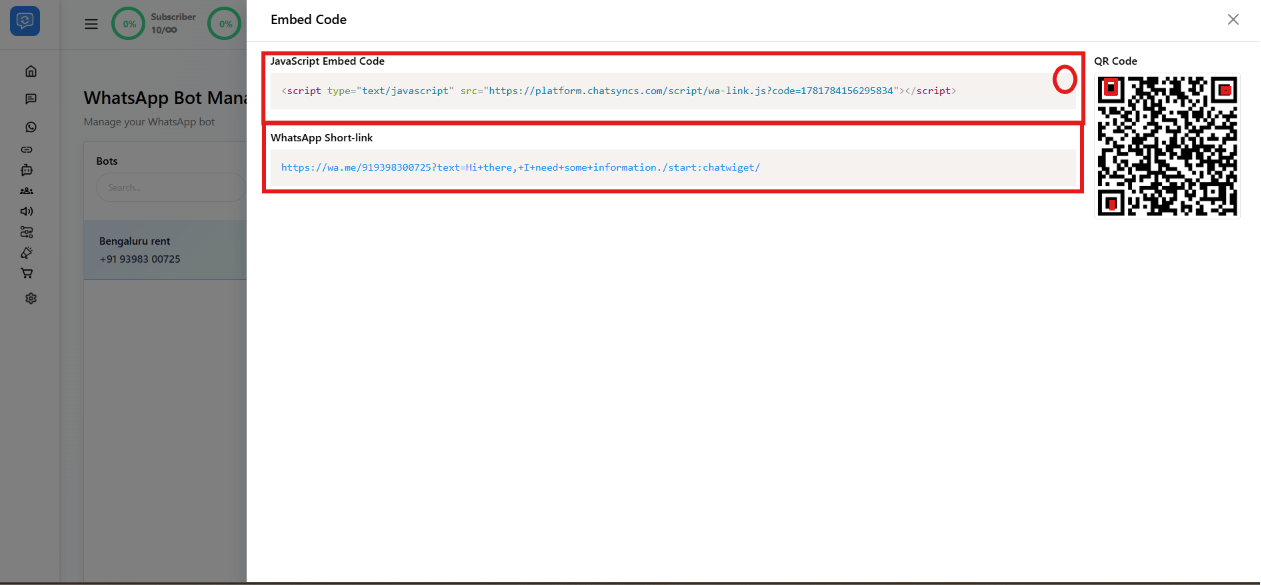 * **JavaScript Embed Code** — a `