> ## Documentation Index
> Fetch the complete documentation index at: https://docs.chatsyncs.com/llms.txt
> Use this file to discover all available pages before exploring further.
# Broadcasting
> Broadcasting sends one message to many WhatsApp subscribers at the same time, instead of messaging each person individually. Every campaign you create shows up in the WhatsApp Broadcasting list along with its delivery and engagement statistics.
## Create a broadcast campaign
**Broadcasting** is its own item in the left navigation — a sibling to **Chatbot Manager** and
**Subscriber Manager**, not something tucked inside either of them.
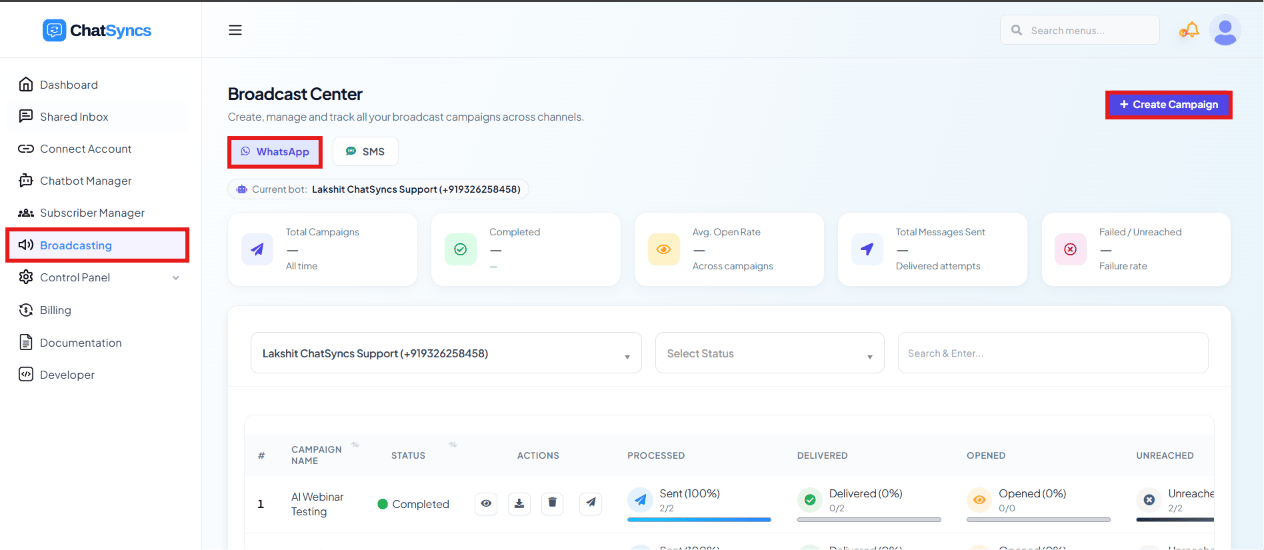 Select **Broadcasting** in the left navigation.
The **Broadcast Center** opens, with **WhatsApp** and **SMS** channel tabs and any campaigns
already created for the selected channel.
Click **Create Campaign** to start a new one.
## Configure the campaign
Clicking **Create** opens an Action Button configuration panel set to **Broadcasting** — fill
in the campaign here:
Select **Broadcasting** in the left navigation.
The **Broadcast Center** opens, with **WhatsApp** and **SMS** channel tabs and any campaigns
already created for the selected channel.
Click **Create Campaign** to start a new one.
## Configure the campaign
Clicking **Create** opens an Action Button configuration panel set to **Broadcasting** — fill
in the campaign here:
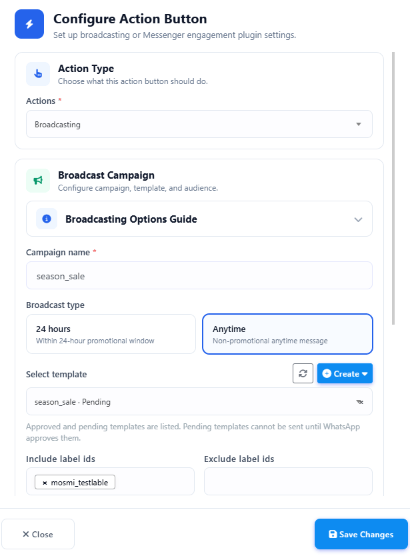 An internal name to identify the campaign, e.g. `Summer Promotion Campaign` or `season_sale`.
**24 Hours** sends only to subscribers currently inside the WhatsApp 24-hour customer
service window — regular messages, no template approval required. **Anytime** sends to all
selected subscribers regardless of window, but because some of them are outside it, only an
**approved WhatsApp template** can be used. See
[the 24-hour customer service window](/meta-api/messaging/24-hour-customer-service-window).
Pick an approved template. This step only appears for **Anytime** — inside a **24 Hours**
broadcast you're free to send any message type (text, service/session messages, etc.), so
no template is required. If you don't have a template yet,
[click here to learn how to create one](/learn/whatsapp-message-templates) before you can
send an Anytime broadcast.
**Include Label IDs** sends only to subscribers with that label (e.g. `Customers`, `Leads`,
`VIP Customers`). **Exclude Label IDs** skips subscribers with that label (e.g.
`Unsubscribed`, `Do Not Disturb`). Don't have a label yet?
[Click here to learn how to create one](/learn/subscriber-manager-custom-fields-and-labels#create-a-label).
Only send to subscribers in a specific country, e.g. `India`.
Enable this to target only recently added subscribers — useful for welcome campaigns,
onboarding sequences, or new-lead engagement.
Auto-assign a label to every subscriber once the broadcast sends successfully — useful for
segmenting an audience, filtering future broadcasts, triggering automations, and tracking
campaign performance.
**Example:** a `Summer Sale` broadcast with **Assigned Label** set to `Summer_Sale` tags
every recipient — Rahul, Priya, Amit, and everyone else — with `Summer_Sale` the moment they
receive it, so you can target exactly that audience again later (e.g. a follow-up discount
reminder only to people who already saw the sale).
## Filter by Custom Field
**Custom Field** and **Custom Field Contains Value** let you send a broadcast only to
subscribers who have a specific answer saved in a specific field. Think of it in two parts:
* **Custom Field** is the *category* — like asking "which box am I checking?" e.g. `Name`,
`City`, `Plan Type`.
* **Custom Field Contains Value** is the *answer* you're looking for inside that box — e.g. if
the field is `Name`, the value could be `Rahul`. If the field is `City`, the value could be
`Bangalore`.
So if you set **Custom Field = City** and **Custom Field Contains Value = Bangalore**, only
subscribers whose City is saved as Bangalore will receive the broadcast — everyone else is
skipped.
An internal name to identify the campaign, e.g. `Summer Promotion Campaign` or `season_sale`.
**24 Hours** sends only to subscribers currently inside the WhatsApp 24-hour customer
service window — regular messages, no template approval required. **Anytime** sends to all
selected subscribers regardless of window, but because some of them are outside it, only an
**approved WhatsApp template** can be used. See
[the 24-hour customer service window](/meta-api/messaging/24-hour-customer-service-window).
Pick an approved template. This step only appears for **Anytime** — inside a **24 Hours**
broadcast you're free to send any message type (text, service/session messages, etc.), so
no template is required. If you don't have a template yet,
[click here to learn how to create one](/learn/whatsapp-message-templates) before you can
send an Anytime broadcast.
**Include Label IDs** sends only to subscribers with that label (e.g. `Customers`, `Leads`,
`VIP Customers`). **Exclude Label IDs** skips subscribers with that label (e.g.
`Unsubscribed`, `Do Not Disturb`). Don't have a label yet?
[Click here to learn how to create one](/learn/subscriber-manager-custom-fields-and-labels#create-a-label).
Only send to subscribers in a specific country, e.g. `India`.
Enable this to target only recently added subscribers — useful for welcome campaigns,
onboarding sequences, or new-lead engagement.
Auto-assign a label to every subscriber once the broadcast sends successfully — useful for
segmenting an audience, filtering future broadcasts, triggering automations, and tracking
campaign performance.
**Example:** a `Summer Sale` broadcast with **Assigned Label** set to `Summer_Sale` tags
every recipient — Rahul, Priya, Amit, and everyone else — with `Summer_Sale` the moment they
receive it, so you can target exactly that audience again later (e.g. a follow-up discount
reminder only to people who already saw the sale).
## Filter by Custom Field
**Custom Field** and **Custom Field Contains Value** let you send a broadcast only to
subscribers who have a specific answer saved in a specific field. Think of it in two parts:
* **Custom Field** is the *category* — like asking "which box am I checking?" e.g. `Name`,
`City`, `Plan Type`.
* **Custom Field Contains Value** is the *answer* you're looking for inside that box — e.g. if
the field is `Name`, the value could be `Rahul`. If the field is `City`, the value could be
`Bangalore`.
So if you set **Custom Field = City** and **Custom Field Contains Value = Bangalore**, only
subscribers whose City is saved as Bangalore will receive the broadcast — everyone else is
skipped.
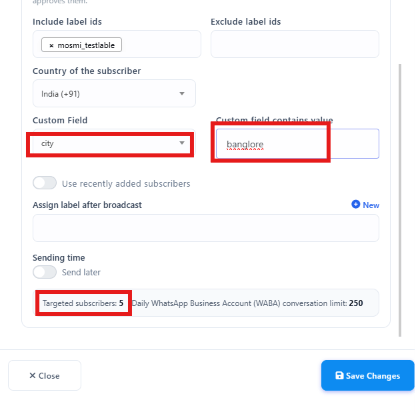 Notice **Targeted subscribers: 5** right below the filters — ChatSyncs counts the matches live,
so you can see exactly how many people will get the message before you send anything.
Don't have a custom field yet, like `City` or `Plan Type`?
[Click here to learn how to create one in Subscriber Manager](/learn/subscriber-manager-custom-fields-and-labels#custom-fields).
## Check your daily sending limit
Notice **Targeted subscribers: 5** right below the filters — ChatSyncs counts the matches live,
so you can see exactly how many people will get the message before you send anything.
Don't have a custom field yet, like `City` or `Plan Type`?
[Click here to learn how to create one in Subscriber Manager](/learn/subscriber-manager-custom-fields-and-labels#custom-fields).
## Check your daily sending limit
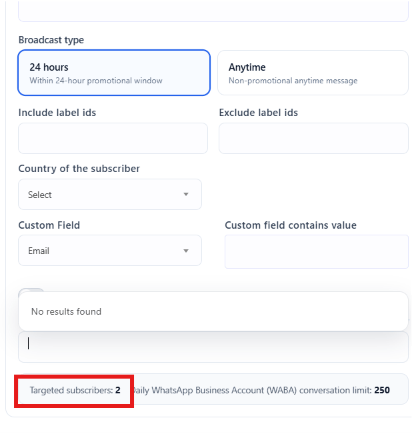 Right next to the **Targeted subscribers** count, a **Daily WhatsApp Business Account (WABA)
conversation limit** shows the maximum subscribers you're allowed to message per day. If your
targeted count is higher than this limit, only that many will actually be reached today — keep
an eye on both numbers before sending a **24 Hours** broadcast.
When a customer replies to a 24-hour broadcast, a new 24-hour window automatically opens —
letting you keep messaging them without an approved template. Including interactive buttons or
a clear call-to-action in the broadcast encourages replies, which refreshes the window and
reduces how often you need paid template messages.
## Build the broadcast message
Right next to the **Targeted subscribers** count, a **Daily WhatsApp Business Account (WABA)
conversation limit** shows the maximum subscribers you're allowed to message per day. If your
targeted count is higher than this limit, only that many will actually be reached today — keep
an eye on both numbers before sending a **24 Hours** broadcast.
When a customer replies to a 24-hour broadcast, a new 24-hour window automatically opens —
letting you keep messaging them without an approved template. Including interactive buttons or
a clear call-to-action in the broadcast encourages replies, which refreshes the window and
reduces how often you need paid template messages.
## Build the broadcast message
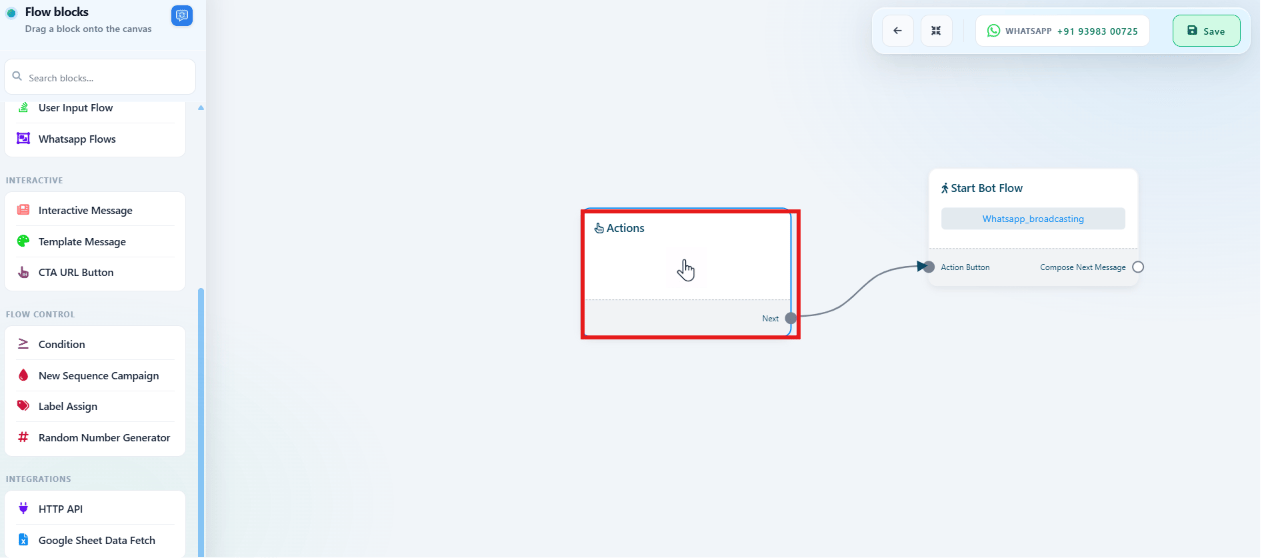 After saving the campaign settings, the canvas opens — it works just like the Keyword Replies
builder. A **Start Bot Flow** block is already connected to the **Actions: Broadcasting** block;
drag on more blocks to design what subscribers receive.
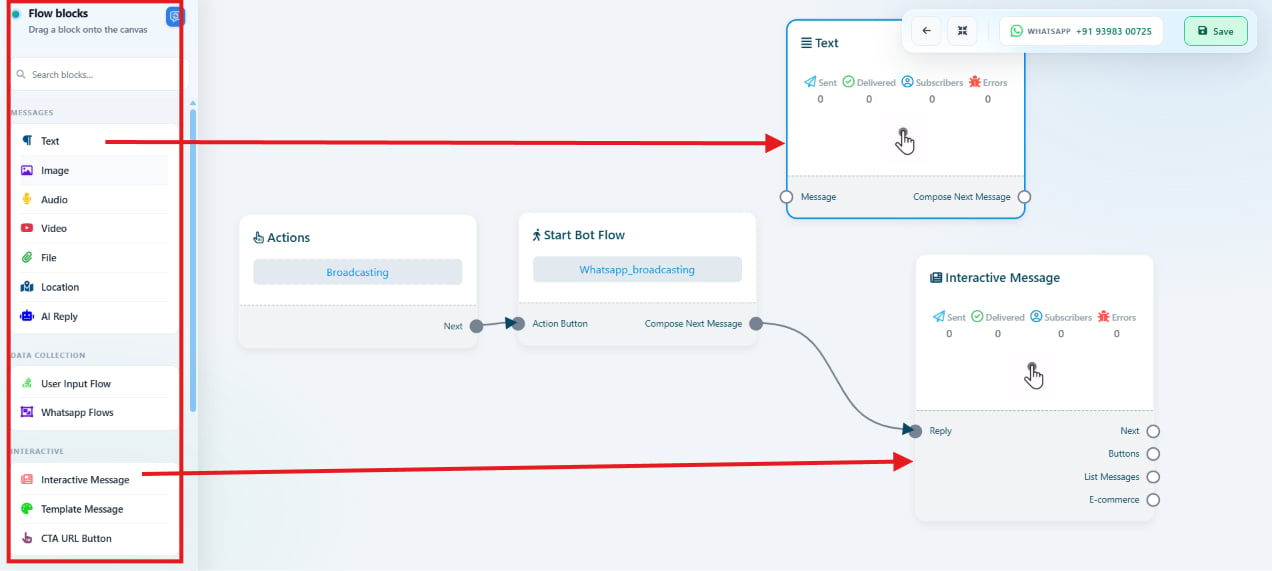
You can add the same component types available in Keyword Replies: Text, Images, Videos, Documents,
Audio Files, Interactive Buttons, Quick Replies, CTA/URL Buttons, Lists, Forms, Conditions,
Actions, and AI Responses. Drag blocks from the **Flow blocks** panel and connect them to design
the journey, for example:
After saving the campaign settings, the canvas opens — it works just like the Keyword Replies
builder. A **Start Bot Flow** block is already connected to the **Actions: Broadcasting** block;
drag on more blocks to design what subscribers receive.
You can add the same component types available in Keyword Replies: Text, Images, Videos, Documents,
Audio Files, Interactive Buttons, Quick Replies, CTA/URL Buttons, Lists, Forms, Conditions,
Actions, and AI Responses. Drag blocks from the **Flow blocks** panel and connect them to design
the journey, for example:
 ```
Broadcast Trigger
↓
Welcome Message
↓
Image
↓
Interactive Buttons
↓
Collect User Response
↓
Assign Label
↓
End Flow
```
## Monitor campaign statistics
Once a campaign is sent, the **WhatsApp Broadcasting** list shows its **Campaign Name**,
**Status** (Completed, Pending, Processing, etc.), **Scheduled At** time, and four metrics:
| Metric | Meaning | Example |
| ------------- | --------------------------------------------- | ------------------------ |
| **Processed** | Subscribers the system attempted to send to | `Sent (100%) — 11/11` |
| **Delivered** | Messages successfully delivered | `Delivered (64%) — 7/11` |
| **Opened** | Recipients who opened the delivered message | `Opened (43%) — 3/7` |
| **Unreached** | Subscribers who could not receive the message | `Unreached (27%) — 3/11` |
```
Broadcast Trigger
↓
Welcome Message
↓
Image
↓
Interactive Buttons
↓
Collect User Response
↓
Assign Label
↓
End Flow
```
## Monitor campaign statistics
Once a campaign is sent, the **WhatsApp Broadcasting** list shows its **Campaign Name**,
**Status** (Completed, Pending, Processing, etc.), **Scheduled At** time, and four metrics:
| Metric | Meaning | Example |
| ------------- | --------------------------------------------- | ------------------------ |
| **Processed** | Subscribers the system attempted to send to | `Sent (100%) — 11/11` |
| **Delivered** | Messages successfully delivered | `Delivered (64%) — 7/11` |
| **Opened** | Recipients who opened the delivered message | `Opened (43%) — 3/7` |
| **Unreached** | Subscribers who could not receive the message | `Unreached (27%) — 3/11` |
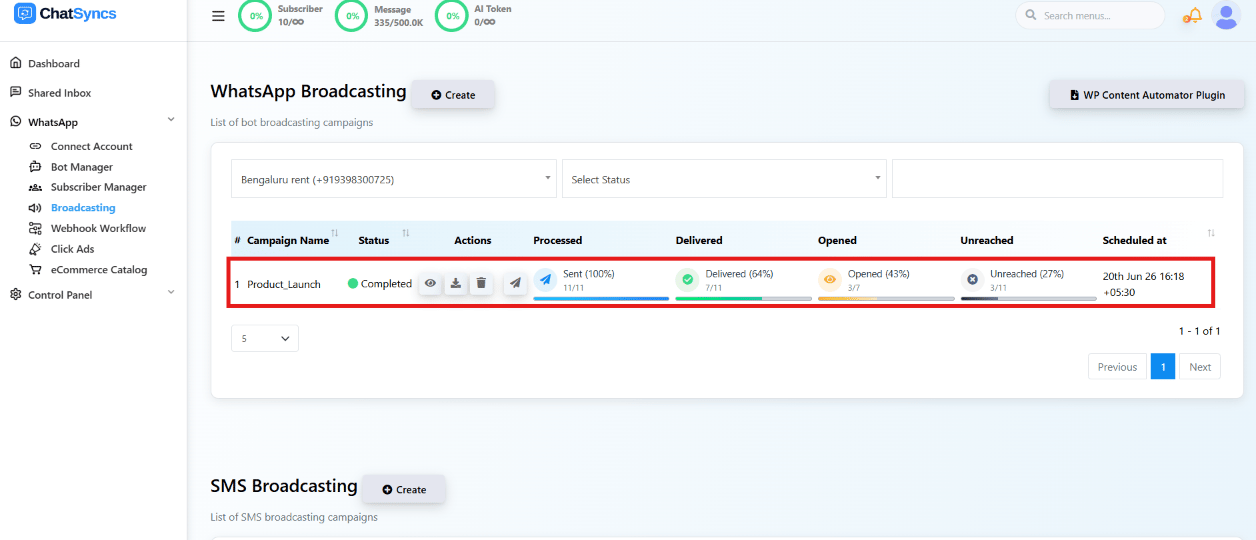 Unreached messages are usually caused by invalid phone numbers, the user not being on WhatsApp,
blocked accounts, or other delivery failures.
## Campaign actions
Unreached messages are usually caused by invalid phone numbers, the user not being on WhatsApp,
blocked accounts, or other delivery failures.
## Campaign actions
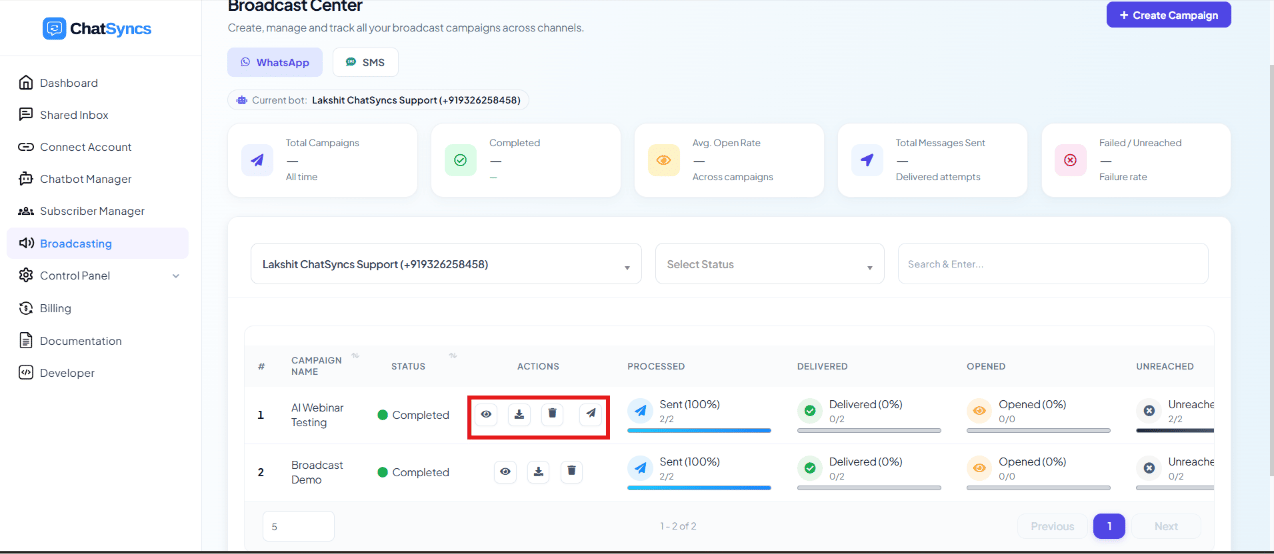 Each campaign row has action buttons:
* **View Report** — detailed broadcast statistics and recipient information.
* **Download Report** — exports the report as a CSV for analysis and record keeping.
* **Resend Failed Messages** — retries delivery for messages that failed, e.g. after correcting
invalid phone numbers.
* **Delete Campaign** — removes the campaign from the list.
**Example:** `Product_Launch` completed with Processed 11/11, Delivered 7/11, Opened 3/7,
Unreached 3/11. After fixing the numbers behind the 3 unreached sends, **Resend Failed
Messages** retries delivery to just those subscribers.
### View Report
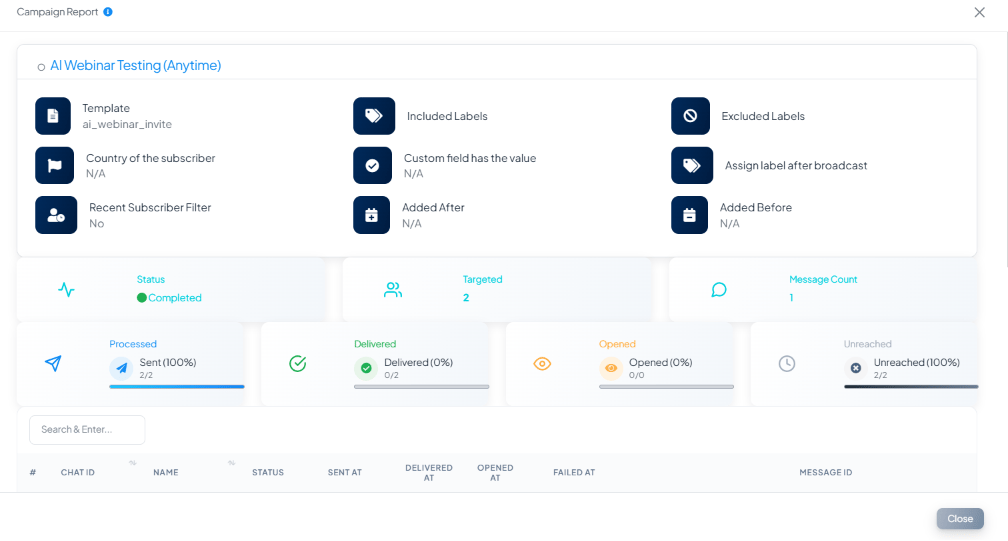
Clicking **View Report** opens the campaign's full detail — the audience filters it was sent
with (Template, Included/Excluded Labels, Country, Custom Field, Assign Label After Broadcast,
Added Before/After), plus its Status, Targeted count, Message Count, and the same
Processed/Delivered/Opened/Unreached breakdown shown on the list.
Each campaign row has action buttons:
* **View Report** — detailed broadcast statistics and recipient information.
* **Download Report** — exports the report as a CSV for analysis and record keeping.
* **Resend Failed Messages** — retries delivery for messages that failed, e.g. after correcting
invalid phone numbers.
* **Delete Campaign** — removes the campaign from the list.
**Example:** `Product_Launch` completed with Processed 11/11, Delivered 7/11, Opened 3/7,
Unreached 3/11. After fixing the numbers behind the 3 unreached sends, **Resend Failed
Messages** retries delivery to just those subscribers.
### View Report
Clicking **View Report** opens the campaign's full detail — the audience filters it was sent
with (Template, Included/Excluded Labels, Country, Custom Field, Assign Label After Broadcast,
Added Before/After), plus its Status, Targeted count, Message Count, and the same
Processed/Delivered/Opened/Unreached breakdown shown on the list.
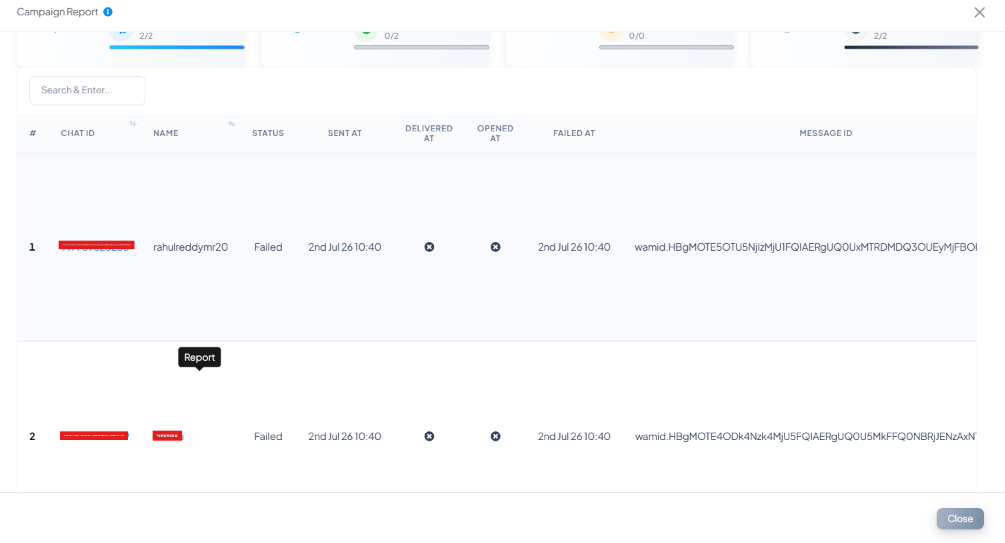
 Scrolling down shows every individual recipient — Chat ID, Name, Status, Sent At, Delivered At,
Opened At, Failed At, and Message ID — so you can see exactly who received the message and who
didn't.
Scrolling down shows every individual recipient — Chat ID, Name, Status, Sent At, Delivered At,
Opened At, Failed At, and Message ID — so you can see exactly who received the message and who
didn't.
 Each campaign row has five action icons:
* **Duplicate** — copy an existing campaign to reuse its flow with minor changes.
* **Copy to Other Bot** — copy the campaign and its flow to another bot on your account.
* **Export Flow Data** — export the flow for backup or to import into another bot.
* **Edit** — change the flow, messages, audience targeting, or settings.
* **Delete** — permanently remove the campaign.
## Frequently asked
Go to **Broadcasting → Create Campaign**, configure a campaign name, broadcast type, and
audience filters, then build the message on the canvas (just like a Keyword Replies flow) and
save. The campaign sends to every subscriber matching your filters.
**24 Hours** only reaches subscribers currently inside the WhatsApp 24-hour customer service
window and can send regular messages with no template approval needed. **Anytime** reaches
everyone you select regardless of window, but because some recipients are outside it, it
requires an **approved WhatsApp template**.
Check the **Unreached** statistic on the campaign — common causes are invalid phone numbers,
the subscriber not being on WhatsApp, blocked accounts, or other delivery failures. Fix the
underlying issue (e.g. correct the number) and use **Resend Failed Messages** to retry.
Yes — use **Include Label IDs** for segments like VIP Customers, **Exclude Label IDs** to
skip segments like Unsubscribed, **Country of the Subscriber** to filter by location, or
**Custom Field** + **Custom Field Contains Value** to filter on a chatbot custom field such
as Plan Type.
**Custom Field** is which category you're checking, e.g. `City`. **Custom Field Contains
Value** is the specific answer you want inside that category, e.g. `Bangalore`. Together,
Custom Field = `City` and Value = `Bangalore` sends the broadcast only to subscribers whose
City is saved as Bangalore.
Click **View Report** on that campaign's row in the Broadcast Center list — it shows the
audience filters it was sent with, overall Processed/Delivered/Opened/Unreached stats, and a
recipient-by-recipient breakdown with each subscriber's delivery status and message ID.
* **Anytime broadcasts require an approved template** — Meta blocks unapproved templates and
plain text sent outside the 24-hour window.
* **The Daily WABA conversation limit caps how many subscribers can actually be reached**, even
if your audience filters match more than that — check the live **Targeted subscribers** count
against the daily limit before sending a 24-Hours broadcast.
* **Unreached subscribers aren't automatically retried** — use **Resend Failed Messages** after
fixing the underlying issue (e.g. an invalid number).
Each campaign row has five action icons:
* **Duplicate** — copy an existing campaign to reuse its flow with minor changes.
* **Copy to Other Bot** — copy the campaign and its flow to another bot on your account.
* **Export Flow Data** — export the flow for backup or to import into another bot.
* **Edit** — change the flow, messages, audience targeting, or settings.
* **Delete** — permanently remove the campaign.
## Frequently asked
Go to **Broadcasting → Create Campaign**, configure a campaign name, broadcast type, and
audience filters, then build the message on the canvas (just like a Keyword Replies flow) and
save. The campaign sends to every subscriber matching your filters.
**24 Hours** only reaches subscribers currently inside the WhatsApp 24-hour customer service
window and can send regular messages with no template approval needed. **Anytime** reaches
everyone you select regardless of window, but because some recipients are outside it, it
requires an **approved WhatsApp template**.
Check the **Unreached** statistic on the campaign — common causes are invalid phone numbers,
the subscriber not being on WhatsApp, blocked accounts, or other delivery failures. Fix the
underlying issue (e.g. correct the number) and use **Resend Failed Messages** to retry.
Yes — use **Include Label IDs** for segments like VIP Customers, **Exclude Label IDs** to
skip segments like Unsubscribed, **Country of the Subscriber** to filter by location, or
**Custom Field** + **Custom Field Contains Value** to filter on a chatbot custom field such
as Plan Type.
**Custom Field** is which category you're checking, e.g. `City`. **Custom Field Contains
Value** is the specific answer you want inside that category, e.g. `Bangalore`. Together,
Custom Field = `City` and Value = `Bangalore` sends the broadcast only to subscribers whose
City is saved as Bangalore.
Click **View Report** on that campaign's row in the Broadcast Center list — it shows the
audience filters it was sent with, overall Processed/Delivered/Opened/Unreached stats, and a
recipient-by-recipient breakdown with each subscriber's delivery status and message ID.
* **Anytime broadcasts require an approved template** — Meta blocks unapproved templates and
plain text sent outside the 24-hour window.
* **The Daily WABA conversation limit caps how many subscribers can actually be reached**, even
if your audience filters match more than that — check the live **Targeted subscribers** count
against the daily limit before sending a 24-Hours broadcast.
* **Unreached subscribers aren't automatically retried** — use **Resend Failed Messages** after
fixing the underlying issue (e.g. an invalid number).