> ## Documentation Index
> Fetch the complete documentation index at: https://docs.chatsyncs.com/llms.txt
> Use this file to discover all available pages before exploring further.
# Bot Settings
> The Bot Settings tabs in Chatbot Manager — General, Webhook, Business Hour, Shared Inbox, Auto Responder, Google, Email, and SMS — that control how a bot replies, when it's allowed to reply, and where the data it collects gets sent.
Every WhatsApp bot in **Chatbot Manager** has its own **Bot Settings** panel — eight tabs covering
general behavior, business hours, integrations, and automated outbound messages.
## Open Bot Settings
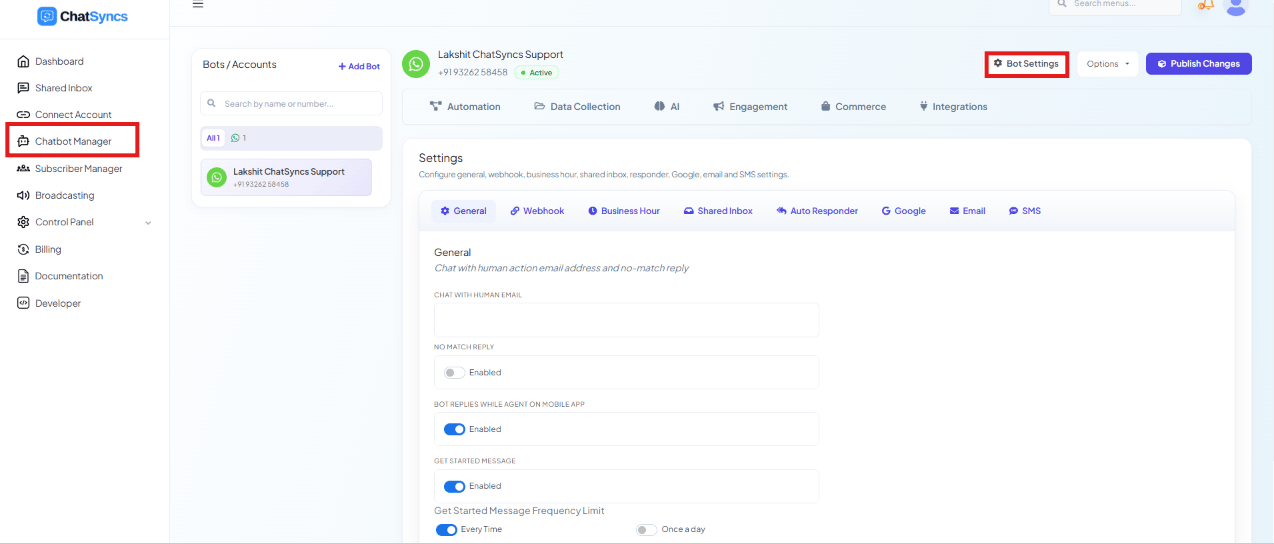 Select **Chatbot Manager**.
Pick the bot from the **Bots / Accounts** list.
Click the **Bot Settings** button in the top-right corner.
## General
Select **Chatbot Manager**.
Pick the bot from the **Bots / Accounts** list.
Click the **Bot Settings** button in the top-right corner.
## General
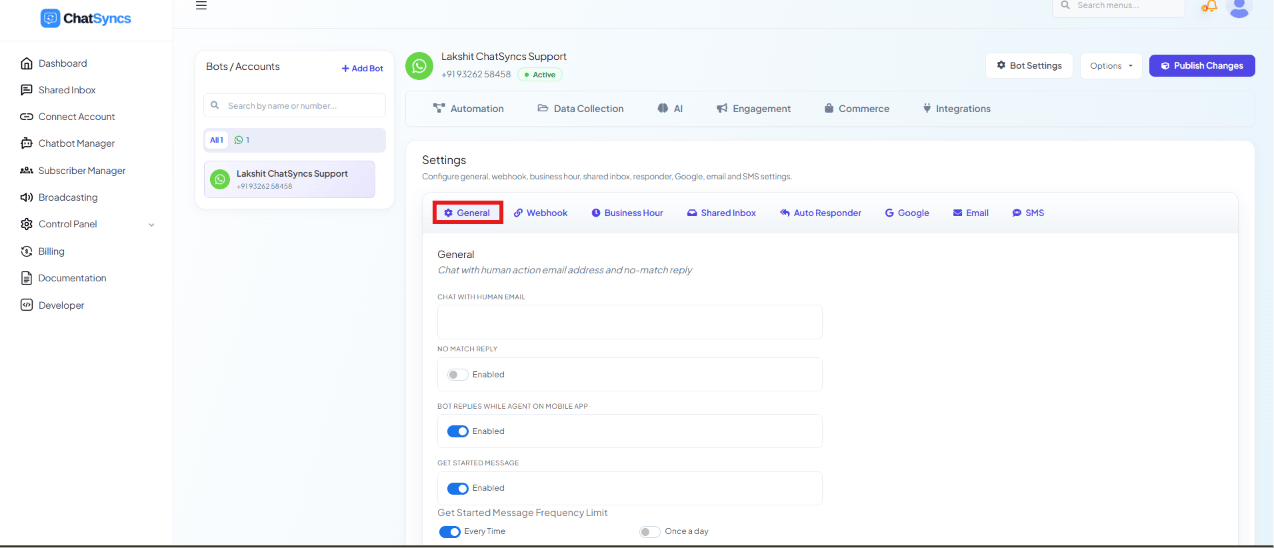 Configures the basic behavior of the bot.
### Chat with Human Email
Enter the email address that should receive a notification whenever a customer clicks
**Chat with Human**. The button itself is set up as one of the System Default Action Buttons —
see [Chat with Human](/learn/whatsapp-quick-actions#chat-with-human) in Quick Actions for how to
wire it into a flow.
**Example**
Email: `support@company.com`
```text theme={null}
Customer: I want to talk with a human.
```
Result: ChatSyncs sends an email notification to `support@company.com`.
### No Match Reply
Enable this to send a default reply when the bot can't find a matching response.
**Example**
```text theme={null}
Customer: Can you repair my laptop?
Bot: Sorry, I couldn't understand your request. Please contact our support team.
```
**No Match Response Frequency Limit** — Every Time / Once a Day / Once a Month / Once a Year.
If **Once a Day** is selected, the No Match message is sent only once per day to the same
customer, even if they send several unmatched messages.
### Bot Replies While Agent Is Active
Enable this if the bot should keep replying even while a human agent is chatting with that
customer.
**Example**
```text theme={null}
Customer: What are your business hours?
Bot: Our business hours are 9 AM – 6 PM.
```
The human agent can continue the conversation without interruption — the bot's reply doesn't
block or replace theirs.
### Get Started Message
Shows a welcome message when a customer starts a new conversation.
**Example**
```text theme={null}
👋 Welcome to ABC Store!
Click Get Started to explore our products.
```
Frequency: Every Time or Once a Day.
## Webhook
Connect ChatSyncs to your own server or application. Both directions live on the same
**Webhook** tab — there's no separate Incoming/Outgoing sub-tab to switch between.
Configures the basic behavior of the bot.
### Chat with Human Email
Enter the email address that should receive a notification whenever a customer clicks
**Chat with Human**. The button itself is set up as one of the System Default Action Buttons —
see [Chat with Human](/learn/whatsapp-quick-actions#chat-with-human) in Quick Actions for how to
wire it into a flow.
**Example**
Email: `support@company.com`
```text theme={null}
Customer: I want to talk with a human.
```
Result: ChatSyncs sends an email notification to `support@company.com`.
### No Match Reply
Enable this to send a default reply when the bot can't find a matching response.
**Example**
```text theme={null}
Customer: Can you repair my laptop?
Bot: Sorry, I couldn't understand your request. Please contact our support team.
```
**No Match Response Frequency Limit** — Every Time / Once a Day / Once a Month / Once a Year.
If **Once a Day** is selected, the No Match message is sent only once per day to the same
customer, even if they send several unmatched messages.
### Bot Replies While Agent Is Active
Enable this if the bot should keep replying even while a human agent is chatting with that
customer.
**Example**
```text theme={null}
Customer: What are your business hours?
Bot: Our business hours are 9 AM – 6 PM.
```
The human agent can continue the conversation without interruption — the bot's reply doesn't
block or replace theirs.
### Get Started Message
Shows a welcome message when a customer starts a new conversation.
**Example**
```text theme={null}
👋 Welcome to ABC Store!
Click Get Started to explore our products.
```
Frequency: Every Time or Once a Day.
## Webhook
Connect ChatSyncs to your own server or application. Both directions live on the same
**Webhook** tab — there's no separate Incoming/Outgoing sub-tab to switch between.
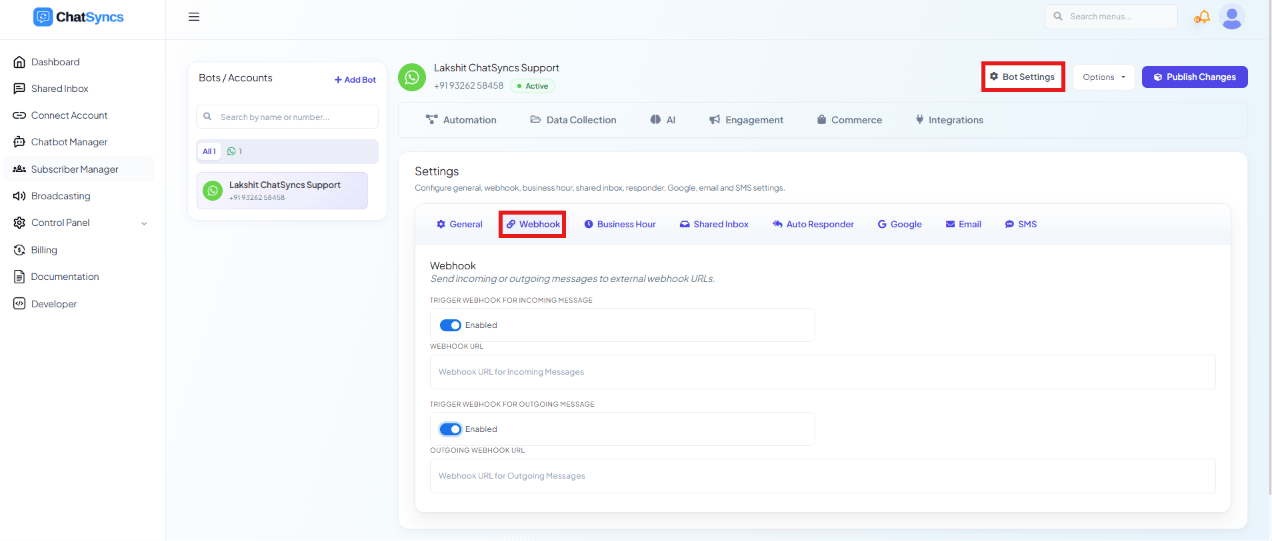 ### Incoming Webhook
Sends every customer message to your server as it arrives.
In Bot Settings, select the **Webhook** tab.
Turn the toggle on.
The endpoint on your server that should receive the POST.
Click **Publish Changes**.
**Example**
```text theme={null}
Customer: Where is my order?
```
Your server receives:
```text theme={null}
Customer: Rahul
Message: Where is my order?
```
Use cases: CRM, support tickets, automation, ERP integration.
### Outgoing Webhook
Sends every bot reply to your server — configured right below Incoming Webhook, on the same tab.
In Bot Settings, select the **Webhook** tab.
Turn the toggle on.
The endpoint on your server that should receive the POST.
Click **Publish Changes**.
**Example**
Bot reply:
```text theme={null}
Welcome to ABC Store!
```
Your application receives the same reply and can: store conversations, generate reports, display
chat history, and track bot performance.
## Business Hour
Set up your business hours, timezone, and off days, and control how the bot behaves inside vs.
outside those hours.
### Timezone
Select the timezone your business operates in — all business-hours checks follow this timezone.
**Example**
If your business is in India, select:
```text theme={null}
(GMT+05:30) India Standard Time (IST)
```
If your business hours are 9:00 AM–6:00 PM, the bot checks open/closed status against IST.
Always select the timezone where your support team is located, not the customer's.
### Off Day
Select the day(s) your business is fully closed.
**Example** — if Sunday is set as the off day, customers who message on Sunday are treated as
contacting you during non-business hours, regardless of the time.
### Incoming Webhook
Sends every customer message to your server as it arrives.
In Bot Settings, select the **Webhook** tab.
Turn the toggle on.
The endpoint on your server that should receive the POST.
Click **Publish Changes**.
**Example**
```text theme={null}
Customer: Where is my order?
```
Your server receives:
```text theme={null}
Customer: Rahul
Message: Where is my order?
```
Use cases: CRM, support tickets, automation, ERP integration.
### Outgoing Webhook
Sends every bot reply to your server — configured right below Incoming Webhook, on the same tab.
In Bot Settings, select the **Webhook** tab.
Turn the toggle on.
The endpoint on your server that should receive the POST.
Click **Publish Changes**.
**Example**
Bot reply:
```text theme={null}
Welcome to ABC Store!
```
Your application receives the same reply and can: store conversations, generate reports, display
chat history, and track bot performance.
## Business Hour
Set up your business hours, timezone, and off days, and control how the bot behaves inside vs.
outside those hours.
### Timezone
Select the timezone your business operates in — all business-hours checks follow this timezone.
**Example**
If your business is in India, select:
```text theme={null}
(GMT+05:30) India Standard Time (IST)
```
If your business hours are 9:00 AM–6:00 PM, the bot checks open/closed status against IST.
Always select the timezone where your support team is located, not the customer's.
### Off Day
Select the day(s) your business is fully closed.
**Example** — if Sunday is set as the off day, customers who message on Sunday are treated as
contacting you during non-business hours, regardless of the time.
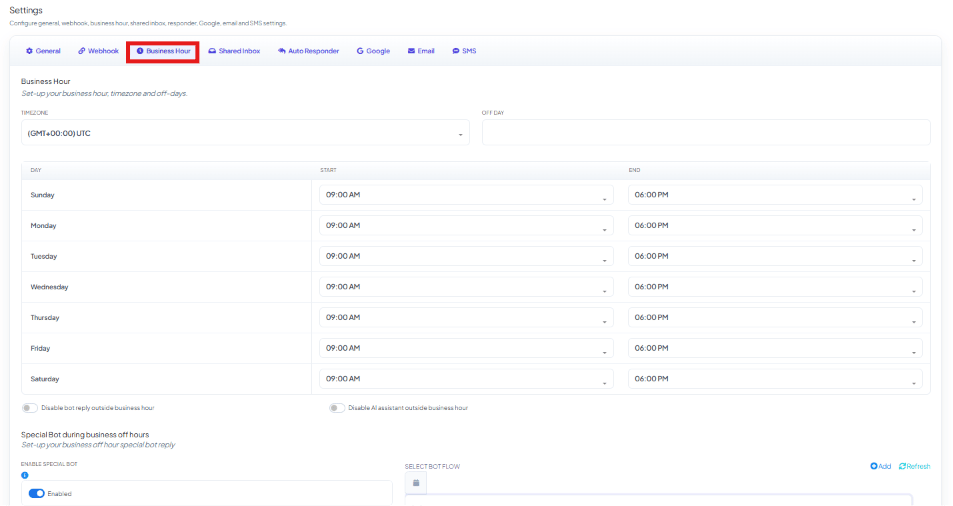 ### Business Hours Schedule
Set the working hours for each day of the week.
**Example**
| Day | Start | End |
| --------- | -------- | -------- |
| Monday | 09:00 AM | 06:00 PM |
| Tuesday | 09:00 AM | 06:00 PM |
| Wednesday | 09:00 AM | 06:00 PM |
| Thursday | 09:00 AM | 06:00 PM |
| Friday | 09:00 AM | 06:00 PM |
| Saturday | 09:00 AM | 06:00 PM |
| Sunday | Off Day | |
If a customer sends a message at:
* **11:00 AM (Monday)** → business is open.
* **08:30 PM (Monday)** → business is closed.
* **Sunday 12:00 PM** → business is closed (off day).
### Disable Keyword Replies
Enable this if you do **not** want the bot to reply automatically during business hours.
**Example**
Business hours: `09:00 AM – 06:00 PM`
```text theme={null}
Customer: Hi, I need help.
```
Since Disable Keyword Replies is enabled, the bot does not respond automatically — a human agent
handles the conversation instead.
Use this when your support team wants to manage customer conversations manually during working hours.
### Disable AI Agent
Enable this to prevent the AI Agent from replying during business hours.
**Example**
```text theme={null}
Customer: What is today's offer?
```
If Disable AI Agent is enabled, the AI Agent won't generate a response — a human agent or your
configured bot flow handles it instead.
Use this if you prefer human support during business hours.
### Special Bot During Business Off Hours
Configure a special automated reply for customers who message outside business hours, via
**Enable Special Bot**.
**Example**
Business hours: `09:00 AM – 06:00 PM`. Customer messages at `09:45 PM`. The special bot replies:
```text theme={null}
👋 Thank you for contacting ABC Store.
Our business hours are:
Monday – Saturday
09:00 AM – 06:00 PM
We are currently offline. We will respond as soon as we reopen.
```
Use this to tell customers your business is closed and set clear expectations for when you'll respond.
### Business Hour settings summary
| Setting | Purpose |
| --------------------------- | ------------------------------------------------------------------------------- |
| **Timezone** | Sets the timezone used for business-hours checks. |
| **Off Day** | Defines the days when your business is fully closed. |
| **Business Hours Schedule** | Sets the working hours for each day of the week. |
| **Disable Keyword Replies** | Prevents automatic bot replies during business hours. |
| **Disable AI Agent** | Prevents AI-generated replies during business hours. |
| **Enable Special Bot** | Sends an automatic message to customers who contact you outside business hours. |
## Shared Inbox
### Business Hours Schedule
Set the working hours for each day of the week.
**Example**
| Day | Start | End |
| --------- | -------- | -------- |
| Monday | 09:00 AM | 06:00 PM |
| Tuesday | 09:00 AM | 06:00 PM |
| Wednesday | 09:00 AM | 06:00 PM |
| Thursday | 09:00 AM | 06:00 PM |
| Friday | 09:00 AM | 06:00 PM |
| Saturday | 09:00 AM | 06:00 PM |
| Sunday | Off Day | |
If a customer sends a message at:
* **11:00 AM (Monday)** → business is open.
* **08:30 PM (Monday)** → business is closed.
* **Sunday 12:00 PM** → business is closed (off day).
### Disable Keyword Replies
Enable this if you do **not** want the bot to reply automatically during business hours.
**Example**
Business hours: `09:00 AM – 06:00 PM`
```text theme={null}
Customer: Hi, I need help.
```
Since Disable Keyword Replies is enabled, the bot does not respond automatically — a human agent
handles the conversation instead.
Use this when your support team wants to manage customer conversations manually during working hours.
### Disable AI Agent
Enable this to prevent the AI Agent from replying during business hours.
**Example**
```text theme={null}
Customer: What is today's offer?
```
If Disable AI Agent is enabled, the AI Agent won't generate a response — a human agent or your
configured bot flow handles it instead.
Use this if you prefer human support during business hours.
### Special Bot During Business Off Hours
Configure a special automated reply for customers who message outside business hours, via
**Enable Special Bot**.
**Example**
Business hours: `09:00 AM – 06:00 PM`. Customer messages at `09:45 PM`. The special bot replies:
```text theme={null}
👋 Thank you for contacting ABC Store.
Our business hours are:
Monday – Saturday
09:00 AM – 06:00 PM
We are currently offline. We will respond as soon as we reopen.
```
Use this to tell customers your business is closed and set clear expectations for when you'll respond.
### Business Hour settings summary
| Setting | Purpose |
| --------------------------- | ------------------------------------------------------------------------------- |
| **Timezone** | Sets the timezone used for business-hours checks. |
| **Off Day** | Defines the days when your business is fully closed. |
| **Business Hours Schedule** | Sets the working hours for each day of the week. |
| **Disable Keyword Replies** | Prevents automatic bot replies during business hours. |
| **Disable AI Agent** | Prevents AI-generated replies during business hours. |
| **Enable Special Bot** | Sends an automatic message to customers who contact you outside business hours. |
## Shared Inbox
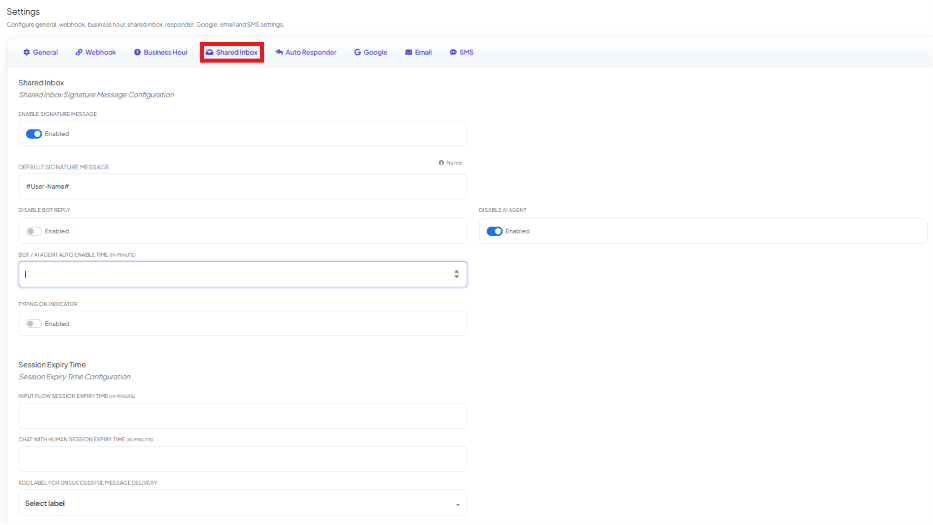 Configures human-agent chat settings.
**Example**
* **Enable Signature Message** — adds the agent's name to their replies.
* **Session Expiry Time** — set to 60 minutes: after 60 minutes of inactivity, the chat session
closes automatically.
* **Add label for unsuccessful message delivery** — automatically tags a contact when a message
to them fails to deliver.
## Auto Responder
Configures human-agent chat settings.
**Example**
* **Enable Signature Message** — adds the agent's name to their replies.
* **Session Expiry Time** — set to 60 minutes: after 60 minutes of inactivity, the chat session
closes automatically.
* **Add label for unsuccessful message delivery** — automatically tags a contact when a message
to them fails to deliver.
## Auto Responder
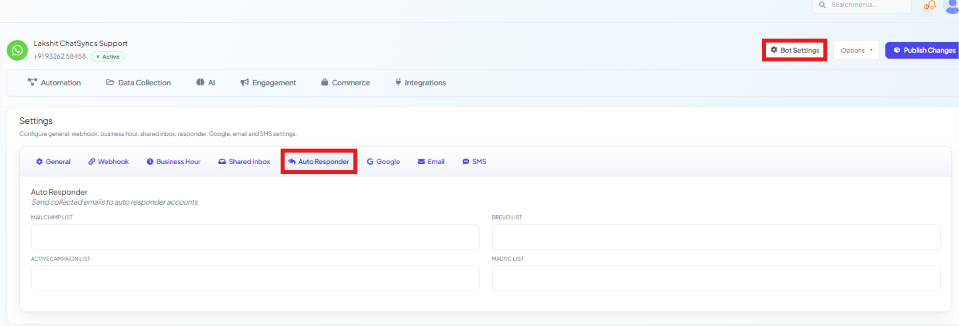 Automatically adds subscribers to **Mailchimp**, **Brevo**, **ActiveCampaign**, or **Mautic**.
**Example**
Customer enters:
```text theme={null}
john@gmail.com
```
Result: the email is automatically added to your selected Mailchimp list.
## Google
Automatically adds subscribers to **Mailchimp**, **Brevo**, **ActiveCampaign**, or **Mautic**.
**Example**
Customer enters:
```text theme={null}
john@gmail.com
```
Result: the email is automatically added to your selected Mailchimp list.
## Google
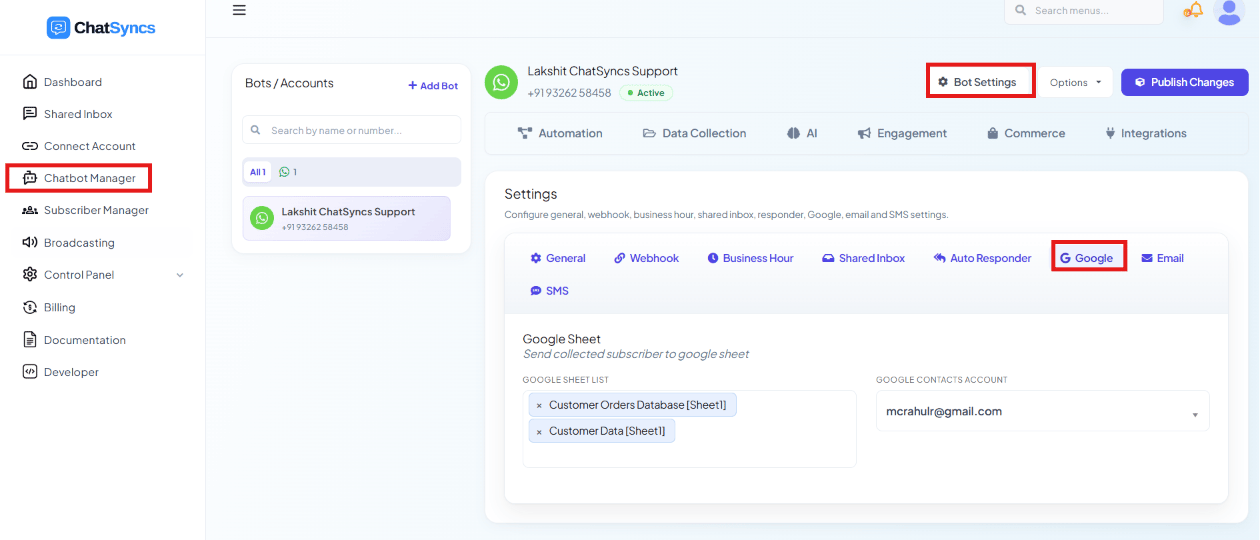 Saves subscriber details to **Google Sheets** or **Google Contacts**.
**Example**
| Name | Phone | Email |
| ----- | ---------- | ----------------------------------------- |
| Rahul | 9876543210 | [rahul@gmail.com](mailto:rahul@gmail.com) |
This row is automatically added to your connected Google Sheet.
## Email
Saves subscriber details to **Google Sheets** or **Google Contacts**.
**Example**
| Name | Phone | Email |
| ----- | ---------- | ----------------------------------------- |
| Rahul | 9876543210 | [rahul@gmail.com](mailto:rahul@gmail.com) |
This row is automatically added to your connected Google Sheet.
## Email
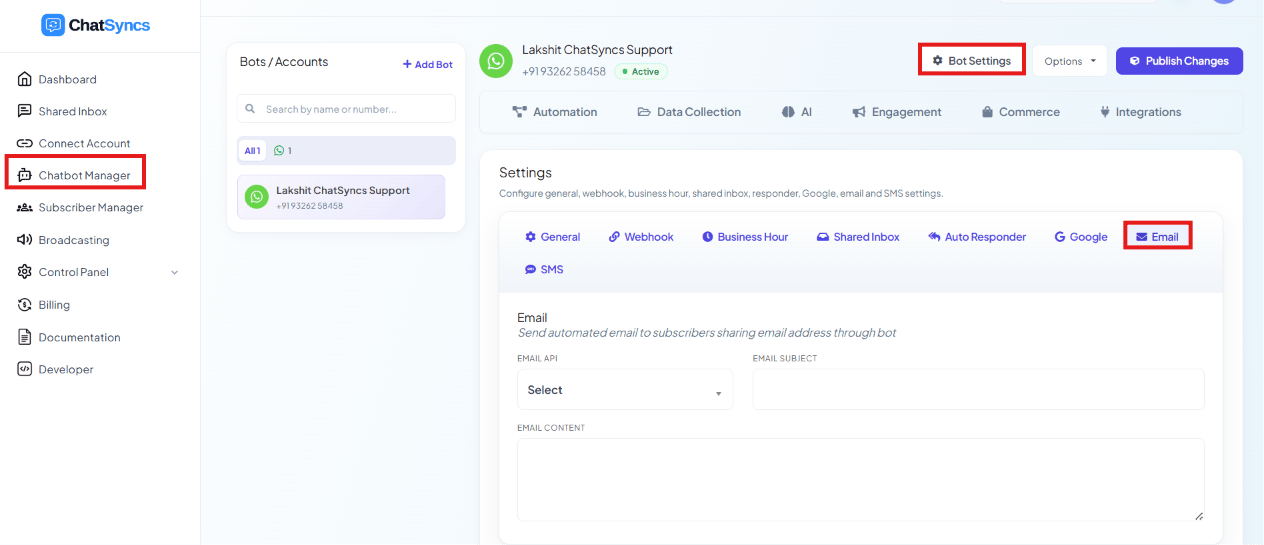 Automatically sends an email to subscribers who share their email address through the bot.
**Example**
Subject:
```text theme={null}
Welcome to ABC Store
```
Content:
```text theme={null}
Hello Rahul,
Thank you for subscribing.
We will keep you updated with our latest offers.
```
The customer receives this email automatically — `First name` / `Last name` variables
personalize it per subscriber.
## SMS
Automatically sends an email to subscribers who share their email address through the bot.
**Example**
Subject:
```text theme={null}
Welcome to ABC Store
```
Content:
```text theme={null}
Hello Rahul,
Thank you for subscribing.
We will keep you updated with our latest offers.
```
The customer receives this email automatically — `First name` / `Last name` variables
personalize it per subscriber.
## SMS
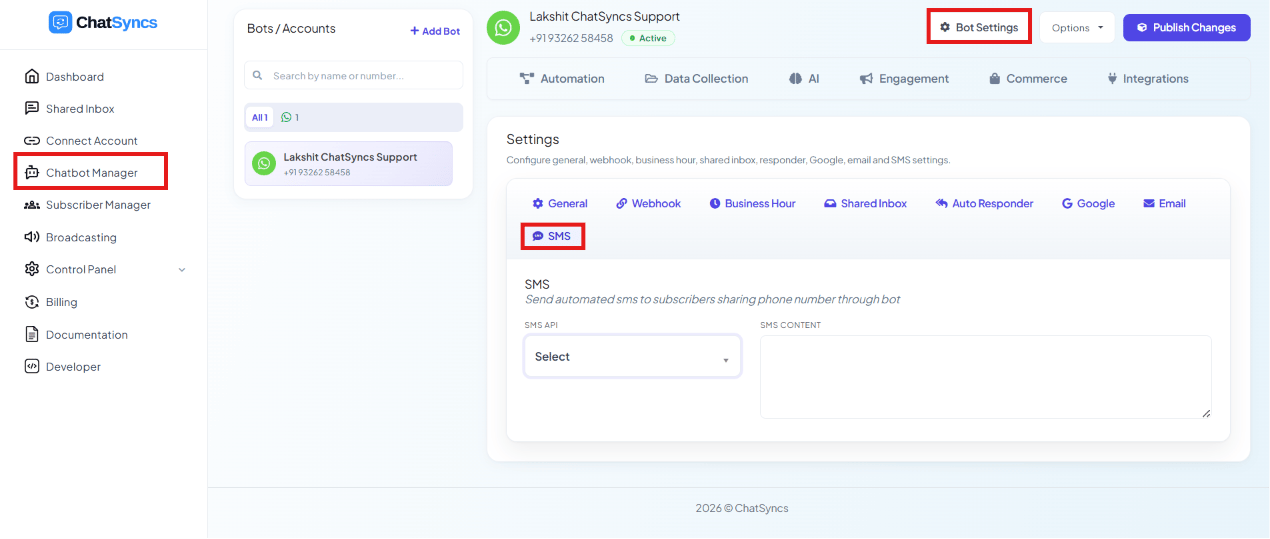 Automatically sends an SMS to subscribers who share their phone number through the bot.
**Example**
```text theme={null}
Hello Rahul,
Thank you for contacting us.
Our team will contact you shortly.
```
## All Bot Settings tabs at a glance
| Tab | Purpose |
| ------------------ | --------------------------------------------------------------------- |
| **General** | Configure bot behavior and notifications. |
| **Webhook** | Integrate ChatSyncs with external applications. |
| **Business Hour** | Configure business hours, timezone, off days, and off-hours behavior. |
| **Shared Inbox** | Configure live chat / human-agent settings. |
| **Auto Responder** | Send subscribers to marketing platforms. |
| **Google** | Save subscriber details to Google services. |
| **Email** | Send automatic emails. |
| **SMS** | Send automatic SMS messages. |
## Frequently asked
Turn on **Get Started Message** in the **General** tab and set its frequency to Every Time
or Once a Day, e.g. `👋 Welcome to ABC Store! Click Get Started to explore our products.`
Set your hours, timezone, and off days in the **Business Hour** tab, then enable **Special
Bot during business off hours** to send a custom auto-reply whenever a message arrives
outside those hours — e.g. telling the customer your hours are 9 AM–6 PM and you'll respond
once you reopen.
Use the **Incoming Webhook** under the **Webhook** tab — enable it and enter your server's
URL. Every incoming message (e.g. "Where is my order?") is POSTed there with the customer's
name, message, and other details.
Yes — the **Email** and **SMS** tabs send an automated message (with a Subject and Content
you write, personalized with First/Last name) to anyone who shares their email or phone
number through the bot.
**Disable Keyword Replies** stops the whole automated bot from replying during business hours, so
a human agent takes over entirely. **Disable AI Agent** only stops the AI-generated replies
specifically — your configured bot flow can still run.
* **Disable Keyword Replies / Disable AI Agent only apply during business hours** — they don't stop
the bot outside business hours; that's controlled separately by the Special Bot setting.
* **Webhook URLs must be reachable from the internet** — a local/internal-only URL will never
receive incoming or outgoing webhook calls.
* **Auto Responder, Google, Email, and SMS only fire when the bot actually collects that data**
— e.g. the Email tab only sends if a customer shares an email address during the conversation.
Automatically sends an SMS to subscribers who share their phone number through the bot.
**Example**
```text theme={null}
Hello Rahul,
Thank you for contacting us.
Our team will contact you shortly.
```
## All Bot Settings tabs at a glance
| Tab | Purpose |
| ------------------ | --------------------------------------------------------------------- |
| **General** | Configure bot behavior and notifications. |
| **Webhook** | Integrate ChatSyncs with external applications. |
| **Business Hour** | Configure business hours, timezone, off days, and off-hours behavior. |
| **Shared Inbox** | Configure live chat / human-agent settings. |
| **Auto Responder** | Send subscribers to marketing platforms. |
| **Google** | Save subscriber details to Google services. |
| **Email** | Send automatic emails. |
| **SMS** | Send automatic SMS messages. |
## Frequently asked
Turn on **Get Started Message** in the **General** tab and set its frequency to Every Time
or Once a Day, e.g. `👋 Welcome to ABC Store! Click Get Started to explore our products.`
Set your hours, timezone, and off days in the **Business Hour** tab, then enable **Special
Bot during business off hours** to send a custom auto-reply whenever a message arrives
outside those hours — e.g. telling the customer your hours are 9 AM–6 PM and you'll respond
once you reopen.
Use the **Incoming Webhook** under the **Webhook** tab — enable it and enter your server's
URL. Every incoming message (e.g. "Where is my order?") is POSTed there with the customer's
name, message, and other details.
Yes — the **Email** and **SMS** tabs send an automated message (with a Subject and Content
you write, personalized with First/Last name) to anyone who shares their email or phone
number through the bot.
**Disable Keyword Replies** stops the whole automated bot from replying during business hours, so
a human agent takes over entirely. **Disable AI Agent** only stops the AI-generated replies
specifically — your configured bot flow can still run.
* **Disable Keyword Replies / Disable AI Agent only apply during business hours** — they don't stop
the bot outside business hours; that's controlled separately by the Special Bot setting.
* **Webhook URLs must be reachable from the internet** — a local/internal-only URL will never
receive incoming or outgoing webhook calls.
* **Auto Responder, Google, Email, and SMS only fire when the bot actually collects that data**
— e.g. the Email tab only sends if a customer shares an email address during the conversation.