> ## Documentation Index
> Fetch the complete documentation index at: https://docs.chatsyncs.com/llms.txt
> Use this file to discover all available pages before exploring further.
# AI Knowledge Base
> Train the AI Agent on your own business content under Chatbot Manager → AI → AI Knowledge Base — set a Prompt Message and load Content/FAQ, a URL, a File, a Google Sheet, or an HTTP API as the training source, so AI replies stay accurate to the business instead of generic. Use this when a customer's AI assistant gives vague or wrong answers and they want it grounded in their own docs.
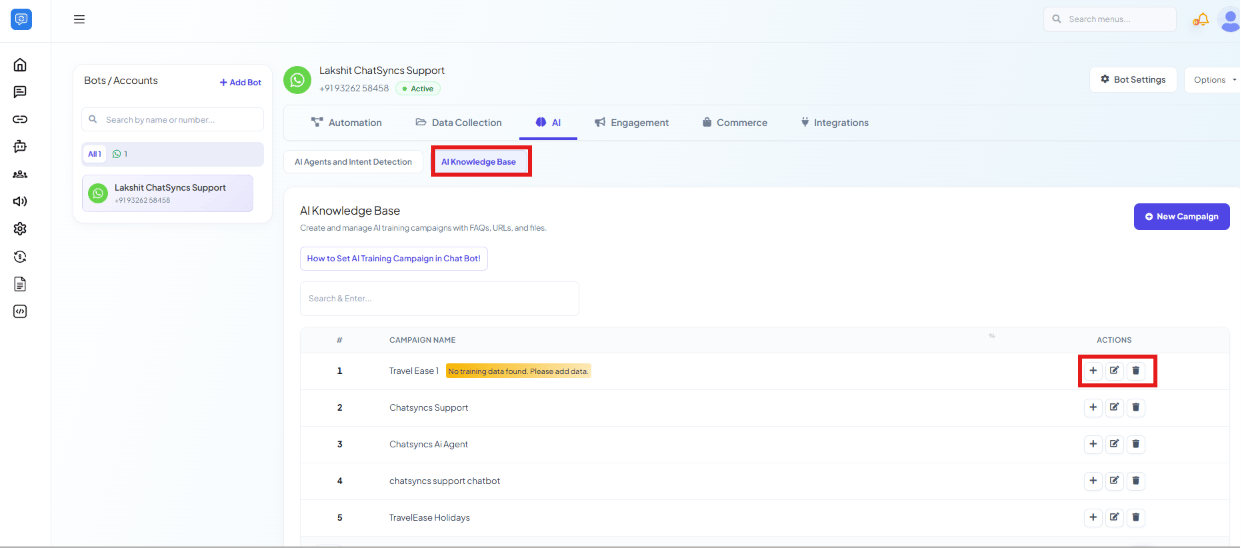 **Chatbot Manager → AI → AI Knowledge Base** trains the AI Agent on your own business content —
FAQs, product information, internal docs — so its replies stay accurate to your business instead
of sounding generic. This requires [AI Agents and Intent Detection](/learn/whatsapp-ai-agent) to
be enabled and connected first; the knowledge base supplies the *knowledge*, the AI Agent
settings supply the *behavior* that uses it.
Click **New Campaign** to create one. A campaign with no data yet is flagged **"No training data
found. Please add data."** and won't affect AI replies until you add content.
## Creating a campaign
Give it a name that helps you identify its purpose later, e.g. `Customer Support`.
**Chatbot Manager → AI → AI Knowledge Base** trains the AI Agent on your own business content —
FAQs, product information, internal docs — so its replies stay accurate to your business instead
of sounding generic. This requires [AI Agents and Intent Detection](/learn/whatsapp-ai-agent) to
be enabled and connected first; the knowledge base supplies the *knowledge*, the AI Agent
settings supply the *behavior* that uses it.
Click **New Campaign** to create one. A campaign with no data yet is flagged **"No training data
found. Please add data."** and won't affect AI replies until you add content.
## Creating a campaign
Give it a name that helps you identify its purpose later, e.g. `Customer Support`.
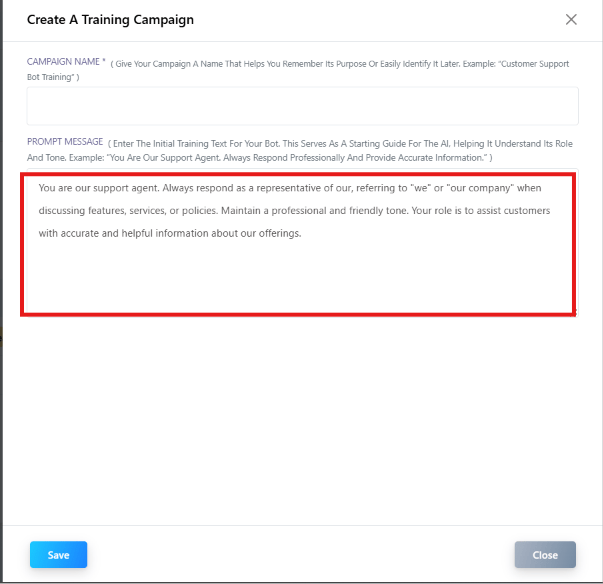 The **Prompt Message** is the initial training text — a starting guide that tells the AI its
role and tone. Example used in practice:
> "You are our support agent. Always respond as a representative of our \[company], referring
> to 'we' or 'our company' when discussing features, services, or policies. Maintain a
> professional and friendly tone. Your role is to assist customers with accurate and helpful
> information about our offerings."
This is separate from the **Instruction to AI** field under **AI API Integration** on the
[AI Agents and Intent Detection](/learn/whatsapp-ai-agent) page: that one sets the
assistant's overall behavior across the whole account, while the Prompt Message here is
specific to this campaign's content and role.
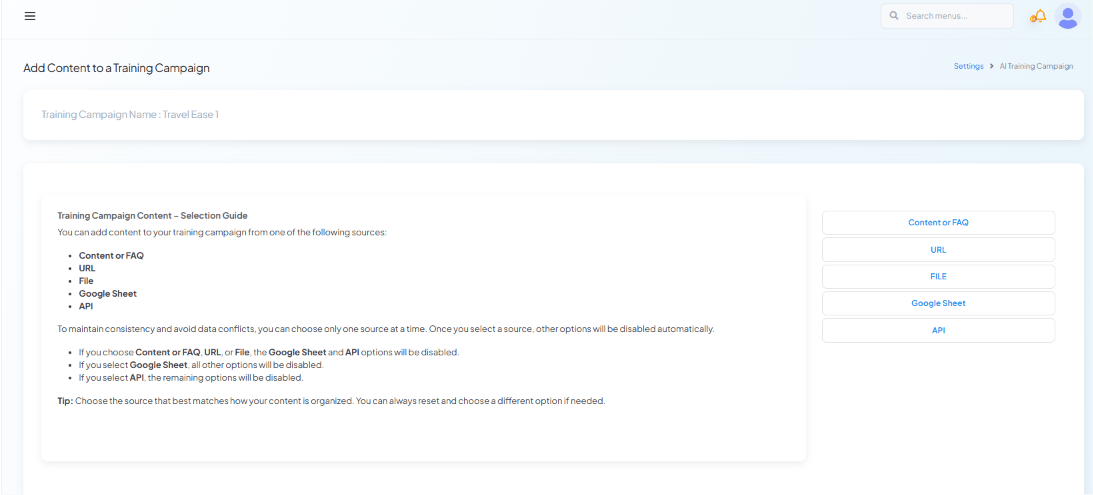
Add content from exactly **one** of these sources — click its tab to open the matching
panel:
* **Content or FAQ** — type or paste text/Q\&A pairs directly.
* **URL** — point at a page (e.g. an FAQ or docs page) to pull content from.
* **File** — upload a document.
* **Google Sheet** — pull structured content from a connected sheet.
* **API** — pull content dynamically from one of your configured
[HTTP APIs](/learn/whatsapp-http-api-integration).
You can only pick one source at a time — selecting one automatically disables the others,
to avoid conflicting data:
* Choosing **Content or FAQ**, **URL**, or **File** disables **Google Sheet** and **API**.
* Choosing **Google Sheet** disables all other options.
* Choosing **API** disables the remaining options.
Pick the source that matches how your content is already organized — you can always reset
and switch to a different source later if it turns out to be the wrong fit.
### Content or FAQ
The **Prompt Message** is the initial training text — a starting guide that tells the AI its
role and tone. Example used in practice:
> "You are our support agent. Always respond as a representative of our \[company], referring
> to 'we' or 'our company' when discussing features, services, or policies. Maintain a
> professional and friendly tone. Your role is to assist customers with accurate and helpful
> information about our offerings."
This is separate from the **Instruction to AI** field under **AI API Integration** on the
[AI Agents and Intent Detection](/learn/whatsapp-ai-agent) page: that one sets the
assistant's overall behavior across the whole account, while the Prompt Message here is
specific to this campaign's content and role.
Add content from exactly **one** of these sources — click its tab to open the matching
panel:
* **Content or FAQ** — type or paste text/Q\&A pairs directly.
* **URL** — point at a page (e.g. an FAQ or docs page) to pull content from.
* **File** — upload a document.
* **Google Sheet** — pull structured content from a connected sheet.
* **API** — pull content dynamically from one of your configured
[HTTP APIs](/learn/whatsapp-http-api-integration).
You can only pick one source at a time — selecting one automatically disables the others,
to avoid conflicting data:
* Choosing **Content or FAQ**, **URL**, or **File** disables **Google Sheet** and **API**.
* Choosing **Google Sheet** disables all other options.
* Choosing **API** disables the remaining options.
Pick the source that matches how your content is already organized — you can always reset
and switch to a different source later if it turns out to be the wrong fit.
### Content or FAQ
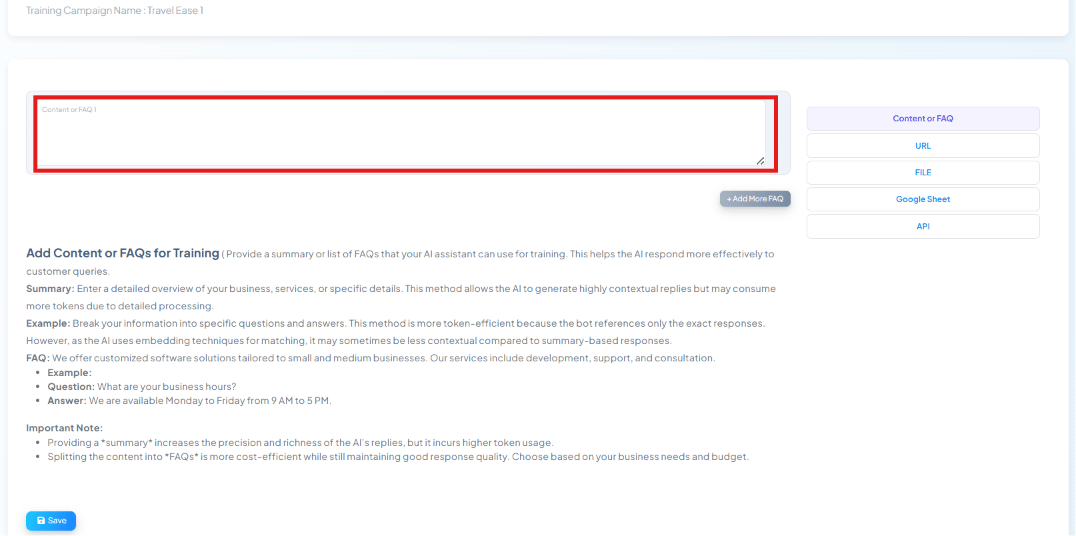
 Enter a **Summary** (a detailed overview the AI can reference for highly contextual replies, at
the cost of more tokens) or break content into specific **Question/Answer** pairs (more
token-efficient, since the bot references only the exact match). Click **Add More FAQ** for
additional entries.
### URL
Enter a **Summary** (a detailed overview the AI can reference for highly contextual replies, at
the cost of more tokens) or break content into specific **Question/Answer** pairs (more
token-efficient, since the bot references only the exact match). Click **Add More FAQ** for
additional entries.
### URL
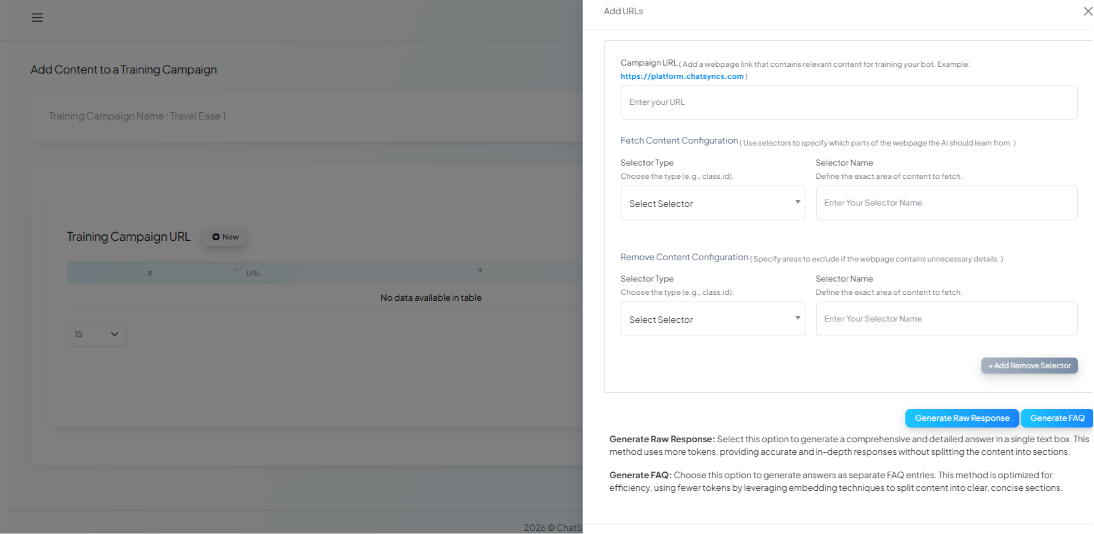
 Enter the page URL, and optionally use **Fetch Content Configuration** / **Remove Content
Configuration** selectors (by class or ID) to control exactly which part of the page the AI
learns from. Then choose **Generate Raw Response** (one detailed answer, more tokens) or
**Generate FAQ** (split into concise Q\&A entries, fewer tokens).
### File
Enter the page URL, and optionally use **Fetch Content Configuration** / **Remove Content
Configuration** selectors (by class or ID) to control exactly which part of the page the AI
learns from. Then choose **Generate Raw Response** (one detailed answer, more tokens) or
**Generate FAQ** (split into concise Q\&A entries, fewer tokens).
### File
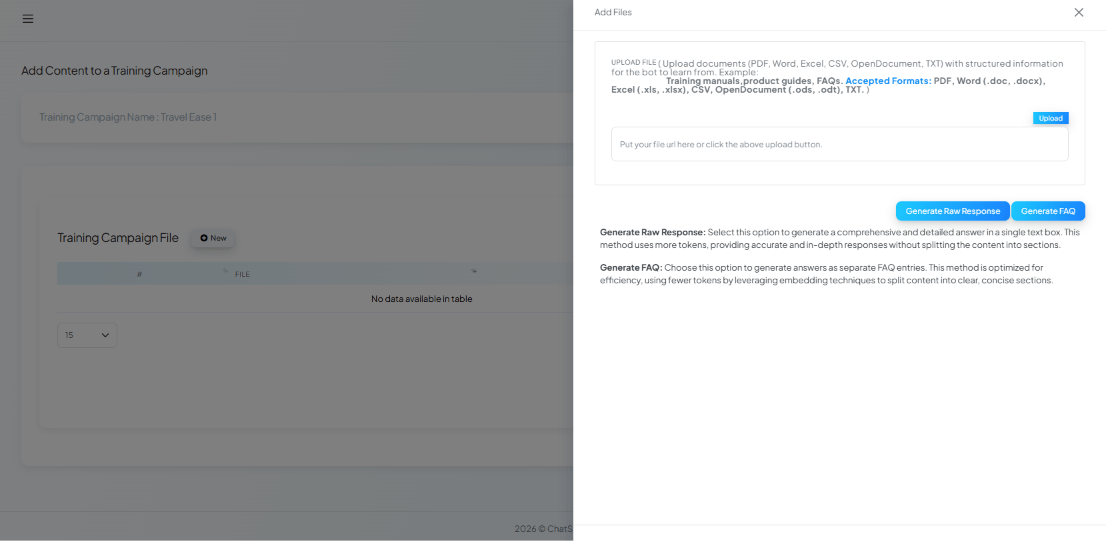
 Upload training manuals, product guides, or FAQs as PDF, Word (`.doc`/`.docx`), Excel
(`.xls`/`.xlsx`), CSV, OpenDocument (`.ods`/`.odt`), or TXT. Same **Generate Raw Response** /
**Generate FAQ** choice applies once uploaded.
### Google Sheet
Upload training manuals, product guides, or FAQs as PDF, Word (`.doc`/`.docx`), Excel
(`.xls`/`.xlsx`), CSV, OpenDocument (`.ods`/`.odt`), or TXT. Same **Generate Raw Response** /
**Generate FAQ** choice applies once uploaded.
### Google Sheet
 Pick a sheet already connected under
[Google Sheet Integration](/learn/control-panel-google-sheet-integration).
### API
Pick a sheet already connected under
[Google Sheet Integration](/learn/control-panel-google-sheet-integration).
### API
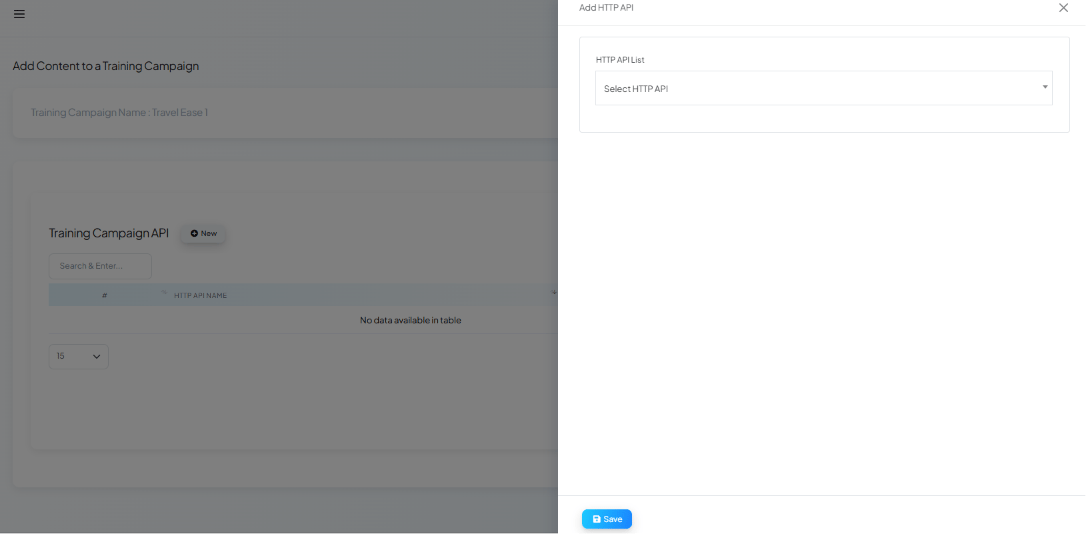 Pick one of your configured [HTTP APIs](/learn/whatsapp-http-api-integration) — content is
pulled dynamically from that endpoint's response rather than stored statically.
## Google Account permissions this needs
If you plan to use **Google Sheet** as a training source, or want subscriber contacts synced
alongside it, make sure the connected [Google account](/learn/control-panel-google-sheet-integration)
granted **both** the Sheets and Contacts permissions during sign-in — granting only Sheets
access will leave contact-dependent features without data.
## Use cases
* **Customer support** — answer common questions the way a trained support agent would, in the
business's own voice.
* **Product information** — ground answers in the business's actual catalog or specs instead of
generic AI guesses.
* **Internal documentation** — let staff-facing bots answer from internal wikis or SOPs.
* **Business FAQs** — turn an existing FAQ page or document directly into AI training content.
## Frequently asked
Create a campaign under **AI Knowledge Base**, write a **Prompt Message** describing the
AI's role and tone, then add your business content (FAQs, product info, docs) as training
data from one source — Content/FAQ, URL, File, Google Sheet, or API.
No — you can only use one content source at a time per campaign. Choosing **Google Sheet**
or **API** disables every other source; choosing **Content or FAQ**, **URL**, or **File**
disables Google Sheet and API. Create separate campaigns if you need multiple sources.
**Instruction to AI** (under **AI API Integration** on the
[AI Agents and Intent Detection](/learn/whatsapp-ai-agent) page) is the account-wide system
prompt. The **Prompt Message** here is scoped to this specific campaign — its role, tone,
and content — layered on top of that account-wide instruction.
A campaign with no content added yet does nothing. Open it and add data from one of the five
supported sources — the flag clears once real training content is present.
* **An AI Knowledge Base campaign with no data does nothing** — it must show actual training
content, not the "No training data found" flag, before it affects AI replies.
* **Content sources are mutually exclusive per campaign** — picking a new source silently
disables the others rather than combining them; don't assume unchecked sources are still
contributing data.
Pick one of your configured [HTTP APIs](/learn/whatsapp-http-api-integration) — content is
pulled dynamically from that endpoint's response rather than stored statically.
## Google Account permissions this needs
If you plan to use **Google Sheet** as a training source, or want subscriber contacts synced
alongside it, make sure the connected [Google account](/learn/control-panel-google-sheet-integration)
granted **both** the Sheets and Contacts permissions during sign-in — granting only Sheets
access will leave contact-dependent features without data.
## Use cases
* **Customer support** — answer common questions the way a trained support agent would, in the
business's own voice.
* **Product information** — ground answers in the business's actual catalog or specs instead of
generic AI guesses.
* **Internal documentation** — let staff-facing bots answer from internal wikis or SOPs.
* **Business FAQs** — turn an existing FAQ page or document directly into AI training content.
## Frequently asked
Create a campaign under **AI Knowledge Base**, write a **Prompt Message** describing the
AI's role and tone, then add your business content (FAQs, product info, docs) as training
data from one source — Content/FAQ, URL, File, Google Sheet, or API.
No — you can only use one content source at a time per campaign. Choosing **Google Sheet**
or **API** disables every other source; choosing **Content or FAQ**, **URL**, or **File**
disables Google Sheet and API. Create separate campaigns if you need multiple sources.
**Instruction to AI** (under **AI API Integration** on the
[AI Agents and Intent Detection](/learn/whatsapp-ai-agent) page) is the account-wide system
prompt. The **Prompt Message** here is scoped to this specific campaign — its role, tone,
and content — layered on top of that account-wide instruction.
A campaign with no content added yet does nothing. Open it and add data from one of the five
supported sources — the flag clears once real training content is present.
* **An AI Knowledge Base campaign with no data does nothing** — it must show actual training
content, not the "No training data found" flag, before it affects AI replies.
* **Content sources are mutually exclusive per campaign** — picking a new source silently
disables the others rather than combining them; don't assume unchecked sources are still
contributing data.