> ## Documentation Index
> Fetch the complete documentation index at: https://docs.chatsyncs.com/llms.txt
> Use this file to discover all available pages before exploring further.
# AI Agents and Intent Detection
> AI Agents and Intent Detection is ChatSyncs's AI-powered responder, under Chatbot Manager → AI. Instead of (or alongside) a Keyword Replies flow triggered by fixed keywords, the AI Agent reads training data from an AI Knowledge Base campaign and uses it to generate answers to customer messages on its own — with Intent Detection able to route specific phrasings to a bot flow, a human team, or a dedicated training campaign instead.
## Enable the AI Agent
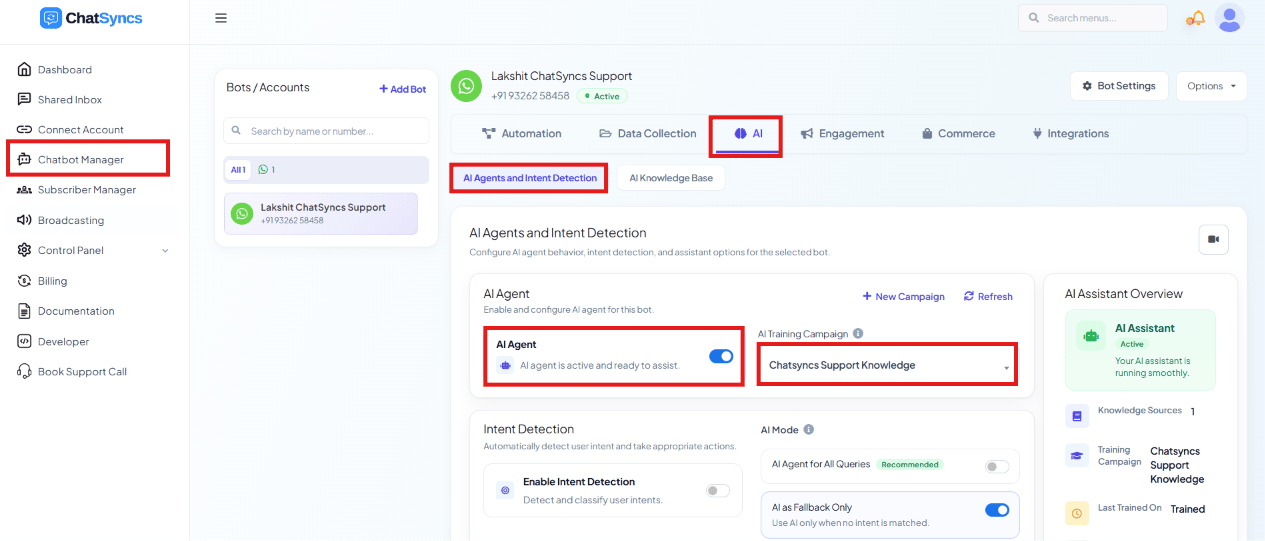 Select **Chatbot Manager**.
Select **AI**, then the **AI Agents and Intent Detection** sub-tab.
Turn on the **AI Agent** toggle. Until training data is attached, the AI Agent has nothing to
answer from — the next step connects an AI Training Campaign from the AI Knowledge Base.
Once configured, the **AI Assistant Overview** card on the right summarizes the setup at a
glance — status, Knowledge Sources count, the assigned Training Campaign, when it was last
trained, the AI Reasoning Level, and how many intents are enabled — with a **Go to AI
Assistant** shortcut.
## AI Training Campaign
The **AI Training Campaign** dropdown (top right of the AI Agent card, shown above) picks which
set of training data the AI Agent answers from. If none exists yet, click **New Campaign** next
to the field, or go to [AI Knowledge Base](/learn/whatsapp-ai-knowledge-base) directly, to
create one.
**Intent Detection disabled**, or a message classified as a **General Inquiry**, both answer
from the selected AI Training Campaign. With **Intent Detection enabled**, picking a campaign
here is optional — it then only answers messages that don't match any configured intent. See
[Intent Detection Campaign](#intent-detection-campaign) below.
Training campaigns themselves — naming one, writing its Prompt Message, and adding FAQ/URL/
File/Google Sheet/API content — are covered on the
[AI Knowledge Base](/learn/whatsapp-ai-knowledge-base) page. Once a campaign has training data,
come back here, click **Refresh**, and select it.
## Intent Detection Campaign
Intent Detection lets the AI Agent recognize *what* a customer is asking about and trigger a
specific action — instead of always answering from one training campaign. Turn on **Enable
Intent Detection** to start attaching intents to this bot.
### Enabled Intents
Select **Chatbot Manager**.
Select **AI**, then the **AI Agents and Intent Detection** sub-tab.
Turn on the **AI Agent** toggle. Until training data is attached, the AI Agent has nothing to
answer from — the next step connects an AI Training Campaign from the AI Knowledge Base.
Once configured, the **AI Assistant Overview** card on the right summarizes the setup at a
glance — status, Knowledge Sources count, the assigned Training Campaign, when it was last
trained, the AI Reasoning Level, and how many intents are enabled — with a **Go to AI
Assistant** shortcut.
## AI Training Campaign
The **AI Training Campaign** dropdown (top right of the AI Agent card, shown above) picks which
set of training data the AI Agent answers from. If none exists yet, click **New Campaign** next
to the field, or go to [AI Knowledge Base](/learn/whatsapp-ai-knowledge-base) directly, to
create one.
**Intent Detection disabled**, or a message classified as a **General Inquiry**, both answer
from the selected AI Training Campaign. With **Intent Detection enabled**, picking a campaign
here is optional — it then only answers messages that don't match any configured intent. See
[Intent Detection Campaign](#intent-detection-campaign) below.
Training campaigns themselves — naming one, writing its Prompt Message, and adding FAQ/URL/
File/Google Sheet/API content — are covered on the
[AI Knowledge Base](/learn/whatsapp-ai-knowledge-base) page. Once a campaign has training data,
come back here, click **Refresh**, and select it.
## Intent Detection Campaign
Intent Detection lets the AI Agent recognize *what* a customer is asking about and trigger a
specific action — instead of always answering from one training campaign. Turn on **Enable
Intent Detection** to start attaching intents to this bot.
### Enabled Intents
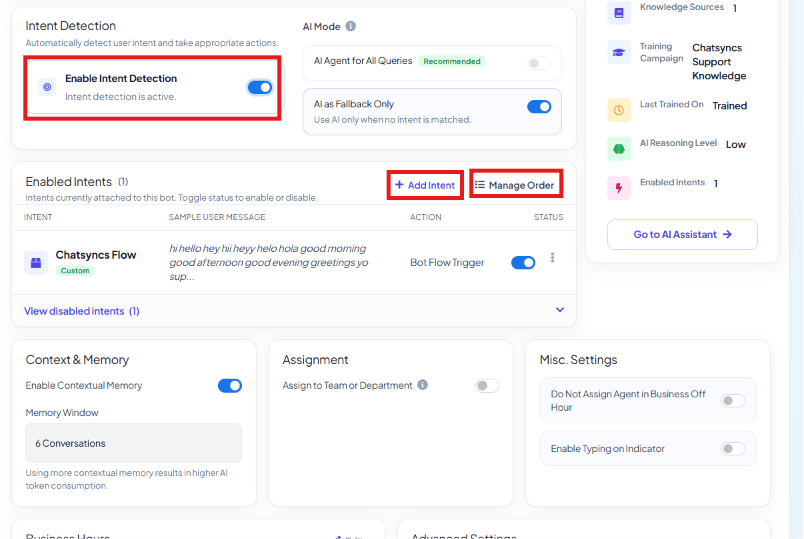 Every intent attached to this bot shows up in the **Enabled Intents** table, with its sample
user message, the action it triggers, and a status toggle to turn it off without deleting it.
* **Add Intent** — opens the **Create Intent Detection** modal to build a new one (see below).
* **Manage Order** — controls the order intents are matched in, for messages that could match
more than one.
* **View disabled intents** — expands the table to show intents you've turned off:
Every intent attached to this bot shows up in the **Enabled Intents** table, with its sample
user message, the action it triggers, and a status toggle to turn it off without deleting it.
* **Add Intent** — opens the **Create Intent Detection** modal to build a new one (see below).
* **Manage Order** — controls the order intents are matched in, for messages that could match
more than one.
* **View disabled intents** — expands the table to show intents you've turned off:
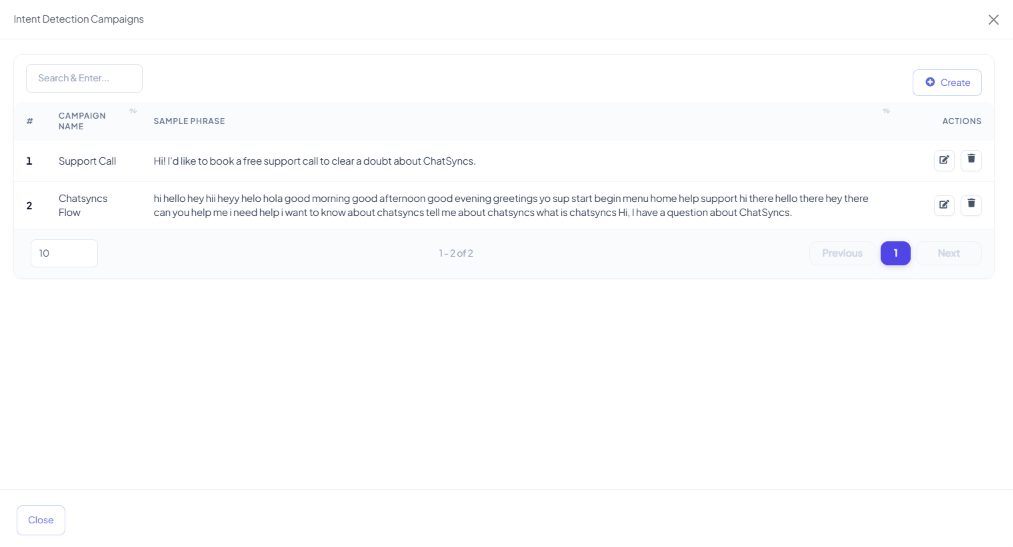
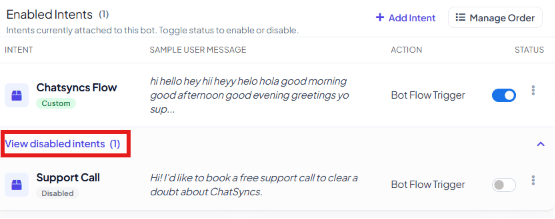 The full list of intent campaigns you've ever created is managed from the **Intent Detection
Campaigns** screen, with **Create**, edit, and delete actions for each:
The full list of intent campaigns you've ever created is managed from the **Intent Detection
Campaigns** screen, with **Create**, edit, and delete actions for each:
 ### Create an intent
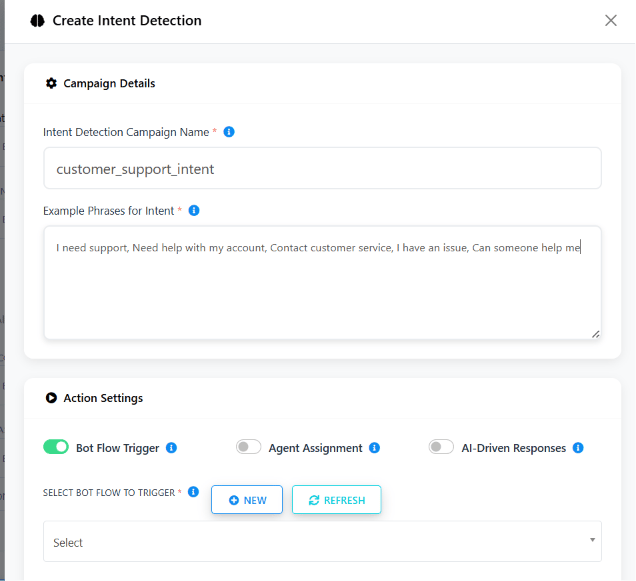 Give it a clear name, e.g. `customer_support_intent`, `sales_inquiry_intent`,
`appointment_booking_intent`.
Add comma-separated sample messages a customer would actually send for this intent, e.g.
`I need support, Need help with my account, Contact customer service, I have an issue, Can
someone help me`. These phrases are what the AI matches against.
Enable exactly one of **Bot Flow Trigger**, **Agent Assignment**, or **AI-Driven
Responses** — each is detailed below with a real example.
### Bot Flow Trigger
Give it a clear name, e.g. `customer_support_intent`, `sales_inquiry_intent`,
`appointment_booking_intent`.
Add comma-separated sample messages a customer would actually send for this intent, e.g.
`I need support, Need help with my account, Contact customer service, I have an issue, Can
someone help me`. These phrases are what the AI matches against.
Enable exactly one of **Bot Flow Trigger**, **Agent Assignment**, or **AI-Driven
Responses** — each is detailed below with a real example.
### Bot Flow Trigger
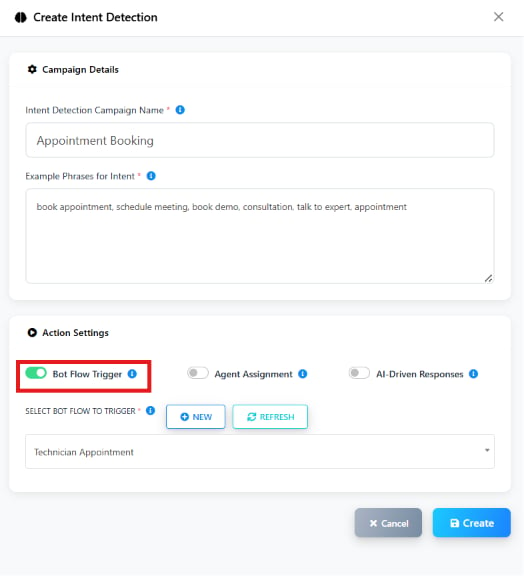 Starts a specific [Keyword Replies](/learn/whatsapp-keyword-replies) flow the moment the intent matches —
no AI response is generated. Here, an `Appointment Booking` intent (matching phrases like `book
appointment`, `schedule meeting`, `talk to expert`) triggers the **Technician Appointment**
flow under **Select Bot Flow to Trigger**. Click **New** to build a flow on the spot, or
**Refresh** to reload the list.
### Agent Assignment
Starts a specific [Keyword Replies](/learn/whatsapp-keyword-replies) flow the moment the intent matches —
no AI response is generated. Here, an `Appointment Booking` intent (matching phrases like `book
appointment`, `schedule meeting`, `talk to expert`) triggers the **Technician Appointment**
flow under **Select Bot Flow to Trigger**. Click **New** to build a flow on the spot, or
**Refresh** to reload the list.
### Agent Assignment
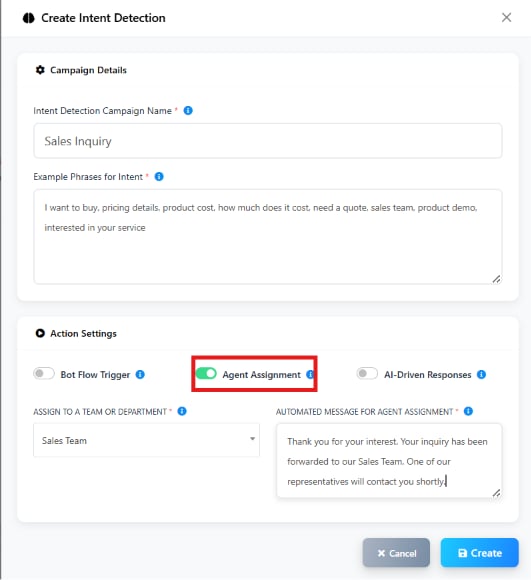 Hands the conversation to a human team instead of answering it. Set **Assign to a Team or
Department** (e.g. `Sales Team`) and an **Automated Message for Agent Assignment** sent
immediately, e.g. *"Thank you for your interest. Your inquiry has been forwarded to our Sales
Team. One of our representatives will contact you shortly."*
### AI-Driven Responses
Hands the conversation to a human team instead of answering it. Set **Assign to a Team or
Department** (e.g. `Sales Team`) and an **Automated Message for Agent Assignment** sent
immediately, e.g. *"Thank you for your interest. Your inquiry has been forwarded to our Sales
Team. One of our representatives will contact you shortly."*
### AI-Driven Responses
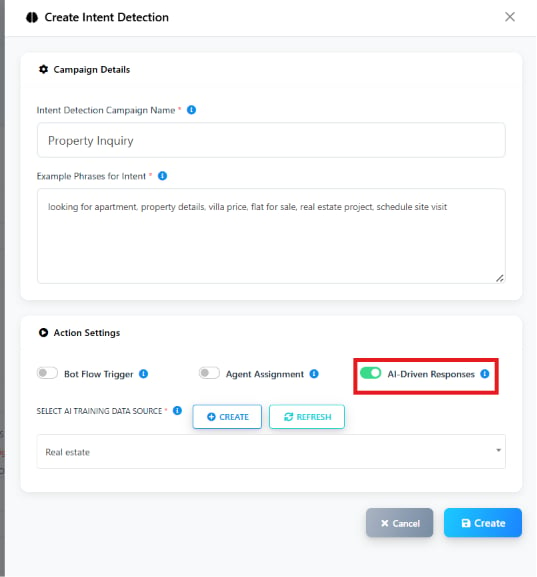 Answers using a specific **AI Training Campaign**, separate from whatever's selected as the
default. Here, a `Property Inquiry` intent (matching phrases like `looking for apartment`,
`villa price`, `schedule site visit`) answers from a dedicated `Real estate` training campaign
under **Select AI Training Data Source**. Click **Create** to make a new training campaign,
**Refresh** to reload the list.
You can create as many Intent Detection campaigns as you need — each runs independently, with
its own action, and appears as its own row in **Enabled Intents** above.
## Choose how broadly the AI responds
Answers using a specific **AI Training Campaign**, separate from whatever's selected as the
default. Here, a `Property Inquiry` intent (matching phrases like `looking for apartment`,
`villa price`, `schedule site visit`) answers from a dedicated `Real estate` training campaign
under **Select AI Training Data Source**. Click **Create** to make a new training campaign,
**Refresh** to reload the list.
You can create as many Intent Detection campaigns as you need — each runs independently, with
its own action, and appears as its own row in **Enabled Intents** above.
## Choose how broadly the AI responds
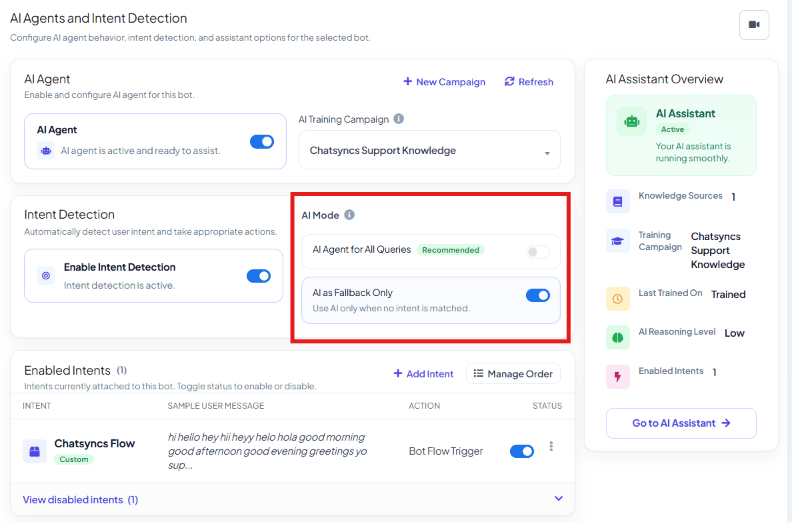 | Mode | Behavior | Use when |
| ---------------------------- | ----------------------------------------------------------------------------------------------------------------------------------------------------------------- | ------------------------------------------------------------------------------------------------------ |
| **AI Agent for All Queries** | The AI answers every incoming message, ignoring any Keyword Replies flows triggered by fixed keywords. Enabling this automatically **disables Intent Detection**. | You want AI-first support, open-ended conversations, or a general-purpose assistant. |
| **AI as a Fallback Only** | The bot checks configured flows, keywords, and replies first; the AI only answers if nothing matches. | You want structured Keyword Replies flows to stay primary, with AI only catching unexpected questions. |
Enabling **AI Agent for All Queries** turns **Intent Detection off**. If your AI Training
Campaign is thin, every customer message goes to it — make sure it has enough accurate data
before switching this on.
## Context & Memory
| Mode | Behavior | Use when |
| ---------------------------- | ----------------------------------------------------------------------------------------------------------------------------------------------------------------- | ------------------------------------------------------------------------------------------------------ |
| **AI Agent for All Queries** | The AI answers every incoming message, ignoring any Keyword Replies flows triggered by fixed keywords. Enabling this automatically **disables Intent Detection**. | You want AI-first support, open-ended conversations, or a general-purpose assistant. |
| **AI as a Fallback Only** | The bot checks configured flows, keywords, and replies first; the AI only answers if nothing matches. | You want structured Keyword Replies flows to stay primary, with AI only catching unexpected questions. |
Enabling **AI Agent for All Queries** turns **Intent Detection off**. If your AI Training
Campaign is thin, every customer message goes to it — make sure it has enough accurate data
before switching this on.
## Context & Memory
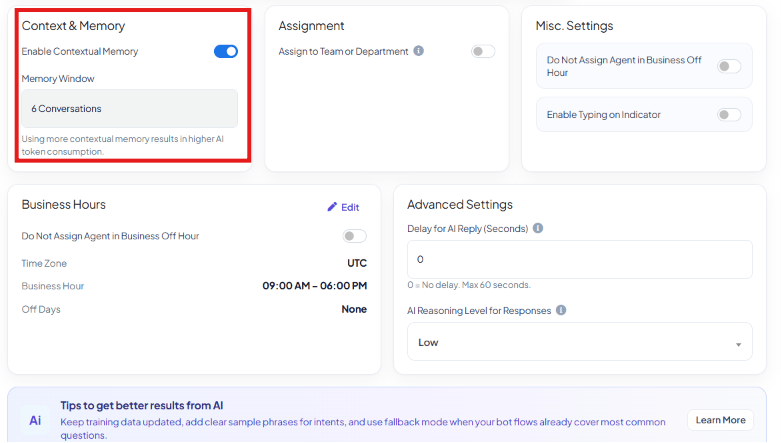 **Enable Contextual Memory** lets the AI use a subscriber's previous conversations to answer
more personally — e.g. recalling a name given earlier in the chat. Set the **Memory Window** —
how many previous conversations to include.
**Without** contextual memory: user says *"My name is Rahul,"* later asks *"What is my name?"* —
the bot says *"I don't know your name."* **With** it enabled, the bot answers *"Your name is
Rahul."*
Using more contextual memory means more tokens processed per AI request — better
personalization, but higher AI token consumption and cost.
A balanced starting point: Contextual Memory **enabled** with a **Memory Window** of **3–6**
conversations.
## Assign conversation to a team or department
**Enable Contextual Memory** lets the AI use a subscriber's previous conversations to answer
more personally — e.g. recalling a name given earlier in the chat. Set the **Memory Window** —
how many previous conversations to include.
**Without** contextual memory: user says *"My name is Rahul,"* later asks *"What is my name?"* —
the bot says *"I don't know your name."* **With** it enabled, the bot answers *"Your name is
Rahul."*
Using more contextual memory means more tokens processed per AI request — better
personalization, but higher AI token consumption and cost.
A balanced starting point: Contextual Memory **enabled** with a **Memory Window** of **3–6**
conversations.
## Assign conversation to a team or department
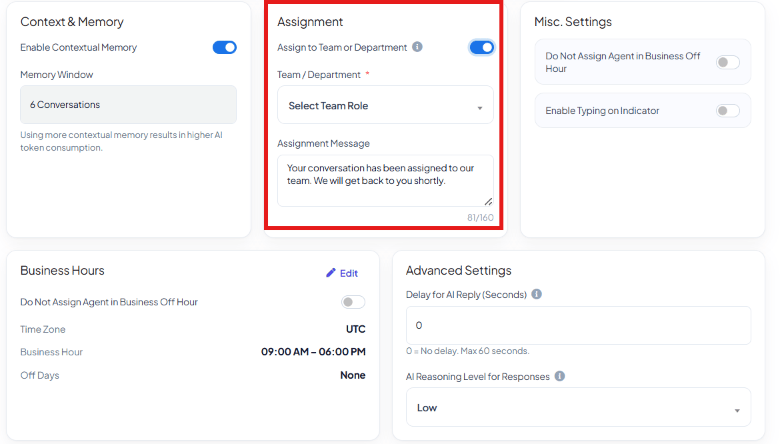 Enable **Assign to Team or Department** to route the conversation to a group (e.g. Sales,
Support, Billing, Technical) instead of leaving it with the AI. Pick the **Team/Department** and
write an **Assignment Message** sent the moment it's handed off, e.g. *"Your conversation has
been assigned to our team. We will get back to you shortly."*
## Misc settings
Enable **Assign to Team or Department** to route the conversation to a group (e.g. Sales,
Support, Billing, Technical) instead of leaving it with the AI. Pick the **Team/Department** and
write an **Assignment Message** sent the moment it's handed off, e.g. *"Your conversation has
been assigned to our team. We will get back to you shortly."*
## Misc settings
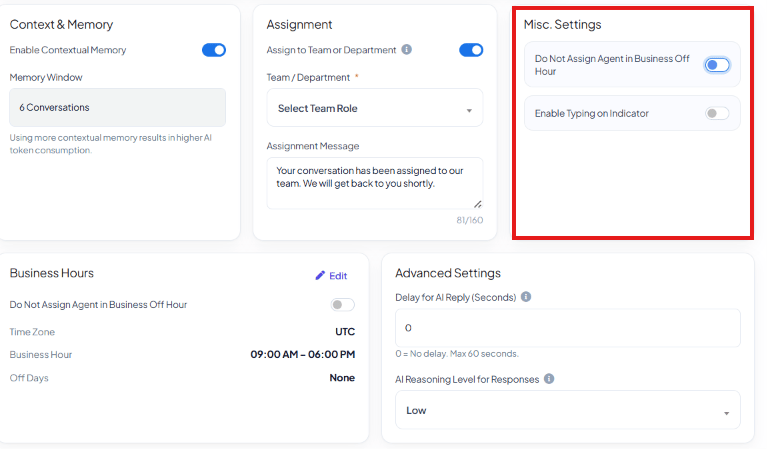 * **Do Not Assign Agent in Business Off Hour** — outside business hours (see below), a message
is left for the bot/AI to handle instead of being auto-assigned to a human agent who isn't
working yet.
* **Enable Typing on Indicator** — shows WhatsApp's "typing…" status while the AI is generating
a reply, so the response feels less abrupt than appearing out of nowhere.
## Business Hours
* **Do Not Assign Agent in Business Off Hour** — outside business hours (see below), a message
is left for the bot/AI to handle instead of being auto-assigned to a human agent who isn't
working yet.
* **Enable Typing on Indicator** — shows WhatsApp's "typing…" status while the AI is generating
a reply, so the response feels less abrupt than appearing out of nowhere.
## Business Hours
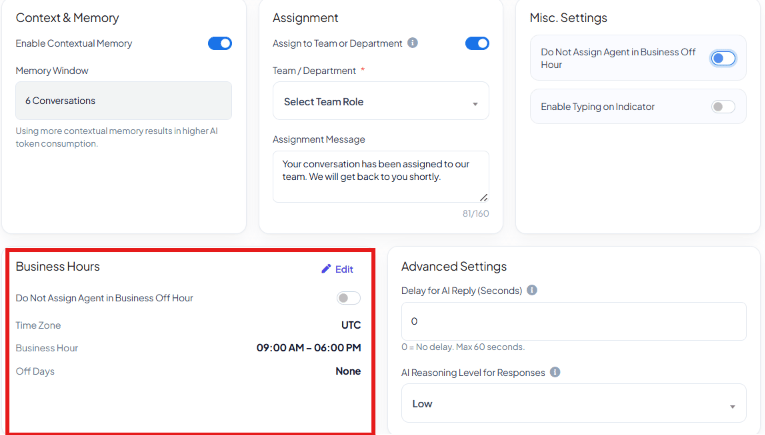 The **Business Hours** card shows the **Time Zone**, **Business Hour** range, and any **Off
Days** currently configured — click **Edit** to change them. This is what **Do Not Assign Agent
in Business Off Hour** (above) checks against.
## Advanced settings
The **Business Hours** card shows the **Time Zone**, **Business Hour** range, and any **Off
Days** currently configured — click **Edit** to change them. This is what **Do Not Assign Agent
in Business Off Hour** (above) checks against.
## Advanced settings
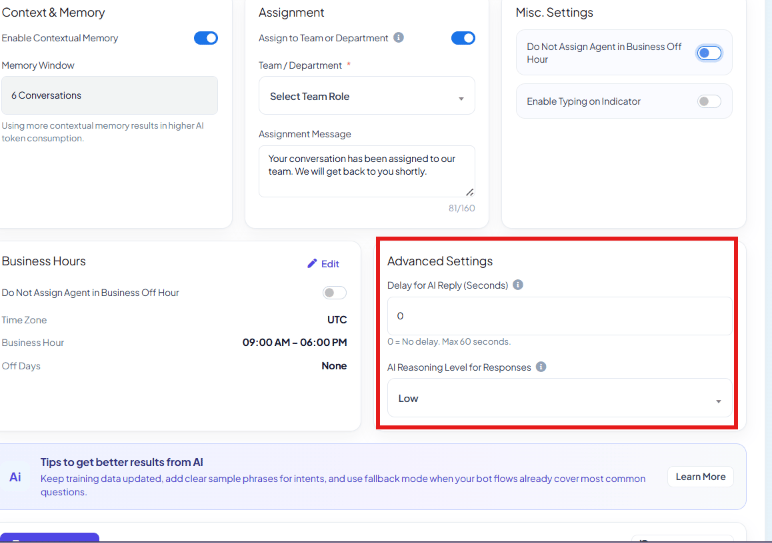 **Delay for AI Reply (seconds)** adds a deliberate pause before the AI's reply is sent — `0`
means no delay, up to a maximum of `60` seconds. A short delay (a few seconds) can make the
conversation feel more natural, especially paired with **Enable Typing on Indicator** above.
**AI Reasoning Level** controls how much analysis the AI does before answering:
| Level | Trade-off | Good for |
| ---------- | ----------------------------------------------- | ----------------------------------- |
| **Low** | Fastest, basic reasoning | Simple FAQs, quick replies |
| **Medium** | Balanced speed and accuracy | Most business use cases |
| **High** | Most detailed and accurate, slower, more tokens | Complex queries, sales consultation |
| Use case | Recommended level |
| ------------------ | ----------------- |
| FAQ Bot | Low |
| Customer Support | Medium |
| AI Assistant | High |
| Sales Consultation | High |
## Save settings
**Delay for AI Reply (seconds)** adds a deliberate pause before the AI's reply is sent — `0`
means no delay, up to a maximum of `60` seconds. A short delay (a few seconds) can make the
conversation feel more natural, especially paired with **Enable Typing on Indicator** above.
**AI Reasoning Level** controls how much analysis the AI does before answering:
| Level | Trade-off | Good for |
| ---------- | ----------------------------------------------- | ----------------------------------- |
| **Low** | Fastest, basic reasoning | Simple FAQs, quick replies |
| **Medium** | Balanced speed and accuracy | Most business use cases |
| **High** | Most detailed and accurate, slower, more tokens | Complex queries, sales consultation |
| Use case | Recommended level |
| ------------------ | ----------------- |
| FAQ Bot | Low |
| Customer Support | Medium |
| AI Assistant | High |
| Sales Consultation | High |
## Save settings
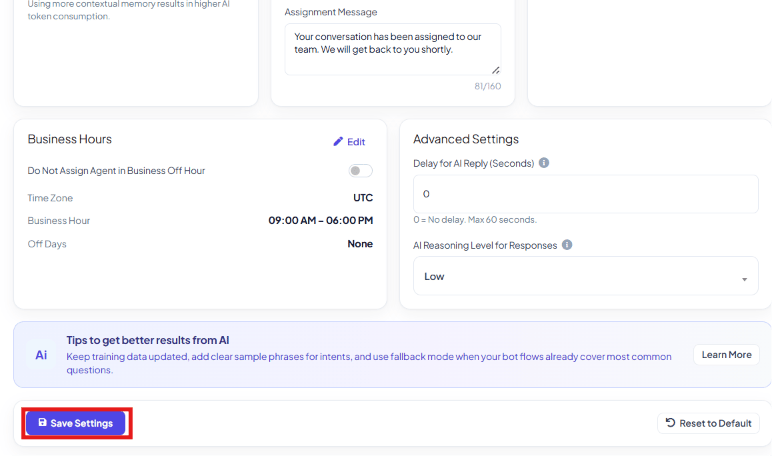 Click **Save Settings** to apply everything configured above — the AI Agent then answers
conversations using the selected training campaign(s), intents, response mode, memory,
assignment, and reasoning level. **Reset to Default** reverts this bot's AI Agent settings back
to their defaults.
Keep training data updated, add clear sample phrases for intents, and use **AI as a Fallback
Only** when your bot flows already cover most common questions.
## Frequently asked
In **Chatbot Manager → AI → AI Agents and Intent Detection**, enable the AI Agent, then
create or select a campaign in [AI Knowledge Base](/learn/whatsapp-ai-knowledge-base) with
enough FAQs/URL/file/Google Sheet/API data. Save the campaign, refresh the dropdown back in
AI Agents and Intent Detection, and select it.
**All Queries** makes the AI the primary responder for every message, and automatically
disables Intent Detection. **Fallback Only** keeps your Keyword Replies flows and keywords as the
first line of response — the AI only answers when nothing else matches.
Yes — enable **Contextual Memory** and set the **Memory Window** (e.g. 3–6 conversations).
This increases AI token usage, so don't set it higher than you need.
It matches a customer's message against example phrases you define for a named intent
(e.g. `sales_inquiry_intent`), then triggers an action — start a specific bot flow, assign
the conversation to a live agent, or generate an AI response from a chosen training
campaign.
Yes — toggle its **Status** off in the **Enabled Intents** table. It moves under **View
disabled intents** and stops matching, without losing its configuration. Toggle it back on
any time.
## Learn From a Use Case
* [Travel Assistant](/learn/travel-agency-ai-assistant-business-problem) — an AI Agent trained on the
business's own knowledge, with Intent Detection routing enquiries and complaints.
* [Availability-Based Conversation Assignment](/learn/available-agent-assignment-business-problem) —
Agent Assignment hands a conversation to a team the moment a detected intent matches.
Click **Save Settings** to apply everything configured above — the AI Agent then answers
conversations using the selected training campaign(s), intents, response mode, memory,
assignment, and reasoning level. **Reset to Default** reverts this bot's AI Agent settings back
to their defaults.
Keep training data updated, add clear sample phrases for intents, and use **AI as a Fallback
Only** when your bot flows already cover most common questions.
## Frequently asked
In **Chatbot Manager → AI → AI Agents and Intent Detection**, enable the AI Agent, then
create or select a campaign in [AI Knowledge Base](/learn/whatsapp-ai-knowledge-base) with
enough FAQs/URL/file/Google Sheet/API data. Save the campaign, refresh the dropdown back in
AI Agents and Intent Detection, and select it.
**All Queries** makes the AI the primary responder for every message, and automatically
disables Intent Detection. **Fallback Only** keeps your Keyword Replies flows and keywords as the
first line of response — the AI only answers when nothing else matches.
Yes — enable **Contextual Memory** and set the **Memory Window** (e.g. 3–6 conversations).
This increases AI token usage, so don't set it higher than you need.
It matches a customer's message against example phrases you define for a named intent
(e.g. `sales_inquiry_intent`), then triggers an action — start a specific bot flow, assign
the conversation to a live agent, or generate an AI response from a chosen training
campaign.
Yes — toggle its **Status** off in the **Enabled Intents** table. It moves under **View
disabled intents** and stops matching, without losing its configuration. Toggle it back on
any time.
## Learn From a Use Case
* [Travel Assistant](/learn/travel-agency-ai-assistant-business-problem) — an AI Agent trained on the
business's own knowledge, with Intent Detection routing enquiries and complaints.
* [Availability-Based Conversation Assignment](/learn/available-agent-assignment-business-problem) —
Agent Assignment hands a conversation to a team the moment a detected intent matches.