> ## Documentation Index
> Fetch the complete documentation index at: https://docs.chatsyncs.com/llms.txt
> Use this file to discover all available pages before exploring further.
# Update Your WhatsApp Business Profile
> How to reach WhatsApp Manager from Meta Business Suite to update your WhatsApp Business Account's profile — display name, photo, about, description, category, website, and address. Use when a customer asks where to change how their number looks to customers, or can't find the profile settings.
Your WhatsApp number's public profile — the photo, about text, and business details a customer
sees when they open the chat — is edited in **WhatsApp Manager**, a separate tool from Meta
Business Suite's main Settings. This gets you there.
## Set it up
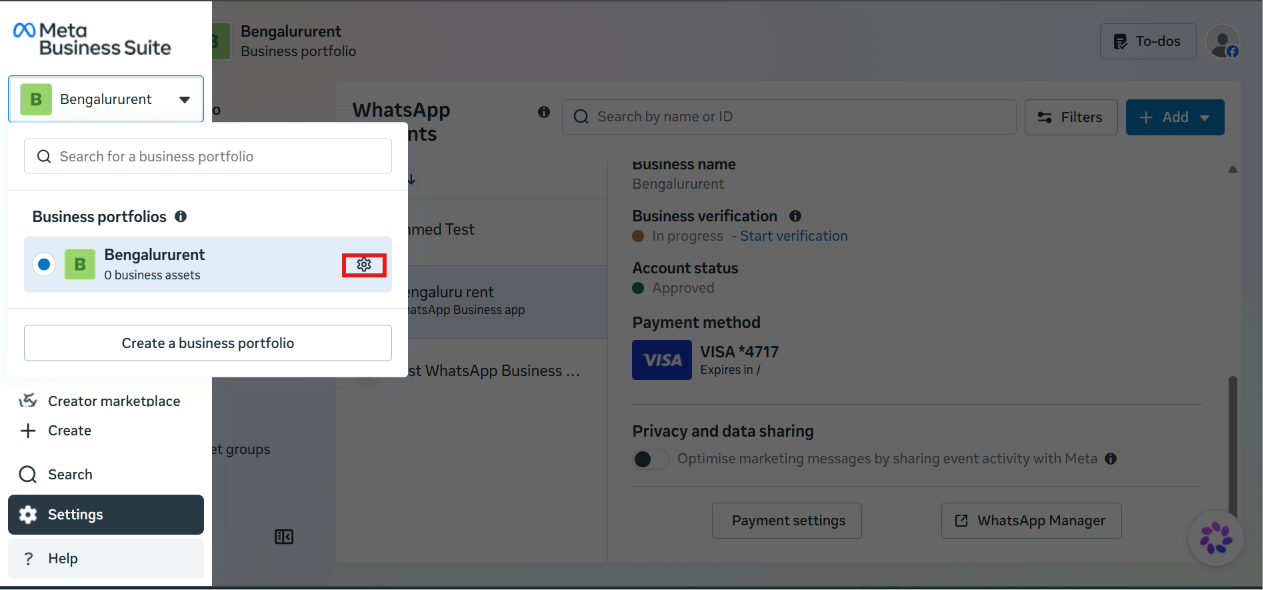
In [Meta Business Suite](https://business.facebook.com), click your business portfolio name
in the top-left switcher, then click the **gear icon** next to it to open Settings.
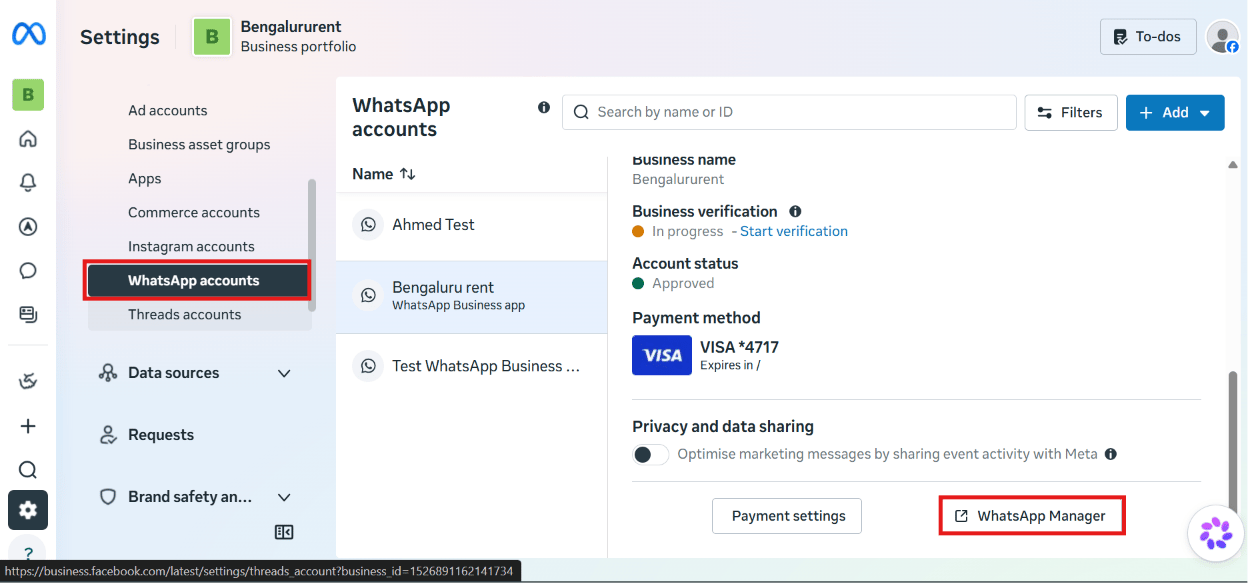
 Under **Accounts → WhatsApp accounts**, select the WhatsApp Business account you want to
update, then click **WhatsApp Manager**.
Under **Accounts → WhatsApp accounts**, select the WhatsApp Business account you want to
update, then click **WhatsApp Manager**.
 **Expected result:** WhatsApp Manager opens in a new tab, scoped to this number. From its own
**Profile** section you can update the display name, profile photo, about text, business
description, category, website, and address — all customer-facing details shown when someone
opens a chat with your number.
Some profile fields (like the display name) require re-verification or a short review after you
change them — a photo or about-text edit is usually instant.
## What's next
Once your profile looks right, go back to [connecting your
account](/learn/connect-whatsapp-embedded) if you haven't finished that yet, or [add a payment
method](/learn/add-payment-method) if billing still needs to be set up.
**Expected result:** WhatsApp Manager opens in a new tab, scoped to this number. From its own
**Profile** section you can update the display name, profile photo, about text, business
description, category, website, and address — all customer-facing details shown when someone
opens a chat with your number.
Some profile fields (like the display name) require re-verification or a short review after you
change them — a photo or about-text edit is usually instant.
## What's next
Once your profile looks right, go back to [connecting your
account](/learn/connect-whatsapp-embedded) if you haven't finished that yet, or [add a payment
method](/learn/add-payment-method) if billing still needs to be set up.