> ## Documentation Index
> Fetch the complete documentation index at: https://docs.chatsyncs.com/llms.txt
> Use this file to discover all available pages before exploring further.
# How to Import Contacts from Google Sheets
> How to bulk-import subscribers into ChatSyncs directly from a connected Google Sheet or from Google Contacts, without exporting a CSV file first — connecting the source, mapping columns to ChatSyncs fields, and the same phone-number formatting rules that apply to a CSV import.
## When to use a Google-based import
Use this instead of a CSV file when your contact list already lives in a Google Sheet you keep
updated, or when you'd rather pull straight from your connected Google account's Contacts than
export and re-upload a file every time the list changes. Both skip the manual CSV export step —
connect the source once, and ChatSyncs reads the data directly.
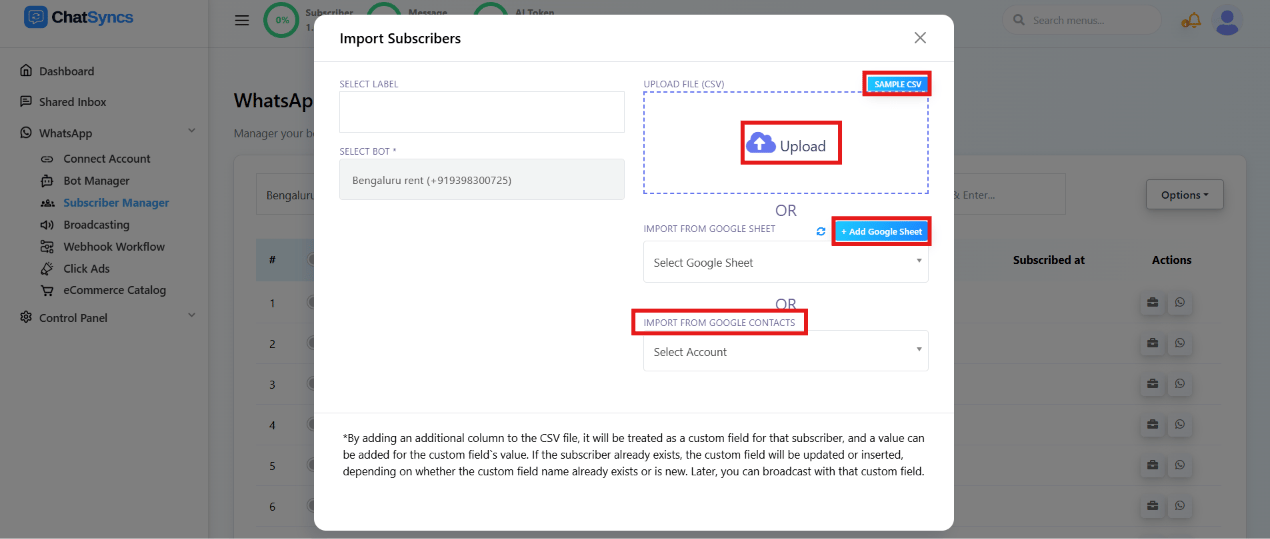 ## Import from a Google Sheet
From the Subscriber Manager list, open **Options**, then **Import Subscribers**.
Select the Google Sheet option in the modal shown above.
Use **+ Add Google Sheet** to connect the specific spreadsheet you want to import from.
Match the sheet's columns to ChatSyncs fields, the same way as a CSV upload — see below.
Confirm — the imported contacts appear in the Subscriber Manager list.
Structure your sheet exactly the way you would a CSV file — at minimum a phone number column
and a name column. See [Import Using CSV](/learn/subscriber-manager-import-csv#the-csv-format)
for the exact column format and phone-number formatting rules (country code, no `+`, no
scientific notation); they apply to a Google Sheet import in exactly the same way, since the
underlying data still goes through the same **Map the columns** step.
Any column beyond phone number and name is picked up as a **[custom field](/learn/subscriber-manager-custom-fields-and-labels#custom-fields)**
automatically — same as a CSV import. If the subscriber already exists (matched by phone
number), that field is updated on the existing record instead of creating a duplicate.
## Import from Google Contacts
From the Subscriber Manager list, open **Options**, then **Import Subscribers**.
Select the Google Contacts option in the modal shown above.
Authorize the connected Google account ChatSyncs should read contacts from, if not already connected.
ChatSyncs maps each contact's name and phone number to a subscriber automatically.
This is the fastest option when the people you want in ChatSyncs are already saved in your
phone or Google account's Contacts — there's no spreadsheet to prepare or export at all.
**Expected result (both methods):** Every matching row or contact becomes a subscriber in
Subscriber Manager, ready to label, message, or enroll in a sequence immediately — the same end
result as a CSV import, just without a file to prepare first.
## Frequently asked
**Google Sheet** import reads a spreadsheet you connect — good for structured lists with
extra columns you want as custom fields. **Google Contacts** import reads your connected
Google account's saved contacts directly — good when there's no spreadsheet at all.
Yes — country code mandatory, plain digits, no `+` or spaces. See
[Import Using CSV](/learn/subscriber-manager-import-csv#the-csv-format) for the full detail;
the same Map the columns step is used for both.
It matches by phone number — an existing subscriber's record (and its custom fields) gets
updated rather than duplicated.
The connection stays available for future imports from the same sheet, so you can re-run
the import later (e.g. after adding new rows) without reconnecting it from scratch.
## Related Documentation
* [Subscriber Manager](/learn/whatsapp-subscriber-manager) — the subscriber list and full
Options menu.
* [Import Using CSV](/learn/subscriber-manager-import-csv) — the column format and phone-number
rules shared by both import methods.
* [Import Subscribers Manually](/learn/subscriber-manager-import-manually) — for adding one
contact at a time instead.
* [Custom Fields and Labels](/learn/subscriber-manager-custom-fields-and-labels) — how imported
columns become custom fields.
## Import from a Google Sheet
From the Subscriber Manager list, open **Options**, then **Import Subscribers**.
Select the Google Sheet option in the modal shown above.
Use **+ Add Google Sheet** to connect the specific spreadsheet you want to import from.
Match the sheet's columns to ChatSyncs fields, the same way as a CSV upload — see below.
Confirm — the imported contacts appear in the Subscriber Manager list.
Structure your sheet exactly the way you would a CSV file — at minimum a phone number column
and a name column. See [Import Using CSV](/learn/subscriber-manager-import-csv#the-csv-format)
for the exact column format and phone-number formatting rules (country code, no `+`, no
scientific notation); they apply to a Google Sheet import in exactly the same way, since the
underlying data still goes through the same **Map the columns** step.
Any column beyond phone number and name is picked up as a **[custom field](/learn/subscriber-manager-custom-fields-and-labels#custom-fields)**
automatically — same as a CSV import. If the subscriber already exists (matched by phone
number), that field is updated on the existing record instead of creating a duplicate.
## Import from Google Contacts
From the Subscriber Manager list, open **Options**, then **Import Subscribers**.
Select the Google Contacts option in the modal shown above.
Authorize the connected Google account ChatSyncs should read contacts from, if not already connected.
ChatSyncs maps each contact's name and phone number to a subscriber automatically.
This is the fastest option when the people you want in ChatSyncs are already saved in your
phone or Google account's Contacts — there's no spreadsheet to prepare or export at all.
**Expected result (both methods):** Every matching row or contact becomes a subscriber in
Subscriber Manager, ready to label, message, or enroll in a sequence immediately — the same end
result as a CSV import, just without a file to prepare first.
## Frequently asked
**Google Sheet** import reads a spreadsheet you connect — good for structured lists with
extra columns you want as custom fields. **Google Contacts** import reads your connected
Google account's saved contacts directly — good when there's no spreadsheet at all.
Yes — country code mandatory, plain digits, no `+` or spaces. See
[Import Using CSV](/learn/subscriber-manager-import-csv#the-csv-format) for the full detail;
the same Map the columns step is used for both.
It matches by phone number — an existing subscriber's record (and its custom fields) gets
updated rather than duplicated.
The connection stays available for future imports from the same sheet, so you can re-run
the import later (e.g. after adding new rows) without reconnecting it from scratch.
## Related Documentation
* [Subscriber Manager](/learn/whatsapp-subscriber-manager) — the subscriber list and full
Options menu.
* [Import Using CSV](/learn/subscriber-manager-import-csv) — the column format and phone-number
rules shared by both import methods.
* [Import Subscribers Manually](/learn/subscriber-manager-import-manually) — for adding one
contact at a time instead.
* [Custom Fields and Labels](/learn/subscriber-manager-custom-fields-and-labels) — how imported
columns become custom fields.