> ## Documentation Index
> Fetch the complete documentation index at: https://docs.chatsyncs.com/llms.txt
> Use this file to discover all available pages before exploring further.
# Install ChatSyncs on iOS
> Install ChatSyncs as a Progressive Web App (PWA) on iPhone via Safari, for faster, app-like access to the Shared Inbox without a separate App Store download.
ChatSyncs can be installed as a **Progressive Web App (PWA)** on iPhone for faster, app-like
access to the Shared Inbox — no separate App Store download needed.
PWA installation on iOS works **only in Safari** — it won't work from Chrome or any other
browser on iPhone.
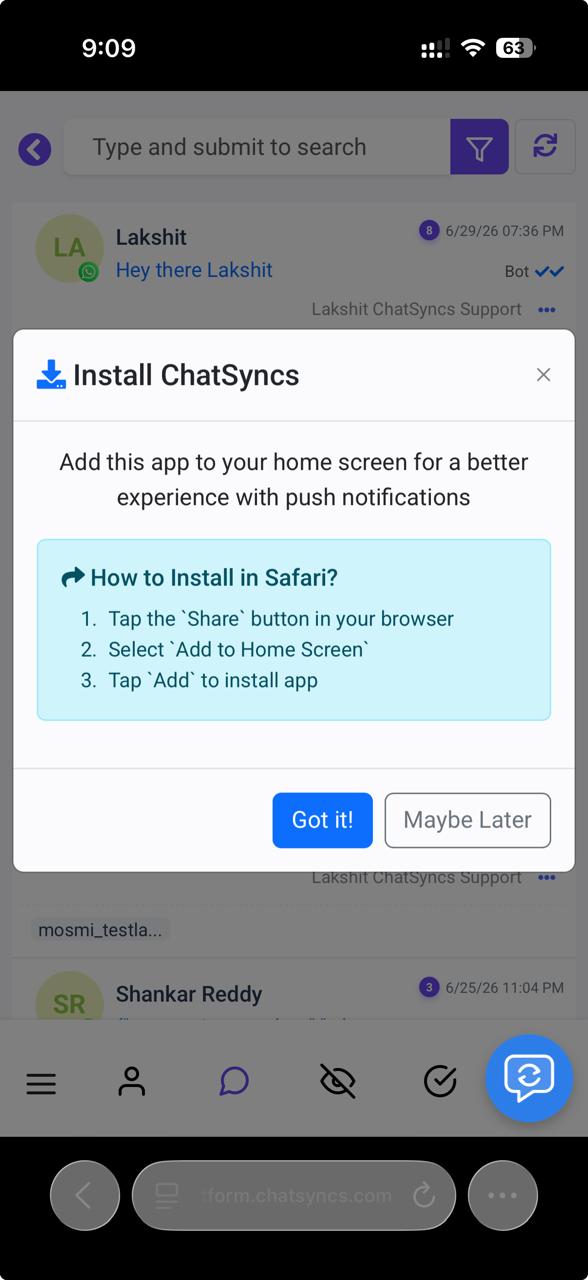 ChatSyncs may show this **Install ChatSyncs** prompt automatically the first time you open it in
Safari — you can follow it directly, or use the manual steps below.
On your iPhone, open **Safari** and log in to your ChatSyncs account.
After logging in, navigate to **Shared Inbox**.
ChatSyncs may show this **Install ChatSyncs** prompt automatically the first time you open it in
Safari — you can follow it directly, or use the manual steps below.
On your iPhone, open **Safari** and log in to your ChatSyncs account.
After logging in, navigate to **Shared Inbox**.
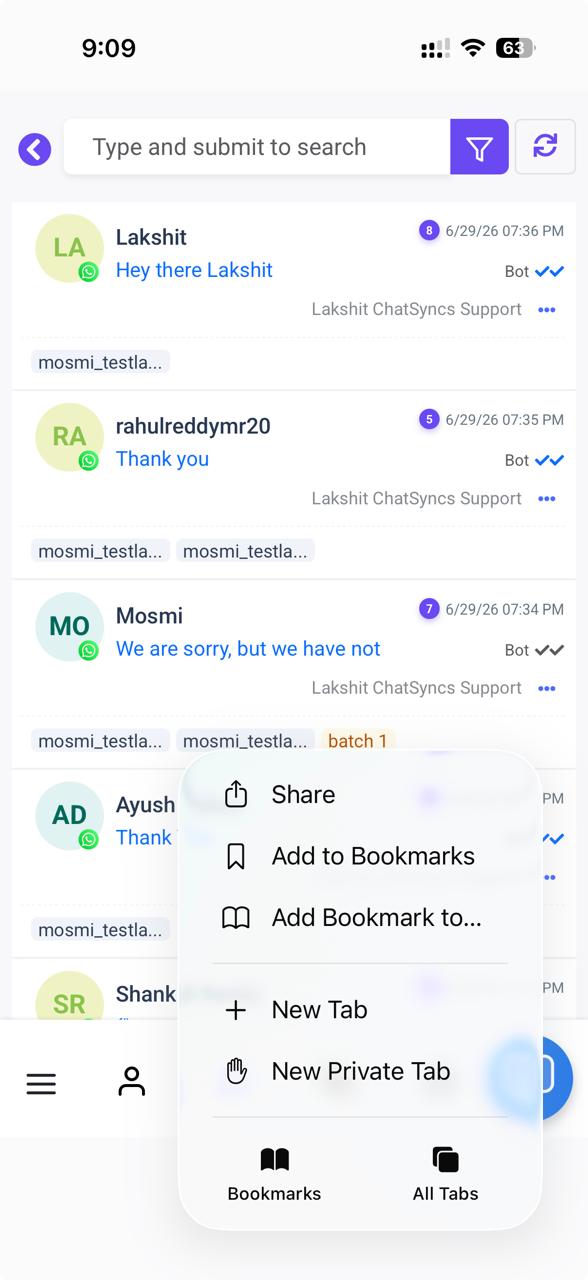 Tap the **Share** icon (on some Safari layouts this is at the bottom of the screen; on
others it's the first item in the top menu, as shown here).
Tap the **Share** icon (on some Safari layouts this is at the bottom of the screen; on
others it's the first item in the top menu, as shown here).
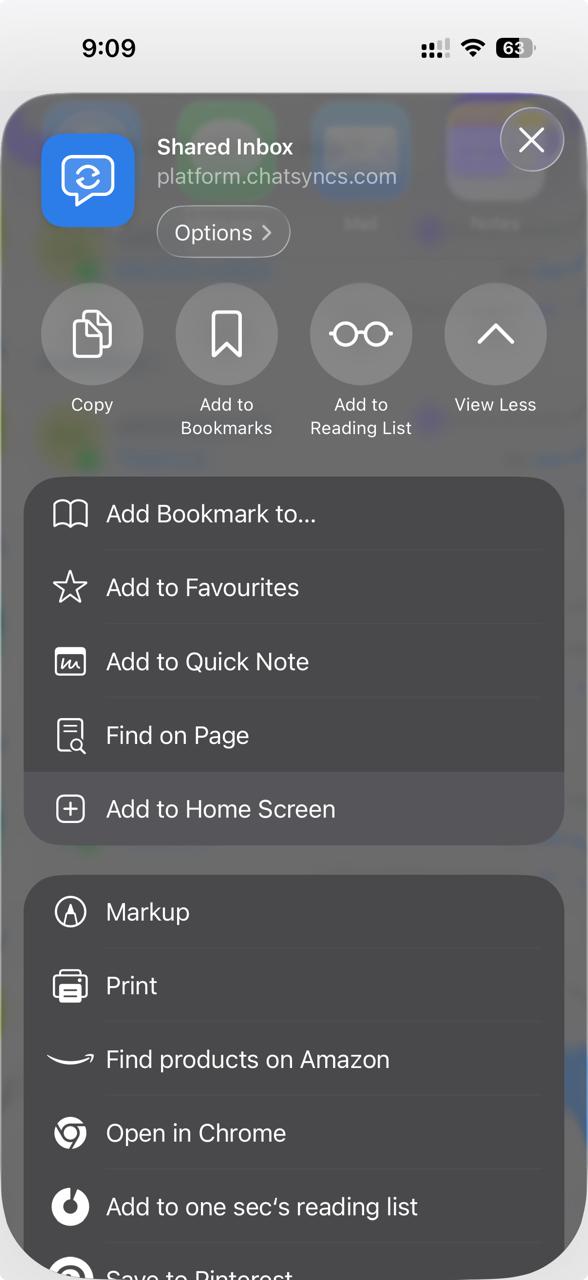 Scroll down in the Share menu and tap **Add to Home Screen**.
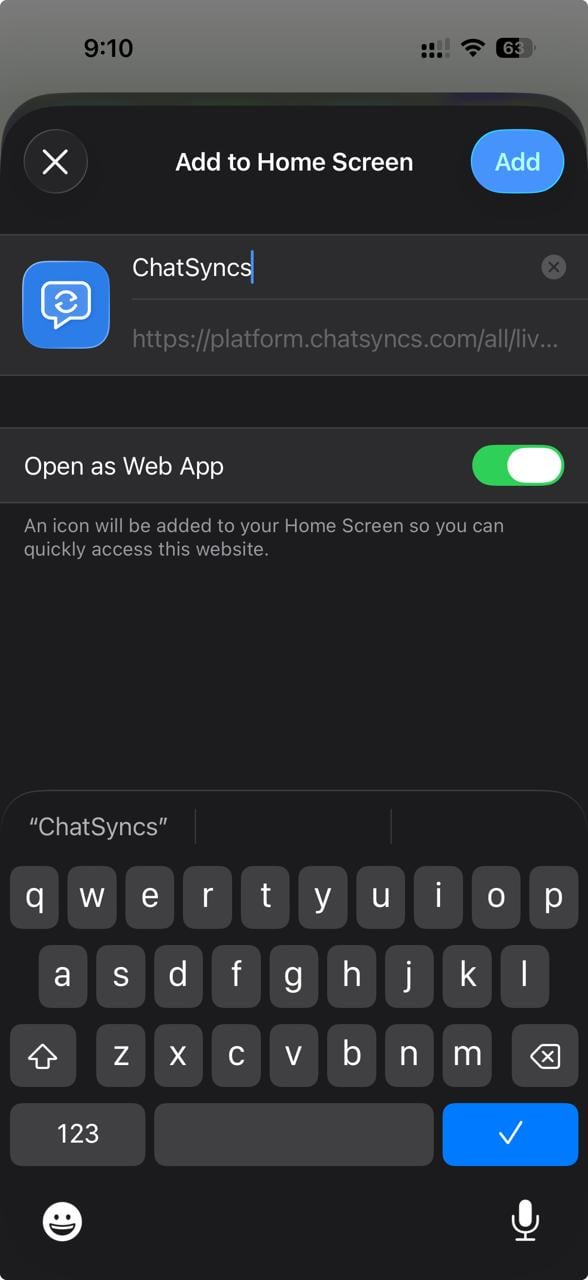 Review the app name if needed, keep **Open as Web App** enabled, then tap **Add** in the
top-right corner.
Review the app name if needed, keep **Open as Web App** enabled, then tap **Add** in the
top-right corner.
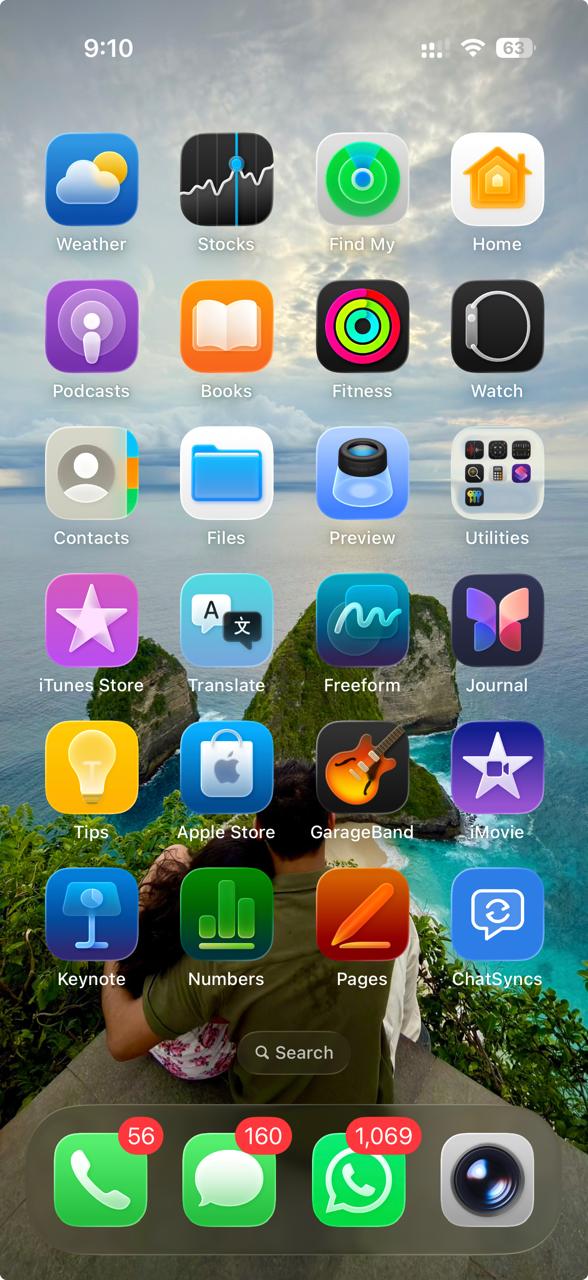 The ChatSyncs icon is added to your **Home Screen**. Tap it to open and use ChatSyncs like a
native app, without opening Safari first.
If **Add to Home Screen** isn't visible in the Share menu, confirm you're using **Safari** —
this option doesn't appear in Chrome or other iOS browsers.
## Frequently asked
Yes, but only through **Safari** — open Shared Inbox in Safari, tap **Share**, then **Add to
Home Screen**, then **Add**. It won't work from Chrome or another browser on iOS.
Confirm you're using Safari — this option doesn't appear in Chrome or other iOS browsers.
No — this is a Progressive Web App install through Safari, not an App Store download.
## What's next
Need this on Android instead? See
[Install ChatSyncs on Android](/learn/install-chatsyncs-android).
The ChatSyncs icon is added to your **Home Screen**. Tap it to open and use ChatSyncs like a
native app, without opening Safari first.
If **Add to Home Screen** isn't visible in the Share menu, confirm you're using **Safari** —
this option doesn't appear in Chrome or other iOS browsers.
## Frequently asked
Yes, but only through **Safari** — open Shared Inbox in Safari, tap **Share**, then **Add to
Home Screen**, then **Add**. It won't work from Chrome or another browser on iOS.
Confirm you're using Safari — this option doesn't appear in Chrome or other iOS browsers.
No — this is a Progressive Web App install through Safari, not an App Store download.
## What's next
Need this on Android instead? See
[Install ChatSyncs on Android](/learn/install-chatsyncs-android).