> ## Documentation Index
> Fetch the complete documentation index at: https://docs.chatsyncs.com/llms.txt
> Use this file to discover all available pages before exploring further.
# Gym Membership Plan Selector — Implementation Guide
> Step-by-step implementation guide for a WhatsApp Keyword Replies automation that lets a gym's prospects browse membership plans and book a trial, built with Interactive Message Reply Buttons, Image Message, and a CTA URL Button. Use this when a customer is ready to actually build a plan-selector bot for a gym, studio, or other membership-based business.
## Prerequisites
* A WhatsApp number connected to ChatSyncs — see
[Connect WhatsApp](/learn/connect-whatsapp-embedded).
* Read [Keyword Replies](/learn/whatsapp-keyword-replies) first to understand how the whole flow builder
works — this guide only covers what's specific to this project, not Keyword Replies itself.
* A pricing image ready for each membership tier (Monthly, Quarterly, Annual).
* A booking page URL to link the **Book a Free Trial** button to.
## Implementation Guide
### Step 1 — Create the Keyword Replies flow
**Objective:** Set up the flow that will run this entire conversation.
**Explanation:** [Keyword Replies](/learn/whatsapp-keyword-replies) is the flow builder every block in this
project connects through — the trigger, the buttons, and every message that follows all live on
one canvas.
**Actions to perform:**
* Open **Keyword Replies** and click **Create**.
* Set the **Trigger Keywords** to `hi, join`.
* Give the flow a clear **Title**, e.g. `Gym Membership Plan Selector`.
**Expected result:** A new, empty Keyword Replies flow ready to have blocks added to it.
**Notes:** Use **Exact keyword match** unless you also want to catch close variants like
"joining" — then use **String match** instead.
### Step 2 — Add the welcome Interactive Message
**Objective:** Greet the prospect and present the three plan options.
**Explanation:** An Interactive Message can carry a welcome body and up to three Reply Buttons
in a single message — no separate text message needed first.
**Actions to perform:**
* Drag an **Interactive Message** block onto the canvas, connected to Start Bot Flow.
* Body text: `Welcome to FitZone Gym! Choose a plan to see pricing and perks.`
* Add three **Reply Buttons**: `🏋️ Monthly`, `📅 Quarterly`, `💪 Annual`.
**Expected result:** Messaging "hi" now returns the welcome message with all three buttons
visible.
**Notes:** Reply Buttons are capped at 3 per message — if the gym ever adds a 4th tier, switch
this step to a **List Message** instead (supports up to 10 options).
### Step 3 — Connect each plan to its pricing and trial link
**Objective:** Show the right pricing and a way to book a trial, for whichever plan the
prospect taps.
**Explanation:** Each Reply Button branches to its own **Image Message** (the plan's pricing
card), followed by a **CTA URL Button** that opens the trial booking page.
**Actions to perform:**
* For each of the 3 buttons, drag an **Image Message** block and upload that plan's pricing
image.
* After each Image Message, add a **CTA URL Button** labeled `Book a Free Trial`, pointing to
the gym's booking page URL.
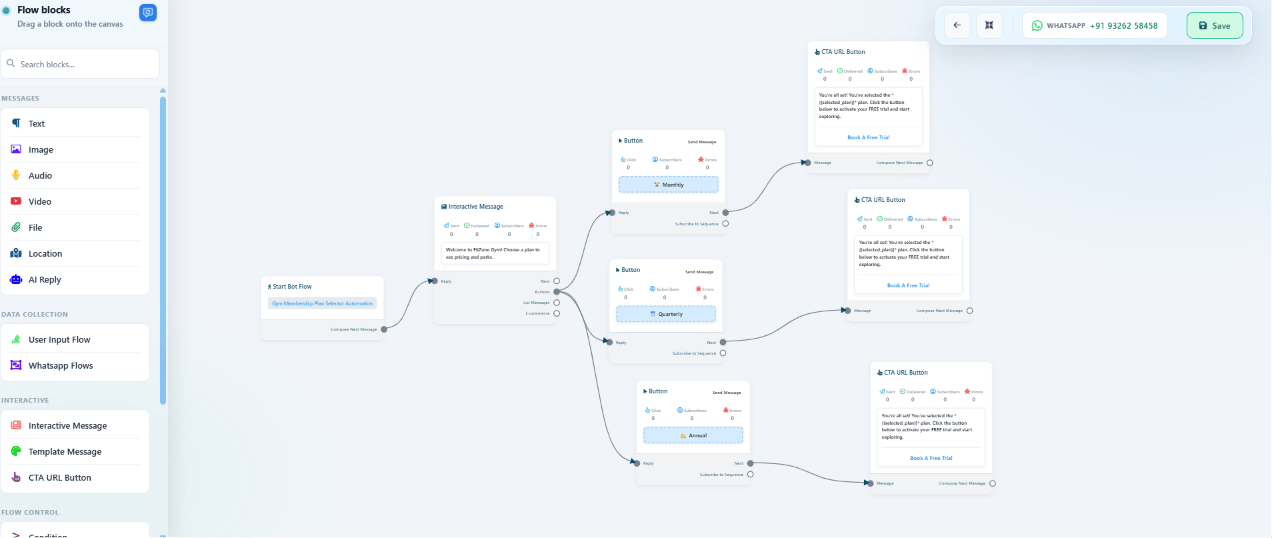 **Expected result:** Tapping any of the 3 plan buttons shows that plan's pricing image, followed
by a tappable trial-booking link.
**Notes:** Double-check each plan button is wired to its *own* image — a common mistake is
connecting two plan buttons to the same pricing card.
### Step 4 — Save and test
**Objective:** Confirm the whole flow works end to end before sending it to real prospects.
**Explanation:** An unsaved Keyword Replies flow won't respond to any trigger keyword, even if it
looks complete on the canvas.
**Actions to perform:**
* Click **Save Changes**, then confirm the flow appears active in the Keyword Replies list.
* From a real WhatsApp number, message "hi" and tap through all 3 plan buttons.
**Expected result:** Every plan button leads to the correct pricing image and the correct
trial-booking link.
## Features Used
| Feature | Purpose | Documentation |
| ----------------------------------- | -------------------------------- | ---------------------------------------------------------------------- |
| Keyword Replies | Runs the whole conversation flow | [Keyword Replies](/learn/whatsapp-keyword-replies) |
| Interactive Message / Reply Buttons | Welcome message + plan selection | [Keyword Replies](/learn/whatsapp-keyword-replies#add-flow-components) |
| Image Message | Shows each plan's pricing card | [Keyword Replies](/learn/whatsapp-keyword-replies#add-flow-components) |
| CTA URL Button | Opens the trial-booking page | [Keyword Replies](/learn/whatsapp-keyword-replies#add-flow-components) |
## Expected Result
* Prospects get instant, accurate plan information at any hour, with no staff involved.
* Every prospect sees the exact same pricing and perks — no inconsistent answers.
* Every conversation ends at the same "Book a Free Trial" link, so no lead is left without a
next step.
## FAQs
Reply Buttons are limited to 3 per message. For more plans, replace that step with a **List
Message**, which supports up to 10 options — see the component table in
[Keyword Replies](/learn/whatsapp-keyword-replies#add-flow-components).
Not in this base version — every step is a button tap, no data collection. Add a **User
Input Flow** after the CTA button if you want to capture a lead before they leave the chat.
Not directly from this flow, since the trial booking happens on an external page. Add a
Webhook or Email Integration on that booking page's side, or extend this flow with a lead
capture step before the CTA link.
Nothing, unless another trigger is configured to catch it. Add more trigger keywords, or use
the **No Match** [Action Button](/learn/whatsapp-quick-actions) to catch anything
unrecognized.
Yes — add an [Audio Message](/learn/whatsapp-audio-message) after the welcome message for a
short trainer voice intro, or after each plan's pricing image for a spoken walkthrough.
Yes — enroll them into a [Follow-up Sequences](/learn/whatsapp-sequence) after they tap a plan button,
so they get a reminder a few days later if they haven't booked yet.
No — the entire flow is built by dragging blocks onto the Keyword Replies canvas and filling in
text, images, and links.
Yes — any business offering a small set of fixed plans or packages (a salon, a coworking
space, a subscription box) can use the same welcome → plan buttons → pricing → CTA pattern.
## Related Documentation
* [Keyword Replies](/learn/whatsapp-keyword-replies) — the bot flow builder this entire project
is built on.
* [Connect WhatsApp](/learn/connect-whatsapp-embedded) — connect the WhatsApp number this flow
runs on.
* [Follow-up Sequences](/learn/whatsapp-sequence) — re-engage prospects who don't book a trial
right away.
* [Audio Message](/learn/whatsapp-audio-message) — add a spoken walkthrough alongside the pricing
images.
Start over from the beginning of this use case.
**Expected result:** Tapping any of the 3 plan buttons shows that plan's pricing image, followed
by a tappable trial-booking link.
**Notes:** Double-check each plan button is wired to its *own* image — a common mistake is
connecting two plan buttons to the same pricing card.
### Step 4 — Save and test
**Objective:** Confirm the whole flow works end to end before sending it to real prospects.
**Explanation:** An unsaved Keyword Replies flow won't respond to any trigger keyword, even if it
looks complete on the canvas.
**Actions to perform:**
* Click **Save Changes**, then confirm the flow appears active in the Keyword Replies list.
* From a real WhatsApp number, message "hi" and tap through all 3 plan buttons.
**Expected result:** Every plan button leads to the correct pricing image and the correct
trial-booking link.
## Features Used
| Feature | Purpose | Documentation |
| ----------------------------------- | -------------------------------- | ---------------------------------------------------------------------- |
| Keyword Replies | Runs the whole conversation flow | [Keyword Replies](/learn/whatsapp-keyword-replies) |
| Interactive Message / Reply Buttons | Welcome message + plan selection | [Keyword Replies](/learn/whatsapp-keyword-replies#add-flow-components) |
| Image Message | Shows each plan's pricing card | [Keyword Replies](/learn/whatsapp-keyword-replies#add-flow-components) |
| CTA URL Button | Opens the trial-booking page | [Keyword Replies](/learn/whatsapp-keyword-replies#add-flow-components) |
## Expected Result
* Prospects get instant, accurate plan information at any hour, with no staff involved.
* Every prospect sees the exact same pricing and perks — no inconsistent answers.
* Every conversation ends at the same "Book a Free Trial" link, so no lead is left without a
next step.
## FAQs
Reply Buttons are limited to 3 per message. For more plans, replace that step with a **List
Message**, which supports up to 10 options — see the component table in
[Keyword Replies](/learn/whatsapp-keyword-replies#add-flow-components).
Not in this base version — every step is a button tap, no data collection. Add a **User
Input Flow** after the CTA button if you want to capture a lead before they leave the chat.
Not directly from this flow, since the trial booking happens on an external page. Add a
Webhook or Email Integration on that booking page's side, or extend this flow with a lead
capture step before the CTA link.
Nothing, unless another trigger is configured to catch it. Add more trigger keywords, or use
the **No Match** [Action Button](/learn/whatsapp-quick-actions) to catch anything
unrecognized.
Yes — add an [Audio Message](/learn/whatsapp-audio-message) after the welcome message for a
short trainer voice intro, or after each plan's pricing image for a spoken walkthrough.
Yes — enroll them into a [Follow-up Sequences](/learn/whatsapp-sequence) after they tap a plan button,
so they get a reminder a few days later if they haven't booked yet.
No — the entire flow is built by dragging blocks onto the Keyword Replies canvas and filling in
text, images, and links.
Yes — any business offering a small set of fixed plans or packages (a salon, a coworking
space, a subscription box) can use the same welcome → plan buttons → pricing → CTA pattern.
## Related Documentation
* [Keyword Replies](/learn/whatsapp-keyword-replies) — the bot flow builder this entire project
is built on.
* [Connect WhatsApp](/learn/connect-whatsapp-embedded) — connect the WhatsApp number this flow
runs on.
* [Follow-up Sequences](/learn/whatsapp-sequence) — re-engage prospects who don't book a trial
right away.
* [Audio Message](/learn/whatsapp-audio-message) — add a spoken walkthrough alongside the pricing
images.
Start over from the beginning of this use case.