> ## Documentation Index
> Fetch the complete documentation index at: https://docs.chatsyncs.com/llms.txt
> Use this file to discover all available pages before exploring further.
# Disconnect Another Partner From Your WhatsApp Number
> How to remove a different BSP/platform's access to your WhatsApp Business Account before connecting it to ChatSyncs — from Meta Business Suite's Partners list, plus the extra WhatsApp Business App step required if the number is on Coexistence. Use when a customer's connection fails with an error that their number is already linked to another platform or partner.
A WhatsApp number can only have **Full access** assigned to one partner at a time. If it was
previously connected to a different BSP or automation platform, Meta blocks ChatSyncs from
connecting until that old partner's access is removed — this is the fix for the "you need to
unlink your number first" error mentioned in [Connect Account
(Embedded)](/learn/connect-whatsapp-embedded#frequently-asked).
## Remove the partner in Meta Business Suite
In [Meta Business Suite](https://business.facebook.com) Settings, go to **Users →
Partners**. Select the partner you want to disconnect — it shows which WhatsApp account
it currently has access to.
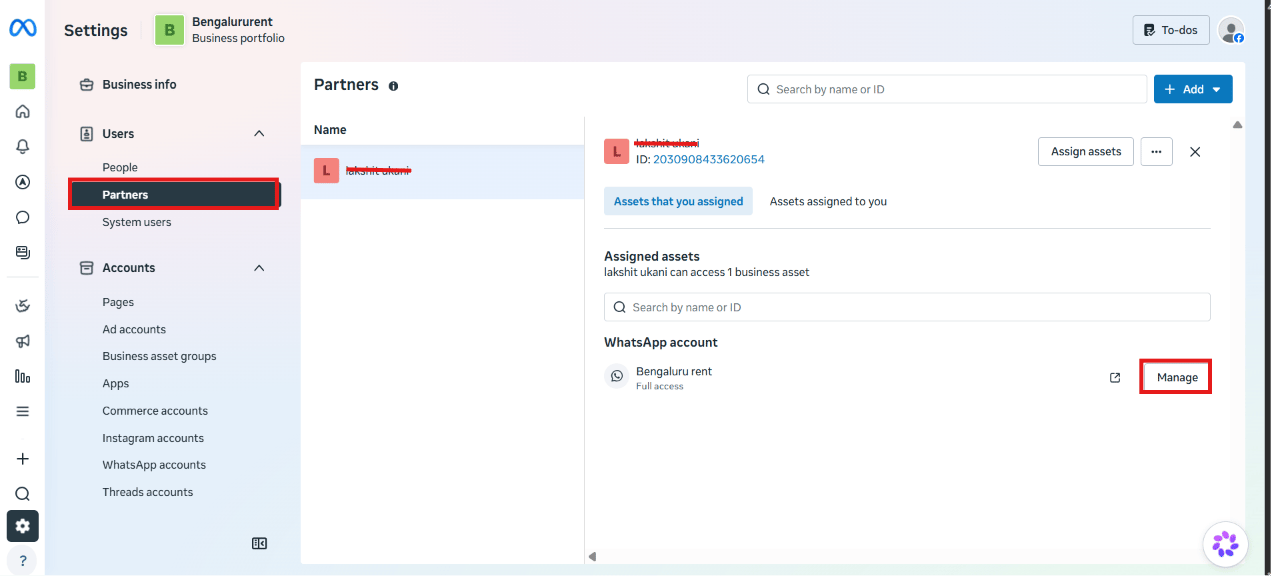 Click **Manage** next to the WhatsApp account. In the **Manage assignments** dialog, click
**Remove access** at the bottom.
Click **Manage** next to the WhatsApp account. In the **Manage assignments** dialog, click
**Remove access** at the bottom.
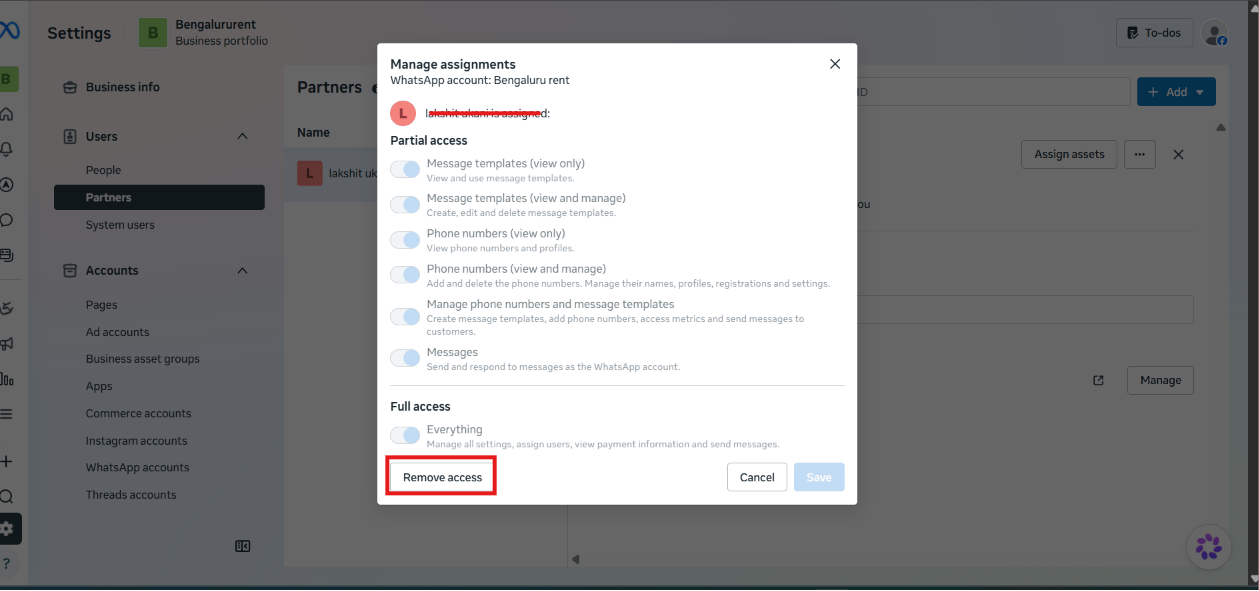 **Expected result:** The old partner no longer appears with access to this WhatsApp account,
and the number is free to connect elsewhere.
If the number was connected via **Cloud API only** (not Coexistence), this step alone is
usually enough — try connecting to ChatSyncs again. If it was connected via **Coexistence**
(the WhatsApp Business App stays active on a phone), continue to the next section — the app
itself also remembers the old connection.
## If the number uses Coexistence: also disconnect from the phone
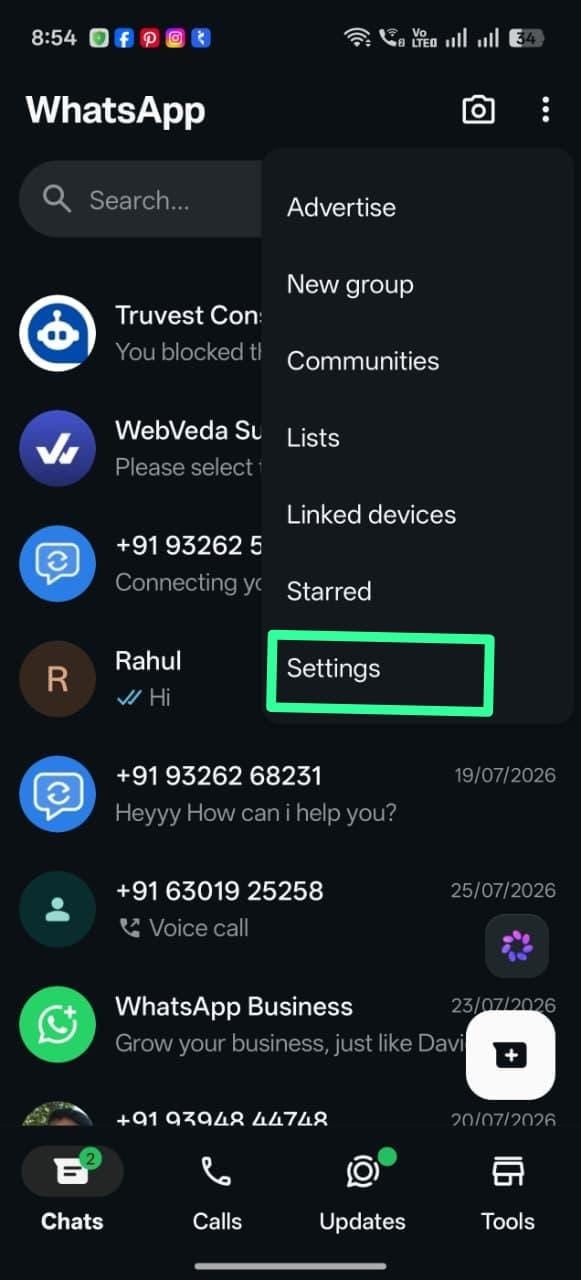
On the phone with the WhatsApp Business app, tap the **⋮** menu, then **Settings**.
**Expected result:** The old partner no longer appears with access to this WhatsApp account,
and the number is free to connect elsewhere.
If the number was connected via **Cloud API only** (not Coexistence), this step alone is
usually enough — try connecting to ChatSyncs again. If it was connected via **Coexistence**
(the WhatsApp Business App stays active on a phone), continue to the next section — the app
itself also remembers the old connection.
## If the number uses Coexistence: also disconnect from the phone
On the phone with the WhatsApp Business app, tap the **⋮** menu, then **Settings**.
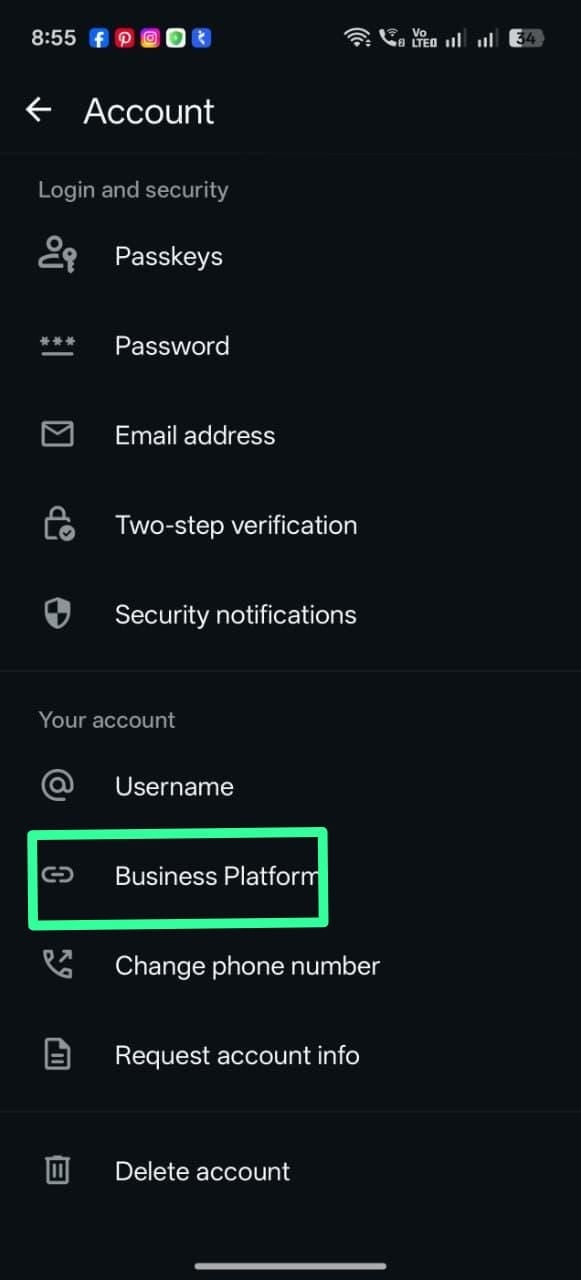
 In Settings, tap **Account**.
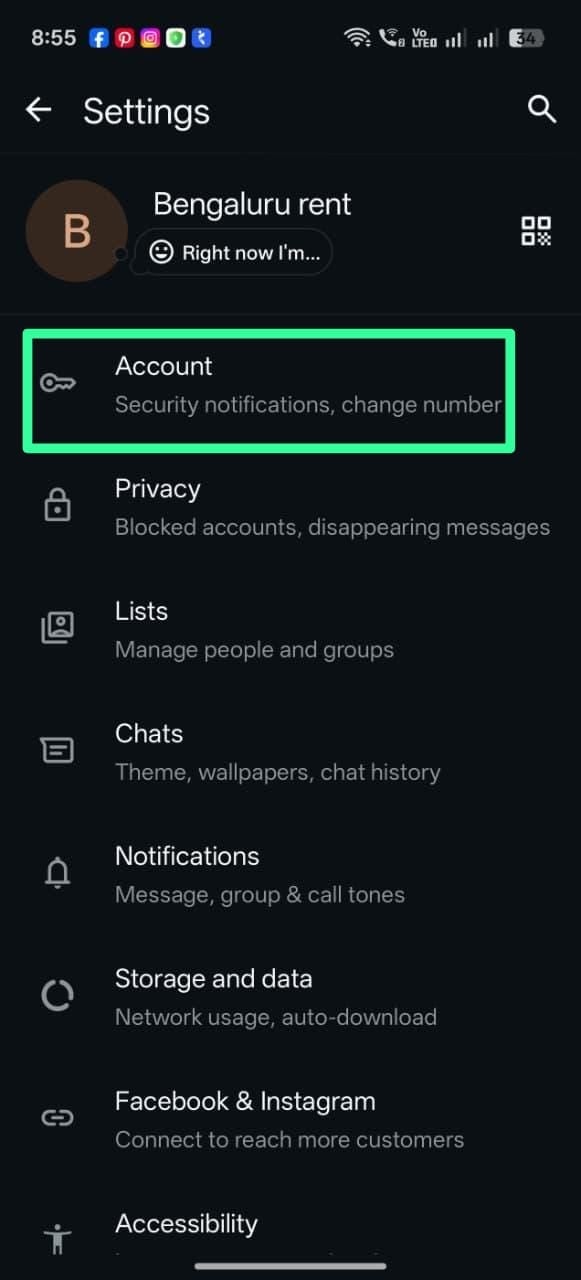 Under **Your account**, tap **Business Platform**.
 The currently connected partner is listed with "Tap to disconnect." Tap it and confirm.
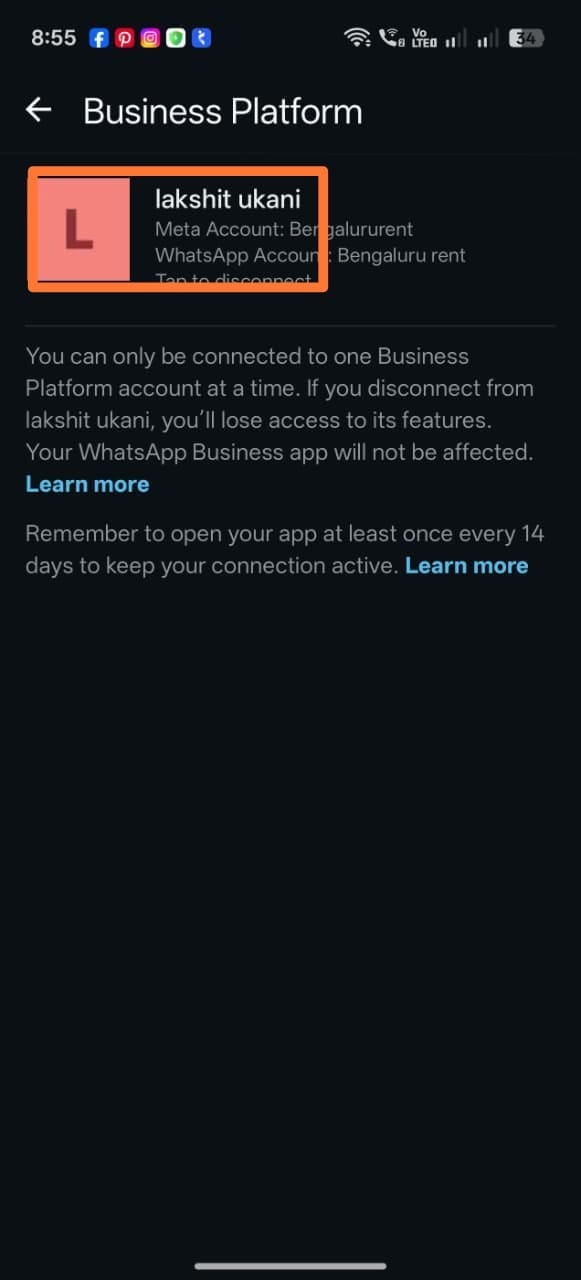 **Expected result:** The number shows no connected Business Platform partner. You can now
reconnect it — to ChatSyncs via Coexistence, if that's the path you're using.
Disconnecting here only removes the old partner's API access — it doesn't affect your chats,
contacts, or the WhatsApp Business app itself.
## What's next
Once the number shows no connected partner in both places, go back to [connecting your
account](/learn/connect-whatsapp-embedded) and try again.
**Expected result:** The number shows no connected Business Platform partner. You can now
reconnect it — to ChatSyncs via Coexistence, if that's the path you're using.
Disconnecting here only removes the old partner's API access — it doesn't affect your chats,
contacts, or the WhatsApp Business app itself.
## What's next
Once the number shows no connected partner in both places, go back to [connecting your
account](/learn/connect-whatsapp-embedded) and try again.