> ## Documentation Index
> Fetch the complete documentation index at: https://docs.chatsyncs.com/llms.txt
> Use this file to discover all available pages before exploring further.
# User Permission
> User Permission packages define what a team role can do — toggle a feature (Chatbot Manager, Live Chat, Broadcast, WhatsApp Carousel Template, etc.) on or off, then grant Create/Update/Delete/Special access for it. Use this when a customer asks how to limit what a team member or role can access in ChatSyncs.
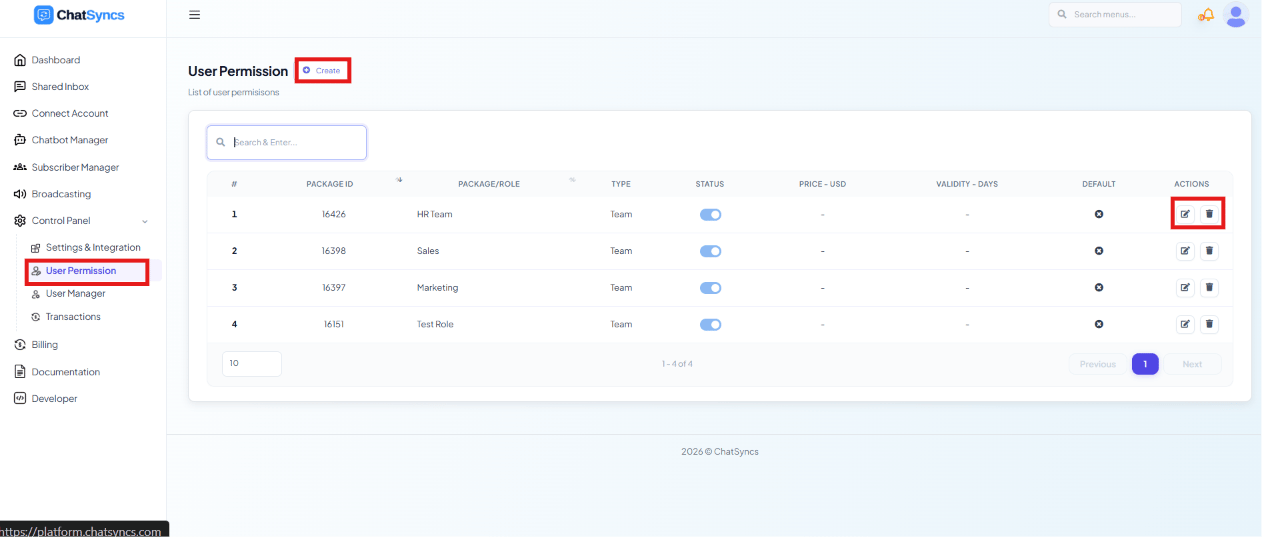 **Control Panel → User Permission** lists the permission packages (roles) you can assign to
team members under [User Manager](/learn/control-panel-user-manager). Each row shows its
**Package ID**, **Package/Role** name, **Type**, **Status** (enabled/disabled), **Price - USD**,
**Validity - days**, and whether it's the **Default** role. Click **Create** to define a new
one.
## The permission matrix
**Control Panel → User Permission** lists the permission packages (roles) you can assign to
team members under [User Manager](/learn/control-panel-user-manager). Each row shows its
**Package ID**, **Package/Role** name, **Type**, **Status** (enabled/disabled), **Price - USD**,
**Validity - days**, and whether it's the **Default** role. Click **Create** to define a new
one.
## The permission matrix
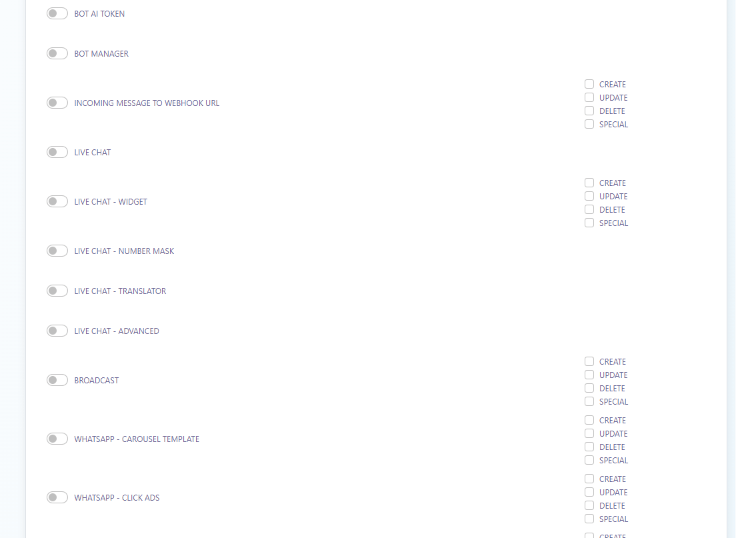 Each permission package is built feature-by-feature. Turn a feature's toggle on to grant access
to it at all, then check **Create**, **Update**, **Delete**, and/or **Special** to control what
that role can do with it. Features include things like **Bot AI Token**, **Chatbot Manager**,
**Incoming Message to Webhook URL**, **Live Chat** (and its **Widget**, **Number Mask**,
**Translator**, and **Advanced** sub-permissions), **Broadcast**, **WhatsApp - Carousel
Template**, and **WhatsApp - Click Ads** — the list continues with the rest of ChatSyncs'
features.
For example, to give a support agent role access to handle live chats but not send broadcasts:
turn **Live Chat** on with **Create**/**Update** checked, and leave **Broadcast** toggled off.
## Frequently asked
Edit their **User Permission** package and toggle **Broadcast** off (or leave its
Create/Update/Delete/Special boxes unchecked) — they'll keep access to whatever else their
role allows.
The toggle controls whether the role can access the feature at all. The
Create/Update/Delete/Special checkboxes control which specific actions they can take within
it once access is granted.
Permission packages are created here, then assigned to a user from
[User Manager](/learn/control-panel-user-manager).
Each permission package is built feature-by-feature. Turn a feature's toggle on to grant access
to it at all, then check **Create**, **Update**, **Delete**, and/or **Special** to control what
that role can do with it. Features include things like **Bot AI Token**, **Chatbot Manager**,
**Incoming Message to Webhook URL**, **Live Chat** (and its **Widget**, **Number Mask**,
**Translator**, and **Advanced** sub-permissions), **Broadcast**, **WhatsApp - Carousel
Template**, and **WhatsApp - Click Ads** — the list continues with the rest of ChatSyncs'
features.
For example, to give a support agent role access to handle live chats but not send broadcasts:
turn **Live Chat** on with **Create**/**Update** checked, and leave **Broadcast** toggled off.
## Frequently asked
Edit their **User Permission** package and toggle **Broadcast** off (or leave its
Create/Update/Delete/Special boxes unchecked) — they'll keep access to whatever else their
role allows.
The toggle controls whether the role can access the feature at all. The
Create/Update/Delete/Special checkboxes control which specific actions they can take within
it once access is granted.
Permission packages are created here, then assigned to a user from
[User Manager](/learn/control-panel-user-manager).