> ## Documentation Index
> Fetch the complete documentation index at: https://docs.chatsyncs.com/llms.txt
> Use this file to discover all available pages before exploring further.
# Transactions
> Transactions under Control Panel has two views: the default Transaction Log (automatic, gateway-processed subscription payments) and Manual Transactions (bank transfers and other manually-submitted payments an admin must review and approve). Use this when a customer asks about a payment's status, or says they paid manually and are waiting for their plan to activate.
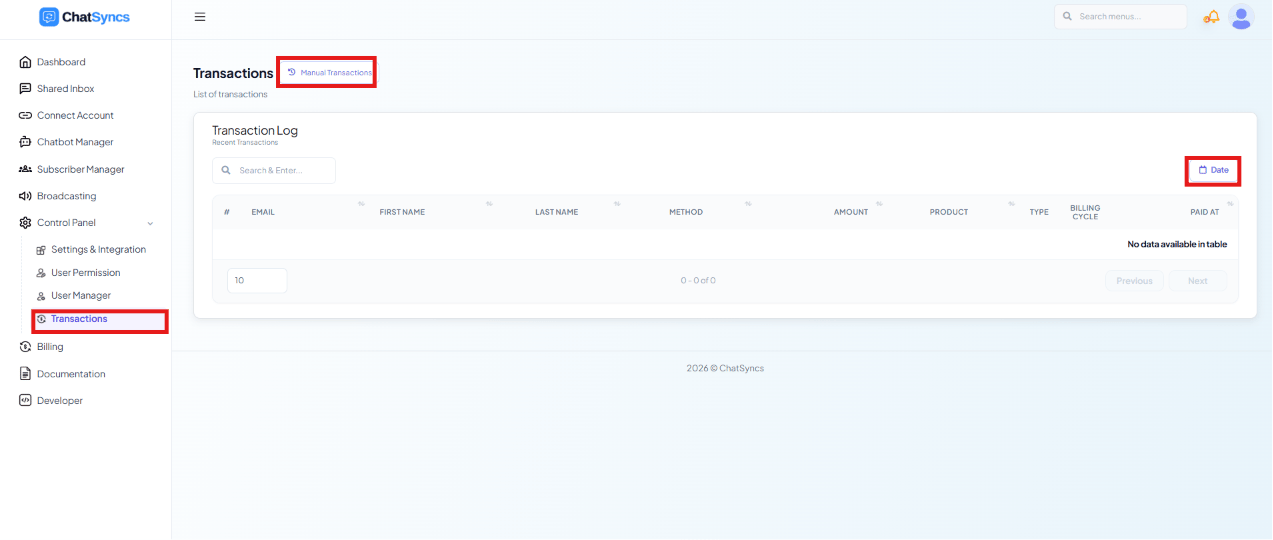 **Control Panel → Transactions** opens on the **Transaction Log** — every automatic,
gateway-processed subscription payment. A separate **Manual Transactions** button (top right)
opens the review queue for payments submitted outside an automated gateway, e.g. bank
transfers.
## Transaction Log (automatic payments)
| Column | Description |
| ------------------------------ | ------------------------------------ |
| **Email** | Customer email address |
| **First Name** / **Last Name** | Customer name |
| **Method** | Payment method used |
| **Amount** | Payment amount |
| **Product** | The plan or product purchased |
| **Type** | Transaction type |
| **Billing Cycle** | The subscription's billing frequency |
| **Paid At** | Payment date |
Use the search box to find a transaction, or the **Date** filter to narrow the log to a range.
## Manual Transactions
**Control Panel → Transactions** opens on the **Transaction Log** — every automatic,
gateway-processed subscription payment. A separate **Manual Transactions** button (top right)
opens the review queue for payments submitted outside an automated gateway, e.g. bank
transfers.
## Transaction Log (automatic payments)
| Column | Description |
| ------------------------------ | ------------------------------------ |
| **Email** | Customer email address |
| **First Name** / **Last Name** | Customer name |
| **Method** | Payment method used |
| **Amount** | Payment amount |
| **Product** | The plan or product purchased |
| **Type** | Transaction type |
| **Billing Cycle** | The subscription's billing frequency |
| **Paid At** | Payment date |
Use the search box to find a transaction, or the **Date** filter to narrow the log to a range.
## Manual Transactions
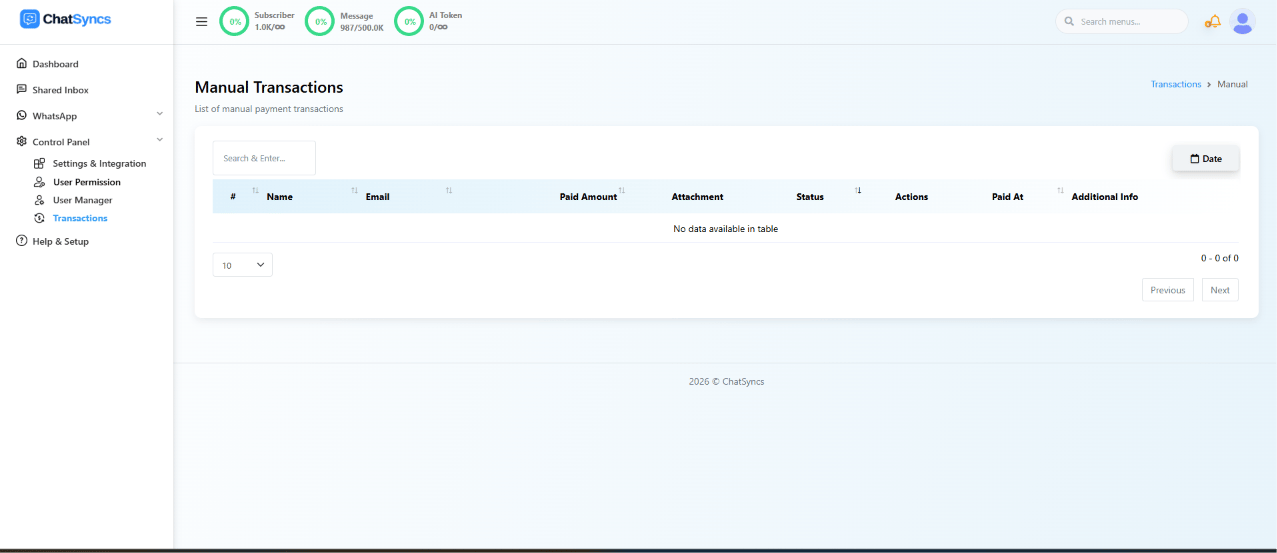 Customers who pay outside an automated gateway (e.g. by bank transfer) upload proof of payment,
which lands here for an admin to review, verify, and approve or reject.
| Column | Description |
| ------------------- | -------------------------- |
| **Name** | Customer name |
| **Email** | Customer email address |
| **Paid Amount** | Payment amount submitted |
| **Attachment** | Uploaded payment proof |
| **Status** | Current transaction status |
| **Paid At** | Payment date |
| **Additional Info** | Extra payment details |
Use the search box to find a transaction by customer name or email, or filter by date.
### Reviewing a transaction
A customer buys a subscription and pays via bank transfer, then uploads the receipt through the
app. The admin opens **Transactions → Manual Transactions**, reviews the uploaded attachment to
verify the payment, and updates the **Status** to **Approved**. Once approved, the customer's
subscription activates.
## Frequently asked
Go to **Control Panel → Transactions → Manual Transactions** and search for the customer by
name or email. Check whether their submission is still pending review, and verify the
uploaded payment **Attachment** before approving it.
**Control Panel → Transactions → Manual Transactions** — only payments submitted manually
(e.g. bank transfer with an uploaded receipt) appear here. Automated, gateway-processed
payments appear in the default **Transaction Log** instead.
Approving the transaction activates the customer's subscription for the plan they paid for.
**Always verify the uploaded attachment before approving** — approving a transaction activates
the customer's subscription immediately, so confirm the payment proof matches the claimed
**Paid Amount** first.
Customers who pay outside an automated gateway (e.g. by bank transfer) upload proof of payment,
which lands here for an admin to review, verify, and approve or reject.
| Column | Description |
| ------------------- | -------------------------- |
| **Name** | Customer name |
| **Email** | Customer email address |
| **Paid Amount** | Payment amount submitted |
| **Attachment** | Uploaded payment proof |
| **Status** | Current transaction status |
| **Paid At** | Payment date |
| **Additional Info** | Extra payment details |
Use the search box to find a transaction by customer name or email, or filter by date.
### Reviewing a transaction
A customer buys a subscription and pays via bank transfer, then uploads the receipt through the
app. The admin opens **Transactions → Manual Transactions**, reviews the uploaded attachment to
verify the payment, and updates the **Status** to **Approved**. Once approved, the customer's
subscription activates.
## Frequently asked
Go to **Control Panel → Transactions → Manual Transactions** and search for the customer by
name or email. Check whether their submission is still pending review, and verify the
uploaded payment **Attachment** before approving it.
**Control Panel → Transactions → Manual Transactions** — only payments submitted manually
(e.g. bank transfer with an uploaded receipt) appear here. Automated, gateway-processed
payments appear in the default **Transaction Log** instead.
Approving the transaction activates the customer's subscription for the plan they paid for.
**Always verify the uploaded attachment before approving** — approving a transaction activates
the customer's subscription immediately, so confirm the payment proof matches the claimed
**Paid Amount** first.