> ## Documentation Index
> Fetch the complete documentation index at: https://docs.chatsyncs.com/llms.txt
> Use this file to discover all available pages before exploring further.
# Security
> Account-security tools under Control Panel → Settings & Integration — Logged-in Devices, Login Activity, Direct Login (support access), and IP Manager. Use this when a customer worries someone else is in their account, wants to audit access, or wants to lock logins to specific IPs.
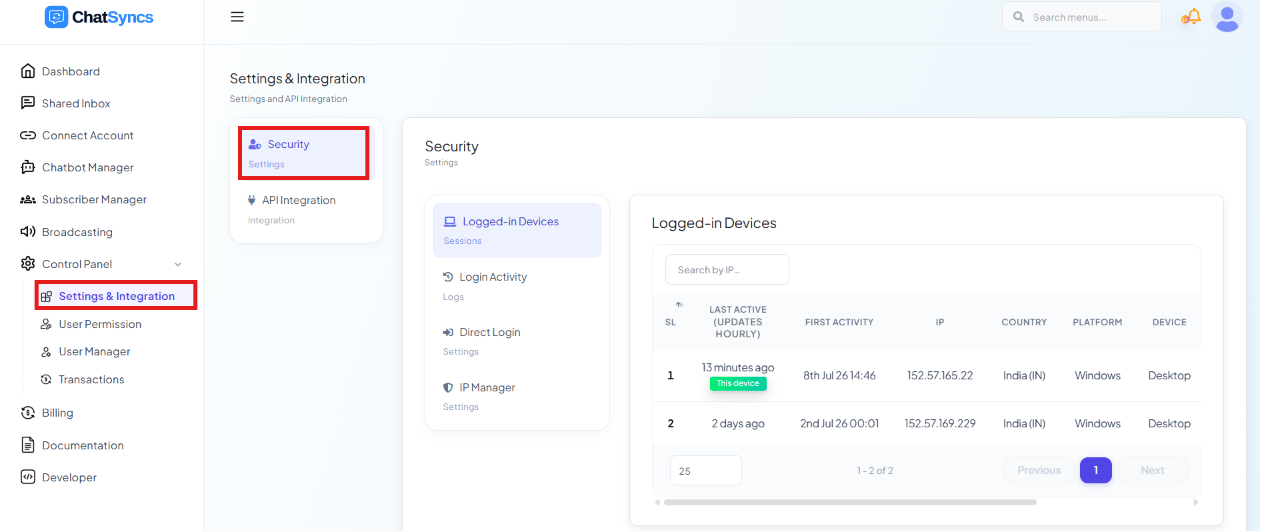 **Control Panel → Settings & Integration → Security** protects the account and gives you
visibility into who's logging in, from where, and on what device.
## Logged-in Devices
Every device currently signed in, with:
* **Last Active** — when the session was last used
* **First Login** — when that session began
* **IP Address** and **Country**
* **Platform** (Windows, Android, etc.) and **Device Type** (Desktop/Mobile)
* **Browser**
* **Timezone**
**Example:** a customer sees a login from a country they've never visited, on an Android
device, at 3am. That's an unrecognized session — they can log it out from this list without
changing their password.
## Login Activity
The history of every login *attempt*, not just active sessions — time, IP address, browser,
device, and whether it succeeded or failed. Use it to spot a pattern of failed attempts (a sign
someone is trying to guess the password) or to confirm exactly when a specific login happened.
## Direct Login
An **Allow Admin to Login with Direct Link** toggle that lets ChatSyncs support sign directly
into the account — no password needed — to troubleshoot an issue.
* **Enabled:** support can access the account (with permission) for faster issue resolution.
* **Disabled (default):** support cannot log in directly; they can only guide the customer
through the UI themselves.
**Example:** a customer's bot flow is broken and they can't figure out why. They enable Direct
Login, support reproduces the bug directly in the account, fixes the flow, and the customer
turns the toggle back off.
## IP Manager
Restricts account access to an allow-list of IP addresses — anything not on the list is
blocked.
**Example:** an agency wants only their office network to be able to log into the account, even
if someone has the correct password. They add the office's IP address in IP Manager; a login
attempt from a hotel Wi-Fi elsewhere gets blocked.
## Frequently asked
Go to **Security → Logged-in Devices** — it lists every active session with its IP, country,
device, and browser, so you can spot and log out anything you don't recognize.
Only if you enable **Direct Login → Allow Admin to Login with Direct Link**. Leave it off
unless you trust support with direct access for troubleshooting, and turn it back off once
the issue is resolved.
**Login Activity** shows every login attempt with its status (success/failed). A cluster of
failed attempts from an unfamiliar IP is a sign of a guessing attack — consider restricting
access with **IP Manager**.
Yes — add your office's IP address (or address range) to **IP Manager**. Logins from any
other IP will be blocked, even with the correct password.
* **Direct Login grants ChatSyncs support access to the account** — only enable it while you
actually need support's help, and confirm it's off again afterward.
* **IP Manager blocks everyone not on the list, including yourself if you get the IP wrong** —
double-check the address before saving, especially if your team works from a dynamic IP.
**Control Panel → Settings & Integration → Security** protects the account and gives you
visibility into who's logging in, from where, and on what device.
## Logged-in Devices
Every device currently signed in, with:
* **Last Active** — when the session was last used
* **First Login** — when that session began
* **IP Address** and **Country**
* **Platform** (Windows, Android, etc.) and **Device Type** (Desktop/Mobile)
* **Browser**
* **Timezone**
**Example:** a customer sees a login from a country they've never visited, on an Android
device, at 3am. That's an unrecognized session — they can log it out from this list without
changing their password.
## Login Activity
The history of every login *attempt*, not just active sessions — time, IP address, browser,
device, and whether it succeeded or failed. Use it to spot a pattern of failed attempts (a sign
someone is trying to guess the password) or to confirm exactly when a specific login happened.
## Direct Login
An **Allow Admin to Login with Direct Link** toggle that lets ChatSyncs support sign directly
into the account — no password needed — to troubleshoot an issue.
* **Enabled:** support can access the account (with permission) for faster issue resolution.
* **Disabled (default):** support cannot log in directly; they can only guide the customer
through the UI themselves.
**Example:** a customer's bot flow is broken and they can't figure out why. They enable Direct
Login, support reproduces the bug directly in the account, fixes the flow, and the customer
turns the toggle back off.
## IP Manager
Restricts account access to an allow-list of IP addresses — anything not on the list is
blocked.
**Example:** an agency wants only their office network to be able to log into the account, even
if someone has the correct password. They add the office's IP address in IP Manager; a login
attempt from a hotel Wi-Fi elsewhere gets blocked.
## Frequently asked
Go to **Security → Logged-in Devices** — it lists every active session with its IP, country,
device, and browser, so you can spot and log out anything you don't recognize.
Only if you enable **Direct Login → Allow Admin to Login with Direct Link**. Leave it off
unless you trust support with direct access for troubleshooting, and turn it back off once
the issue is resolved.
**Login Activity** shows every login attempt with its status (success/failed). A cluster of
failed attempts from an unfamiliar IP is a sign of a guessing attack — consider restricting
access with **IP Manager**.
Yes — add your office's IP address (or address range) to **IP Manager**. Logins from any
other IP will be blocked, even with the correct password.
* **Direct Login grants ChatSyncs support access to the account** — only enable it while you
actually need support's help, and confirm it's off again afterward.
* **IP Manager blocks everyone not on the list, including yourself if you get the IP wrong** —
double-check the address before saving, especially if your team works from a dynamic IP.