> ## Documentation Index
> Fetch the complete documentation index at: https://docs.chatsyncs.com/llms.txt
> Use this file to discover all available pages before exploring further.
# Connect Google
> Connect a Google account from Connect Account → Google to write to Google Sheets (and use Google Calendar/Contacts) from ChatSyncs — save subscriber info, form responses, and exported customer data automatically. Use this when a customer wants bot-collected data to land in a spreadsheet, or asks why Google shows an 'unverified app' warning during connection.
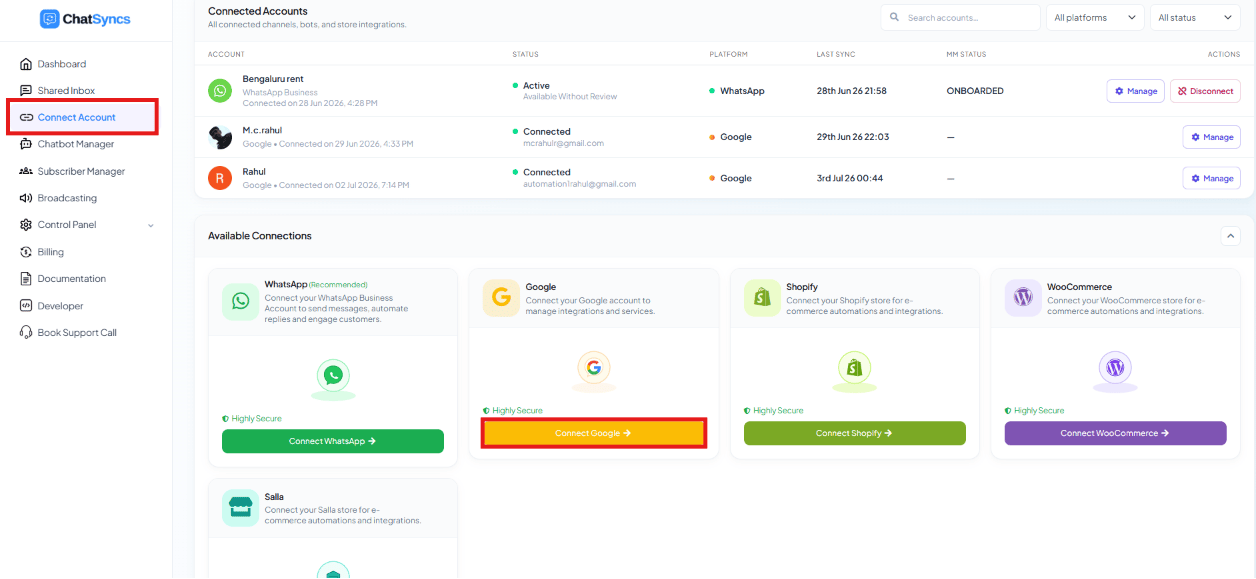 **Connect Account → Google** connects a Google account so ChatSyncs can write data into Google
Sheets — and, once connected, that same account can also be used for Google Calendar and Google
Contacts.
Click **Connect Google** on the Connect Account page to open the Google Integration screen:
**Connect Account → Google** connects a Google account so ChatSyncs can write data into Google
Sheets — and, once connected, that same account can also be used for Google Calendar and Google
Contacts.
Click **Connect Google** on the Connect Account page to open the Google Integration screen:
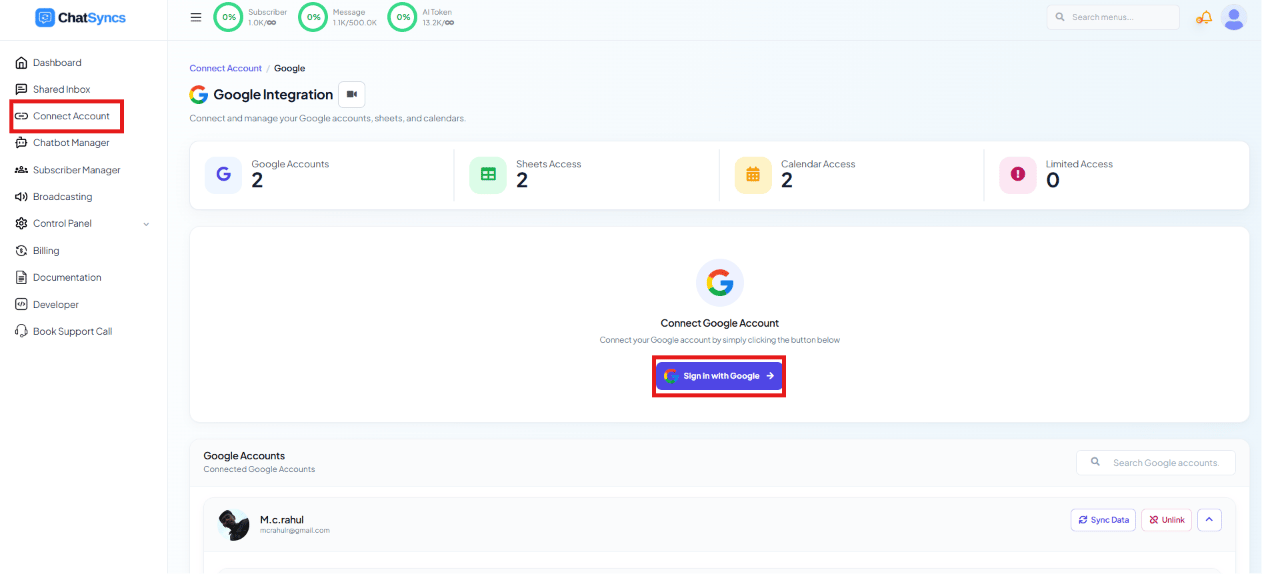 ## Connecting an account
Click **Sign in with Google**, then pick the Google account to connect from the account
picker:
## Connecting an account
Click **Sign in with Google**, then pick the Google account to connect from the account
picker:
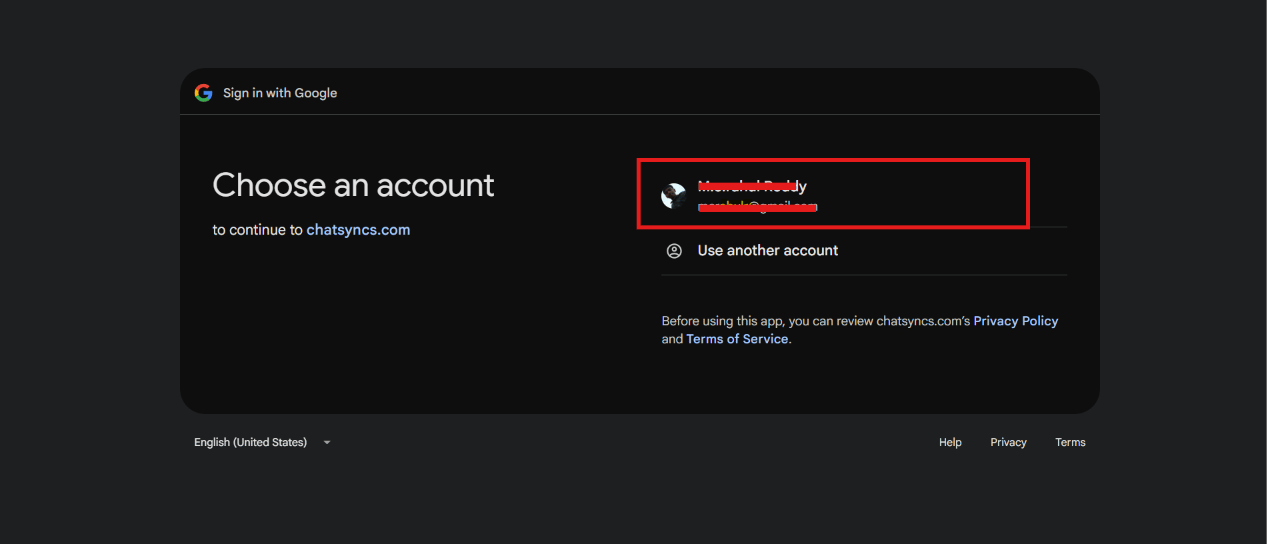 Review and check what ChatSyncs can access, then click **Continue**. ChatSyncs requests:
* **Contacts** — see, edit, download, and permanently delete your Google contacts
* **Google Drive** — see, edit, create, and delete only the specific files ChatSyncs creates
* **Google Sheets** — see, edit, create, and delete your Google Sheets spreadsheets
* **Google Calendar** — see, edit, share, and permanently delete calendars you can access
Review and check what ChatSyncs can access, then click **Continue**. ChatSyncs requests:
* **Contacts** — see, edit, download, and permanently delete your Google contacts
* **Google Drive** — see, edit, create, and delete only the specific files ChatSyncs creates
* **Google Sheets** — see, edit, create, and delete your Google Sheets spreadsheets
* **Google Calendar** — see, edit, share, and permanently delete calendars you can access
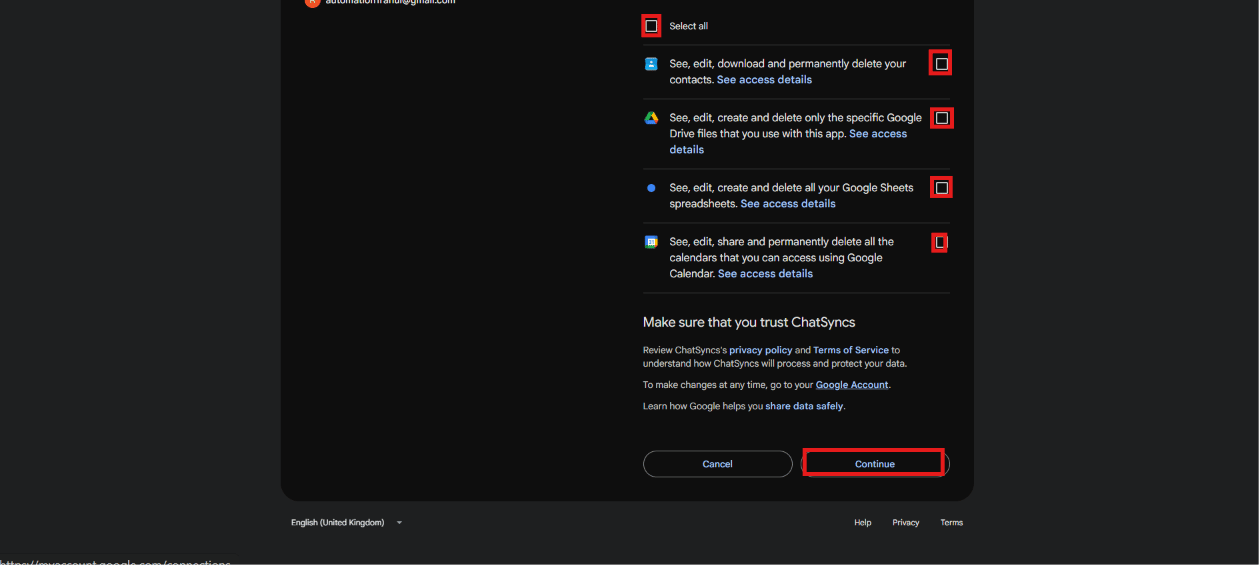 If the account was connected before and you're reconnecting (e.g. after re-authorizing),
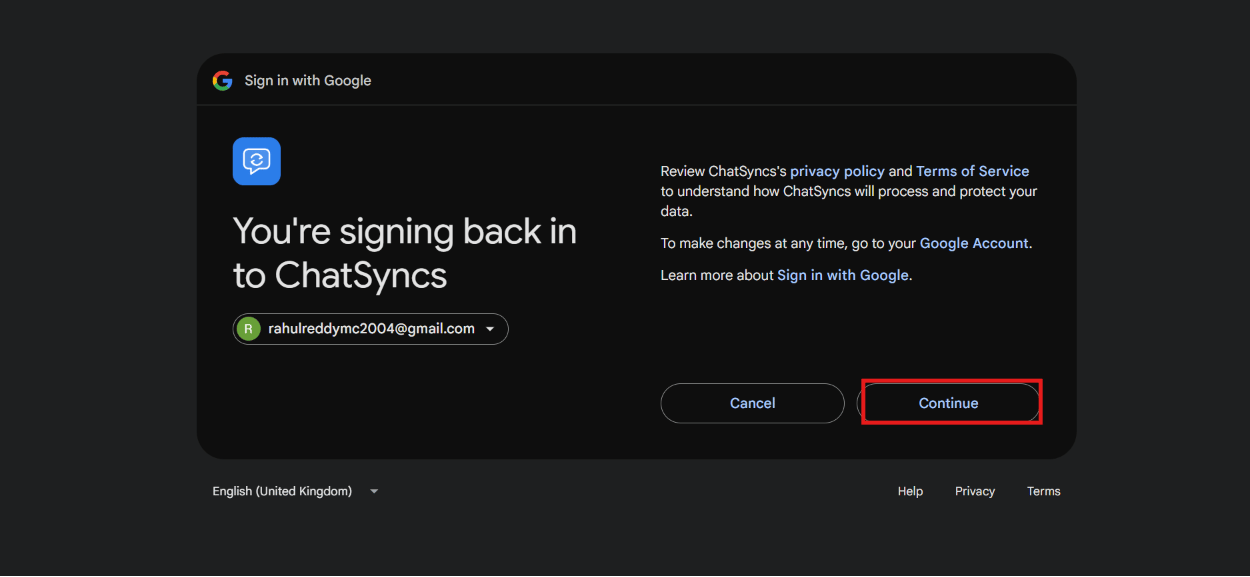
Google shows a shorter **"You're signing back in to ChatSyncs"** screen — click **Continue**.
If the account was connected before and you're reconnecting (e.g. after re-authorizing),
Google shows a shorter **"You're signing back in to ChatSyncs"** screen — click **Continue**.
 Once connected, the account appears under **Google Accounts** with the permissions it granted —
**Google Sheets & Drive**, **Google Calendar**, and **Google Contacts** — plus **Sync Data** and
**Unlink** actions.
**Grant the Contacts and Sheets permissions, not just Sheets** — some ChatSyncs features (like
syncing subscriber contact details) need the Contacts scope too. If a feature isn't working
after connecting, check that its required scope was actually granted during consent.
## Using the connected account
From the **Integrations** sidebar, the connected account can create or attach sheets, and
manage calendars.
### Google Sheets
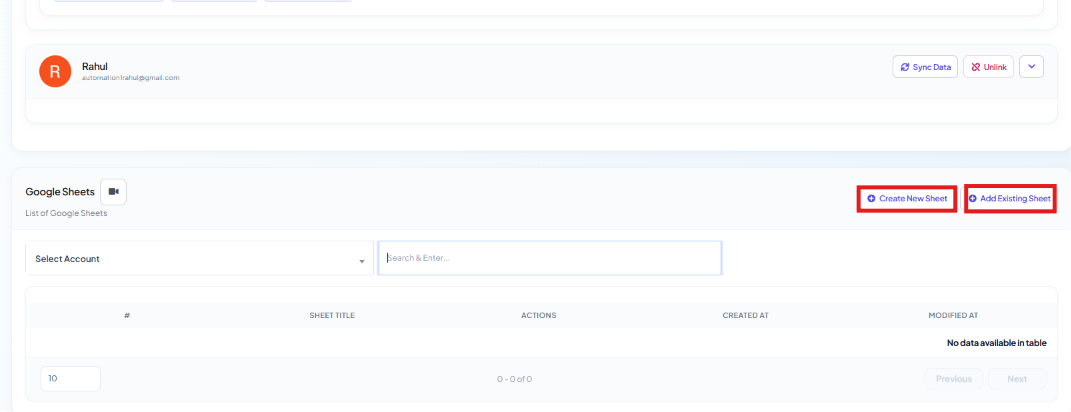
Once connected, the account appears under **Google Accounts** with the permissions it granted —
**Google Sheets & Drive**, **Google Calendar**, and **Google Contacts** — plus **Sync Data** and
**Unlink** actions.
**Grant the Contacts and Sheets permissions, not just Sheets** — some ChatSyncs features (like
syncing subscriber contact details) need the Contacts scope too. If a feature isn't working
after connecting, check that its required scope was actually granted during consent.
## Using the connected account
From the **Integrations** sidebar, the connected account can create or attach sheets, and
manage calendars.
### Google Sheets
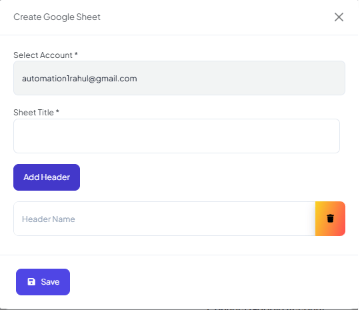
 * **Create New Sheet** — pick the connected account, name the **Sheet Title**, and optionally
**Add Header** to define column headers up front, then **Save**. ChatSyncs creates a brand-new
spreadsheet in the connected Drive with those headers already in place.
* **Create New Sheet** — pick the connected account, name the **Sheet Title**, and optionally
**Add Header** to define column headers up front, then **Save**. ChatSyncs creates a brand-new
spreadsheet in the connected Drive with those headers already in place.
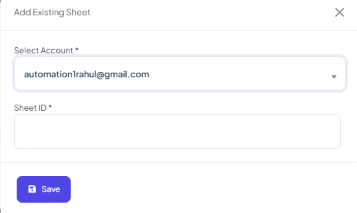
 * **Add Existing Sheet** — point ChatSyncs at a spreadsheet you already have by picking the
account and pasting its **Sheet ID**.
* **Add Existing Sheet** — point ChatSyncs at a spreadsheet you already have by picking the
account and pasting its **Sheet ID**.
 ### Google Calendar
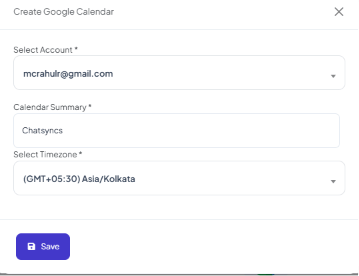
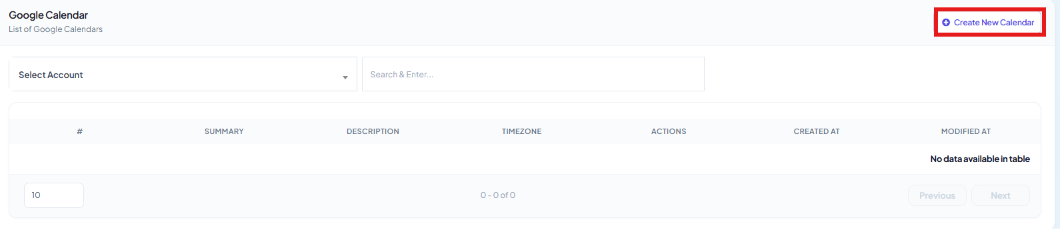 * **Create New Calendar** — pick the connected account, name the **Calendar Summary**, and
choose a **Timezone**, then **Save** — for flows that book appointments via Google Calendar.
* **Create New Calendar** — pick the connected account, name the **Calendar Summary**, and
choose a **Timezone**, then **Save** — for flows that book appointments via Google Calendar.
 ## Use cases
* Save subscriber information collected during a WhatsApp conversation.
* Store form responses from an input flow.
* Export customer data for reporting.
* Keep records automatically without manual data entry.
## Frequently asked
Because ChatSyncs hasn't gone through Google's app-verification review yet. It's expected —
click **Advanced**, then **Go to chatsyncs.com (unsafe)** to continue safely.
Yes — connect a Google account here, then use **Create New Sheet** or **Add Existing Sheet**
as the destination for a flow step that saves subscriber info or form responses.
Check that you granted the **Contacts** permission during the Google consent step, not just
Sheets/Drive — some features need both scopes.
Google Sheet Integration writes data *into* a sheet. [Google Sheet
Fetch](/learn/control-panel-google-sheet-data-fetch) reads data *from* a sheet — for example
looking up a customer record the bot then uses in a reply.
## Use cases
* Save subscriber information collected during a WhatsApp conversation.
* Store form responses from an input flow.
* Export customer data for reporting.
* Keep records automatically without manual data entry.
## Frequently asked
Because ChatSyncs hasn't gone through Google's app-verification review yet. It's expected —
click **Advanced**, then **Go to chatsyncs.com (unsafe)** to continue safely.
Yes — connect a Google account here, then use **Create New Sheet** or **Add Existing Sheet**
as the destination for a flow step that saves subscriber info or form responses.
Check that you granted the **Contacts** permission during the Google consent step, not just
Sheets/Drive — some features need both scopes.
Google Sheet Integration writes data *into* a sheet. [Google Sheet
Fetch](/learn/control-panel-google-sheet-data-fetch) reads data *from* a sheet — for example
looking up a customer record the bot then uses in a reply.