> ## Documentation Index
> Fetch the complete documentation index at: https://docs.chatsyncs.com/llms.txt
> Use this file to discover all available pages before exploring further.
# Webhook for WhatsApp Flows in ChatSyncs
> How to attach one or more webhook URLs to a WhatsApp Flow, so ChatSyncs POSTs the submitted form data to your system every time a customer completes it.
Every published [WhatsApp Flow](/learn/chatsyncs-automation/whatsapp-flows-in-chatsyncs) can have its own list of webhook URLs
attached directly to it. Whenever a customer submits that flow, ChatSyncs sends the submitted
form data as an HTTP POST to every webhook URL on the list — no extra configuration inside the
flow itself.
**Example:** A customer fills out a **Customer Registration** flow with their name, phone
number, and service interest, then taps Submit. ChatSyncs immediately POSTs that data to every
webhook URL attached to the flow — instantly, with no manual export.
This is separate from the **Select HTTP API** field inside the flow's own configuration (see
[WhatsApp Flows](/learn/chatsyncs-automation/whatsapp-flows-in-chatsyncs#flow-configuration)). That field sends data through one
saved HTTP API. This webhook list lets you attach any number of raw URLs straight to the flow,
without setting up an HTTP API first.
## How to set it up
Go to **Chatbot Manager → Data Collection → WhatsApp Flows**. You'll see every flow with its
name, category, status, and a row of action icons.
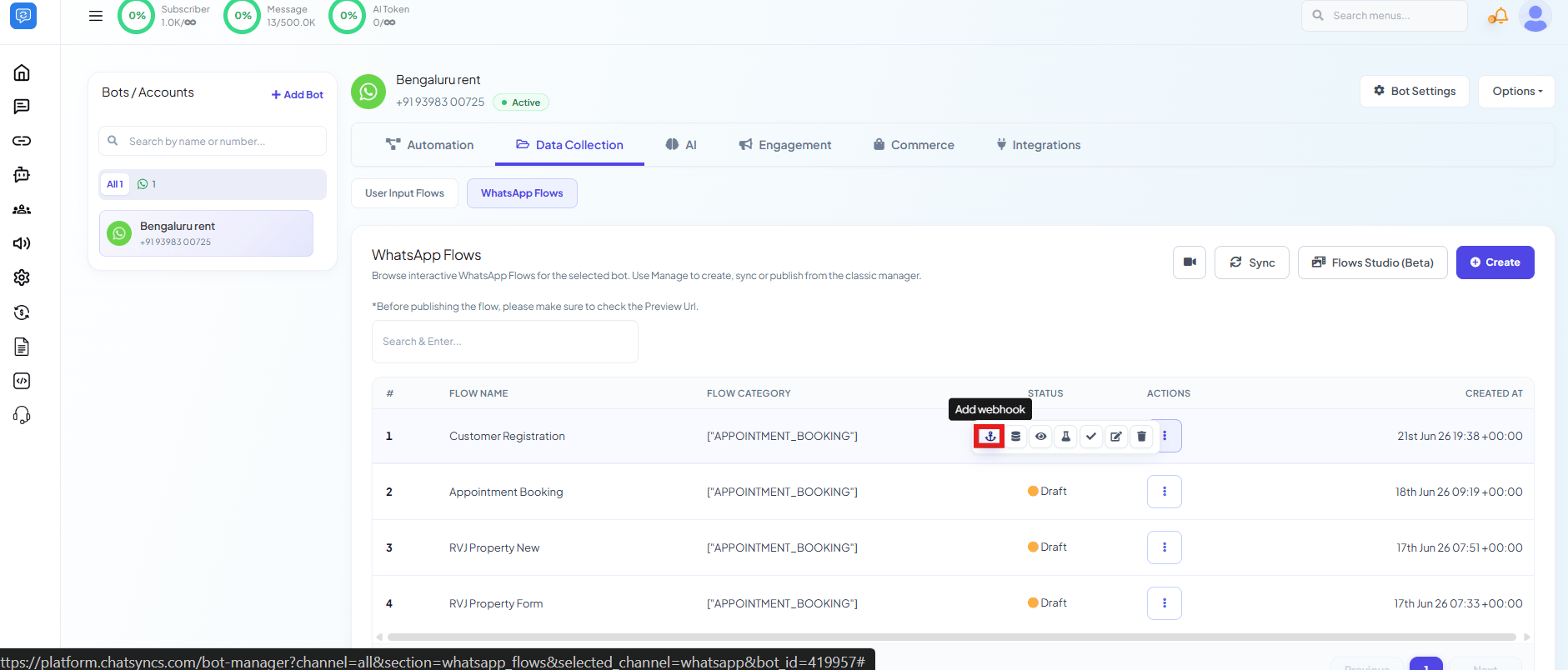 On the flow you want to connect, click the anchor-shaped **Add webhook** icon in its Actions
column. This opens the **WhatsApp Flow Webhook** panel for that flow.
On the flow you want to connect, click the anchor-shaped **Add webhook** icon in its Actions
column. This opens the **WhatsApp Flow Webhook** panel for that flow.
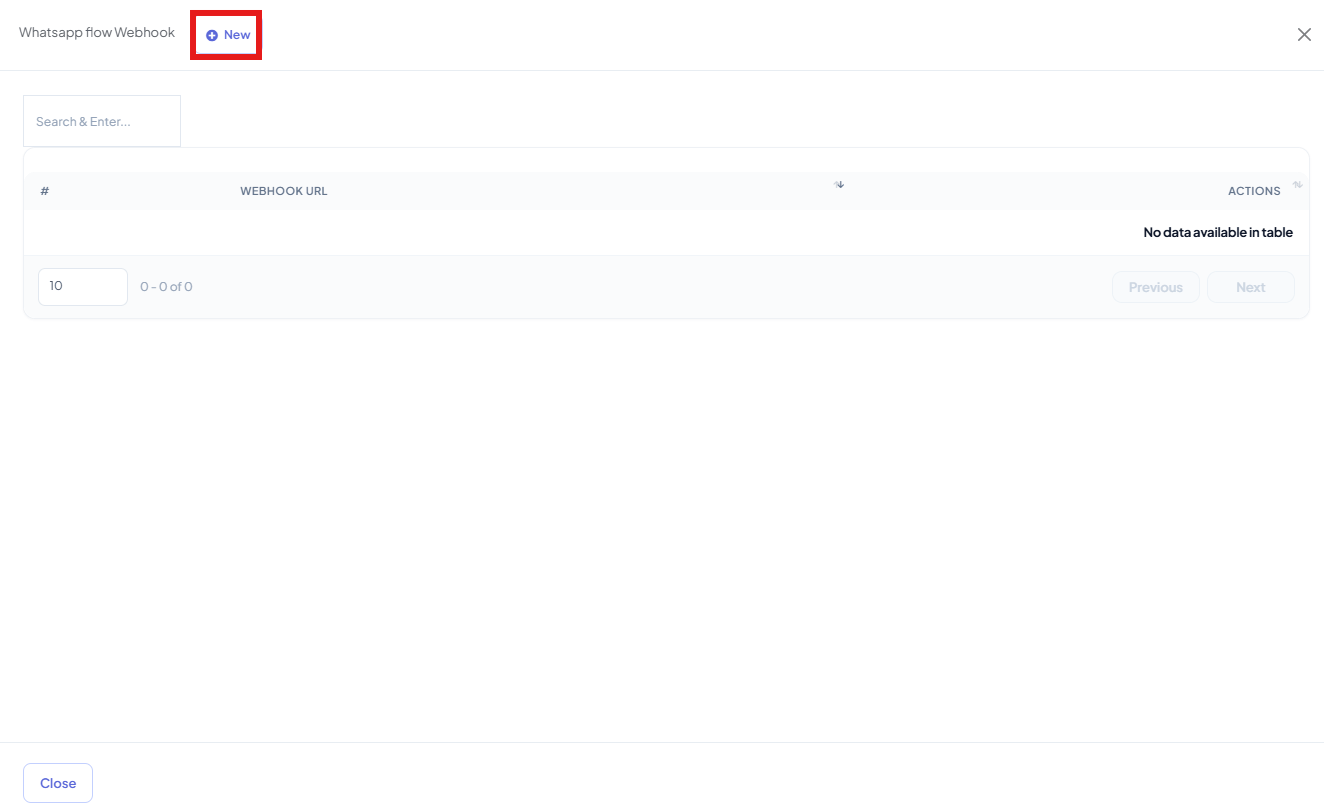 Click **New**, paste your webhook endpoint into the **Webhook URL** field, and click
**Save**.
Click **New**, paste your webhook endpoint into the **Webhook URL** field, and click
**Save**.
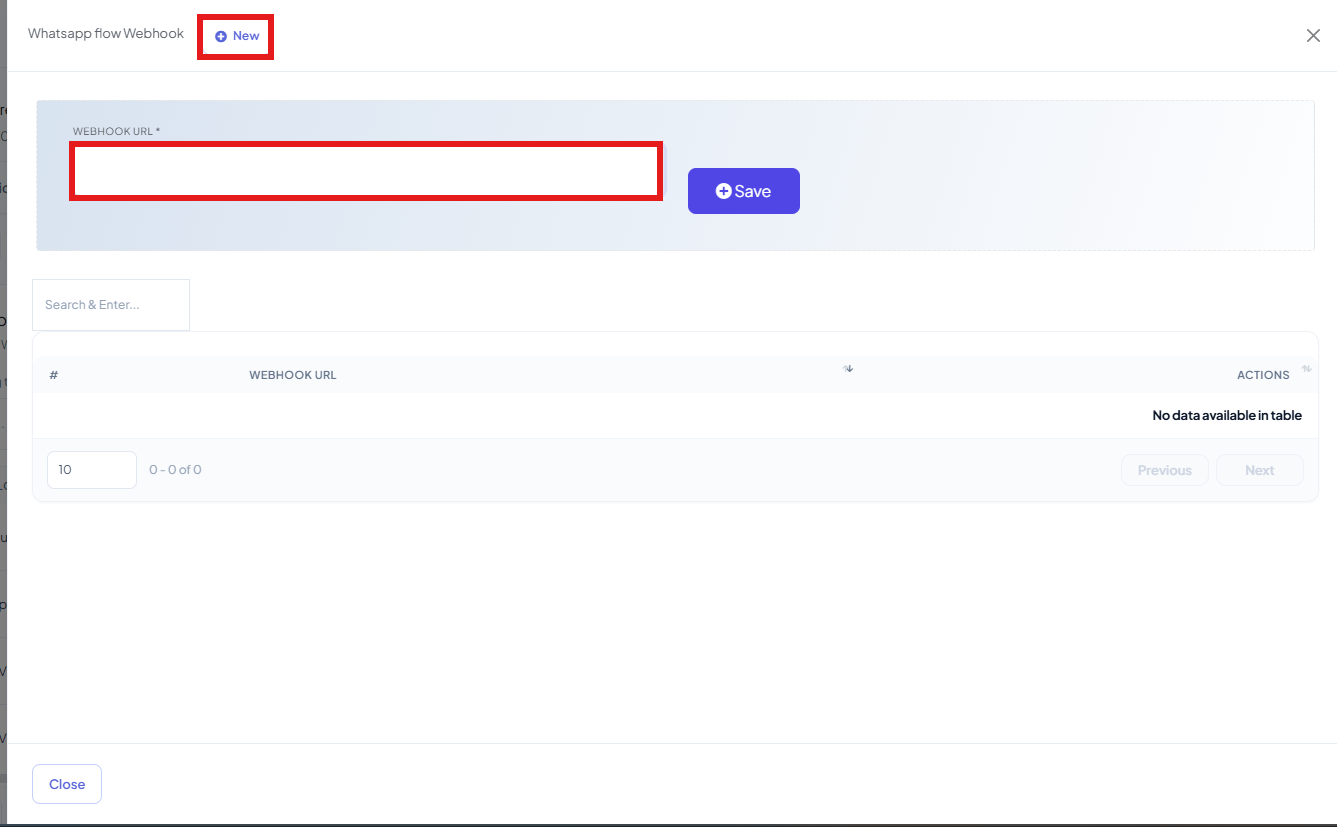 Click **New** again for each additional system that should receive the same submission —
every URL on the list gets its own copy of the data.
## Frequently asked
The same submitted form data as the flow itself collected — every field the customer filled
in, sent as JSON in the POST body.
Yes — add as many webhook URLs as you need on the same flow. Each one gets its own copy of
every submission.
**Select HTTP API** (inside the flow's own configuration) sends data through one HTTP API
you've already saved in ChatSyncs. This **WhatsApp Flow Webhook** panel is separate — it lets
you attach raw webhook URLs directly to the flow without creating an HTTP API first, and
supports more than one URL.
Yes — attach webhook URLs to a flow that's already published, so submissions have somewhere
to send data as soon as customers start using it.
A webhook URL here only fires on **form submission**. If you need data sent out for other
events in a bot flow (a button click, a keyword match), see
[How Do I Turn On Webhook Triggers for My Bot?](/learn/chatsyncs-bot-settings/turn-on-webhook-triggers-for-my-bot-with-chatsyncs) and
[How to Connect a Bot Flow to External Systems](/learn/chatsyncs-automation/connect-a-bot-flow-to-external-systems-in-chatsyncs) instead.
Click **New** again for each additional system that should receive the same submission —
every URL on the list gets its own copy of the data.
## Frequently asked
The same submitted form data as the flow itself collected — every field the customer filled
in, sent as JSON in the POST body.
Yes — add as many webhook URLs as you need on the same flow. Each one gets its own copy of
every submission.
**Select HTTP API** (inside the flow's own configuration) sends data through one HTTP API
you've already saved in ChatSyncs. This **WhatsApp Flow Webhook** panel is separate — it lets
you attach raw webhook URLs directly to the flow without creating an HTTP API first, and
supports more than one URL.
Yes — attach webhook URLs to a flow that's already published, so submissions have somewhere
to send data as soon as customers start using it.
A webhook URL here only fires on **form submission**. If you need data sent out for other
events in a bot flow (a button click, a keyword match), see
[How Do I Turn On Webhook Triggers for My Bot?](/learn/chatsyncs-bot-settings/turn-on-webhook-triggers-for-my-bot-with-chatsyncs) and
[How to Connect a Bot Flow to External Systems](/learn/chatsyncs-automation/connect-a-bot-flow-to-external-systems-in-chatsyncs) instead.