> ## Documentation Index
> Fetch the complete documentation index at: https://docs.chatsyncs.com/llms.txt
> Use this file to discover all available pages before exploring further.
# Webhook Workflow Reporting in ChatSyncs
> How to read a Webhook Workflow's delivery stats, open the call-by-call report, and troubleshoot a workflow that isn't sending or shows a high failure rate.
Every [Webhook Workflow](/learn/chatsyncs-webhook-workflow/introduction) tracks its own delivery stats, so
you can confirm messages are actually going out — not just assume the workflow is working
because it saved successfully.
## Viewing the stats
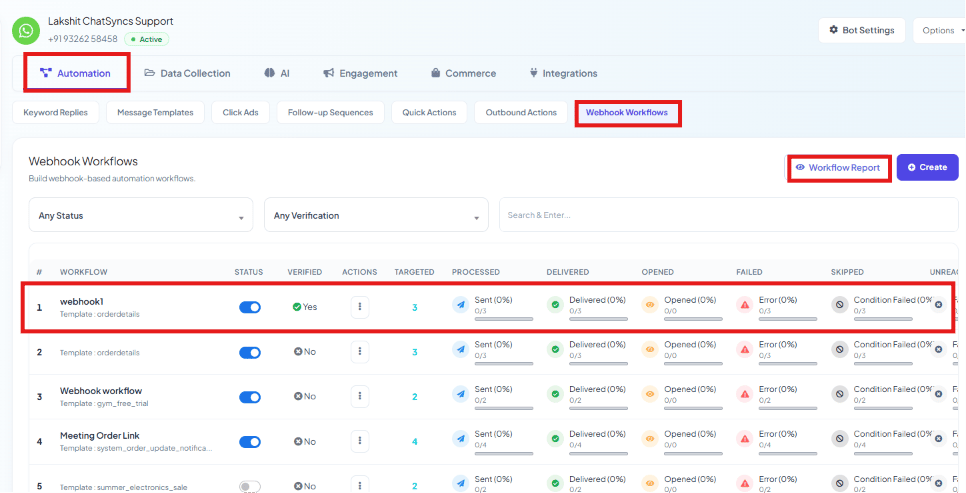 Go to **Chatbot Manager → Automation → Webhook Workflows**. Each row shows real-time counts for
that workflow:
| Column | What it means |
| ------------- | ------------------------------------------------------------------------------------ |
| **Sent** | Messages ChatSyncs attempted to send. |
| **Delivered** | Messages successfully delivered to the recipient's WhatsApp. |
| **Opened** | Messages the recipient opened (for templates that support read receipts). |
| **Failed** | Messages that failed to send. |
| **Skipped** | Calls that didn't result in a message — usually because a condition rule wasn't met. |
| **Unreached** | Messages that couldn't reach the recipient. |
## The full report
Click **Workflow Report** on any workflow for a call-by-call breakdown:
Go to **Chatbot Manager → Automation → Webhook Workflows**. Each row shows real-time counts for
that workflow:
| Column | What it means |
| ------------- | ------------------------------------------------------------------------------------ |
| **Sent** | Messages ChatSyncs attempted to send. |
| **Delivered** | Messages successfully delivered to the recipient's WhatsApp. |
| **Opened** | Messages the recipient opened (for templates that support read receipts). |
| **Failed** | Messages that failed to send. |
| **Skipped** | Calls that didn't result in a message — usually because a condition rule wasn't met. |
| **Unreached** | Messages that couldn't reach the recipient. |
## The full report
Click **Workflow Report** on any workflow for a call-by-call breakdown:
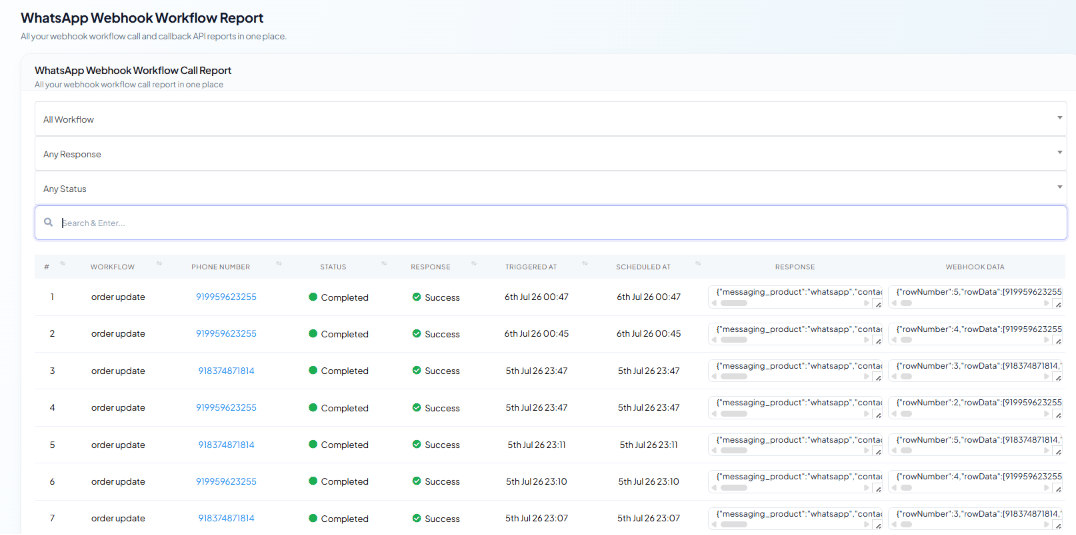 Each row shows the **Workflow** it belongs to, the **Phone Number** the message went to, its
**Status** (e.g. Completed), **Response** (e.g. Success), the **Triggered at** / **Scheduled at**
timestamps, and the raw **Webhook Data** payload — useful for confirming exactly what data a
specific call sent.
## Troubleshooting common issues
* **High Failed count** — check that your WhatsApp number is active, your message template is
still approved, and the **Phone Number** field in [the workflow's response
mapping](/learn/chatsyncs-webhook-workflow/create-a-webhook-workflow-in-chatsyncs) is correctly set.
* **Everything shows as Skipped** — review the conditional rules in [the workflow's automation
settings](/learn/chatsyncs-webhook-workflow/webhook-automation-settings-in-chatsyncs) — the webhook data may not match the
format or values your rules expect.
* **Nothing is arriving at all (0 Sent)** — confirm the callback URL is entered correctly in the
third-party app's webhook settings, and that a test webhook has been captured and verified.
## Frequently asked
Check its row in **Chatbot Manager → Automation → Webhook Workflows** — a rising **Sent** /
**Delivered** count confirms real calls are coming through and messages are going out.
Its conditional rules are filtering most calls out. Open **Webhook Automation
Settings** on that workflow and check whether the rule's field/operator/value actually
matches what the third-party app sends.
Open **Workflow Report** and check the **Webhook Data** column on that row — it shows the
raw payload received for that call.
Confirm the callback URL is pasted correctly into the third-party app's webhook settings, and
that you've successfully captured and verified a test webhook — see [Create a Webhook
Workflow](/learn/chatsyncs-webhook-workflow/create-a-webhook-workflow-in-chatsyncs).
Each row shows the **Workflow** it belongs to, the **Phone Number** the message went to, its
**Status** (e.g. Completed), **Response** (e.g. Success), the **Triggered at** / **Scheduled at**
timestamps, and the raw **Webhook Data** payload — useful for confirming exactly what data a
specific call sent.
## Troubleshooting common issues
* **High Failed count** — check that your WhatsApp number is active, your message template is
still approved, and the **Phone Number** field in [the workflow's response
mapping](/learn/chatsyncs-webhook-workflow/create-a-webhook-workflow-in-chatsyncs) is correctly set.
* **Everything shows as Skipped** — review the conditional rules in [the workflow's automation
settings](/learn/chatsyncs-webhook-workflow/webhook-automation-settings-in-chatsyncs) — the webhook data may not match the
format or values your rules expect.
* **Nothing is arriving at all (0 Sent)** — confirm the callback URL is entered correctly in the
third-party app's webhook settings, and that a test webhook has been captured and verified.
## Frequently asked
Check its row in **Chatbot Manager → Automation → Webhook Workflows** — a rising **Sent** /
**Delivered** count confirms real calls are coming through and messages are going out.
Its conditional rules are filtering most calls out. Open **Webhook Automation
Settings** on that workflow and check whether the rule's field/operator/value actually
matches what the third-party app sends.
Open **Workflow Report** and check the **Webhook Data** column on that row — it shows the
raw payload received for that call.
Confirm the callback URL is pasted correctly into the third-party app's webhook settings, and
that you've successfully captured and verified a test webhook — see [Create a Webhook
Workflow](/learn/chatsyncs-webhook-workflow/create-a-webhook-workflow-in-chatsyncs).