> ## Documentation Index
> Fetch the complete documentation index at: https://docs.chatsyncs.com/llms.txt
> Use this file to discover all available pages before exploring further.
# Webhook Workflow in ChatSyncs
> What a Webhook Workflow is, how it connects a third-party app to ChatSyncs, and when to use it — an automatic WhatsApp message the moment an event happens elsewhere.
A **Webhook Workflow** connects a third-party app to ChatSyncs — no Zapier or Make.com needed.
When something happens in that other app (a new booking, a form submission, a payment), it
sends a webhook to ChatSyncs, which automatically sends a WhatsApp message using that data.
```text theme={null}
An event happens in your app (e.g. someone books a meeting)
│
▼
The app sends a webhook to ChatSyncs (a JSON payload with the details)
│
▼
ChatSyncs maps that data to a message template's variables
│
▼
The customer receives a WhatsApp message automatically
```
No code required — you configure the mapping between the webhook data and your template's
variables once, and every future event follows the same path.
This is the **inbound** direction: an outside event triggers ChatSyncs to send a message. For
the opposite direction — ChatSyncs sending data *out* when something happens inside a bot flow
— see [Webhooks](/learn/chatsyncs-webhooks/introduction).
## When to use it
* A customer books an appointment and you want to send a WhatsApp confirmation.
* An order is placed in your store or CRM and you want to notify the customer.
* A form is submitted and you want to send an instant follow-up message.
* Any third-party app that supports outgoing webhooks (Cal.com, Shopify, a booking system, a
payment provider, a form plugin) needs to trigger a WhatsApp message.
## The dashboard
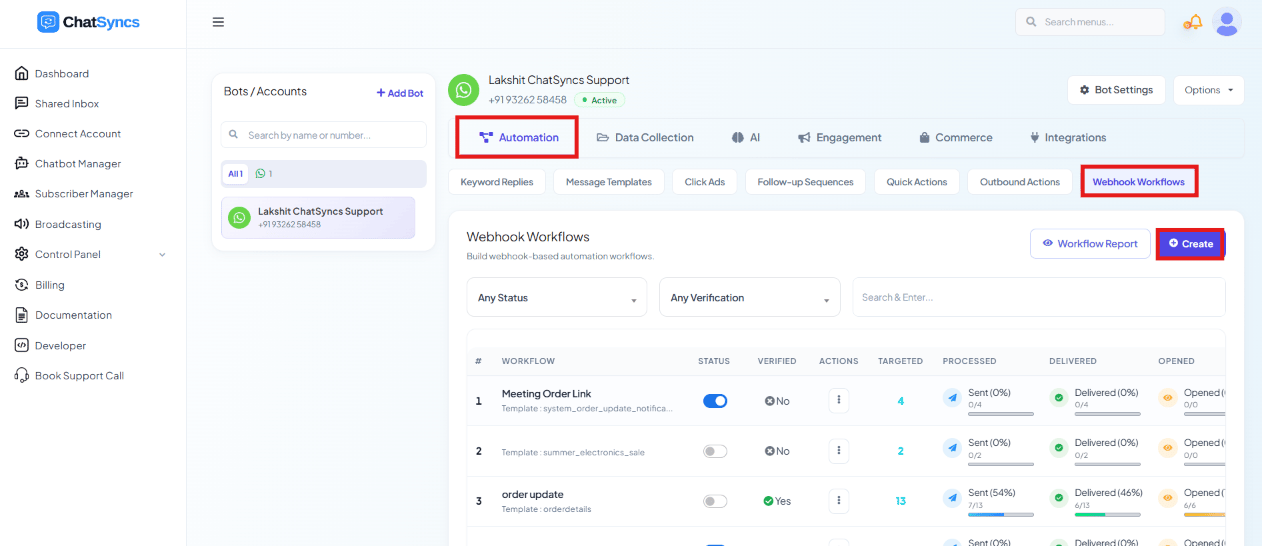 Go to **Chatbot Manager → Automation → Webhook Workflows**. This is where you create and manage
every webhook workflow — each row shows its linked template and live delivery stats.
## What's covered in this section
Set up the callback URL, capture a test response, and map JSON data to template variables.
Add a delay, conditional rules, and actions that run after a successful call.
Monitor delivery stats and troubleshoot a workflow that isn't sending.
A worked example: wiring a WordPress form's plugin to trigger a Webhook Workflow.
## Frequently asked
No — a Webhook Workflow receives the webhook directly. Zapier/Make.com are only useful if the
third-party app can't send a webhook on its own and needs a middle step to create one.
A **Message Template** with variables (e.g. `{{1}}`, `{{2}}`) already approved — the webhook
data fills those variables automatically. See [Creating a WhatsApp Message
Template](/learn/chatsyncs-message-templates/creating-a-whatsapp-message-template-in-chatsyncs).
**Chatbot Manager → Automation → Webhook Workflows.**
Go to **Chatbot Manager → Automation → Webhook Workflows**. This is where you create and manage
every webhook workflow — each row shows its linked template and live delivery stats.
## What's covered in this section
Set up the callback URL, capture a test response, and map JSON data to template variables.
Add a delay, conditional rules, and actions that run after a successful call.
Monitor delivery stats and troubleshoot a workflow that isn't sending.
A worked example: wiring a WordPress form's plugin to trigger a Webhook Workflow.
## Frequently asked
No — a Webhook Workflow receives the webhook directly. Zapier/Make.com are only useful if the
third-party app can't send a webhook on its own and needs a middle step to create one.
A **Message Template** with variables (e.g. `{{1}}`, `{{2}}`) already approved — the webhook
data fills those variables automatically. See [Creating a WhatsApp Message
Template](/learn/chatsyncs-message-templates/creating-a-whatsapp-message-template-in-chatsyncs).
**Chatbot Manager → Automation → Webhook Workflows.**