> ## Documentation Index
> Fetch the complete documentation index at: https://docs.chatsyncs.com/llms.txt
> Use this file to discover all available pages before exploring further.
# How Do I Manage Custom Fields and Labels with ChatSyncs?
> How to create and manage Labels (subscriber segments) and Custom Fields (per-subscriber data) in ChatSyncs, and how that data flows to sheets, webhooks, and messages.
## Labels vs. Custom Fields
Both live under the **Manage** dropdown on the [Subscriber Manager](/learn/chatsyncs-subscriber-manager/introduction)
list, and both add structure beyond a subscriber's built-in phone number, subscriber ID, and
name — but they solve two different problems. Knowing which one you actually need saves a lot of
backtracking later:
| | Stores | Use it to |
| ---------------- | ----------------------------------------- | ----------------------------------------------------------------------------------------------------------- |
| **Label** | Nothing by itself — it's a tag you attach | Group subscribers into a segment you can filter by, target with a broadcast, or trigger an automation from |
| **Custom Field** | One extra piece of data, per subscriber | Remember something specific about *that person* — their email, department, an order ID, an appointment date |
A simple rule of thumb: if the answer is the same word for a whole group of people (`VIP`,
`Lead`, `batch1`), it's a **Label**. If the answer is different for every single subscriber
(`priya@company.com`, `Order #4521`), it's a **Custom Field**.
**Example:** A clothing store imports 500 contacts from a sale event. They label everyone
`event_signup_jan` (same word for the whole group) so they can broadcast to just that segment
later. On the same import, each row also has an email column — that becomes a Custom Field,
because Priya's email and Raj's email are different values, one per person.
## The Manage dropdown
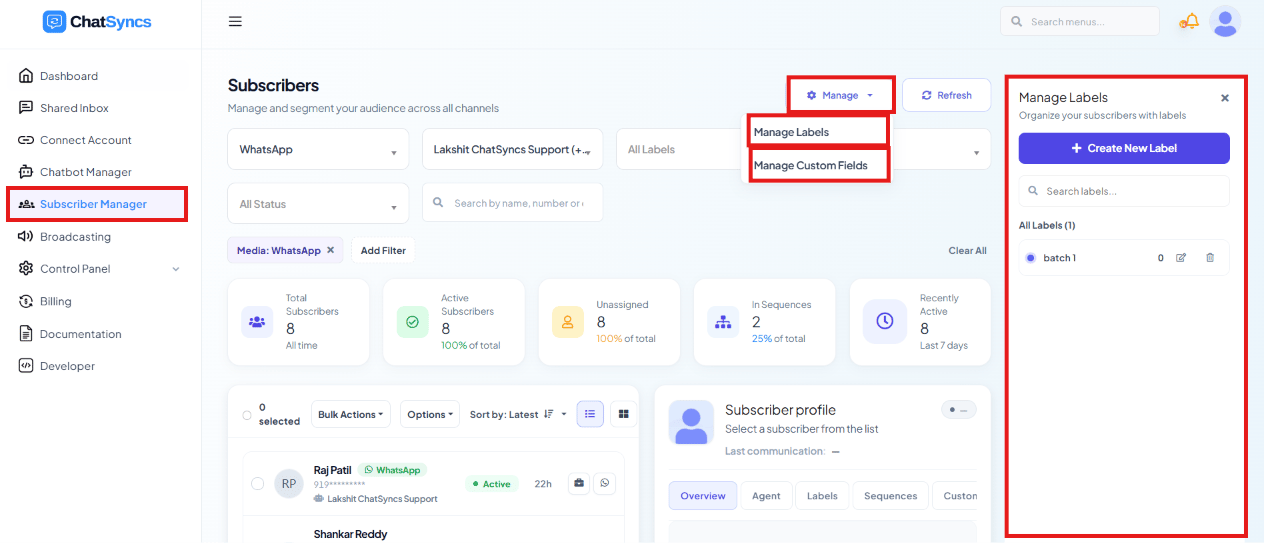 From the subscriber list, the **Manage** dropdown opens **Manage Labels** and **Manage Custom
Fields** as a panel on the right — this is where both are defined, before either can ever be
assigned to a subscriber.
## Create a label
**Labels** group subscribers into segments (e.g. `batch1`, `Lead`, `VIP Customer`) that you can
filter by, target in broadcasts, or trigger automations from.
From the subscriber list, the **Manage** dropdown opens **Manage Labels** and **Manage Custom
Fields** as a panel on the right — this is where both are defined, before either can ever be
assigned to a subscriber.
## Create a label
**Labels** group subscribers into segments (e.g. `batch1`, `Lead`, `VIP Customer`) that you can
filter by, target in broadcasts, or trigger automations from.
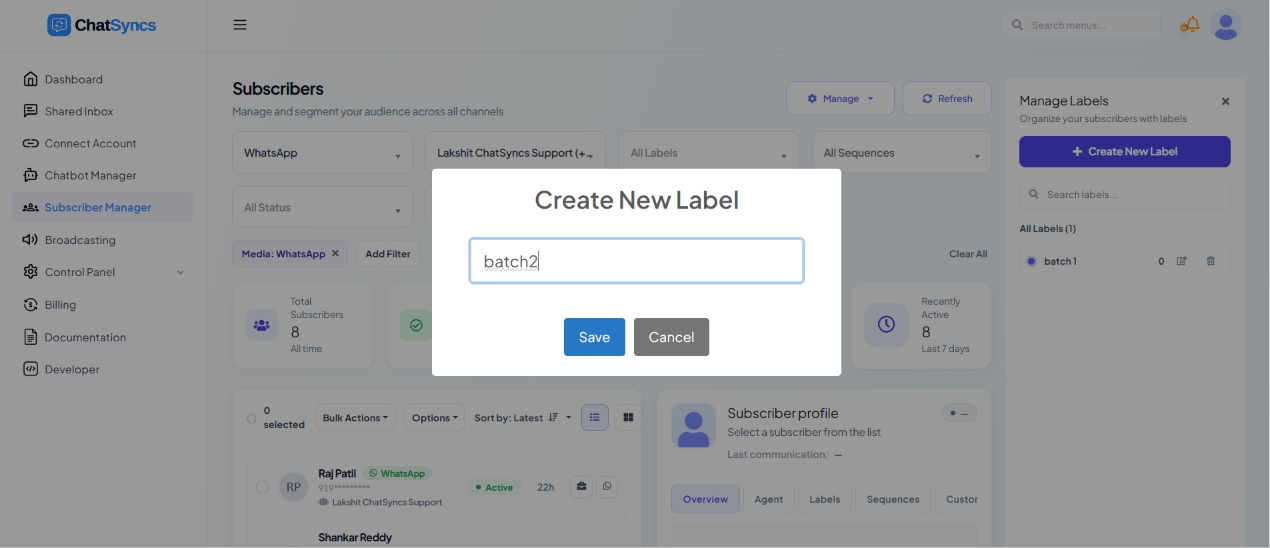 From the subscriber list, open **Manage**, then **Manage Labels**.
Click **+ Create New Label** in the panel.
Enter a **Label Name**, e.g. `batch2`.
Click **Save** — the label is now available to assign to subscribers.
**Expected result:** The new label appears in the **All Labels** list and in every label picker
across ChatSyncs — ready to filter subscribers by, or attach to a broadcast's audience.
Creating a label only defines it — it doesn't attach it to anyone yet. Assign it to subscribers
from the [Subscriber Manager overview's bulk actions](/learn/chatsyncs-subscriber-manager/introduction#assign-or-remove-a-label),
or automatically from a flow built using [How to Create a Keyword-Based WhatsApp Chatbot](/learn/chatsyncs-automation/create-a-keyword-based-whatsapp-chatbot-in-chatsyncs), via its Automation
Actions.
Naming labels with a consistent prefix (`batch1`, `batch2`, `batch3`) or a clear category
(`Lead`, `Customer`, `VIP`) makes them far easier to pick correctly later, once you have a dozen
of them.
### Rename or delete a label
Open **Manage → Manage Labels** and each row in the **All Labels** list has its own edit and
delete icons. Renaming a label updates it everywhere it's already assigned — you don't need to
reassign it to anyone. Deleting a label removes the tag from every subscriber who had it; it
does **not** delete the subscribers themselves.
Deleting a label can't be undone. If you're not sure whether it's still in use by a broadcast
audience or automation, rename it instead of deleting it until you've checked.
## Custom Fields
From the subscriber list, open **Manage**, then **Manage Labels**.
Click **+ Create New Label** in the panel.
Enter a **Label Name**, e.g. `batch2`.
Click **Save** — the label is now available to assign to subscribers.
**Expected result:** The new label appears in the **All Labels** list and in every label picker
across ChatSyncs — ready to filter subscribers by, or attach to a broadcast's audience.
Creating a label only defines it — it doesn't attach it to anyone yet. Assign it to subscribers
from the [Subscriber Manager overview's bulk actions](/learn/chatsyncs-subscriber-manager/introduction#assign-or-remove-a-label),
or automatically from a flow built using [How to Create a Keyword-Based WhatsApp Chatbot](/learn/chatsyncs-automation/create-a-keyword-based-whatsapp-chatbot-in-chatsyncs), via its Automation
Actions.
Naming labels with a consistent prefix (`batch1`, `batch2`, `batch3`) or a clear category
(`Lead`, `Customer`, `VIP`) makes them far easier to pick correctly later, once you have a dozen
of them.
### Rename or delete a label
Open **Manage → Manage Labels** and each row in the **All Labels** list has its own edit and
delete icons. Renaming a label updates it everywhere it's already assigned — you don't need to
reassign it to anyone. Deleting a label removes the tag from every subscriber who had it; it
does **not** delete the subscribers themselves.
Deleting a label can't be undone. If you're not sure whether it's still in use by a broadcast
audience or automation, rename it instead of deleting it until you've checked.
## Custom Fields
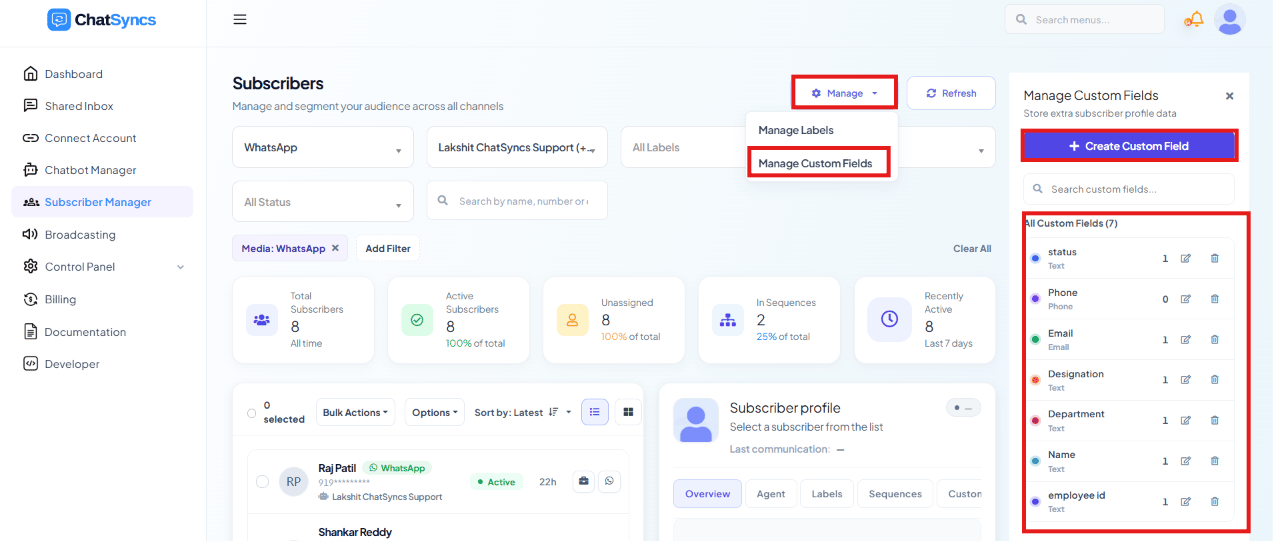 A **Custom Field** stores one extra piece of structured data per subscriber, beyond the
built-in Phone Number, Subscriber ID, and Name — e.g. `email`, `designation`, `department`, or
`employee id`. Create one from **Manage → Manage Custom Fields**, picking a type that matches
the data:
From the subscriber list, open **Manage**, then **Manage Custom Fields**.
Click **+ Create Custom Field** in the panel.
Pick a type that matches the data you'll store — see the table below.
The field is now available on every subscriber's profile, and as a mapping target during import.
| Type | Stores | Typical use |
| ---------- | ---------------- | --------------------------------------- |
| **Text** | Any free text | Company name, city, notes |
| **Number** | A numeric value | Order ID, quantity, budget |
| **Date** | A calendar date | Appointment date, date of birth |
| **Email** | An email address | Contact email for follow-ups |
| **Phone** | A phone number | An alternate or referral contact number |
### How a custom field gets filled in
Creating a custom field only defines the storage slot — it starts empty for every subscriber
until it's populated one of three ways, all covered elsewhere on this site:
* **Manually or via import** — any extra column beyond phone number and name in an imported
file (see [How Do I Import Subscribers Using a CSV File?](/learn/chatsyncs-subscriber-manager/import-subscribers-using-a-csv-file-with-chatsyncs)) becomes a custom field
automatically, matched by column header.
* **From a conversation** — a [Keyword Replies](/learn/chatsyncs-automation/create-a-keyword-based-whatsapp-chatbot-in-chatsyncs#data-&-integrations) flow's
**Save to Custom Field** action stores whatever the subscriber types (e.g. their email) the
moment they answer.
* **From a form submission** — an [Input Flow](/learn/chatsyncs-automation/user-input-flow-in-chatsyncs) or
[WhatsApp Flow](/learn/chatsyncs-automation/whatsapp-flows-in-chatsyncs) question can save its answer straight to a custom
field.
### Rename or delete a custom field
Open **Manage → Manage Custom Fields** and each row in the **All Custom Fields** list has its
own edit and delete icons, plus a usage count showing how many places (templates, flows) already
reference that field. Renaming a field keeps every subscriber's stored value intact — only the
label changes. Deleting a field removes it, and its stored value, from every subscriber.
Check a field's usage count before deleting it — a field referenced inside a live Message
Template or Keyword Replies flow will leave that reference broken (sending blank) once the field
itself is gone.
### How that data flows back out
Once populated, a custom field's value flows back out the same way it flows in:
* **To Google Sheets** — Keyword Replies'
[Sync Data to Google Sheets](/learn/chatsyncs-automation/create-a-keyword-based-whatsapp-chatbot-in-chatsyncs#data-&-integrations) maps each custom
field to a spreadsheet column on every submission.
* **To a webhook** — Keyword Replies' **Forward Data to Webhook**, or a dedicated Outbound
Action (see [How to Connect a Bot Flow to External Systems](/learn/chatsyncs-automation/connect-a-bot-flow-to-external-systems-in-chatsyncs)) with **Input Flow Data** enabled, sends
the same custom field values as JSON to a CRM, Zapier, Make.com, or your own server.
* **Back into messages** — a custom field's value can be inserted into a
[Message Template](/learn/chatsyncs-message-templates/creating-a-whatsapp-message-template-in-chatsyncs) or Keyword Replies text as a `#fieldname#`
variable, e.g. `Hi #name#, your appointment is on #preferred_appointment_date#`.
## Frequently asked
A **label** is a shared tag for grouping subscribers into a segment (`VIP`, `batch1`) — it
holds no data of its own. A **custom field** stores a different value per subscriber
(an email address, an order ID). See the comparison table above.
Create a **Label** under **Manage → Manage Labels**, then select subscribers in the
Subscriber Manager list and use **Options → Assign Label** (or **Remove Label** to undo it).
You can then filter the subscriber list by that label, or target it in a broadcast.
Three ways: an extra column in a CSV/Google Sheet import, a **Save to Custom Field** action
in a Keyword Replies flow, or a form answer from an Input Flow / WhatsApp Flow. See
"How a custom field gets filled in" above.
Yes — reference it as a `#fieldname#` variable in a Message Template or Keyword Replies
text block, e.g. `Hi #name#, your order #order_id# has shipped.`
**Number** — it keeps the value sortable and usable in calculations, unlike **Text**, which
stores it as an unstructured string.
Yes — renaming updates the label everywhere it's assigned, or the field name on every
subscriber that has it, without touching the underlying data.
Nothing happens to the subscribers themselves — only the tag is removed. Deleting a label
never deletes a subscriber record.
Yes — you can add or remove labels from subscribers at any time, and rename or delete the
label itself from **Manage → Manage Labels**.
Yes — but deleting it also removes its stored data from every subscriber that had it, and
breaks any template or flow still referencing it. Check the field's usage count first.
It's safer to make each label specific (`batch1_jan2026` rather than just `batch1`) so you
can always tell which campaign or import it came from once you have a long label history.
## Related Documentation
* [Subscriber Manager](/learn/chatsyncs-subscriber-manager/introduction) — the subscriber list, Options menu,
and bulk label/sequence actions.
* [How Do I Import Subscribers Using a CSV File?](/learn/chatsyncs-subscriber-manager/import-subscribers-using-a-csv-file-with-chatsyncs) — how extra columns become custom
fields automatically.
* [Keyword Replies](/learn/chatsyncs-automation/create-a-keyword-based-whatsapp-chatbot-in-chatsyncs#data-&-integrations) — Save to Custom Field
and Sync Data to Google Sheets actions.
* [Message Templates](/learn/chatsyncs-message-templates/creating-a-whatsapp-message-template-in-chatsyncs) — inserting a custom field's value into
an outgoing message.
* [How to Connect a Bot Flow to External Systems](/learn/chatsyncs-automation/connect-a-bot-flow-to-external-systems-in-chatsyncs) — forwarding custom field data to a CRM
or webhook.
## Learn From a Use Case
* [Clinic Appointment Booking Automation](/learn/clinic-appointment-booking-automation-with-chatsyncs-business-problem) —
Custom Fields store each answer submitted through the appointment form.
A **Custom Field** stores one extra piece of structured data per subscriber, beyond the
built-in Phone Number, Subscriber ID, and Name — e.g. `email`, `designation`, `department`, or
`employee id`. Create one from **Manage → Manage Custom Fields**, picking a type that matches
the data:
From the subscriber list, open **Manage**, then **Manage Custom Fields**.
Click **+ Create Custom Field** in the panel.
Pick a type that matches the data you'll store — see the table below.
The field is now available on every subscriber's profile, and as a mapping target during import.
| Type | Stores | Typical use |
| ---------- | ---------------- | --------------------------------------- |
| **Text** | Any free text | Company name, city, notes |
| **Number** | A numeric value | Order ID, quantity, budget |
| **Date** | A calendar date | Appointment date, date of birth |
| **Email** | An email address | Contact email for follow-ups |
| **Phone** | A phone number | An alternate or referral contact number |
### How a custom field gets filled in
Creating a custom field only defines the storage slot — it starts empty for every subscriber
until it's populated one of three ways, all covered elsewhere on this site:
* **Manually or via import** — any extra column beyond phone number and name in an imported
file (see [How Do I Import Subscribers Using a CSV File?](/learn/chatsyncs-subscriber-manager/import-subscribers-using-a-csv-file-with-chatsyncs)) becomes a custom field
automatically, matched by column header.
* **From a conversation** — a [Keyword Replies](/learn/chatsyncs-automation/create-a-keyword-based-whatsapp-chatbot-in-chatsyncs#data-&-integrations) flow's
**Save to Custom Field** action stores whatever the subscriber types (e.g. their email) the
moment they answer.
* **From a form submission** — an [Input Flow](/learn/chatsyncs-automation/user-input-flow-in-chatsyncs) or
[WhatsApp Flow](/learn/chatsyncs-automation/whatsapp-flows-in-chatsyncs) question can save its answer straight to a custom
field.
### Rename or delete a custom field
Open **Manage → Manage Custom Fields** and each row in the **All Custom Fields** list has its
own edit and delete icons, plus a usage count showing how many places (templates, flows) already
reference that field. Renaming a field keeps every subscriber's stored value intact — only the
label changes. Deleting a field removes it, and its stored value, from every subscriber.
Check a field's usage count before deleting it — a field referenced inside a live Message
Template or Keyword Replies flow will leave that reference broken (sending blank) once the field
itself is gone.
### How that data flows back out
Once populated, a custom field's value flows back out the same way it flows in:
* **To Google Sheets** — Keyword Replies'
[Sync Data to Google Sheets](/learn/chatsyncs-automation/create-a-keyword-based-whatsapp-chatbot-in-chatsyncs#data-&-integrations) maps each custom
field to a spreadsheet column on every submission.
* **To a webhook** — Keyword Replies' **Forward Data to Webhook**, or a dedicated Outbound
Action (see [How to Connect a Bot Flow to External Systems](/learn/chatsyncs-automation/connect-a-bot-flow-to-external-systems-in-chatsyncs)) with **Input Flow Data** enabled, sends
the same custom field values as JSON to a CRM, Zapier, Make.com, or your own server.
* **Back into messages** — a custom field's value can be inserted into a
[Message Template](/learn/chatsyncs-message-templates/creating-a-whatsapp-message-template-in-chatsyncs) or Keyword Replies text as a `#fieldname#`
variable, e.g. `Hi #name#, your appointment is on #preferred_appointment_date#`.
## Frequently asked
A **label** is a shared tag for grouping subscribers into a segment (`VIP`, `batch1`) — it
holds no data of its own. A **custom field** stores a different value per subscriber
(an email address, an order ID). See the comparison table above.
Create a **Label** under **Manage → Manage Labels**, then select subscribers in the
Subscriber Manager list and use **Options → Assign Label** (or **Remove Label** to undo it).
You can then filter the subscriber list by that label, or target it in a broadcast.
Three ways: an extra column in a CSV/Google Sheet import, a **Save to Custom Field** action
in a Keyword Replies flow, or a form answer from an Input Flow / WhatsApp Flow. See
"How a custom field gets filled in" above.
Yes — reference it as a `#fieldname#` variable in a Message Template or Keyword Replies
text block, e.g. `Hi #name#, your order #order_id# has shipped.`
**Number** — it keeps the value sortable and usable in calculations, unlike **Text**, which
stores it as an unstructured string.
Yes — renaming updates the label everywhere it's assigned, or the field name on every
subscriber that has it, without touching the underlying data.
Nothing happens to the subscribers themselves — only the tag is removed. Deleting a label
never deletes a subscriber record.
Yes — you can add or remove labels from subscribers at any time, and rename or delete the
label itself from **Manage → Manage Labels**.
Yes — but deleting it also removes its stored data from every subscriber that had it, and
breaks any template or flow still referencing it. Check the field's usage count first.
It's safer to make each label specific (`batch1_jan2026` rather than just `batch1`) so you
can always tell which campaign or import it came from once you have a long label history.
## Related Documentation
* [Subscriber Manager](/learn/chatsyncs-subscriber-manager/introduction) — the subscriber list, Options menu,
and bulk label/sequence actions.
* [How Do I Import Subscribers Using a CSV File?](/learn/chatsyncs-subscriber-manager/import-subscribers-using-a-csv-file-with-chatsyncs) — how extra columns become custom
fields automatically.
* [Keyword Replies](/learn/chatsyncs-automation/create-a-keyword-based-whatsapp-chatbot-in-chatsyncs#data-&-integrations) — Save to Custom Field
and Sync Data to Google Sheets actions.
* [Message Templates](/learn/chatsyncs-message-templates/creating-a-whatsapp-message-template-in-chatsyncs) — inserting a custom field's value into
an outgoing message.
* [How to Connect a Bot Flow to External Systems](/learn/chatsyncs-automation/connect-a-bot-flow-to-external-systems-in-chatsyncs) — forwarding custom field data to a CRM
or webhook.
## Learn From a Use Case
* [Clinic Appointment Booking Automation](/learn/clinic-appointment-booking-automation-with-chatsyncs-business-problem) —
Custom Fields store each answer submitted through the appointment form.