> ## Documentation Index
> Fetch the complete documentation index at: https://docs.chatsyncs.com/llms.txt
> Use this file to discover all available pages before exploring further.
# How Do I Import Subscribers Using a CSV File with ChatSyncs?
> Step-by-step guide to bulk-importing subscribers into ChatSyncs from a CSV file — required columns, the Excel scientific-notation bug, and column mapping.
## When to use CSV import
Use CSV import when you already have a spreadsheet of contacts — exported from another tool, a
sales list, an event sign-up sheet — and want to bring them all into ChatSyncs at once, instead
of adding them one at a time or waiting for each person to message the bot first. It's the
fastest way to seed [Subscriber Manager](/learn/chatsyncs-subscriber-manager/introduction) with an existing
contact list.
Already have subscribers in ChatSyncs and want to go the other way? **Export/Import → Export
all as CSV** on the Subscriber Manager list exports the current list as a CSV file — handy for
editing offline before re-importing, or for a backup.
Only have a handful of contacts, or contacts already living in a Google Sheet or your Google
account? See [How Do I Add a Subscriber Manually?](/learn/chatsyncs-subscriber-manager/add-a-subscriber-manually-with-chatsyncs),
[How Do I Import Subscribers from Google Sheets?](/learn/chatsyncs-subscriber-manager/import-subscribers-from-google-sheets-with-chatsyncs), or
[How to Import Contacts from Google Contacts](/learn/chatsyncs-subscriber-manager/import-contacts-from-google-contacts-in-chatsyncs) instead.
## Import a CSV file
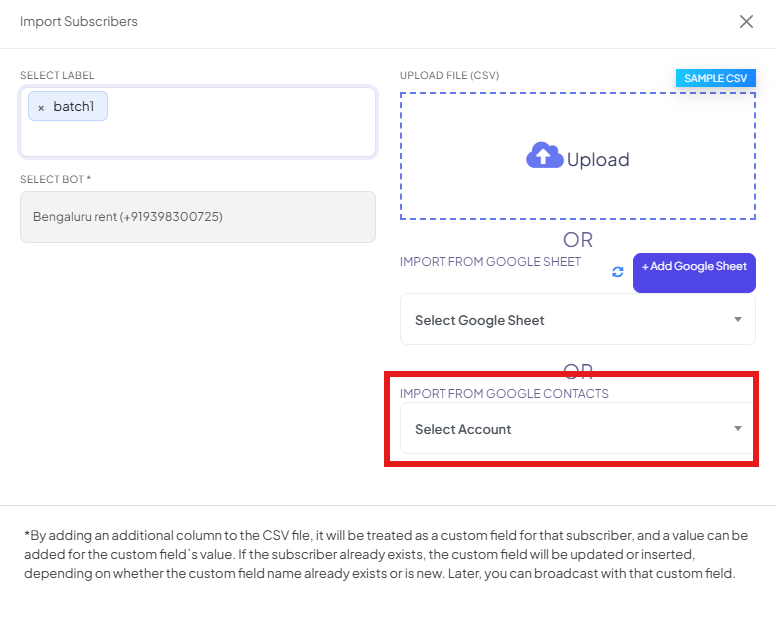 From the Subscriber Manager list, open **Export/Import**, then **Import from CSV**.
**Select Label** is optional — tag every imported subscriber with it right away (e.g. `batch1`). **Select Bot** is required — pick which bot the imported subscribers belong to.
At minimum, your CSV needs a phone number column and a name column — see the table below. A **Sample CSV** link in the modal shows the exact expected format.
Select your prepared CSV file to upload it.
Match each column in your file to a ChatSyncs field — see "Map the columns" below.
Click **Confirm** — the imported contacts appear in the Subscriber Manager list.
## The CSV format
A CSV needs at minimum a phone number and name column, e.g.:
| phone\_number | name |
| ------------- | ------ |
| 919876543210 | User 1 |
| 919876543211 | User 2 |
**Example with extra columns:** A gym exporting its members list adds `city` and
`membership_type` columns alongside the required two:
| phone\_number | name | city | membership\_type |
| ------------- | ------------ | --------- | ---------------- |
| 919876543210 | Priya Sharma | Bangalore | Gold |
| 919876543211 | Raj Verma | Mumbai | Silver |
After import, every subscriber has `city` and `membership_type` filled in automatically as
custom fields — no extra setup needed as long as those fields already exist (or ChatSyncs creates
them from the column header the first time you map them).
**Country code is mandatory, and the phone number must be plain digits** — e.g. `919876543210`,
not `+91 9876543210` or a locally-formatted number. A number missing its country code, or
formatted with symbols and spaces, will fail to match the right subscriber.
**Format the phone number column as plain numbers or text before exporting to CSV** — Excel
often displays long phone numbers in scientific notation (e.g. `8.8E+12` instead of
`8801710000000`), and a CSV exported in that state will import garbled or truncated numbers.
From the Subscriber Manager list, open **Export/Import**, then **Import from CSV**.
**Select Label** is optional — tag every imported subscriber with it right away (e.g. `batch1`). **Select Bot** is required — pick which bot the imported subscribers belong to.
At minimum, your CSV needs a phone number column and a name column — see the table below. A **Sample CSV** link in the modal shows the exact expected format.
Select your prepared CSV file to upload it.
Match each column in your file to a ChatSyncs field — see "Map the columns" below.
Click **Confirm** — the imported contacts appear in the Subscriber Manager list.
## The CSV format
A CSV needs at minimum a phone number and name column, e.g.:
| phone\_number | name |
| ------------- | ------ |
| 919876543210 | User 1 |
| 919876543211 | User 2 |
**Example with extra columns:** A gym exporting its members list adds `city` and
`membership_type` columns alongside the required two:
| phone\_number | name | city | membership\_type |
| ------------- | ------------ | --------- | ---------------- |
| 919876543210 | Priya Sharma | Bangalore | Gold |
| 919876543211 | Raj Verma | Mumbai | Silver |
After import, every subscriber has `city` and `membership_type` filled in automatically as
custom fields — no extra setup needed as long as those fields already exist (or ChatSyncs creates
them from the column header the first time you map them).
**Country code is mandatory, and the phone number must be plain digits** — e.g. `919876543210`,
not `+91 9876543210` or a locally-formatted number. A number missing its country code, or
formatted with symbols and spaces, will fail to match the right subscriber.
**Format the phone number column as plain numbers or text before exporting to CSV** — Excel
often displays long phone numbers in scientific notation (e.g. `8.8E+12` instead of
`8801710000000`), and a CSV exported in that state will import garbled or truncated numbers.
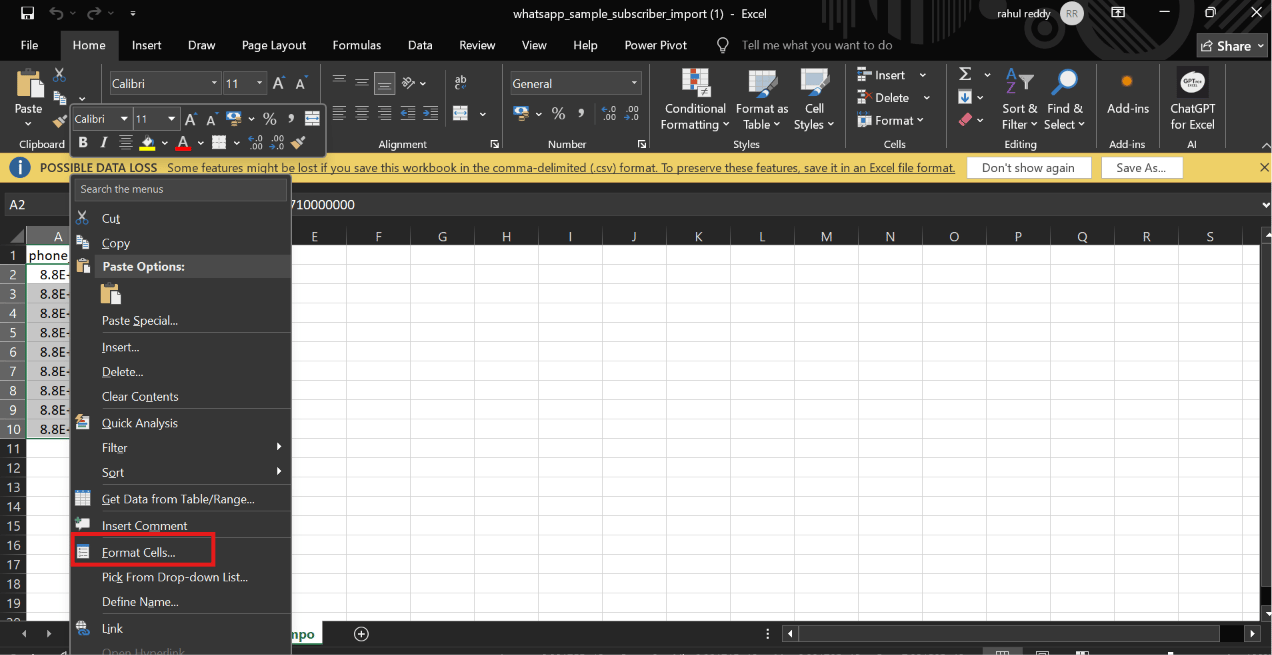
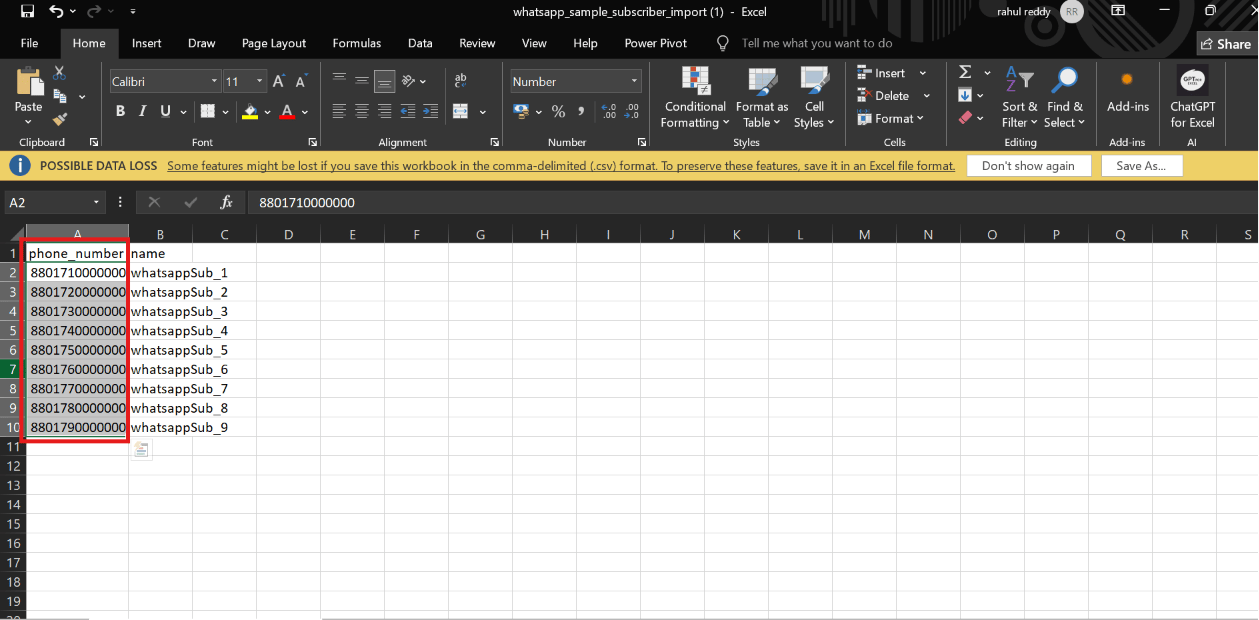
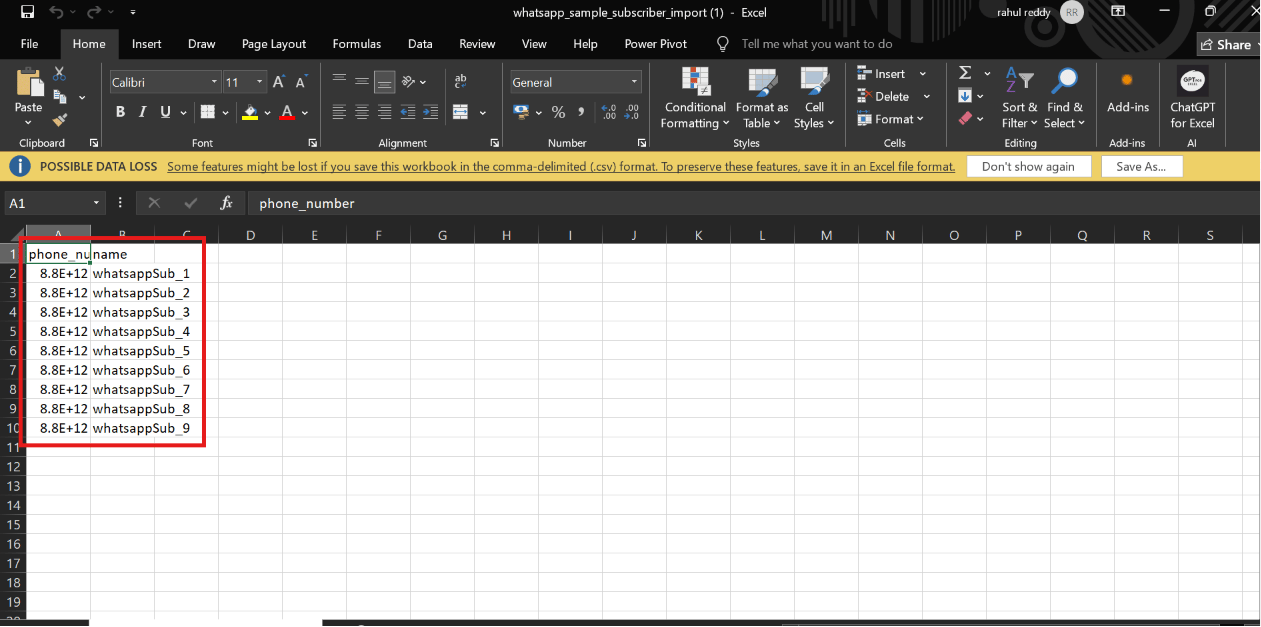 Fix it in Excel with **right-click → Format Cells** on the column, set it to **Number** with
**0 decimal places** (or **Text**), before saving as CSV:
Fix it in Excel with **right-click → Format Cells** on the column, set it to **Number** with
**0 decimal places** (or **Text**), before saving as CSV:
 ## Map the columns
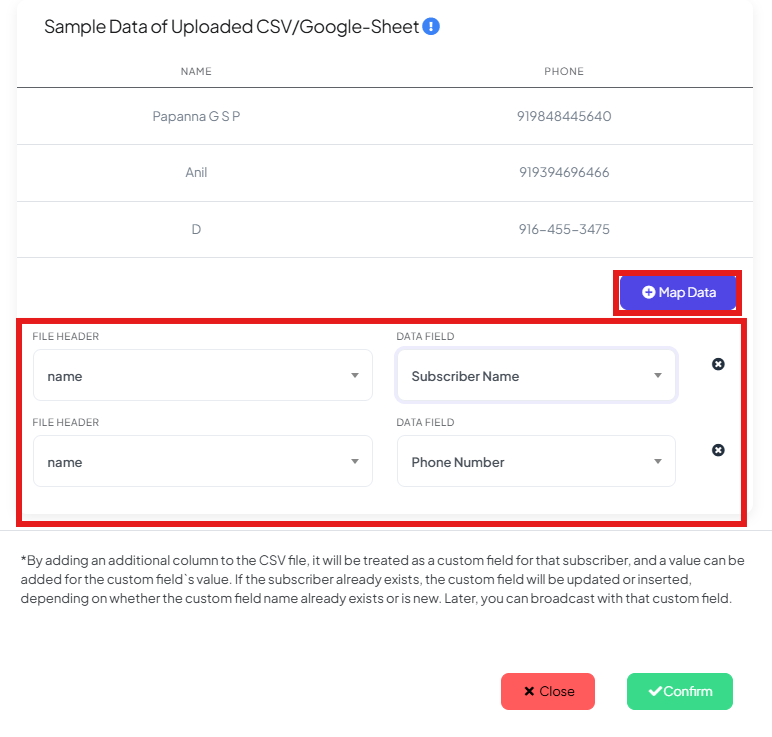 After uploading, map each column from your file to a ChatSyncs field:
* Map `phone_number` → **Phone Number**.
* Map `name` → **Subscriber Name**.
* Verify every mapping carefully before confirming — a wrong mapping imports the wrong data into
the wrong field for every row.
Any extra column beyond phone number and name is treated as a **[custom field](/learn/chatsyncs-subscriber-manager/manage-custom-fields-and-labels-with-chatsyncs#custom-fields)**
automatically. If the subscriber already exists (matched by phone number), that custom field is
updated on the existing record; if not, a new subscriber is created with it already filled in.
**Expected result:** Every row in your file becomes a subscriber in Subscriber Manager, with
extra columns populated as custom fields — ready to label, message, or enroll in a sequence
immediately.
Right after a large import, use **Options → Assign Label** on the newly-imported rows (sort by
**Subscribed at** to find them) so the whole batch is tagged and easy to find again later — e.g.
`gym_members_jan2026`.
## Troubleshooting
| Problem | Likely cause | Fix |
| ------------------------------------------------------------------- | ------------------------------------------------------ | ---------------------------------------------------------------------------------------------- |
| Import fails immediately | Missing `phone_number` or `name` column | Check your header row matches the **Sample CSV** exactly. |
| Numbers show as `8.8E+12` | Excel scientific notation | Format the column as **Number** (0 decimals) or **Text** before saving — see above. |
| A row didn't import | Blank phone number, or a duplicate header row mid-file | Remove blank rows and check for a second accidental header row. |
| Names show as `?????` or garbled characters | File saved with the wrong encoding | Save the CSV as **UTF-8** so non-English names (e.g. Hindi, Arabic script) survive the export. |
| Some rows updated existing subscribers instead of creating new ones | Their phone number already existed in ChatSyncs | Expected behavior — see the FAQ below on importing an existing phone number. |
## Frequently asked
A `phone_number` column and a `name` column. Any other column is imported automatically as
a custom field.
Yes — any column beyond `phone_number` and `name` is imported automatically as a
[custom field](/learn/chatsyncs-subscriber-manager/manage-custom-fields-and-labels-with-chatsyncs#custom-fields), matched by
its column header.
Excel often displays long phone numbers in scientific notation (`8.8E+12`). Format the
phone number column as **Number** (0 decimal places) or **Text** — right-click → **Format
Cells** — before saving the file as CSV, or the import will bring in the garbled value.
The existing subscriber record is matched by phone number and updated — any new custom
field columns are added or overwritten, rather than creating a duplicate.
Yes — the country code is mandatory and the number should be plain digits with no `+` or
spaces, e.g. `919876543210`.
Yes — the Import Subscribers modal has a **Sample CSV** link showing the exact expected
column layout.
The file was likely saved in the wrong text encoding. Re-save the CSV as **UTF-8** — most
spreadsheet tools offer this as a save/export option — before uploading again.
Very large files may take longer to process, but there's no need to split a normal
business-sized contact list — if a single import seems to stall, try splitting it into a
few smaller files as a workaround.
Yes — every row is matched by phone number. Re-importing the same file updates the existing
subscribers (and any changed custom field values) instead of duplicating them.
## Related Documentation
* [Subscriber Manager](/learn/chatsyncs-subscriber-manager/introduction) — the subscriber list, Options menu,
and Download(all) as CSV.
* [How Do I Manage Custom Fields and Labels?](/learn/chatsyncs-subscriber-manager/manage-custom-fields-and-labels-with-chatsyncs) — how imported
columns become custom fields.
* [How Do I Add a Subscriber Manually?](/learn/chatsyncs-subscriber-manager/add-a-subscriber-manually-with-chatsyncs) — for adding one
contact at a time instead.
* [How Do I Import Subscribers from Google Sheets?](/learn/chatsyncs-subscriber-manager/import-subscribers-from-google-sheets-with-chatsyncs) — for importing
without exporting a CSV file first.
* [How to Import Contacts from Google Contacts](/learn/chatsyncs-subscriber-manager/import-contacts-from-google-contacts-in-chatsyncs) — for
importing straight from your Google account's saved contacts.
After uploading, map each column from your file to a ChatSyncs field:
* Map `phone_number` → **Phone Number**.
* Map `name` → **Subscriber Name**.
* Verify every mapping carefully before confirming — a wrong mapping imports the wrong data into
the wrong field for every row.
Any extra column beyond phone number and name is treated as a **[custom field](/learn/chatsyncs-subscriber-manager/manage-custom-fields-and-labels-with-chatsyncs#custom-fields)**
automatically. If the subscriber already exists (matched by phone number), that custom field is
updated on the existing record; if not, a new subscriber is created with it already filled in.
**Expected result:** Every row in your file becomes a subscriber in Subscriber Manager, with
extra columns populated as custom fields — ready to label, message, or enroll in a sequence
immediately.
Right after a large import, use **Options → Assign Label** on the newly-imported rows (sort by
**Subscribed at** to find them) so the whole batch is tagged and easy to find again later — e.g.
`gym_members_jan2026`.
## Troubleshooting
| Problem | Likely cause | Fix |
| ------------------------------------------------------------------- | ------------------------------------------------------ | ---------------------------------------------------------------------------------------------- |
| Import fails immediately | Missing `phone_number` or `name` column | Check your header row matches the **Sample CSV** exactly. |
| Numbers show as `8.8E+12` | Excel scientific notation | Format the column as **Number** (0 decimals) or **Text** before saving — see above. |
| A row didn't import | Blank phone number, or a duplicate header row mid-file | Remove blank rows and check for a second accidental header row. |
| Names show as `?????` or garbled characters | File saved with the wrong encoding | Save the CSV as **UTF-8** so non-English names (e.g. Hindi, Arabic script) survive the export. |
| Some rows updated existing subscribers instead of creating new ones | Their phone number already existed in ChatSyncs | Expected behavior — see the FAQ below on importing an existing phone number. |
## Frequently asked
A `phone_number` column and a `name` column. Any other column is imported automatically as
a custom field.
Yes — any column beyond `phone_number` and `name` is imported automatically as a
[custom field](/learn/chatsyncs-subscriber-manager/manage-custom-fields-and-labels-with-chatsyncs#custom-fields), matched by
its column header.
Excel often displays long phone numbers in scientific notation (`8.8E+12`). Format the
phone number column as **Number** (0 decimal places) or **Text** — right-click → **Format
Cells** — before saving the file as CSV, or the import will bring in the garbled value.
The existing subscriber record is matched by phone number and updated — any new custom
field columns are added or overwritten, rather than creating a duplicate.
Yes — the country code is mandatory and the number should be plain digits with no `+` or
spaces, e.g. `919876543210`.
Yes — the Import Subscribers modal has a **Sample CSV** link showing the exact expected
column layout.
The file was likely saved in the wrong text encoding. Re-save the CSV as **UTF-8** — most
spreadsheet tools offer this as a save/export option — before uploading again.
Very large files may take longer to process, but there's no need to split a normal
business-sized contact list — if a single import seems to stall, try splitting it into a
few smaller files as a workaround.
Yes — every row is matched by phone number. Re-importing the same file updates the existing
subscribers (and any changed custom field values) instead of duplicating them.
## Related Documentation
* [Subscriber Manager](/learn/chatsyncs-subscriber-manager/introduction) — the subscriber list, Options menu,
and Download(all) as CSV.
* [How Do I Manage Custom Fields and Labels?](/learn/chatsyncs-subscriber-manager/manage-custom-fields-and-labels-with-chatsyncs) — how imported
columns become custom fields.
* [How Do I Add a Subscriber Manually?](/learn/chatsyncs-subscriber-manager/add-a-subscriber-manually-with-chatsyncs) — for adding one
contact at a time instead.
* [How Do I Import Subscribers from Google Sheets?](/learn/chatsyncs-subscriber-manager/import-subscribers-from-google-sheets-with-chatsyncs) — for importing
without exporting a CSV file first.
* [How to Import Contacts from Google Contacts](/learn/chatsyncs-subscriber-manager/import-contacts-from-google-contacts-in-chatsyncs) — for
importing straight from your Google account's saved contacts.