> ## Documentation Index
> Fetch the complete documentation index at: https://docs.chatsyncs.com/llms.txt
> Use this file to discover all available pages before exploring further.
# How Do I Import Subscribers from Google Sheets with ChatSyncs?
> How to bulk-import subscribers into ChatSyncs directly from a connected Google Sheet, without exporting a CSV first — connecting and mapping columns.
## When to use a Google Sheet import
Use this instead of a CSV file when your contact list already lives in a Google Sheet you keep
updated — connect the sheet once, and ChatSyncs reads the data directly instead of you exporting
and re-uploading a file every time the list changes.
**Example:** An event team keeps a live Google Sheet where new sign-ups get added by a
registration form all week. Instead of exporting a fresh CSV every day, they connect the sheet
once and re-run **Import from CSV → Import from Google Sheet** each morning — only the
newly-added rows turn into new subscribers, since existing ones are matched and simply updated.
Importing from a Google Sheet doesn't sync live — it's a manual re-import you trigger whenever
you want the latest rows pulled in, not an automatic background sync.
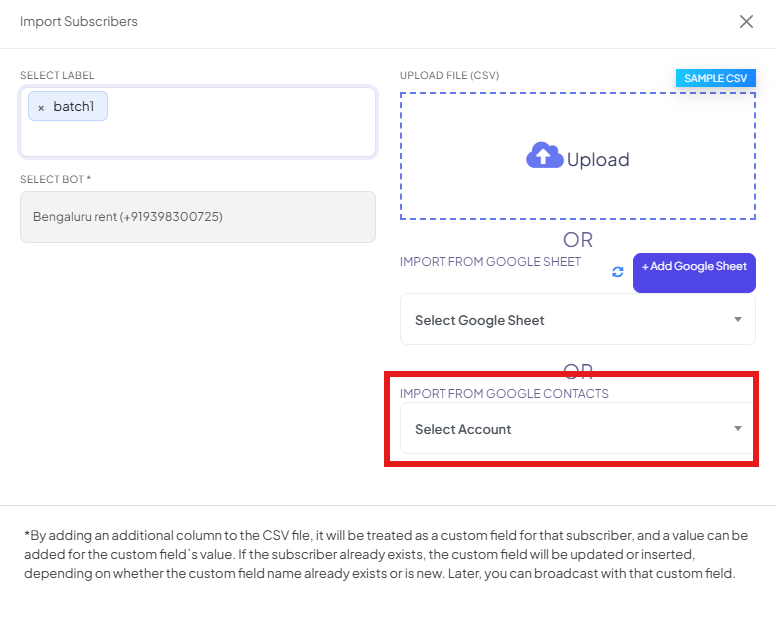 ## Import from a Google Sheet
From the Subscriber Manager list, open **Export/Import**, then **Import from CSV** — this opens the same modal used for every import type.
**Select Label** is optional; **Select Bot** is required.
Use **+ Add Google Sheet** to connect the specific spreadsheet you want to import from, then pick it from **Select Google Sheet**.
Match the sheet's columns to ChatSyncs fields, the same way as a CSV upload — see below.
Confirm — the imported contacts appear in the Subscriber Manager list.
Structure your sheet exactly the way you would a CSV file — at minimum a phone number column
and a name column. See [Import Using CSV](/learn/chatsyncs-subscriber-manager/import-subscribers-using-a-csv-file-with-chatsyncs#the-csv-format)
for the exact column format and phone-number formatting rules (country code, no `+`, no
scientific notation); they apply to a Google Sheet import in exactly the same way, since the
underlying data still goes through the same **Map the columns** step.
Any column beyond phone number and name is picked up as a **[custom field](/learn/chatsyncs-subscriber-manager/manage-custom-fields-and-labels-with-chatsyncs#custom-fields)**
automatically — same as a CSV import. If the subscriber already exists (matched by phone
number), that field is updated on the existing record instead of creating a duplicate.
Contacts already saved in your phone or Google account, with no spreadsheet at all? See
[How to Import Contacts from Google Contacts](/learn/chatsyncs-subscriber-manager/import-contacts-from-google-contacts-in-chatsyncs) instead.
**Expected result:** Every matching row becomes a subscriber in Subscriber Manager, ready to
label, message, or enroll in a sequence immediately — the same end result as a CSV import, just
without a file to prepare first.
## Frequently asked
Yes — country code mandatory, plain digits, no `+` or spaces. See
[Import Using CSV](/learn/chatsyncs-subscriber-manager/import-subscribers-using-a-csv-file-with-chatsyncs#the-csv-format) for the full detail;
the same Map the columns step is used for both.
It matches by phone number — an existing subscriber's record (and its custom fields) gets
updated rather than duplicated.
The connection stays available for future imports from the same sheet, so you can re-run
the import later (e.g. after adding new rows) without reconnecting it from scratch.
No — importing is manual. Add your new rows, then go back to **Export/Import → Import from
CSV → Import from Google Sheet** and re-run it; only new or changed rows affect anything,
since existing subscribers are matched and updated rather than duplicated.
Keep your subscriber data (phone number, name, and any extra columns) in a clean, dedicated
sheet or tab structured the same way as a CSV — the same header-row and column rules apply
once it's connected.
## Related Documentation
* [Subscriber Manager](/learn/chatsyncs-subscriber-manager/introduction) — the subscriber list and full
Options menu.
* [How Do I Import Subscribers Using a CSV File?](/learn/chatsyncs-subscriber-manager/import-subscribers-using-a-csv-file-with-chatsyncs) — the column format and phone-number
rules shared by both import methods.
* [How to Import Contacts from Google Contacts](/learn/chatsyncs-subscriber-manager/import-contacts-from-google-contacts-in-chatsyncs) — for
importing straight from your Google account's saved contacts instead of a spreadsheet.
* [How Do I Add a Subscriber Manually?](/learn/chatsyncs-subscriber-manager/add-a-subscriber-manually-with-chatsyncs) — for adding one
contact at a time instead.
* [How Do I Manage Custom Fields and Labels?](/learn/chatsyncs-subscriber-manager/manage-custom-fields-and-labels-with-chatsyncs) — how imported
columns become custom fields.
## Import from a Google Sheet
From the Subscriber Manager list, open **Export/Import**, then **Import from CSV** — this opens the same modal used for every import type.
**Select Label** is optional; **Select Bot** is required.
Use **+ Add Google Sheet** to connect the specific spreadsheet you want to import from, then pick it from **Select Google Sheet**.
Match the sheet's columns to ChatSyncs fields, the same way as a CSV upload — see below.
Confirm — the imported contacts appear in the Subscriber Manager list.
Structure your sheet exactly the way you would a CSV file — at minimum a phone number column
and a name column. See [Import Using CSV](/learn/chatsyncs-subscriber-manager/import-subscribers-using-a-csv-file-with-chatsyncs#the-csv-format)
for the exact column format and phone-number formatting rules (country code, no `+`, no
scientific notation); they apply to a Google Sheet import in exactly the same way, since the
underlying data still goes through the same **Map the columns** step.
Any column beyond phone number and name is picked up as a **[custom field](/learn/chatsyncs-subscriber-manager/manage-custom-fields-and-labels-with-chatsyncs#custom-fields)**
automatically — same as a CSV import. If the subscriber already exists (matched by phone
number), that field is updated on the existing record instead of creating a duplicate.
Contacts already saved in your phone or Google account, with no spreadsheet at all? See
[How to Import Contacts from Google Contacts](/learn/chatsyncs-subscriber-manager/import-contacts-from-google-contacts-in-chatsyncs) instead.
**Expected result:** Every matching row becomes a subscriber in Subscriber Manager, ready to
label, message, or enroll in a sequence immediately — the same end result as a CSV import, just
without a file to prepare first.
## Frequently asked
Yes — country code mandatory, plain digits, no `+` or spaces. See
[Import Using CSV](/learn/chatsyncs-subscriber-manager/import-subscribers-using-a-csv-file-with-chatsyncs#the-csv-format) for the full detail;
the same Map the columns step is used for both.
It matches by phone number — an existing subscriber's record (and its custom fields) gets
updated rather than duplicated.
The connection stays available for future imports from the same sheet, so you can re-run
the import later (e.g. after adding new rows) without reconnecting it from scratch.
No — importing is manual. Add your new rows, then go back to **Export/Import → Import from
CSV → Import from Google Sheet** and re-run it; only new or changed rows affect anything,
since existing subscribers are matched and updated rather than duplicated.
Keep your subscriber data (phone number, name, and any extra columns) in a clean, dedicated
sheet or tab structured the same way as a CSV — the same header-row and column rules apply
once it's connected.
## Related Documentation
* [Subscriber Manager](/learn/chatsyncs-subscriber-manager/introduction) — the subscriber list and full
Options menu.
* [How Do I Import Subscribers Using a CSV File?](/learn/chatsyncs-subscriber-manager/import-subscribers-using-a-csv-file-with-chatsyncs) — the column format and phone-number
rules shared by both import methods.
* [How to Import Contacts from Google Contacts](/learn/chatsyncs-subscriber-manager/import-contacts-from-google-contacts-in-chatsyncs) — for
importing straight from your Google account's saved contacts instead of a spreadsheet.
* [How Do I Add a Subscriber Manually?](/learn/chatsyncs-subscriber-manager/add-a-subscriber-manually-with-chatsyncs) — for adding one
contact at a time instead.
* [How Do I Manage Custom Fields and Labels?](/learn/chatsyncs-subscriber-manager/manage-custom-fields-and-labels-with-chatsyncs) — how imported
columns become custom fields.