> ## Documentation Index
> Fetch the complete documentation index at: https://docs.chatsyncs.com/llms.txt
> Use this file to discover all available pages before exploring further.
# How to Import Contacts from Google Contacts in ChatSyncs
> How to bulk-import subscribers into ChatSyncs straight from a connected Google account's saved contacts, with no spreadsheet to prepare or export first.
## When to use Google Contacts import
Use this when the people you want in ChatSyncs are already saved in your phone or Google
account's **Contacts** — there's no spreadsheet to prepare, format, or export first. It's the
fastest of the three import methods, but the simplest: Google Contacts only holds a name and
phone number per person, so it can't carry extra custom-field data the way
[How Do I Import Subscribers Using a CSV File?](/learn/chatsyncs-subscriber-manager/how-do-i-import-subscribers-using-a-csv-file-with-chatsyncs) or
[How Do I Import Subscribers from Google Sheets?](/learn/chatsyncs-subscriber-manager/how-do-i-import-subscribers-from-google-sheets-with-chatsyncs) import can.
## Import from Google Contacts
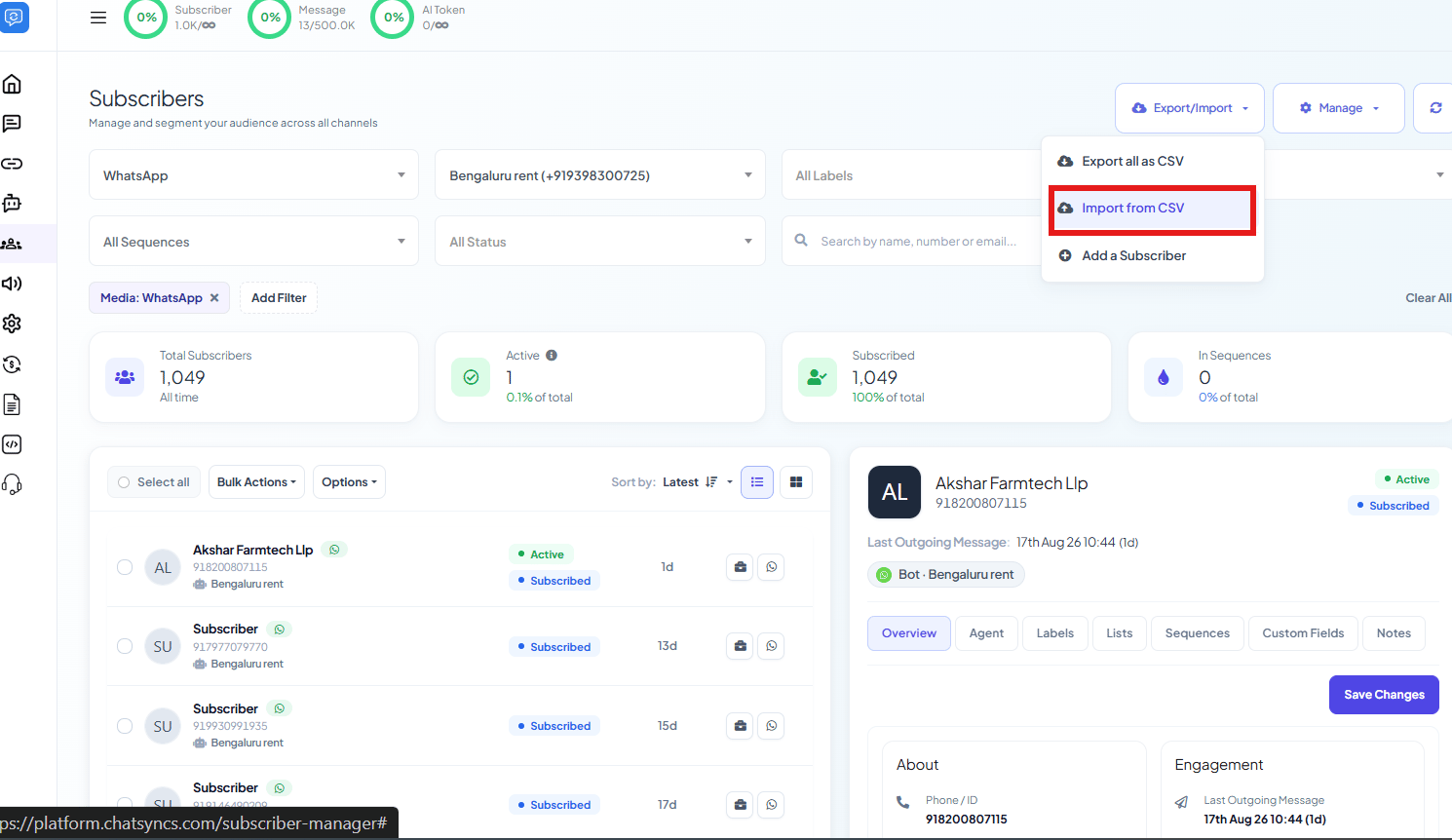
From the Subscriber Manager list, open **Export/Import**, then **Import from CSV** — this
opens the same modal used for every import type.
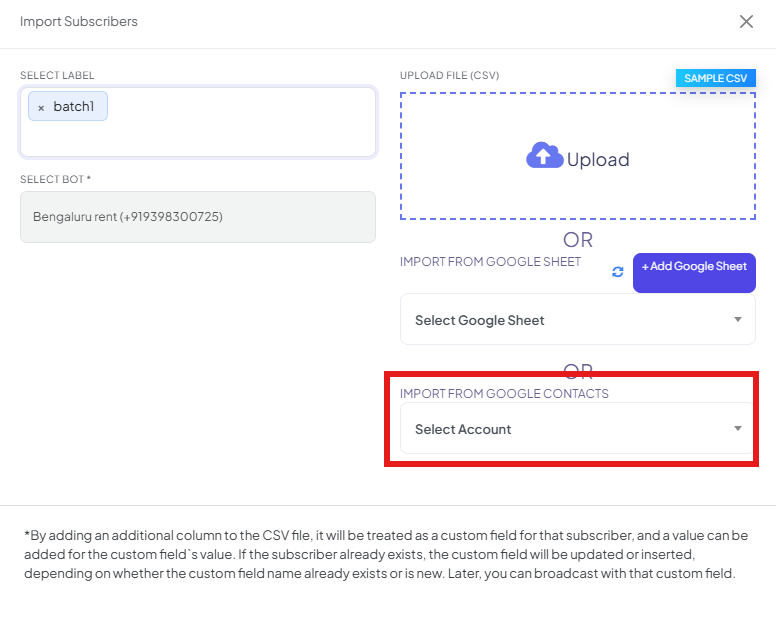
 **Select Label** is optional — tag every imported contact with it right away (e.g.
`batch1`). **Select Bot** is required.
**Select Label** is optional — tag every imported contact with it right away (e.g.
`batch1`). **Select Bot** is required.
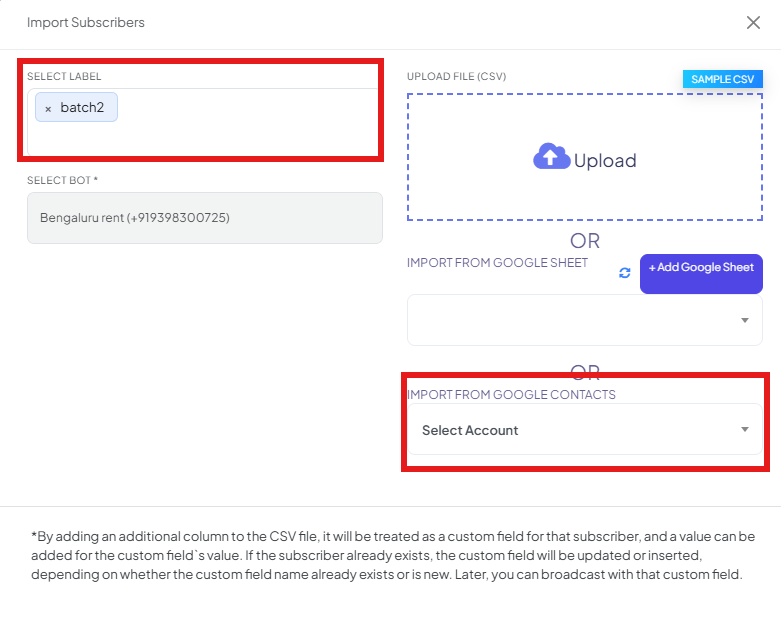
 Scroll to the **Import from Google Contacts** section of the same modal.
Pick the connected Google account to read contacts from, or connect one if none is listed
yet — see [How to Connect Google to ChatSyncs](/learn/chatsyncs-integrations/how-to-connect-google-to-chatsyncs) for the full walkthrough.
Scroll to the **Import from Google Contacts** section of the same modal.
Pick the connected Google account to read contacts from, or connect one if none is listed
yet — see [How to Connect Google to ChatSyncs](/learn/chatsyncs-integrations/how-to-connect-google-to-chatsyncs) for the full walkthrough.
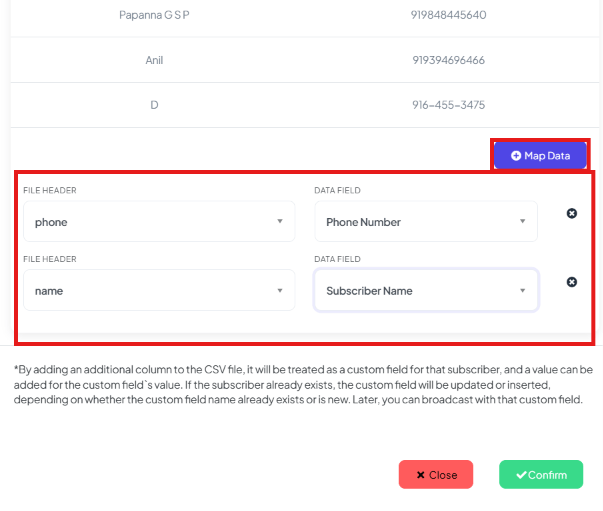
 ChatSyncs shows a preview of the imported contacts, with **Map Data** fields for matching
**name** and **phone** to **Subscriber Name** and **Phone Number** — the same **Map the
columns** step used for CSV and Google Sheet import. Set both mappings, then click
**Confirm**.
ChatSyncs shows a preview of the imported contacts, with **Map Data** fields for matching
**name** and **phone** to **Subscriber Name** and **Phone Number** — the same **Map the
columns** step used for CSV and Google Sheet import. Set both mappings, then click
**Confirm**.
 Google Contacts only holds a name and phone number per person — there are no extra "columns" to
map, so this method can't populate custom fields the way a Google Sheet or CSV import can. If
you need custom field data alongside each contact, use
[How Do I Import Subscribers from Google Sheets?](/learn/chatsyncs-subscriber-manager/how-do-i-import-subscribers-from-google-sheets-with-chatsyncs) or
[How Do I Import Subscribers Using a CSV File?](/learn/chatsyncs-subscriber-manager/how-do-i-import-subscribers-using-a-csv-file-with-chatsyncs) instead.
**Expected result:** Every contact in the selected Google account becomes a subscriber in
Subscriber Manager, ready to label, message, or enroll in a sequence immediately — matched by
phone number, so re-running the import updates existing subscribers instead of duplicating them.
## Frequently asked
**Google Contacts** import reads your connected Google account's saved contacts directly —
good when there's no spreadsheet at all. **Google Sheet** import reads a spreadsheet you
connect — good for structured lists with extra columns you want as custom fields.
No — Google Contacts only provides a name and phone number. For custom field data (city,
company, order ID, etc.), use
[How Do I Import Subscribers from Google Sheets?](/learn/chatsyncs-subscriber-manager/how-do-i-import-subscribers-from-google-sheets-with-chatsyncs)
or [How Do I Import Subscribers Using a CSV File?](/learn/chatsyncs-subscriber-manager/how-do-i-import-subscribers-using-a-csv-file-with-chatsyncs) instead, where extra columns become
custom fields automatically.
Yes — pick it from **Select Account** in the Import Subscribers modal. If none is listed,
connect one there first.
No — each contact is matched by phone number. An existing subscriber's record is updated
rather than duplicated if you re-run the import later.
**Select Bot** is required — every imported contact needs a bot to belong to. **Select
Label** is optional, useful for tagging the whole batch (e.g. `google_contacts_import`) so
it's easy to find and filter afterward.
## Related Documentation
* [Subscriber Manager](/learn/chatsyncs-subscriber-manager/what-is-subscriber-manager-in-chatsyncs) — the subscriber list and full
Options menu.
* [How Do I Import Subscribers Using a CSV File?](/learn/chatsyncs-subscriber-manager/how-do-i-import-subscribers-using-a-csv-file-with-chatsyncs) — for a spreadsheet with extra
columns you want as custom fields.
* [How Do I Import Subscribers from Google Sheets?](/learn/chatsyncs-subscriber-manager/how-do-i-import-subscribers-from-google-sheets-with-chatsyncs) — for importing
from a live, connected Google Sheet.
* [How Do I Add a Subscriber Manually?](/learn/chatsyncs-subscriber-manager/how-do-i-add-a-subscriber-manually-with-chatsyncs) — for adding one
contact at a time instead.
* [How Do I Manage Custom Fields and Labels?](/learn/chatsyncs-subscriber-manager/how-do-i-manage-custom-fields-labels-and-lists-with-chatsyncs) — how labels
segment your subscriber list.
This documentation is built and hosted on [Mintlify](https://mintlify.com), a developer documentation platform.
Google Contacts only holds a name and phone number per person — there are no extra "columns" to
map, so this method can't populate custom fields the way a Google Sheet or CSV import can. If
you need custom field data alongside each contact, use
[How Do I Import Subscribers from Google Sheets?](/learn/chatsyncs-subscriber-manager/how-do-i-import-subscribers-from-google-sheets-with-chatsyncs) or
[How Do I Import Subscribers Using a CSV File?](/learn/chatsyncs-subscriber-manager/how-do-i-import-subscribers-using-a-csv-file-with-chatsyncs) instead.
**Expected result:** Every contact in the selected Google account becomes a subscriber in
Subscriber Manager, ready to label, message, or enroll in a sequence immediately — matched by
phone number, so re-running the import updates existing subscribers instead of duplicating them.
## Frequently asked
**Google Contacts** import reads your connected Google account's saved contacts directly —
good when there's no spreadsheet at all. **Google Sheet** import reads a spreadsheet you
connect — good for structured lists with extra columns you want as custom fields.
No — Google Contacts only provides a name and phone number. For custom field data (city,
company, order ID, etc.), use
[How Do I Import Subscribers from Google Sheets?](/learn/chatsyncs-subscriber-manager/how-do-i-import-subscribers-from-google-sheets-with-chatsyncs)
or [How Do I Import Subscribers Using a CSV File?](/learn/chatsyncs-subscriber-manager/how-do-i-import-subscribers-using-a-csv-file-with-chatsyncs) instead, where extra columns become
custom fields automatically.
Yes — pick it from **Select Account** in the Import Subscribers modal. If none is listed,
connect one there first.
No — each contact is matched by phone number. An existing subscriber's record is updated
rather than duplicated if you re-run the import later.
**Select Bot** is required — every imported contact needs a bot to belong to. **Select
Label** is optional, useful for tagging the whole batch (e.g. `google_contacts_import`) so
it's easy to find and filter afterward.
## Related Documentation
* [Subscriber Manager](/learn/chatsyncs-subscriber-manager/what-is-subscriber-manager-in-chatsyncs) — the subscriber list and full
Options menu.
* [How Do I Import Subscribers Using a CSV File?](/learn/chatsyncs-subscriber-manager/how-do-i-import-subscribers-using-a-csv-file-with-chatsyncs) — for a spreadsheet with extra
columns you want as custom fields.
* [How Do I Import Subscribers from Google Sheets?](/learn/chatsyncs-subscriber-manager/how-do-i-import-subscribers-from-google-sheets-with-chatsyncs) — for importing
from a live, connected Google Sheet.
* [How Do I Add a Subscriber Manually?](/learn/chatsyncs-subscriber-manager/how-do-i-add-a-subscriber-manually-with-chatsyncs) — for adding one
contact at a time instead.
* [How Do I Manage Custom Fields and Labels?](/learn/chatsyncs-subscriber-manager/how-do-i-manage-custom-fields-labels-and-lists-with-chatsyncs) — how labels
segment your subscriber list.
This documentation is built and hosted on [Mintlify](https://mintlify.com), a developer documentation platform.