> ## Documentation Index
> Fetch the complete documentation index at: https://docs.chatsyncs.com/llms.txt
> Use this file to discover all available pages before exploring further.
# Team Collaboration & Agent Assignment in ChatSyncs
> How to assign a conversation to a teammate, hand it off, and leave internal notes only your team can see.
Multiple team members share the same ChatSyncs Shared Inbox — **Assigned Agent** and **Notes** are what
keep that collaboration clean, so no two agents answer the same customer and context isn't lost
between shifts.
## Assigned Agent
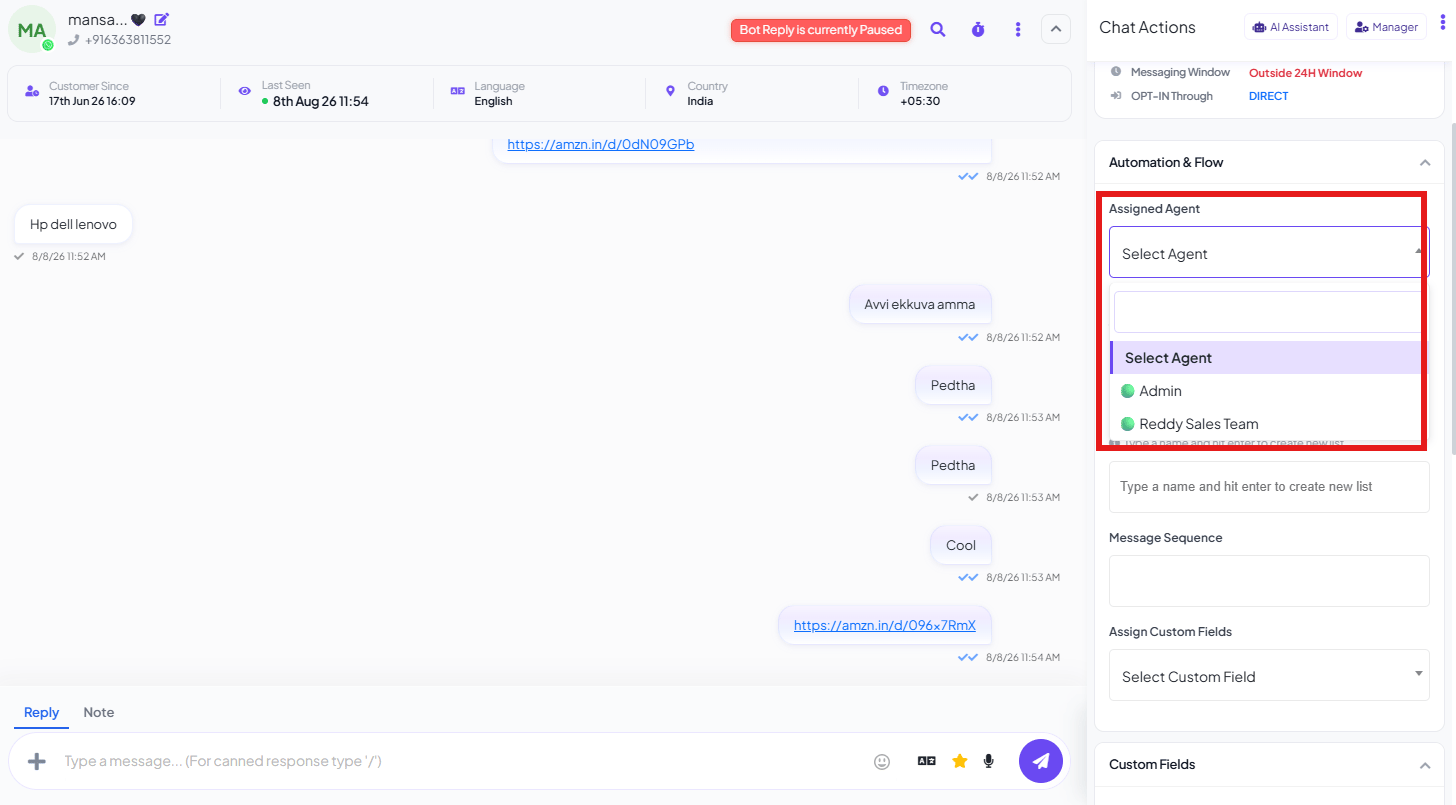 In the Chat Actions panel, open **Automation & Flow** and use the **Assigned Agent** dropdown to
assign or reassign the conversation to a specific team member or team.
**Example:** Rahul is unavailable today. The team lead reassigns his open conversation to
Priya so she can pick up the support without the customer having to repeat themselves.
Also see [Quick Actions](/learn/chatsyncs-shared-inbox/managing-customer-data-with-custom-fields-in-chatsyncs#quick-actions) for a one-click
**Assign Agent** shortcut, instead of going through the full panel.
## Notes
Internal notes are visible only to your team — never to the customer.
**Example:**
```text theme={null}
Customer requested a callback tomorrow at 10 AM. Interested in Premium Plan.
```
A teammate picking up the conversation later reads the note and already knows the context
before replying.
## Frequently asked
Open the conversation, go to **Automation & Flow** in the Chat Actions panel, and change
**Assigned Agent** to the teammate who should take over.
Yes — use **Notes** in the Chat Actions panel. Notes are internal-only and never shown to
the customer.
Assign the conversation to one specific agent — only that agent is expected to reply, and
reassigning it moves ownership cleanly to someone else instead of leaving it open to anyone.
In the Chat Actions panel, open **Automation & Flow** and use the **Assigned Agent** dropdown to
assign or reassign the conversation to a specific team member or team.
**Example:** Rahul is unavailable today. The team lead reassigns his open conversation to
Priya so she can pick up the support without the customer having to repeat themselves.
Also see [Quick Actions](/learn/chatsyncs-shared-inbox/managing-customer-data-with-custom-fields-in-chatsyncs#quick-actions) for a one-click
**Assign Agent** shortcut, instead of going through the full panel.
## Notes
Internal notes are visible only to your team — never to the customer.
**Example:**
```text theme={null}
Customer requested a callback tomorrow at 10 AM. Interested in Premium Plan.
```
A teammate picking up the conversation later reads the note and already knows the context
before replying.
## Frequently asked
Open the conversation, go to **Automation & Flow** in the Chat Actions panel, and change
**Assigned Agent** to the teammate who should take over.
Yes — use **Notes** in the Chat Actions panel. Notes are internal-only and never shown to
the customer.
Assign the conversation to one specific agent — only that agent is expected to reply, and
reassigning it moves ownership cleanly to someone else instead of leaving it open to anyone.