> ## Documentation Index
> Fetch the complete documentation index at: https://docs.chatsyncs.com/llms.txt
> Use this file to discover all available pages before exploring further.
# Settings Menu: Groupchat Widget, Dark Mode, Follow-up List & More in ChatSyncs
> Everything behind the Shared Inbox's Settings (gear) menu — the internal Groupchat Widget, Dark Mode, the Follow-up List export, adding a subscriber, and installing ChatSyncs as an app.
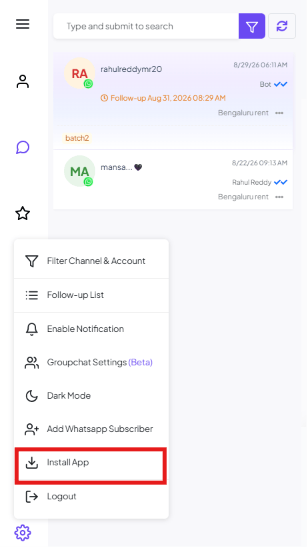
The **Settings (⚙️)** icon at the bottom-left of the Shared Inbox opens a menu with several
tools that don't fit anywhere else:
 ## Filter Channel & Account
Switch which WhatsApp number or channel the inbox shows — see [Filter Conversations by Channel &
Account](/learn/chatsyncs-shared-inbox/filter-conversations-by-channel-account-in-chatsyncs) for the full walkthrough.
## Follow-up List
See every scheduled follow-up reminder across all conversations in one table, and export them —
see [Follow-up Reminders & Message
Sequences](/learn/chatsyncs-shared-inbox/follow-up-reminders-message-sequences-in-chatsyncs) for how to create one.
## Enable Notification
Turns on browser/desktop notifications for new messages, so you don't have to keep the Shared
Inbox tab in view to know a customer replied.
## Groupchat Settings (Beta)
## Filter Channel & Account
Switch which WhatsApp number or channel the inbox shows — see [Filter Conversations by Channel &
Account](/learn/chatsyncs-shared-inbox/filter-conversations-by-channel-account-in-chatsyncs) for the full walkthrough.
## Follow-up List
See every scheduled follow-up reminder across all conversations in one table, and export them —
see [Follow-up Reminders & Message
Sequences](/learn/chatsyncs-shared-inbox/follow-up-reminders-message-sequences-in-chatsyncs) for how to create one.
## Enable Notification
Turns on browser/desktop notifications for new messages, so you don't have to keep the Shared
Inbox tab in view to know a customer replied.
## Groupchat Settings (Beta)
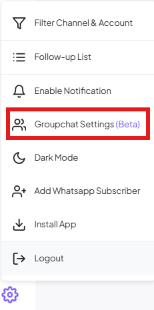 A floating internal group-chat widget for your team — separate from customer conversations —
that sits on top of the Shared Inbox for quick teammate-to-teammate chat.
A floating internal group-chat widget for your team — separate from customer conversations —
that sits on top of the Shared Inbox for quick teammate-to-teammate chat.
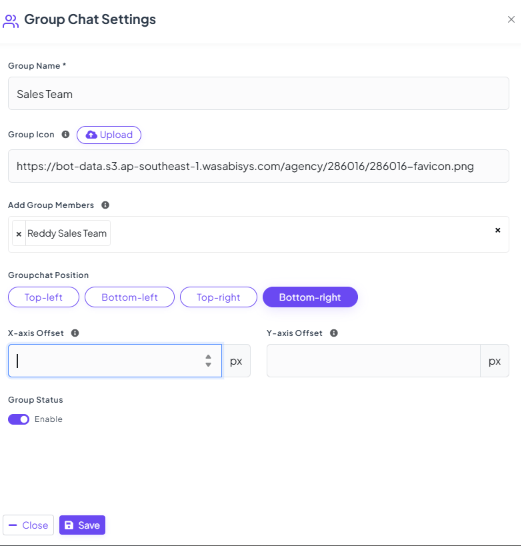 e.g. `Sales Team`.
A small image shown on the floating widget.
Pick which teammates or teams can see and use this group chat, e.g. `Reddy Sales Team`.
Where the floating widget sits on screen — **Top-left**, **Bottom-left**, **Top-right**, or **Bottom-right**.
Nudge the widget's exact pixel position if it overlaps something else on screen.
The **Enable** toggle controls whether the widget shows at all.
Publishes the widget.
Once enabled, the widget appears as a small floating icon at the position you chose:
e.g. `Sales Team`.
A small image shown on the floating widget.
Pick which teammates or teams can see and use this group chat, e.g. `Reddy Sales Team`.
Where the floating widget sits on screen — **Top-left**, **Bottom-left**, **Top-right**, or **Bottom-right**.
Nudge the widget's exact pixel position if it overlaps something else on screen.
The **Enable** toggle controls whether the widget shows at all.
Publishes the widget.
Once enabled, the widget appears as a small floating icon at the position you chose:
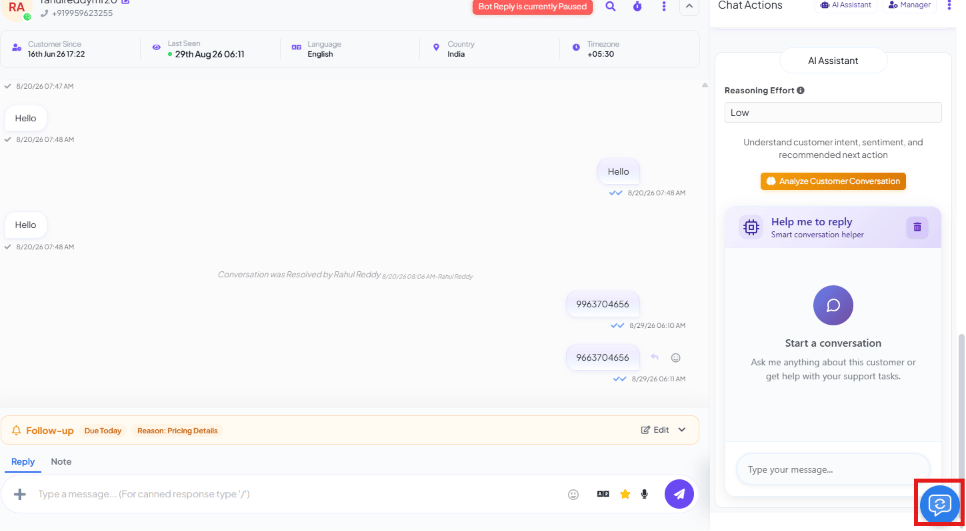 Clicking it opens the team's group chat window:
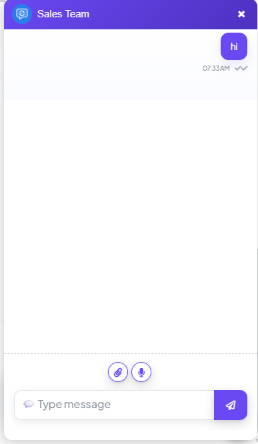 **Example:** A `Sales Team` group chat lets the whole sales team coordinate on a big lead
without leaving the Shared Inbox or switching to a separate messaging app.
## Dark Mode
**Example:** A `Sales Team` group chat lets the whole sales team coordinate on a big lead
without leaving the Shared Inbox or switching to a separate messaging app.
## Dark Mode
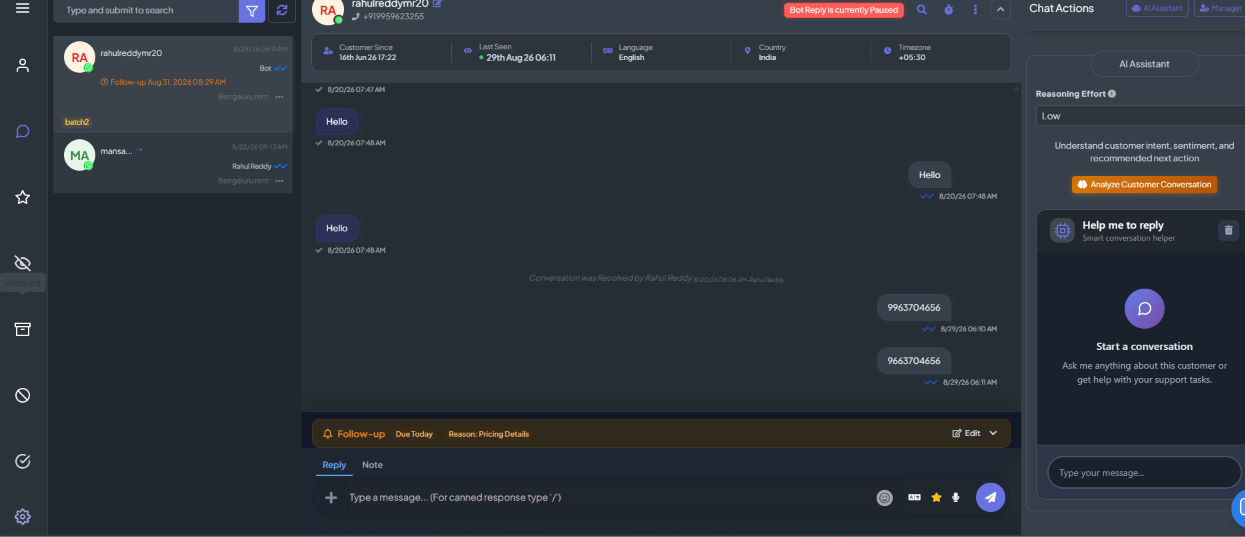
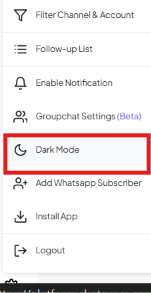 Switches the entire Shared Inbox — conversation list, chat window, and Chat Actions panel — to a
dark color theme:
Switches the entire Shared Inbox — conversation list, chat window, and Chat Actions panel — to a
dark color theme:
 ## Add Whatsapp Subscriber
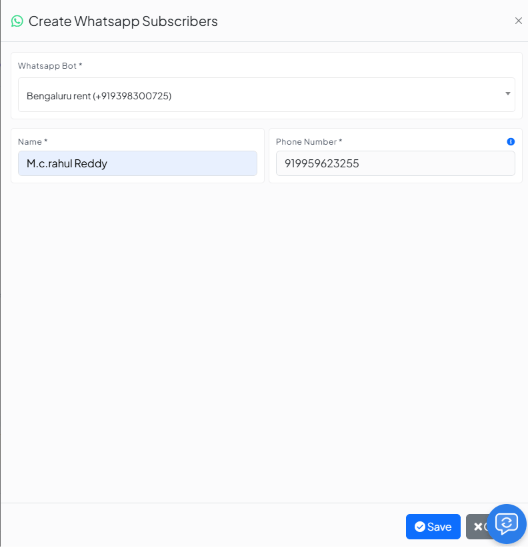 A shortcut to add one subscriber by hand without leaving the Shared Inbox — the same modal
covered in [How Do I Add a Subscriber
Manually?](/learn/chatsyncs-subscriber-manager/how-do-i-add-a-subscriber-manually-with-chatsyncs), just reachable from here too.
## Install App
A shortcut to add one subscriber by hand without leaving the Shared Inbox — the same modal
covered in [How Do I Add a Subscriber
Manually?](/learn/chatsyncs-subscriber-manager/how-do-i-add-a-subscriber-manually-with-chatsyncs), just reachable from here too.
## Install App
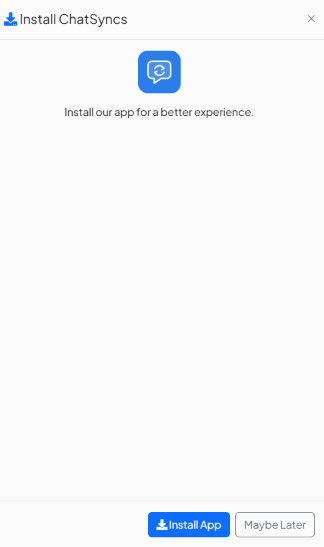 Installs ChatSyncs as a standalone desktop app instead of a browser tab — click **Install App**,
and it's pinned like any other installed app:
Installs ChatSyncs as a standalone desktop app instead of a browser tab — click **Install App**,
and it's pinned like any other installed app:
 ## Logout
Signs you out of ChatSyncs.
## Frequently asked
Click the **Settings (⚙️)** icon at the bottom-left of the Shared Inbox.
Yes — **Groupchat Settings (Beta)**. Create a group, add members, and a floating widget lets
the team chat without leaving the Shared Inbox.
Yes — set **Groupchat Position** to a different corner, or fine-tune it with the **X-axis**
and **Y-axis Offset** fields.
Yes — **Install App** installs it as a standalone desktop app, pinned like any other
installed application.
Yes — **Add Whatsapp Subscriber** in the Settings menu opens the same Create Subscribers
modal without leaving the Shared Inbox.
This documentation is built and hosted on [Mintlify](https://mintlify.com), a developer documentation platform.
## Logout
Signs you out of ChatSyncs.
## Frequently asked
Click the **Settings (⚙️)** icon at the bottom-left of the Shared Inbox.
Yes — **Groupchat Settings (Beta)**. Create a group, add members, and a floating widget lets
the team chat without leaving the Shared Inbox.
Yes — set **Groupchat Position** to a different corner, or fine-tune it with the **X-axis**
and **Y-axis Offset** fields.
Yes — **Install App** installs it as a standalone desktop app, pinned like any other
installed application.
Yes — **Add Whatsapp Subscriber** in the Settings menu opens the same Create Subscribers
modal without leaving the Shared Inbox.
This documentation is built and hosted on [Mintlify](https://mintlify.com), a developer documentation platform.