> ## Documentation Index
> Fetch the complete documentation index at: https://docs.chatsyncs.com/llms.txt
> Use this file to discover all available pages before exploring further.
# Organize Conversations with Labels, Views & Search in ChatSyncs
> How to tag conversations with labels, switch between saved views, and search the conversation list to find one fast.
As your ChatSyncs conversation list grows, three tools keep it manageable: **Labels** to tag
chats, **Views** (the filters) to narrow what you see, and **Search** to jump straight to one
conversation.
## Search the conversation list
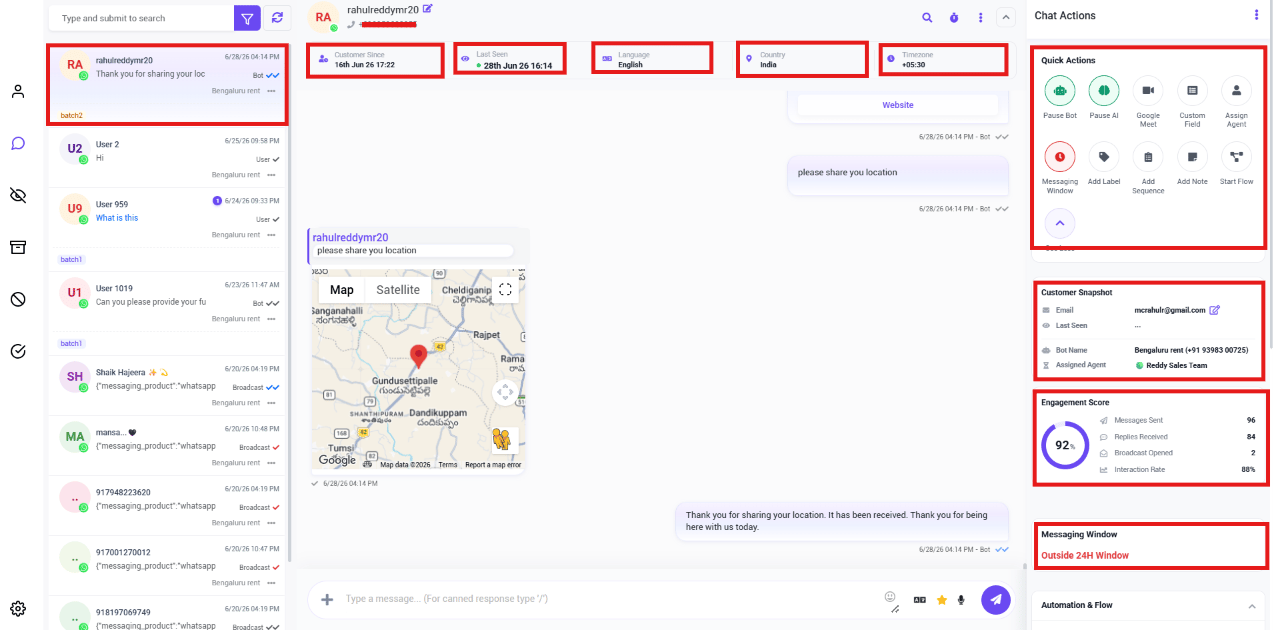 Use the search box above the conversation list to find a chat by name or number instead of
scrolling through the full list.
## Views: the inbox filters
Switch between **Mine**, **All**, **Unread**, **Archived**, **Blocked**, and **Resolved** at
the top of the Shared Inbox — see [Filter Conversations by Channel &
Account](/learn/chatsyncs-shared-inbox/filter-conversations-by-channel-account-in-chatsyncs) for the full breakdown of each.
## Labels
Use the search box above the conversation list to find a chat by name or number instead of
scrolling through the full list.
## Views: the inbox filters
Switch between **Mine**, **All**, **Unread**, **Archived**, **Blocked**, and **Resolved** at
the top of the Shared Inbox — see [Filter Conversations by Channel &
Account](/learn/chatsyncs-shared-inbox/filter-conversations-by-channel-account-in-chatsyncs) for the full breakdown of each.
## Labels
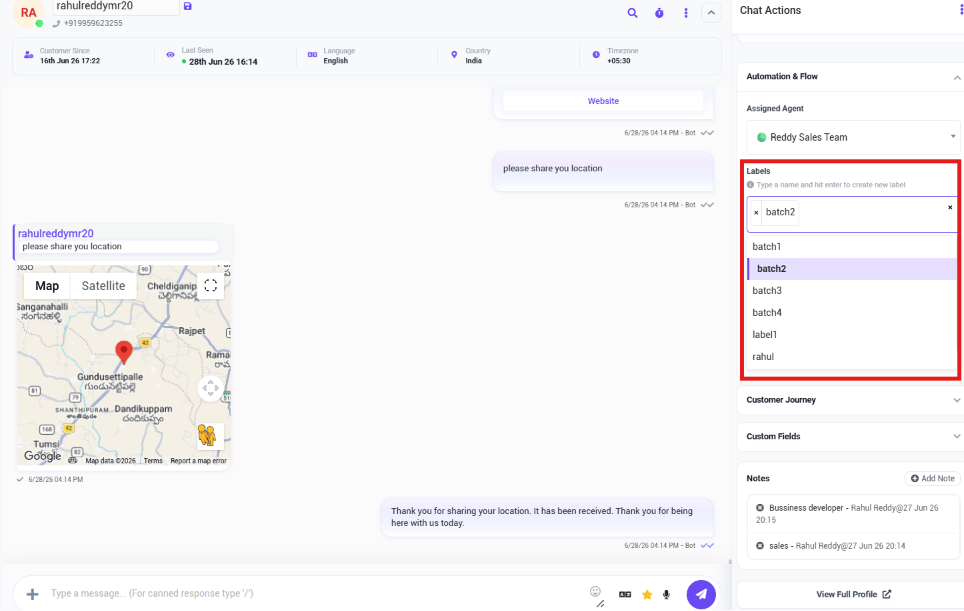 Tag a conversation from the Chat Actions panel to organize it:
* `New Lead`
* `VIP Customer`
* `Payment Pending`
* `Follow Up`
* `Sales`
**Example:** A sales lead messages in in on a Saturday. The agent tags the conversation
`New Lead` so it's easy to find and follow up on Monday, even after it's been pushed down the
list by newer chats.
## Conversation options
Tag a conversation from the Chat Actions panel to organize it:
* `New Lead`
* `VIP Customer`
* `Payment Pending`
* `Follow Up`
* `Sales`
**Example:** A sales lead messages in in on a Saturday. The agent tags the conversation
`New Lead` so it's easy to find and follow up on Monday, even after it's been pushed down the
list by newer chats.
## Conversation options
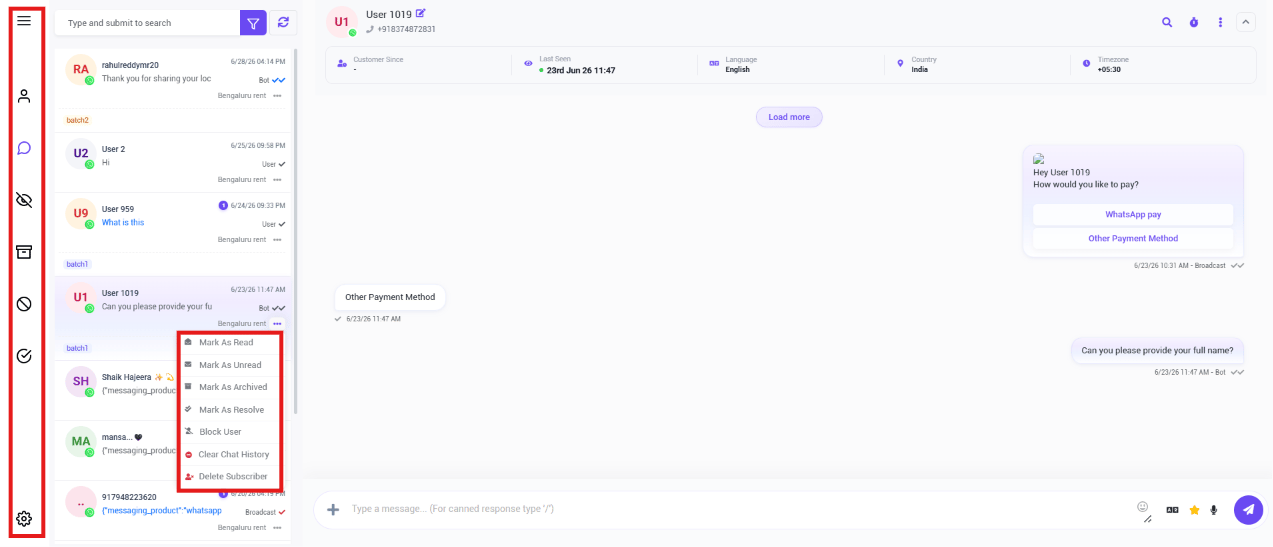 The **⋯** menu on each conversation gives you:
* **Mark As Read** / **Mark As Unread**
* **Mark As Archived**
* **Mark As Resolve**
* **Block User**
* **Clear Chat History**
* **Delete Subscriber**
**Example:** After resolving a customer's issue, mark it **Resolved**, then **Archive** it so
it's out of the active inbox but still available for reference later.
## Frequently asked
Use the search box above the conversation list — search by name or phone number instead of
scrolling.
Open it, then add a **Label** from the Chat Actions panel — e.g. `VIP Customer` or
`Follow Up`. You can then filter or search by that label later.
Use the conversation's **⋯** menu and select **Mark As Archived** — it's kept for reference
but no longer shows in your default view.
Yes, via **Delete Subscriber** in the conversation's **⋯** menu — this is permanent and
can't be undone.
Deleting a subscriber from Conversation Options is permanent — there's no undo.
The **⋯** menu on each conversation gives you:
* **Mark As Read** / **Mark As Unread**
* **Mark As Archived**
* **Mark As Resolve**
* **Block User**
* **Clear Chat History**
* **Delete Subscriber**
**Example:** After resolving a customer's issue, mark it **Resolved**, then **Archive** it so
it's out of the active inbox but still available for reference later.
## Frequently asked
Use the search box above the conversation list — search by name or phone number instead of
scrolling.
Open it, then add a **Label** from the Chat Actions panel — e.g. `VIP Customer` or
`Follow Up`. You can then filter or search by that label later.
Use the conversation's **⋯** menu and select **Mark As Archived** — it's kept for reference
but no longer shows in your default view.
Yes, via **Delete Subscriber** in the conversation's **⋯** menu — this is permanent and
can't be undone.
Deleting a subscriber from Conversation Options is permanent — there's no undo.