> ## Documentation Index
> Fetch the complete documentation index at: https://docs.chatsyncs.com/llms.txt
> Use this file to discover all available pages before exploring further.
# Introduction to Shared Inbox in ChatSyncs
> What the Shared Inbox is and how its three panels work together for a team handling WhatsApp conversations.
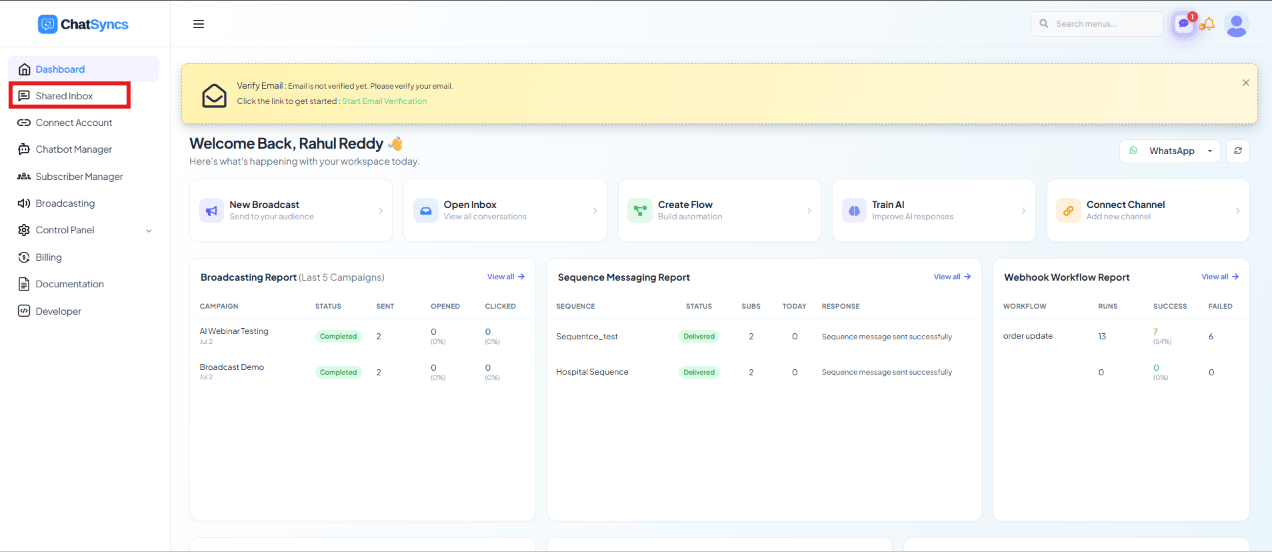
The **Shared Inbox** is the one workspace where your whole team views, manages, and replies to
every customer conversation coming in over WhatsApp.
* Multiple team members can work from it **at the same time**.
* Every conversation can be filtered, assigned, labeled, and tracked.
* Nothing gets answered twice, and nothing gets missed.
 ## The three panels
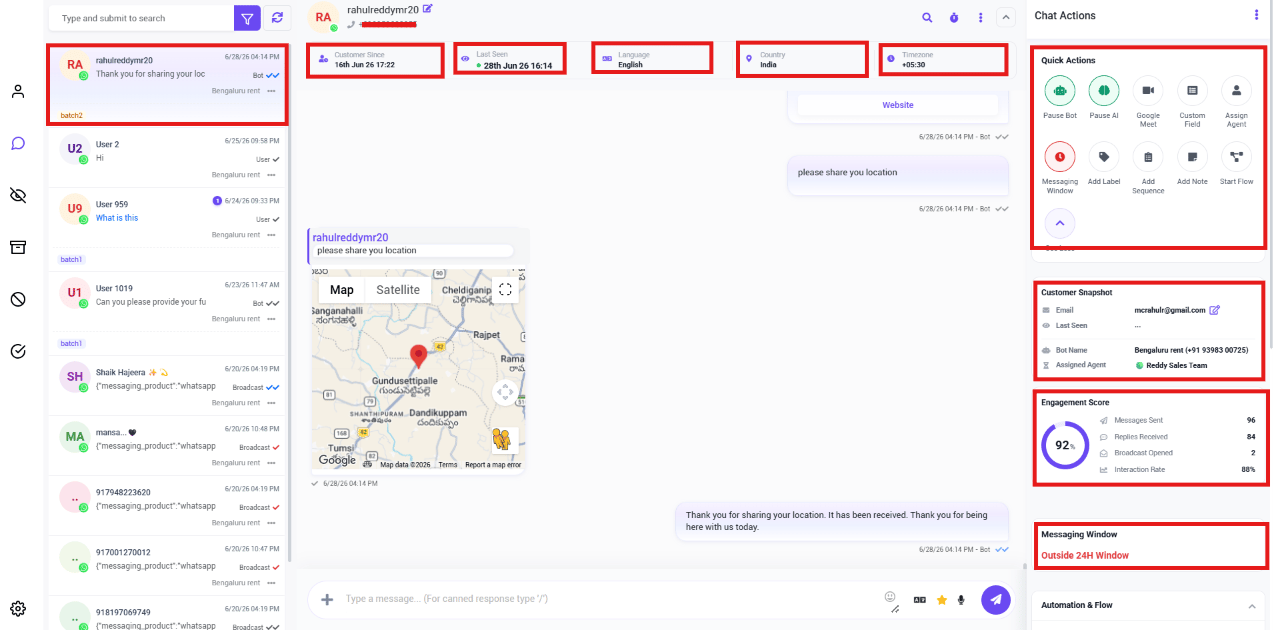 * **Left — the conversation list.** Every conversation matching your current filter. Each row
shows the customer's name, profile picture, last message, message status, any labels, the
date/time, and which bot or team member it's assigned to.
* **Center — the chat window.** The full conversation: message history, delivery/read status,
and the composer for replying.
* **Right — the Chat Actions panel.** Everything for managing the customer behind the open
conversation — quick actions, labels, sequences, custom fields, notes.
**Example:** Priya opens the Shared Inbox, picks a conversation from the left panel, reads the
history and replies from the center panel, then in the right panel checks the customer's
engagement score and adds a note before moving to the next chat.
## What's covered in this section
Narrow the inbox down to one number, one status, or your own chats.
Tag, sort, and find conversations fast.
AI help while replying to a customer.
Hand conversations between teammates cleanly.
Reply faster with saved responses and files.
Never forget to circle back to a customer.
Keep customer context right inside the conversation.
## Frequently asked
Yes — that's the whole point. Multiple agents work from it simultaneously, and assigning
conversations to specific agents keeps them from answering the same customer twice.
The conversation list (left), the chat window (center), and the Chat Actions panel (right)
— together they cover browsing, replying, and managing a customer in one screen.
* **Left — the conversation list.** Every conversation matching your current filter. Each row
shows the customer's name, profile picture, last message, message status, any labels, the
date/time, and which bot or team member it's assigned to.
* **Center — the chat window.** The full conversation: message history, delivery/read status,
and the composer for replying.
* **Right — the Chat Actions panel.** Everything for managing the customer behind the open
conversation — quick actions, labels, sequences, custom fields, notes.
**Example:** Priya opens the Shared Inbox, picks a conversation from the left panel, reads the
history and replies from the center panel, then in the right panel checks the customer's
engagement score and adds a note before moving to the next chat.
## What's covered in this section
Narrow the inbox down to one number, one status, or your own chats.
Tag, sort, and find conversations fast.
AI help while replying to a customer.
Hand conversations between teammates cleanly.
Reply faster with saved responses and files.
Never forget to circle back to a customer.
Keep customer context right inside the conversation.
## Frequently asked
Yes — that's the whole point. Multiple agents work from it simultaneously, and assigning
conversations to specific agents keeps them from answering the same customer twice.
The conversation list (left), the chat window (center), and the Chat Actions panel (right)
— together they cover browsing, replying, and managing a customer in one screen.