> ## Documentation Index
> Fetch the complete documentation index at: https://docs.chatsyncs.com/llms.txt
> Use this file to discover all available pages before exploring further.
# Filter Conversations by Channel & Account in ChatSyncs
> How to narrow the Shared Inbox down to just your chats, one WhatsApp number or channel, or a specific status like Unread, Archived, or Resolved.
At the top of the ChatSyncs Shared Inbox, switch between views to narrow down which
conversations you see.
## Inbox filters
| Filter | Shows |
| ------------ | ------------------------------------------------------------------ |
| **Mine** | Only conversations assigned to you |
| **All** | Every conversation you have permission to access |
| **Unread** | Conversations with unread customer messages |
| **Archived** | Conversations removed from the active inbox but kept for reference |
| **Blocked** | Customers who can't message you until unblocked |
| **Resolved** | Conversations marked as resolved |
**Example:** Priya is a support agent with 20 assigned customers. When she selects **Mine**,
she only sees those 20 conversations — not the rest of the team's chats.
## Two separate filters
The Shared Inbox has two independent filter tools, opened from two different places.
### Conversation list filters
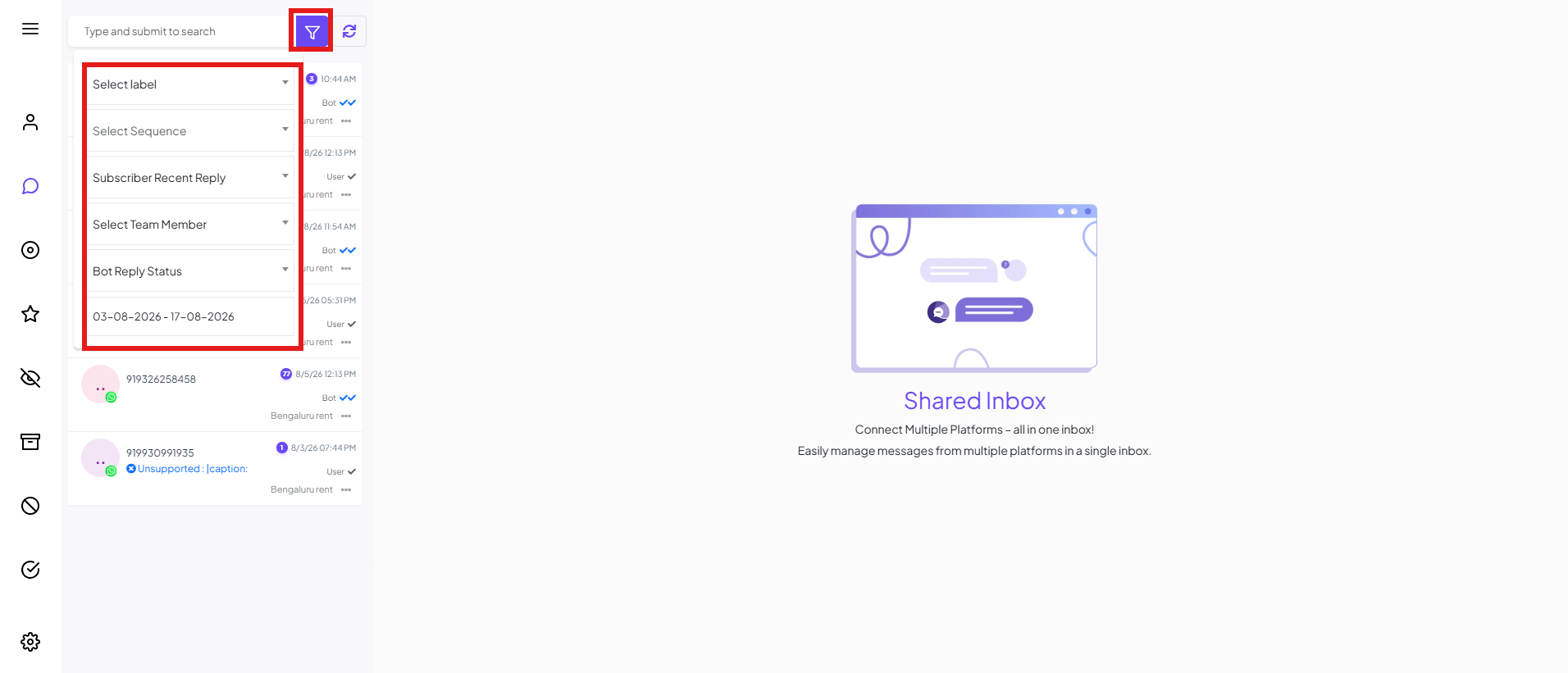 Click the **filter icon** next to the search bar at the top of the conversation list to narrow
the list by:
* **Select Label**
* **Select Sequence**
* **Subscriber Recent Reply**
* **Select Team Member**
* **Bot Reply Status**
* A date range
### Filter Channel & Account
Click the **filter icon** next to the search bar at the top of the conversation list to narrow
the list by:
* **Select Label**
* **Select Sequence**
* **Subscriber Recent Reply**
* **Select Team Member**
* **Bot Reply Status**
* A date range
### Filter Channel & Account
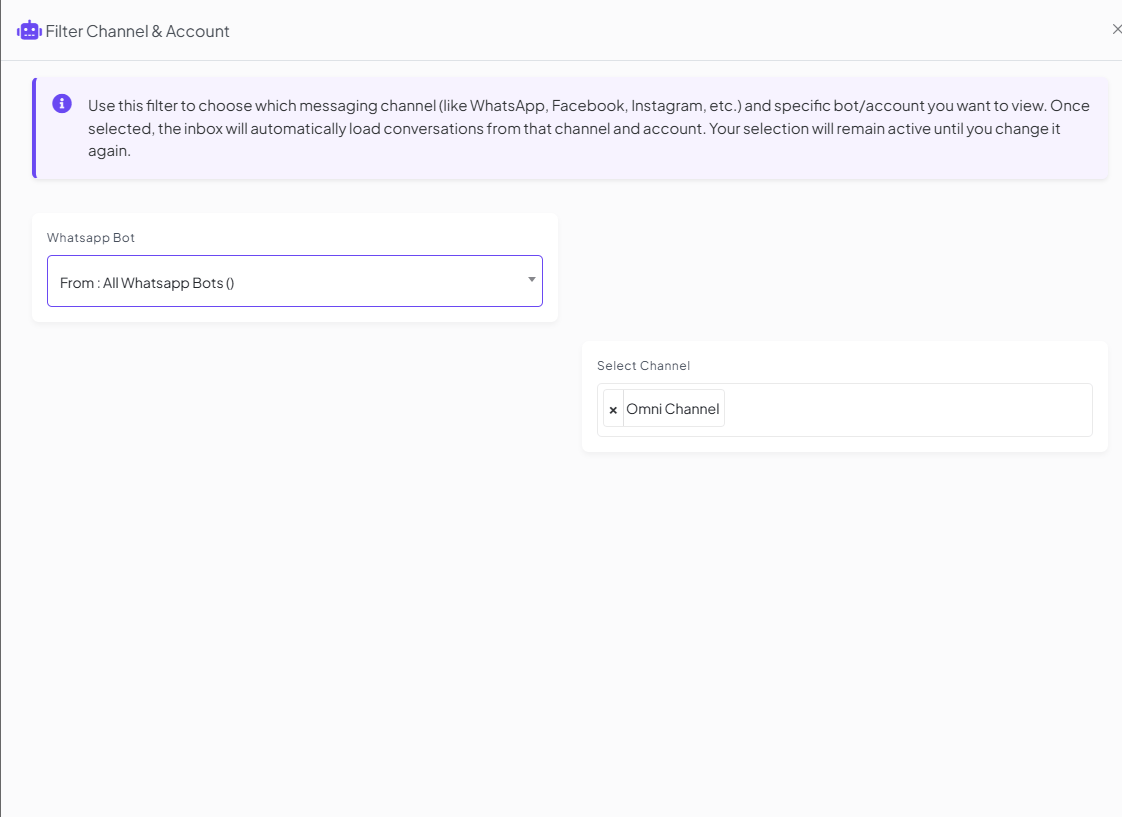 If your business runs more than one WhatsApp number — or more than one channel, like WhatsApp
alongside Facebook or Instagram — go to **Settings (⚙️) → Filter Channel & Account** at the
bottom-left of the Shared Inbox sidebar. Set **WhatsApp Bot** to a specific bot/number instead
of **All WhatsApp Bots**, and **Select Channel** to a specific channel instead of
**Omni Channel**.
**Example:** A business runs Sales, Support, and Billing WhatsApp numbers. A support agent sets
**WhatsApp Bot** to **Support** so their inbox only shows Support conversations, not Sales or
Billing.
## Frequently asked
Select the **Mine** filter at the top of the Shared Inbox.
Yes — **Settings → Filter Channel & Account**, then pick the number/account you want.
Use the **Archived** or **Resolved** filter at the top of the Shared Inbox.
If your business runs more than one WhatsApp number — or more than one channel, like WhatsApp
alongside Facebook or Instagram — go to **Settings (⚙️) → Filter Channel & Account** at the
bottom-left of the Shared Inbox sidebar. Set **WhatsApp Bot** to a specific bot/number instead
of **All WhatsApp Bots**, and **Select Channel** to a specific channel instead of
**Omni Channel**.
**Example:** A business runs Sales, Support, and Billing WhatsApp numbers. A support agent sets
**WhatsApp Bot** to **Support** so their inbox only shows Support conversations, not Sales or
Billing.
## Frequently asked
Select the **Mine** filter at the top of the Shared Inbox.
Yes — **Settings → Filter Channel & Account**, then pick the number/account you want.
Use the **Archived** or **Resolved** filter at the top of the Shared Inbox.