> ## Documentation Index
> Fetch the complete documentation index at: https://docs.chatsyncs.com/llms.txt
> Use this file to discover all available pages before exploring further.
# How to Migrate from WhatsApp App to a ChatSyncs Business Account
> Migrate your existing personal WhatsApp number to the WhatsApp Business API so it can be connected to ChatSyncs.
Want to use an existing WhatsApp number with ChatSyncs? What to do next depends on which app
that number is currently on:
* **Using the WhatsApp Business App?** You don't need to delete anything. Use **Coexistence** —
the number keeps working in the Business App *and* on ChatSyncs, at the same time. See
[How to Connect Your WhatsApp Business App to ChatSyncs](/learn/chatsyncs-overview/connect-your-whatsapp-business-app-to-chatsyncs) for the full guide.
* **Using regular (personal) WhatsApp?** Coexistence isn't available for personal accounts. The
number has to be deleted from the personal app first, then connected to ChatSyncs fresh —
follow the steps below.
## Back up your conversations
Before deleting, save the chat history:
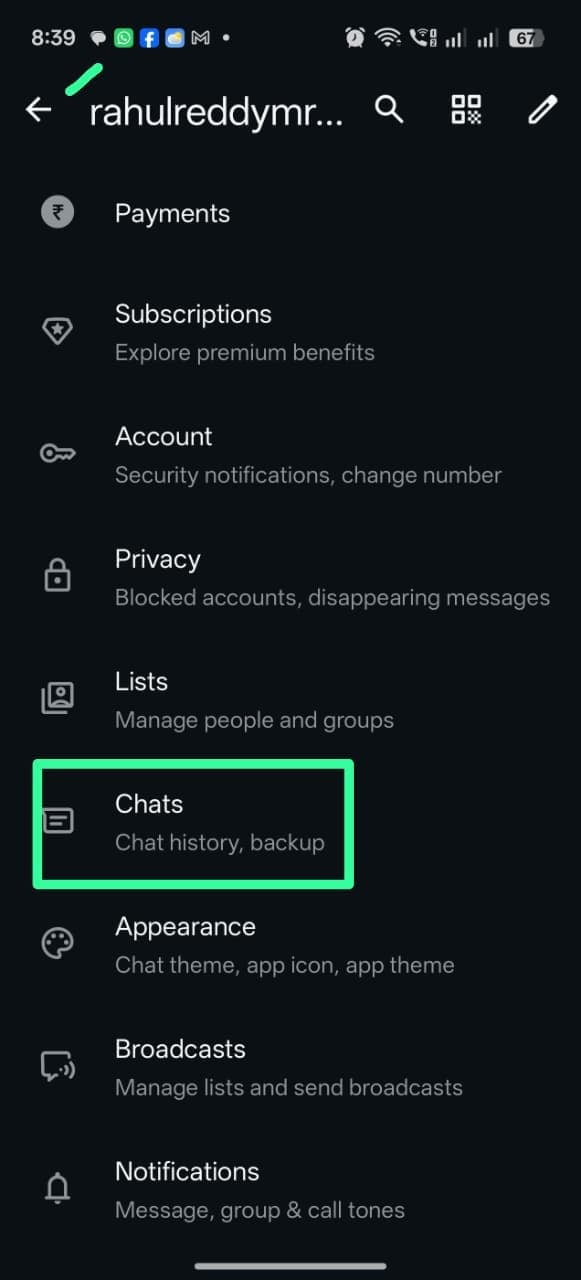
Go to **Settings**, then tap **Chats**.
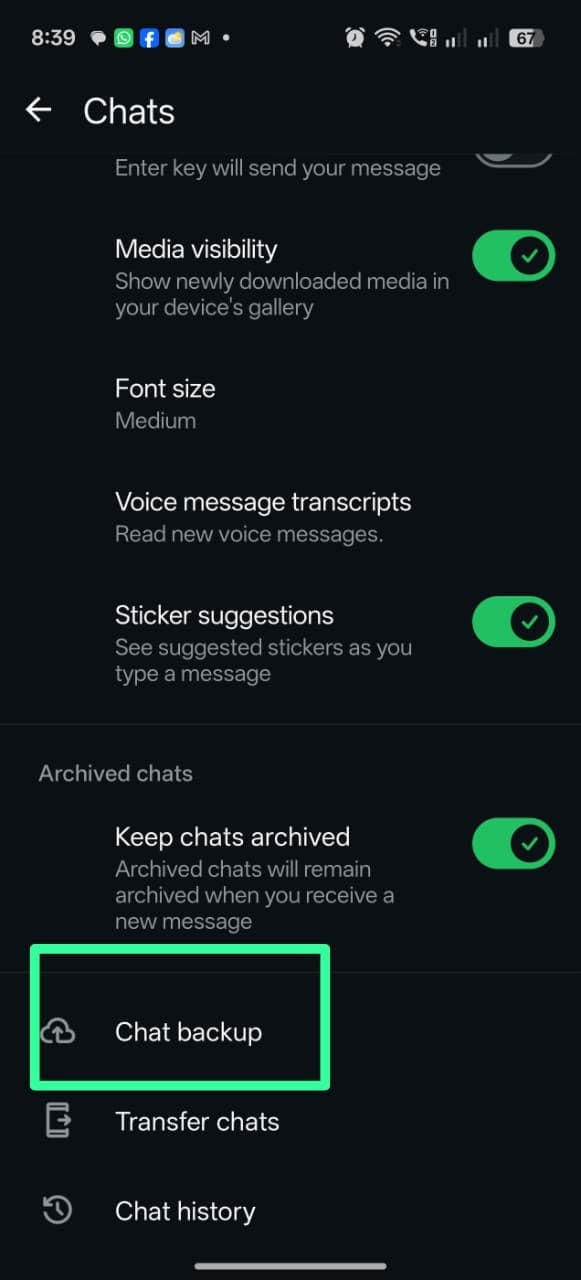
 In **Chats**, scroll down and tap **Chat backup**.
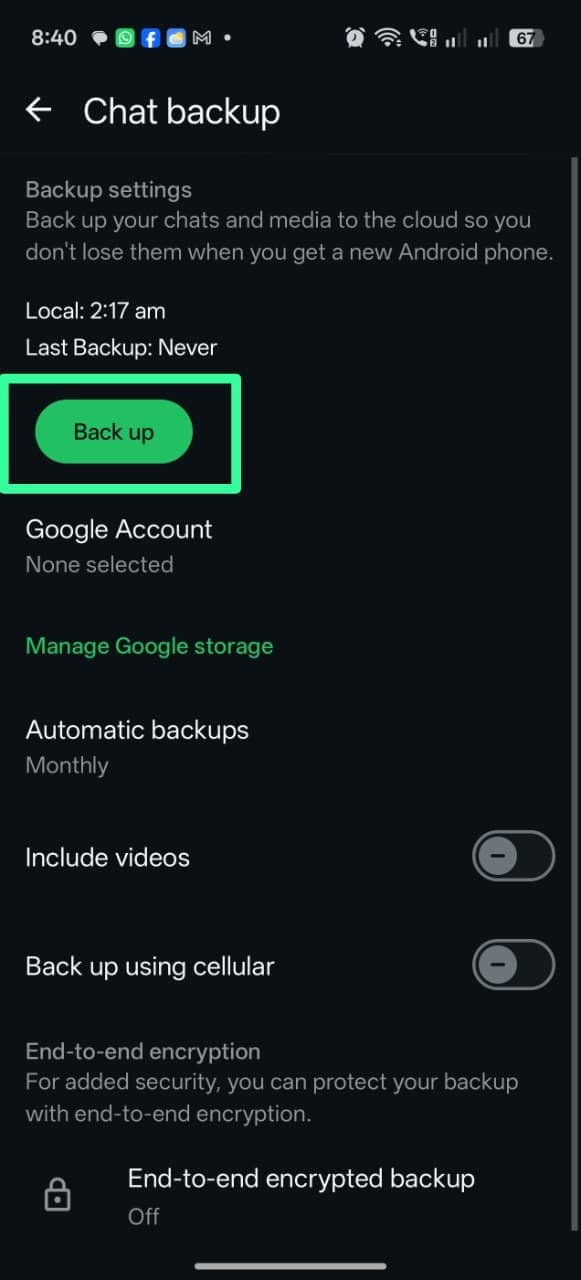
 Tap **Back up** and wait for the backup to finish.
 ## Delete the WhatsApp account
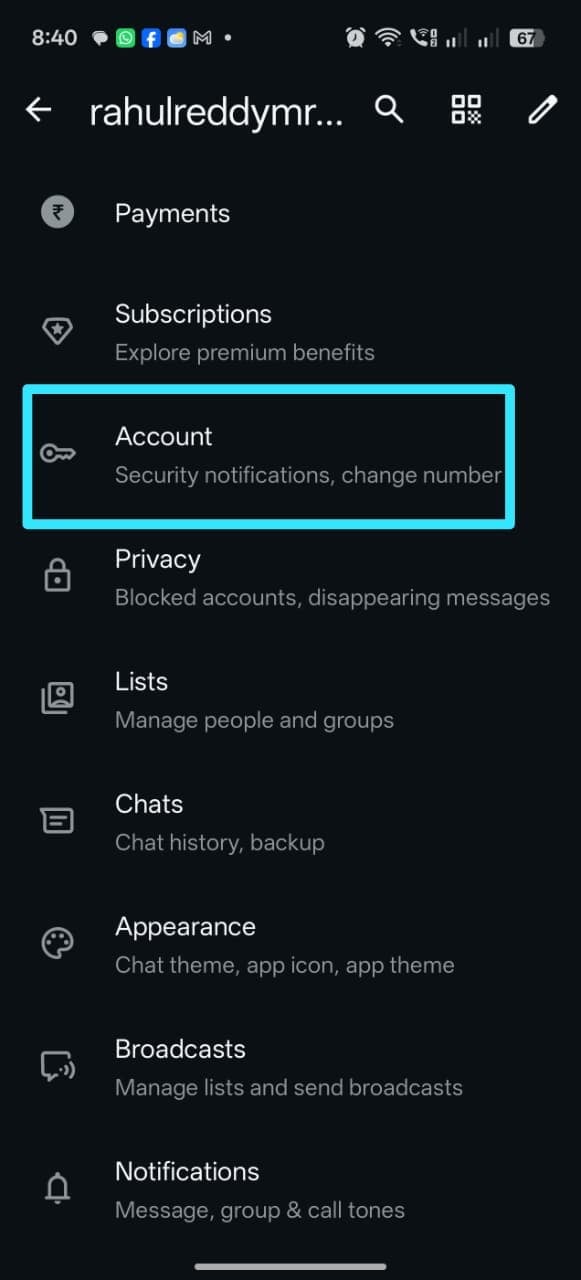
In WhatsApp, go to **Settings**, then tap **Account**.
## Delete the WhatsApp account
In WhatsApp, go to **Settings**, then tap **Account**.
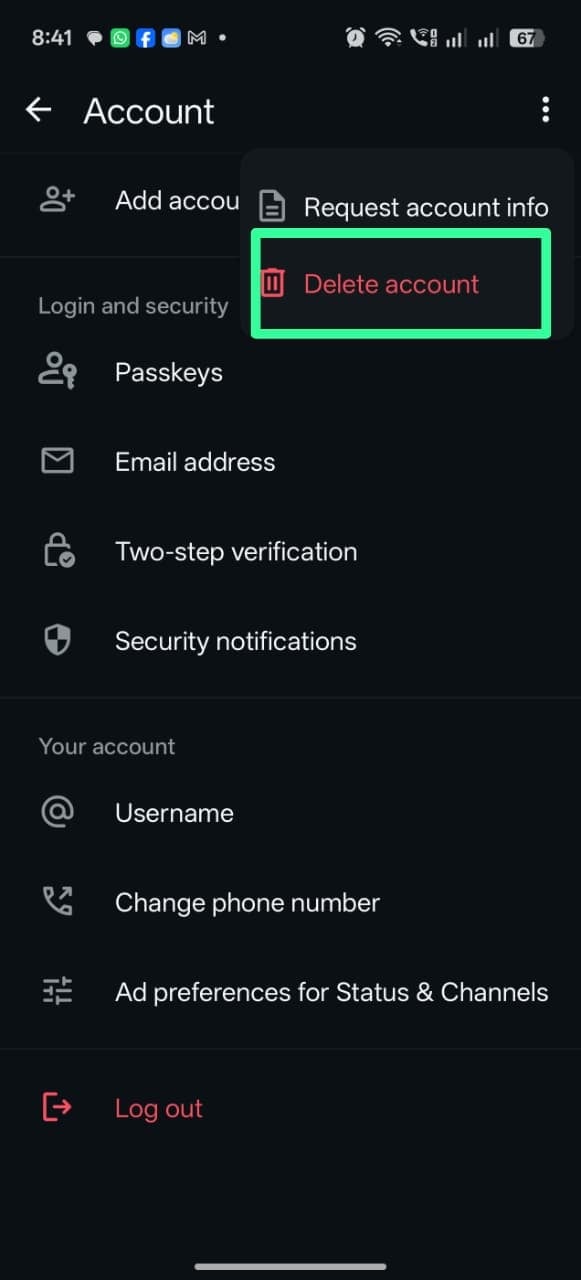
 Tap the **⋮** menu, then **Delete account**, and confirm the phone number to complete the
deletion.
Tap the **⋮** menu, then **Delete account**, and confirm the phone number to complete the
deletion.
 The number becomes available for the API within about 3 minutes. Any messages sent to it during
this time are queued and delivered once it's connected.
## Connect to ChatSyncs
Once the number is deleted from personal WhatsApp, follow [How to Connect Your Number to
ChatSyncs](/learn/chatsyncs-setup-and-configuration/connect-your-number-to-chatsyncs) to connect it fresh — that's the only remaining
step once deletion is confirmed.
## Frequently asked
Only if the number is on regular (personal) WhatsApp. If it's on the WhatsApp Business App,
follow [How to Connect Your WhatsApp Business App to ChatSyncs](/learn/chatsyncs-overview/connect-your-whatsapp-business-app-to-chatsyncs) instead and keep the app running alongside
ChatSyncs.
Back it up first — **Settings → Chats → Chat backup → Back up** — before deleting. Deleting
the account itself is required to free the number up for the Business API.
About 3 minutes. Any messages sent to the number in that window are queued and delivered
once it's connected to ChatSyncs.
Coexistence keeps the WhatsApp Business App active alongside the API — no deletion needed.
This guide is for personal WhatsApp, which doesn't support Coexistence and requires deleting
the account first.
Deleting a WhatsApp account removes its chat history from the app and can't be undone from that
side — back up chats first if they matter.
The number becomes available for the API within about 3 minutes. Any messages sent to it during
this time are queued and delivered once it's connected.
## Connect to ChatSyncs
Once the number is deleted from personal WhatsApp, follow [How to Connect Your Number to
ChatSyncs](/learn/chatsyncs-setup-and-configuration/connect-your-number-to-chatsyncs) to connect it fresh — that's the only remaining
step once deletion is confirmed.
## Frequently asked
Only if the number is on regular (personal) WhatsApp. If it's on the WhatsApp Business App,
follow [How to Connect Your WhatsApp Business App to ChatSyncs](/learn/chatsyncs-overview/connect-your-whatsapp-business-app-to-chatsyncs) instead and keep the app running alongside
ChatSyncs.
Back it up first — **Settings → Chats → Chat backup → Back up** — before deleting. Deleting
the account itself is required to free the number up for the Business API.
About 3 minutes. Any messages sent to the number in that window are queued and delivered
once it's connected to ChatSyncs.
Coexistence keeps the WhatsApp Business App active alongside the API — no deletion needed.
This guide is for personal WhatsApp, which doesn't support Coexistence and requires deleting
the account first.
Deleting a WhatsApp account removes its chat history from the app and can't be undone from that
side — back up chats first if they matter.