> ## Documentation Index
> Fetch the complete documentation index at: https://docs.chatsyncs.com/llms.txt
> Use this file to discover all available pages before exploring further.
# How to Delete Your Phone Number on Meta in ChatSyncs
> Remove your phone number from the WhatsApp Business API on Meta's side and disconnect it from ChatSyncs, so you can free it up or connect a different number.
* To change the phone number connected to ChatSyncs, the old number has to be deleted first.
* Then a new one gets connected from scratch.
* A number can't just be swapped in place.
Deleting a phone number also deletes its message templates, resets its messaging limit tier,
and removes its contacts and chat history from ChatSyncs. This can't be undone.
## Delete the phone number in WhatsApp Manager
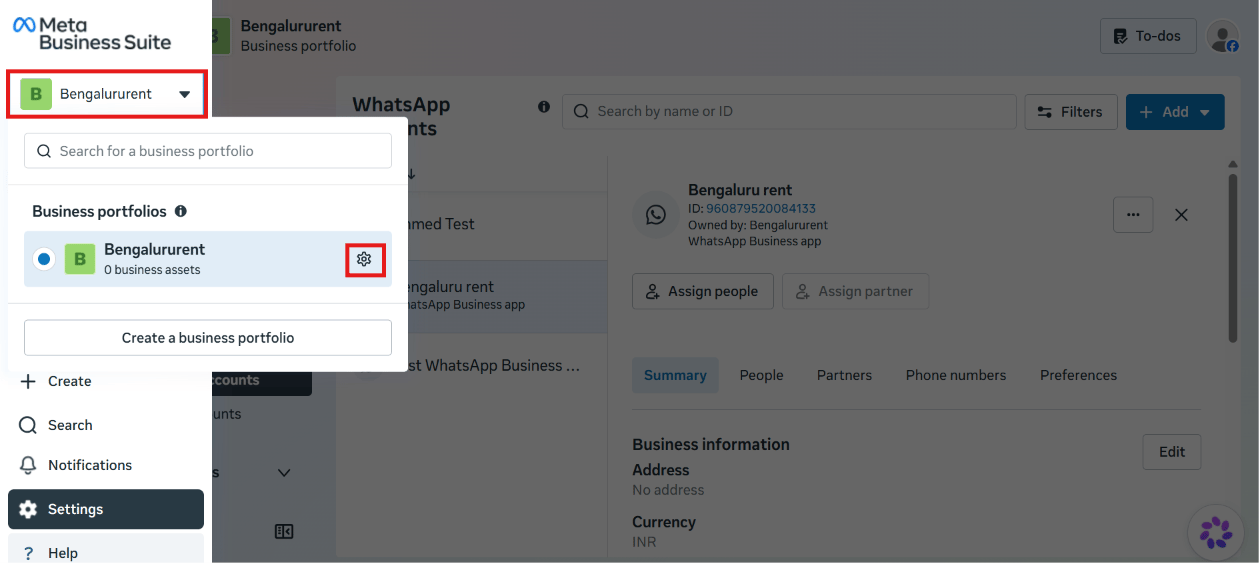
In [Meta Business Suite](https://business.facebook.com), click your business portfolio name
in the top-left switcher, then click the **gear icon** next to it to open Settings — making
sure the correct Meta Business Account is selected, the one linked to the WhatsApp Business
Account you want to change.
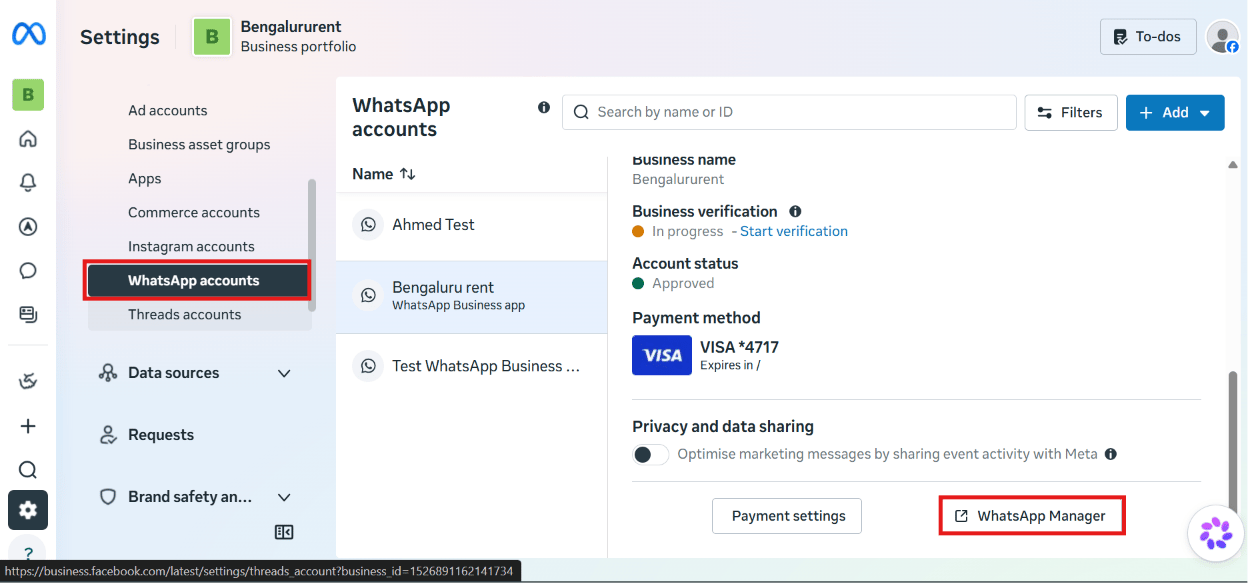
 Under **Accounts → WhatsApp accounts**, select the account, then click **WhatsApp Manager**.
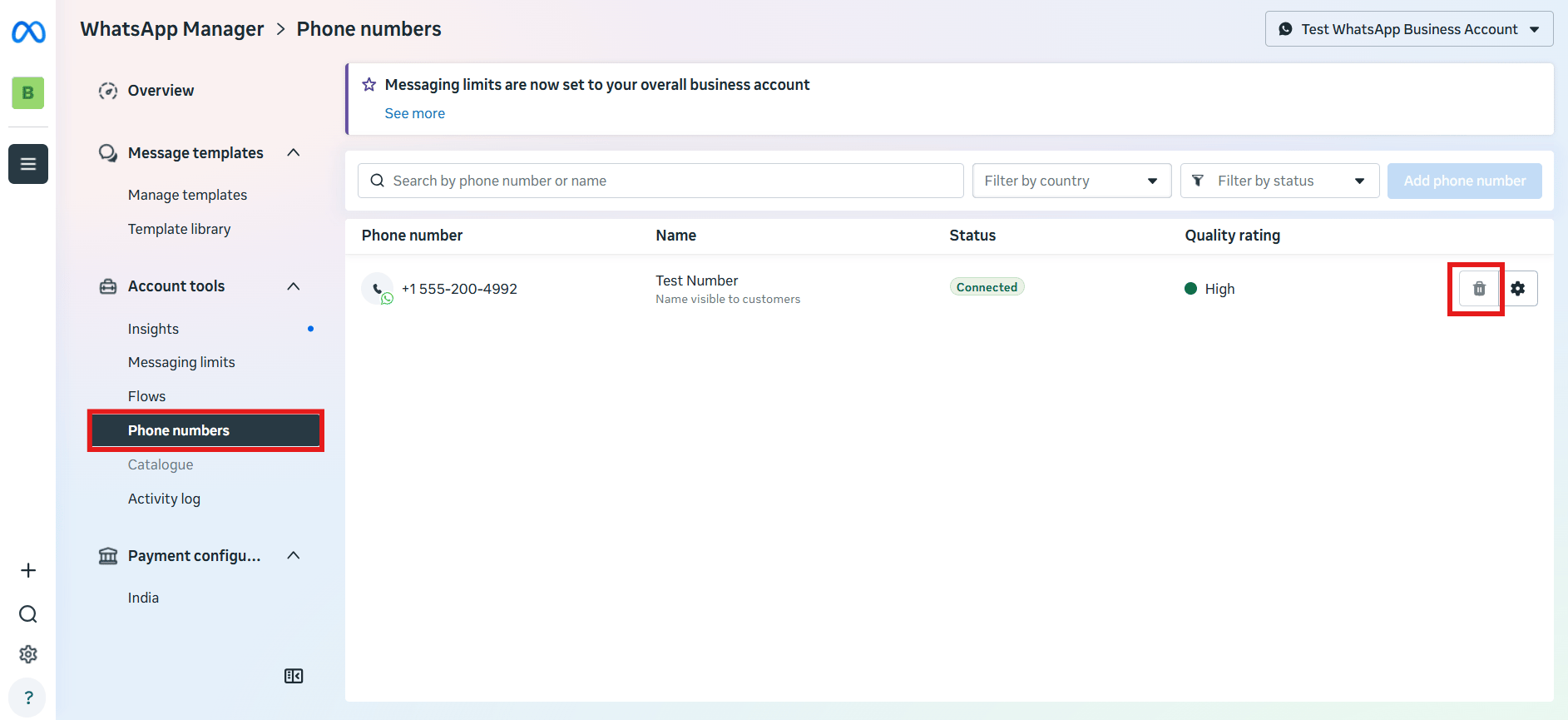
 On the **Phone numbers** page, find the number in the list and click the **trash can icon**
next to it to remove it.
On the **Phone numbers** page, find the number in the list and click the **trash can icon**
next to it to remove it.
 ## Delete the associated WhatsApp Business Account
In WhatsApp Manager, open the **WhatsApp Business Accounts** page.
Find the WhatsApp Business Account (WABA) linked to the number just removed, and delete it
too.
## Remove the disconnected number from ChatSyncs
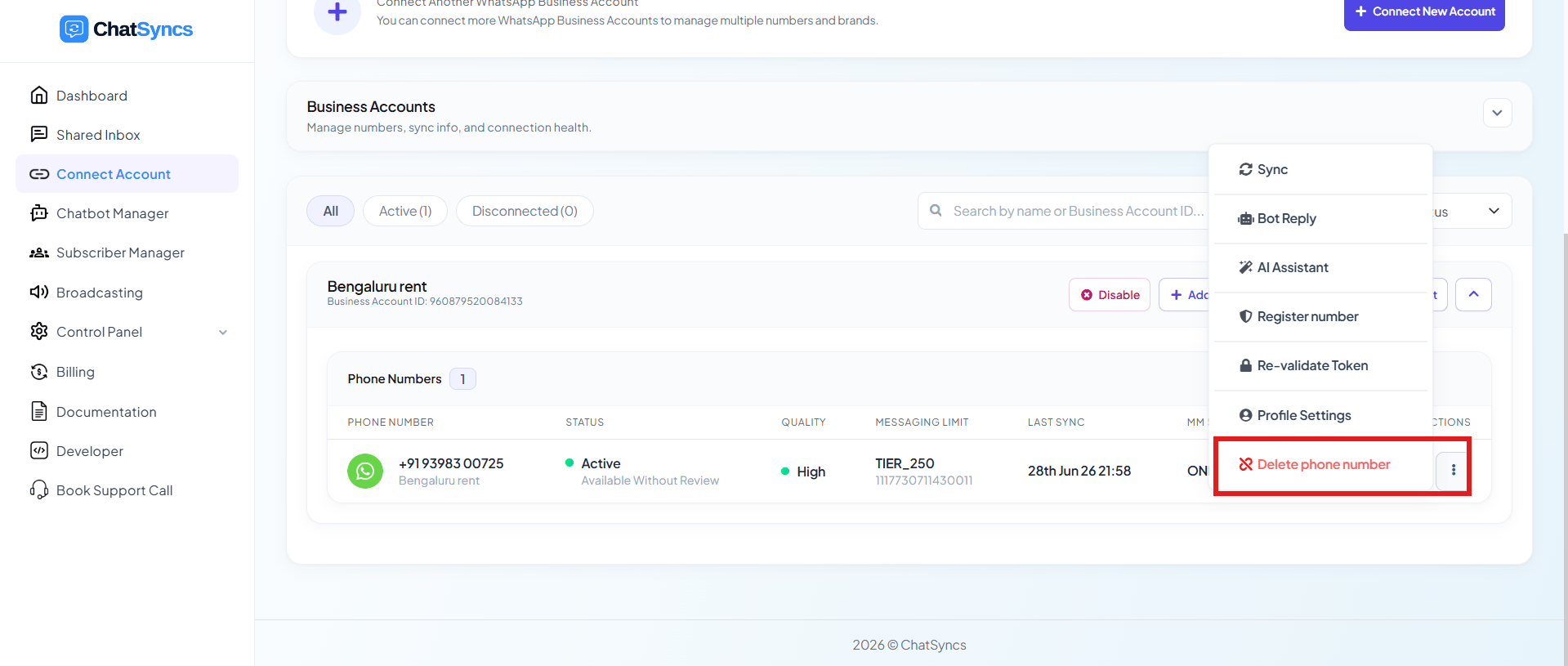
Go to **Connect Account** in ChatSyncs, find the now-disconnected number under **Business
Accounts**, open its **⋮** menu, and click **Delete phone number**.
## Delete the associated WhatsApp Business Account
In WhatsApp Manager, open the **WhatsApp Business Accounts** page.
Find the WhatsApp Business Account (WABA) linked to the number just removed, and delete it
too.
## Remove the disconnected number from ChatSyncs
Go to **Connect Account** in ChatSyncs, find the now-disconnected number under **Business
Accounts**, open its **⋮** menu, and click **Delete phone number**.
 ## Add a new phone number
Once the old number is fully removed on both Meta's side and ChatSyncs' side, follow [How to
Connect Your Number to ChatSyncs](/learn/chatsyncs-setup-and-configuration/connect-your-number-to-chatsyncs) to
connect the replacement number.
## Frequently asked
No — the old number has to be deleted from WhatsApp Manager and disconnected from ChatSyncs
first, then the new number is connected as a fresh setup.
They're deleted along with the number — templates, the messaging limit tier, and ChatSyncs
contacts/chat history for that number are all removed and can't be recovered.
Both. Deleting only the phone number from the Phone Numbers page leaves the WABA behind —
remove the associated WhatsApp Business Account as well before reconnecting a new number.
No — see [How to Migrate from WhatsApp App to a ChatSyncs Business
Account](/learn/chatsyncs-setup-and-configuration/migrate-from-whatsapp-app-to-a-chatsyncs-business-account) instead. This guide is for removing a
number already connected to the Cloud API.
## Add a new phone number
Once the old number is fully removed on both Meta's side and ChatSyncs' side, follow [How to
Connect Your Number to ChatSyncs](/learn/chatsyncs-setup-and-configuration/connect-your-number-to-chatsyncs) to
connect the replacement number.
## Frequently asked
No — the old number has to be deleted from WhatsApp Manager and disconnected from ChatSyncs
first, then the new number is connected as a fresh setup.
They're deleted along with the number — templates, the messaging limit tier, and ChatSyncs
contacts/chat history for that number are all removed and can't be recovered.
Both. Deleting only the phone number from the Phone Numbers page leaves the WABA behind —
remove the associated WhatsApp Business Account as well before reconnecting a new number.
No — see [How to Migrate from WhatsApp App to a ChatSyncs Business
Account](/learn/chatsyncs-setup-and-configuration/migrate-from-whatsapp-app-to-a-chatsyncs-business-account) instead. This guide is for removing a
number already connected to the Cloud API.