> ## Documentation Index
> Fetch the complete documentation index at: https://docs.chatsyncs.com/llms.txt
> Use this file to discover all available pages before exploring further.
# How to Add Payment Method for WhatsApp API Billing in ChatSyncs
> How to add a payment method to your WhatsApp Business Account in Meta Business Suite, so Meta can bill you for conversations once you're past the free tier.
* This step happens on **Meta's side**, once per Business Portfolio — not inside ChatSyncs.
* Meta bills you directly for WhatsApp conversations, not ChatSyncs. See [What WhatsApp API
Pricing Really Means](/learn/chatsyncs-overview/what-whatsapp-api-pricing-really-means-in-chatsyncs) for the plain-English breakdown, or
[Conversation Categories & Pricing](/meta-api/concepts/conversation-categories-and-pricing) for
the full API-level rate table.
* Meta requires a payment method on file before it lets messages send past the free tier.
## Set it up
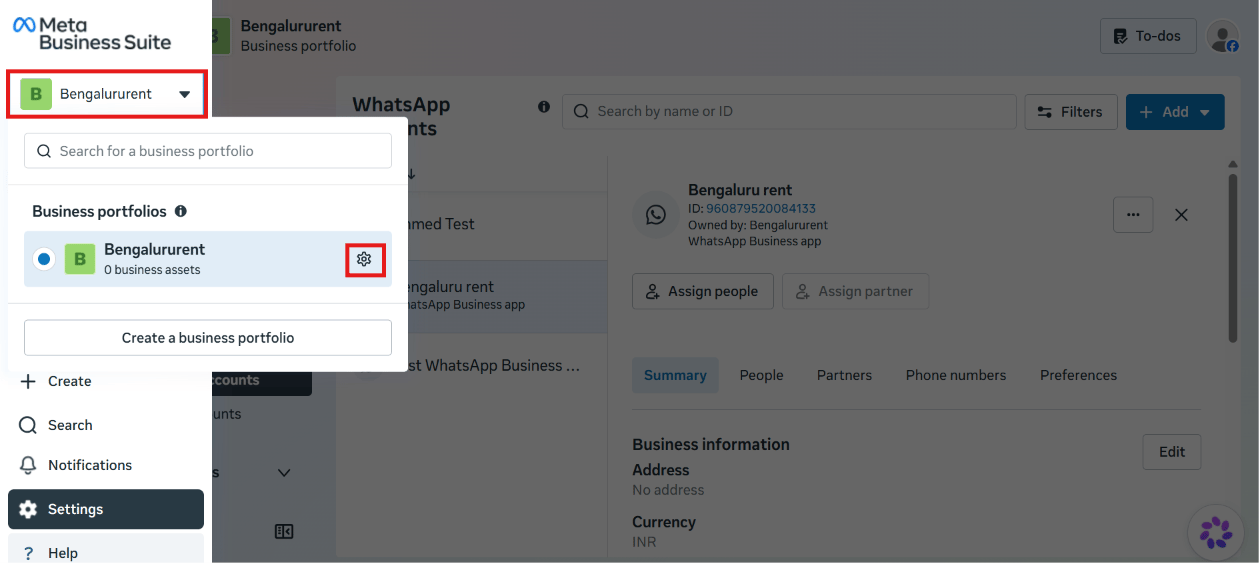
In [Meta Business Suite](https://business.facebook.com), click your business portfolio name
in the top-left switcher, then click the **gear icon** next to it to open Settings.
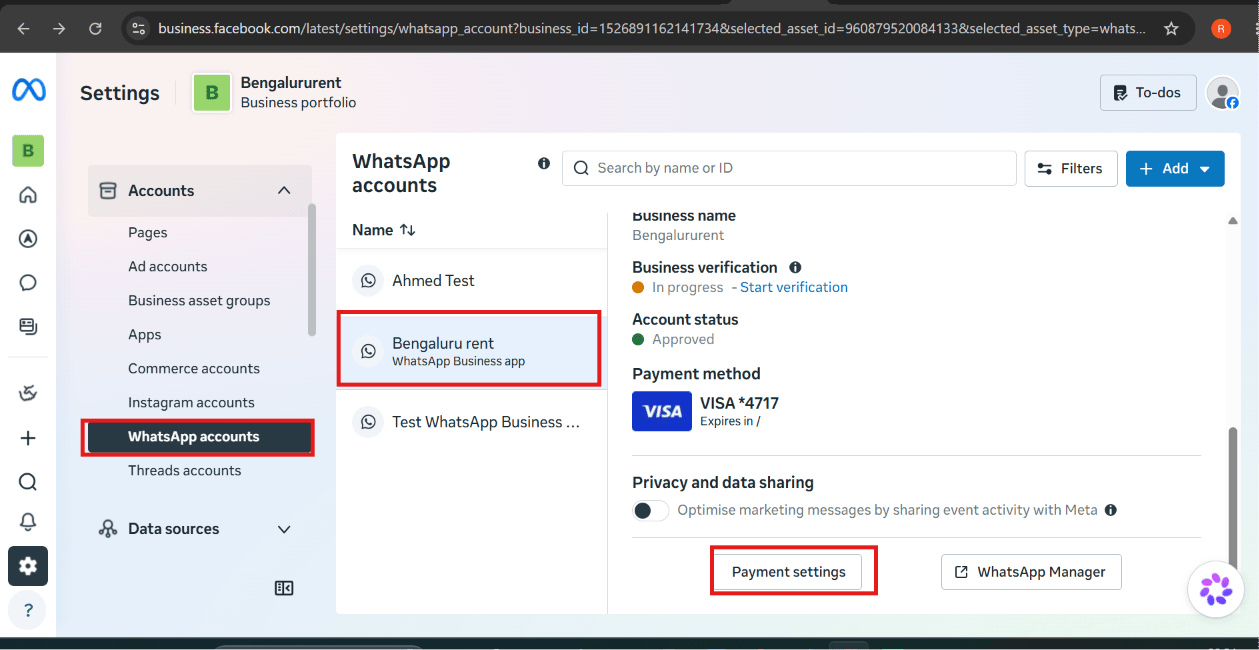
 Under **Accounts → WhatsApp accounts**, select the WhatsApp Business account you want to
bill. Its current **Payment method** (if any) shows on the right. Click **Payment
settings**.
Under **Accounts → WhatsApp accounts**, select the WhatsApp Business account you want to
bill. Its current **Payment method** (if any) shows on the right. Click **Payment
settings**.
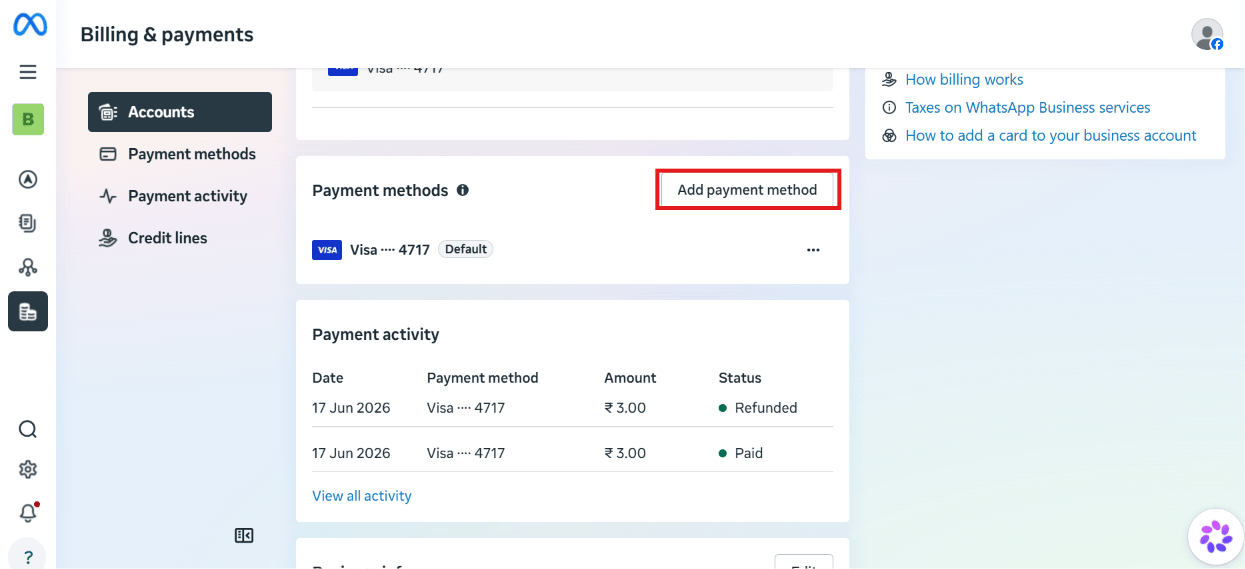
 This opens **Billing & payments**. Under **Payment methods**, click **Add payment method**.
You can have more than one card on file — Meta uses whichever is marked **Default**.
This opens **Billing & payments**. Under **Payment methods**, click **Add payment method**.
You can have more than one card on file — Meta uses whichever is marked **Default**.
 In the **Add payment information** dialog, choose the **Country/region**, **Currency**, and
timezone, then click **Next**.
In the **Add payment information** dialog, choose the **Country/region**, **Currency**, and
timezone, then click **Next**.
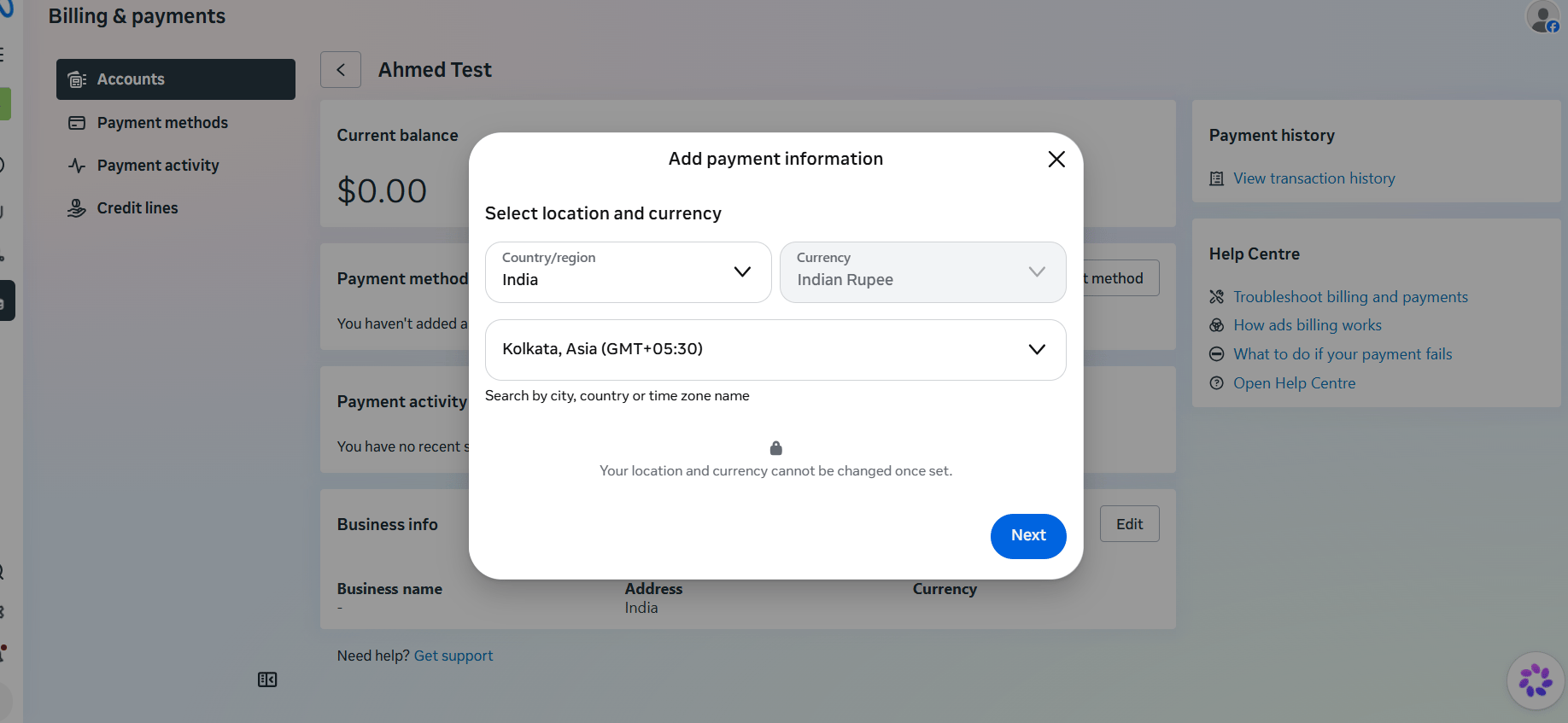 **Location and currency cannot be changed once set.** Double-check both before clicking
Next — changing them later means removing the payment method and starting over.
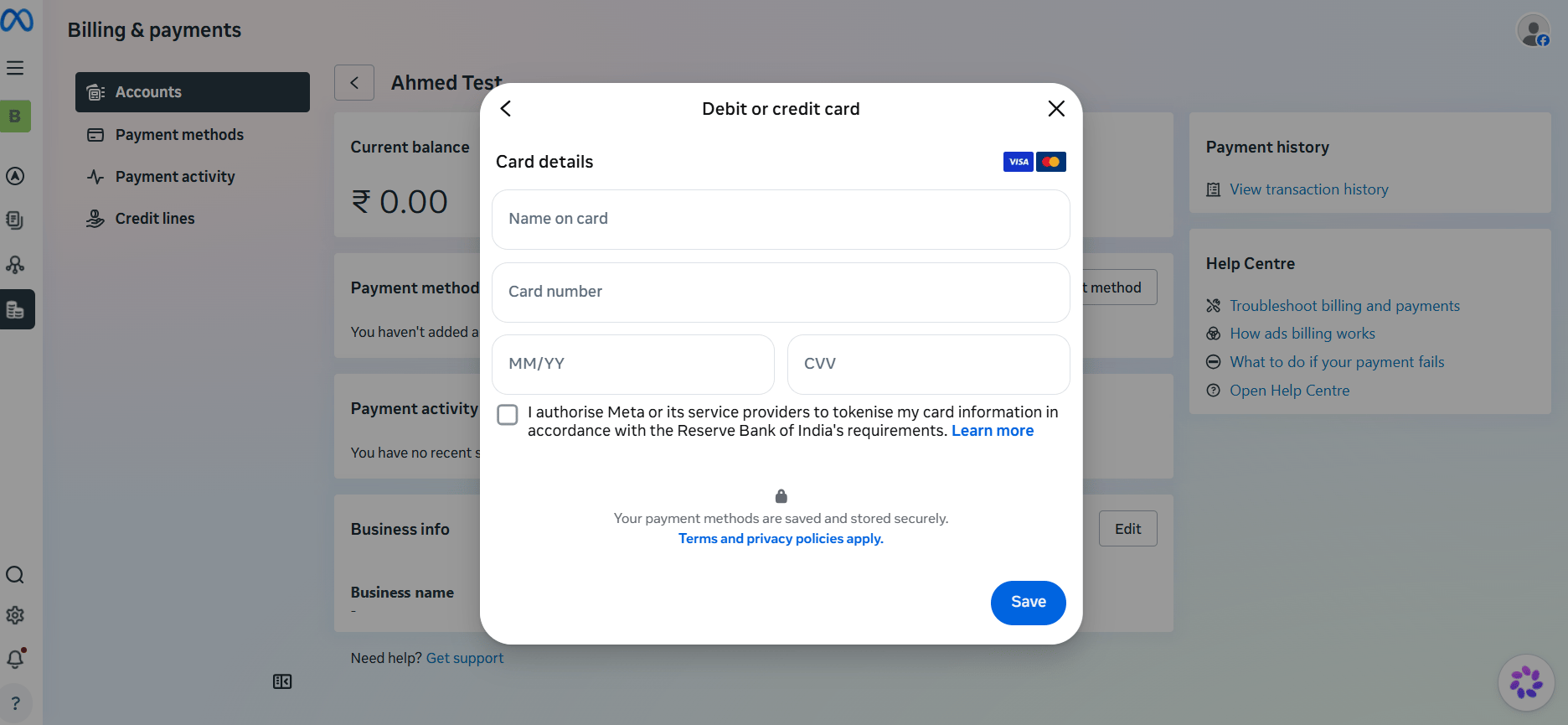
On the **Debit or credit card** screen, fill in the **Name on card**, **Card number**,
expiry (**MM/YY**), and **CVV**, check the authorization box, then click **Save**.
**Location and currency cannot be changed once set.** Double-check both before clicking
Next — changing them later means removing the payment method and starting over.
On the **Debit or credit card** screen, fill in the **Name on card**, **Card number**,
expiry (**MM/YY**), and **CVV**, check the authorization box, then click **Save**.
 Some cards get an error on the first attempt — this is usually the card issuer declining, not a
problem with the details entered. Try a different card if one gets rejected; a second card
often goes through where the first didn't.
**Expected result:** The account's **Payment methods** list shows your new card, and it's ready
to be billed for conversations once the free monthly conversations run out.
This same **Billing & payments** page also has a **Payment activity** tab, showing every charge
against this payment method — useful for checking a charge without leaving Meta Business Suite.
Right after saving a payment method, Meta sometimes shows a banner asking for **missing business
information** (Legal Business Name, Address, Phone Number, Website). Click it and fill in
whatever's requested — Meta won't process billing until that information is complete.
## What's next
With a payment method on file, your number can keep sending messages past the free tier without
interruption. See [Conversation Categories &
Pricing](/meta-api/concepts/conversation-categories-and-pricing) for what actually gets billed,
or head back to [How to Connect Your Number to ChatSyncs](/learn/chatsyncs-setup-and-configuration/connect-your-number-to-chatsyncs) if you haven't
finished that yet.
Some cards get an error on the first attempt — this is usually the card issuer declining, not a
problem with the details entered. Try a different card if one gets rejected; a second card
often goes through where the first didn't.
**Expected result:** The account's **Payment methods** list shows your new card, and it's ready
to be billed for conversations once the free monthly conversations run out.
This same **Billing & payments** page also has a **Payment activity** tab, showing every charge
against this payment method — useful for checking a charge without leaving Meta Business Suite.
Right after saving a payment method, Meta sometimes shows a banner asking for **missing business
information** (Legal Business Name, Address, Phone Number, Website). Click it and fill in
whatever's requested — Meta won't process billing until that information is complete.
## What's next
With a payment method on file, your number can keep sending messages past the free tier without
interruption. See [Conversation Categories &
Pricing](/meta-api/concepts/conversation-categories-and-pricing) for what actually gets billed,
or head back to [How to Connect Your Number to ChatSyncs](/learn/chatsyncs-setup-and-configuration/connect-your-number-to-chatsyncs) if you haven't
finished that yet.