> ## Documentation Index
> Fetch the complete documentation index at: https://docs.chatsyncs.com/llms.txt
> Use this file to discover all available pages before exploring further.

# How to Connect Your WhatsApp Business App to ChatSyncs

> Use the same WhatsApp number on the WhatsApp Business App and ChatSyncs at the same time — how Meta's Coexistence feature works, and what changes on the Business App.

**Coexistence** is a Meta feature that lets one WhatsApp number work in two places at once — the WhatsApp Business App on your phone, and ChatSyncs.

* If you're already using the **WhatsApp Business App**, you don't need to delete your account to start using ChatSyncs.
* No migration, no downtime, no risk of losing your number or conversations.
* Only works with the **WhatsApp Business App** — regular (personal) WhatsApp doesn't support it. If you're on personal WhatsApp, see [How to Migrate from WhatsApp App to a ChatSyncs Business Account](/learn/chatsyncs-setup-and-configuration/migrate-from-whatsapp-app-to-a-chatsyncs-business-account) instead.

## What Coexistence changes

Once linked, both sides stay in sync:

* Messages are **mirrored** — a customer's message shows up in both the Business App on your phone and ChatSyncs' inbox, and a reply from either side shows up on the other.
* Your last **6 months of chat history** copies over automatically the first time you link, so ChatSyncs doesn't start empty.

**On your phone (Business App)** — send quick personal replies, make voice and video calls, check messages on the go, manage your business profile.

**On ChatSyncs (API)** — build automated chatbots, send bulk broadcasts, use a multi-agent team inbox, send message templates, integrate with CRMs, and track analytics.

A few Business App features are turned off to avoid conflicts once Coexistence is active:

* **Broadcast lists** are disabled in the Business App — send broadcasts from ChatSyncs instead.
* **Disappearing messages and view-once media** are turned off for all chats.
* **Message throughput** drops from 80 to 20 messages per second while both platforms are active — rarely noticeable unless you're sending very high volumes from both at once.

Everything else on the Business App — calls, status updates, profile management, direct messaging — keeps working as before.

## How to set it up

<Frame caption="Video walkthrough: connecting via WhatsApp Coexistence.">
  <iframe className="w-full aspect-video rounded-xl" src="https://www.youtube.com/embed/-20582zGQ-s" title="Connect WhatsApp Business App in ChatSyncs | Complete Setup Tutorial" allow="accelerometer; autoplay; clipboard-write; encrypted-media; gyroscope; picture-in-picture" allowFullScreen />
</Frame>

<Steps>
  <Step title="Open Connect WhatsApp">
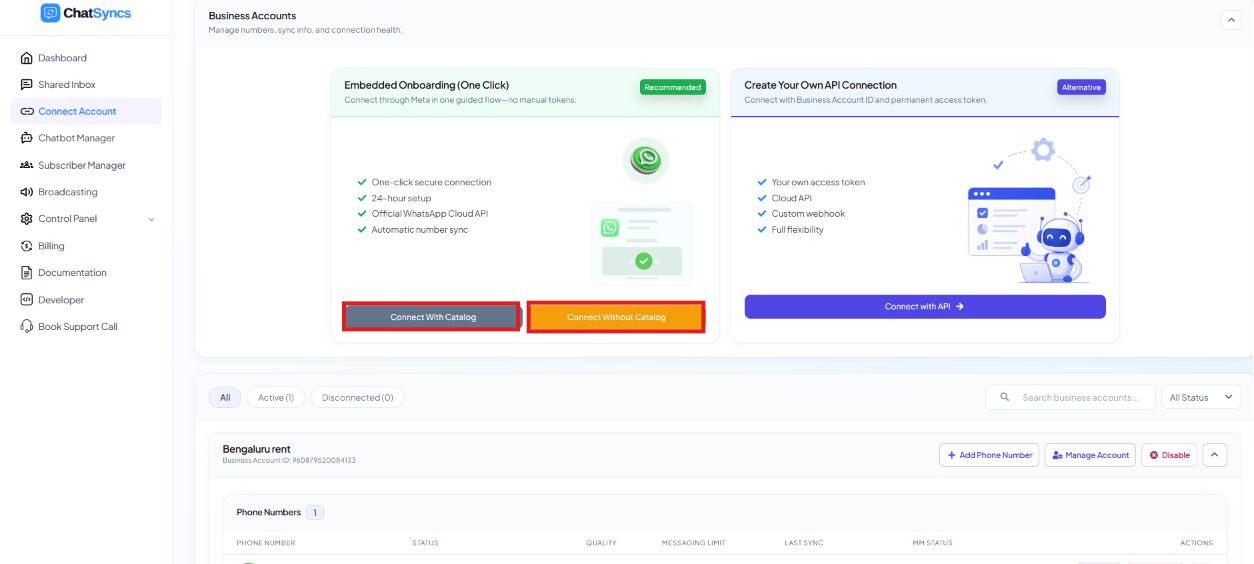
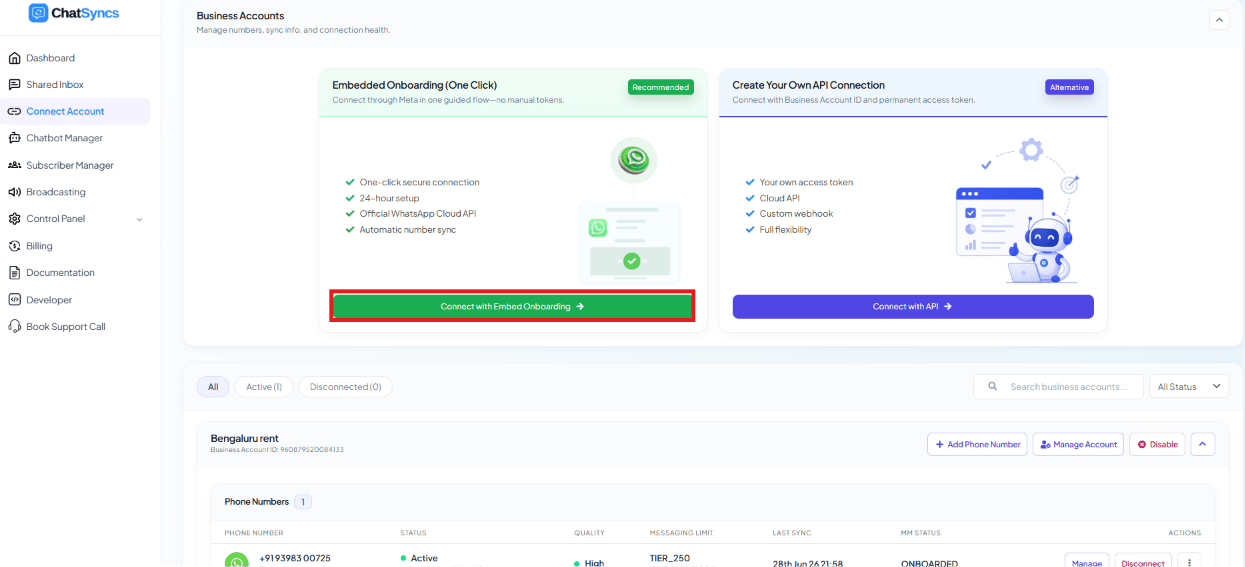
    Go to **Connect Account**, under **Business Accounts** click **Connect WhatsApp**, then pick the green **Embedded Onboarding (One Click)** card and click **Connect with Embed Onboarding** — same starting point as [How to Connect Your Number to ChatSyncs](/learn/chatsyncs-setup-and-configuration/connect-your-number-to-chatsyncs).

    <Frame caption="Business Accounts — Embedded Onboarding (recommended) vs. Create Your Own API Connection.">
      <img src="https://mintcdn.com/chatsyncs/HNsP4MLygnS_qtAH/images/learn/connect-your-number/step-00-business-accounts-onboarding-options.png?fit=max&auto=format&n=HNsP4MLygnS_qtAH&q=85&s=1ebcd3ef3e26a13595ce9bf8ab43b71b" alt="Business Accounts page with Embedded Onboarding (One Click) card and Create Your Own API Connection card side by side" width="1245" height="567" data-path="images/learn/connect-your-number/step-00-business-accounts-onboarding-options.png" />
    </Frame>
  </Step>

  <Step title="Choose catalog permissions">
    If you've already set up a product catalog and want to share its permissions, click **Connect With Catalog** — otherwise click **Connect Without Catalog**. Either opens Meta's popup.

    <Frame caption="Connect With Catalog vs. Connect Without Catalog.">
      <img src="https://mintcdn.com/chatsyncs/HNsP4MLygnS_qtAH/images/learn/connect-your-number/step-00b-catalog-choice-buttons.png?fit=max&auto=format&n=HNsP4MLygnS_qtAH&q=85&s=663a75a71f55d4fcf3551977f80db033" alt="Connect With Catalog and Connect Without Catalog buttons under the Embedded Onboarding card" width="1254" height="564" data-path="images/learn/connect-your-number/step-00b-catalog-choice-buttons.png" />
    </Frame>
  </Step>

  <Step title="Log in with Facebook">
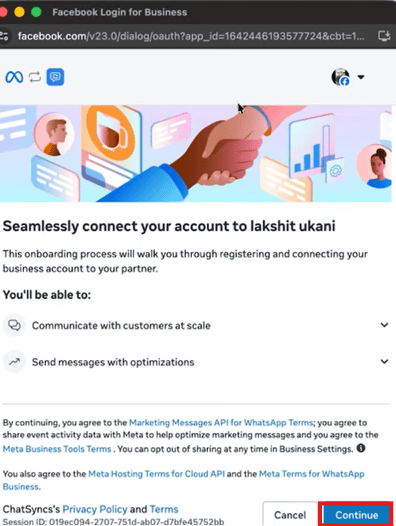
    Meta's popup opens. Log in if you aren't already, then click **Continue**.

    <Frame caption="Meta's embedded signup consent screen — click Continue to proceed.">
      <img src="https://mintcdn.com/chatsyncs/HNsP4MLygnS_qtAH/images/learn/connect-your-number/step-01-facebook-login-consent.png?fit=max&auto=format&n=HNsP4MLygnS_qtAH&q=85&s=c3aa13ec5fe17615bddd41d40afe141a" alt="Facebook Login for Business popup: Seamlessly connect your account to ChatSyncs, with a Continue button" width="396" height="526" data-path="images/learn/connect-your-number/step-01-facebook-login-consent.png" />
    </Frame>
  </Step>

  <Step title="Select or create a Business Portfolio">
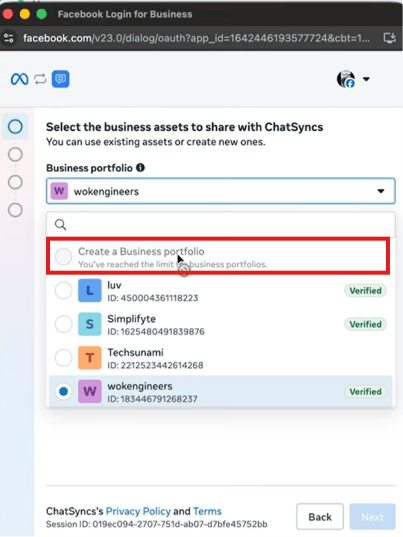
    Pick an existing portfolio from the dropdown, or click **Create a Business Portfolio** if you don't have one — it only asks for a portfolio name, your first/last name, and a website.

    <Frame caption="Select the business portfolio to share with ChatSyncs.">
      <img src="https://mintcdn.com/chatsyncs/HNsP4MLygnS_qtAH/images/learn/connect-your-number/step-02-select-business-portfolio.png?fit=max&auto=format&n=HNsP4MLygnS_qtAH&q=85&s=c4a47bf1186cb936b4638ebf776e9b31" alt="Select the business assets to share with ChatSyncs, with Create a Business portfolio option highlighted" width="403" height="537" data-path="images/learn/connect-your-number/step-02-select-business-portfolio.png" />
    </Frame>
  </Step>

  <Step title="Choose Connect a WhatsApp Business App">
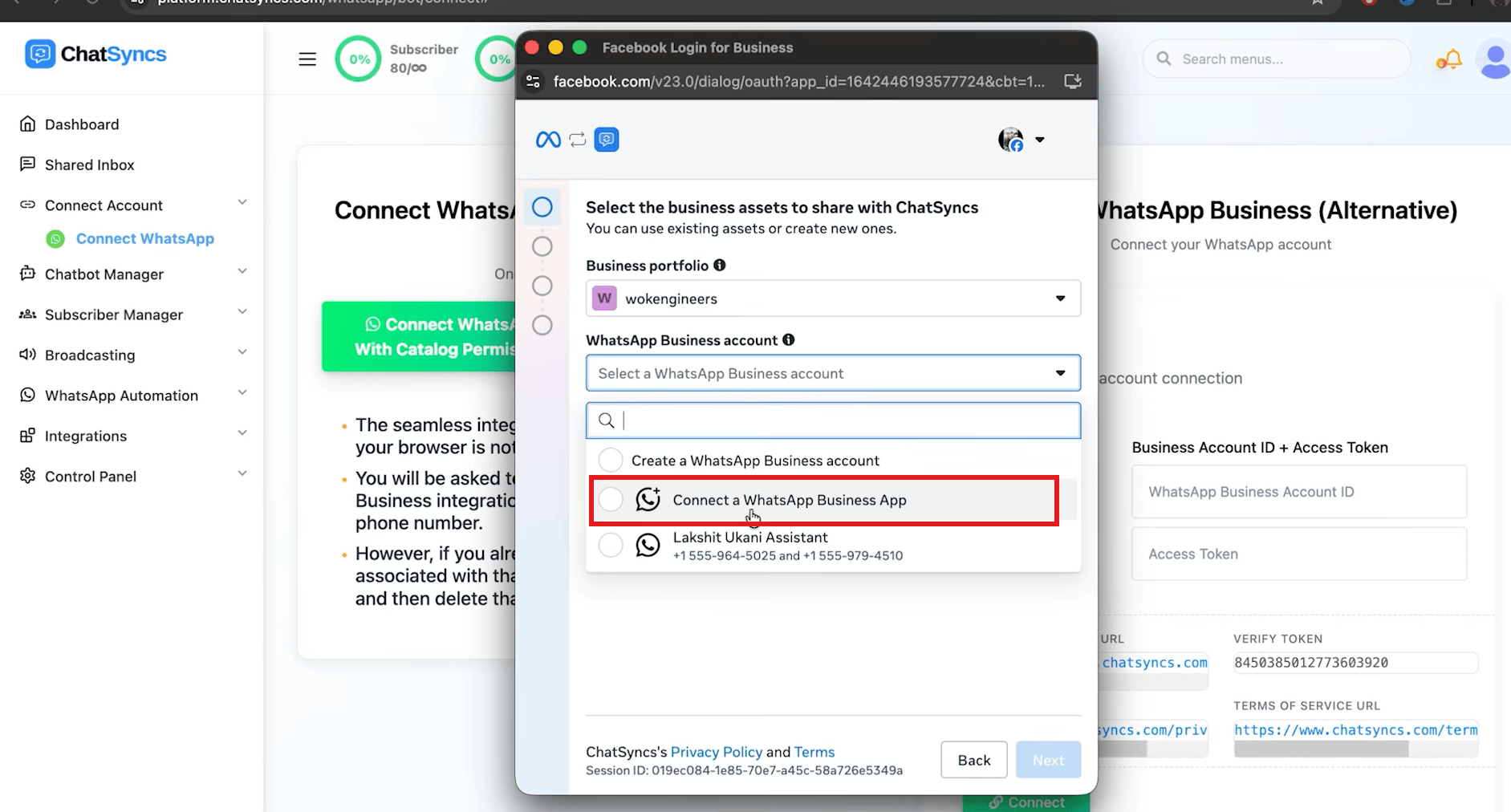
    In the **WhatsApp Business account** dropdown, pick **Connect a WhatsApp Business App** — not **Create a WhatsApp Business account**, which is the separate Cloud API path.

    <Frame caption="Pick Connect a WhatsApp Business App from the dropdown to start Coexistence.">
      <img src="https://mintcdn.com/chatsyncs/HNsP4MLygnS_qtAH/images/learn/connect-your-number/coexist-00-select-connect-app-option.png?fit=max&auto=format&n=HNsP4MLygnS_qtAH&q=85&s=e88fc3eae11df319a046abdeee5232d3" alt="Select the business assets to share with ChatSyncs, WhatsApp Business account dropdown with Connect a WhatsApp Business App highlighted" width="1883" height="1012" data-path="images/learn/connect-your-number/coexist-00-select-connect-app-option.png" />
    </Frame>
  </Step>

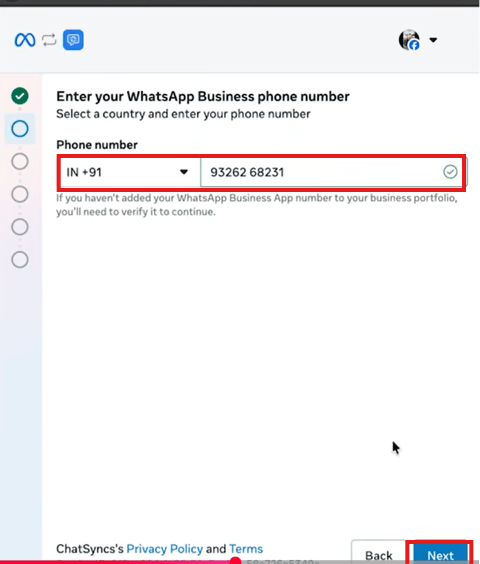
  <Step title="Enter your existing number">
    Enter the phone number **already connected to your WhatsApp Business App** — not a new one.

    <Frame caption="Enter the WhatsApp Business App number you already use.">
      <img src="https://mintcdn.com/chatsyncs/HNsP4MLygnS_qtAH/images/learn/connect-your-number/coexist-01-enter-existing-number.png?fit=max&auto=format&n=HNsP4MLygnS_qtAH&q=85&s=93e7b38eda2d3a32488507baae66b2ba" alt="Enter your WhatsApp Business phone number screen for connecting an existing WhatsApp Business App number" width="480" height="564" data-path="images/learn/connect-your-number/coexist-01-enter-existing-number.png" />
    </Frame>
  </Step>

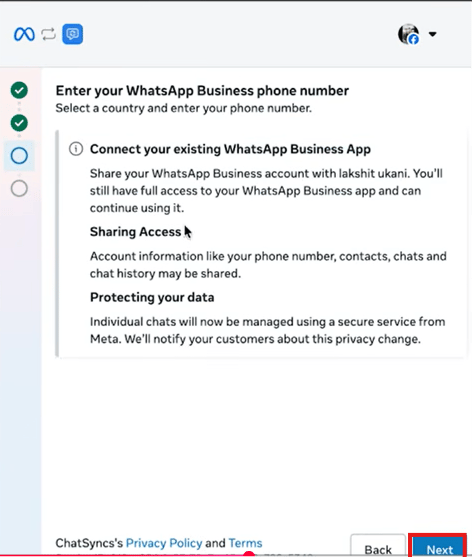
  <Step title="Review what gets shared">
    Read the **Connect your existing WhatsApp Business App** notice — your account information (phone number, contacts, chats, chat history) may be shared, and individual chats start being managed through a secure Meta service. Click **Next**.

    <Frame caption="What sharing your WhatsApp Business App involves.">
      <img src="https://mintcdn.com/chatsyncs/HNsP4MLygnS_qtAH/images/learn/connect-your-number/coexist-02-connect-existing-app-info.png?fit=max&auto=format&n=HNsP4MLygnS_qtAH&q=85&s=6333588ff5bc194fd7a58d7454e402ab" alt="Connect your existing WhatsApp Business App info panel covering Sharing Access and Protecting your data" width="472" height="557" data-path="images/learn/connect-your-number/coexist-02-connect-existing-app-info.png" />
    </Frame>

    <Warning>
      **"Unlink your number first" error?** This means the number is already linked to a *different* platform/partner. Fix it in two places:

      1. At [business.facebook.com](https://business.facebook.com), select your business portfolio → **WhatsApp account** → select the account → **Partners** tab → find the connected partner → **Manage** → remove access.
      2. On your phone, open **WhatsApp Business app → Settings → Account → Business Platform** → find the same partner → tap to disconnect.

      Once both are disconnected, re-enter your number and continue. See [How to Disconnect Another Partner From Your WhatsApp Number](/learn/chatsyncs-setup-and-configuration/disconnect-another-partner-from-your-whatsapp-number-in-chatsyncs) for the full walkthrough.
    </Warning>
  </Step>

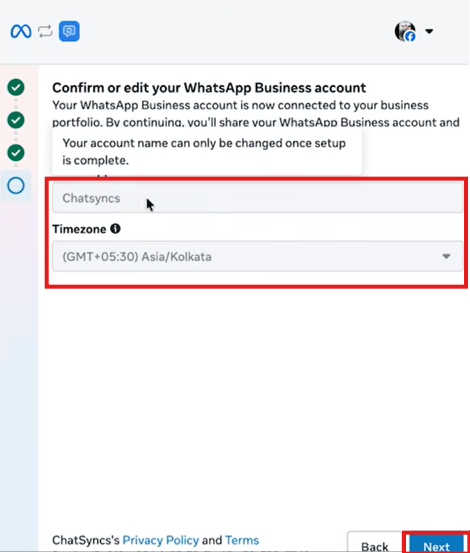
  <Step title="Confirm the account name and time zone">
    The account name is pulled from your phone and **can't be changed** once setup is complete — only the time zone is editable here. Click **Next**.

    <Frame caption="Confirm the WhatsApp Business account name (locked) and time zone.">
      <img src="https://mintcdn.com/chatsyncs/HNsP4MLygnS_qtAH/images/learn/connect-your-number/coexist-03-confirm-account-timezone.png?fit=max&auto=format&n=HNsP4MLygnS_qtAH&q=85&s=45644cf2714decc6948322bd3d8bc983" alt="Confirm or edit your WhatsApp Business account screen with account name and Timezone fields" width="470" height="553" data-path="images/learn/connect-your-number/coexist-03-confirm-account-timezone.png" />
    </Frame>
  </Step>

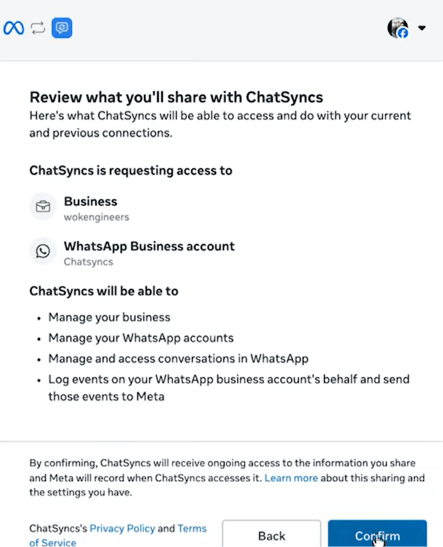
  <Step title="Review permissions and confirm">
    Review what ChatSyncs will be able to do — manage your business, manage your WhatsApp accounts, manage/access conversations, and log events for that account to Meta — then click **Confirm**.

    <Frame caption="Final permissions review before confirming the connection.">
      <img src="https://mintcdn.com/chatsyncs/HNsP4MLygnS_qtAH/images/learn/connect-your-number/coexist-04-review-permissions.png?fit=max&auto=format&n=HNsP4MLygnS_qtAH&q=85&s=421169fc78b1cc790bc7901ec0f80f81" alt="Review what you'll share with ChatSyncs screen listing requested business and WhatsApp Business account permissions" width="443" height="547" data-path="images/learn/connect-your-number/coexist-04-review-permissions.png" />
    </Frame>
  </Step>

  <Step title="Connect from your phone">
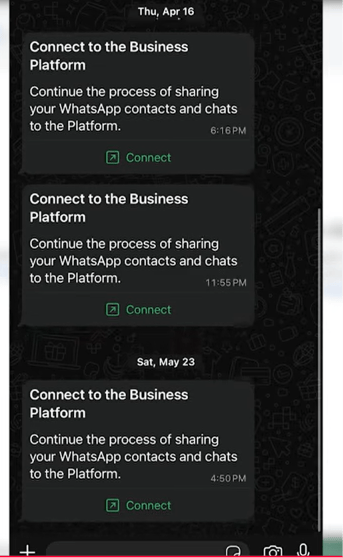
    Open **WhatsApp Business app** on your phone — you'll get a message from Meta titled **Connect to the Business Platform**. Tap **Connect**.

    <Frame caption="The Business Platform connection request that arrives inside WhatsApp Business.">
      <img src="https://mintcdn.com/chatsyncs/HNsP4MLygnS_qtAH/images/learn/connect-your-number/coexist-05-whatsapp-connect-notification.png?fit=max&auto=format&n=HNsP4MLygnS_qtAH&q=85&s=e5e45a5661d0493206cf78c47719e230" alt="WhatsApp Business app messages titled Connect to the Business Platform, each with a Connect button" width="343" height="558" data-path="images/learn/connect-your-number/coexist-05-whatsapp-connect-notification.png" />
    </Frame>
  </Step>

  <Step title="Scan the QR code and finish">
    A QR code appears — scan it with the same WhatsApp Business app to complete the link, then click **Finish**.

    <Frame caption="Scan this QR code from WhatsApp Business app to finish linking.">
      <img src="https://mintcdn.com/chatsyncs/HNsP4MLygnS_qtAH/images/learn/connect-your-number/coexist-06-qr-code-scan.png?fit=max&auto=format&n=HNsP4MLygnS_qtAH&q=85&s=18dbba6ade004eb9f7a0ca42dc9efbea" alt="QR code shown to scan from the WhatsApp Business app to complete Coexistence linking" width="308" height="537" data-path="images/learn/connect-your-number/coexist-06-qr-code-scan.png" />
    </Frame>
  </Step>
</Steps>

<Note>
  Coexistence lets you keep using the WhatsApp Business app on your phone exactly as before — ChatSyncs runs alongside it rather than replacing it, unlike a plain Cloud API connection which locks the number out of the regular app.
</Note>

## Frequently asked

<AccordionGroup>
  <Accordion title="What's the difference between Coexistence and a regular Cloud API connection?">
    A **Cloud API** connection dedicates a number entirely to ChatSyncs — it can no longer be used in the regular WhatsApp app. **Coexistence** links your *existing* WhatsApp Business App number instead, so you keep using the app on your phone while ChatSyncs automates on the same number.
  </Accordion>

  <Accordion title="Can I still use the WhatsApp Business app on my phone after connecting via Coexistence?">
    Yes — that's the whole point of Coexistence. Calls, status updates, profile management, and direct messaging all keep working; only broadcast lists, disappearing messages, and message editing/revoking are turned off in the app.
  </Accordion>

  <Accordion title="Can I change the account name after connecting via Coexistence?">
    No — the account name is set from your phone at connection time and can't be edited afterward. Only the time zone stays editable on that screen.
  </Accordion>

  <Accordion title="Will I lose my chat history when I switch on Coexistence?">
    No — your last 6 months of chat history syncs over automatically the first time you link, so ChatSyncs doesn't start empty.
  </Accordion>

  <Accordion title="I got an error saying I need to unlink my number first — what do I do?">
    Your number is already linked to a different platform/partner. See [How to Disconnect Another Partner From Your WhatsApp Number](/learn/chatsyncs-setup-and-configuration/disconnect-another-partner-from-your-whatsapp-number-in-chatsyncs) for the full steps, then re-enter your number.
  </Accordion>
</AccordionGroup>

<Warning>
  * **Coexistence only works with the WhatsApp Business App** — a personal WhatsApp number must be deleted and reconnected fresh instead; see [How to Migrate from WhatsApp App to a ChatSyncs Business Account](/learn/chatsyncs-setup-and-configuration/migrate-from-whatsapp-app-to-a-chatsyncs-business-account).
  * **Broadcast lists stop working in the Business App** once Coexistence is active — send broadcasts from ChatSyncs instead.
  * **The account name locks in at connection time** — get it right before scanning the QR code, since it can't be changed afterward.
</Warning>