> ## Documentation Index
> Fetch the complete documentation index at: https://docs.chatsyncs.com/llms.txt
> Use this file to discover all available pages before exploring further.
# Why Templates Get Rejected and How to Fix Them in ChatSyncs
> What each WhatsApp template status means (Pending, Submitted, Approved, Rejected, Paused, Disabled), and how to fix and resubmit a rejected template.
* Every template you create in ChatSyncs gets sent to Meta for review before it can be used.
* If it breaks one of Meta's rules, Meta rejects it.
* This page covers: what Meta checks, what a rejection looks like inside ChatSyncs, and exactly
what to click to fix it.
## What Meta checks before approving
| Check | What it means |
| ---------------------- | ---------------------------------------------------------------------------------------------------------------------------------------------------------------------------------------------------------------- |
| **Category match** | The content must match the declared [Template Category](/learn/chatsyncs-message-templates/guidelines-for-utility-and-marketing-templates-in-chatsyncs). Promotional content submitted as Utility gets rejected. |
| **Policy compliance** | No spam, misleading claims, adult/sexual content, threatening language, gambling, alcohol, drugs, or impersonation (e.g. pretending to be a bank or government body). |
| **Variable numbering** | [Variables](/learn/chatsyncs-message-templates/creating-a-whatsapp-message-template-in-chatsyncs#create-a-template-variable-first) must be sequential — no gaps, no duplicates, starting from the first one. |
| **Valid button URLs** | Any URL in a button must be reachable and not suspicious. Broken or malware URLs are rejected. |
**Wrong category** is the single most common cause — a message that says "Get 50% OFF this
weekend!" submitted as Utility will always be rejected. Any discount, offer, promotion, or
upsell must be submitted as Marketing; see
[Guidelines for Utility and Marketing Templates](/learn/chatsyncs-message-templates/guidelines-for-utility-and-marketing-templates-in-chatsyncs) for the
full breakdown.
**Content policy violations** include: threatening or aggressive language, adult or sexual
content, misleading product claims, impersonating a bank, government body, or other
organization, and content involving gambling, alcohol, or controlled substances.
**Broken button URLs** — every URL in a Call-to-Action button must be valid and reachable at the
time Meta reviews it.
## The five statuses in the Message Templates list
Open **Chatbot Manager → Automation → Message Templates** and every template you've created
shows one of these statuses:
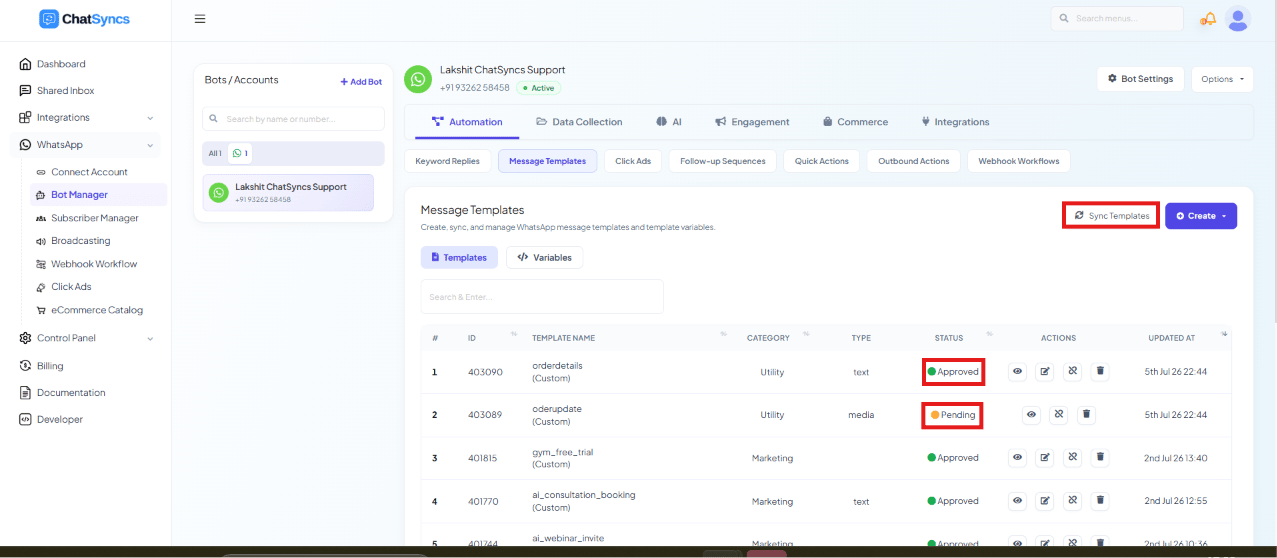 | Status | What it means |
| ------------- | ---------------------------------------------------------------------------------------------------------------------------------- |
| **Pending** | Saved in ChatSyncs but not yet sent to Meta for review. |
| **Submitted** | Sent to Meta and waiting on their decision — this happens once you click **Sync Templates**. |
| **Approved** | Meta reviewed and accepted it. Ready to use in Keyword Replies, Broadcasting, Sequences, WhatsApp Flows, and AI Agent automations. |
| **Rejected** | Meta reviewed and declined it. You can't edit a rejected template — see the fix below. |
| **Paused** | Was approved, but recipients are blocking or reporting it enough that Meta paused it. |
| **Disabled** | Paused too many times — permanently disabled. You'll need a new template from scratch. |
Click **Sync Templates** any time to pull the latest status from Meta — statuses don't refresh
on their own. A brand-new WhatsApp Business account can take up to 24 hours or longer for its
first review.
## What to do when a template is rejected
You cannot edit a rejected template directly — Meta requires a fresh submission. Duplicate it,
fix the specific issue, and resend it:
Go to **Chatbot Manager → Automation → Message Templates**, then filter or scroll to the **Rejected** section.
Locate the one you need to fix in the list.
Click the **⋯** menu on that row.
This opens a copy of the template, pre-filled with the original content.
Correct the exact thing Meta's rejection reason pointed to — see the checklist below.
Give the duplicate a new **Template Name** (Meta rejects near-identical resubmissions under the old name) and save. It's automatically sent for review again.
* **Fixing one issue only to trip another wastes a review cycle.** Before resubmitting, check
the duplicate against every check in the table above and the pre-submit checklist below — not
just the one Meta mentioned.
* **Resubmitting unchanged content gets the same result.** Meta compares the new submission
against the rejected one; a cosmetic rename without a real content fix won't pass.
## Quick pre-submit checklist
Run through this before you click save on any new template, to avoid a rejection cycle
entirely:
* **Category matches the content** — see
[Utility vs. Marketing templates](/learn/chatsyncs-message-templates/guidelines-for-utility-and-marketing-templates-in-chatsyncs) if you're unsure
which to pick.
* **Static text explains the message**, even without knowing what the variables will contain —
`Hi #name#, your order #orderid# has shipped` is fine; a body that's mostly variables with no
context is not.
* **Template name is descriptive** — `appointment_reminder` or `order_confirmation_v2`, not
`template_003` or `test`.
* **No shortened links** (bit.ly, tinyurl) in the message body — use a full URL, or a **URL**
button instead.
* **No spelling mistakes or heavy slang.**
* **A media header (image/video/document) has a sample file attached**, matching the format
you'll actually send.
* **One language per template** — don't mix English and Hindi (or any other pair) in the same
template body.
* **No blank lines in the middle of the body** — use a single line break for paragraph spacing,
not multiple empty lines.
* **Quick reply button text is plain** — no emojis in the button label.
* Every part is inside its
[character limit](/learn/chatsyncs-message-templates/character-limits-for-media-message-templates-in-chatsyncs) — header, body, footer, and buttons.
## Why this matters beyond one template
Templates that keep getting reported or blocked don't just get Paused individually — they drag
down your WhatsApp number's overall [quality rating](/learn/chatsyncs-message-templates/understanding-whatsapp-quality-rating-in-chatsyncs), which can
shrink how many messages you're allowed to send per day. If you're troubleshooting a Paused or
Disabled template, see [Understanding WhatsApp Quality Rating](/learn/chatsyncs-message-templates/understanding-whatsapp-quality-rating-in-chatsyncs)
for what causes it and how to recover, and keep marketing sends targeted to people who actually
opted in.
## Frequently asked
Meta doesn't support editing a rejected template in place. Duplicate it from the **Rejected**
section's **⋯** menu, fix the issue, give it a new name, and save — that resubmits it as a
fresh template.
For a brand-new WhatsApp Business account, yes — the first few reviews can take up to 24
hours or longer. Click **Sync Templates** to check for an update; established accounts are
usually reviewed within minutes.
**Rejected** means Meta never approved it — fix and resubmit as a duplicate. **Paused**
means it *was* approved but too many recipients blocked or reported it, so Meta suspended
it. **Disabled** means it was paused repeatedly and is now permanently shut off — you'll
need to build a new template with substantially different content.
Compare your duplicate against the full checklist above and the "What Meta checks" table —
Meta flags one issue at a time, so a template can fail review more than once before it
passes.
Spam, misleading or false claims, adult/sexual content, threatening language, impersonation
(banks, government), and content promoting gambling, alcohol, or drugs.
Yes. Variables must be sequential with no gaps or duplicates. Renumber so every variable
from the first onward is used in order.
| Status | What it means |
| ------------- | ---------------------------------------------------------------------------------------------------------------------------------- |
| **Pending** | Saved in ChatSyncs but not yet sent to Meta for review. |
| **Submitted** | Sent to Meta and waiting on their decision — this happens once you click **Sync Templates**. |
| **Approved** | Meta reviewed and accepted it. Ready to use in Keyword Replies, Broadcasting, Sequences, WhatsApp Flows, and AI Agent automations. |
| **Rejected** | Meta reviewed and declined it. You can't edit a rejected template — see the fix below. |
| **Paused** | Was approved, but recipients are blocking or reporting it enough that Meta paused it. |
| **Disabled** | Paused too many times — permanently disabled. You'll need a new template from scratch. |
Click **Sync Templates** any time to pull the latest status from Meta — statuses don't refresh
on their own. A brand-new WhatsApp Business account can take up to 24 hours or longer for its
first review.
## What to do when a template is rejected
You cannot edit a rejected template directly — Meta requires a fresh submission. Duplicate it,
fix the specific issue, and resend it:
Go to **Chatbot Manager → Automation → Message Templates**, then filter or scroll to the **Rejected** section.
Locate the one you need to fix in the list.
Click the **⋯** menu on that row.
This opens a copy of the template, pre-filled with the original content.
Correct the exact thing Meta's rejection reason pointed to — see the checklist below.
Give the duplicate a new **Template Name** (Meta rejects near-identical resubmissions under the old name) and save. It's automatically sent for review again.
* **Fixing one issue only to trip another wastes a review cycle.** Before resubmitting, check
the duplicate against every check in the table above and the pre-submit checklist below — not
just the one Meta mentioned.
* **Resubmitting unchanged content gets the same result.** Meta compares the new submission
against the rejected one; a cosmetic rename without a real content fix won't pass.
## Quick pre-submit checklist
Run through this before you click save on any new template, to avoid a rejection cycle
entirely:
* **Category matches the content** — see
[Utility vs. Marketing templates](/learn/chatsyncs-message-templates/guidelines-for-utility-and-marketing-templates-in-chatsyncs) if you're unsure
which to pick.
* **Static text explains the message**, even without knowing what the variables will contain —
`Hi #name#, your order #orderid# has shipped` is fine; a body that's mostly variables with no
context is not.
* **Template name is descriptive** — `appointment_reminder` or `order_confirmation_v2`, not
`template_003` or `test`.
* **No shortened links** (bit.ly, tinyurl) in the message body — use a full URL, or a **URL**
button instead.
* **No spelling mistakes or heavy slang.**
* **A media header (image/video/document) has a sample file attached**, matching the format
you'll actually send.
* **One language per template** — don't mix English and Hindi (or any other pair) in the same
template body.
* **No blank lines in the middle of the body** — use a single line break for paragraph spacing,
not multiple empty lines.
* **Quick reply button text is plain** — no emojis in the button label.
* Every part is inside its
[character limit](/learn/chatsyncs-message-templates/character-limits-for-media-message-templates-in-chatsyncs) — header, body, footer, and buttons.
## Why this matters beyond one template
Templates that keep getting reported or blocked don't just get Paused individually — they drag
down your WhatsApp number's overall [quality rating](/learn/chatsyncs-message-templates/understanding-whatsapp-quality-rating-in-chatsyncs), which can
shrink how many messages you're allowed to send per day. If you're troubleshooting a Paused or
Disabled template, see [Understanding WhatsApp Quality Rating](/learn/chatsyncs-message-templates/understanding-whatsapp-quality-rating-in-chatsyncs)
for what causes it and how to recover, and keep marketing sends targeted to people who actually
opted in.
## Frequently asked
Meta doesn't support editing a rejected template in place. Duplicate it from the **Rejected**
section's **⋯** menu, fix the issue, give it a new name, and save — that resubmits it as a
fresh template.
For a brand-new WhatsApp Business account, yes — the first few reviews can take up to 24
hours or longer. Click **Sync Templates** to check for an update; established accounts are
usually reviewed within minutes.
**Rejected** means Meta never approved it — fix and resubmit as a duplicate. **Paused**
means it *was* approved but too many recipients blocked or reported it, so Meta suspended
it. **Disabled** means it was paused repeatedly and is now permanently shut off — you'll
need to build a new template with substantially different content.
Compare your duplicate against the full checklist above and the "What Meta checks" table —
Meta flags one issue at a time, so a template can fail review more than once before it
passes.
Spam, misleading or false claims, adult/sexual content, threatening language, impersonation
(banks, government), and content promoting gambling, alcohol, or drugs.
Yes. Variables must be sequential with no gaps or duplicates. Renumber so every variable
from the first onward is used in order.