> ## Documentation Index
> Fetch the complete documentation index at: https://docs.chatsyncs.com/llms.txt
> Use this file to discover all available pages before exploring further.
# Creating a WhatsApp Message Template in ChatSyncs
> How to build a WhatsApp message template in ChatSyncs, from picking a template type to sending it once approved.
WhatsApp gives you a [24-hour window](/meta-api/messaging/24-hour-customer-service-window) to
reply freely once a customer messages you first — like a normal chat, type anything, hit send.
Outside that window, WhatsApp won't let you just type and send. You need a **Message Template**
first — a message Meta (WhatsApp's parent company) checks and approves *before* you're allowed
to use it. Think of it like a teacher checking your homework before you're allowed to hand it
in.
* **Why this rule exists:** so businesses can't spam people with unlimited messages.
* **The upside:** once a template is approved, you reuse that same message again and again, for
as many customers as you want — no re-approval needed each time.
**Example:**
* You run a clothing store.
* Every time an order ships, you want to tell the customer: *"Your order has been shipped."*
* Instead of typing that by hand for every single person, you write it once as a template and
get Meta's approval one time.
* From then on, ChatSyncs sends it automatically — filling in each customer's own name and a
**Variable** like the order number or discount amount for them.
## Variables are the whole point
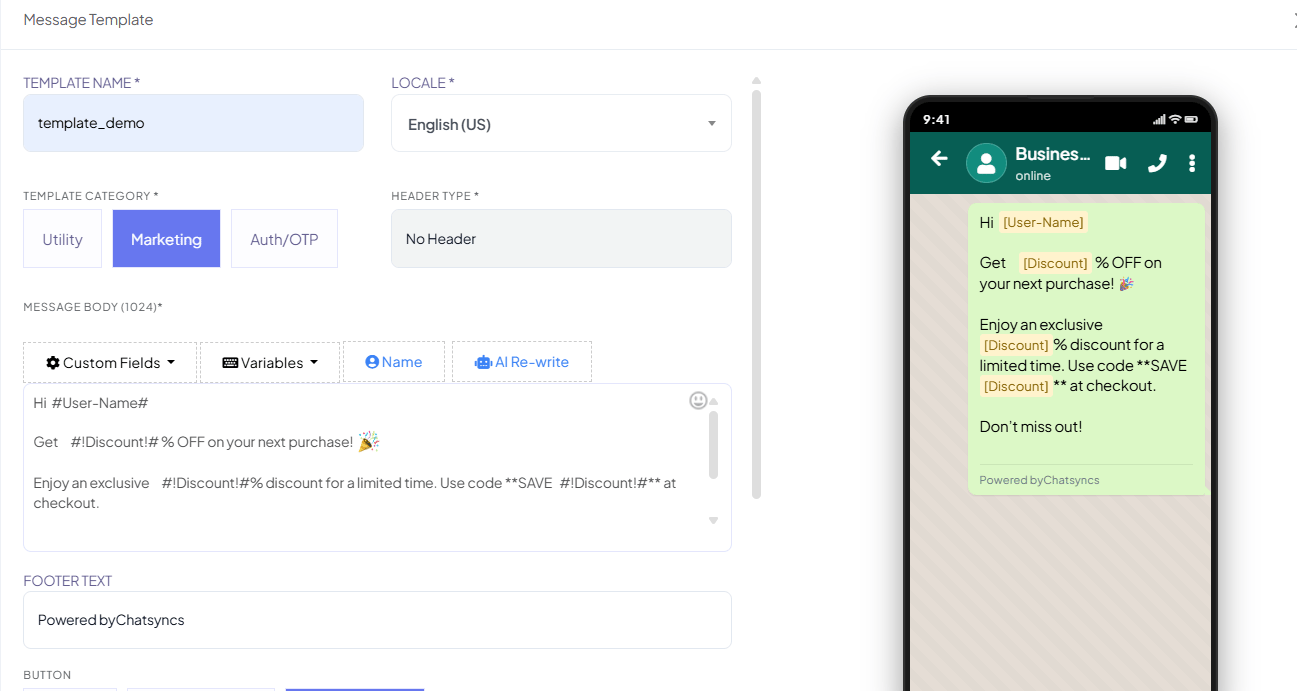 A template only has to be written and approved **once**, but it goes out to every customer
differently — that's what makes it worth doing instead of typing each message by hand.
**Variables** are how: a placeholder like `#!Discount!#` in the template body, filled in with a
real value — a different one per customer, per send — the moment the message actually goes out.
The full syntax for every type of placeholder is in [Custom Fields, Variables, Name, and AI
Rewrite](#custom-fields-variables-name-and-ai-rewrite) further down — but since a **Template
Variable** is the reusable one you'll reach for most, here's how to create one before anything
else.
### Create a Template Variable first
**Why create one?** A Custom Field only stores something permanent about a subscriber (their
email, city). If what you need instead changes **per message** — a discount amount, an order
total, a coupon code — and you want to reuse that same placeholder across multiple templates
without redefining it each time, create a **Template Variable** once and insert it anywhere.
A template only has to be written and approved **once**, but it goes out to every customer
differently — that's what makes it worth doing instead of typing each message by hand.
**Variables** are how: a placeholder like `#!Discount!#` in the template body, filled in with a
real value — a different one per customer, per send — the moment the message actually goes out.
The full syntax for every type of placeholder is in [Custom Fields, Variables, Name, and AI
Rewrite](#custom-fields-variables-name-and-ai-rewrite) further down — but since a **Template
Variable** is the reusable one you'll reach for most, here's how to create one before anything
else.
### Create a Template Variable first
**Why create one?** A Custom Field only stores something permanent about a subscriber (their
email, city). If what you need instead changes **per message** — a discount amount, an order
total, a coupon code — and you want to reuse that same placeholder across multiple templates
without redefining it each time, create a **Template Variable** once and insert it anywhere.
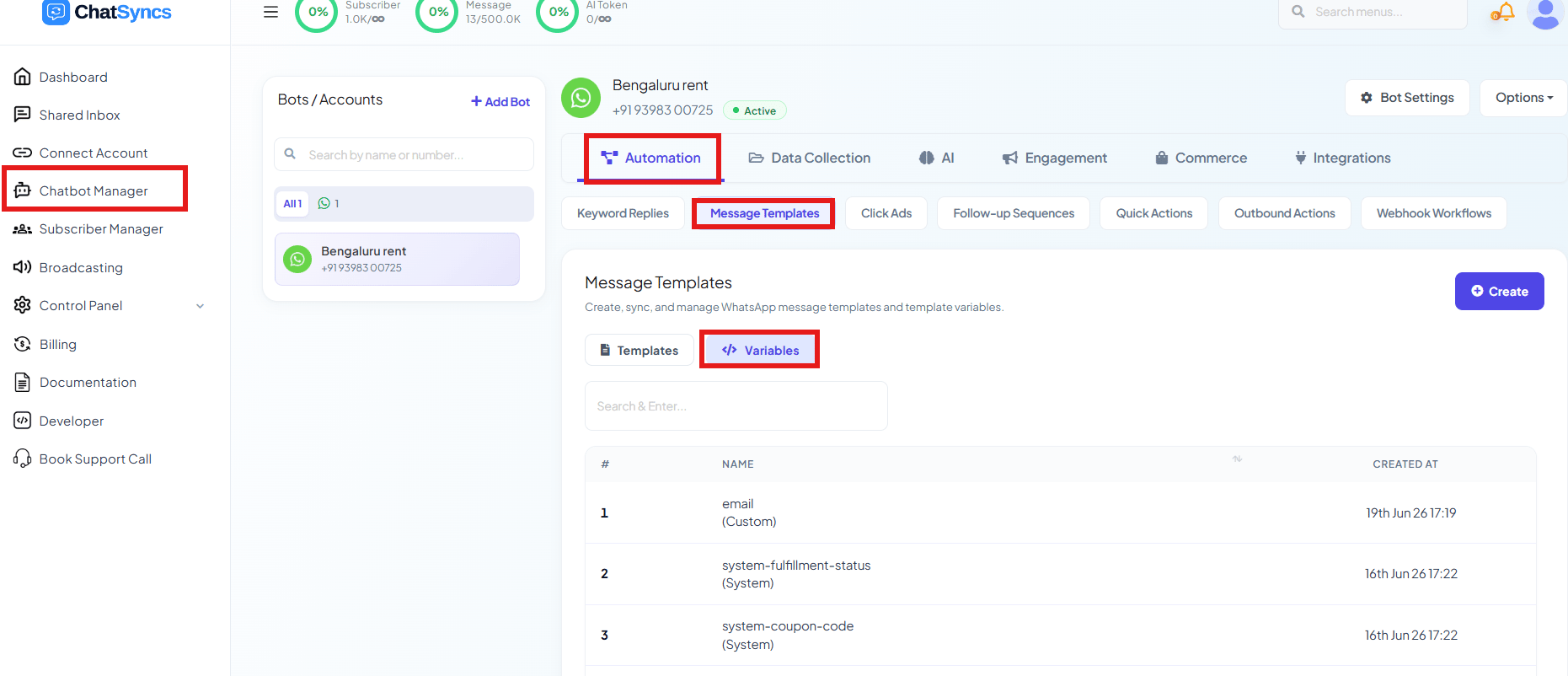 **How to create one:**
Go to **Chatbot Manager → Automation → Message Templates**, then click **Variables** next to
**Templates**.
**How to create one:**
Go to **Chatbot Manager → Automation → Message Templates**, then click **Variables** next to
**Templates**.
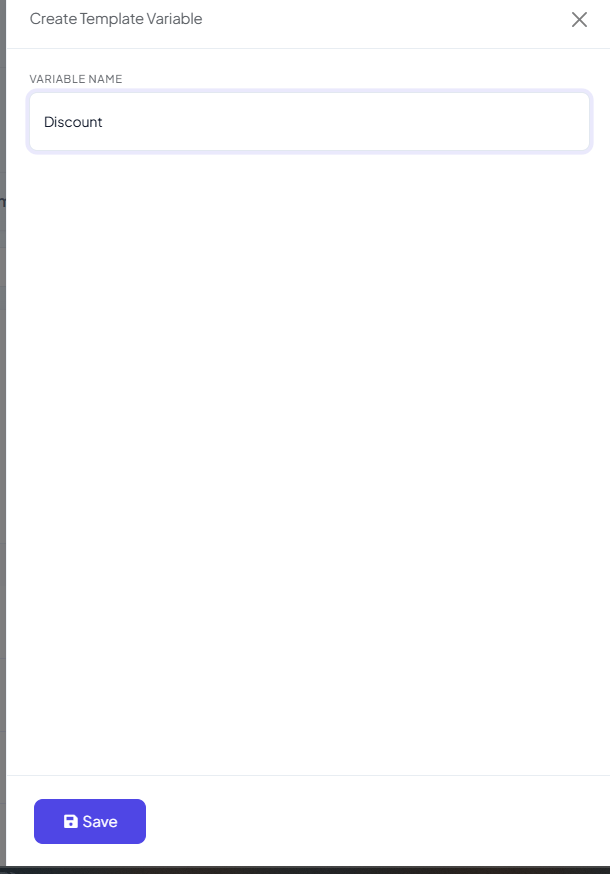 Enter a **Variable Name** with no spaces or special characters, e.g. `Discount`, `OrderID`,
`BookingID`, `CompanyName`.
The variable now appears in the list and can be inserted into any template's Message Body
using the **Variables** button in the toolbar.
If the value you need is instead something permanent about the *customer* (their email, city, or
company) rather than something that changes per message, use a Custom Field instead of a
Template Variable — see [Template Variables vs Custom Variables — What's the Difference?](/learn/chatsyncs-message-templates/template-variables-vs-custom-variables-whats-the-difference-with-chatsyncs).
Insert a variable using the `#!VariableName!#` syntax — note this is different from a Custom
Field's single-`#` syntax:
```text theme={null}
Hi #User-Name#
Get #!Discount!# % OFF on your next purchase!
Your order #orderid# has been confirmed for #!Discount!# off.
```
Before sending, assign each variable a real value:
| Placeholder | Type | Value |
| -------------- | ----------------- | -------- |
| `#User-Name#` | Name | Rahul |
| `#orderid#` | Custom Field | ORD12345 |
| `#!Discount!#` | Template Variable | 20 |
The customer receives:
```text theme={null}
Hi Rahul
Get 20 % OFF on your next purchase!
Your order ORD12345 has been confirmed for 20 off.
```
Template Variables let you personalize a single template per customer, reuse it across many
subscribers, and avoid creating a near-duplicate template for every small change.
This page now walks through building the template itself, step by step.
## Prerequisites
* A WhatsApp Business Account connected to ChatSyncs.
* A clear idea of your message content — including any variables, buttons, or footer text you
need.
## Open Message Templates
Go to **Chatbot Manager**.
Select **Automation**.
Select **Message Templates** from the sub-tabs.
Click **Create** and pick a template type.
Enter a **Variable Name** with no spaces or special characters, e.g. `Discount`, `OrderID`,
`BookingID`, `CompanyName`.
The variable now appears in the list and can be inserted into any template's Message Body
using the **Variables** button in the toolbar.
If the value you need is instead something permanent about the *customer* (their email, city, or
company) rather than something that changes per message, use a Custom Field instead of a
Template Variable — see [Template Variables vs Custom Variables — What's the Difference?](/learn/chatsyncs-message-templates/template-variables-vs-custom-variables-whats-the-difference-with-chatsyncs).
Insert a variable using the `#!VariableName!#` syntax — note this is different from a Custom
Field's single-`#` syntax:
```text theme={null}
Hi #User-Name#
Get #!Discount!# % OFF on your next purchase!
Your order #orderid# has been confirmed for #!Discount!# off.
```
Before sending, assign each variable a real value:
| Placeholder | Type | Value |
| -------------- | ----------------- | -------- |
| `#User-Name#` | Name | Rahul |
| `#orderid#` | Custom Field | ORD12345 |
| `#!Discount!#` | Template Variable | 20 |
The customer receives:
```text theme={null}
Hi Rahul
Get 20 % OFF on your next purchase!
Your order ORD12345 has been confirmed for 20 off.
```
Template Variables let you personalize a single template per customer, reuse it across many
subscribers, and avoid creating a near-duplicate template for every small change.
This page now walks through building the template itself, step by step.
## Prerequisites
* A WhatsApp Business Account connected to ChatSyncs.
* A clear idea of your message content — including any variables, buttons, or footer text you
need.
## Open Message Templates
Go to **Chatbot Manager**.
Select **Automation**.
Select **Message Templates** from the sub-tabs.
Click **Create** and pick a template type.
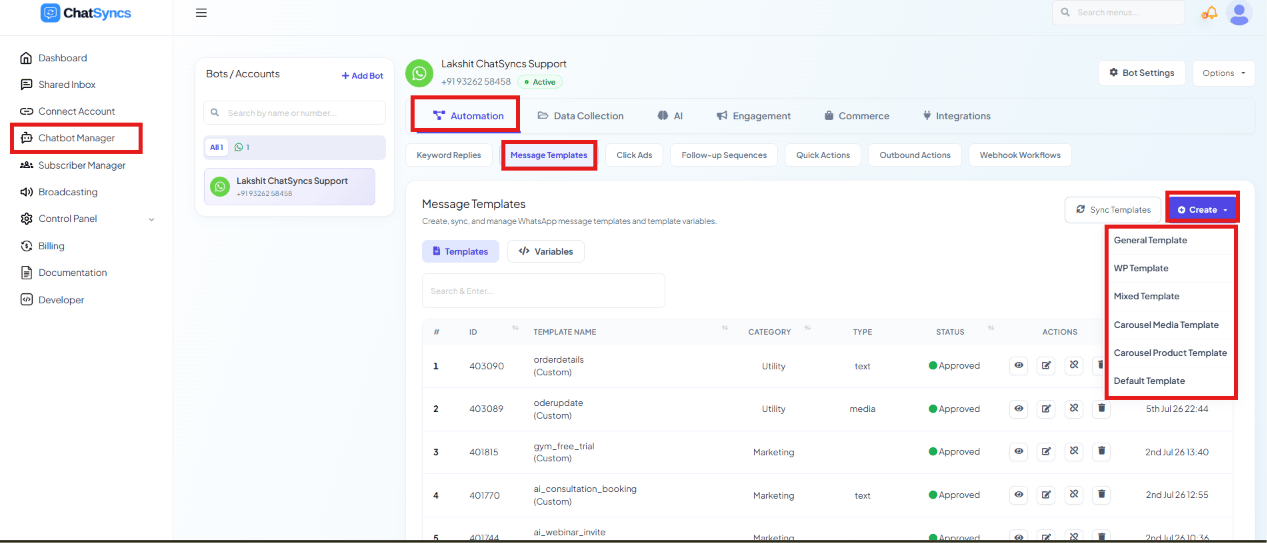 Six template types are available from the **Create** dropdown:
* **General Template** — the standard single-message template builder.
* **WP Template** — another single-message builder, mainly used for Marketing templates.
* **Mixed Template** — supports all three template categories (Marketing, Utility,
Authentication/OTP) from one builder.
* **Carousel Media Template** and **Carousel Product Template** — swipeable multi-card
templates; see [How to Create and Use Carousel Media
Templates](/learn/chatsyncs-message-templates/create-and-use-carousel-media-templates-in-chatsyncs) for the full walkthrough.
* **Default Template** — system-created templates you don't build yourself.
## General Template
Six template types are available from the **Create** dropdown:
* **General Template** — the standard single-message template builder.
* **WP Template** — another single-message builder, mainly used for Marketing templates.
* **Mixed Template** — supports all three template categories (Marketing, Utility,
Authentication/OTP) from one builder.
* **Carousel Media Template** and **Carousel Product Template** — swipeable multi-card
templates; see [How to Create and Use Carousel Media
Templates](/learn/chatsyncs-message-templates/create-and-use-carousel-media-templates-in-chatsyncs) for the full walkthrough.
* **Default Template** — system-created templates you don't build yourself.
## General Template
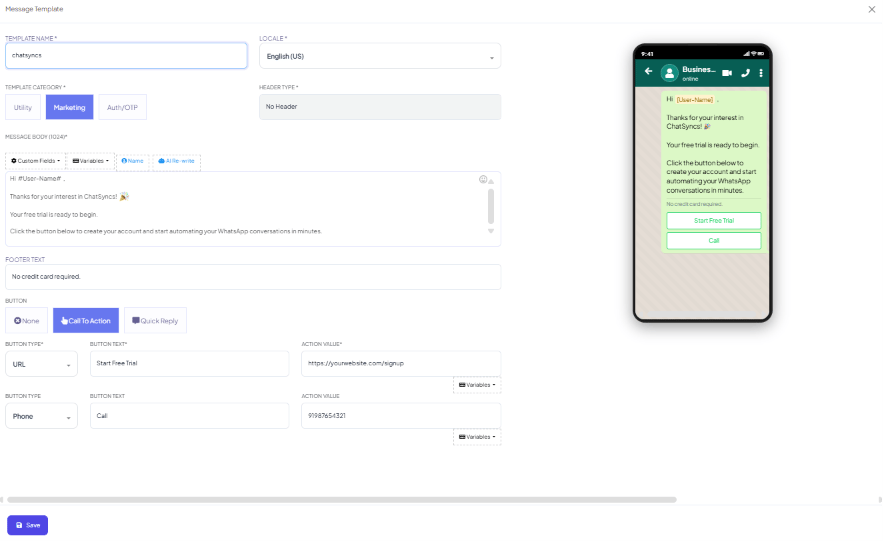 General Template is the standard builder — the same fields described under
[Mixed Template](#mixed-template) below (Template Name, Locale, Template Category, Header Type,
Message Body, Footer Text, Buttons, live preview) apply here too.
## Mixed Template
A Mixed Template can be submitted as Marketing, Utility, or Authentication (OTP) — useful when
you want one builder for any category instead of switching tools. See
[Utility vs. Marketing Templates](/learn/chatsyncs-message-templates/guidelines-for-utility-and-marketing-templates-in-chatsyncs) for help choosing the
right one.
General Template is the standard builder — the same fields described under
[Mixed Template](#mixed-template) below (Template Name, Locale, Template Category, Header Type,
Message Body, Footer Text, Buttons, live preview) apply here too.
## Mixed Template
A Mixed Template can be submitted as Marketing, Utility, or Authentication (OTP) — useful when
you want one builder for any category instead of switching tools. See
[Utility vs. Marketing Templates](/learn/chatsyncs-message-templates/guidelines-for-utility-and-marketing-templates-in-chatsyncs) for help choosing the
right one.
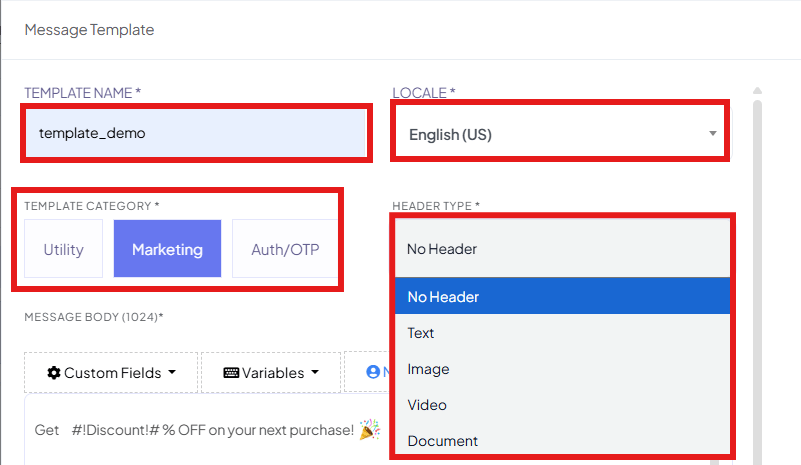 Fields you fill in:
| Field | Notes |
| --------------------- | ------------------------------------------------------------------------------------------ |
| **Template Name** | A unique name, e.g. `customer_registration`, `appointment_reminder`. |
| **Locale** | The template's language, e.g. `English (US)`. |
| **Template Category** | `Utility`, `Marketing`, or `Auth/OTP`. |
| **Header Type** | `No Header`, `Text`, `Image`, `Video`, or `Document`. |
| **Message Body** | The main text — supports Custom Fields, Variables, Name, and AI Rewrite (below). |
| **Footer Text** | Optional text shown below the message, e.g. `Powered by ChatSyncs`. |
| **Buttons** | `None`, **Call To Action**, or **Quick Reply** — see [Buttons](#buttons) below. |
| **Template Preview** | A live preview of how the template will look in WhatsApp, shown on the right as you build. |
Every field has a length limit — see
[Character Limits for Media Message Templates](/learn/chatsyncs-message-templates/character-limits-for-media-message-templates-in-chatsyncs) before you
write a long message.
### Custom Fields, Variables, Name, and AI Rewrite
Fields you fill in:
| Field | Notes |
| --------------------- | ------------------------------------------------------------------------------------------ |
| **Template Name** | A unique name, e.g. `customer_registration`, `appointment_reminder`. |
| **Locale** | The template's language, e.g. `English (US)`. |
| **Template Category** | `Utility`, `Marketing`, or `Auth/OTP`. |
| **Header Type** | `No Header`, `Text`, `Image`, `Video`, or `Document`. |
| **Message Body** | The main text — supports Custom Fields, Variables, Name, and AI Rewrite (below). |
| **Footer Text** | Optional text shown below the message, e.g. `Powered by ChatSyncs`. |
| **Buttons** | `None`, **Call To Action**, or **Quick Reply** — see [Buttons](#buttons) below. |
| **Template Preview** | A live preview of how the template will look in WhatsApp, shown on the right as you build. |
Every field has a length limit — see
[Character Limits for Media Message Templates](/learn/chatsyncs-message-templates/character-limits-for-media-message-templates-in-chatsyncs) before you
write a long message.
### Custom Fields, Variables, Name, and AI Rewrite
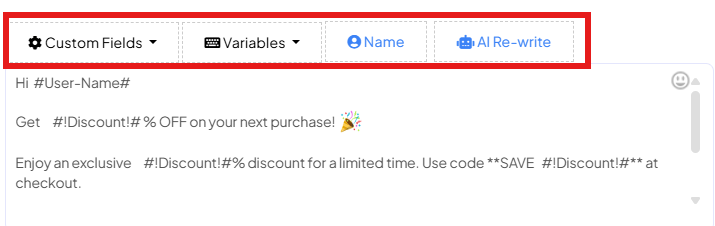 The Message Body toolbar has four buttons, and each one inserts a **different syntax** — don't
mix them up:
| Button | Inserts | Syntax | Example |
| ----------------- | ----------------------------------------------------------------- | ------------------------------- | ----------------------------------------------------------------------------- |
| **Custom Fields** | A subscriber field | `#field_name#` (single `#`) | `#customer_city#`, `#customer_email#` |
| **Variables** | A reusable [Template Variable](#create-a-template-variable-first) | `#!variable_name!#` (`#!...!#`) | `#!Discount!#`, `#!OrderID!#` |
| **Name** | The subscriber's name specifically | `#User-Name#` | `#User-Name#` |
| **AI Rewrite** | — | — | Generates or improves the wording automatically, doesn't insert a placeholder |
**Variables use `#!...!#`, not `#...#`.** Typing `#Discount#` instead of `#!Discount!#` won't be
recognized as a Template Variable — use the **Variables** button to insert it correctly rather
than typing the syntax by hand.
**Example** — a message built from all three placeholder types:
```text theme={null}
Hi #User-Name#
Get #!Discount!# % OFF on your next purchase!
Enjoy an exclusive #!Discount!# discount for a limited time. Use code **SAVE #!Discount!#** at
checkout.
```
Before sending, `#User-Name#` resolves to the subscriber's name automatically, and `#!Discount!#`
resolves to whatever value you assign that Template Variable (see [Add a reusable Template
Variable](#create-a-template-variable-first) below) — the same variable can appear more than once
in one message.
See [Template Variables vs Custom Variables — What's the Difference?](/learn/chatsyncs-message-templates/template-variables-vs-custom-variables-whats-the-difference-with-chatsyncs) for the
full difference between a Custom Field and a Template Variable, and how each behaves when
sending via the API.
The Message Body toolbar has four buttons, and each one inserts a **different syntax** — don't
mix them up:
| Button | Inserts | Syntax | Example |
| ----------------- | ----------------------------------------------------------------- | ------------------------------- | ----------------------------------------------------------------------------- |
| **Custom Fields** | A subscriber field | `#field_name#` (single `#`) | `#customer_city#`, `#customer_email#` |
| **Variables** | A reusable [Template Variable](#create-a-template-variable-first) | `#!variable_name!#` (`#!...!#`) | `#!Discount!#`, `#!OrderID!#` |
| **Name** | The subscriber's name specifically | `#User-Name#` | `#User-Name#` |
| **AI Rewrite** | — | — | Generates or improves the wording automatically, doesn't insert a placeholder |
**Variables use `#!...!#`, not `#...#`.** Typing `#Discount#` instead of `#!Discount!#` won't be
recognized as a Template Variable — use the **Variables** button to insert it correctly rather
than typing the syntax by hand.
**Example** — a message built from all three placeholder types:
```text theme={null}
Hi #User-Name#
Get #!Discount!# % OFF on your next purchase!
Enjoy an exclusive #!Discount!# discount for a limited time. Use code **SAVE #!Discount!#** at
checkout.
```
Before sending, `#User-Name#` resolves to the subscriber's name automatically, and `#!Discount!#`
resolves to whatever value you assign that Template Variable (see [Add a reusable Template
Variable](#create-a-template-variable-first) below) — the same variable can appear more than once
in one message.
See [Template Variables vs Custom Variables — What's the Difference?](/learn/chatsyncs-message-templates/template-variables-vs-custom-variables-whats-the-difference-with-chatsyncs) for the
full difference between a Custom Field and a Template Variable, and how each behaves when
sending via the API.
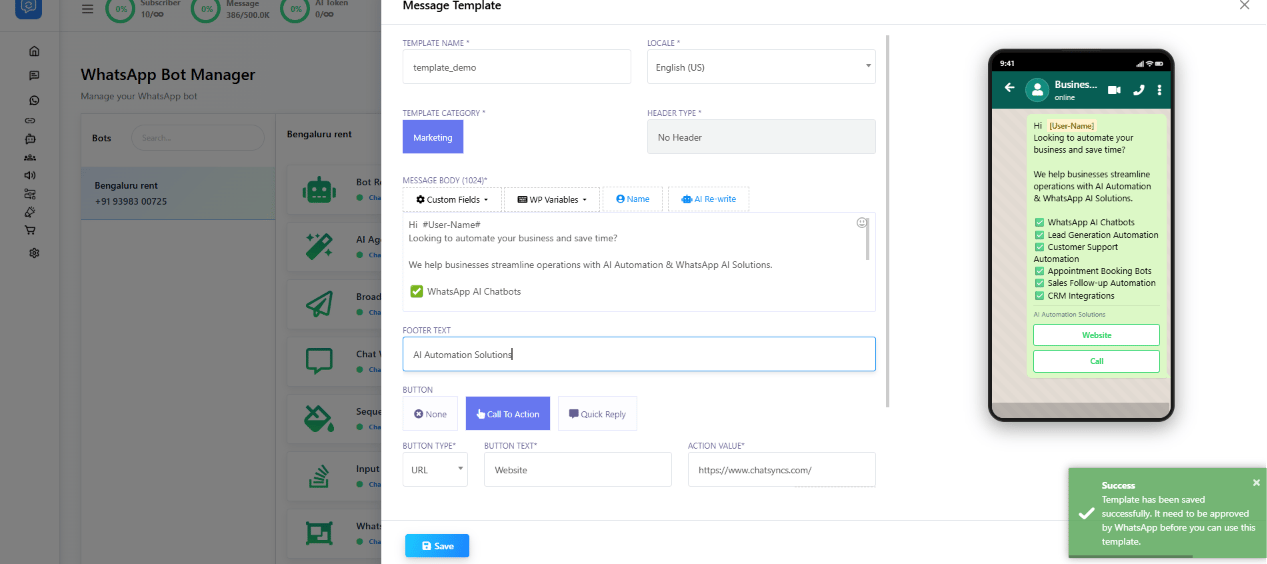 Saving the template shows a confirmation toast like the one above, confirming it's been
submitted for Meta's review.
### Buttons
Every builder has the same three **Button** options: **None**, **Call To Action**, or
**Quick Reply**.
Saving the template shows a confirmation toast like the one above, confirming it's been
submitted for Meta's review.
### Buttons
Every builder has the same three **Button** options: **None**, **Call To Action**, or
**Quick Reply**.
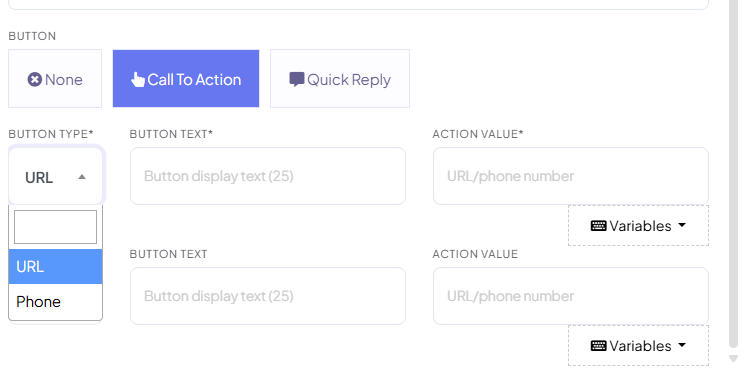 **Call To Action** opens a **Button Type** dropdown — **URL** or **Phone** — plus **Button Text**
and an **Action Value** (the URL or phone number itself). Action Value has its own **Variables**
button, so the destination can be personalized per subscriber too, e.g.
`https://example.com/order/#!OrderID!#`. Up to two Call To Action buttons can be added.
**Call To Action** opens a **Button Type** dropdown — **URL** or **Phone** — plus **Button Text**
and an **Action Value** (the URL or phone number itself). Action Value has its own **Variables**
button, so the destination can be personalized per subscriber too, e.g.
`https://example.com/order/#!OrderID!#`. Up to two Call To Action buttons can be added.
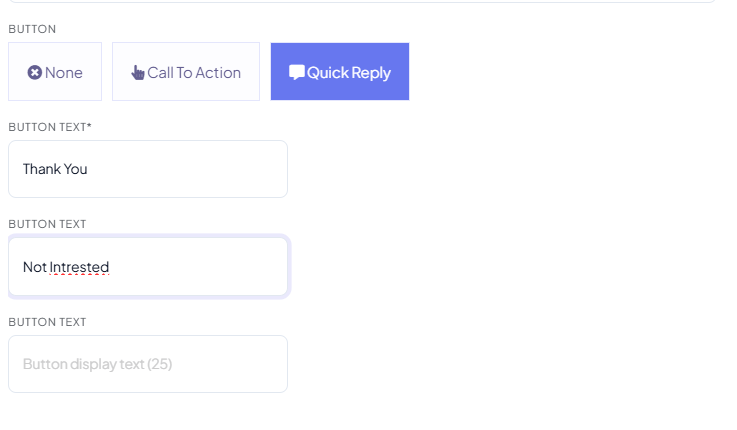 **Quick Reply** instead adds up to three plain **Button Text** fields — short replies a customer
taps instead of typing, e.g. `Thank You`, `Not Interested`.
**Quick Reply** instead adds up to three plain **Button Text** fields — short replies a customer
taps instead of typing, e.g. `Thank You`, `Not Interested`.
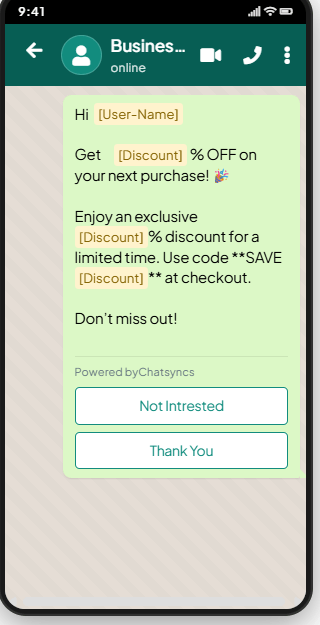 The live preview panel updates as you configure buttons, so you can confirm exactly how they'll
look before saving.
## WP Template
The live preview panel updates as you configure buttons, so you can confirm exactly how they'll
look before saving.
## WP Template
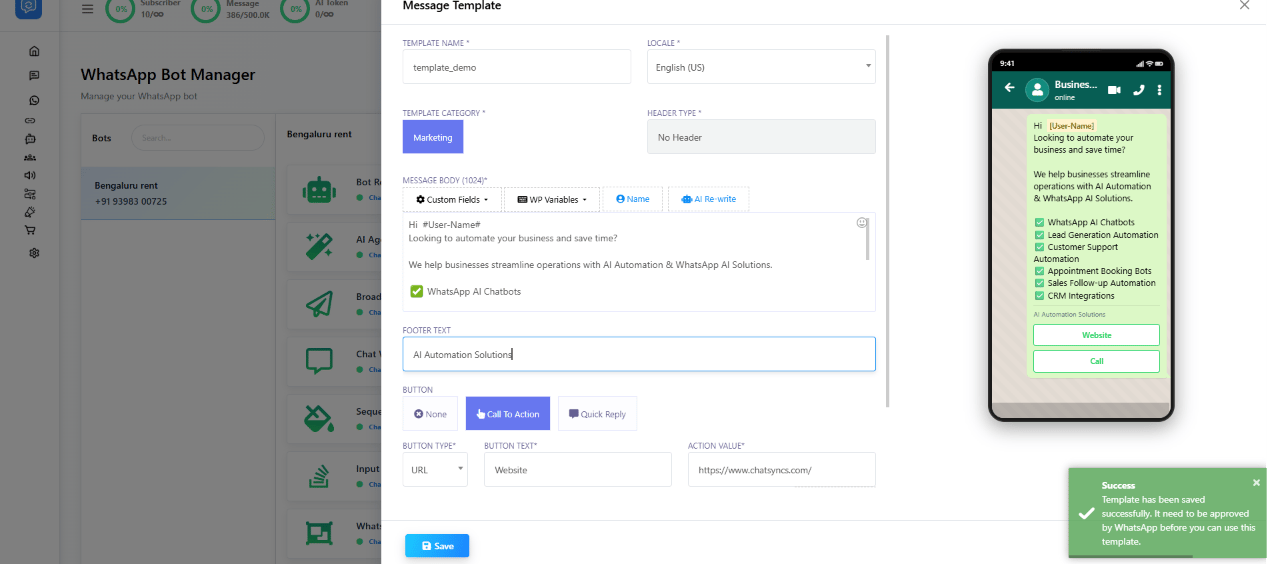 WP Template is another single-message builder, mainly used for Marketing templates. It includes
the same building blocks as the other builders:
* Unique Template Name
* Locale selection
* Header options
* Custom Fields
* **WP Variables** (WP Template's own variable picker, alongside Custom Fields)
* AI Rewrite
* Footer Text
* Call To Action buttons
* Quick Reply buttons
* Live preview
**Supported placeholders** work the same as other builders — Custom Fields like `#phone#` or
`#email#` (single `#`), and Template Variables like `#!OrderID!#` or `#!BookingID!#` (`#!...!#`)
— see [Custom Fields, Variables, Name, and AI
Rewrite](#custom-fields-variables-name-and-ai-rewrite) above for the full syntax reference.
**Common use cases:** promotional offers, product launches, property marketing, service
promotions, lead follow-ups.
## Approval status & Sync Template
After saving, every template appears in the **Message Templates** list with a status — all
custom templates must be reviewed by Meta before use:
WP Template is another single-message builder, mainly used for Marketing templates. It includes
the same building blocks as the other builders:
* Unique Template Name
* Locale selection
* Header options
* Custom Fields
* **WP Variables** (WP Template's own variable picker, alongside Custom Fields)
* AI Rewrite
* Footer Text
* Call To Action buttons
* Quick Reply buttons
* Live preview
**Supported placeholders** work the same as other builders — Custom Fields like `#phone#` or
`#email#` (single `#`), and Template Variables like `#!OrderID!#` or `#!BookingID!#` (`#!...!#`)
— see [Custom Fields, Variables, Name, and AI
Rewrite](#custom-fields-variables-name-and-ai-rewrite) above for the full syntax reference.
**Common use cases:** promotional offers, product launches, property marketing, service
promotions, lead follow-ups.
## Approval status & Sync Template
After saving, every template appears in the **Message Templates** list with a status — all
custom templates must be reviewed by Meta before use:
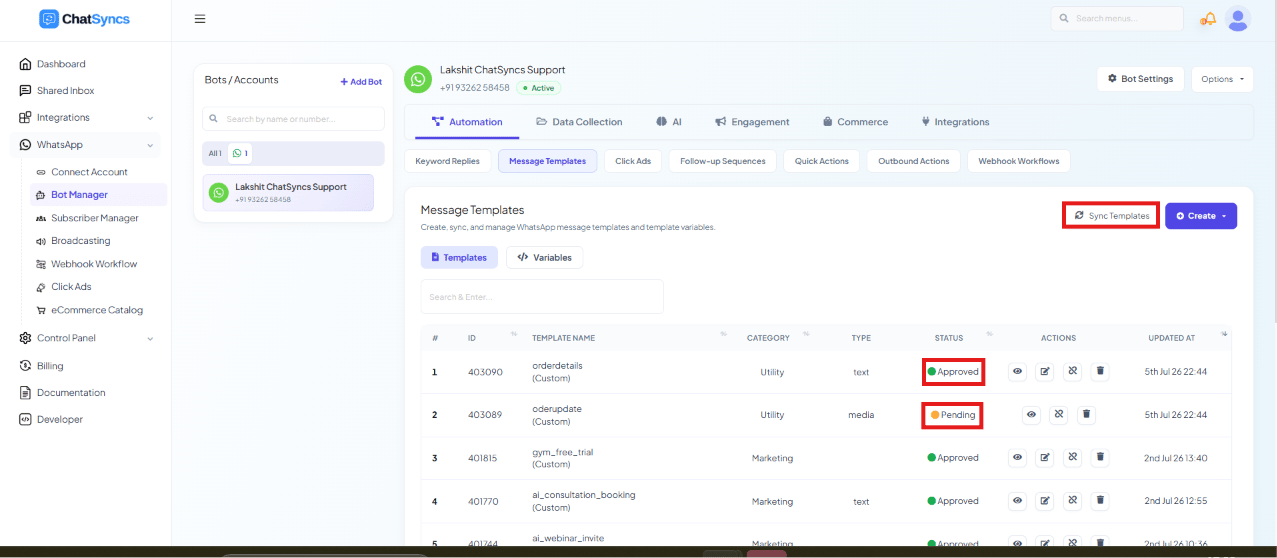 * **Pending** — the status right after saving, before it's been sent to Meta for review.
* **Submitted** — sent to Meta and awaiting review; a template moves from Pending to Submitted
once you click **Sync Templates**.
* **Approved** — ready to use in Keyword Replies, Broadcasting, Sequences, WhatsApp
Flows, and AI Agent automations.
* **Rejected** — see [Why Templates Get Rejected and How to Fix Them](/learn/chatsyncs-message-templates/why-templates-get-rejected-and-how-to-fix-them-in-chatsyncs)
for the full status list (including Paused and Disabled), the fix, and how to resubmit.
Click **Sync Templates** any time to pull the latest status from Meta.
Meta usually reviews templates quickly, but a new WhatsApp Business account may take up to 24
hours or longer. If the status doesn't update right away, click **Sync Templates**, wait a few
minutes, and check again.
## Using the template
Once **Approved**, send it via:
* **Broadcasting** — a one-to-many send to a segment of your subscribers, see
[Broadcast Campaign](/learn/chatsyncs-broadcasting/send-a-broadcast-message-in-chatsyncs).
* **Live chat** — sent directly to one subscriber from the inbox.
* **Shopify & WooCommerce messages** — automated order/shipping messages, if you've connected a
store.
* **Keyword Replies, Sequences, WhatsApp Flows, and AI Agent automations** — any automation that
needs to message a customer outside the 24-hour window.
## Broadcasting with Template Buttons
If a WhatsApp template contains buttons, it can be integrated with a Keyword Replies flow during
broadcasting — tapping a template button hands the customer straight into that flow.
**Prerequisites:**
* A WhatsApp template with buttons, submitted and **Approved** by WhatsApp.
* The Keyword Replies flow you want the button to trigger, already built.
* **Pending** — the status right after saving, before it's been sent to Meta for review.
* **Submitted** — sent to Meta and awaiting review; a template moves from Pending to Submitted
once you click **Sync Templates**.
* **Approved** — ready to use in Keyword Replies, Broadcasting, Sequences, WhatsApp
Flows, and AI Agent automations.
* **Rejected** — see [Why Templates Get Rejected and How to Fix Them](/learn/chatsyncs-message-templates/why-templates-get-rejected-and-how-to-fix-them-in-chatsyncs)
for the full status list (including Paused and Disabled), the fix, and how to resubmit.
Click **Sync Templates** any time to pull the latest status from Meta.
Meta usually reviews templates quickly, but a new WhatsApp Business account may take up to 24
hours or longer. If the status doesn't update right away, click **Sync Templates**, wait a few
minutes, and check again.
## Using the template
Once **Approved**, send it via:
* **Broadcasting** — a one-to-many send to a segment of your subscribers, see
[Broadcast Campaign](/learn/chatsyncs-broadcasting/send-a-broadcast-message-in-chatsyncs).
* **Live chat** — sent directly to one subscriber from the inbox.
* **Shopify & WooCommerce messages** — automated order/shipping messages, if you've connected a
store.
* **Keyword Replies, Sequences, WhatsApp Flows, and AI Agent automations** — any automation that
needs to message a customer outside the 24-hour window.
## Broadcasting with Template Buttons
If a WhatsApp template contains buttons, it can be integrated with a Keyword Replies flow during
broadcasting — tapping a template button hands the customer straight into that flow.
**Prerequisites:**
* A WhatsApp template with buttons, submitted and **Approved** by WhatsApp.
* The Keyword Replies flow you want the button to trigger, already built.
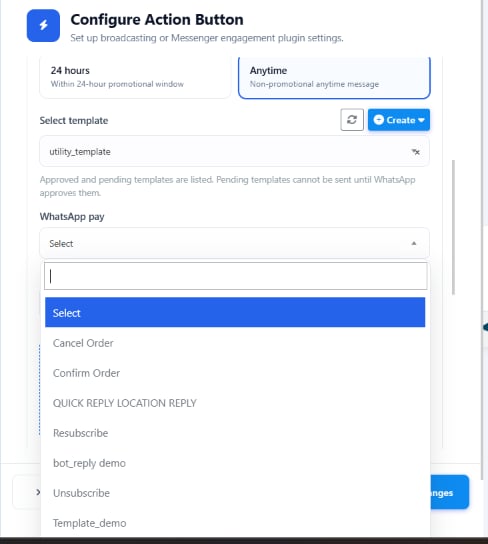 Go to **Broadcasting**.
Pick the WhatsApp template with buttons.
Navigate to **Configure Action Button**.
**24 Hours** (within the customer service window) or **Anytime** (non-promotional).
Pick which flow the template's button should trigger.
Save the configuration, then start the broadcast.
**Example:**
| Setting | Value |
| -------------------- | --------------------- |
| Template | `utility_template` |
| Messaging Window | `Anytime` |
| Keyword Replies flow | `Lead Generation Bot` |
**Flow:**
```text theme={null}
Broadcast
│
▼
Customer receives template
│
▼
Customer taps a template button
│
▼
Assigned Keyword Replies flow is triggered
│
▼
Bot continues the conversation
```
* Only **Approved** templates can be used for broadcasting.
* The Keyword Replies flow must be built and saved before sending the broadcast.
* A template button is only the entry point — verify the assigned flow with a test broadcast
before sending to production contacts.
## Related Documentation
* [Why Templates Get Rejected and How to Fix Them](/learn/chatsyncs-message-templates/why-templates-get-rejected-and-how-to-fix-them-in-chatsyncs) — statuses,
the duplicate-and-resubmit flow, and a pre-submit checklist.
* [Character Limits for Media Message Templates](/learn/chatsyncs-message-templates/character-limits-for-media-message-templates-in-chatsyncs) — header,
body, footer, and button length limits.
* [Utility vs. Marketing Templates](/learn/chatsyncs-message-templates/guidelines-for-utility-and-marketing-templates-in-chatsyncs) — which
**Template Category** to pick.
* [Understanding Conversations and Their Types](/learn/chatsyncs-message-templates/understanding-conversations-and-their-types-in-chatsyncs) — how
category choice affects what a template costs to send.
* [How to Create and Use Carousel Media Templates](/learn/chatsyncs-message-templates/create-and-use-carousel-media-templates-in-chatsyncs) — the
full carousel walkthrough, limits, and troubleshooting.
* [Create Templates in WhatsApp Manager and Sync to ChatSyncs](/learn/chatsyncs-message-templates/create-templates-in-whatsapp-manager-and-sync-to-chatsyncs) —
building templates in Meta's own dashboard instead.
* [Template Variables vs Custom Variables — What's the Difference?](/learn/chatsyncs-message-templates/template-variables-vs-custom-variables-whats-the-difference-with-chatsyncs) — which
one to use, and how each behaves in the API.
* [Templates to Restart Conversations After Non-Working Hours](/learn/chatsyncs-message-templates/templates-to-restart-conversations-after-non-working-hours-in-chatsyncs) —
ready-to-use templates for a missed reply window.
* [Understanding WhatsApp Quality Rating](/learn/chatsyncs-message-templates/understanding-whatsapp-quality-rating-in-chatsyncs) — how blocks and
reports can get a template Paused or Disabled.
## Frequently asked
Go to **Chatbot Manager → Automation → Message Templates → Create**, pick a template type
(General, WP, Mixed, Carousel Media, Carousel Product), fill in the name, category, body,
and any buttons, then save. It's submitted to Meta automatically and needs approval before
use.
No — only if part of the message changes every time you send it (a name, an order number).
A template with fully static text needs no variables at all.
Meta is still reviewing it. Click **Sync Templates** to pull the latest status — new
WhatsApp Business accounts can take up to 24 hours or longer for the first review.
Use the **Name** button for the subscriber's name (`#User-Name#`), a **Custom Field** for
other subscriber data like an order number (`#orderid#`), or a **Template Variable** for a
reusable placeholder (`#!Discount!#` — note the `#!...!#` syntax, different from a Custom
Field's single `#`). Assign each a real value before sending, and it's automatically
replaced per customer.
Carousel Media is general-purpose — any cards with image/video and text, good for
showcases or campaigns. Carousel Product is built specifically for selling products, with a
Product Image, Name, Description, and Button on every card.
Yes — click **AI Rewrite** inside the Message Body (or a carousel's Message Bubble/Card
Body) to generate or improve the wording automatically.
All three are single-message builders with largely the same fields (Template Name, Locale,
Category, Header Type, Message Body, Footer Text, Buttons, live preview) — pick whichever
entry point you land on in the Create menu.
Yes — under **Broadcasting with Template Buttons**, use **Configure Action Button** to
assign an approved template's button to a specific Keyword Replies flow, so tapping it
hands the customer straight into that conversation.
It needs Meta's approval first. Check its status on the Message Templates list — see
[Why Templates Get Rejected and How to Fix Them](/learn/chatsyncs-message-templates/why-templates-get-rejected-and-how-to-fix-them-in-chatsyncs) if it
shows Rejected.
* **A template can't be used anywhere until it's Approved** — Keyword Replies, Broadcasts,
Sequences, WhatsApp Flows, and AI Agent automations all require an approved template.
* **Status doesn't refresh on its own** — click **Sync Templates** to check Meta's latest
decision; it won't update in real time.
* **A Rejected template needs a fix, not a resend** — review the content against
[Why Templates Get Rejected and How to Fix Them](/learn/chatsyncs-message-templates/why-templates-get-rejected-and-how-to-fix-them-in-chatsyncs) before
resubmitting.
Go to **Broadcasting**.
Pick the WhatsApp template with buttons.
Navigate to **Configure Action Button**.
**24 Hours** (within the customer service window) or **Anytime** (non-promotional).
Pick which flow the template's button should trigger.
Save the configuration, then start the broadcast.
**Example:**
| Setting | Value |
| -------------------- | --------------------- |
| Template | `utility_template` |
| Messaging Window | `Anytime` |
| Keyword Replies flow | `Lead Generation Bot` |
**Flow:**
```text theme={null}
Broadcast
│
▼
Customer receives template
│
▼
Customer taps a template button
│
▼
Assigned Keyword Replies flow is triggered
│
▼
Bot continues the conversation
```
* Only **Approved** templates can be used for broadcasting.
* The Keyword Replies flow must be built and saved before sending the broadcast.
* A template button is only the entry point — verify the assigned flow with a test broadcast
before sending to production contacts.
## Related Documentation
* [Why Templates Get Rejected and How to Fix Them](/learn/chatsyncs-message-templates/why-templates-get-rejected-and-how-to-fix-them-in-chatsyncs) — statuses,
the duplicate-and-resubmit flow, and a pre-submit checklist.
* [Character Limits for Media Message Templates](/learn/chatsyncs-message-templates/character-limits-for-media-message-templates-in-chatsyncs) — header,
body, footer, and button length limits.
* [Utility vs. Marketing Templates](/learn/chatsyncs-message-templates/guidelines-for-utility-and-marketing-templates-in-chatsyncs) — which
**Template Category** to pick.
* [Understanding Conversations and Their Types](/learn/chatsyncs-message-templates/understanding-conversations-and-their-types-in-chatsyncs) — how
category choice affects what a template costs to send.
* [How to Create and Use Carousel Media Templates](/learn/chatsyncs-message-templates/create-and-use-carousel-media-templates-in-chatsyncs) — the
full carousel walkthrough, limits, and troubleshooting.
* [Create Templates in WhatsApp Manager and Sync to ChatSyncs](/learn/chatsyncs-message-templates/create-templates-in-whatsapp-manager-and-sync-to-chatsyncs) —
building templates in Meta's own dashboard instead.
* [Template Variables vs Custom Variables — What's the Difference?](/learn/chatsyncs-message-templates/template-variables-vs-custom-variables-whats-the-difference-with-chatsyncs) — which
one to use, and how each behaves in the API.
* [Templates to Restart Conversations After Non-Working Hours](/learn/chatsyncs-message-templates/templates-to-restart-conversations-after-non-working-hours-in-chatsyncs) —
ready-to-use templates for a missed reply window.
* [Understanding WhatsApp Quality Rating](/learn/chatsyncs-message-templates/understanding-whatsapp-quality-rating-in-chatsyncs) — how blocks and
reports can get a template Paused or Disabled.
## Frequently asked
Go to **Chatbot Manager → Automation → Message Templates → Create**, pick a template type
(General, WP, Mixed, Carousel Media, Carousel Product), fill in the name, category, body,
and any buttons, then save. It's submitted to Meta automatically and needs approval before
use.
No — only if part of the message changes every time you send it (a name, an order number).
A template with fully static text needs no variables at all.
Meta is still reviewing it. Click **Sync Templates** to pull the latest status — new
WhatsApp Business accounts can take up to 24 hours or longer for the first review.
Use the **Name** button for the subscriber's name (`#User-Name#`), a **Custom Field** for
other subscriber data like an order number (`#orderid#`), or a **Template Variable** for a
reusable placeholder (`#!Discount!#` — note the `#!...!#` syntax, different from a Custom
Field's single `#`). Assign each a real value before sending, and it's automatically
replaced per customer.
Carousel Media is general-purpose — any cards with image/video and text, good for
showcases or campaigns. Carousel Product is built specifically for selling products, with a
Product Image, Name, Description, and Button on every card.
Yes — click **AI Rewrite** inside the Message Body (or a carousel's Message Bubble/Card
Body) to generate or improve the wording automatically.
All three are single-message builders with largely the same fields (Template Name, Locale,
Category, Header Type, Message Body, Footer Text, Buttons, live preview) — pick whichever
entry point you land on in the Create menu.
Yes — under **Broadcasting with Template Buttons**, use **Configure Action Button** to
assign an approved template's button to a specific Keyword Replies flow, so tapping it
hands the customer straight into that conversation.
It needs Meta's approval first. Check its status on the Message Templates list — see
[Why Templates Get Rejected and How to Fix Them](/learn/chatsyncs-message-templates/why-templates-get-rejected-and-how-to-fix-them-in-chatsyncs) if it
shows Rejected.
* **A template can't be used anywhere until it's Approved** — Keyword Replies, Broadcasts,
Sequences, WhatsApp Flows, and AI Agent automations all require an approved template.
* **Status doesn't refresh on its own** — click **Sync Templates** to check Meta's latest
decision; it won't update in real time.
* **A Rejected template needs a fix, not a resend** — review the content against
[Why Templates Get Rejected and How to Fix Them](/learn/chatsyncs-message-templates/why-templates-get-rejected-and-how-to-fix-them-in-chatsyncs) before
resubmitting.