> ## Documentation Index
> Fetch the complete documentation index at: https://docs.chatsyncs.com/llms.txt
> Use this file to discover all available pages before exploring further.
# Create Templates in WhatsApp Manager and Sync to ChatSyncs
> How to build a WhatsApp template in Meta's WhatsApp Manager and sync it into ChatSyncs for use in Broadcasts, Keyword Replies, and Sequences.
* Most people build templates directly inside [Message
Templates](/learn/chatsyncs-message-templates/creating-a-whatsapp-message-template-in-chatsyncs).
* You can also create one in Meta's own **WhatsApp Manager** dashboard instead, then pull it
into ChatSyncs with **Sync Templates**.
* Useful if your team already manages templates centrally in Meta's tools, or someone made one
outside ChatSyncs.
**Carousel templates are the one exception.** WhatsApp Manager doesn't support building carousel
templates — those have to be created in ChatSyncs. See
[How to Create and Use Carousel Media Templates](/learn/chatsyncs-message-templates/create-and-use-carousel-media-templates-in-chatsyncs).
## Create a template in WhatsApp Manager
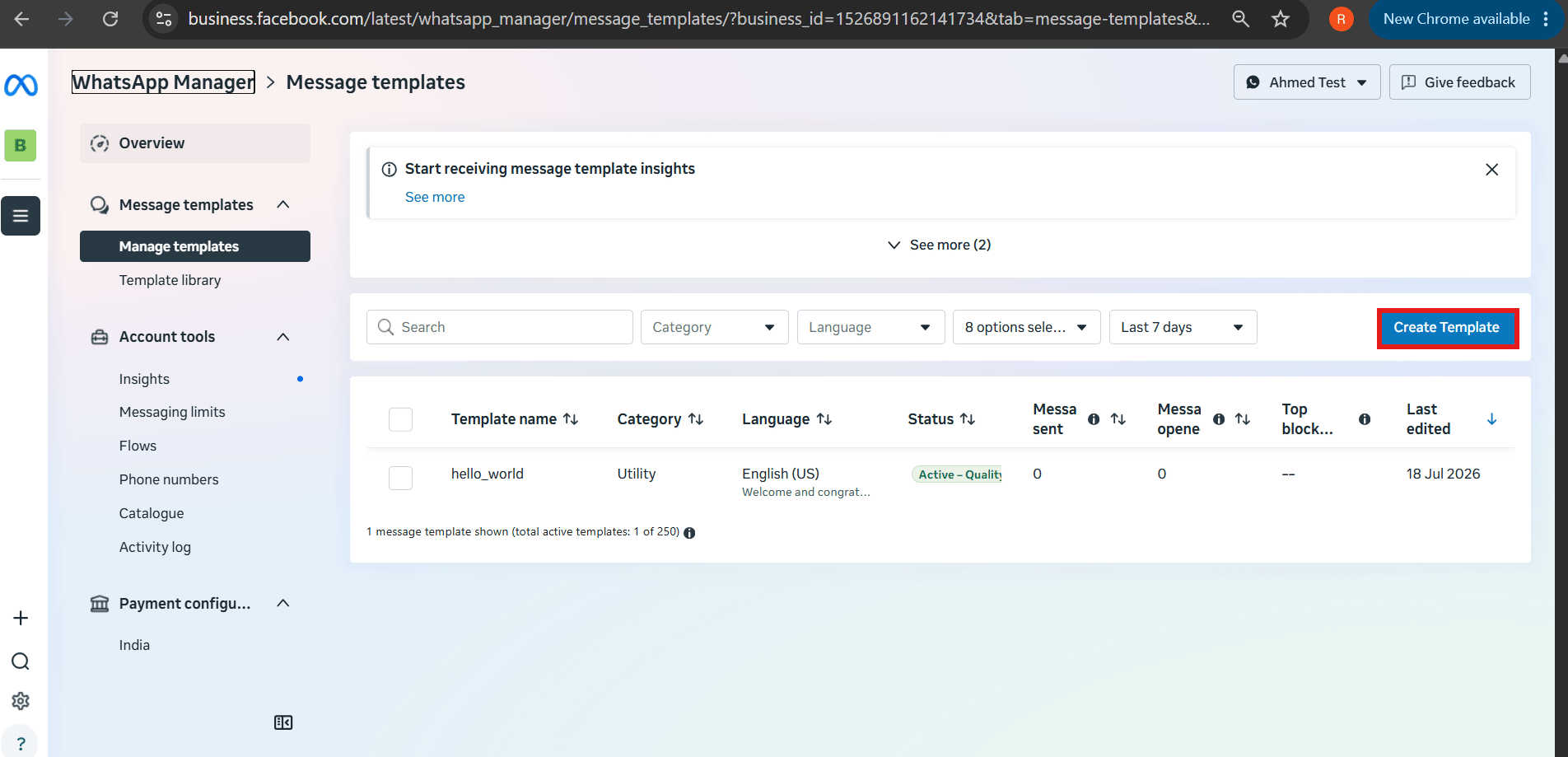 If you already have a Business Portfolio, go straight to [WhatsApp
Manager](https://business.facebook.com/latest/whatsapp_manager/message_templates/) — it opens
directly to **Message templates → Manage templates**, with **Create Template** in the top
right.
Go to [business.facebook.com](https://business.facebook.com) and select your business account.
Click **All Tools**, then **WhatsApp Manager**.
Click the three-dot menu and select **Manage Message Templates**.
Choose a [template category](/learn/chatsyncs-message-templates/guidelines-for-utility-and-marketing-templates-in-chatsyncs) (Marketing, Utility, Authentication), name the template, and select a language.
Text, or media like an image.
Insert variables where the message needs to change per customer.
Quick Reply or Call-to-Action buttons.
Provide sample values for testing, then submit for Meta's approval.
Meta verifies and approves the template through its normal review process — see
[Why Templates Get Rejected and How to Fix Them](/learn/chatsyncs-message-templates/why-templates-get-rejected-and-how-to-fix-them-in-chatsyncs) if it comes
back rejected.
## Sync it into ChatSyncs
Once the template is approved in WhatsApp Manager, pull it into ChatSyncs so it's usable in
Broadcasts, Keyword Replies, and Sequences:
If you already have a Business Portfolio, go straight to [WhatsApp
Manager](https://business.facebook.com/latest/whatsapp_manager/message_templates/) — it opens
directly to **Message templates → Manage templates**, with **Create Template** in the top
right.
Go to [business.facebook.com](https://business.facebook.com) and select your business account.
Click **All Tools**, then **WhatsApp Manager**.
Click the three-dot menu and select **Manage Message Templates**.
Choose a [template category](/learn/chatsyncs-message-templates/guidelines-for-utility-and-marketing-templates-in-chatsyncs) (Marketing, Utility, Authentication), name the template, and select a language.
Text, or media like an image.
Insert variables where the message needs to change per customer.
Quick Reply or Call-to-Action buttons.
Provide sample values for testing, then submit for Meta's approval.
Meta verifies and approves the template through its normal review process — see
[Why Templates Get Rejected and How to Fix Them](/learn/chatsyncs-message-templates/why-templates-get-rejected-and-how-to-fix-them-in-chatsyncs) if it comes
back rejected.
## Sync it into ChatSyncs
Once the template is approved in WhatsApp Manager, pull it into ChatSyncs so it's usable in
Broadcasts, Keyword Replies, and Sequences:
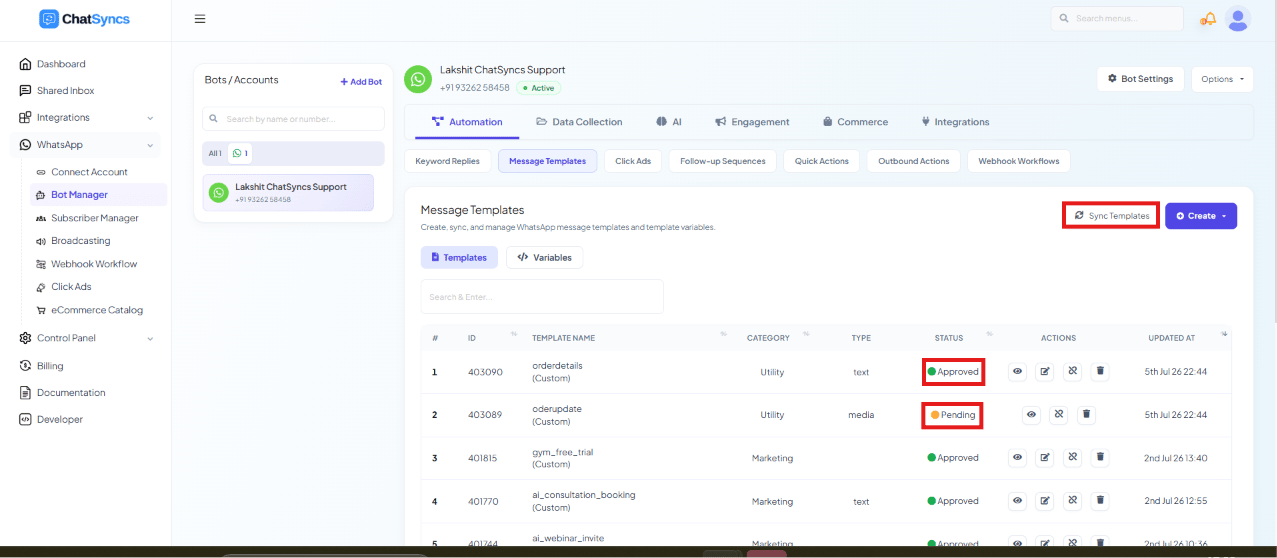 Go to **Chatbot Manager → Automation → Message Templates** in ChatSyncs.
This fetches your approved template from the WhatsApp Cloud API.
Match each `{{1}}`, `{{2}}` placeholder to a ChatSyncs Variable or Custom Field
(see [Template Variables vs Custom Variables — What's the Difference?](/learn/chatsyncs-message-templates/template-variables-vs-custom-variables-whats-the-difference-with-chatsyncs)), or create new ones on the spot.
The template is now ready to use inside ChatSyncs, exactly like one built there directly.
## Frequently asked
It won't appear automatically. Go to **Message Templates** in ChatSyncs and click
**Sync Templates** to pull it in, then map its variables.
No — WhatsApp Manager doesn't support carousel templates. Build those directly in ChatSyncs
instead; see [How to Create and Use Carousel Media Templates](/learn/chatsyncs-message-templates/create-and-use-carousel-media-templates-in-chatsyncs).
Yes. Sync pulls in the template's structure and approval status, but you still need to map
each `{{n}}` placeholder to a ChatSyncs Variable or Custom Field before it can send real
values.
Either works for standard templates — use whichever is more convenient for your workflow.
Carousel templates are the one case where you must use ChatSyncs, since WhatsApp Manager
doesn't support them.
Go to **Chatbot Manager → Automation → Message Templates** in ChatSyncs.
This fetches your approved template from the WhatsApp Cloud API.
Match each `{{1}}`, `{{2}}` placeholder to a ChatSyncs Variable or Custom Field
(see [Template Variables vs Custom Variables — What's the Difference?](/learn/chatsyncs-message-templates/template-variables-vs-custom-variables-whats-the-difference-with-chatsyncs)), or create new ones on the spot.
The template is now ready to use inside ChatSyncs, exactly like one built there directly.
## Frequently asked
It won't appear automatically. Go to **Message Templates** in ChatSyncs and click
**Sync Templates** to pull it in, then map its variables.
No — WhatsApp Manager doesn't support carousel templates. Build those directly in ChatSyncs
instead; see [How to Create and Use Carousel Media Templates](/learn/chatsyncs-message-templates/create-and-use-carousel-media-templates-in-chatsyncs).
Yes. Sync pulls in the template's structure and approval status, but you still need to map
each `{{n}}` placeholder to a ChatSyncs Variable or Custom Field before it can send real
values.
Either works for standard templates — use whichever is more convenient for your workflow.
Carousel templates are the one case where you must use ChatSyncs, since WhatsApp Manager
doesn't support them.