> ## Documentation Index
> Fetch the complete documentation index at: https://docs.chatsyncs.com/llms.txt
> Use this file to discover all available pages before exploring further.
# How to Create and Use Carousel Media Templates in ChatSyncs
> How to build a Carousel template — swipeable cards with images, videos, or products.
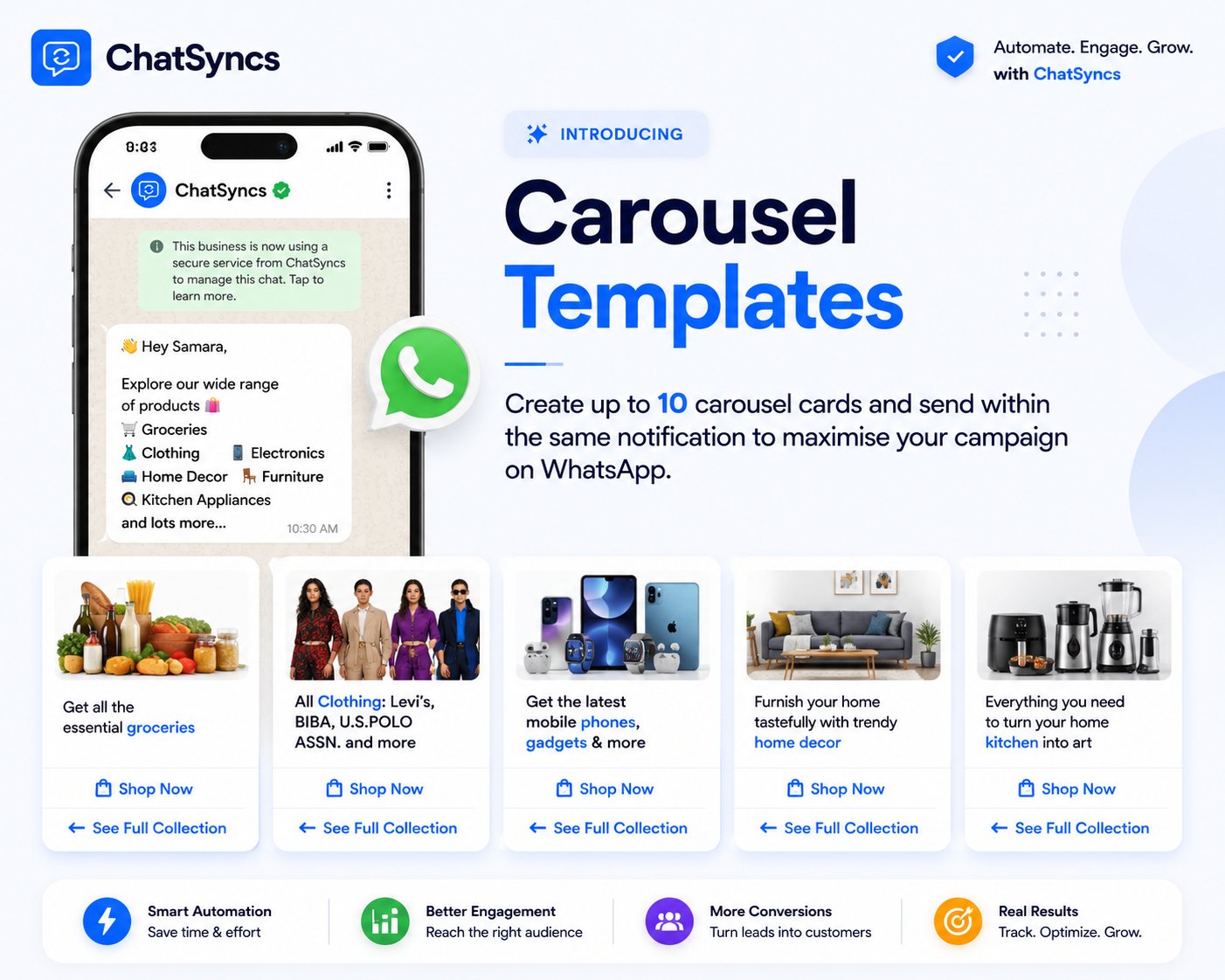
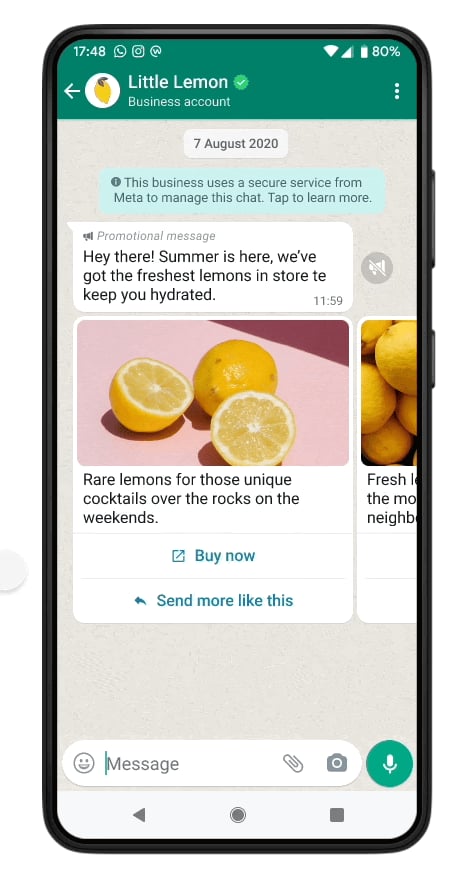
A **Carousel template** lets subscribers swipe through multiple cards in a single WhatsApp
message — each card with its own image or video, body text, and up to two buttons.
* Built from the same [Message Templates](/learn/chatsyncs-message-templates/creating-a-whatsapp-message-template-in-chatsyncs) page as any other
template.
* This guide covers the full workflow: setup, video cards, product catalogs, sending, limits,
and troubleshooting.
 Here's what a carousel looks like once it reaches a subscriber on WhatsApp:
 ## Before you start
You'll need:
* A connected WhatsApp Business Account (see
[How to Connect Your Number to ChatSyncs](/learn/chatsyncs-setup-and-configuration/connect-your-number-to-chatsyncs)).
* Your carousel content ready — images or videos, card text, and button labels/URLs for each
card.
* If you're building a **product carousel**, your store connected to ChatSyncs first (see
[Connect a Store to ChatSyncs](/learn/chatsyncs-integrations/http-api-integration-in-chatsyncs) if you're integrating a
custom catalog via API).
## Create a Carousel Media Template
## Before you start
You'll need:
* A connected WhatsApp Business Account (see
[How to Connect Your Number to ChatSyncs](/learn/chatsyncs-setup-and-configuration/connect-your-number-to-chatsyncs)).
* Your carousel content ready — images or videos, card text, and button labels/URLs for each
card.
* If you're building a **product carousel**, your store connected to ChatSyncs first (see
[Connect a Store to ChatSyncs](/learn/chatsyncs-integrations/http-api-integration-in-chatsyncs) if you're integrating a
custom catalog via API).
## Create a Carousel Media Template
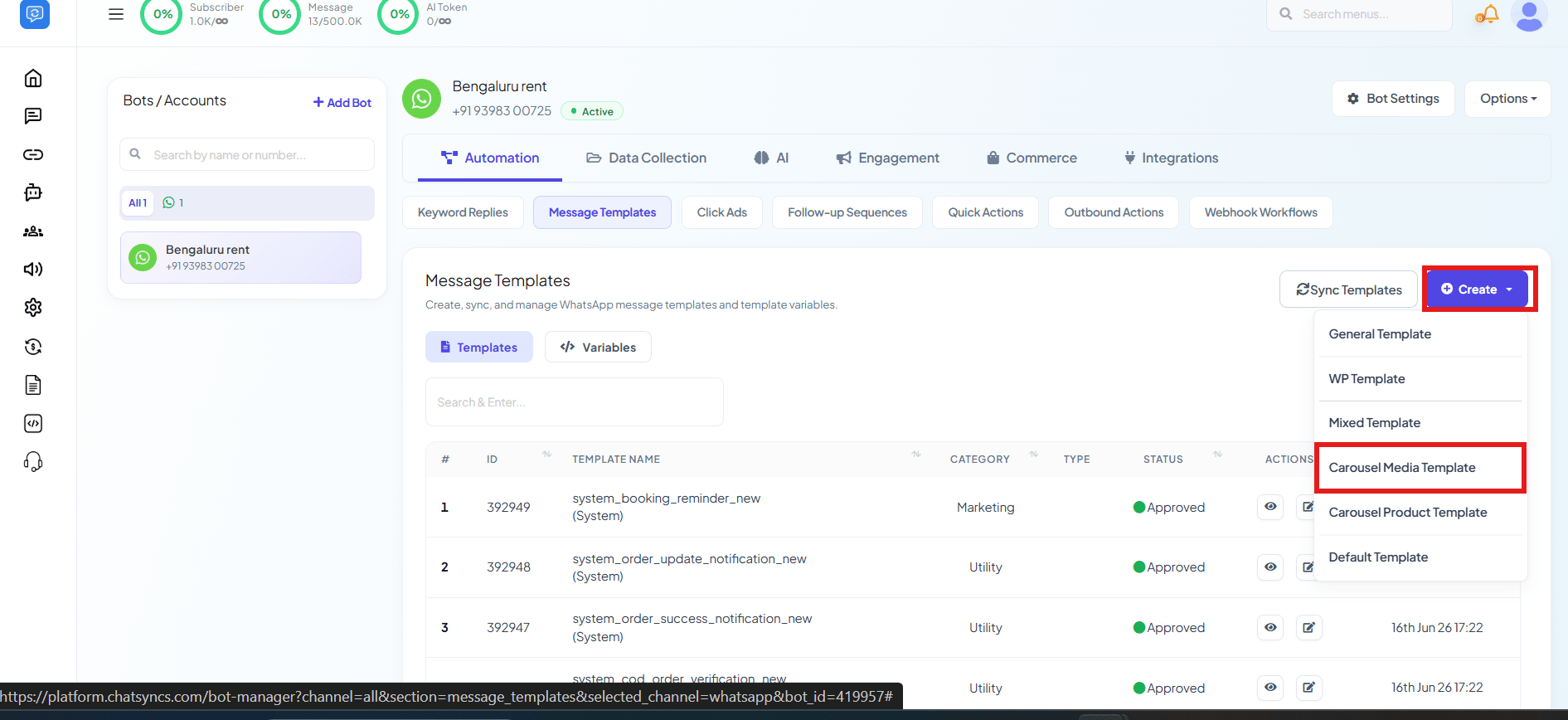 Open **Chatbot Manager → Automation → Message Templates**.
Click **Create** and choose **Carousel Media Template**.
Give it a descriptive name (e.g. `summer_sale_carousel`) and pick **Utility** or
**Marketing** — carousels support both categories, the same as any other template. See
[Guidelines for Utility and Marketing Templates](/learn/chatsyncs-message-templates/guidelines-for-utility-and-marketing-templates-in-chatsyncs) for
which one fits your content.
Open **Chatbot Manager → Automation → Message Templates**.
Click **Create** and choose **Carousel Media Template**.
Give it a descriptive name (e.g. `summer_sale_carousel`) and pick **Utility** or
**Marketing** — carousels support both categories, the same as any other template. See
[Guidelines for Utility and Marketing Templates](/learn/chatsyncs-message-templates/guidelines-for-utility-and-marketing-templates-in-chatsyncs) for
which one fits your content.
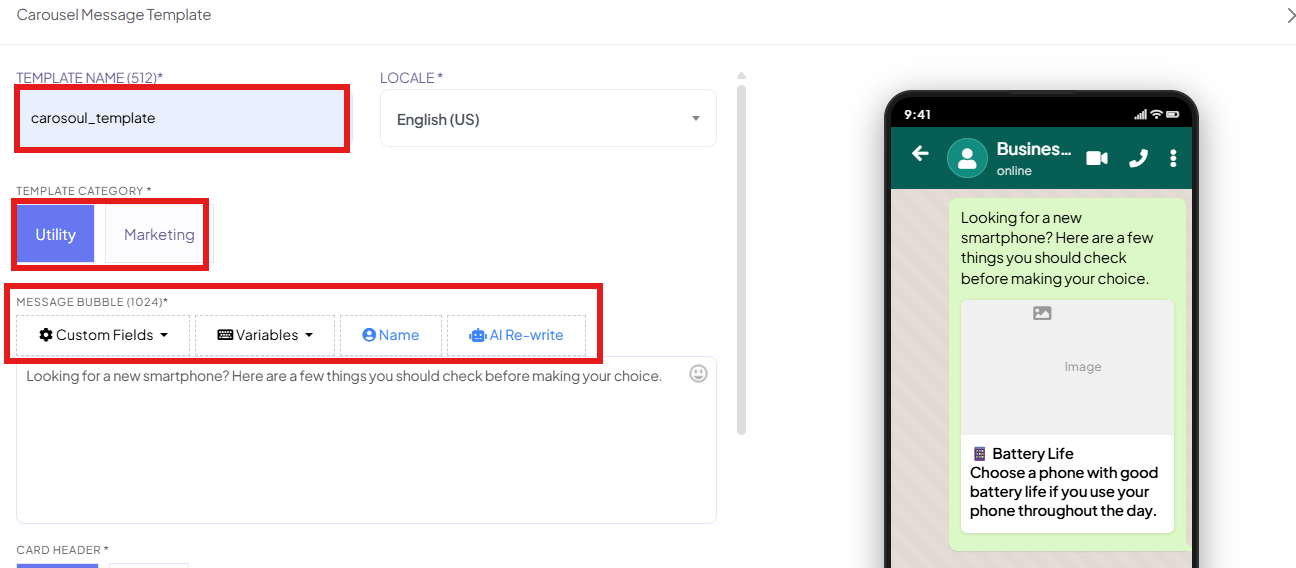 Add the intro text shown above the cards, using the same **Custom Fields**, **Variables**,
**Name**, and **AI Rewrite** toolbar as any other template — see [Custom Fields, Variables,
Name, and AI Rewrite](/learn/chatsyncs-message-templates/creating-a-whatsapp-message-template-in-chatsyncs#custom-fields-variables-name-and-ai-rewrite)
for the exact syntax (`#field#` for Custom Fields, `#!variable!#` for Template Variables).
For every card, choose **Image** or **Video** as the header, add body text, and upload the media file.
Give each card up to two buttons — **URL** (links to a webpage) or **Quick Reply** (sends a
predefined response).
Add the intro text shown above the cards, using the same **Custom Fields**, **Variables**,
**Name**, and **AI Rewrite** toolbar as any other template — see [Custom Fields, Variables,
Name, and AI Rewrite](/learn/chatsyncs-message-templates/creating-a-whatsapp-message-template-in-chatsyncs#custom-fields-variables-name-and-ai-rewrite)
for the exact syntax (`#field#` for Custom Fields, `#!variable!#` for Template Variables).
For every card, choose **Image** or **Video** as the header, add body text, and upload the media file.
Give each card up to two buttons — **URL** (links to a webpage) or **Quick Reply** (sends a
predefined response).
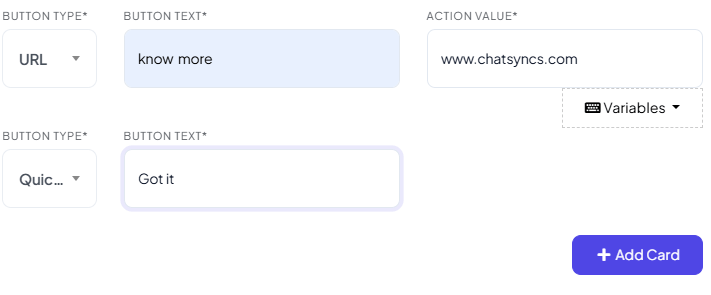 A **URL** button's **Action Value** has its own **Variables** button, so the destination can
be personalized per subscriber too — e.g. `https://example.com/product/#!ProductID!#`.
A **URL** button's **Action Value** has its own **Variables** button, so the destination can
be personalized per subscriber too — e.g. `https://example.com/product/#!ProductID!#`.
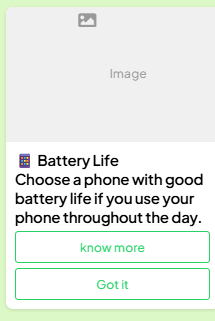 Click **Add Card** to add the next one — repeat until you have all the cards you need (2–10).
Save the template. Carousel templates typically take 24–48 hours for Meta's first review — check status under **Message Templates**.
**Every card must use the same button order.** If Card 1 has a URL button followed by a Quick
Reply, every other card must follow that exact pattern — mismatched button order prevents the
template from saving. See [Why Templates Get Rejected](/learn/chatsyncs-message-templates/why-templates-get-rejected-and-how-to-fix-them-in-chatsyncs) if
yours won't save for another reason.
## Using video instead of images
Change a card's **Card Header** from **Image** to **Video** — everything else (body text,
buttons) works the same way. Videos must be **MP4** format, under **16 MB**, using the **H.264**
codec.
## Carousel Product Templates (ecommerce)
If your store is connected, you can build a carousel that pulls products straight from your
catalog instead of manually uploading each card's image and text:
Click **Add Card** to add the next one — repeat until you have all the cards you need (2–10).
Save the template. Carousel templates typically take 24–48 hours for Meta's first review — check status under **Message Templates**.
**Every card must use the same button order.** If Card 1 has a URL button followed by a Quick
Reply, every other card must follow that exact pattern — mismatched button order prevents the
template from saving. See [Why Templates Get Rejected](/learn/chatsyncs-message-templates/why-templates-get-rejected-and-how-to-fix-them-in-chatsyncs) if
yours won't save for another reason.
## Using video instead of images
Change a card's **Card Header** from **Image** to **Video** — everything else (body text,
buttons) works the same way. Videos must be **MP4** format, under **16 MB**, using the **H.264**
codec.
## Carousel Product Templates (ecommerce)
If your store is connected, you can build a carousel that pulls products straight from your
catalog instead of manually uploading each card's image and text:
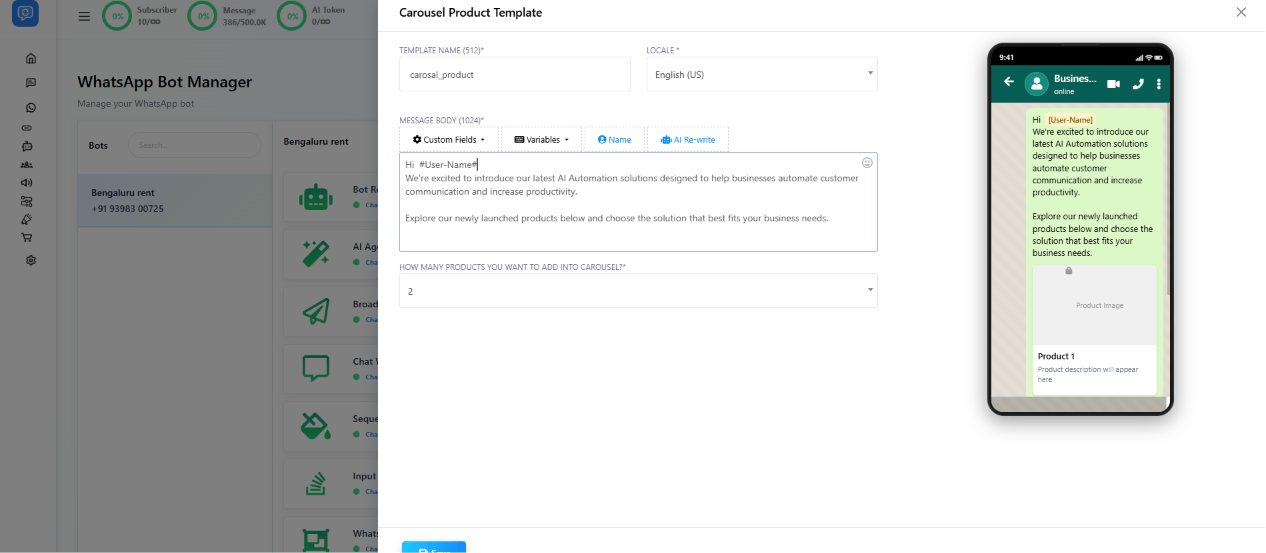 Make sure your ecommerce catalog is connected to ChatSyncs.
Pick **Carousel Product Template** from the Create menu, then select products from your catalog — image, name, and price are pulled in automatically.
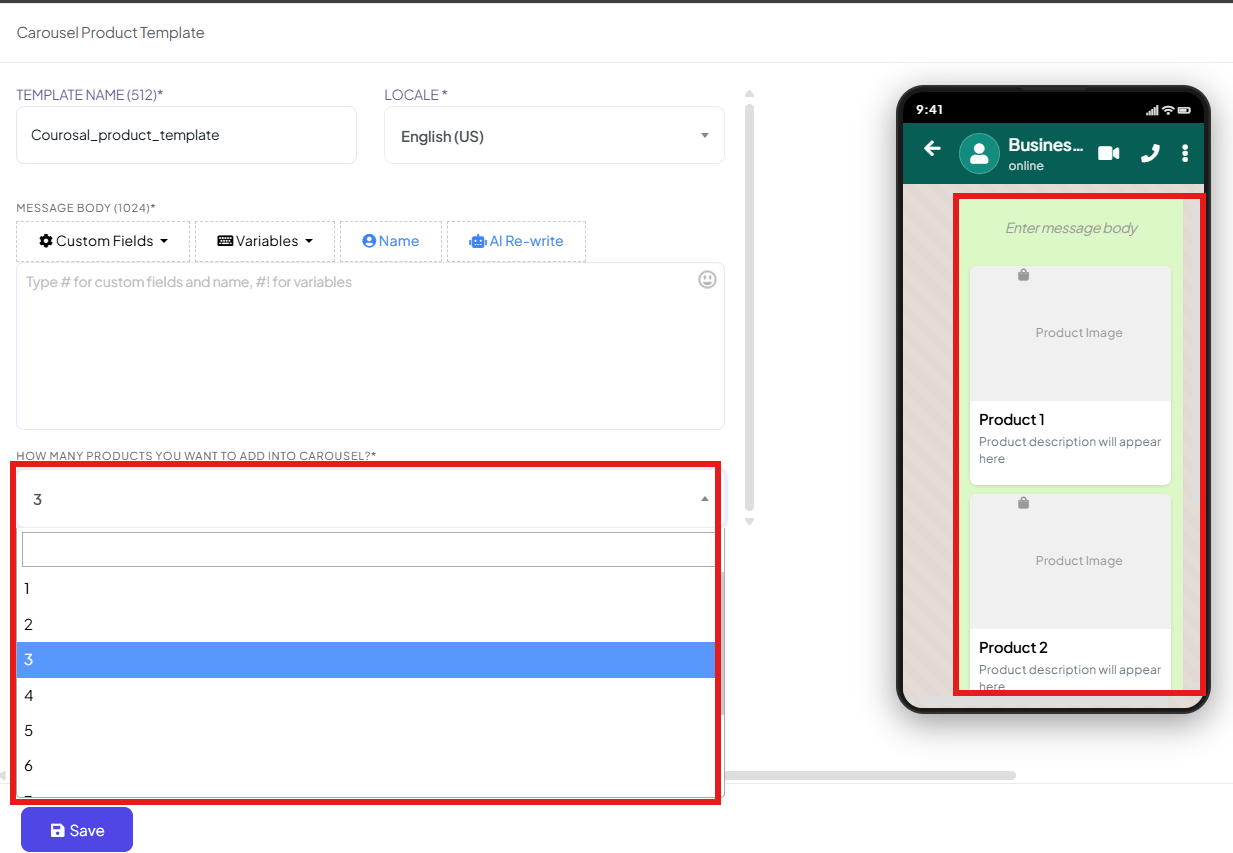
Set **How many products you want to add into carousel?** — from 1 up to 10.
Make sure your ecommerce catalog is connected to ChatSyncs.
Pick **Carousel Product Template** from the Create menu, then select products from your catalog — image, name, and price are pulled in automatically.
Set **How many products you want to add into carousel?** — from 1 up to 10.
 Wire it into a Keyword Replies flow (see [How to Create a Keyword-Based WhatsApp Chatbot](/learn/chatsyncs-automation/create-a-keyword-based-whatsapp-chatbot-in-chatsyncs)) so it's sent automatically when a customer asks about products or browses your catalog.
## Sending a carousel
Once **Approved**, a carousel template can be sent three ways:
* **Bot flows** — attach it to a Keyword Replies flow (see [How to Create a Keyword-Based
WhatsApp Chatbot](/learn/chatsyncs-automation/create-a-keyword-based-whatsapp-chatbot-in-chatsyncs)) with a
keyword trigger, so a matching customer message sends the carousel automatically.
* **Broadcasts** — select the carousel template when creating a
[Broadcast Campaign](/learn/chatsyncs-broadcasting/send-a-broadcast-message-in-chatsyncs).
* **Live chat** — send it directly to a subscriber from the ChatSyncs inbox during a
conversation.
## Limits and requirements
| Requirement | Limit |
| ----------------- | ---------------------------------- |
| Minimum cards | 2 |
| Maximum cards | 10 |
| Buttons per card | Up to 2 |
| Card body text | 160 characters |
| Image format | JPEG or PNG, under 5 MB |
| Video format | MP4 (H.264 codec), under 16 MB |
| Button order | Must be identical across all cards |
| Template category | Utility or Marketing |
## Tips for effective carousels
* **Keep visuals consistent** — same image dimensions, style, and layout across every card.
Recommended size: 800×800 pixels.
* **Use high-quality images.** Clear, well-lit product photos outperform blurry or low-res ones.
* **Write short card text.** 160 characters is tight — highlight one point per card, not a
paragraph.
* **Use clear button labels.** "Shop Now" or "View Details" beats a vague "Click Here."
* **Test before broadcasting.** Send it to yourself or a test number first, and confirm every
image loads, every button works, and cards display in the right order.
* **Fewer, focused cards win.** 3–5 well-chosen cards usually perform better than a full 10 that
subscribers won't swipe through.
## Troubleshooting
Check that every card uses the same button order. If Card 1 has a URL button then a Quick
Reply, every other card must match that exact pattern.
Check it against [Why Templates Get Rejected and How to Fix Them](/learn/chatsyncs-message-templates/why-templates-get-rejected-and-how-to-fix-them-in-chatsyncs)
— make sure every variable has sample data and images are clear, not misleading.
Confirm URL buttons use a full, valid URL (not a shortened link). Quick Reply buttons need
text labels under 25 characters.
Check the image is JPEG or PNG under 5 MB, or the video is MP4 (H.264) under 16 MB, and that
the file uploaded successfully.
Confirm the template status is **Approved** under **Message Templates**. If you're using a
bot flow, double-check the keyword trigger is set up and saved.
Wire it into a Keyword Replies flow (see [How to Create a Keyword-Based WhatsApp Chatbot](/learn/chatsyncs-automation/create-a-keyword-based-whatsapp-chatbot-in-chatsyncs)) so it's sent automatically when a customer asks about products or browses your catalog.
## Sending a carousel
Once **Approved**, a carousel template can be sent three ways:
* **Bot flows** — attach it to a Keyword Replies flow (see [How to Create a Keyword-Based
WhatsApp Chatbot](/learn/chatsyncs-automation/create-a-keyword-based-whatsapp-chatbot-in-chatsyncs)) with a
keyword trigger, so a matching customer message sends the carousel automatically.
* **Broadcasts** — select the carousel template when creating a
[Broadcast Campaign](/learn/chatsyncs-broadcasting/send-a-broadcast-message-in-chatsyncs).
* **Live chat** — send it directly to a subscriber from the ChatSyncs inbox during a
conversation.
## Limits and requirements
| Requirement | Limit |
| ----------------- | ---------------------------------- |
| Minimum cards | 2 |
| Maximum cards | 10 |
| Buttons per card | Up to 2 |
| Card body text | 160 characters |
| Image format | JPEG or PNG, under 5 MB |
| Video format | MP4 (H.264 codec), under 16 MB |
| Button order | Must be identical across all cards |
| Template category | Utility or Marketing |
## Tips for effective carousels
* **Keep visuals consistent** — same image dimensions, style, and layout across every card.
Recommended size: 800×800 pixels.
* **Use high-quality images.** Clear, well-lit product photos outperform blurry or low-res ones.
* **Write short card text.** 160 characters is tight — highlight one point per card, not a
paragraph.
* **Use clear button labels.** "Shop Now" or "View Details" beats a vague "Click Here."
* **Test before broadcasting.** Send it to yourself or a test number first, and confirm every
image loads, every button works, and cards display in the right order.
* **Fewer, focused cards win.** 3–5 well-chosen cards usually perform better than a full 10 that
subscribers won't swipe through.
## Troubleshooting
Check that every card uses the same button order. If Card 1 has a URL button then a Quick
Reply, every other card must match that exact pattern.
Check it against [Why Templates Get Rejected and How to Fix Them](/learn/chatsyncs-message-templates/why-templates-get-rejected-and-how-to-fix-them-in-chatsyncs)
— make sure every variable has sample data and images are clear, not misleading.
Confirm URL buttons use a full, valid URL (not a shortened link). Quick Reply buttons need
text labels under 25 characters.
Check the image is JPEG or PNG under 5 MB, or the video is MP4 (H.264) under 16 MB, and that
the file uploaded successfully.
Confirm the template status is **Approved** under **Message Templates**. If you're using a
bot flow, double-check the keyword trigger is set up and saved.