> ## Documentation Index
> Fetch the complete documentation index at: https://docs.chatsyncs.com/llms.txt
> Use this file to discover all available pages before exploring further.
# How Do I Connect Twilio for SMS with ChatSyncs?
> Worked example of connecting Twilio as an SMS gateway in SMS Integration — creating a Twilio account, verifying your number, and copying your Account SID, Auth Token, and Twilio Phone Number into the SMS API profile. Use when a customer wants global SMS delivery through Twilio.
[SMS Integration](/learn/chatsyncs-integrations/sms/introduction) lists **Twilio** as one of the SMS gateways you can
connect. Twilio is a separate company from ChatSyncs — it's the service that actually delivers
the SMS to your customer's phone worldwide. Connecting it is a two-part job: first you create a
Twilio account and grab three values it gives you, then you paste those three values into
ChatSyncs. This page walks through both parts.
## Step 1: Create a Twilio account
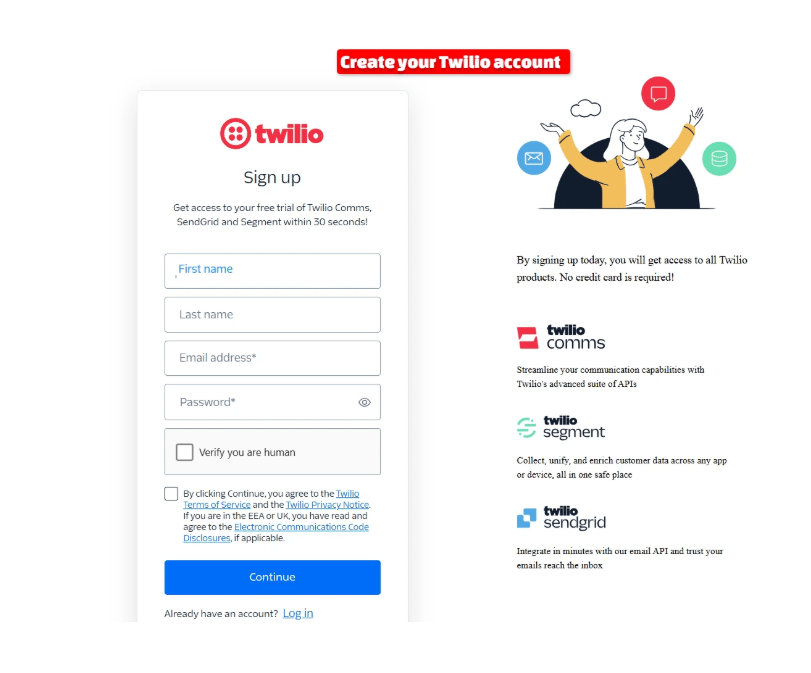
Go to Twilio's sign-up page and fill in your first name, last name, email address, and a
password. Twilio also asks you to prove you're human (a CAPTCHA) and to agree to its terms of
service before you can continue.
 ## Step 2: Verify your phone number
Twilio then asks for your phone number, so it can confirm a real person is signing up. Pick your
country from the dropdown, type in your number, and choose **Send code via SMS** (or **Send code
via voice call** if you'd rather get a call). Enter the code Twilio sends you to finish
verification.
## Step 3: Get your Twilio credentials
Once you're in, Twilio drops you on its **Account Dashboard**. Scroll down to the **Account
Info** box — this is the only part of the whole Twilio site you actually need for ChatSyncs.
Copy down three things:
| Value | What it's for |
| ----------------------- | ---------------------------------------------------------------------- |
| **Account SID** | Identifies your Twilio account — think of it as your Twilio username. |
| **Auth Token** | Authenticates API requests — treat it like a password, don't share it. |
| **Twilio Phone Number** | The number your SMS messages will actually be sent from. |
## Step 2: Verify your phone number
Twilio then asks for your phone number, so it can confirm a real person is signing up. Pick your
country from the dropdown, type in your number, and choose **Send code via SMS** (or **Send code
via voice call** if you'd rather get a call). Enter the code Twilio sends you to finish
verification.
## Step 3: Get your Twilio credentials
Once you're in, Twilio drops you on its **Account Dashboard**. Scroll down to the **Account
Info** box — this is the only part of the whole Twilio site you actually need for ChatSyncs.
Copy down three things:
| Value | What it's for |
| ----------------------- | ---------------------------------------------------------------------- |
| **Account SID** | Identifies your Twilio account — think of it as your Twilio username. |
| **Auth Token** | Authenticates API requests — treat it like a password, don't share it. |
| **Twilio Phone Number** | The number your SMS messages will actually be sent from. |
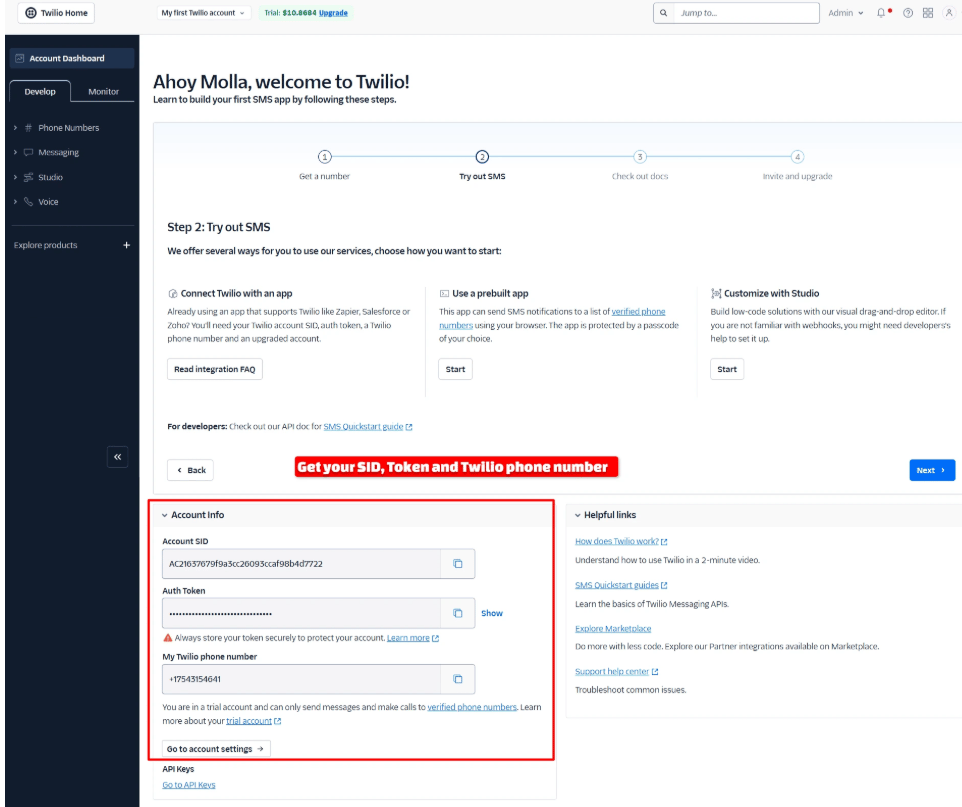 Click **Show** next to Auth Token to reveal it, and use the small copy icon next to each field so
you don't mistype a character.
## Step 4: Add the SMS profile in ChatSyncs
Now switch over to ChatSyncs. From [SMS Integration](/learn/chatsyncs-integrations/sms/introduction), click **New** to
open the **SMS API** form, and pick **Twilio** from the provider list on the right.
Click **Show** next to Auth Token to reveal it, and use the small copy icon next to each field so
you don't mistype a character.
## Step 4: Add the SMS profile in ChatSyncs
Now switch over to ChatSyncs. From [SMS Integration](/learn/chatsyncs-integrations/sms/introduction), click **New** to
open the **SMS API** form, and pick **Twilio** from the provider list on the right.
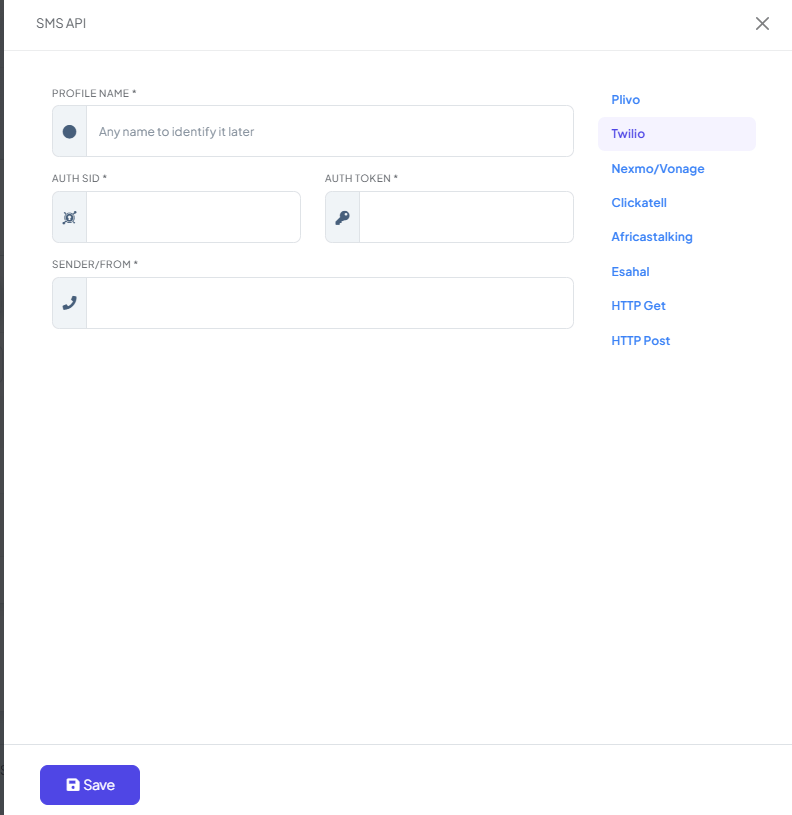 Fill in the three fields using the values you copied from Twilio in Step 3:
| Field in ChatSyncs | What to paste in |
| ------------------ | ----------------------------------------------------------- |
| **Profile Name** | Any label that helps you recognize it later, e.g. "Twilio". |
| **Auth SID** | Your Twilio **Account SID**. |
| **Auth Token** | Your Twilio **Auth Token**. |
| **Sender/From** | Your **Twilio Phone Number**. |
Fill in the three fields using the values you copied from Twilio in Step 3:
| Field in ChatSyncs | What to paste in |
| ------------------ | ----------------------------------------------------------- |
| **Profile Name** | Any label that helps you recognize it later, e.g. "Twilio". |
| **Auth SID** | Your Twilio **Account SID**. |
| **Auth Token** | Your Twilio **Auth Token**. |
| **Sender/From** | Your **Twilio Phone Number**. |
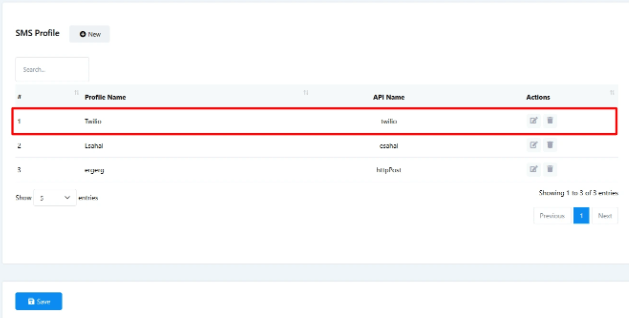
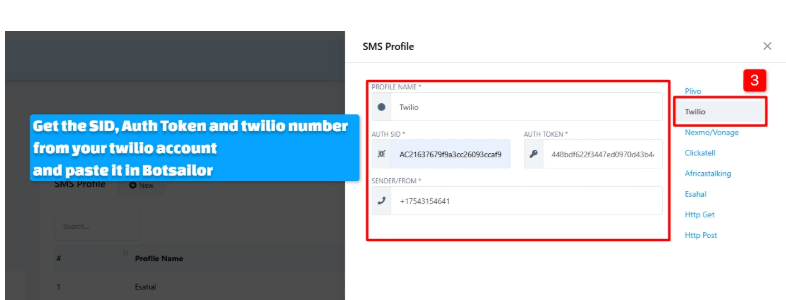 Click **Save**. The new profile now shows up in your SMS Profile list, ready to pick whenever you
send SMS through a broadcast or automation.
Click **Save**. The new profile now shows up in your SMS Profile list, ready to pick whenever you
send SMS through a broadcast or automation.
 ## Frequently asked
Create a Twilio account, verify your phone number, then copy the Account SID, Auth Token, and
Twilio Phone Number from your Twilio Dashboard into a new **Twilio** profile under [SMS
Integration](/learn/chatsyncs-integrations/sms/introduction).
In the Twilio Dashboard's **Account Info** section, right after you finish registration and
phone verification.
The **Twilio Phone Number** you enter as **Sender/From** when adding the profile.
## Related Documentation
* [SMS Integration](/learn/chatsyncs-integrations/sms/introduction) — connecting any SMS gateway and what it's used for.
## Frequently asked
Create a Twilio account, verify your phone number, then copy the Account SID, Auth Token, and
Twilio Phone Number from your Twilio Dashboard into a new **Twilio** profile under [SMS
Integration](/learn/chatsyncs-integrations/sms/introduction).
In the Twilio Dashboard's **Account Info** section, right after you finish registration and
phone verification.
The **Twilio Phone Number** you enter as **Sender/From** when adding the profile.
## Related Documentation
* [SMS Integration](/learn/chatsyncs-integrations/sms/introduction) — connecting any SMS gateway and what it's used for.