> ## Documentation Index
> Fetch the complete documentation index at: https://docs.chatsyncs.com/llms.txt
> Use this file to discover all available pages before exploring further.
# How Do I Connect Mailgun for Sending Email with ChatSyncs?
> Worked example of adding Mailgun as an SMTP email provider in Email Integration — where to find your Mailgun SMTP Login, Password, Host, and Port, and how to enter them into the Add Email Provider form. Use when a customer wants their own verified sending domain instead of a shared inbox provider.
[Email Integration](/learn/chatsyncs-integrations/email/introduction) lists **Mailgun** as one of the providers you can
connect. Mailgun connects the same way as any [SMTP provider](/learn/chatsyncs-integrations/email/connect-an-smtp-email-provider-with-chatsyncs) —
this page is a worked example using Mailgun's own values.
You need a **verified Mailgun account with a verified sending domain** before you start — Mailgun
won't hand out working SMTP credentials for an unverified domain.
## Step 1: Get your Mailgun SMTP credentials
In your Mailgun dashboard, go to **Sending → Domains**, choose your verified domain, then open
**SMTP credentials**.
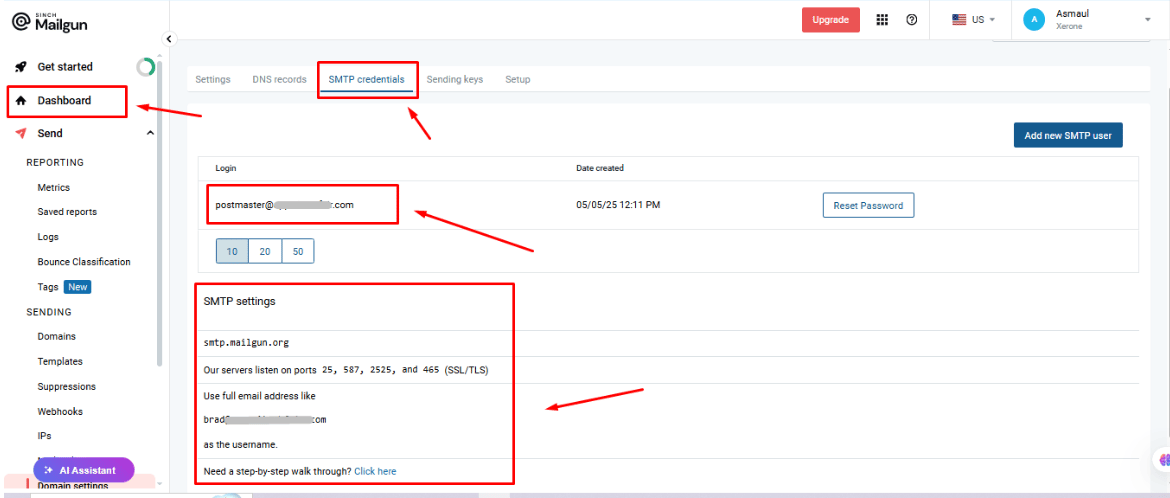 Copy these values:
| Value | Where it comes from |
| ----------------- | --------------------------------------------------------------------------------------------------- |
| **SMTP Login** | Usually `postmaster@yourdomain.com`. |
| **SMTP Password** | Generated when the domain was created — regenerate it under **SMTP credentials** if you've lost it. |
| **SMTP Host** | `smtp.mailgun.org`. |
| **SMTP Port** | **587** (TLS) or **465** (SSL). |
## Step 2: Add Mailgun as an email provider
From [Email Integration](/learn/chatsyncs-integrations/email/introduction), click **New**, set **Provider Type** to
**SMTP**, and fill in the form with your Mailgun values:
Copy these values:
| Value | Where it comes from |
| ----------------- | --------------------------------------------------------------------------------------------------- |
| **SMTP Login** | Usually `postmaster@yourdomain.com`. |
| **SMTP Password** | Generated when the domain was created — regenerate it under **SMTP credentials** if you've lost it. |
| **SMTP Host** | `smtp.mailgun.org`. |
| **SMTP Port** | **587** (TLS) or **465** (SSL). |
## Step 2: Add Mailgun as an email provider
From [Email Integration](/learn/chatsyncs-integrations/email/introduction), click **New**, set **Provider Type** to
**SMTP**, and fill in the form with your Mailgun values:
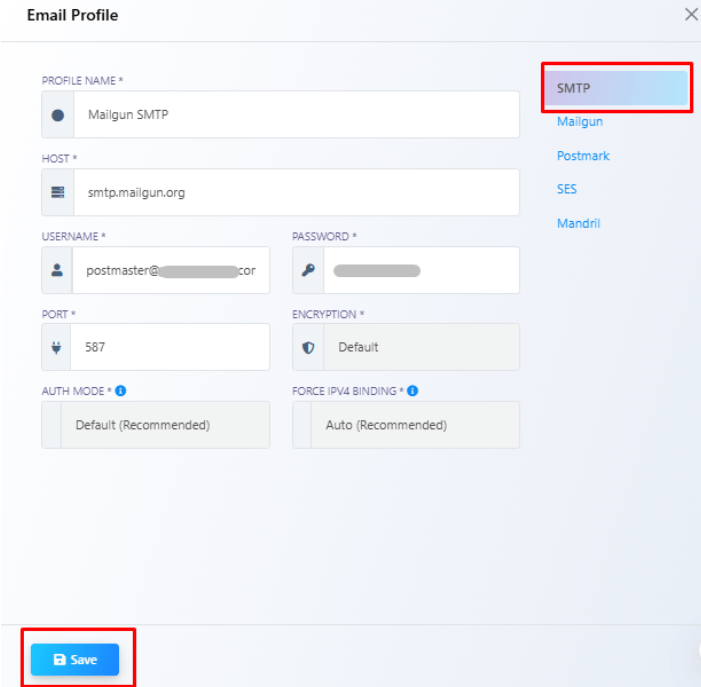 | Field | Value |
| ----------------- | ------------------------------------------------- |
| **Sender Name** | Your business or brand name. |
| **Sender Email** | Your Mailgun `postmaster@yourdomain.com` address. |
| **SMTP Host** | `smtp.mailgun.org` |
| **SMTP Port** | 587 (TLS) or 465 (SSL) |
| **SMTP Username** | Your Mailgun SMTP Login |
| **SMTP Password** | The SMTP password you copied |
| **Use SSL/TLS** | Enable, matching the port you chose |
Click **Save** — the profile is now available anywhere Email Integration is used, e.g. the
[Email tab in Bot Settings](/learn/chatsyncs-bot-settings/send-an-automatic-email-from-my-bot-with-chatsyncs).
## Frequently asked
Get your SMTP Login, Password, Host, and Port from Mailgun's **SMTP credentials** tab, then
add them as a new **SMTP** profile in [Email Integration](/learn/chatsyncs-integrations/email/introduction) — see
the steps above.
No — Mailgun only issues working SMTP credentials for a verified sending domain. Verify your
domain in Mailgun first (add the DNS records Mailgun gives you), then come back for the SMTP
credentials.
Regenerate it from the **SMTP credentials** tab in your Mailgun dashboard, then update the
Password field on the matching profile in Email Integration and Save again.
## Related Documentation
* [Email Integration](/learn/chatsyncs-integrations/email/introduction) — connecting any email provider and what it's
used for.
* [How Do I Connect an SMTP Email Provider?](/learn/chatsyncs-integrations/email/connect-an-smtp-email-provider-with-chatsyncs) — the generic
field-by-field SMTP walkthrough (Zoho example).
* [How Do I Send an Automatic Email from My Bot?](/learn/chatsyncs-bot-settings/send-an-automatic-email-from-my-bot-with-chatsyncs) — using a connected
profile inside a bot.
| Field | Value |
| ----------------- | ------------------------------------------------- |
| **Sender Name** | Your business or brand name. |
| **Sender Email** | Your Mailgun `postmaster@yourdomain.com` address. |
| **SMTP Host** | `smtp.mailgun.org` |
| **SMTP Port** | 587 (TLS) or 465 (SSL) |
| **SMTP Username** | Your Mailgun SMTP Login |
| **SMTP Password** | The SMTP password you copied |
| **Use SSL/TLS** | Enable, matching the port you chose |
Click **Save** — the profile is now available anywhere Email Integration is used, e.g. the
[Email tab in Bot Settings](/learn/chatsyncs-bot-settings/send-an-automatic-email-from-my-bot-with-chatsyncs).
## Frequently asked
Get your SMTP Login, Password, Host, and Port from Mailgun's **SMTP credentials** tab, then
add them as a new **SMTP** profile in [Email Integration](/learn/chatsyncs-integrations/email/introduction) — see
the steps above.
No — Mailgun only issues working SMTP credentials for a verified sending domain. Verify your
domain in Mailgun first (add the DNS records Mailgun gives you), then come back for the SMTP
credentials.
Regenerate it from the **SMTP credentials** tab in your Mailgun dashboard, then update the
Password field on the matching profile in Email Integration and Save again.
## Related Documentation
* [Email Integration](/learn/chatsyncs-integrations/email/introduction) — connecting any email provider and what it's
used for.
* [How Do I Connect an SMTP Email Provider?](/learn/chatsyncs-integrations/email/connect-an-smtp-email-provider-with-chatsyncs) — the generic
field-by-field SMTP walkthrough (Zoho example).
* [How Do I Send an Automatic Email from My Bot?](/learn/chatsyncs-bot-settings/send-an-automatic-email-from-my-bot-with-chatsyncs) — using a connected
profile inside a bot.