> ## Documentation Index
> Fetch the complete documentation index at: https://docs.chatsyncs.com/llms.txt
> Use this file to discover all available pages before exploring further.
# How Do I Connect an SMTP Email Provider with ChatSyncs?
> Field-by-field walkthrough of the Add Email Provider form for an SMTP profile — Provider Type, Sender Name, Sender Email, SMTP Host, Port, Username, Password, and SSL/TLS — with a worked example using Zoho Mail. Use when a customer has picked SMTP in Email Integration and needs help filling in the exact values.
[Email Integration](/learn/chatsyncs-integrations/email/introduction) lists **SMTP** as one of the providers you can
connect. This page walks through the **Add Email Provider** form field by field for an SMTP
profile, using **Zoho Mail** as a worked example — the same fields apply to any generic SMTP
server, just with values from your own provider instead.
This assumes you're already on the **Add Email Provider** form with **Provider Type** set to
**SMTP** — see [Email Integration](/learn/chatsyncs-integrations/email/introduction) for how to get there.
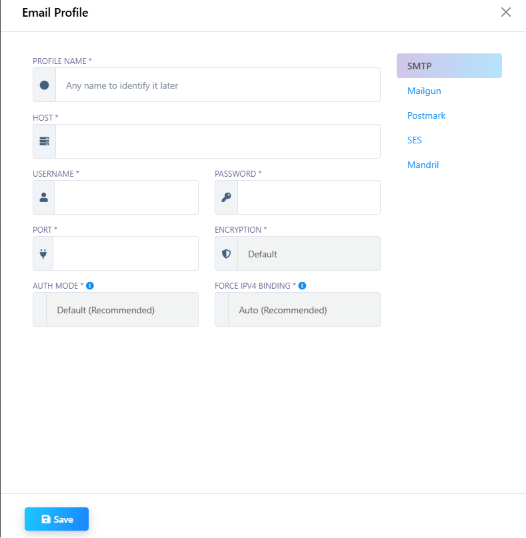 ## The SMTP fields
Your email provider (Zoho, in this example, or any other SMTP service) publishes these values in
its own mail settings — you're copying them across, not inventing them.
| Field | What to enter |
| ----------------- | ------------------------------------------------------------------------------------------------------------------------------------------------ |
| **Provider Type** | Select **SMTP**. |
| **Sender Name** | The name that appears in the recipient's inbox, e.g. "Your Brand". |
| **Sender Email** | The email address you want to send from. |
| **SMTP Host** | Provided by your email service, e.g. `smtp.yourdomain.com`. |
| **SMTP Port** | Usually **465** (SSL) or **587** (TLS). |
| **SMTP Username** | Often the same as your Sender Email. |
| **SMTP Password** | An app password or login password — for Zoho, generate an **app password** in Zoho Mail's settings rather than using your normal login password. |
| **Use SSL/TLS** | Enable if your provider requires encryption (most do). |
From [Email Integration](/learn/chatsyncs-integrations/email/introduction), click **New** and pick **SMTP** as the
Provider Type.
Log into your email provider's settings (Zoho Mail, in this example) and copy its SMTP Host,
Port, and Username. If the provider requires an app password (Zoho does), generate one there
first — don't reuse your normal mailbox password.
Enter the Sender Name, Sender Email, SMTP Host, SMTP Port, SMTP Username, and SMTP Password,
then enable **Use SSL/TLS** if your provider requires encryption.
The profile is now available to select anywhere Email Integration is used, e.g. the
[Email tab in Bot Settings](/learn/chatsyncs-bot-settings/send-an-automatic-email-from-my-bot-with-chatsyncs).
## Frequently asked
Go to [Email Integration](/learn/chatsyncs-integrations/email/introduction), click **New**, and set **Provider
Type** to **SMTP**. Fill in Sender Name, Sender Email, SMTP Host, Port, Username, Password,
and enable SSL/TLS if your provider requires it, then click **Save** — see the field table
above for where each value comes from.
Yes — the same form works for any SMTP provider. Zoho is just the worked example here; swap
in the Host, Port, Username, and Password that Gmail, Outlook, or your hosting provider
publishes for SMTP access.
In your email provider's own settings — most providers (Zoho, Gmail Workspace, Outlook, a
hosting company's mail service) publish an SMTP Host, Port, and whether SSL or TLS is
required on a dedicated "SMTP settings" or "Mail client settings" page.
Only if your provider allows it. Many providers, including Zoho, require you to generate a
separate **app password** for SMTP access instead of your regular login password.
**465** if your provider uses SSL, or **587** if it uses TLS — check which one your provider
documents, since using the wrong port is a common reason the connection fails silently.
A mismatched **SMTP Port** and **Use SSL/TLS** setting is the most common reason an SMTP profile
saves successfully but emails never actually send — confirm both against what your provider
documents.
## Related Documentation
* [Email Integration](/learn/chatsyncs-integrations/email/introduction) — connecting any email provider (SMTP, Mailgun,
Postmark, SES, Mandrill) and what it's used for.
* [How Do I Send an Automatic Email from My Bot?](/learn/chatsyncs-bot-settings/send-an-automatic-email-from-my-bot-with-chatsyncs) — using a connected
Email Integration profile inside a bot.
## The SMTP fields
Your email provider (Zoho, in this example, or any other SMTP service) publishes these values in
its own mail settings — you're copying them across, not inventing them.
| Field | What to enter |
| ----------------- | ------------------------------------------------------------------------------------------------------------------------------------------------ |
| **Provider Type** | Select **SMTP**. |
| **Sender Name** | The name that appears in the recipient's inbox, e.g. "Your Brand". |
| **Sender Email** | The email address you want to send from. |
| **SMTP Host** | Provided by your email service, e.g. `smtp.yourdomain.com`. |
| **SMTP Port** | Usually **465** (SSL) or **587** (TLS). |
| **SMTP Username** | Often the same as your Sender Email. |
| **SMTP Password** | An app password or login password — for Zoho, generate an **app password** in Zoho Mail's settings rather than using your normal login password. |
| **Use SSL/TLS** | Enable if your provider requires encryption (most do). |
From [Email Integration](/learn/chatsyncs-integrations/email/introduction), click **New** and pick **SMTP** as the
Provider Type.
Log into your email provider's settings (Zoho Mail, in this example) and copy its SMTP Host,
Port, and Username. If the provider requires an app password (Zoho does), generate one there
first — don't reuse your normal mailbox password.
Enter the Sender Name, Sender Email, SMTP Host, SMTP Port, SMTP Username, and SMTP Password,
then enable **Use SSL/TLS** if your provider requires encryption.
The profile is now available to select anywhere Email Integration is used, e.g. the
[Email tab in Bot Settings](/learn/chatsyncs-bot-settings/send-an-automatic-email-from-my-bot-with-chatsyncs).
## Frequently asked
Go to [Email Integration](/learn/chatsyncs-integrations/email/introduction), click **New**, and set **Provider
Type** to **SMTP**. Fill in Sender Name, Sender Email, SMTP Host, Port, Username, Password,
and enable SSL/TLS if your provider requires it, then click **Save** — see the field table
above for where each value comes from.
Yes — the same form works for any SMTP provider. Zoho is just the worked example here; swap
in the Host, Port, Username, and Password that Gmail, Outlook, or your hosting provider
publishes for SMTP access.
In your email provider's own settings — most providers (Zoho, Gmail Workspace, Outlook, a
hosting company's mail service) publish an SMTP Host, Port, and whether SSL or TLS is
required on a dedicated "SMTP settings" or "Mail client settings" page.
Only if your provider allows it. Many providers, including Zoho, require you to generate a
separate **app password** for SMTP access instead of your regular login password.
**465** if your provider uses SSL, or **587** if it uses TLS — check which one your provider
documents, since using the wrong port is a common reason the connection fails silently.
A mismatched **SMTP Port** and **Use SSL/TLS** setting is the most common reason an SMTP profile
saves successfully but emails never actually send — confirm both against what your provider
documents.
## Related Documentation
* [Email Integration](/learn/chatsyncs-integrations/email/introduction) — connecting any email provider (SMTP, Mailgun,
Postmark, SES, Mandrill) and what it's used for.
* [How Do I Send an Automatic Email from My Bot?](/learn/chatsyncs-bot-settings/send-an-automatic-email-from-my-bot-with-chatsyncs) — using a connected
Email Integration profile inside a bot.