> ## Documentation Index
> Fetch the complete documentation index at: https://docs.chatsyncs.com/llms.txt
> Use this file to discover all available pages before exploring further.
# How Do I Connect Brevo for Auto Responder with ChatSyncs?
> Worked example of connecting Brevo (formerly Sendinblue) as an Auto Responder Integration provider — generating an API key and adding it as a Brevo profile. Use when a customer wants WhatsApp subscribers automatically synced into a Brevo email list.
[Auto Responder Integration](/learn/chatsyncs-integrations/auto-responder/introduction) lists **Brevo** as one of the
email marketing platforms you can connect. This page is a worked example: generating a Brevo
API key and adding it as a profile.
## Step 1: Get your Brevo API key
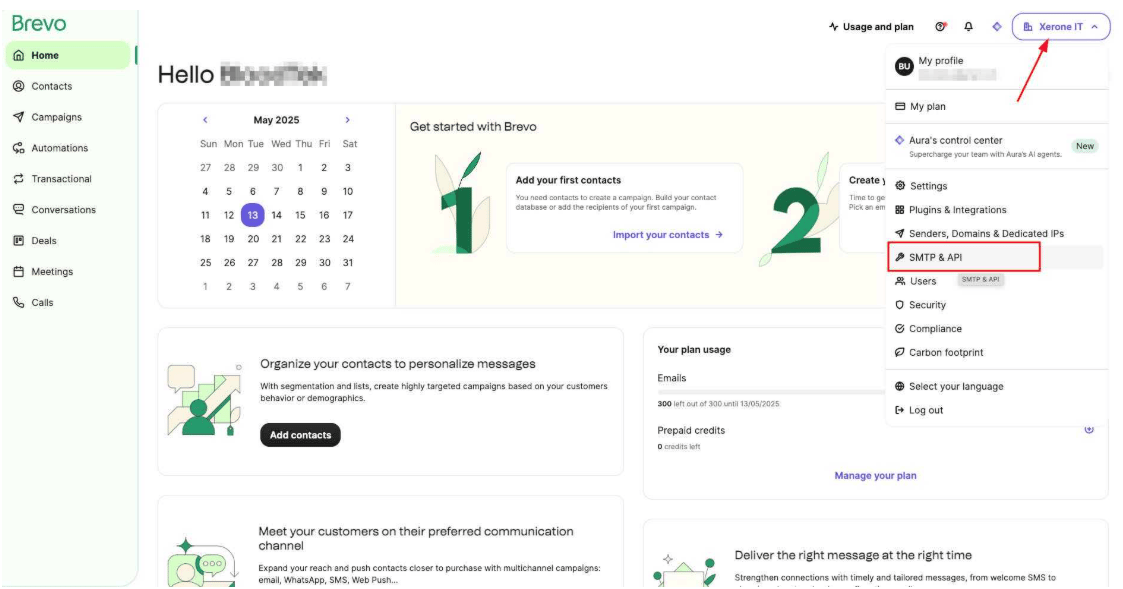
Log into Brevo and click your organization name in the top-right corner, then select **SMTP &
API** from the menu that opens.
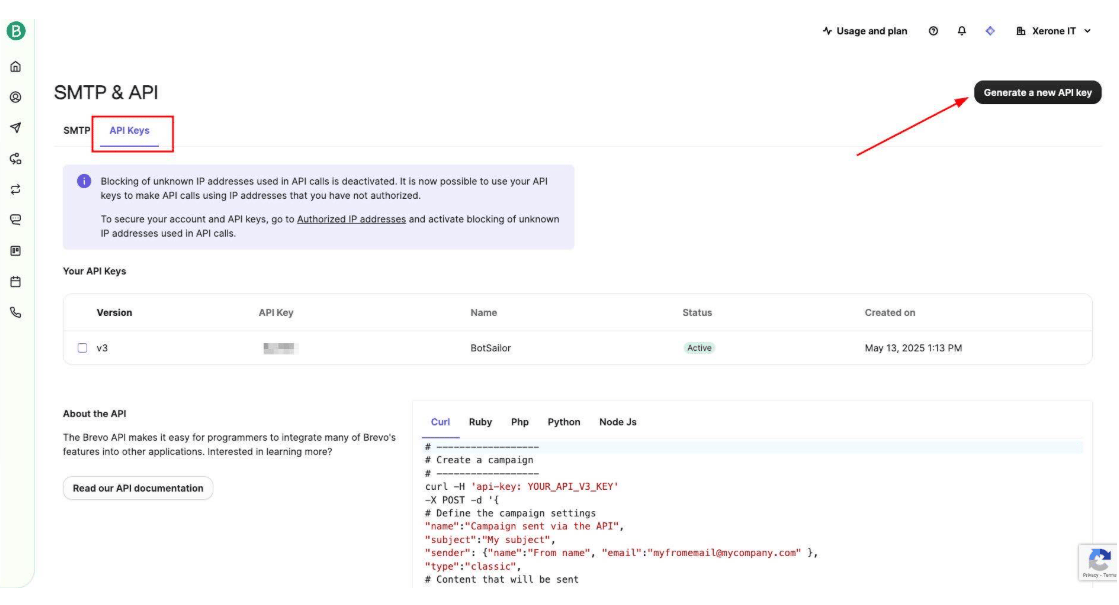
 You'll land on the **SMTP & API** page. Switch to the **API Keys** tab and click **Generate a
new API key** in the top-right corner.
You'll land on the **SMTP & API** page. Switch to the **API Keys** tab and click **Generate a
new API key** in the top-right corner.
 Give the new key a name you'll recognize later and click **Generate**.
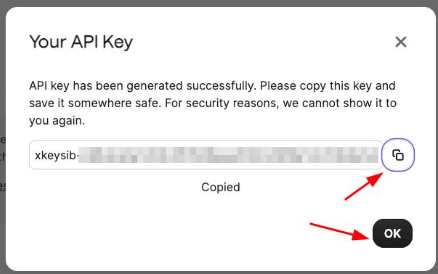 Copy the key immediately and store it somewhere safe — Brevo shows it to you exactly once and
won't display it again.
## Step 2: Add the Brevo profile in ChatSyncs
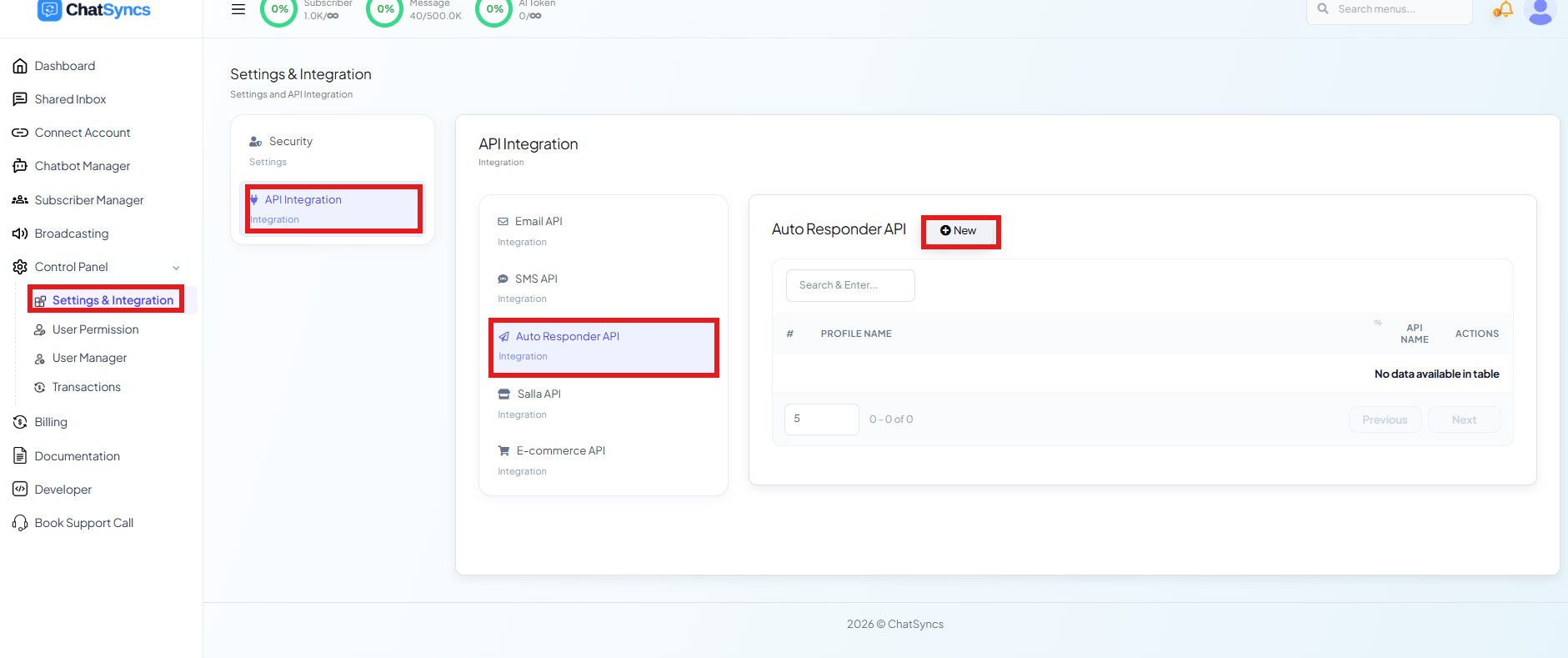
Switch to ChatSyncs. From [Auto Responder Integration](/learn/chatsyncs-integrations/auto-responder/introduction), click
**New** to open the **Auto Responder API** form.
Copy the key immediately and store it somewhere safe — Brevo shows it to you exactly once and
won't display it again.
## Step 2: Add the Brevo profile in ChatSyncs
Switch to ChatSyncs. From [Auto Responder Integration](/learn/chatsyncs-integrations/auto-responder/introduction), click
**New** to open the **Auto Responder API** form.
 Select **Brevo** from the provider list, paste in the API key you copied in Step 1, and give the
profile a recognizable **Profile Name**.
Select **Brevo** from the provider list, paste in the API key you copied in Step 1, and give the
profile a recognizable **Profile Name**.
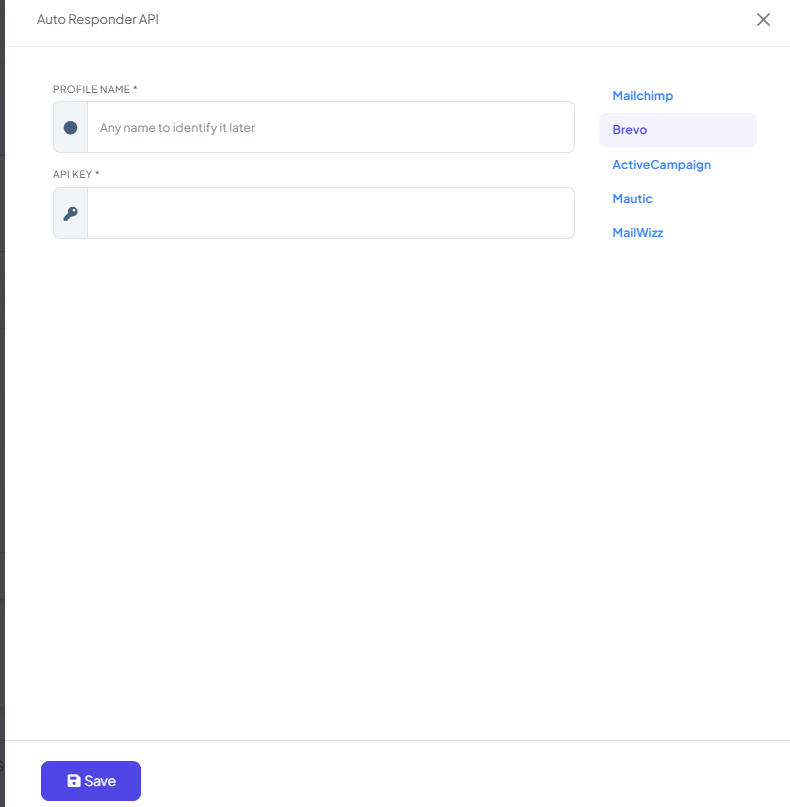 Click **Save** — new subscribers now sync to your Brevo list automatically, based on the
automation rules you define.
## Frequently asked
Generate an API key in Brevo under **SMTP & API → API Keys**, then add it as a new **Brevo**
profile under [Auto Responder Integration](/learn/chatsyncs-integrations/auto-responder/introduction).
ChatSyncs starts sending new subscribers to your Brevo list automatically — see [Auto
Responder Integration](/learn/chatsyncs-integrations/auto-responder/introduction) for how the customer's email gets
collected and handed off in a bot flow.
Yes — create multiple profiles with different API keys if you need to route subscribers to
different Brevo accounts or purposes.
## Related Documentation
* [Auto Responder Integration](/learn/chatsyncs-integrations/auto-responder/introduction) — connecting any email
marketing platform and what it's used for.
Click **Save** — new subscribers now sync to your Brevo list automatically, based on the
automation rules you define.
## Frequently asked
Generate an API key in Brevo under **SMTP & API → API Keys**, then add it as a new **Brevo**
profile under [Auto Responder Integration](/learn/chatsyncs-integrations/auto-responder/introduction).
ChatSyncs starts sending new subscribers to your Brevo list automatically — see [Auto
Responder Integration](/learn/chatsyncs-integrations/auto-responder/introduction) for how the customer's email gets
collected and handed off in a bot flow.
Yes — create multiple profiles with different API keys if you need to route subscribers to
different Brevo accounts or purposes.
## Related Documentation
* [Auto Responder Integration](/learn/chatsyncs-integrations/auto-responder/introduction) — connecting any email
marketing platform and what it's used for.