> ## Documentation Index
> Fetch the complete documentation index at: https://docs.chatsyncs.com/llms.txt
> Use this file to discover all available pages before exploring further.
# How Do I Set Up Business Hours for My Bot with ChatSyncs?
> The Business Hour tab in Bot Settings — timezone, off days, a weekly schedule, and controls for how the bot behaves inside versus outside business hours.
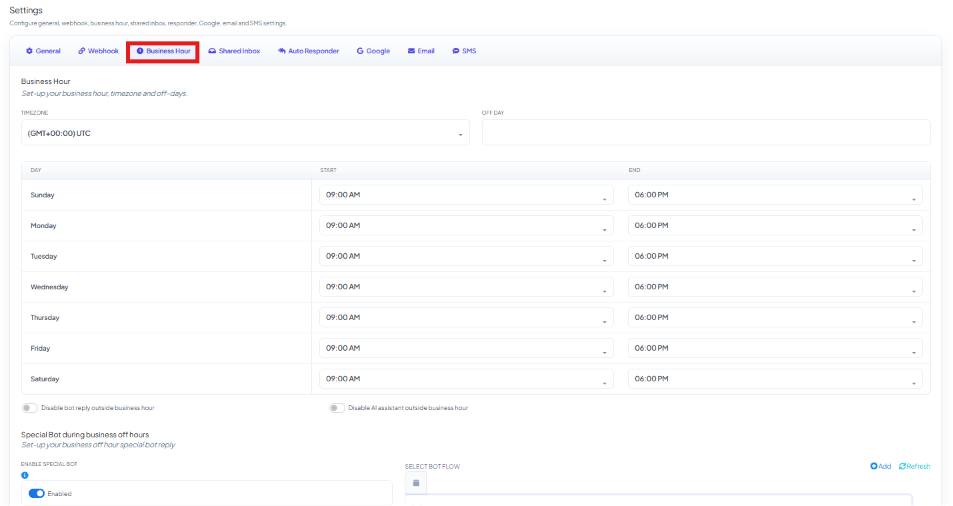
The **Business Hour** tab in ChatSyncs' [Bot Settings](/learn/chatsyncs-bot-settings/introduction) sets up
your business hours, timezone, and off days, and controls how the bot behaves inside versus
outside those hours.
 ## Timezone and Off Day
 **Timezone** — select the timezone your business operates in; all business-hours checks follow
this timezone.
**Example**
```text theme={null}
(GMT+05:30) Asia/Kolkata
```
If your business hours are 9:00 AM–6:00 PM, the bot checks open/closed status against this
timezone.
Always select the timezone where your support team is located, not the customer's.
**Off Day** — a multi-select field; pick every day your business is fully closed, not just one.
**Example** — with **Sunday** and **Saturday** both selected as Off Days, customers who message
on either day are treated as contacting you during non-business hours, regardless of the time.
## Business Hours Schedule
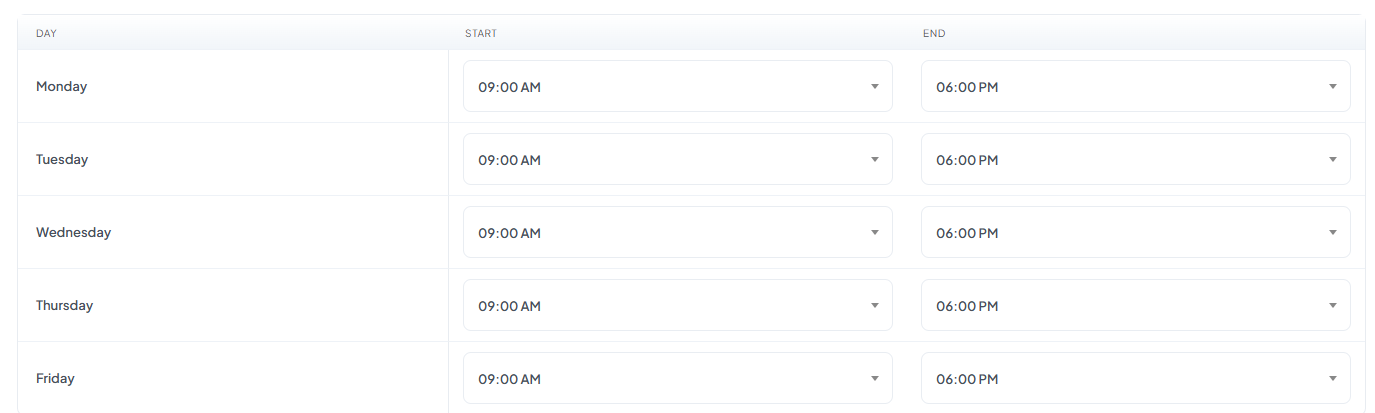
Set the working hours for each day of the week.
**Timezone** — select the timezone your business operates in; all business-hours checks follow
this timezone.
**Example**
```text theme={null}
(GMT+05:30) Asia/Kolkata
```
If your business hours are 9:00 AM–6:00 PM, the bot checks open/closed status against this
timezone.
Always select the timezone where your support team is located, not the customer's.
**Off Day** — a multi-select field; pick every day your business is fully closed, not just one.
**Example** — with **Sunday** and **Saturday** both selected as Off Days, customers who message
on either day are treated as contacting you during non-business hours, regardless of the time.
## Business Hours Schedule
Set the working hours for each day of the week.
 **Example**
| Day | Start | End |
| --------- | -------- | -------- |
| Monday | 09:00 AM | 06:00 PM |
| Tuesday | 09:00 AM | 06:00 PM |
| Wednesday | 09:00 AM | 06:00 PM |
| Thursday | 09:00 AM | 06:00 PM |
| Friday | 09:00 AM | 06:00 PM |
| Saturday | Off Day | |
| Sunday | Off Day | |
If a customer sends a message at:
* **11:00 AM (Monday)** → business is open.
* **08:30 PM (Monday)** → business is closed.
* **Saturday or Sunday, any time** → business is closed (Off Day).
## Disable bot reply outside business hour / Disable AI assistant outside business hour
**Example**
| Day | Start | End |
| --------- | -------- | -------- |
| Monday | 09:00 AM | 06:00 PM |
| Tuesday | 09:00 AM | 06:00 PM |
| Wednesday | 09:00 AM | 06:00 PM |
| Thursday | 09:00 AM | 06:00 PM |
| Friday | 09:00 AM | 06:00 PM |
| Saturday | Off Day | |
| Sunday | Off Day | |
If a customer sends a message at:
* **11:00 AM (Monday)** → business is open.
* **08:30 PM (Monday)** → business is closed.
* **Saturday or Sunday, any time** → business is closed (Off Day).
## Disable bot reply outside business hour / Disable AI assistant outside business hour
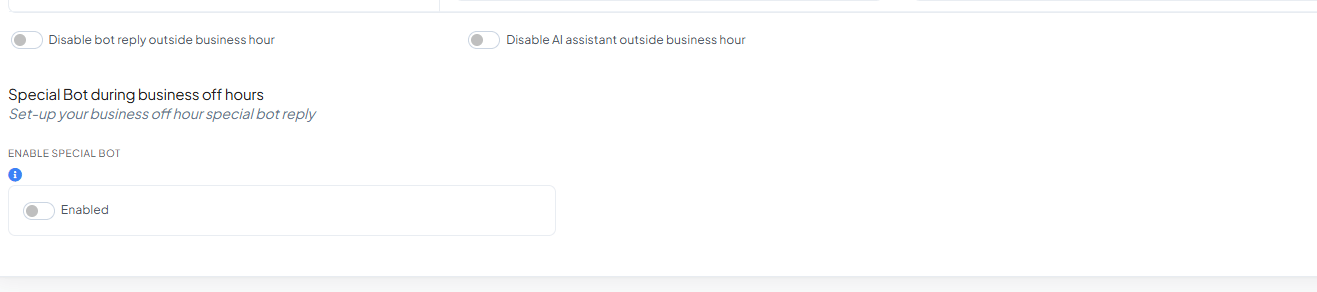 These two toggles control what happens **outside** business hours (not during them):
* **Disable bot reply outside business hour** — turn this on to stop the automated bot (Keyword
Replies flows) from replying once your business hours end, leaving it to a human agent or the
Special Bot below instead.
* **Disable AI assistant outside business hour** — turn this on to stop the AI Agent from
replying once your business hours end.
Both are off by default, meaning the bot and AI keep replying around the clock unless you turn these on.
## Special Bot During Business Off Hours
Turn on **Enable Special Bot** to run a specific bot flow for customers who message outside
business hours, instead of your normal flows.
These two toggles control what happens **outside** business hours (not during them):
* **Disable bot reply outside business hour** — turn this on to stop the automated bot (Keyword
Replies flows) from replying once your business hours end, leaving it to a human agent or the
Special Bot below instead.
* **Disable AI assistant outside business hour** — turn this on to stop the AI Agent from
replying once your business hours end.
Both are off by default, meaning the bot and AI keep replying around the clock unless you turn these on.
## Special Bot During Business Off Hours
Turn on **Enable Special Bot** to run a specific bot flow for customers who message outside
business hours, instead of your normal flows.
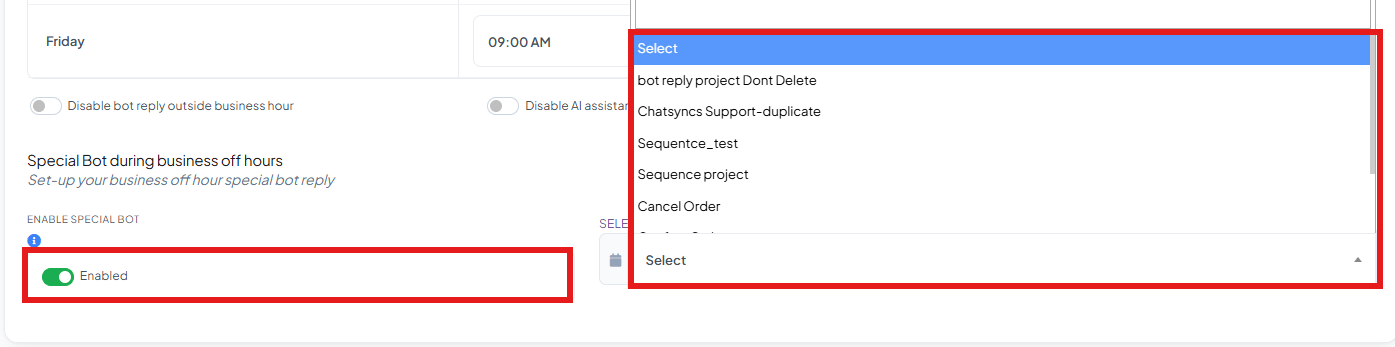 Once enabled, a **Select** dropdown appears listing your existing Keyword Replies flows — see
[How to Create a Keyword-Based WhatsApp Chatbot](/learn/chatsyncs-automation/create-a-keyword-based-whatsapp-chatbot-in-chatsyncs) —
pick the one that should run for
off-hours messages. Build that flow like any other, e.g. with a **Text** step explaining you're
closed:
```text theme={null}
👋 Thank you for contacting ABC Store.
Our business hours are:
Monday – Friday
09:00 AM – 06:00 PM
We are currently offline. We will respond as soon as we reopen.
```
Use this to tell customers your business is closed and set clear expectations for when you'll respond — or route them into a different flow entirely (e.g. one that only collects their details for a callback).
## Business Hour settings summary
| Setting | Purpose |
| ---------------------------------------------- | ------------------------------------------------------------------------ |
| **Timezone** | Sets the timezone used for business-hours checks. |
| **Off Day** | Multi-select — defines every day your business is fully closed. |
| **Business Hours Schedule** | Sets the working hours for each day of the week. |
| **Disable bot reply outside business hour** | Stops automatic bot replies once business hours end. |
| **Disable AI assistant outside business hour** | Stops AI Agent replies once business hours end. |
| **Enable Special Bot** | Runs a chosen bot flow for customers who message outside business hours. |
## Save your changes
Once enabled, a **Select** dropdown appears listing your existing Keyword Replies flows — see
[How to Create a Keyword-Based WhatsApp Chatbot](/learn/chatsyncs-automation/create-a-keyword-based-whatsapp-chatbot-in-chatsyncs) —
pick the one that should run for
off-hours messages. Build that flow like any other, e.g. with a **Text** step explaining you're
closed:
```text theme={null}
👋 Thank you for contacting ABC Store.
Our business hours are:
Monday – Friday
09:00 AM – 06:00 PM
We are currently offline. We will respond as soon as we reopen.
```
Use this to tell customers your business is closed and set clear expectations for when you'll respond — or route them into a different flow entirely (e.g. one that only collects their details for a callback).
## Business Hour settings summary
| Setting | Purpose |
| ---------------------------------------------- | ------------------------------------------------------------------------ |
| **Timezone** | Sets the timezone used for business-hours checks. |
| **Off Day** | Multi-select — defines every day your business is fully closed. |
| **Business Hours Schedule** | Sets the working hours for each day of the week. |
| **Disable bot reply outside business hour** | Stops automatic bot replies once business hours end. |
| **Disable AI assistant outside business hour** | Stops AI Agent replies once business hours end. |
| **Enable Special Bot** | Runs a chosen bot flow for customers who message outside business hours. |
## Save your changes
 Click **Publish Changes** in the top-right corner after editing any field on this tab — nothing
goes live until you do.
## Frequently asked
Set your hours, timezone, and off days above, then either turn on **Disable bot reply
outside business hour** to go fully silent, or enable **Special Bot** and pick a flow to run
instead — e.g. one that tells the customer your hours and that you'll respond once you
reopen.
**Disable bot reply outside business hour** stops the whole automated Keyword Replies bot
once hours end. **Disable AI assistant outside business hour** only stops the AI Agent
specifically — your configured bot flows can still run.
No — both only apply **outside** business hours. During business hours, the bot and AI Agent
keep replying normally unless you've turned them off elsewhere (e.g. in [How Do I Configure
General Bot Behavior?](/learn/chatsyncs-bot-settings/configure-general-bot-behavior-with-chatsyncs)).
Yes — **Off Day** is a multi-select field, so you can pick several days (e.g. both Saturday
and Sunday) as fully closed.
It runs a full bot flow you pick from a dropdown of your existing Keyword Replies flows —
see [How to Create a Keyword-Based WhatsApp Chatbot](/learn/chatsyncs-automation/create-a-keyword-based-whatsapp-chatbot-in-chatsyncs)
— build that flow to send a text
reply, collect details, or do anything else a normal flow can do.
Yours (or your support team's) — business-hours checks compare the message time against the
timezone you select here, not each customer's local timezone.
## Related Documentation
* [Bot Settings](/learn/chatsyncs-bot-settings/introduction) — all eight tabs at a glance.
* [How Do I Configure General Bot Behavior?](/learn/chatsyncs-bot-settings/configure-general-bot-behavior-with-chatsyncs) — the always-on No
Match Reply, separate from off-hours behavior.
* [Templates to Restart Conversations After Non-Working Hours](/learn/chatsyncs-message-templates/templates-to-restart-conversations-after-non-working-hours-in-chatsyncs) —
re-engaging a customer who messaged outside business hours.
Click **Publish Changes** in the top-right corner after editing any field on this tab — nothing
goes live until you do.
## Frequently asked
Set your hours, timezone, and off days above, then either turn on **Disable bot reply
outside business hour** to go fully silent, or enable **Special Bot** and pick a flow to run
instead — e.g. one that tells the customer your hours and that you'll respond once you
reopen.
**Disable bot reply outside business hour** stops the whole automated Keyword Replies bot
once hours end. **Disable AI assistant outside business hour** only stops the AI Agent
specifically — your configured bot flows can still run.
No — both only apply **outside** business hours. During business hours, the bot and AI Agent
keep replying normally unless you've turned them off elsewhere (e.g. in [How Do I Configure
General Bot Behavior?](/learn/chatsyncs-bot-settings/configure-general-bot-behavior-with-chatsyncs)).
Yes — **Off Day** is a multi-select field, so you can pick several days (e.g. both Saturday
and Sunday) as fully closed.
It runs a full bot flow you pick from a dropdown of your existing Keyword Replies flows —
see [How to Create a Keyword-Based WhatsApp Chatbot](/learn/chatsyncs-automation/create-a-keyword-based-whatsapp-chatbot-in-chatsyncs)
— build that flow to send a text
reply, collect details, or do anything else a normal flow can do.
Yours (or your support team's) — business-hours checks compare the message time against the
timezone you select here, not each customer's local timezone.
## Related Documentation
* [Bot Settings](/learn/chatsyncs-bot-settings/introduction) — all eight tabs at a glance.
* [How Do I Configure General Bot Behavior?](/learn/chatsyncs-bot-settings/configure-general-bot-behavior-with-chatsyncs) — the always-on No
Match Reply, separate from off-hours behavior.
* [Templates to Restart Conversations After Non-Working Hours](/learn/chatsyncs-message-templates/templates-to-restart-conversations-after-non-working-hours-in-chatsyncs) —
re-engaging a customer who messaged outside business hours.