> ## Documentation Index
> Fetch the complete documentation index at: https://docs.chatsyncs.com/llms.txt
> Use this file to discover all available pages before exploring further.
# How Do I Send an Automatic Email from My Bot with ChatSyncs?
> The Email tab in Bot Settings — automatically sends a custom email to a subscriber the moment they share their email address in a WhatsApp conversation.
The **Email** tab in ChatSyncs' [Bot Settings](/learn/chatsyncs-bot-settings/introduction) automatically
sends an email to subscribers who share their email address through this bot — a confirmation, a
welcome message, or any other immediate notification.
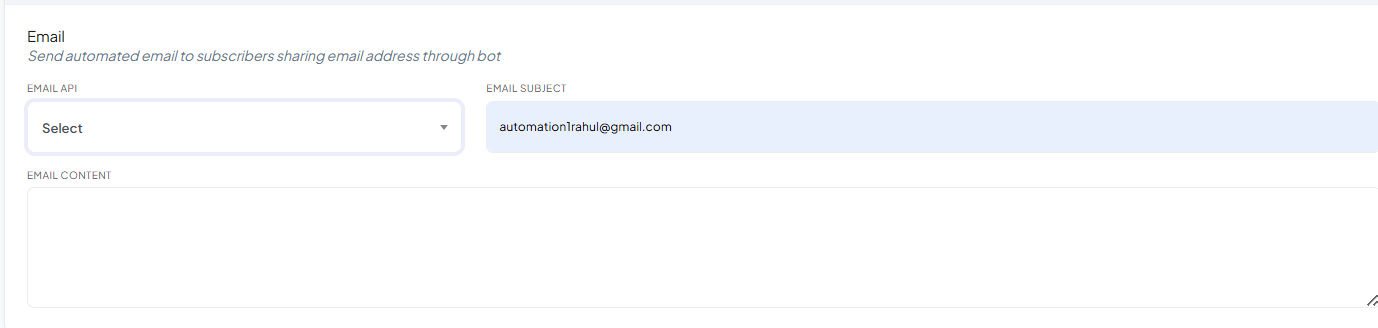 **Email API** is a dropdown listing the email profiles you've connected under [Email
Integration](/learn/chatsyncs-integrations/email/introduction) — connect one there first, then select it here and write
the Subject and Content this bot should send.
**Example**
Subject:
```text theme={null}
Welcome to ABC Store
```
Content:
```text theme={null}
Hello Rahul,
Thank you for subscribing.
We will keep you updated with our latest offers.
```
The customer receives this email automatically — **First name** / **Last name** variables
personalize it per subscriber.
## Save your changes
**Email API** is a dropdown listing the email profiles you've connected under [Email
Integration](/learn/chatsyncs-integrations/email/introduction) — connect one there first, then select it here and write
the Subject and Content this bot should send.
**Example**
Subject:
```text theme={null}
Welcome to ABC Store
```
Content:
```text theme={null}
Hello Rahul,
Thank you for subscribing.
We will keep you updated with our latest offers.
```
The customer receives this email automatically — **First name** / **Last name** variables
personalize it per subscriber.
## Save your changes
 Click **Publish Changes** in the top-right corner after editing any field on this tab — nothing
goes live until you do.
## Frequently asked
Yes — connect one (SMTP, Mailgun, Postmark, SES, or Mandrill) once under [Email
Integration](/learn/chatsyncs-integrations/email/introduction), then write the Subject and Content here.
This **Email** tab sends one specific email immediately, personalized with that
subscriber's details. [How Do I Automatically Add Subscribers to My Email Marketing
List?](/learn/chatsyncs-bot-settings/automatically-add-subscribers-to-my-email-marketing-list-with-chatsyncs) instead adds the
subscriber to an ongoing marketing-platform list (Mailchimp, Brevo, etc.) for future
campaigns.
Yes — use the **First name** / **Last name** variables in the Content field, and they're
filled in automatically for each recipient.
## Related Documentation
* [Bot Settings](/learn/chatsyncs-bot-settings/introduction) — all eight tabs at a glance.
* [Email Integration](/learn/chatsyncs-integrations/email/introduction) — connecting the email provider itself.
* [How Do I Automatically Add Subscribers to My Email Marketing
List?](/learn/chatsyncs-bot-settings/automatically-add-subscribers-to-my-email-marketing-list-with-chatsyncs) — for ongoing campaigns instead of a one-off email.
Click **Publish Changes** in the top-right corner after editing any field on this tab — nothing
goes live until you do.
## Frequently asked
Yes — connect one (SMTP, Mailgun, Postmark, SES, or Mandrill) once under [Email
Integration](/learn/chatsyncs-integrations/email/introduction), then write the Subject and Content here.
This **Email** tab sends one specific email immediately, personalized with that
subscriber's details. [How Do I Automatically Add Subscribers to My Email Marketing
List?](/learn/chatsyncs-bot-settings/automatically-add-subscribers-to-my-email-marketing-list-with-chatsyncs) instead adds the
subscriber to an ongoing marketing-platform list (Mailchimp, Brevo, etc.) for future
campaigns.
Yes — use the **First name** / **Last name** variables in the Content field, and they're
filled in automatically for each recipient.
## Related Documentation
* [Bot Settings](/learn/chatsyncs-bot-settings/introduction) — all eight tabs at a glance.
* [Email Integration](/learn/chatsyncs-integrations/email/introduction) — connecting the email provider itself.
* [How Do I Automatically Add Subscribers to My Email Marketing
List?](/learn/chatsyncs-bot-settings/automatically-add-subscribers-to-my-email-marketing-list-with-chatsyncs) — for ongoing campaigns instead of a one-off email.